

How to use Pandas DataFrame to manipulate tables quickly in Python

The Pandas DataFrame is a Python data structure that can be used to create and manipulate tables. We explain the structure of the data structure and its most important methods and properties.
How does Pandas DataFrame work?
Pandas DataFrames are the core of the Python Pandas library and enable efficient and flexible data analysis in Python. A Pandas DataFrame is a two-dimensional tabular data structure with numbered rows and labeled columns. This structure allows data to be organized in an easily understandable and manipulable form, similar to spreadsheet programs such as Excel or LibreOffice. Each column in a DataFrame can contain different Python data types, which means that a DataFrame can store heterogeneous data – for example numeric values, strings and booleans in a single table.
Pandas DataFrames are based on NumPy arrays, which enables efficient handling of data and calculation of values. However, Panda’s DataFrames differ from NumPy data structures in some respects, for example in their heterogeneity and their number of dimensions. For this reason, NumPy data structures are suitable for manipulating huge quantities of numerical values and Panda’s data structures are more suitable for general data manipulation.
Structure of Pandas DataFrames
A DataFrame has three main components: the data, row indices, and column names. The row index (or simply index) uniquely identifies each row. By default, rows are indexed with numeric values, but these can be replaced with strings. It’s important to note that Pandas DataFrames are zero-indexed, meaning indices start at 0.
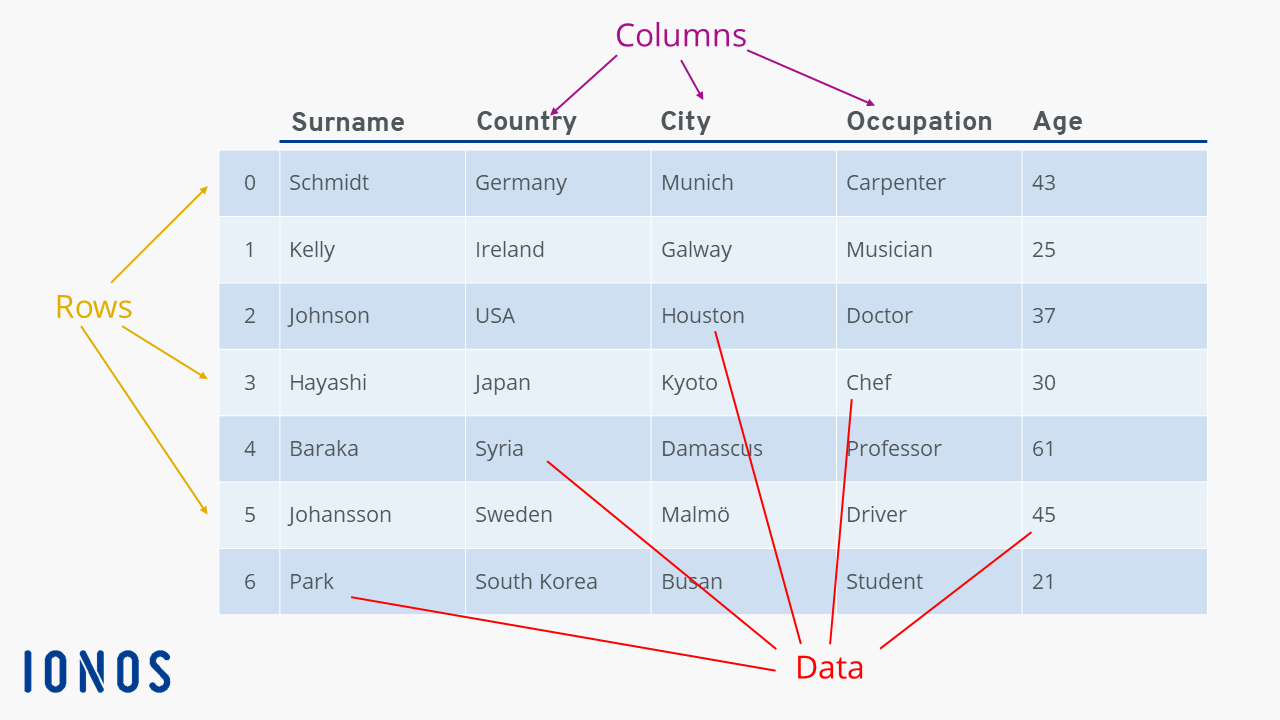
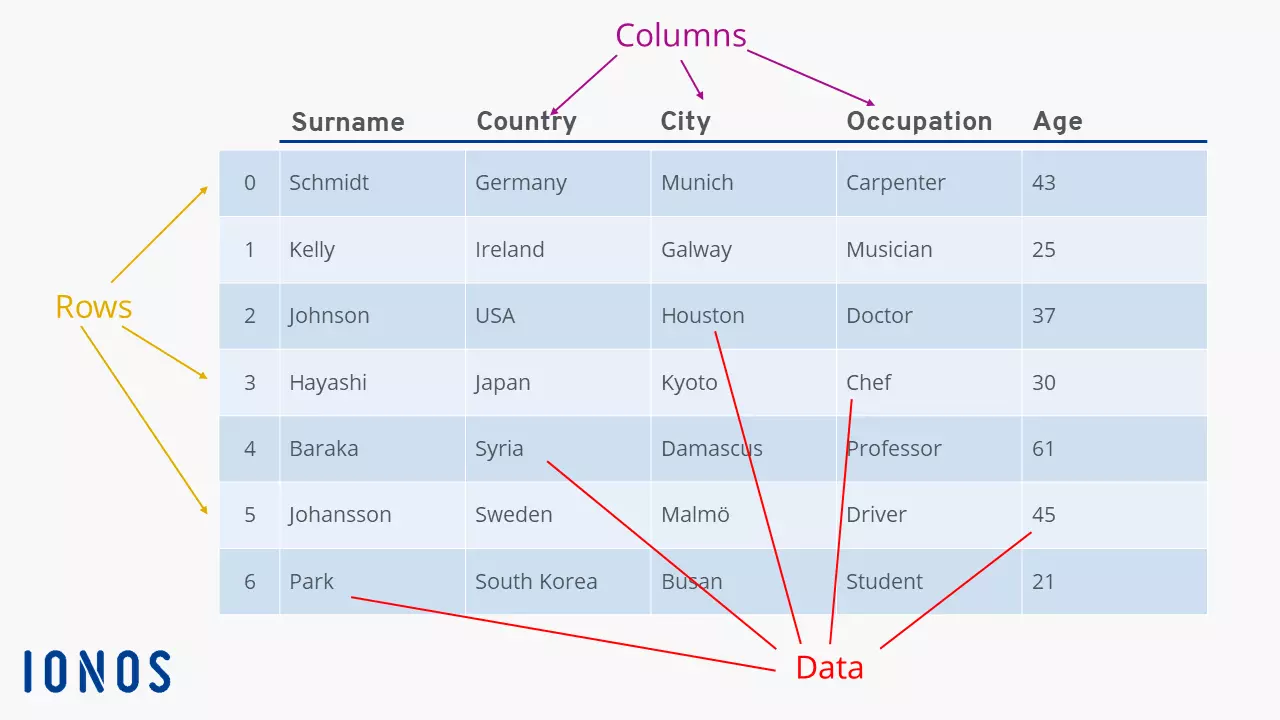
While Pandas DataFrames are among the most popular and useful Python data structures, they are not part of the base language and must be imported separately. This is done using the line import pandas or from pandas import DataFrame at the beginning of your file. Alternatively, you can use import pandas as pd if you want to reference the module with a shorter name (in this case “pd”).
Use of Pandas DataFrames
Pandas DataFrames provide various techniques and methods for efficient data processing, analysis, and visualization. Below, you’ll learn about key concepts and methods for data manipulation using Pandas DataFrames.
How to create a Pandas DataFrame
If you have already saved your desired data in a Python list or Python dictionary, you can easily create a DataFrame from it. Simply pass the existing data structure to the DataFrame constructor using pandas.DataFrame([data]). How Pandas interprets your data will depend on the structure you provide. For example, you can create a Pandas DataFrames from a Python list as follows:
import pandas
lists = ["Ahmed", "Beatrice", "Candice", "Donovan", "Elisabeth", "Frank"]
df = pandas.DataFrame(list)
print(df)
# Output:
#            0
# 0    		Ahmed
# 1    	 	Beatrice
# 2     	Candice
# 3    		Donovan
# 4    		Elisabeth
# 5 FrankAs you can see in the example above, with simple lists you can only create DataFrames with a single, unlabeled column. For this reason, it is recommended to create DataFrames from dictionaries that contain lists. The keys are interpreted as column names and the lists as the associated data. The following example serves to illustrate this:
import pandas
datA = {
    'Name': ['Arthur', 'Bruno', 'Christoph'],
    'Age': [34, 30, 55],
    'Income': [75000.0, 60000.5, 90000.3],
}
df = pandas.DataFrame(data)
print(df)
# Output:
#         Name  Age   Income
# 0     Arthur     34  75000.0
# 1      Bruno     30  60000.5
# 2 Christoph 55 90000.3- Stay online with 99.99% uptime and robust security
- Add performance with a click as traffic grows
- Includes free domain, SSL, email, and 24/7 support
Using this method, the DataFrame immediately has the desired format and the desired headings. However, if you don’t want to rely on the built-in Python data structures, you can also load your data from an external source, such as a CSV file or an SQL database. Simply call the appropriate Pandas function:
import pandas
import sqlalchemy
# DataFrame of CSV:
csv = pandas.read_csv("csv-data/files.csv")
# DataFrame of SQL:
engine = create_engine('postgresql://username:password@localhost:5432/mydatabase')
sql = pandas.read_sql_query('SELECT * FROM table', engine)The DataFrames csv and sql in the above example now contain all the data from the data.csv and the SQL table table. When creating a DataFrame from an external source, you can specify additional details, for example whether the numerical indices should be included in the DataFrame or not. Find out more about the additional arguments of the two functions on the official Pandas DataFrame documentation page.
To create a Pandas DataFrame from an SQL table, you must use Pandas in conjunction with a Python SQL module such as SQLAlchemy. Establish a connection to the database using your chosen SQL module and pass it to read_sql_query().
How to display data in Pandas DataFrames
With Pandas DataFrames, you can display not only the entire table but also individual rows and columns. You can select specific rows and columns to view. The following example illustrates how to display individual or multiple rows and columns:
# Output 0-th line
print(df.loc[0])
# Output lines 3 to 6
print(df.loc[3:6])
# Output lines 3 and 6
print(df.loc[[3, 6]])
# Output "Occupation" column
print(df["Occupation"])
# Output "Occupation" and "Age" columns
print(df[["Occupation", "Age"]])
# Selection of multiple rows and columns
print(df.loc[[3, 6], ['Occupation', 'Age']])In the example, referencing a column is done by using its name in single brackets, similar to how you access values in Python dictionaries. In contrast, the loc attribute is used to reference rows. With loc you can also apply logical conditions to filter data. The following code block demonstrates how to output only the rows where the value for “age” is greater than 30:
print(df.loc[df['Age'] > 30])However, you can also use the iloc attribute to select rows and columns based on their position in the DataFrame. For example, you can display the cell that is in the third row and the fourth column:
print(df.iloc[3, 4])
# Output:
# New York

print(df.iloc[[3, 4, 6], 4])
# Output:
# 3 New York
# 4 Boston
# 6 ProvidenceHow to iterate over lines with Pandas DataFrames
When processing data in Python, it’s often necessary to iterate over the rows of a Pandas DataFrames to apply the same operation to all data. Pandas provides two methods for this purpose: itertuples() and iterrows(). Each method has its own advantages and disadvantages concerning performance and user-friendliness.
The iterrows() method returns a tuple of index and Series for each row in the DataFrame. A Series is a Pandas or NumPy data structure similar to a Python list, but it offers better performance. You can access individual elements in the Series using the column name, which simplifies data handling.
While Pandas Series are more efficient than Python lists, they still come with some performance overhead. Therefore, the itertuples() method is particularly recommended for very large DataFrames. In contrast to iterrows(), itertuples() returns the entire row including index as tuples, which are more performant than Series. With tuples, you can access individual elements using dot notation, similar to accessing attributes of an object.
Another important difference between series and tuples is that tuples are not mutable. So if you want to iterate over a DataFrame using itertuples() and change values, you have to reference the DataFrame with the at attribute and the index of the tuple. This attribute works very similarly to loc. The following example serves to illustrate the differences between iterrows() and itertuples():
import pandas
df = pandas.DataFrame({
    'Name': ['Alice', 'Bob', 'Charlie'],
    'Age': [25, 30, 35],
    'Income ': [70000.0, 80000.5, 90000.3]
})
for index, row in df.iterrows():
        row['Income'] += 1000
        print(f"Index: {index}, Age: {row['Age']}, Income: {row['Income']}")
for tup in df.itertuples():
        df.at[tup.Index, 'Income'] += 1000 # Change value directly in the DataFrame using at[]
       print(f “Index: {tup.Index}, Age: {tup.Age}, Income: {df.loc[tup.Index, 'Income']}”)
# Both loops have the same output