

How to enable JavaScript in Microsoft Edge

Enabling JavaScript for Microsoft Edge is a straightforward process. While the scripting language is activated by default, you also have the possibility to check or modify this setting via the settings and website permissions in Edge.
- Simple registration
- Premium TLDs at great prices
- 24/7 personal consultant included
- Free privacy protection for eligible domains
How to enable Microsoft Edge in JavaScript step by step
In most browsers, JavaScript is enabled by default. This is because many websites depend on the scripting language in order to function properly. If you want to check if JavaScript is already enabled or if you want to disable the scripting language, you can do so manually. If you choose to turn off JavaScript, it’s important to know that doing so can cause lots of site elements and content to not be properly displayed. The steps for enabling or disabling JavaScript are done in the browser settings and are as follows:
- First open Microsoft Edge on your computer as you normally would.
- Click on the three dots located in the top-right corner. A drop-down menu should appear.
- Select the option Settings. This is located at the bottom of the list above Help and Feedback.
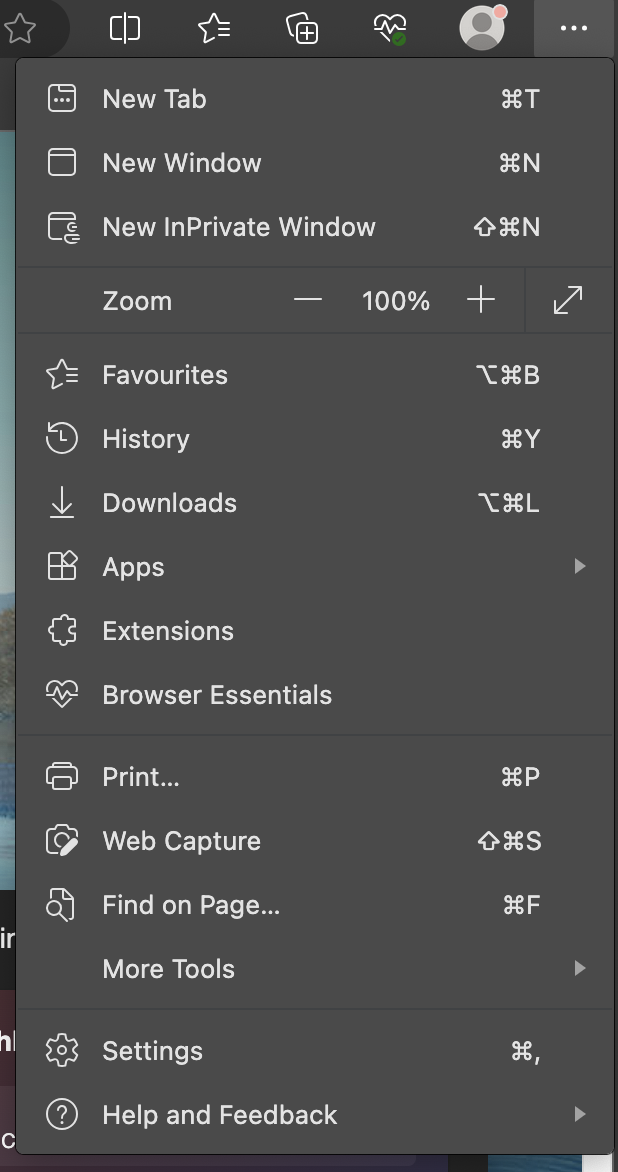
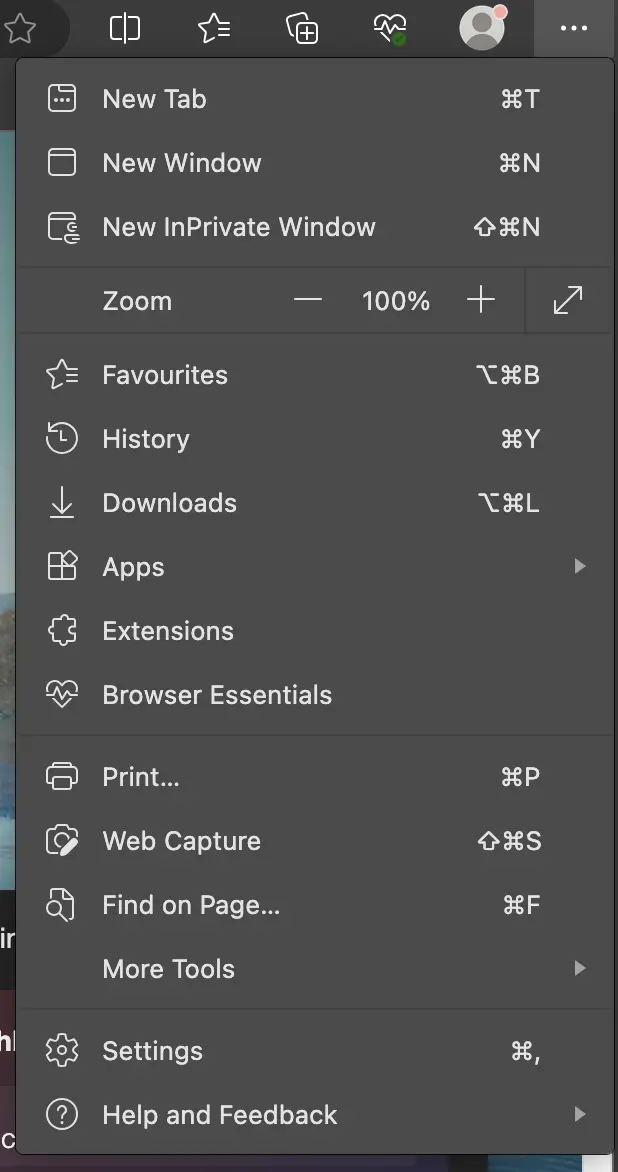
- In the window that opens, click on Cookies and Site Permissions located on the left side of the screen. This is normally halfway down the list.
- Under Site permissions, scroll down on the right side of the screen until you reach JavaScript. Click on JavaScript to open a new window.
- In the window, you’ll find a field that says Allowed (recommended). To enable JavaScript, move the circle in the toggle icon to the right so that the background is blue.
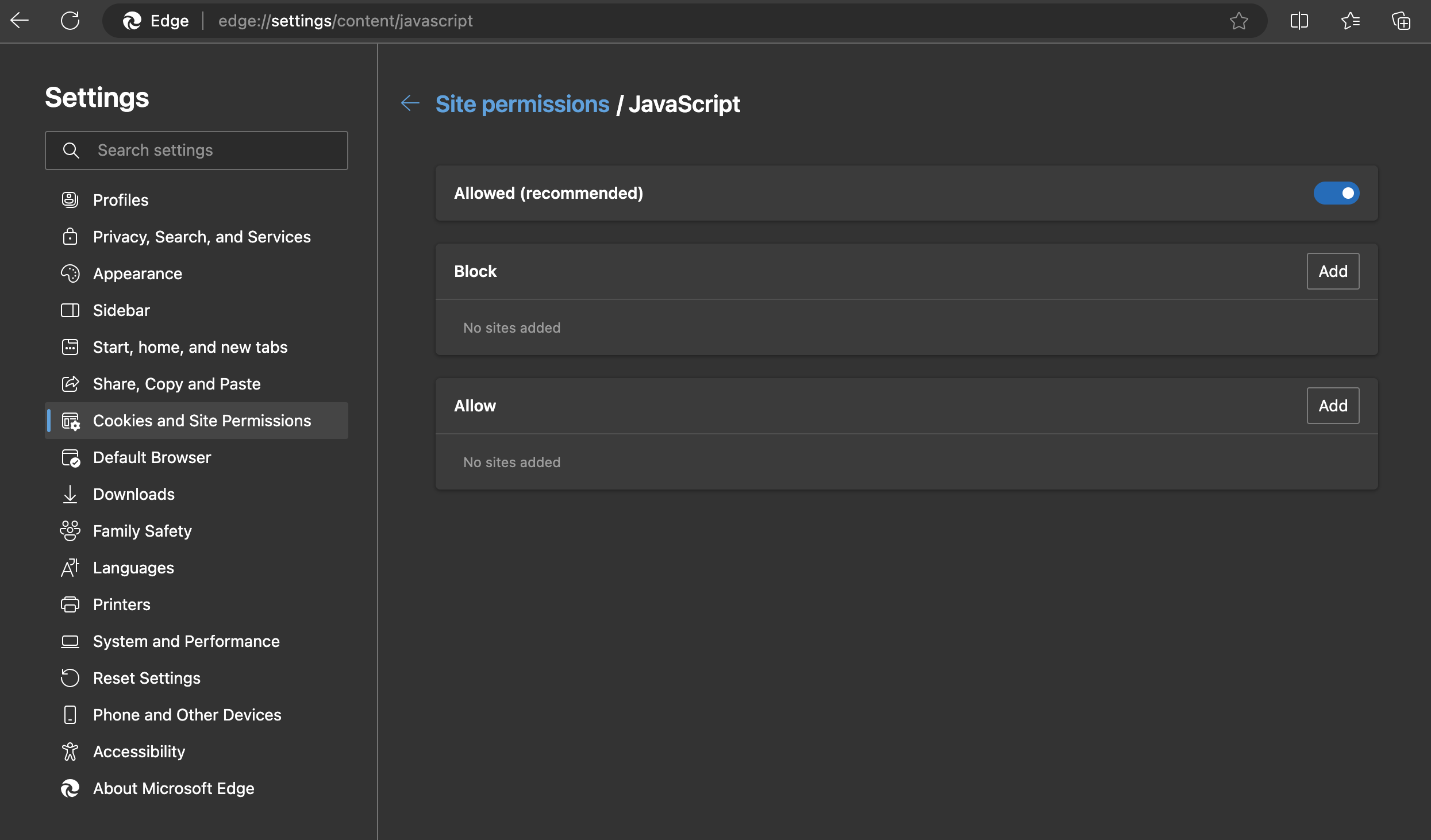
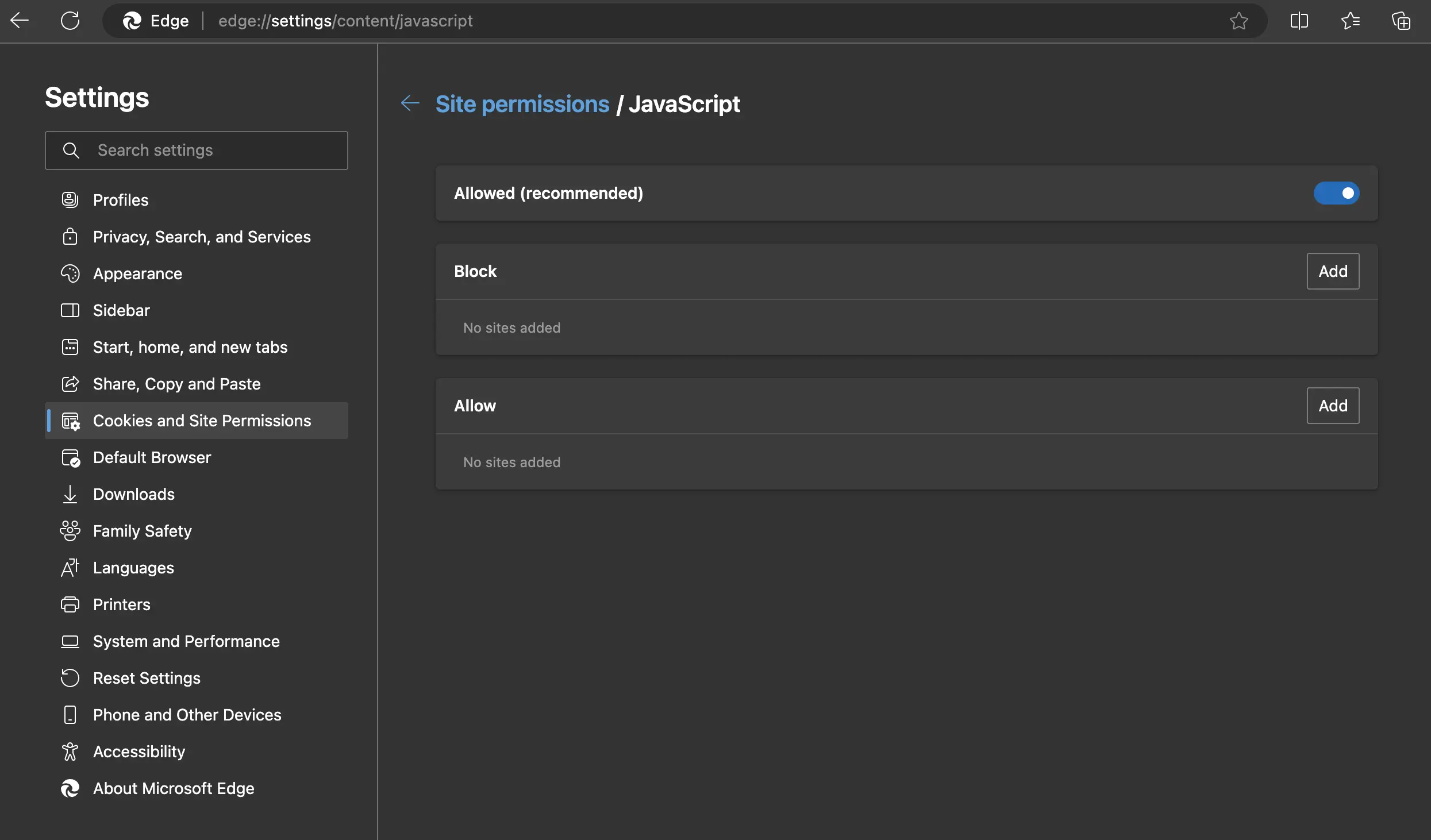
- Restart the browser to enable JavaScript. If you want to disable the scripting language, all you need to do is move the toggle button to the left and restart the browser.
Why is JavaScript important for your browser?
Lots of websites use the dynamic scripting language in order to process interactive content. This includes, for example, videos, dialog boxes, animations or timelines that update automatically. All commonly used browsers rely on JavaScript and enable the language automatically. Although you have the option of disabling the language using the steps described above, this may cause many websites to not be displayed as they normally would when the language is allowed.
Other browsers also allow you to enable JavaScript or disable it. In our Digital Guide, we explain how to enable JavaScript in Safari, enable JavaScript in Internet Explorer, and enable JavaScript in Firefox with step-by-step instructions that are easy to understand.
If you want to uninstall Microsoft Edge, you can also find everything you need to know about uninstalling the browser in our Digital Guide.