

How to disable JavaScript in Firefox, Chrome and Edge

With step-by-step instructions, we’ll explain how to disable JavaScript in Mozilla Firefox, Google Chrome and Microsoft Edge. We’ll also take a look at different security risks associated with disabling the scripting language.
How do you disable JavaScript in browsers?
All popular web browsers offer the possibility to disable JavaScript. The location of this feature varies from browser to browser. We’ll explain below how to disable JavaScript in Mozilla Firefox, Google Chrome and Microsoft Edge. All it takes is just a few clicks.
How to disable JavaScript in Firefox
If you want to disable JavaScript in Firefox, you need to use the configuration editor. While prior to version 23, users could disable JavaScript in the browser settings, this option is no longer available. To disable JavaScript in Firefox, follow the steps below:
Step 1: Enter about:config in the address line and press Enter.
Step 2: If you are opening the configuration editor for the first time, Firefox will show the following warning before redirecting you. Click Accept the Risk and Continue to access the configuration settings.
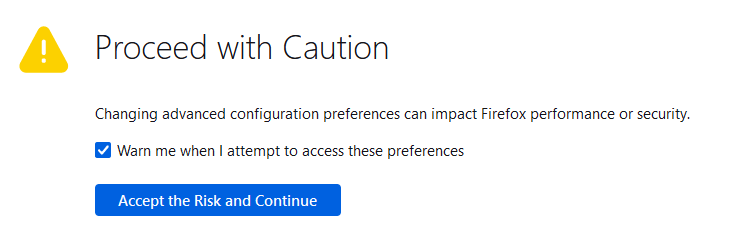

If you don’t want to receive this warning every time you access the configuration editor, simply remove the check mark next to Warn me when I attempt to access these preferences.
Step 3: Enter javascript.enabled into the configuration editor search bar. Firefox will automatically filter the line you want from the rest of the settings. Click on the toggle switch to change the value of the setting from true to false.
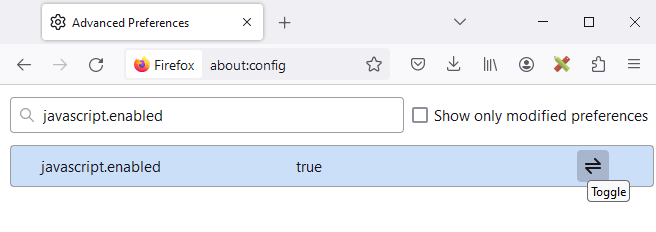
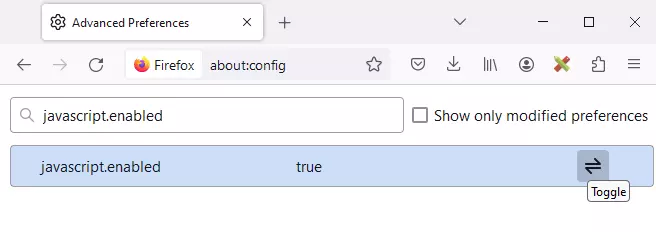
If you decide you want JavaScript enabled in Firefox again, click on the toggle switch once more to re-enable the scripts.
How to disable JavaScript in Chrome
Google Chrome users can manage JavaScript options directly in their browser settings.
Step 1: Click on the menu icon (three points) in the upper right corner of your browser window and select Settings to open the browser settings.
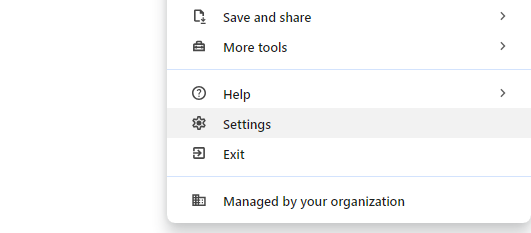
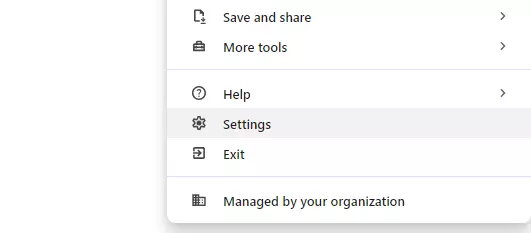
Step 2: Click on Privacy and security in the menu on the left and then on Site settings.
Step 3: Scroll down to the section labeled Content and then click on JavaScript.
Step 4: In Chrome, JavaScript is automatically enabled. If you to want to disable JavaScript for all websites, choose the option Don’t allow sites to use JavaScript. You also have the option to disable or enable JavaScript for certain sites in the section labeled Customized behaviors.
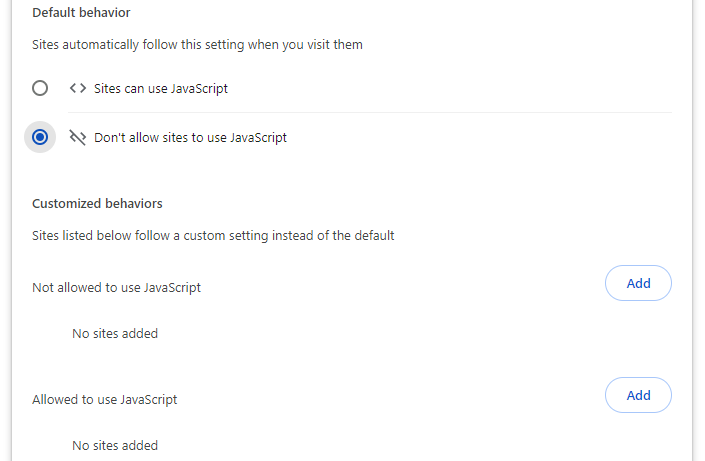
Find out how to enable JavaScript in Google Chrome in our Digital Guide.
How to disable JavaScript in Microsoft Edge
Microsoft offers Edge users the option to stop the client-side execution of scripts. You can disable JavaScript in the Edge browser settings by following the steps below:
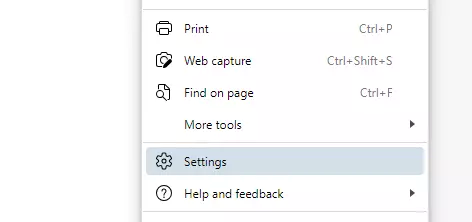
Step 1: Go to the general menu of Edge (three-dot icon) and select the menu item Settings.
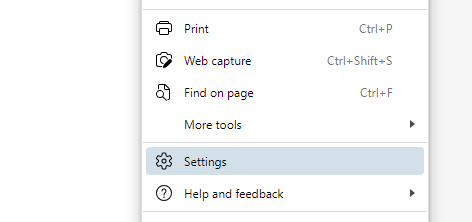
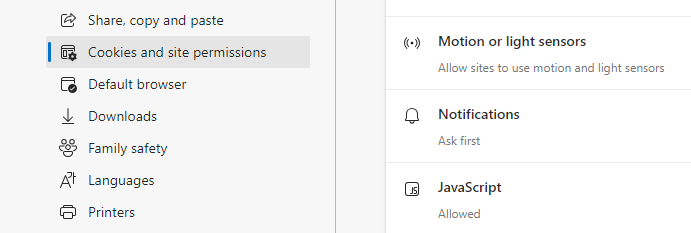
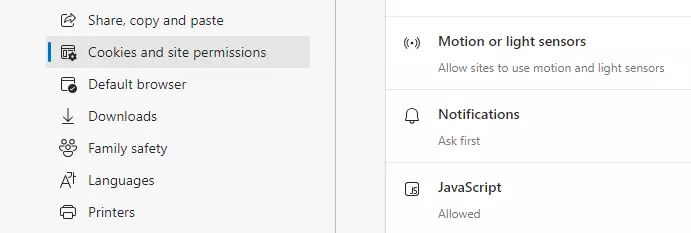
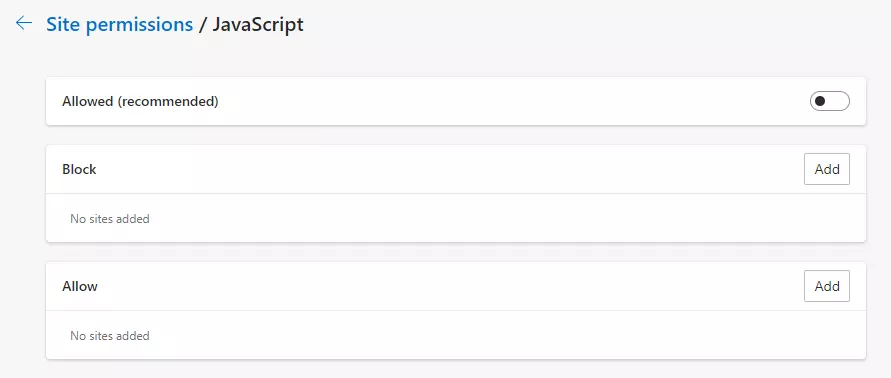
Step 2: In the left sidebar menu, click on Cookies and Site Permissions and scroll down to the All Permissions section. Here, you’ll find the entry JavaScript. Select this option.
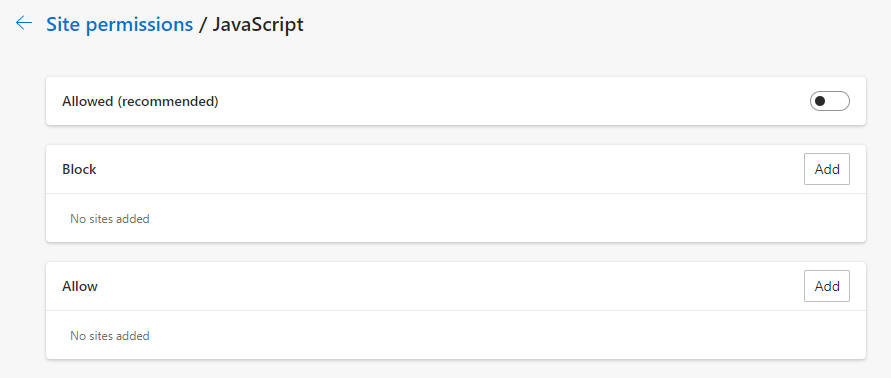
Step 3: Move the toggle switch in the Allowed (recommended) line to the left to disable JavaScript in Edge. You can also enable or disable the scripting language for individual websites by creating an entry in the allow list (to enable) or block list (to disable).
Find out how to enable JavaScript in Microsoft Edge so you can turn the scripting language back on whenever you want.
What effect does disabling JavaScript have on websites?
Before you disable JavaScript in your web browser, you should be aware of the consequences. According to w3techs.com, approximately 99% of web pages on the internet use the scripting language. Often, these pages can only be displayed correctly if your web browser is able to process JavaScript.
It’s also important to keep in mind that not all websites have alternative versions that can function without scripts. If you disable JavaScript, you run the risk of missing out on essential content.
An alternative to disabling JavaScript in the browser is browser extensions that restrict the client-side execution of scripts according to user-defined rules. The market leader in this area is the open-source Firefox plugin NoScript.
What risks does JavaScript pose?
Alongside HTML and CSS, JavaScript is one of the standard technologies of the web. Client-side programming is indispensable in modern web development and can be found everywhere on the internet. However, it’s important to be aware of the risks associated with JavaScript.
Aside from their names, Java and JavaScript have little in common. They are two distinct programming languages, with each one offering ways to execute code on the client side in the browser. The similarity in their names is a result of marketing strategies.
In essence, JavaScript is a programming language with very limited permissions. The scripting language allows you to:
- manipulate your current browser window using DOM (Document Object Model)
- open new browser or dialog windows
- animate, show, hide or modify page elements
- validate input values
- load Ajax content
- transmit information about the user’s reading habits and browsing activities to other websites
JavaScript only has access to users’ cookies and other data storage that is designated for websites. JavaScript does not have access to users’ hard drives, so it is unable to call libraries or launch additional programs on the computer. These limitations are enforced by the sandbox principle, which confines the impact of scripts to the browser window where JavaScript is being executed.
Despite these limitations, JavaScript can still be manipulated. The scripting language can be misused to:
- extract information about the browser or operating system in order to track user behavior or exploit security vulnerabilities (such as outdated plugins)
- open numerous pop-up windows to overwhelm a user’s computer (known as Denial of Service, or DoS)
- conceal malicious code
- mimic websites from trusted providers as part of a phishing attack
In addition, programming errors may only become apparent when a script is executed on a user’s computer.
The primary security risk, however, has less to do with the scripting language itself and more with the specific JavaScript interpreter used within a browser. If an interpreter contains flaws, this can lead to security vulnerabilities that need to be dealt with quickly. Only by doing so, can you be sure that scripts are operating in isolation in a sandbox environment and aren’t able to impact other programs or the core system.
Cross-Site-Scripting (XSS) is a type of cyberattack where hackers exploit security flaws in applications by injecting malicious code into client-side executed scripts. Read more about this type of attack in our Digital Guide.
Reviewer

Julia Hertler
With over 18 years of experience in content marketing, Julia Hertler has deep expertise in digital communications. For the past 10 years, she has specialized in the areas of domains and hosting at the IONOS Digital Guide, making complex technical topics easy to understand.