

How to install Fonts in Windows 10

You can install new, modern, and perfectly suited fonts in Windows 10 at any time. Especially for modern applications - when your text is to be read on a smartphone, for example - individual fonts can make all the difference. Get creative here and give a document or the design of your website a unique look.
Adding fonts and then using them in Word, PowerPoint, or other programs is quite simple. We tell you where to find suitable fonts and how to add fonts in Windows 10.
- Build trust with email matching your domain (you@yourbrand.com)
- Free domain included to get your brand online instantly
- Work smarter with AI writing support
Here’s how to find fonts to add to Word
If you are looking for high-quality free fonts, you will find them at Google Fonts, among others. Here Google provides over 1,000 fonts for free. You have the possibility to check which fonts can be combined well, for example, if you want to install different fonts for headline and body text. Google Fonts offers the right font for almost every application area, no matter if you are just developing the typography in responsive web design or want to enhance a Word document.
In modern web design, the appropriate font is particularly important. One of the most important features of a modern website is that it is responsive and automatically adapts to the respective display. Therefore, before choosing a font, find out whether it is suitable for responsive web design.
To get a trained eye for suitable fonts and font combinations, it is helpful to check how the typography of successful websites is constructed. The browser plugin WhatTheFont clearly displays all the font and font size info directly in the browser.
OTF or TTF – Which kind of font is better?
When it comes to digital fonts, the OTF and TTF formats have established themselves above all. If you have found, downloaded, and unpacked a font, it may well be that the font is present in the folder as both an OTF file and a TTF file. In this case, install the OTF font. This is the newer format (developed by Microsoft and Adobe). OTF files are more compact than TTF files and at the same time offer more possibilities.
Be careful not to install both versions of the same font. Otherwise, linking and display errors may occur.
Install fonts: Step by step explanation
While in Windows XP and older versions you had to install fonts in a tiresome way via the Fonts folder, in Windows 10 you only need a few clicks to install fonts. Downloaded fonts can be unzipped, installed, and applied in seconds. In three steps, you can give your texts and web designs a completely new look.
Step 1: Unzip font in Windows 10
After you have chosen a font and downloaded it, it will be compressed as a ZIP file in your download folder. To unpack the file, you need a packing program such as WinZip orWinRAR.
Once the packing program is installed, right-click on the packed font and then click on the “Unpack to ...” command. This creates a folder of the same name that contains the unpacked fonts. Open the folder with a double click.
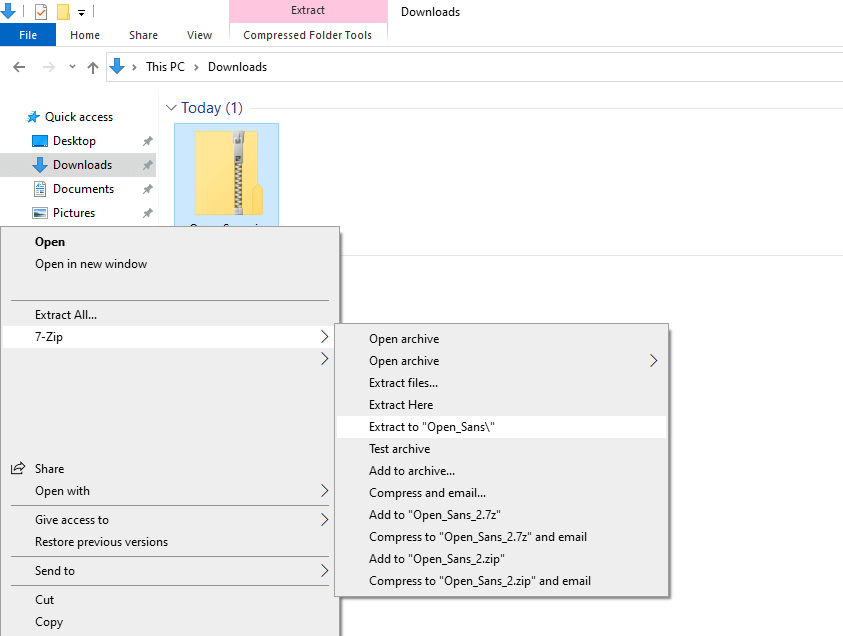
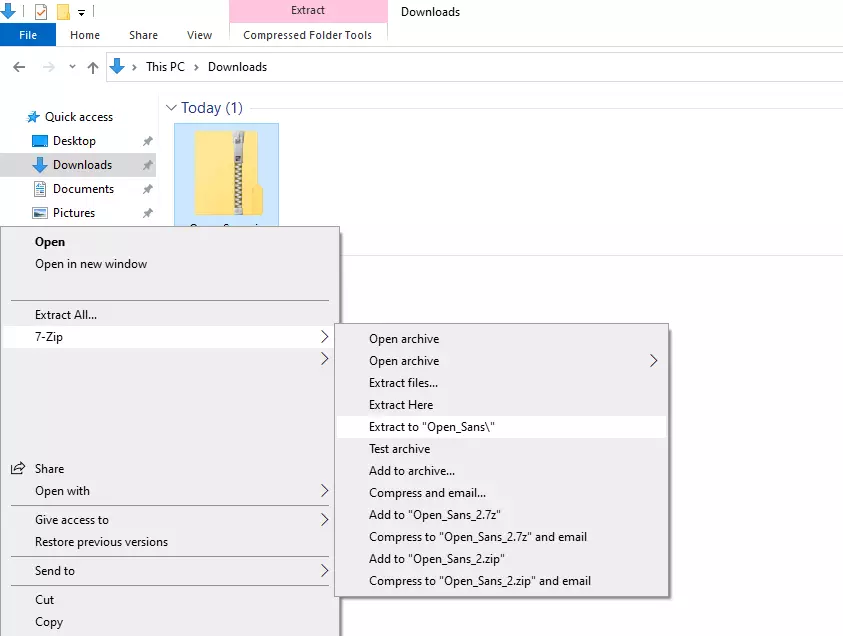
In our guide “Open/unzip ZIP file” you will find detailed instructions on how to work with zipped files.
Step 2: Open information window and start installation
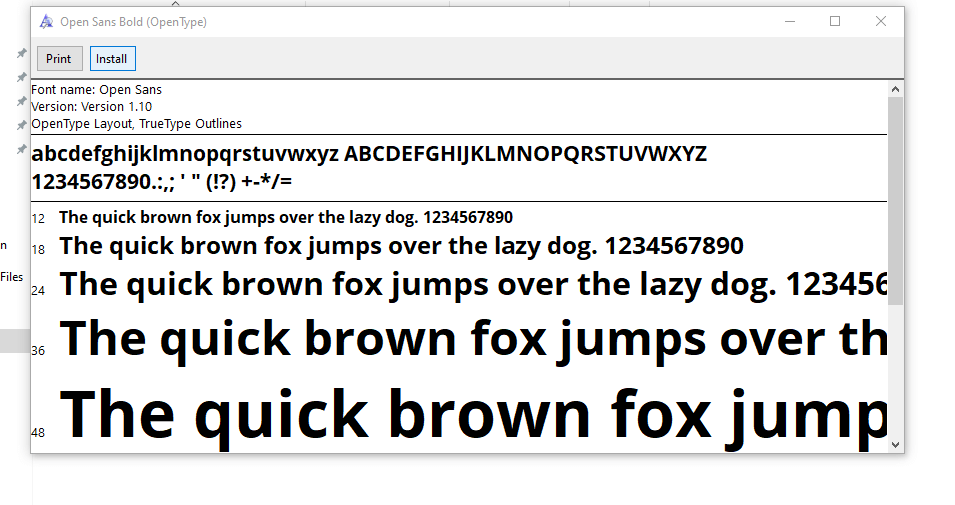
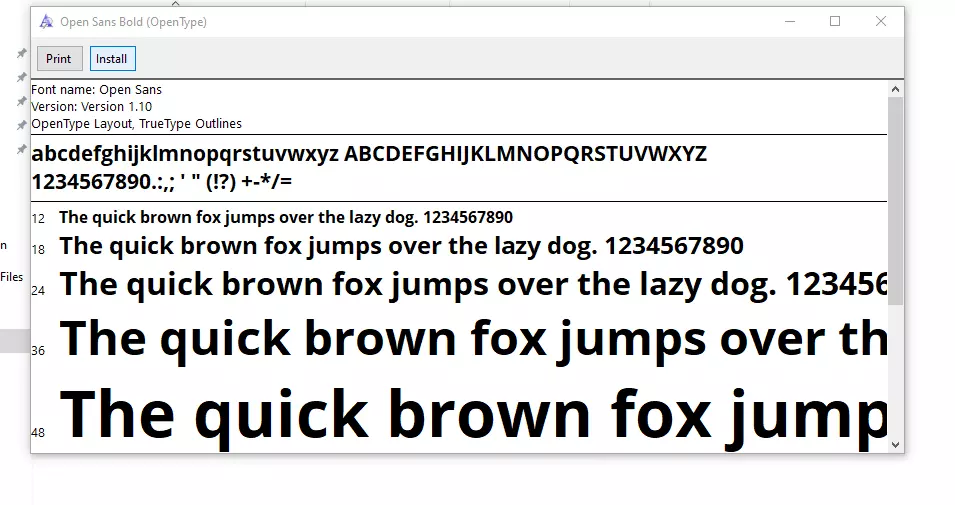
In the opened folder, select the font to be installed again with a double-click. A window will open, which gives an overview of the appearance of the font in different point sizes and of the current version of the font.
In the upper left corner are two buttons that allow you to either print the overview or install the font. Click on “Install” to start the installation process. After a few seconds, Windows 10 will have installed the font and automatically placed it in the “C:/Windows/Fonts” folder.
Step 3: Change font in the desired application (e.g. Word)
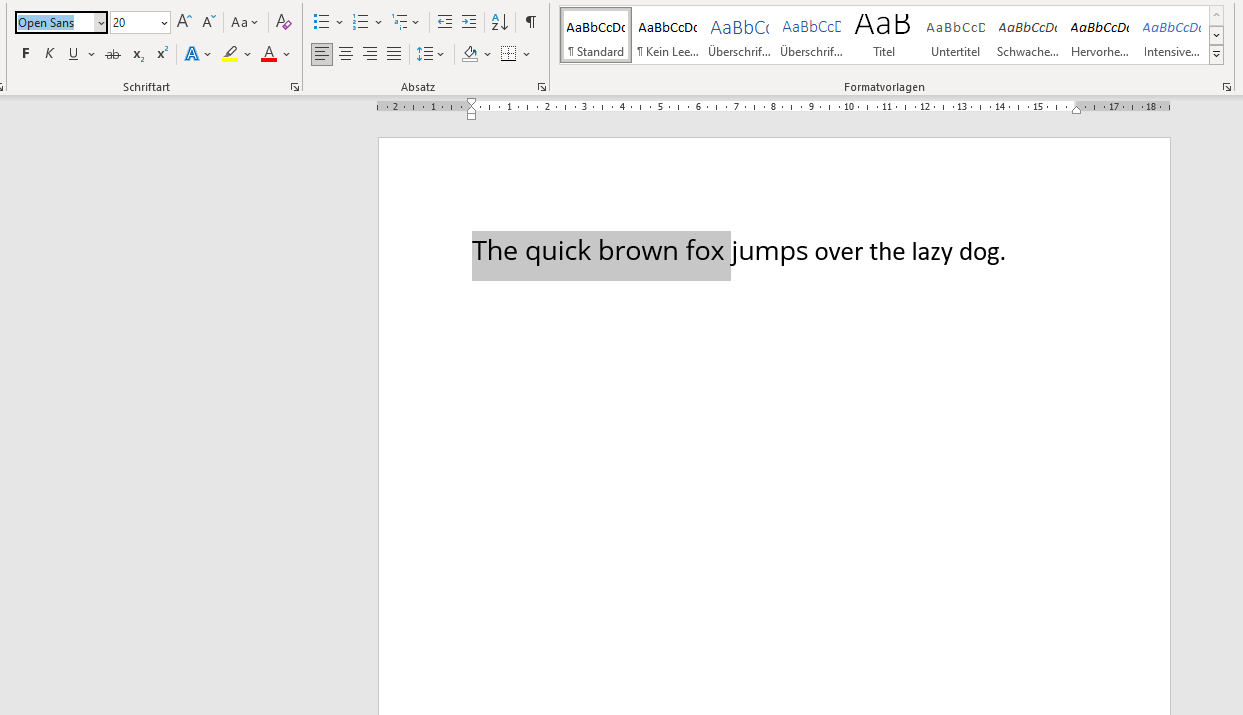
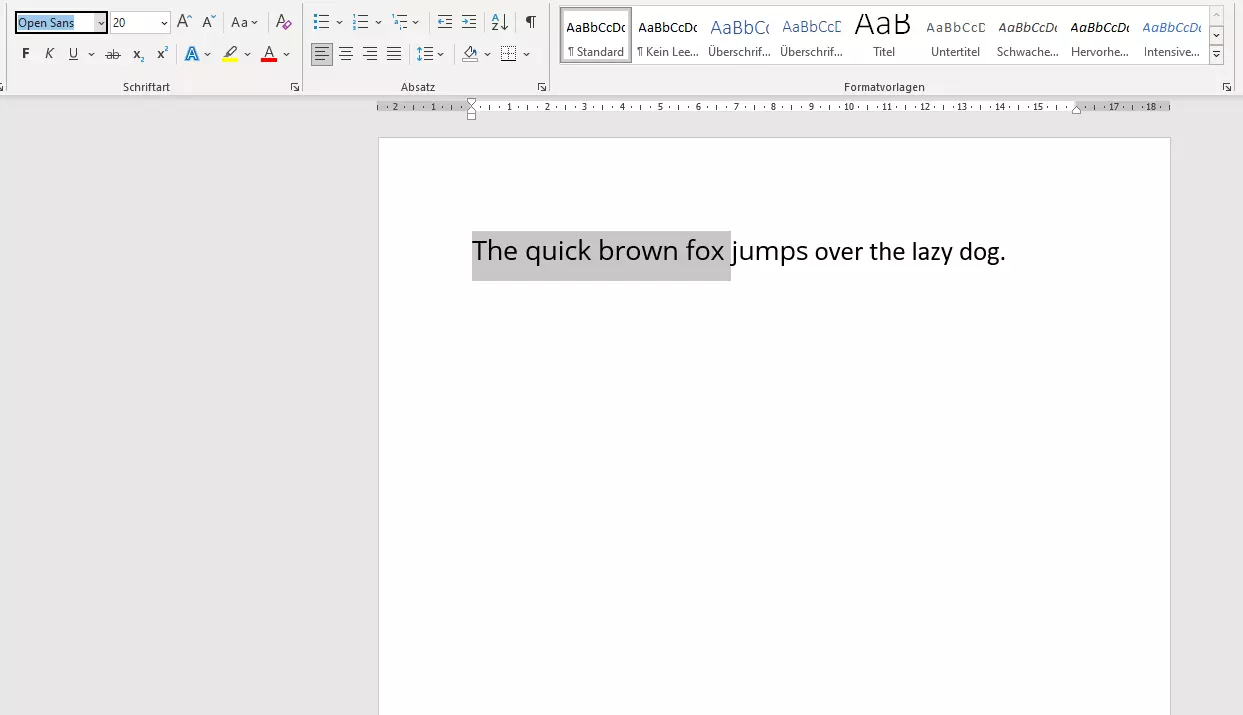
Now open the application (here: Microsoft Word) to which you want to add the new font. Select the text you want to customize and enter the name of the new font in the font field in the “Start” tab. If Windows 10 has added the font correctly, you can now select it to change the appearance of the text to your liking.
- Store, share, and edit data easily
- Backed up and highly secure
- Sync with all devices
Reviewer

Julia Hertler
With over 18 years of experience in content marketing, Julia Hertler has deep expertise in digital communications. For the past 10 years, she has specialized in the areas of domains and hosting at the IONOS Digital Guide, making complex technical topics easy to understand.