

4 free alternatives to Adobe Illustrator

In the design world, Adobe Illustrator (also known simply as “Illustrator” or “AI” for short) is firmly established as the industry standard for vector graphics software. However, the program, which is available for Windows and macOS, is relatively expensive and only available with monthly or annual subscriptions. However, there are also some free vector graphics programs that offer a similar range of functions to Illustrator. We present the best Illustrator alternatives, all of which you can download for free.
In this article, we only present vector graphics programs. If you are looking for an alternative to Adobe Photoshop or other raster software, you can find more information elsewhere in our Digital Guide. We also offer a detailed explanation of the differences between vector and pixel graphics.
A direct comparison of vector graphics software
| Supported platforms | Functionality, available extensions | Ease of use | Suitable for beginners | Conversion of raster graphics to vector graphics possible? | Supports output of graphics in CMYK color model? | Free of charge? | |
|---|---|---|---|---|---|---|---|
| Adobe Illustrator | Windows and macOS | ↑ | ↑ | ↘ | ✓ | ✓ | - |
| Inkscape | Windows, macOS and Linux | ↗ | ↗ | ↘ | ✓ | - | ✓ |
| SVG-Edit | Platform-independent web app, local installation possible | ↘ | ↗ | → | - | - | ✓ |
| Vectr | Download for Windows, macOS, Linux and Chrome OS; platform-independent web app | ↘ | ↗ | ↑ | - | - | - |
| Boxy SVG | Platform-independent web app, Linux desktop app | ↘ | ↗ | ↑ | ✓ | - | ✓ |
Would you like to create your own logo? With the IONOS Logo Generator you can create your own logo for free.
Inkscape
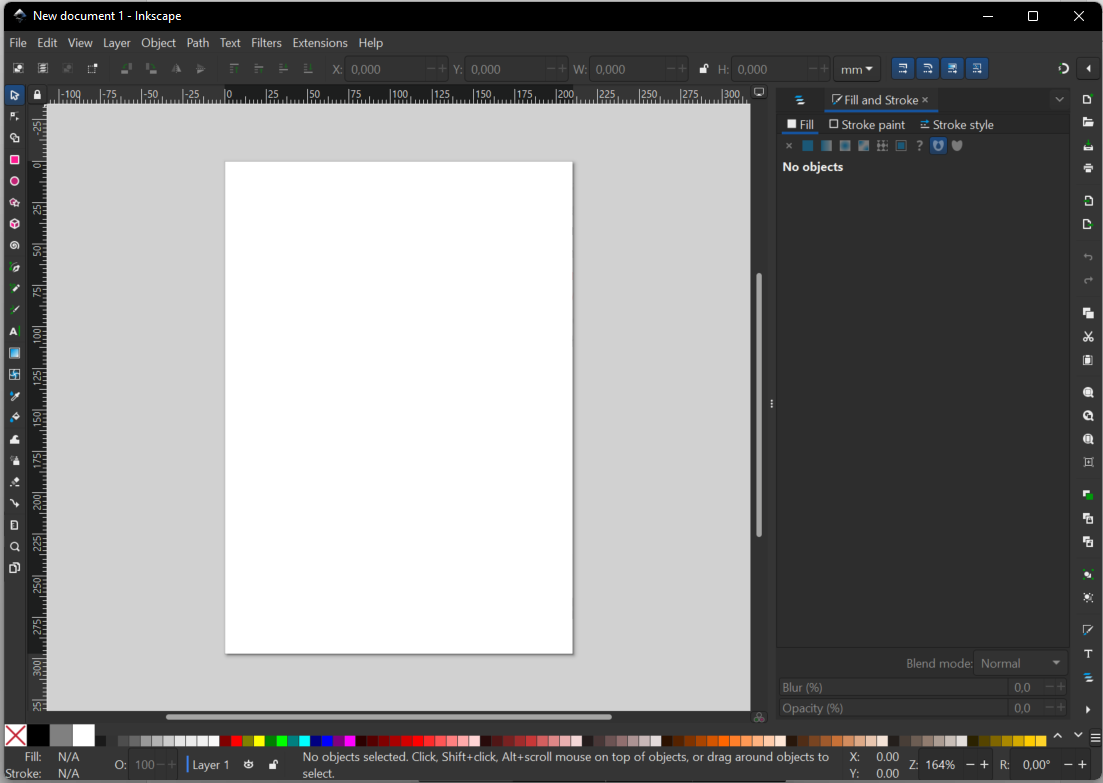
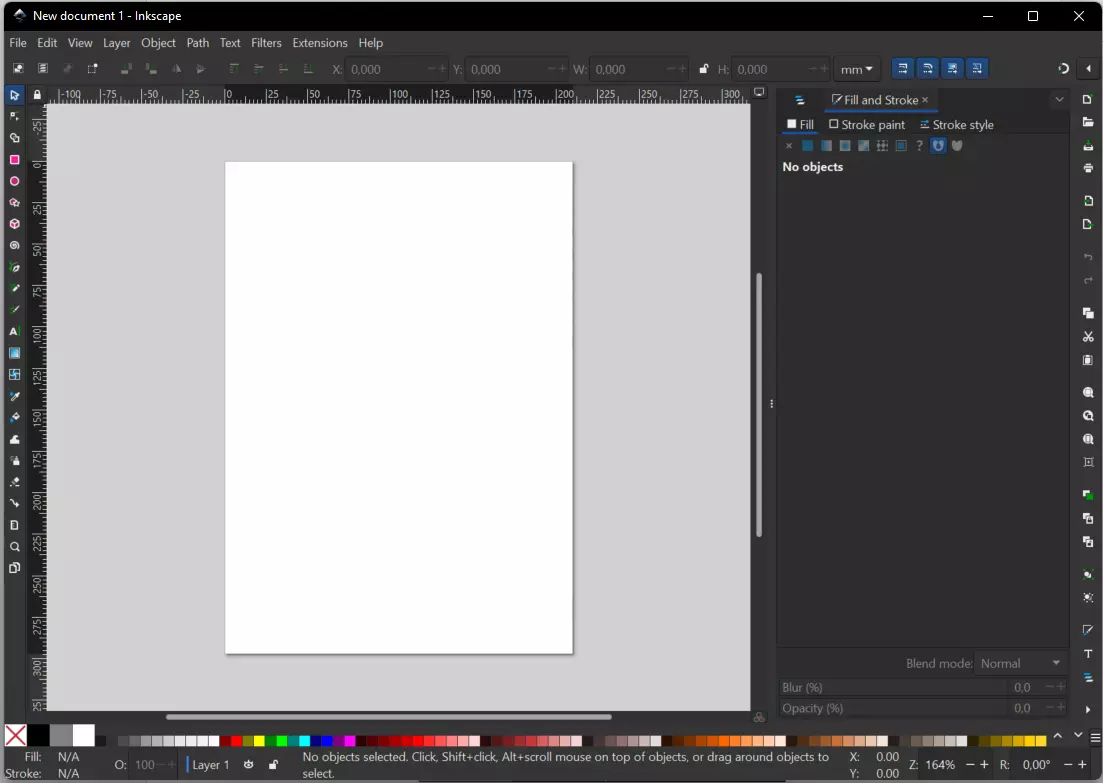
Inkscape is a relatively popular open source Illustrator alternative. This free, vector-based graphic program for Windows, macOS, and Linux boasts a range of functions that as almost as large as the Adobe program – all that’s missing is one palette of digital paintbrushes. Aside from that, Inkscape offers all the essential and popular tools for digital illustration. The program also has other special features; for example, it can support the use of a graphics tablet or export graphics as HTML5 canvas elements - an alternative to SVG for website graphics.
With regard to the design options, the market leader Illustrator only just beats the program, Inkscape – considering the vector graphics software is free, this is an extremely impressive feat. It’s even possible to download extensions for the open-source application (although, again, there are not quite as many as there are for Adobe Illustrator). As well as the missing paintbrushes, Inkscape falls short in comparison to the market leader in another area, which is that Inkscape cannot print graphics in the CMYK color model. This color model is of huge significance in printing technology, as it is the standard for four-color printing. Inkscape, however, does present various workarounds that can be used to export graphics in the CMYK color model. However, the setup is more cumbersome than with other vector graphics programs, and it can produce bad results if used incorrectly. Inkscape is therefore best suited to creating print templates.
Inkscape supports all common file formats (SVG, PNG, PDF etc.) – this also includes formats of other vector graphics software such as Adobe Illustrator (AI) and CorelDRAW (CDR). This means files created with other graphics programs can also be processed with Inkscape, and also that Inkscape designs can be completed with other programs, such as Illustrator.
When it comes to the program’s operation and usability, the jury’s still out. While some users consider Inkscape to be one of the most user-friendly graphics programs on the market, other users often criticize its operability in comparison to other popular vector-based graphic programs, claiming it’s too complicated to implement, or that the way the tools are used is simply much too different from other programs. The main reason for these complaints is that users are used to other programs, such as Illustrator, Sketch, or CorelDRAW, meaning that they need to reorientate themselves completely when using Inkscape. It’s for precisely this reason that Inkscape has included an article on their Wiki site, which explains the use of the program to users who previously worked mainly with Adobe Illustrator.
Overall, Inkscape can be considered professional and extensive free vector graphics software. Users who have already worked with vector-based images (or, at the very least, are familiar with the basics of image processing) should be able to familiarize themselves relatively quickly with this software – even though the navigation and commands are implemented differently than with most other graphics programs. On the other hand, beginners in this field can be quickly overwhelmed with the large variety of functions and sequences of the individual design processes.
| Pros | Cons |
|---|---|
| ✓ Large range of functions | ✗ Graphics can only be exported as CMYK color model via a workaround |
| ✓ Possible to export and import many file formats | ✗ Users who are used to Adobe Illustrator or other vector graphics programs have to reorientate themselves with Inkscape in many ways |
| ✓ Use of graphics tablet possible | |
| ✓ Also available for Linux and macOS |
SVG-Edit
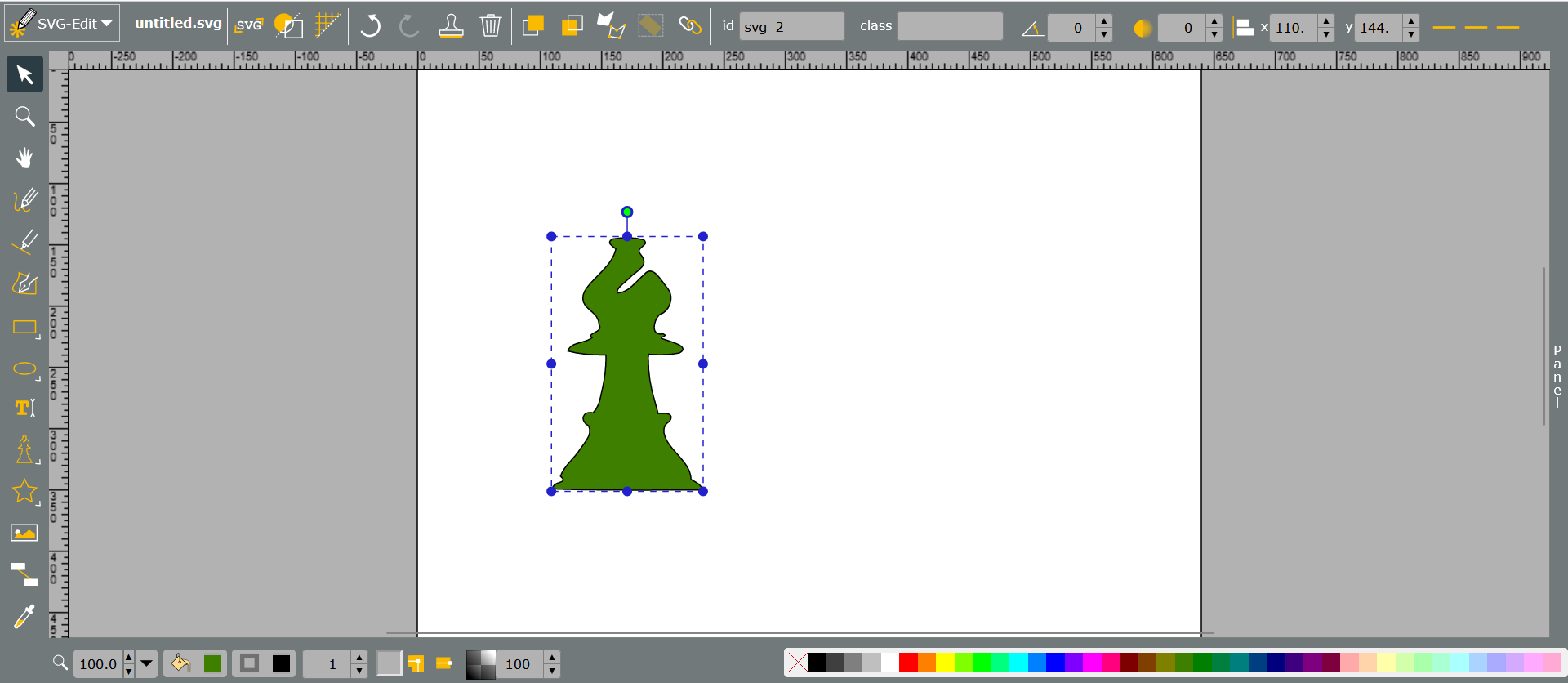
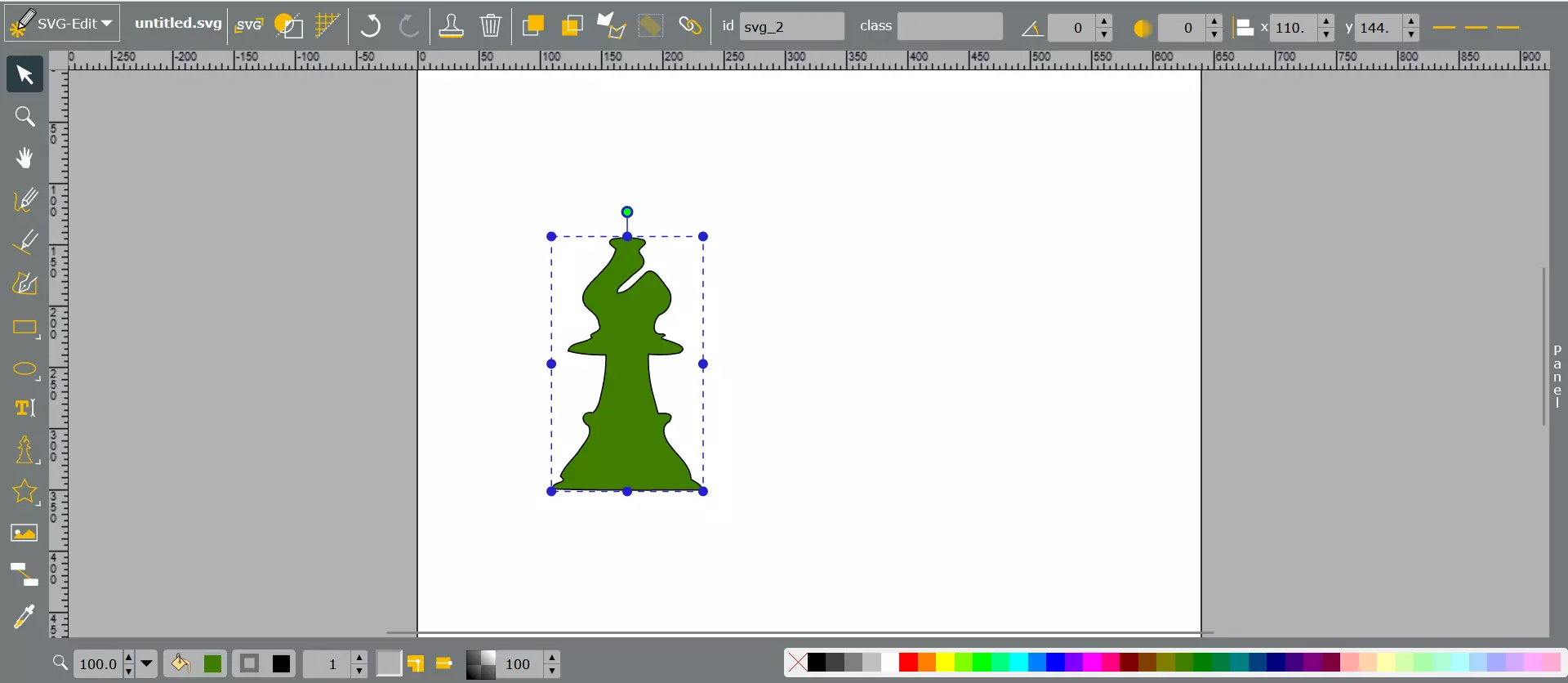
Launched in 2009, the open-source software SVG-Edit is another Adobe Illustrator alternative that is available free of charge and belongs to the pioneering vector graphic web applications. The application can be used in every modern browser – for this, users simply need to navigate to the SVG-Edit website on the GitHub platform and click the specified link under the path labeled “releases”. Alternatively, however, users can also download the source code and embed the application on a website. There are also various browser add-ons available from SVG-Edit.
Although SVG-Edit is a web-based application, the program offers an unmanageable range of functions, although there are no templates and the selection of symbols and icons is considerably smaller. It is, however, possible to integrate external graphics with SVG-Edit. One clear advantage that this program has over Gravit is that users don’t have to sign up to use the web application; users can simply access it via their browser and download their graphics on their computer. The fact that SVG-Edit is an open-source application is a selling point for many users. This enables users to install the software on their computer and start it on the localhost.
The tool’s user interface is certainly not the most modern, although it does offer all the essential functions. One major drawback, however, is that SVG-Edit provides no explicit explanation for its range of functions. Because of this, the web app is more relevant for users with a certain level of experience in the operation of vector editing. Because of the lack of ready-made templates, freely available images, etc., SVG-Edit is recommended for users who want to implement their own designs independently and without pre-made templates.
| Pros | Cons |
|---|---|
| ✓ Can be used as a platform-independent web application or be installed | ✗ Only provides standard functions for creating graphics |
| ✓ No registration required | ✗ Offers a comparatively small number of symbols |
- Store, share, and edit data easily
- Backed up and highly secure
- Sync with all devices
Vectr
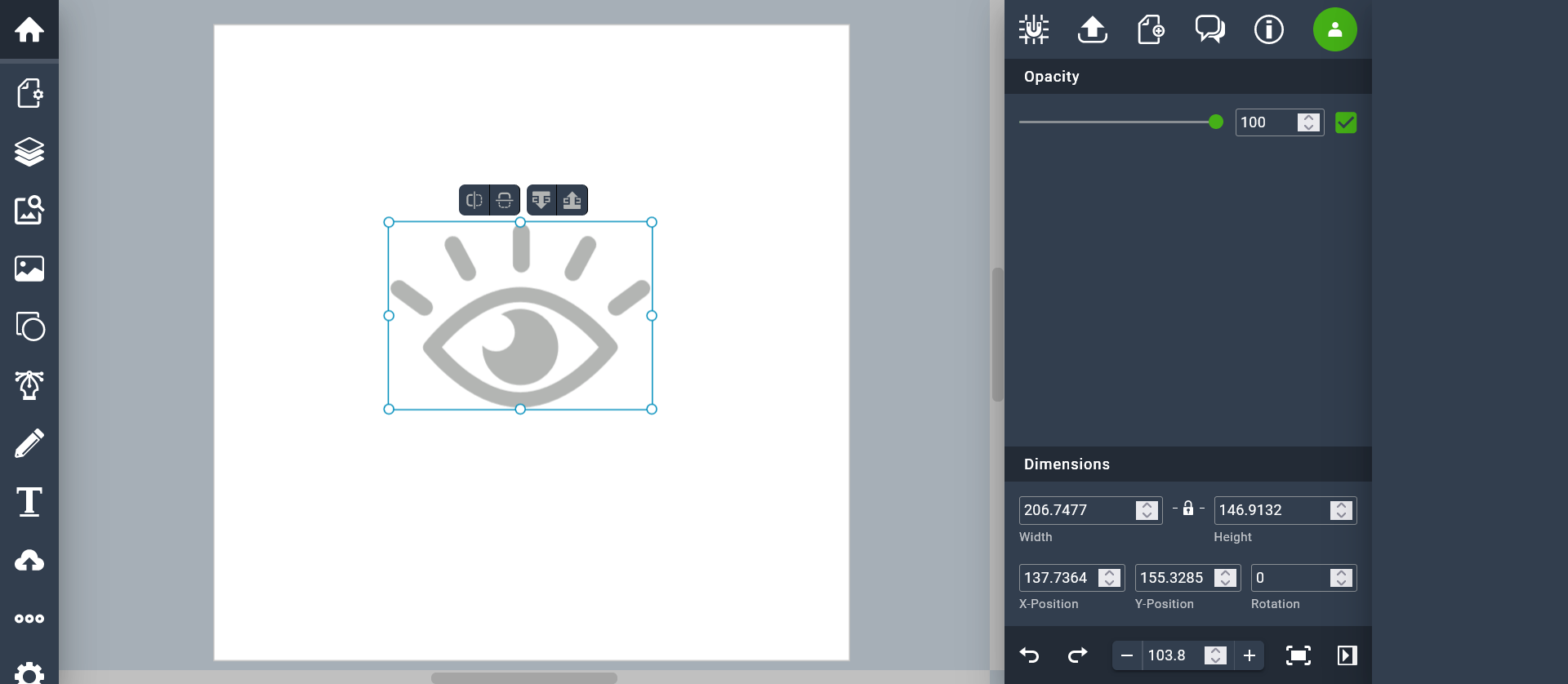
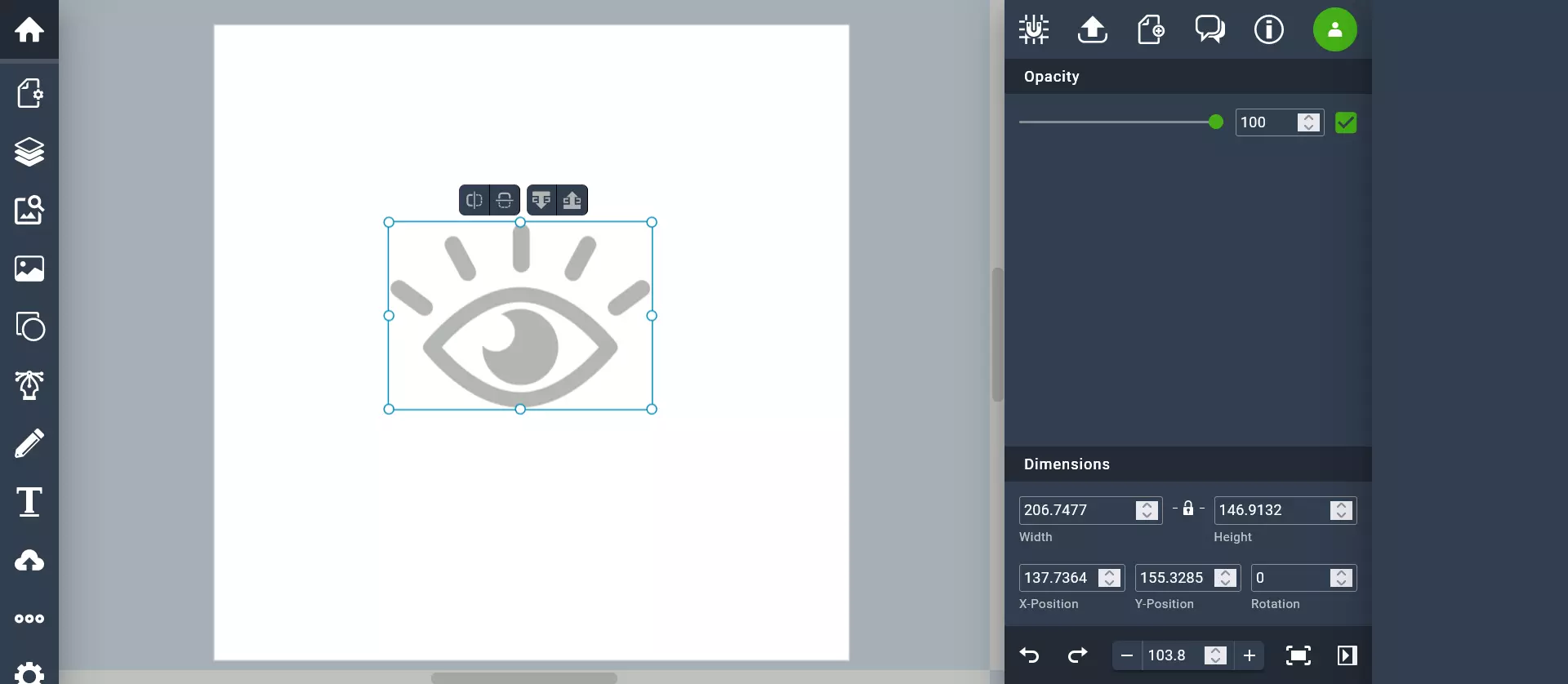
Vectr is another free Illustrator alternative. The web-based design program is reduced to the essential functions of vector graphics software. The application can be accessed on all common browsers. To be able to save the designs created with Vectr in its cloud, you need to register or log in to Facebook, X (Twitter) or Google (the free version only gives you 30 MB of online storage space). However, you can also download your designs in SVG format without registering.
However, Vectr’s basic design options are quite limited. While Vectr has several print, web and social media templates, the program only provides you with a handful of icons that you can insert into your designs. For this reason, the online tool is particularly suitable for those new to graphic design - there are even many tutorials and instructions for using the tool (in the form of articles on the service’s website).
Furthermore, the program also allows several users to collaborate on a single design. At the moment, users can only view graphics being designed if the designer sends other users a link to their Vectr session. With this link, the designer’s interface is mirrored and broadcast via a browser. However, a real team function will soon be available, meaning that several people will be able to make changes to the same design.
| Pros | Cons |
|---|---|
| ✓ Offers several templates for common web, social media and mobile formats. | ✗ Only offers basic tools for creating and editing graphics |
| ✓ Link sharing enables people to observe other users creating their designs in real time (a team function for collaborative work on designs is in the pipeline) | ✗ Very small selection of icons |
| ✓ Suitable for beginners thanks to its easy operation and comprehensive instruction manuals |
The design programs included in Adobe Creative Cloud are generally seen as industry standards for their respective areas of application. However, many users are dissatisfied with the Adobe pricing model. That’s why we created articles on free alternatives to Adobe Lightroom, free alternatives to Premiere Pro and free alternatives to Adobe InDesign, which can also compete with Adobe.
Boxy SVG
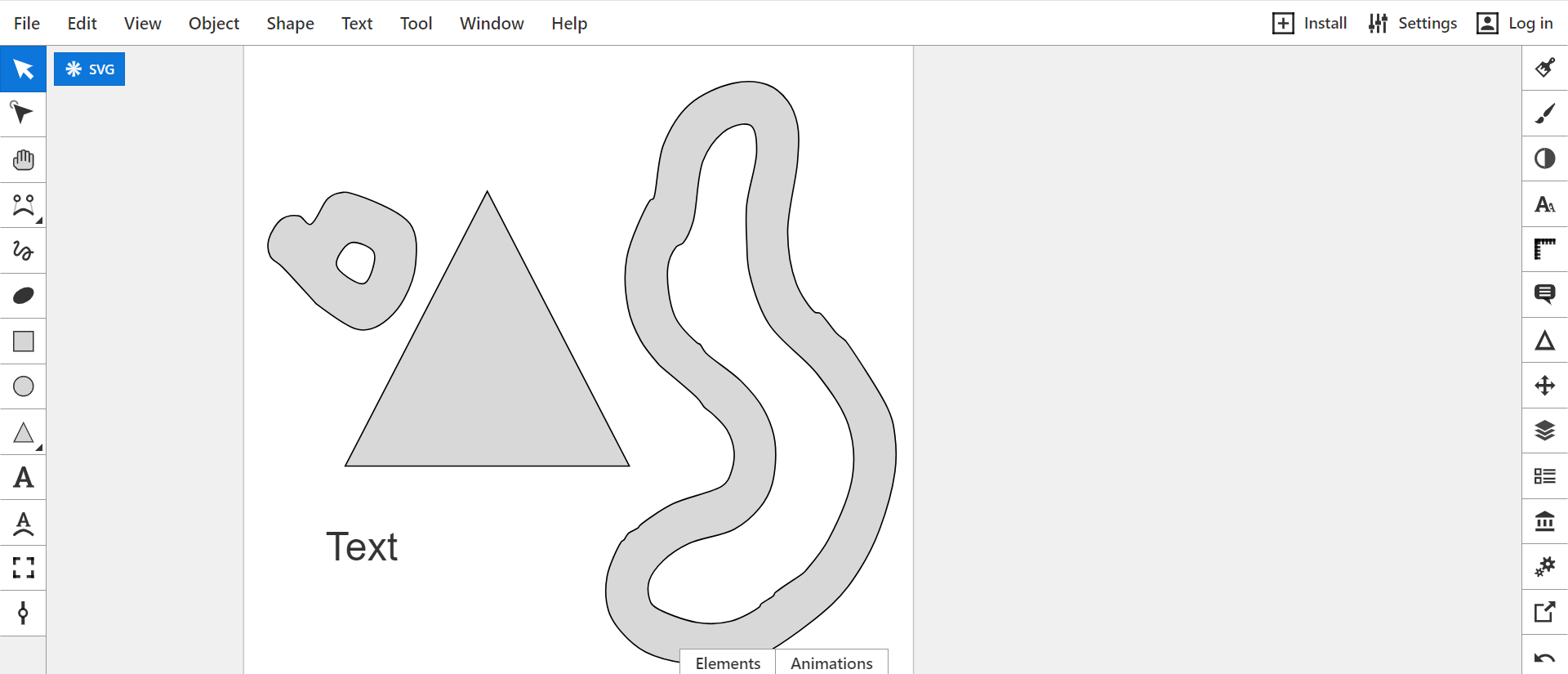
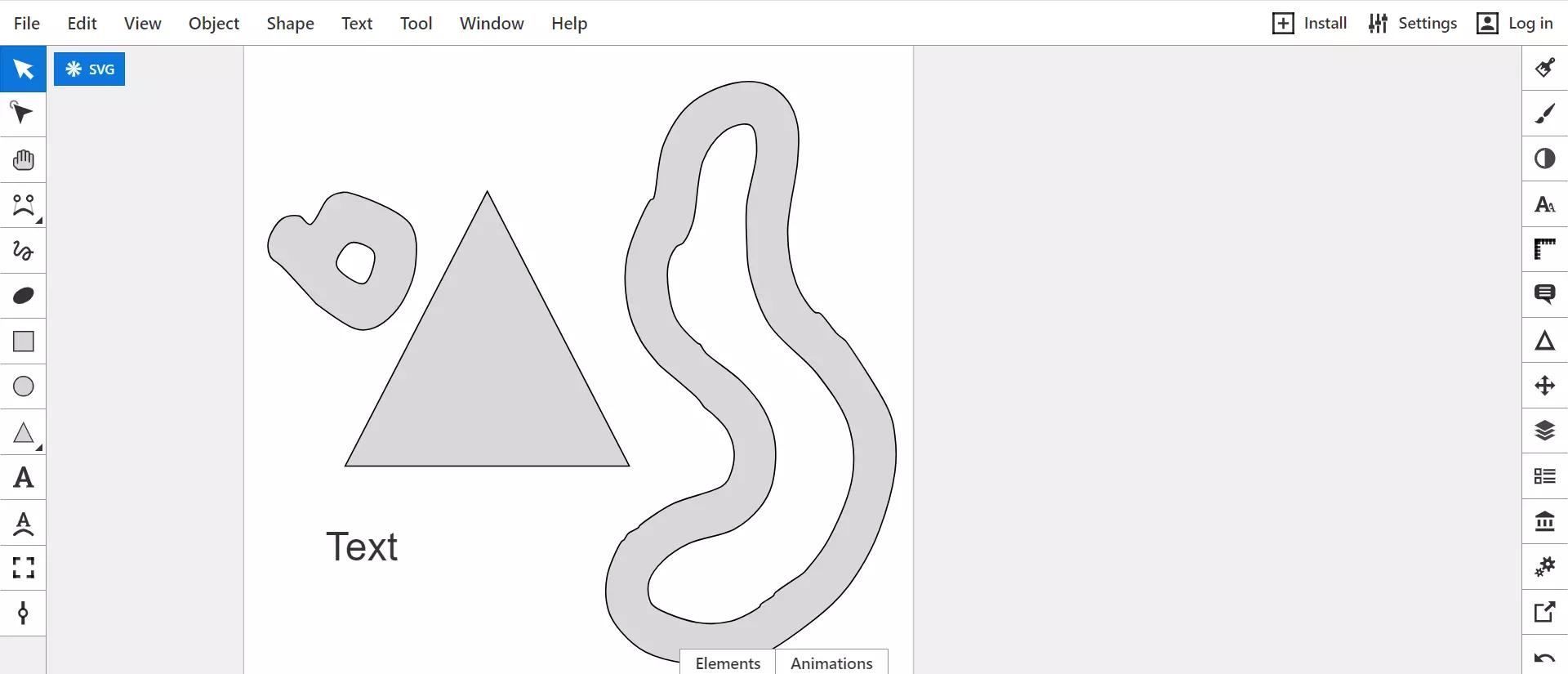
First, we present another alternative to Adobe Illustrator. While the most popular vector graphics programs try to offer their users as many functions as possible, Boxy SVG limits itself to the essential tasks of an SVG editor. This is advantageous for several reasons. Firstly, it massively simplifies the user interface, which is a big plus for new users. Secondly, the complexity of the resulting designs and SVG files is reduced enormously. Web developers in particular who want to ensure short loading times benefit from this. The tool can also be offered as a web app thanks to its reduced complexity. Boxy SVG is also available as a desktop app - however, this version is only free of charge on Linux.
Of course, the reduced range of functions also has a major disadvantage. The software is fundamentally less flexible than full desktop apps such as Illustrator or Inkscape. The tool can therefore only be recommended for professional users who want to produce very simple designs and efficient files for the sake of efficiency.
| Pros | Cons |
|---|---|
| ✓ Available as a free, platform-independent web app | ✗ Limited range of functions |
| ✓ Beginner-friendly operation | |
| ✓ Efficient SVG files |
Are you new to the world of graphic design and want to expand your skills? Our Digital Guide offers numerous beginner tutorials to get you started. For example, learn how to crop an image in graphics programs.