

How to sync Google Drive with Drive for Desktop

With Google Drive for desktop you can back up and sync changes to your files in Google Drive. This way, your cloud backup remains up to date regardless of the device you’re using. We explain how to use Google Drive for desktop.
- Store, share, and edit data easily
- Backed up and highly secure
- Sync with all devices
Quick guide: synchronize files to Google Drive
- Download Drive for desktop and install the app.
- Sign in with an existing Google account or create an account.
- Select folders or files you want to upload and sync to Drive.
- Start the first backup for selected folders and files.
What is Google Drive for desktop?
Google Drive offers you the possibility to synchronize local files on your PC. One is the “Google Drive for desktop” app. You can use Google Drive offline to synchronize local changes which is useful if you tend to use Google Docs offline. What's more is that you can upload files to Drive and bring any local file changes in line with your cloud storage - even from different devices.
Drive data backups are only the first step in securing your data. For parallel backups of important data, IONOS offers reliable, highly secure HiDrive cloud storage tailored to your needs.
How does Drive for desktop work with Google Drive?
Google's Drive for desktop not only ensures that changes to files on Mac or Windows are synchronized with Google Drive. The tool also ensures that files on other devices connected to Drive remain up to date. To do this, the tool creates a separate directory for each connected device.
When you or other users log in to a shared Drive account, Drive for desktop automatically downloads an updated file to the device or transfers local changes to the cloud. Files therefore remain up to date on all devices. It’s like a continuous Drive backup that regularly synchronizes to all devices.
Backups are the be-all and end-all of data security because data loss can occur at any time – whether due to hardware failures or malware. It is therefore important to create a backup of Google Drive. Use IONOS to automatic data backups for all your devices with MyDefender.
How to synchronize Google Drive automatically
Follow these steps to sync your files with Drive for desktop:
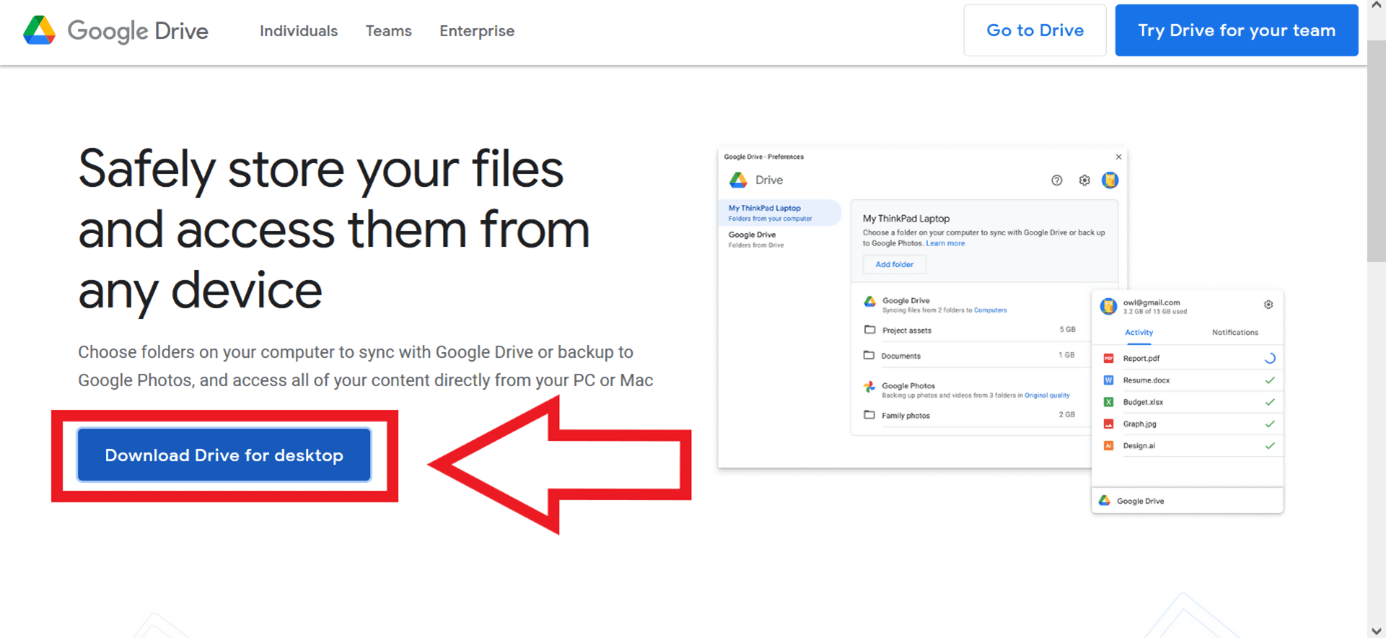
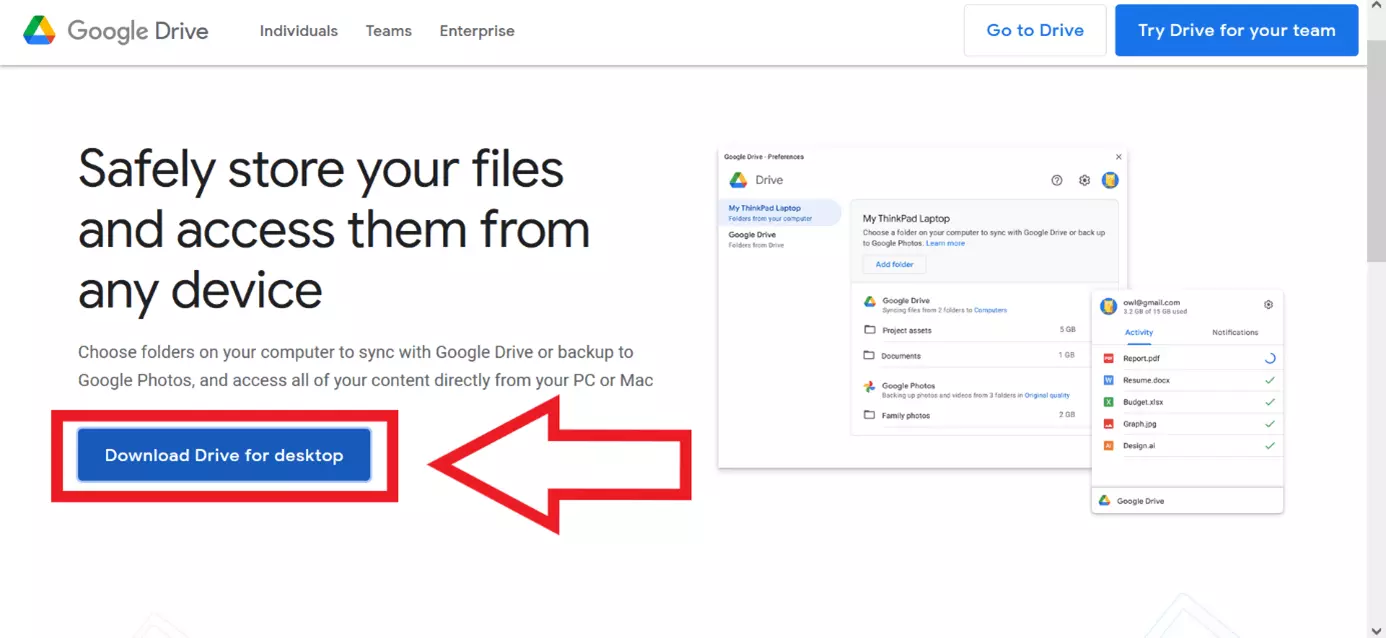
Step 1: First, you need to download the free synchronization tool Drive for desktop. To do this, click on “Download Drive for desktop”.
Step 2: Save and open the GoogleDriveSetup.exe (Windows) or GoogleDrive.dmg (Mac) installation file. If the user account control opens and asks if you want to allow Google Drive Installer to make changes to your device, please click Yes.
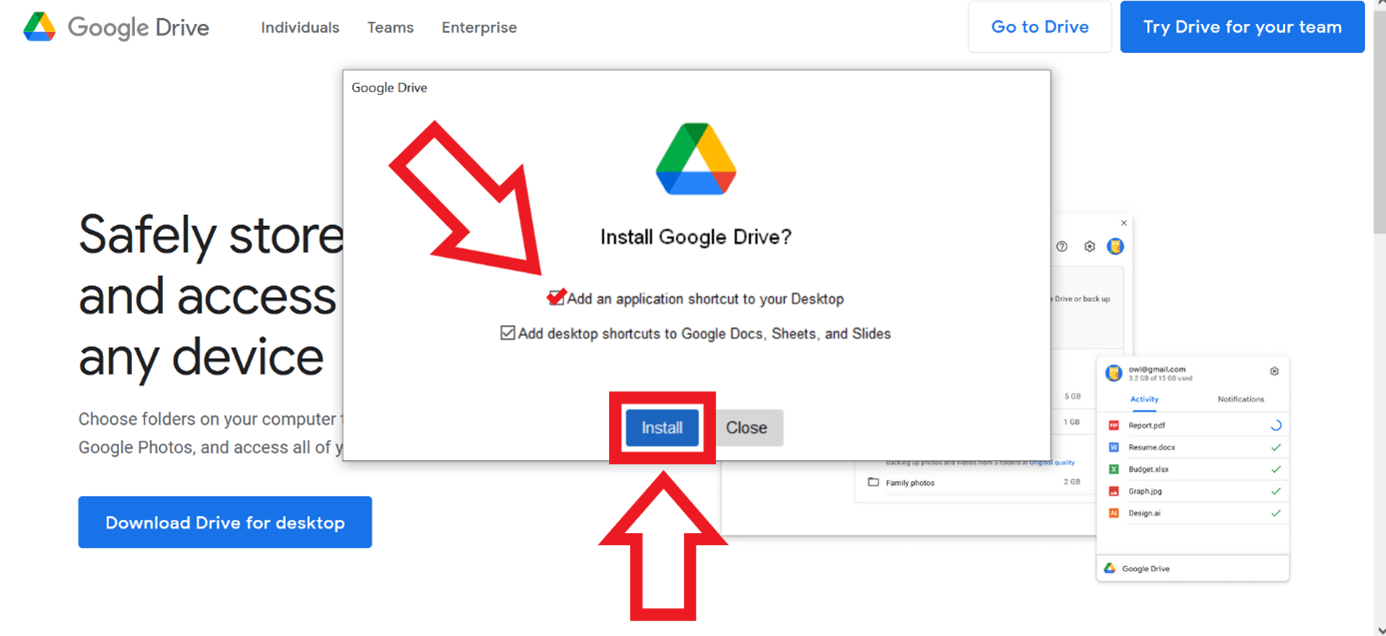
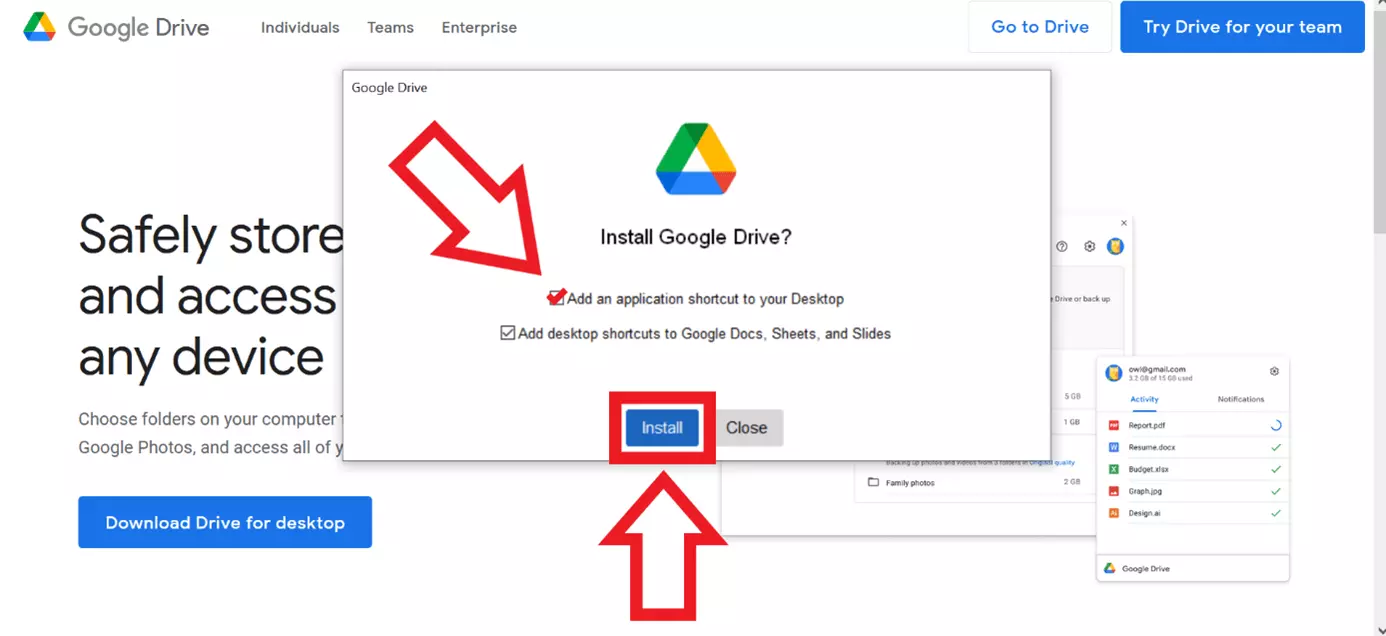
Step 3: The installer window will now open. Here you can agree to various shortcuts. We recommend you to check the top checkbox so that you can easily access the app from your taskbar later on. Afterwards, click on “Install”.
Step 4: You will now be prompted to sign into your Google account using the browser. Create or select the account you want to use Drive for desktop with. Once signed in, you’ll get access to the app.
Step 5: You can now open Drive for desktop via the Google Drive icon. The triangular icon is located at the bottom right of the taskbar in Windows (arrow pointing upwards).
Step 6: After clicking on the Drive icon, a small window will open showing you the status of your synchronization. The gear in the top right corner will take you to more options. Please select “Preferences” here.
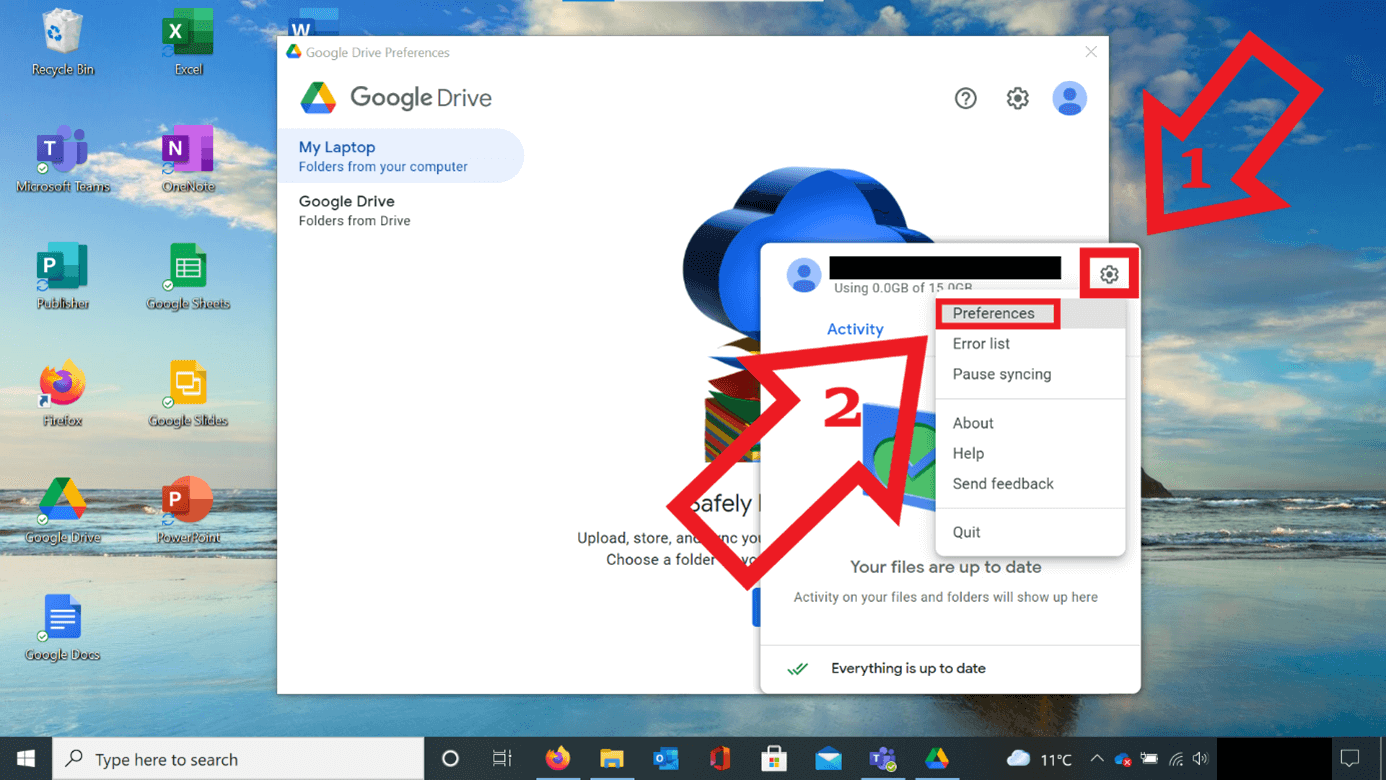
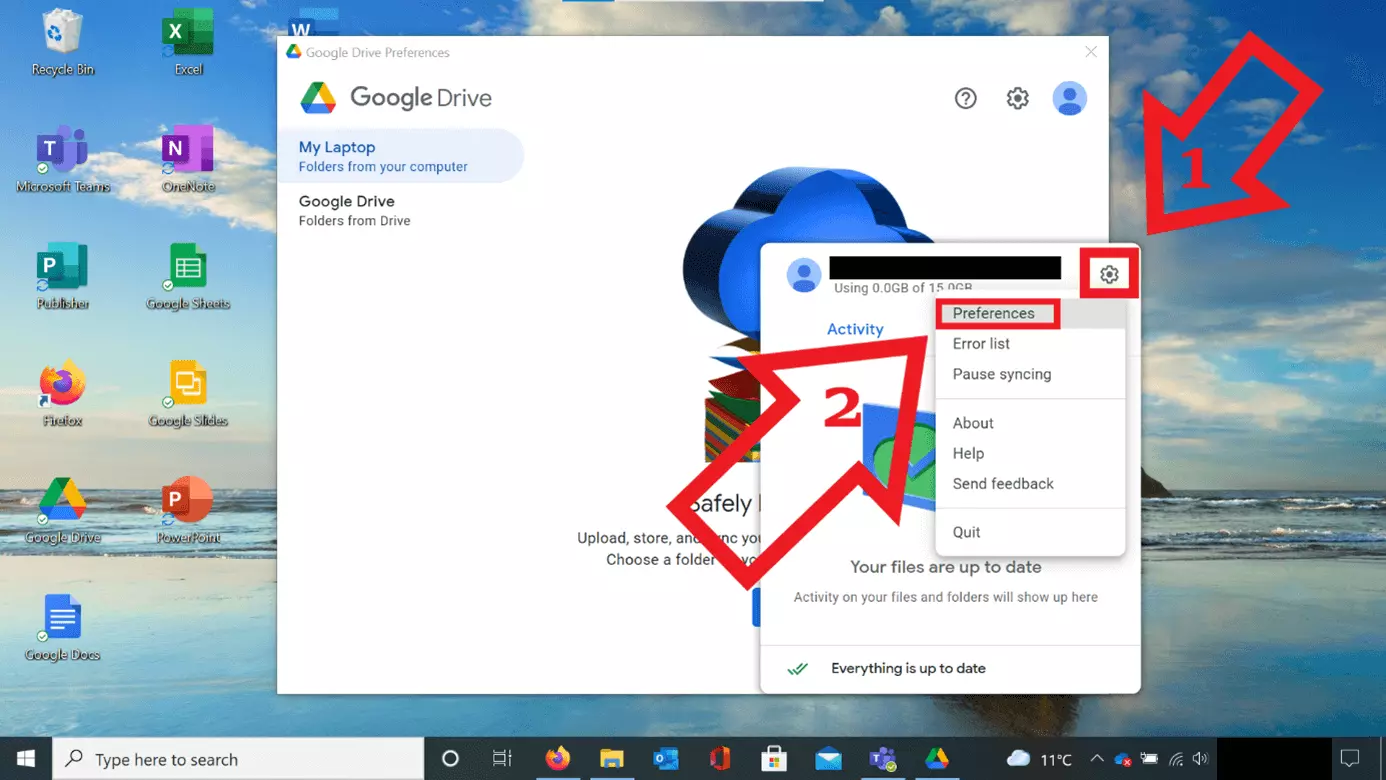
Step 7: You will now have two options to choose from, the first of which is “My Laptop”. This will allow you to upload local files from your computer to Google Drive, thereby creating a backup of them. To do this, click on “Add folder”.
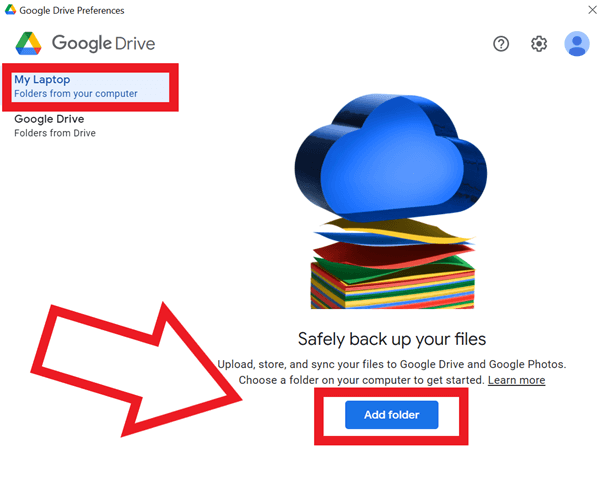
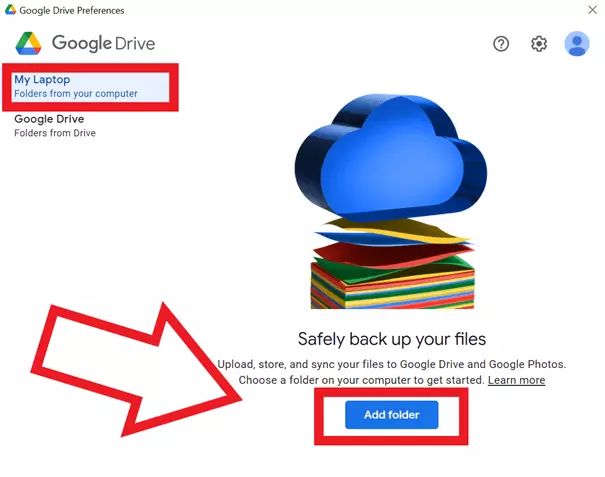
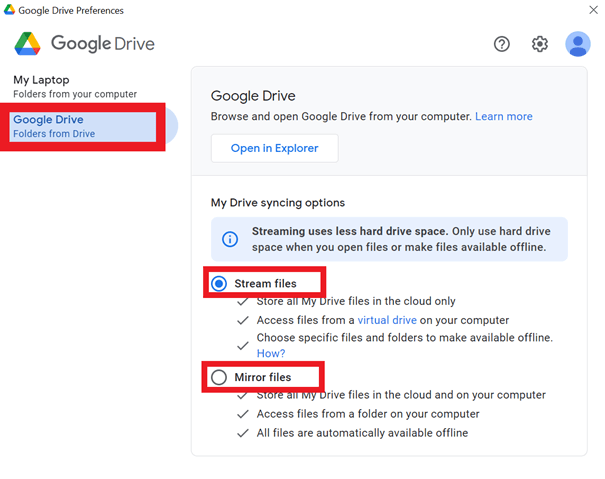
Step 8: With the second option “Google Drive”, you will be able to download files from Google Drive. If you choose “Stream files”, then all the files that are in the Drive “My Storage” area will only be backed up to the cloud. “Mirror files”, on the other hand, is a copying synchronization process. In this case, all the files in “My Drive” will be backed up not only to the cloud, but also to your computer. But beware as this means that file changes and deletions will take place in both places - just like a mirror. Choose the option that suits you best.
Step 9: At the very beginning, there won’t be any files in your Google Drive storage area. Either you use Explorer and add the files that you want to have backed up in Google Drive under “This PC” -> “Google Drive” -> “My Storage”, or you do it via the Internet. On the page of Google Drive and other Google services, you can easily link the files you want to Google Drive. To do this, click on “File” in the documents area and then click on “Add shortcut to Drive”. Afterwards, you just need to select “Add shortcut”.
Google Drive is one of the most popular cloud storages. But there are many Google Drive alternatives like Dropbox or OneDrive, which offer comparable performance and plenty of cloud storage. To find the right file hosting service, check out our cloud storage comparison.
Reviewer

Jeanna Raffa
With over 18 years of experience in online marketing, Jeanna Raffa possesses extensive expertise in digital marketing. Since 2020, her focus has been on providing practical information regarding email, office, and cloud storage solutions.