

How to use the Nextcloud client

Nextcloud clients for desktop and mobile devices enable automatic synchronization of files and directories. To do this, store your data in a local folder and keep both local and server-side Nextcloud files up to date on all linked devices. Synchronizing shared and processed data is always secure and encrypted, thanks to the highest data protection standards.
What is the Nextcloud client?
The cloud and collaboration software Nextcloud offers self-hosting solutions and private cloud computing for private and business use. With a dedicated Nextcloud server, companies can rest assured that their project and business data won’t fall into the hands of third parties, thanks to high data protection standards. Automatic synchronization between local files and the cloud server also supports security, flexibility, and productivity. This guarantees that all parties involved always have access to the latest version of a file, regardless of device and location.
To support this, Nextcloud offers Nextcloud clients for desktop and mobile devices. The clients can be installed for free on any number of devices in just a few steps and linked to the Nextcloud server. These desktop and mobile clients belong to a family of practical Nextcloud apps like Nextcloud Talk for video and audio conferencing. It’s also one of the most useful collaboration tools by a non-commercial cloud software.
What features does the Nextcloud client offer?
Nextcloud’s desktop client automatically synchronizes files for personal and business use – whether documents, images, or entire folders and subfolders. You can choose whether you want to download or store all or only selected files from your Nextcloud server locally. But you can also synchronize via “Virtual Files”. Here, files aren’t downloaded immediately. Instead, the client creates a local link to server files, saving storage space. Only when necessary is the file downloaded locally.
The Nextcloud desktop client includes these features:
- Automatic file synchronization between local devices including Nextcloud folders and servers
- Actions like modifying, adding, or deleting files and folders are synchronized with the Nextcloud server when connected to the internet
- Option to specify which files and folders you want to synchronize
- Local downloads of all or selected files off the Nextcloud server or on-demand access to server files via “Virtual Files”
- By right-clicking, files can be easily shared with other users via the file manager (via link or email)
- Receive notifications when users make changes or comment on synced files and shared files
- Option to be notified when someone adds large subfolders
- Synchronization can be stopped, paused, or started at any time
- Nextcloud user server data can be cleaned up at any time
- Event log to keep track of all actions and changes
- Multiple Nextcloud accounts via different Nextcloud servers can be included in the synchronization
- Clear display of available and used cloud storage
What are the advantages of the Nextcloud desktop client?
With a Nextcloud client, you can stay up to date on your computer, laptop, or mobile device. You and authorized users will always have the latest file version on the Nextcloud server and in the local Nextcloud folder.
Here’s an overview of the advantages offered by the Nextcloud client for desktop:
- Thanks to the automatic synchronization of changes and edits to files and documents, authorized users always have up-to-date file versions
- Flexible team and project collaboration, since working on files isn’t limited to browsers and Nextcloud servers
- The transfer of synchronized or shared files is end-to-end encrypted via a dedicated Nextcloud server
- Files and metadata aren’t shared with third parties or unauthorized persons
- Optionally, new files can be downloaded automatically from the server or synchronized in a memory-saving way with “Virtual Files”
- See when changes are made to a file with a notification or warning or via the activity log
- Easy integration of the file manager makes it easy to share and collaborate on files with others
- The comment function enables efficient teamwork, regardless of location and devices
- The desktop client is free
Where can you download the Nextcloud desktop client?
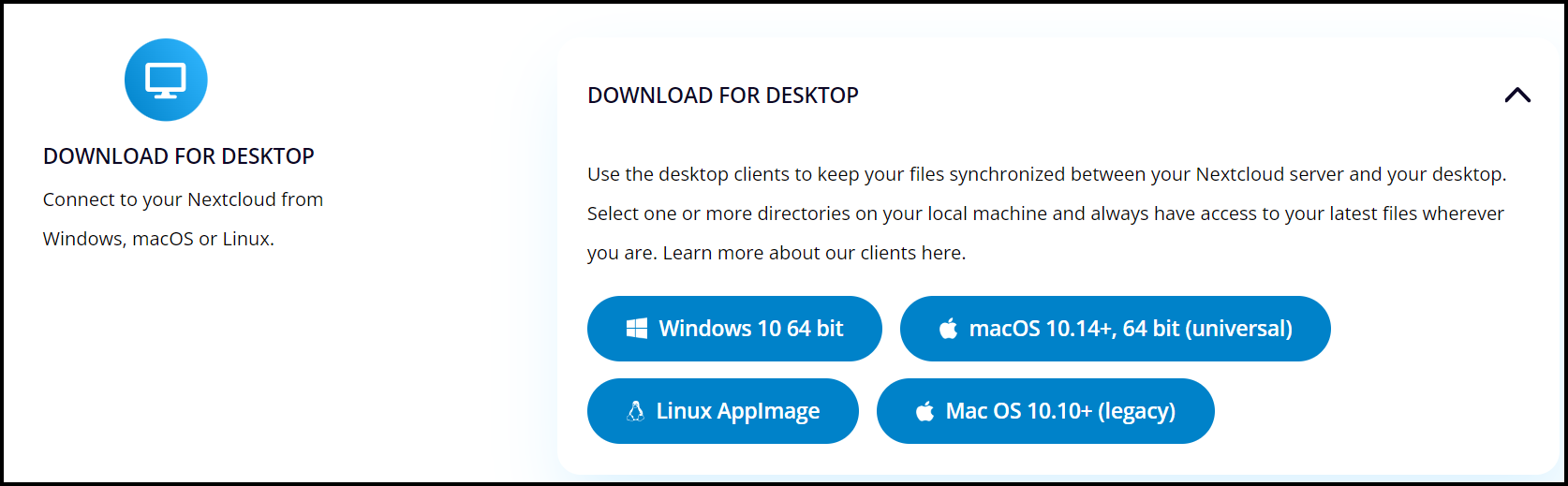
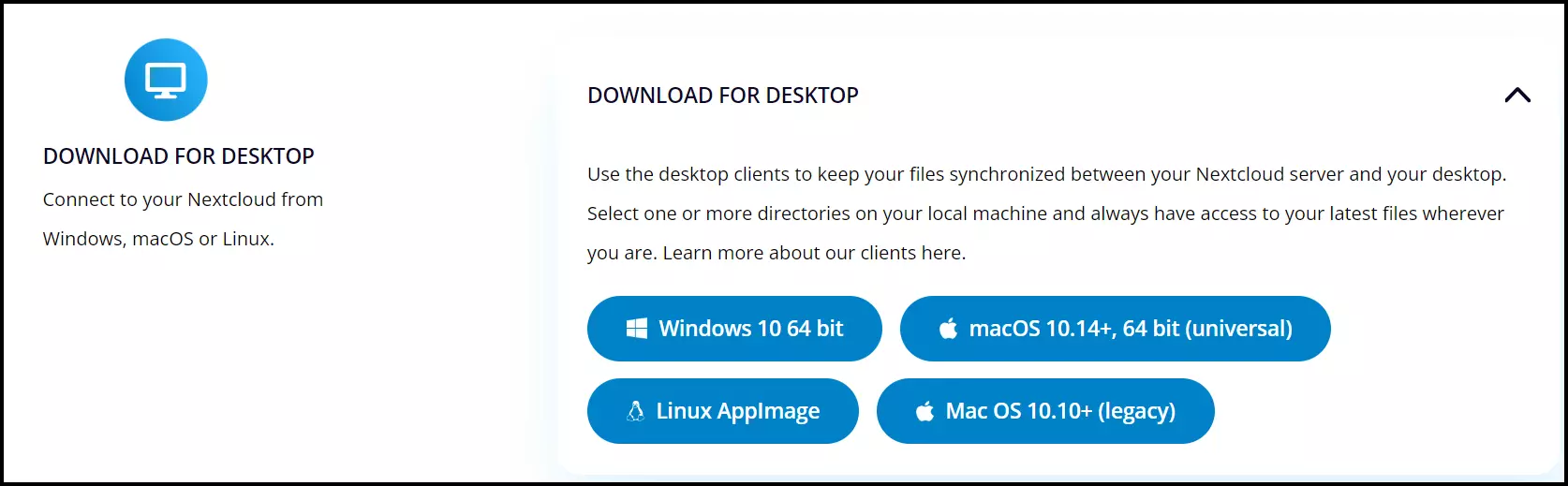
The Nextcloud client for desktop and mobile devices can be downloaded directly from the Nextcloud website. You can choose between clients for Windows, Mac, and Linux or for mobile operating systems like Android and iOS. The download only takes a few minutes and is completely free. However, synchronization requires a Nextcloud account or access to a Nextcloud server. In the example below, we’ll show you how to install the desktop client for Windows.
Installing the Nextcloud client
Complete these steps to install the Nextcloud desktop client:
Step 1: Download the desktop client from the Nextcloud website. Start the installation by double-clicking on the installation file and select “Run” in the next window. Confirm the installation with “Yes” if Windows asks for confirmation.
Step 2: You’ll now see the desktop client’s installation wizard. Start the installation with “Next”.
Step 3: Choose between different installation options. It’s a good idea to accept the default settings. To do this, go to “Install”. The installation may take a few minutes. Once the installation is complete, click “Next” and “Finish”.
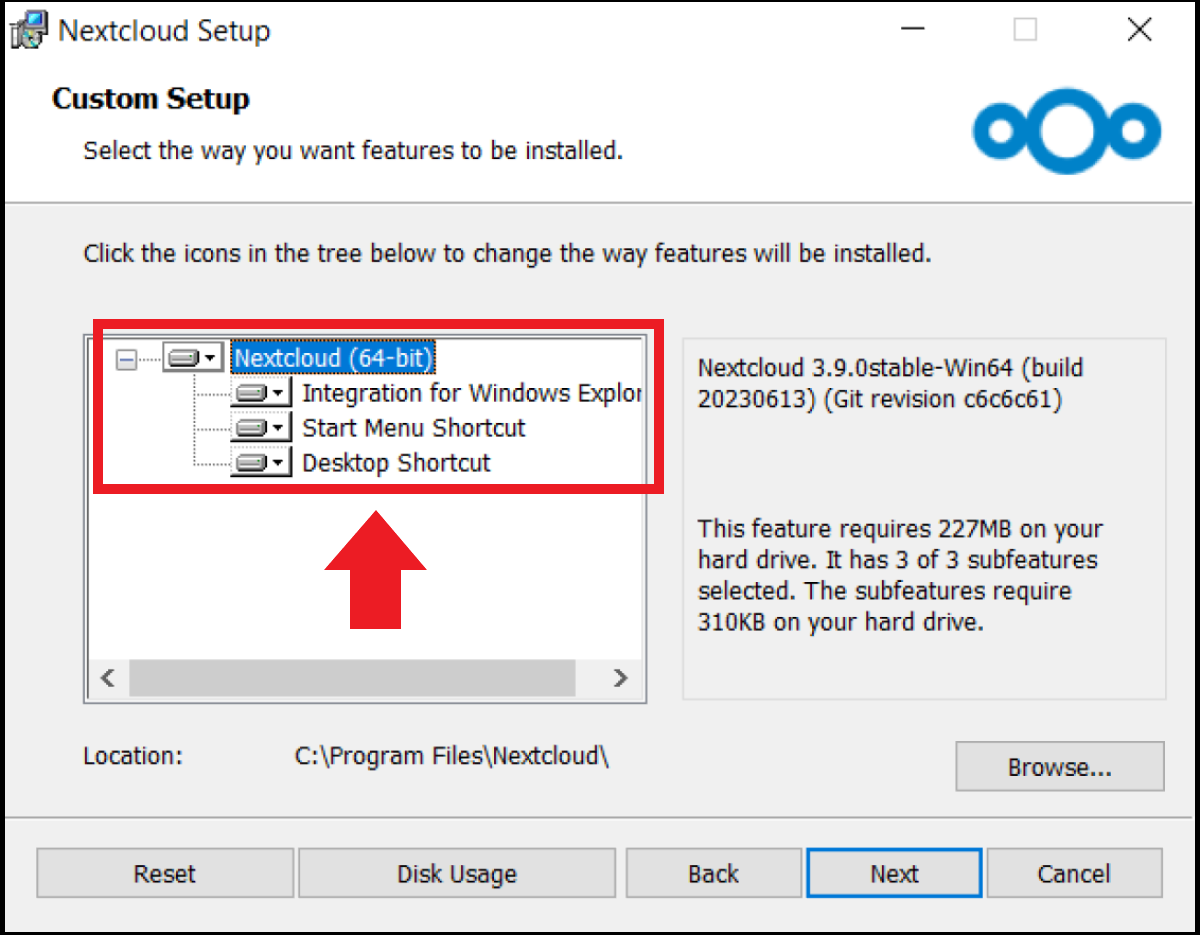
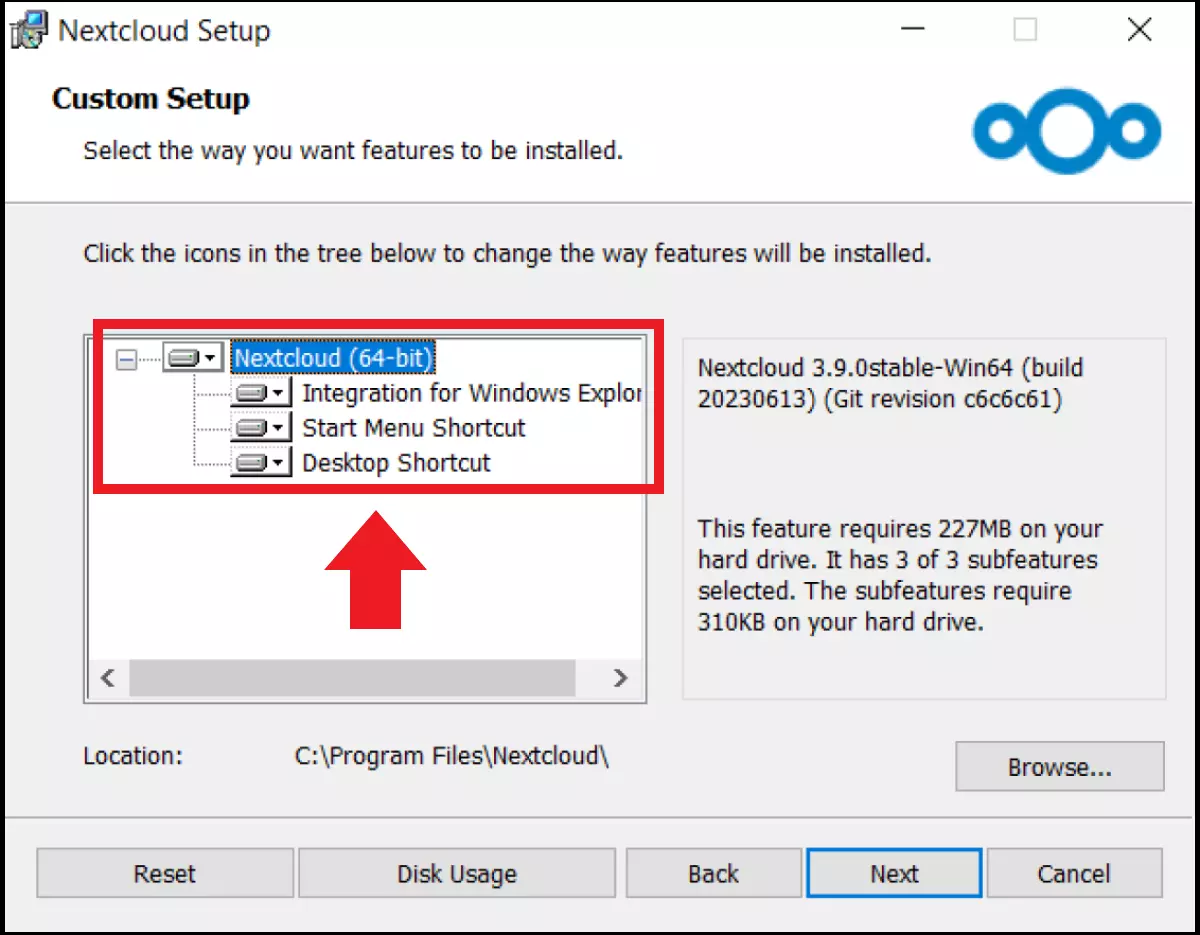
Step 4: You can now choose between different installation options. Again, default settings are recommended.
Configure the Nextcloud client
Once you’ve successfully installed the Nextcloud client, it will open automatically. If the client menu doesn’t open automatically, you can find it via Windows Search or the desktop shortcut.
Complete these steps to configure the desktop client as needed:
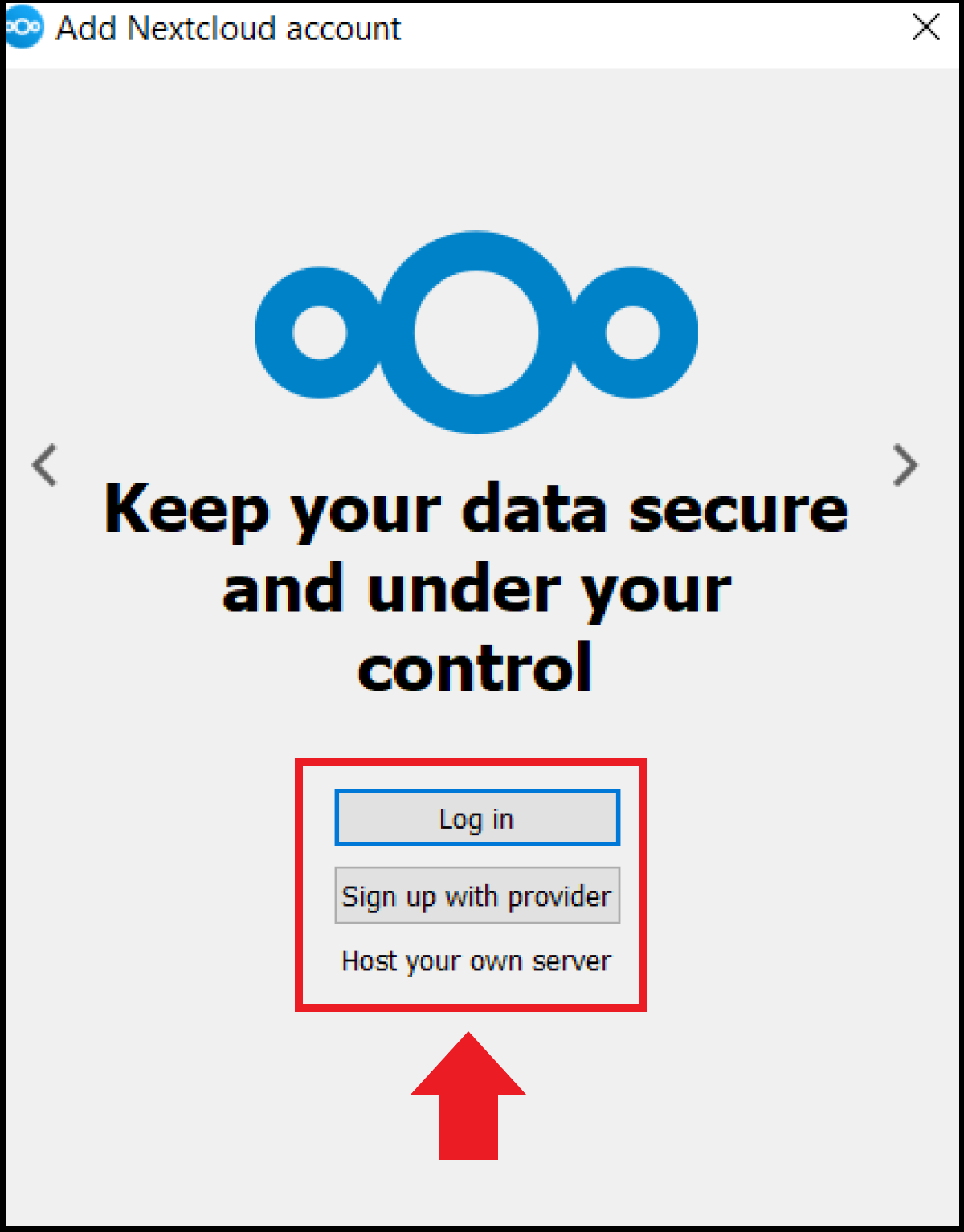
Step 1: If you already have your own Nextcloud server, go to “Log in”. Alternatively, go to “Sign up with provider” for managed cloud hosting via a Nextcloud provider. Enter your access data or the server address including access data.
Step 2: If you choose “Log in”, you’ll be asked for the address of the Nextcloud server in the next window. Enter the URL of your Nextcloud server. Then go to “Log in” and enter your login data consisting of your username or email and password.
Step 3: Confirm your login and which server files you want to synchronize with the client via “Grant access”.
Step 4: Now configure details like the desired location of your Nextcloud files. You can choose a local default folder for the synced files or a local Nextcloud folder. Choose “Select items to synchronize” to pick the files you want to synchronize from the server. Among other things, you can specify that you must first approve synchronization for new, very large folders.
Step 5: To start the synchronization for the first time, click on “Connect”. Once complete, check whether all items are listed in the synchronization folder.
Nextcloud client user interface
The interface provides plenty of features to customize your sync settings, share files, and open other Nextcloud apps. In addition to the desktop app, all Nextcloud client features are also available in the browser. Some submenus of the desktop client are only displayed in the browser, like “Activity” (as of August 2023, Desktop Client for Windows). Here are some of the Nextcloud client’s most important features:
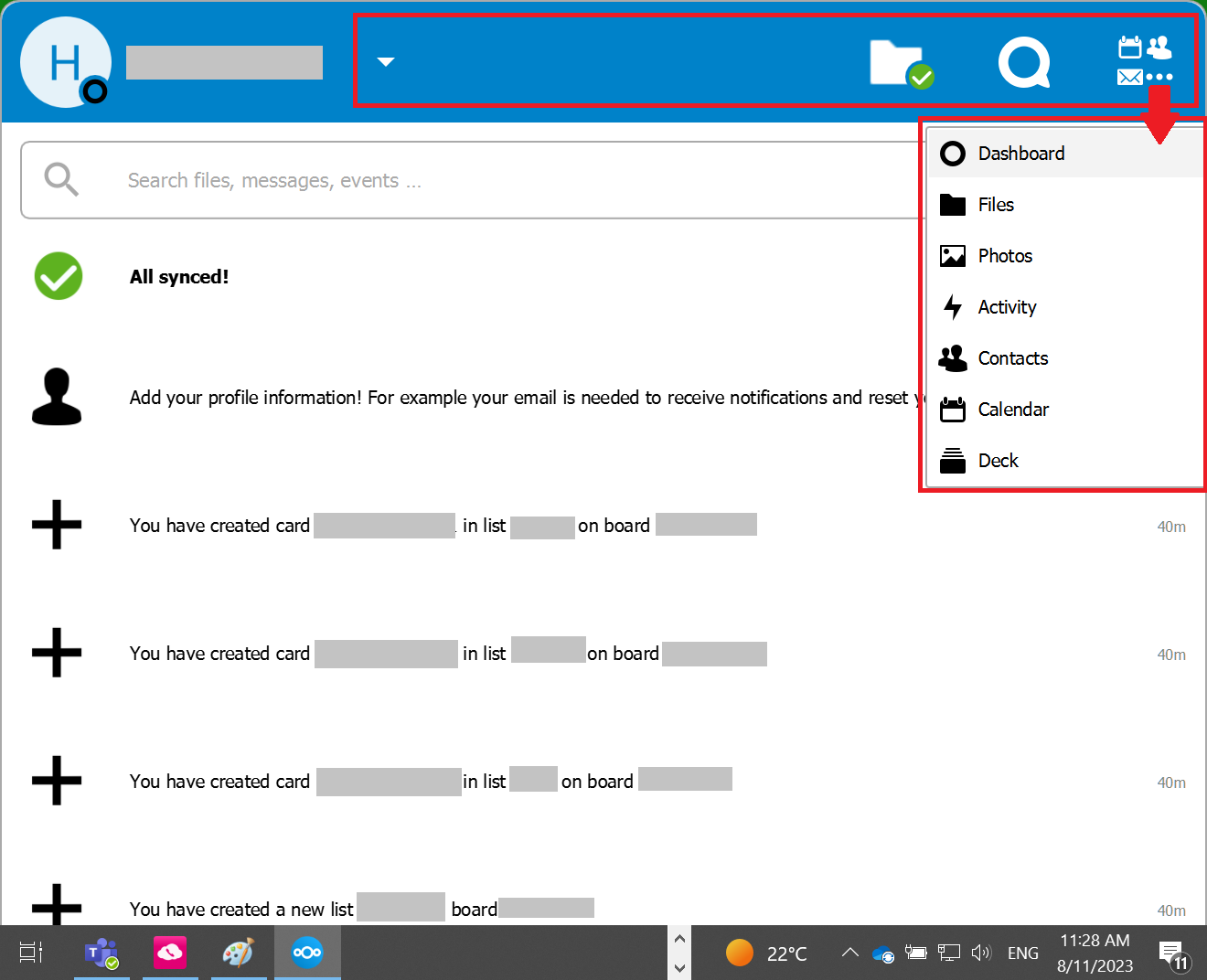
- The navigation bar can be used to access functions and apps like Nextcloud Files, Nextcloud Talk, or Nextcloud Calendar, no matter which submenu you’re in.
- The share function lets you to share files with others or be notified when others share a file. For a folder or file, click on the three dots “…” in the context menu on the right. Here you’ll find the share window. You can share files via link or email, add users for shared file, set an expiration date, or unshare.
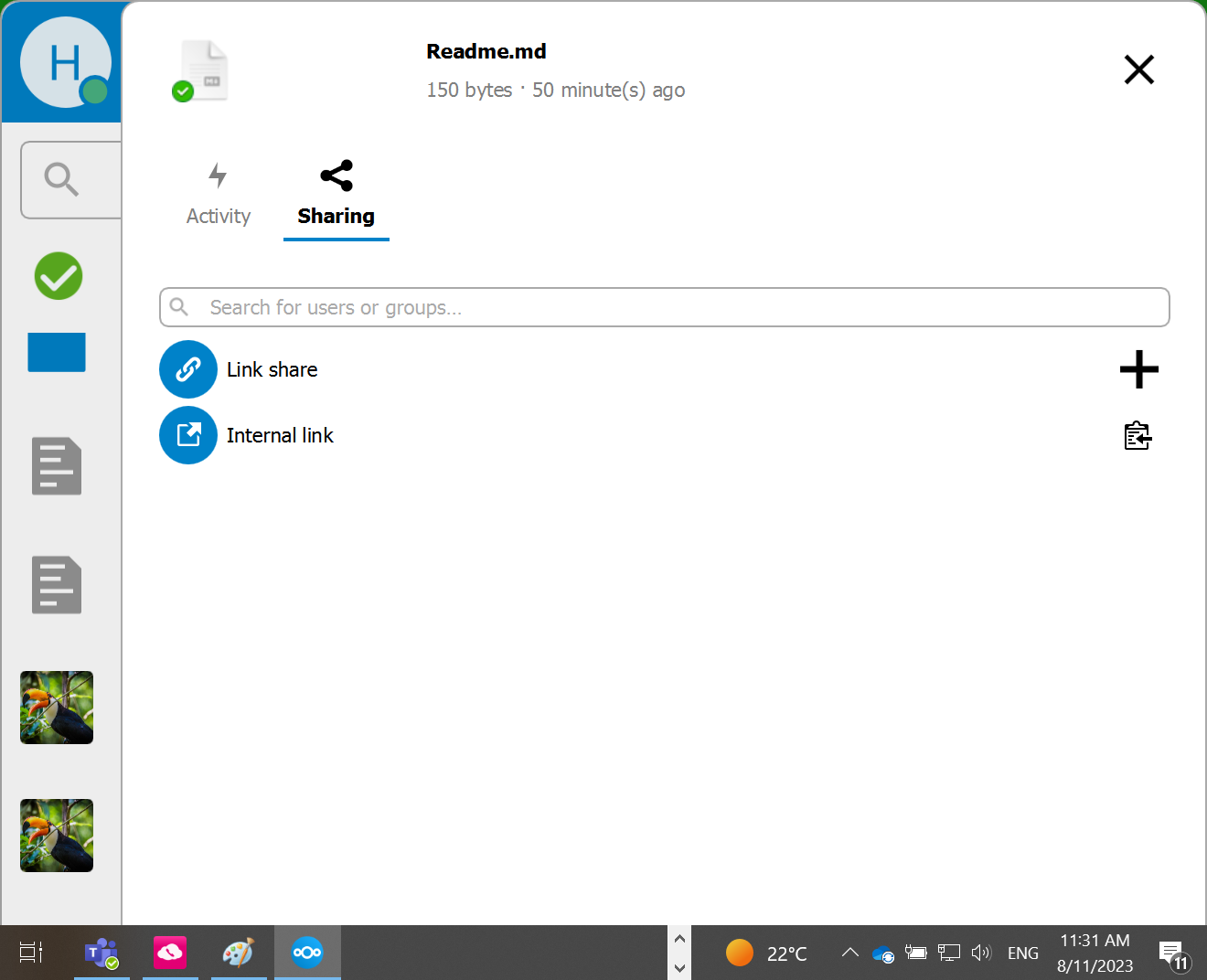
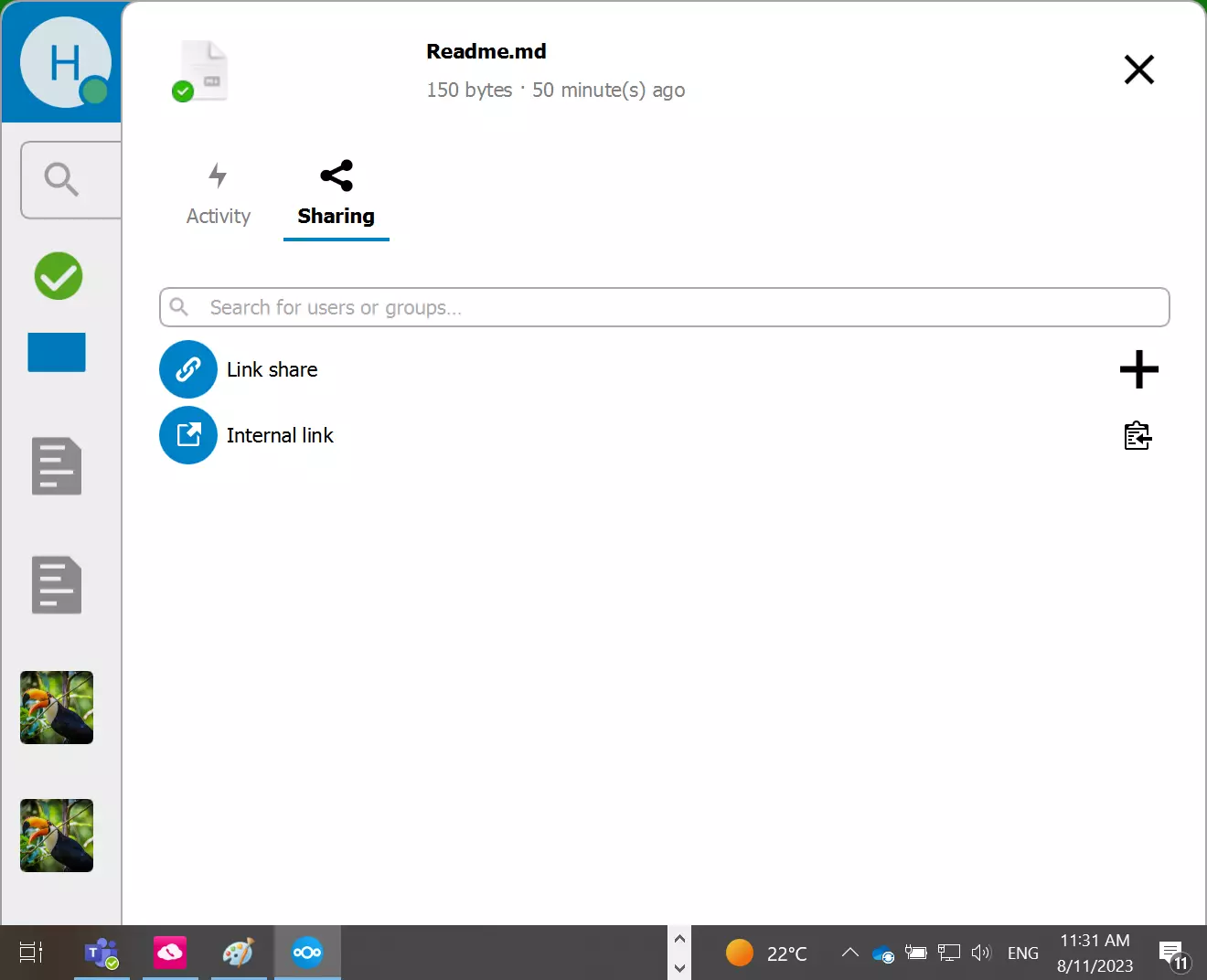
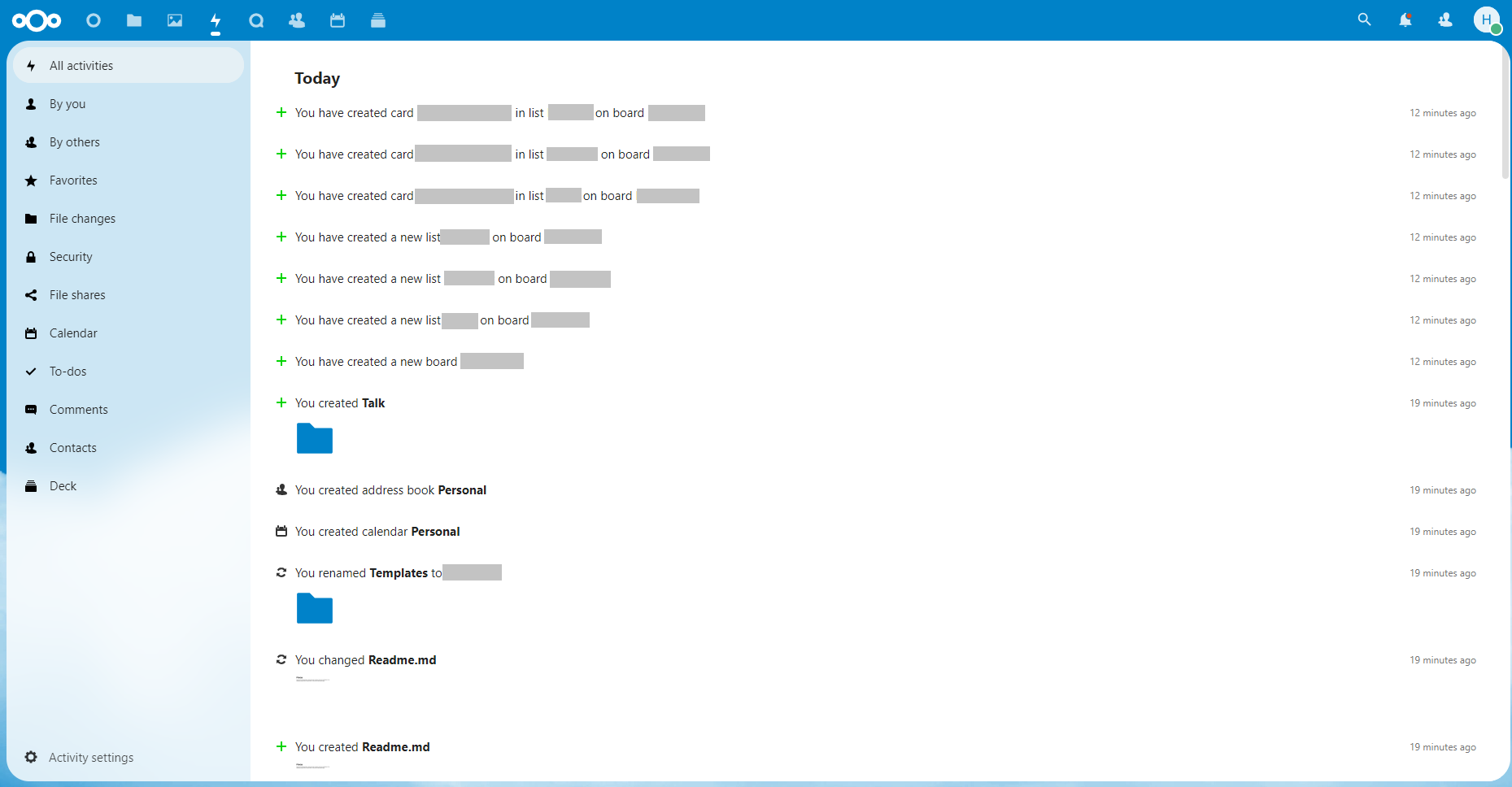
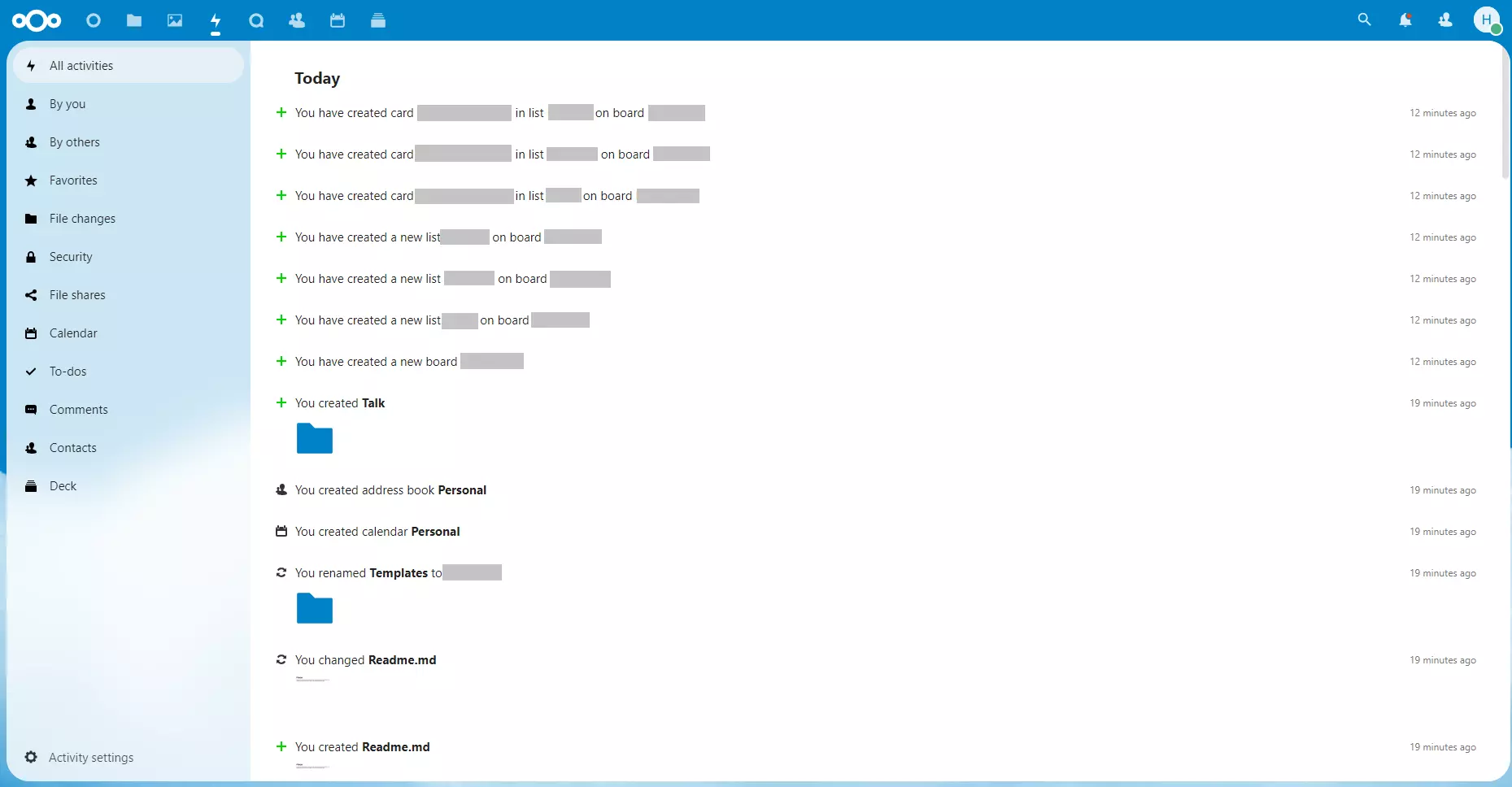
- In the Activity tab in the client (lightning bolt icon), you’ll find an activity log that documents actions like current or past calls or file changes. You can respond to actions and notifications, or join ongoing calls. In the desktop client, you can access the “Activity Menu” via the three dots on the right side of the navigation bar. A browser window will open displaying the activities.
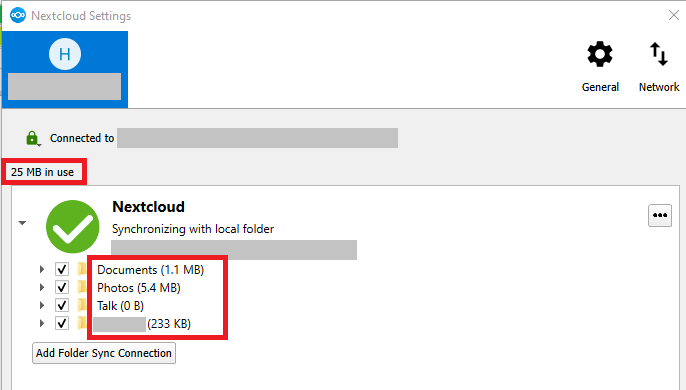
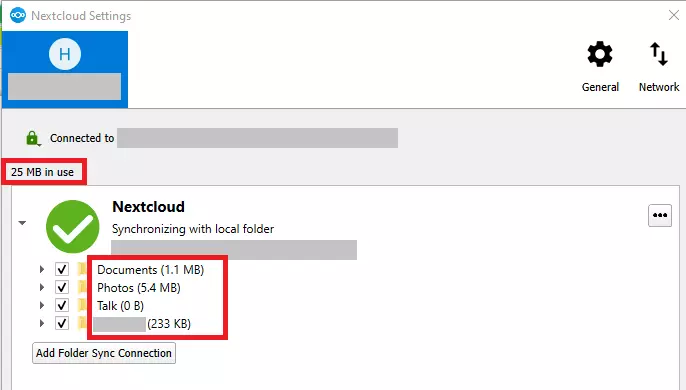
- The storage overview tells you how much space is used. You can find this view via the navigation bar by clicking on the arrow next to their profile on the left.
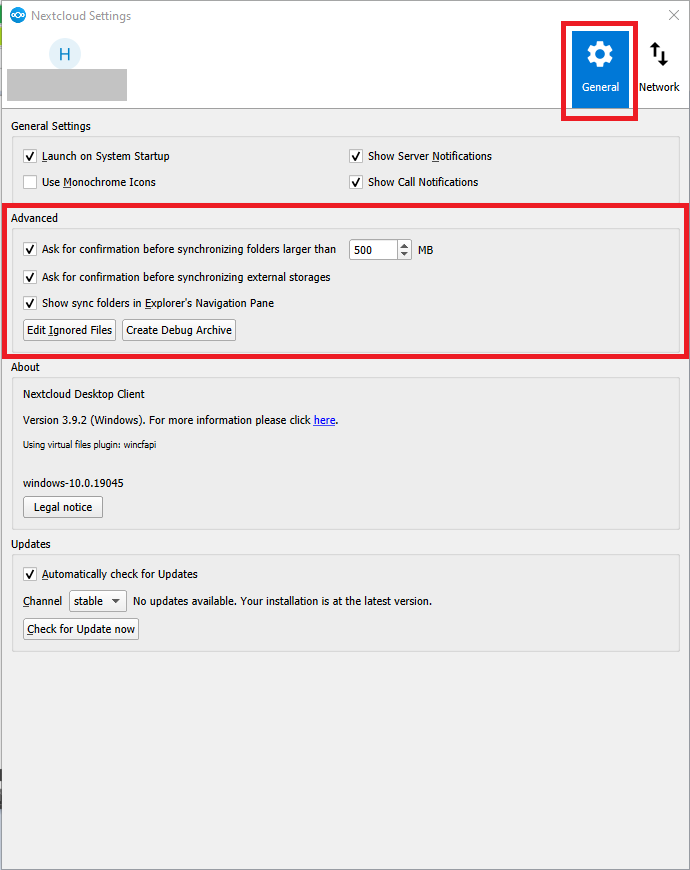
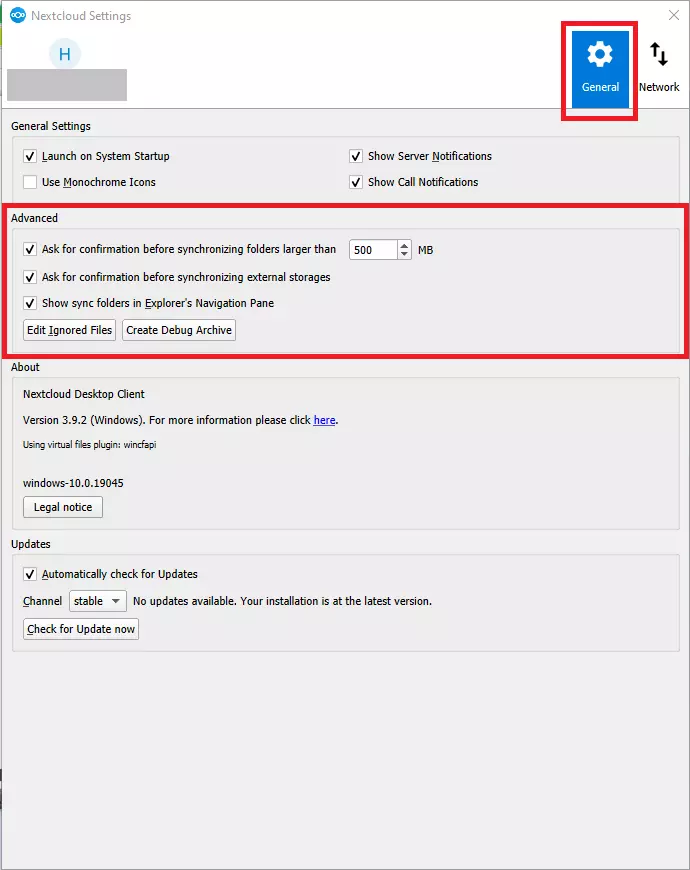
- Use Advanced Settings to specify which files you don’t want to sync. You can access this menu via the navigation bar on the left side of your profile.
Which operating systems support the Nextcloud client?
For desktop use, Nextcloud currently offers clients for the following operating systems:
- Windows 10 (64 bit)
- macOS 10.14+ (64 bit, universal)
- Linux AppImage
- Mac OS 10.10+ (legacy)
To install a suitable desktop client, you need administrative rights and access data. The installation of the client takes only 228 megabytes, but you should also consider having enough local storage space for data to be synchronized.
What are the advantages of Nextcloud’s mobile client?
Would you like to have continuous access to Nextcloud data from your computer, laptop, and mobile devices? Nextcloud offers mobile apps like Nextcloud Files and Nextcloud Talk for iOS, Android, or as an APK download. With Files, you can synchronize files between your mobile device and the Nextcloud server and can make real-time file changes. Users can add notes, share files, and track changes.
Both iOS and Android clients stay up to date with the latest mobile operating system and enable networked collaboration with real-time synchronization. Available mobile apps for Nextcloud can also be found on the installation page for mobile and desktop clients.
Reviewer

Jeanna Raffa
With over 18 years of experience in online marketing, Jeanna Raffa possesses extensive expertise in digital marketing. Since 2020, her focus has been on providing practical information regarding email, office, and cloud storage solutions.