

htop - Task manager for Linux

If your computer system’s performance is too slow or if it suddenly keeps freezing, you need to ask yourself: are undetectable programs or processes running in the background that are putting a strain on the system? And are they eventually causing these problems? The task manager (also known as 'process manager'), can answer this question. Since it collects information about all the active system processes, it presents them in a graph and distinguishes the problem at hand. In addition to this monitoring function, task managers are also able to manage these processes: you can not only determine which programs and services are exerting a particular strain on your system, but you can also terminate them.
htop: the open source solution with thread itemization
Current operating systems have process managers installed by default. If the operating system does not, they provide corresponding commands to display and manage processes. There are also alternative programs like htop, which are known to represent processed data in a better way and are much easier to use. Originally developed exclusively as a Linux task manager, the GNU-licensed tool fulfills the tasks of the command top, which is used to display active processes on Unix-like systems. Furthermore, the terminal is replaced by a text interface based on the C library, ncurses. In this manner, htop can be operated easily using the keyboard and without having to enter cumbersome commands. The process manager, which was published by Hisham Muhammad in 2004 and has been constantly evolving ever since, doesn’t just show the active tasks, but also their individual threads. These implementations provide a more detailed description of the process in question, meaning that they allow an even more accurate evaluation. There are some keyboard shortcuts for htop; in a desktop environment, the process manager can even be operated by mouse. If you use the latest ncurses library, you can use the mouse to scroll through the process overview. In addition to Linux distributions such as Ubuntu, the task manager is also available to use on the Unix derivatives, FreeBSD, OpenBSD, and Mac OS X.
The structure of the task manager for Linux
The htop interface is divided into three sections:
- Header
- Main section
- Footer
By default, the two-part header shows the percentage of the various processor cores as well as the capacity of the memory ('mem') and the swap file ('swp') in megabytes (MB) on the left. The right part provides information about the number of active tasks and threads, the status of the system battery, the system’s 'uptime' and the average 'system load' specified in three values. The header can be freely configured so that, for example, instead of using the individual processor cores, the respective average value can be displayed.
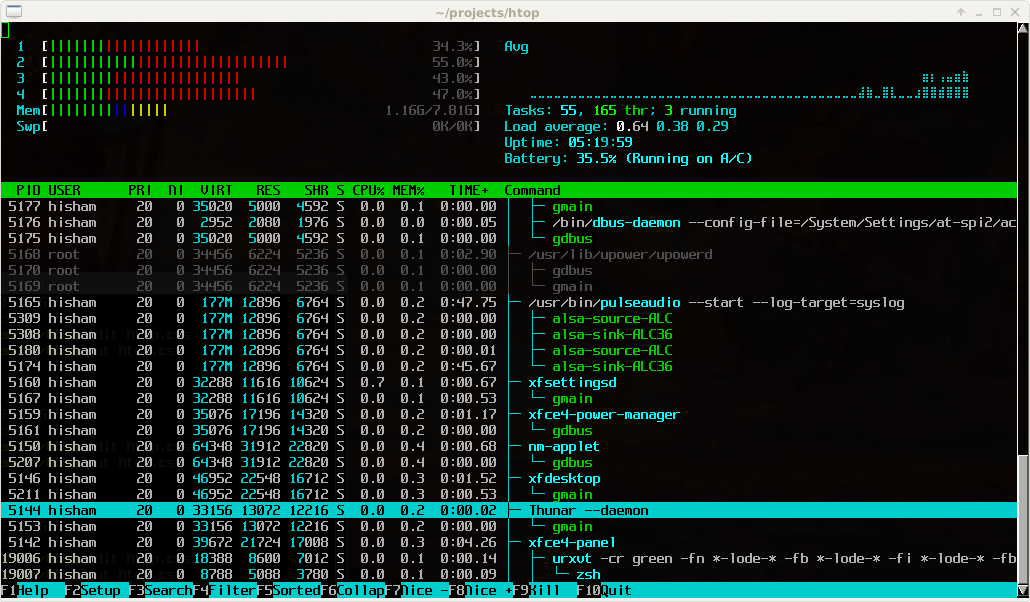
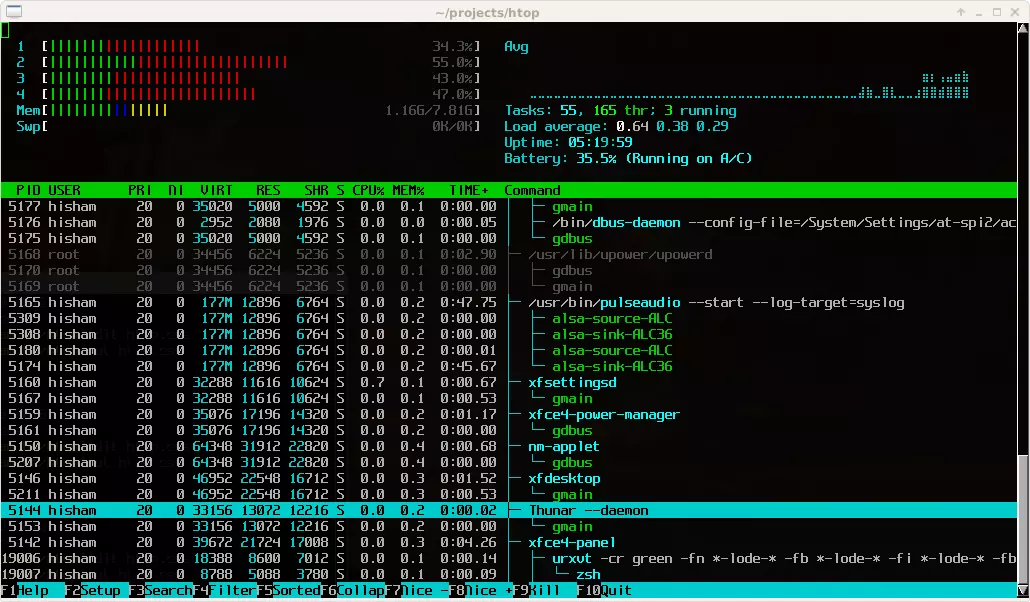
The main area lists all active processes using the following values:
| PID | The process' ID |
|---|---|
| USER | The process' owner |
| PRI | The process' priority (the lower the number, the higher the priority) |
| NI | The nice value of the process (responsible for the priority) |
| VIRT | How much virtual memory is being used |
| RES | How much physical RAM the process is using (measured in kilobytes) |
| SHR | How much shared memory is being used |
| S | The current status of the process (e.g. zombied, sleeping, running, etc.) |
| CPU% | The percentage of the processor time used by the process |
| MEM% | The percentage of physical RAM the process is using |
| TIME+ | How much processor time has been used by the process |
| COMMAND | The name of the command that started the process |
The htop footer has different buttons that can be selected by mouse click. They can also be accessed using the function keys F1 to F10.
htop: function keys and other key commands
While other areas of the tool are only concerned with collecting processes and statistics, the last-mentioned buttons on the footer are what are used to operate htop. It doesn’t matter whether you use the mouse or the keyboard. However, if you decide to use the keyboard, you will have a number of useful key commands that go beyond the possibilities of the function keys and make task manager work extremely easy. The ability of each function key and additional shortcuts are summarized here:
| Key or key combination | Alternative(s) | Function |
|---|---|---|
| [F1] | [?] or [h] | Displays the help menu |
| [F2] | [Shift] + [s] | Opens the configuration menu |
| [F3] | [/] | Opens the search process |
| [F4] | [\] | Filters the processes according to name |
| [F5] | [t] | Activates/deactivates the tree view |
| [F6] | [>] | Opens the sort menu |
| [F7] | ] | Reduces the nice value of the selected process |
| [F8] | [ | Increases the nice value of the selected process |
| [F9] | [k] | Ends the selected process |
| [F10] | [q] or [Strg] + [c] | Ends htop |
| [Space bar] | Tags the selected process(es) | |
| [Shift] + [u] | Removes all tags | |
| [Shift] + [p] | Sorts processes according to CPU usage (CPU%) | |
| [Shift] + [m] | Sorts processes according to memory usage (MEM%) | |
| [Shift] + [t] | Sorts processes according to processor time (TIME+) | |
| [u] | Allows a particular user to be selected | |
| [Shift] + [k] | Hides kernel threads (system-specific) | |
| [Shift] + [h] | Hides user threads (application-specific) | |
| [Shift] + [f] | Attaches the cursor to the selected process |
How to install htop
As is common for open source programs, you can install htop using either source files or binary files and the package manager of each distribution. Download and install the former with the following commands:
$ wget https://hisham.hm/htop/releases/2.0.1/htop-2.0.1.tar.gz
$ tar -xzvf htop-2.0.1.tar.gz
$ cd htop-2.0.1./
$ ./configure
$ make
# make install
If, on the other hand, you prefer the variant with the package manager, you should first ensure that the current htop version is included for your distribution. If it is, then simply follow the usual installation pattern for your system. For example, in Ubuntu, the task manager is set up by entering the following command:
sudo apt-get install htopConclusion: self-explanatory and clear process manager
htop is a good example of the classic Unix command top and scores plus points with its ncurses-based text interface. As a result, the individual processes and threads are not only presented in an appealing manner, but operating with a mouse or keyboard is a lot more intuitive than with pure command line tools. The clever use of function keys and various additional key commands simplifies navigation and configuration, no matter whether processes should be terminated, or priorities should be changed. Besides top (that is already installed by default), there are alternatives for experienced administrators. This includes the similar process manager atop as well as the cross-platform tool Glances.
Reviewer

Christian Heldmaier
Christian Heldmaier is an experienced online marketing and SEO specialist from Karlsruhe. He has been working as an SEO Manager at IONOS since July 2020.