

Open or restore a TMP file: How it works

Over time, various programs and even the operating system store the most varied information in so-called temporary files (TMP files) with the extension .tmp. In most cases, these cache files help free up working memory when using the respective applications and interacting with other programs. They often fulfill the role of back-up copies that temporarily store the current processing status in order to be able to recover a file in case the system crashes.
In theory, TMP files generated ought to be automatically deleted as soon as the respective program is closed or the system is shut down. In practice, though, this isn’t always the case. That’s why it’s possible that, while browsing through directories and files on your system, you might come across temporary files that are not actively in use by either the system or any other software. We’ll show you how to open these TMP files in order to inspect or reproduce the content
How to open a file with the extension .tmp?
If you come across a temporary file, you will often want to open it in order to recover the content of the TMP file or to find out what information the file contains. However, even if the standard extension .tmp creates the impression that these files can be opened with the same tool, the reality is rather different. Because TMPs are used by the respective programs for varied purposes, they also contain different kinds of data – from plain text to images and videos, all the way to spreadsheets or back-up information.
That means that you can often only open temporary files with the same program they were created with, or only with a program that supports the file type.
The best tools for opening a TMP file
If you can work out what application the TMP file belongs to by matching it to the storage location, you try to open the file with that program. If the software doesn’t offer any possibility, or the file properties don’t provide any clue as to where the .tmp file comes from, the following tools will give you the best chances of success:
- Microsoft Word: If you’re looking to open and edit text documents, Word is a great choice. The text-processing program by Microsoft can also be used to open many TMP files that contain plain text. Word itself creates temporary files in order to cache the editing status of the current document.
- Microsoft Excel: Word is to text documents what Microsoft Excel is for any kind of table data. If you suspect that information structured in this way is hidden by a temporary file, Excel gives you the best chance of restoring the respective TMP file.
- VLC Media Player: Because it supports a wide range of data types, VLC Media Player has long been one of the most popular solutions to play audio and video files. The program also displays images, meaning it can open almost all TMP files that feature digital media content.
- Firefox (and other browsers): Browsers like Firebox enable you to open different kinds of TMPs. Particularly plain text and PDFs, but certain media content can also be restored in this way. You can resume interrupted downloads that were secured in .tmp format using Firefox and other browsers.
How to open a TMP file: example VLC Media Player
If you want to use one of the tools mentioned above to open a TMP file, you can do this the same as with any other file. Most applications typically have an “Open file” button which will prompt you to select the location of the .tmp file. Some programs allow you to open files by dragging and dropping them.
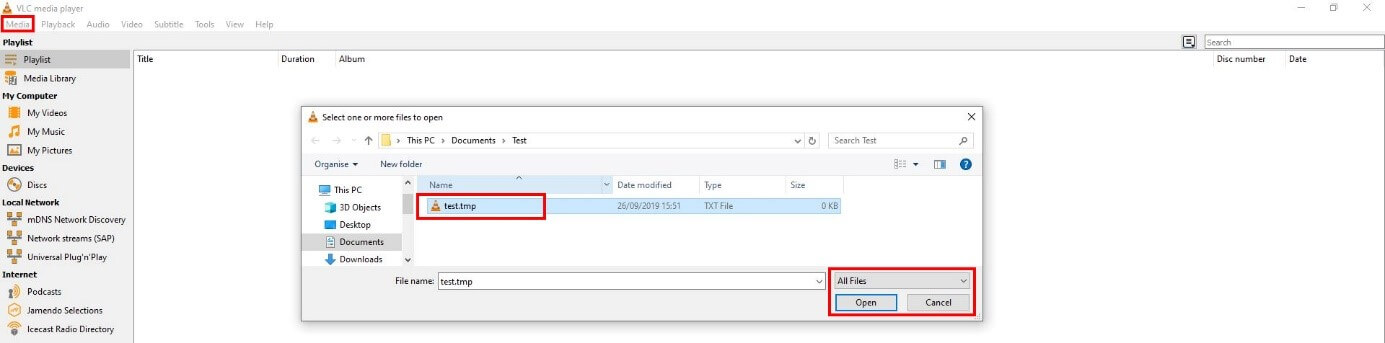
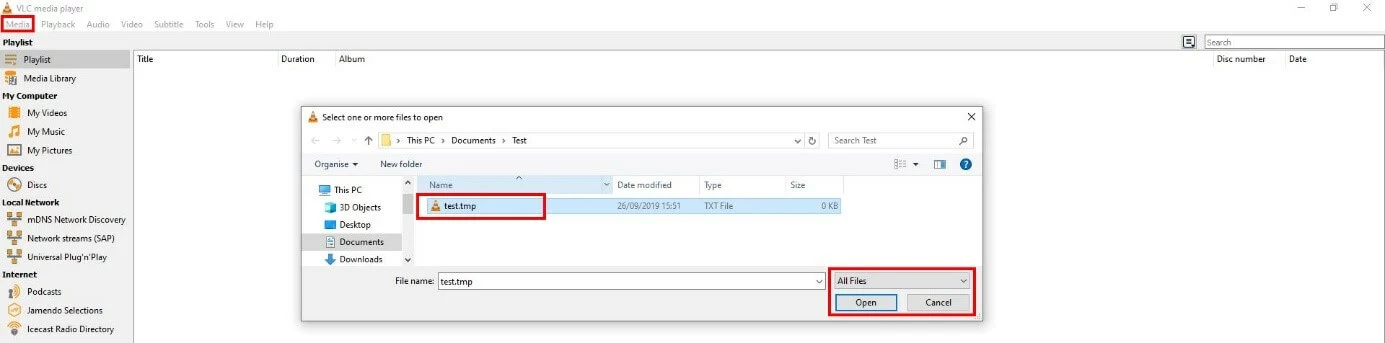
In VLC Media Player restoring TMP files works as follows:
- Open VLC Media Player.
- Click on “Media” and select the menu option “Open file”.
- Set the option “All files” and then indicate the location of the temporary file.
- Click on “Open” to restore the TMP file.
To open the temporary file with drag and drop as mentioned, select the file by left-clicking it and then drag it into the media player window.
Reviewer

Christian Heldmaier
Christian Heldmaier is an experienced online marketing and SEO specialist from Karlsruhe. He has been working as an SEO Manager at IONOS since July 2020.