

How to set up your own web radio server with a Shoutcast server

Shoutcast is freeware that allows you to take your online radio station or podcast on the air. It only takes a few steps to set up a Shoutcast server and there’s no coding necessary. Read about what the requirements are and follow our step-by-step guide below to get your show streaming.
What is Shoutcast?
Shoutcast is a dedicated server that you can use to make your personal web radio station or WordPress podcast available to listeners. Your audience can then connect to your server from any device and stream your program with VLC or an alternative media player.
In addition to a Shoutcast server, you need a source, i.e., software for creating the actual stream that is transmitted to the server. You can use Winamp and the Source DSP plugin for Shoutcast to do this.
A Shoutcast server is also called a DNAS server. DNAS stands for Distributed Network Audio Server.
What are the requirements for a Shoutcast server?
Before you can set up your own Shoutcast server, you need to make sure you have the right hardware. A decisive factor when choosing a server is the bandwidth. The more listeners you have simultaneously connecting to your server, the higher the bandwidth should be. This ensures a smooth stream.
In order to install Shoutcast Server version 2.6 on your server, you need to make sure youroperating system meets one of the following minimum requirements:
- Windows 32-bit: Windows 2000, XP, Vista, Windows 7, 8, 10
- Windows 64-bit: Windows XP, Vista, Windows 7, 8, 10
- Linux 32-bit
- Linux 64-bit
Which IONOS servers are suitable for a Shoutcast server?
To make your web radio station accessible to your audience, you have two main options: You can use your home PC as a server, or you can use an externally hosted server. With the latter, the bandwidth is higher and more stable. If you use your home PC, the speed and stability of the stream will depend on your internet connection. Since upload speeds are usually around 1,000 to 2,000 Kbps and often streamed at 128 Kbps, you will probably only be able to stream to a maximum of 15 listeners. With an externally hosted server, you won’t have to worry about this, because you’ll have higher bandwidth at your disposal.
You should also considerhow often you want to stream and how long each streaming session will be. The more often and longer you stream, the more worthwhile it is to invest in a high-quality server. With server hosting, you can choose between a cloud server, a vServer and a dedicated server.
With a vServer, you pay a fixed monthly price. Having a pricing model that doesn’t fluctuate from one month to the next will make it easier for you to plan your budget.
Cloud servers offer flexible scaling. This means that more server power can be used during peak times, and you only pay for what you use. A vServer offers you virtual resources that are billed at a fixed monthly price. If you know exactly how much capacity you need, this may be the model for you. Web radio professionals who already have a large listener base may want to take a closer look at dedicated servers. These offer high performance capacities, especially in terms of bandwidth.
For newbies who are setting up a web radio server for the first time, we recommend trying a cloud server. With an IONOS Cloud Server, you can test the waters and only pay for what you actually use.
How to set up a Shoutcast server: A step-by-step guide
To set up your Shoutcast DNAS server, follow the instructions below. In this tutorial, we are using the IONOS Cloud Server with the Windows 2019 operating system. Of course, it’s also possible to use a different server to set up Shoutcast.
Step 1: Set up a connection to the server
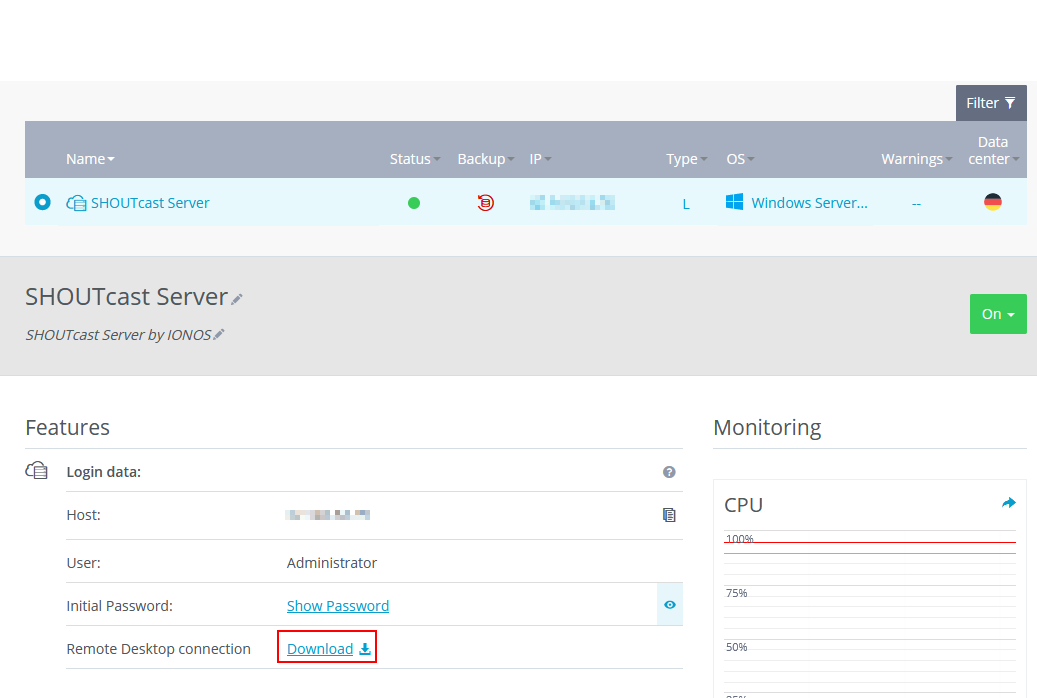
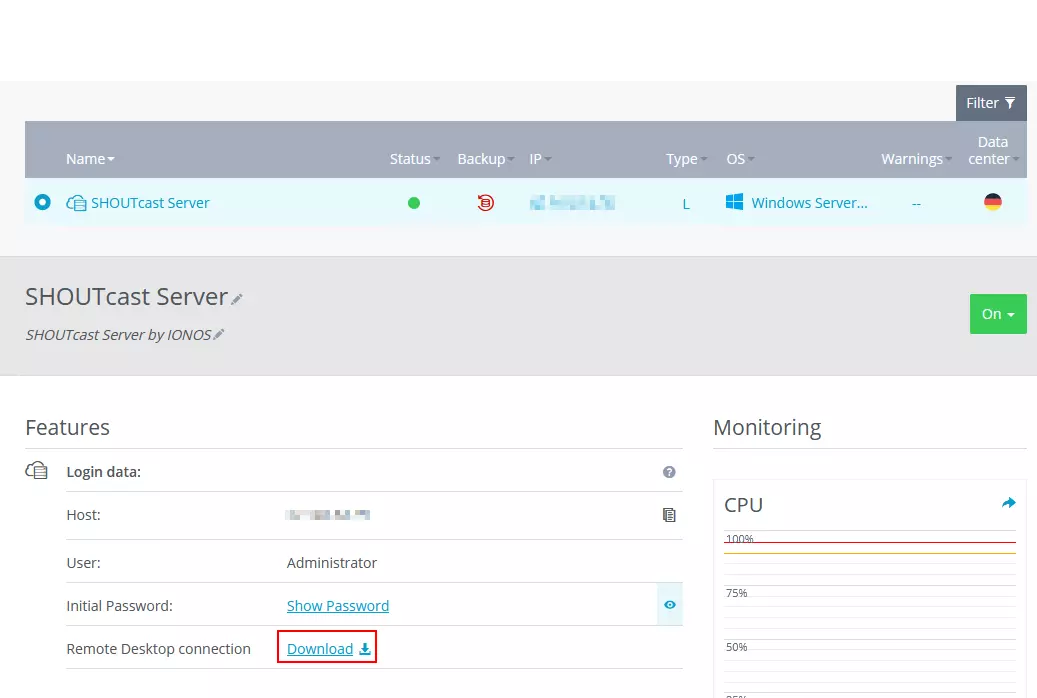
In order to perform the installation, you’ll need to first establish a connection to your server. To do this, log into your IONOS customer account and go to the Server and Cloud area. Then select your server. You can give it a name so that it’s easier to identify. Here, we’ve named our server “SHOUTcast Server”.
You will see an overview of the access data and the current load of the server. To set up a remote connection to the server, click on Download. Once the file is downloaded, open it with a double click. When prompted, log in as administrator and enter the initial password. If you are having problems accessing your server, you may still need to unblock the firewall.
Step 2: Set up your Shoutcast server
Before you start with the actual installation of the server, you’ll need to first create a Shoutcast account. To do this, go to the Shoutcast website and register your station. You can adjust things at a later point in time if you need to.
Here you can enter information about your radio station that will later be displayed to your audience. This information can also be used to help people find your station, so make sure to create an accurate and engaging description of your program here. In the next step, specify the language you want to broadcast in. After you are done, your station will be ready, and you’ll be able to see the Shoutcast dashboard.
Step 3: Install the Shoutcast server
Now it’s time for the actual installation of the Shoutcast DNAS server. To do this, go to the online dashboard of your Shoutcast account. Click on your name in the upper right corner and then on Manage your plan.
Download the server version that is compatible with your operating system. In our example, we use version 2.6.1 for Windows 64-bit. However, you can also install the server on a Linux system. Open the downloaded file with the name sc_serv2_win64_latest.exe. Now follow the installer through the setup process.
Caution: Do not install the program in the folder that is automatically suggested. In the Choose Install Location step, create a new folder instead. It is important that the file you choose gives you full editing access, as files will need to be configured later. For example, you can use the following path: C:\Shoutcast\
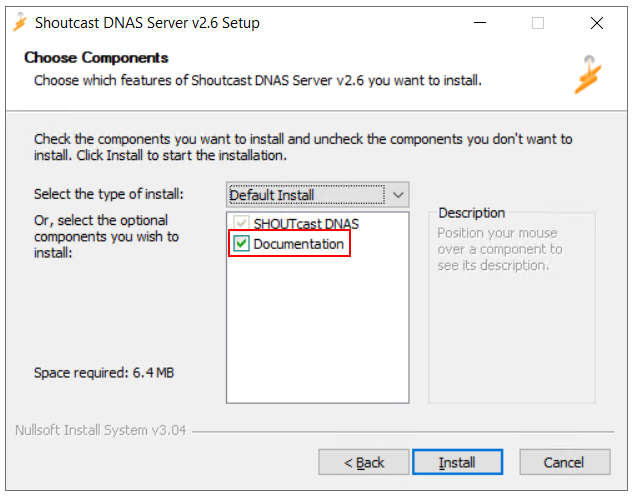
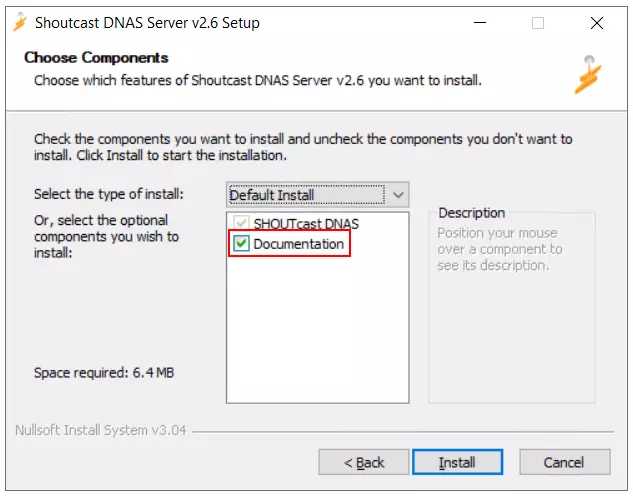
Next, you can select which components of Shoutcast should be installed. Here make sure to check Documentation so that helpful sample files and instructions will be installed. Then click on Install and complete the installation.
Step 4: Configure your Shoutcast server
You’ve already laid the foundations for your Shoutcast server, however, before you connect your source to it, it’s useful to look at some other settings.
In the README files, you will find lots of up-to-date tips for setting up and configuring your Shoutcast server.
Go to your Shoutcast folder and start the setup.bat file with a double click. An input window should open as well as a setup interface in your browser. You can set up the basic configuration of the server and your first stream here.
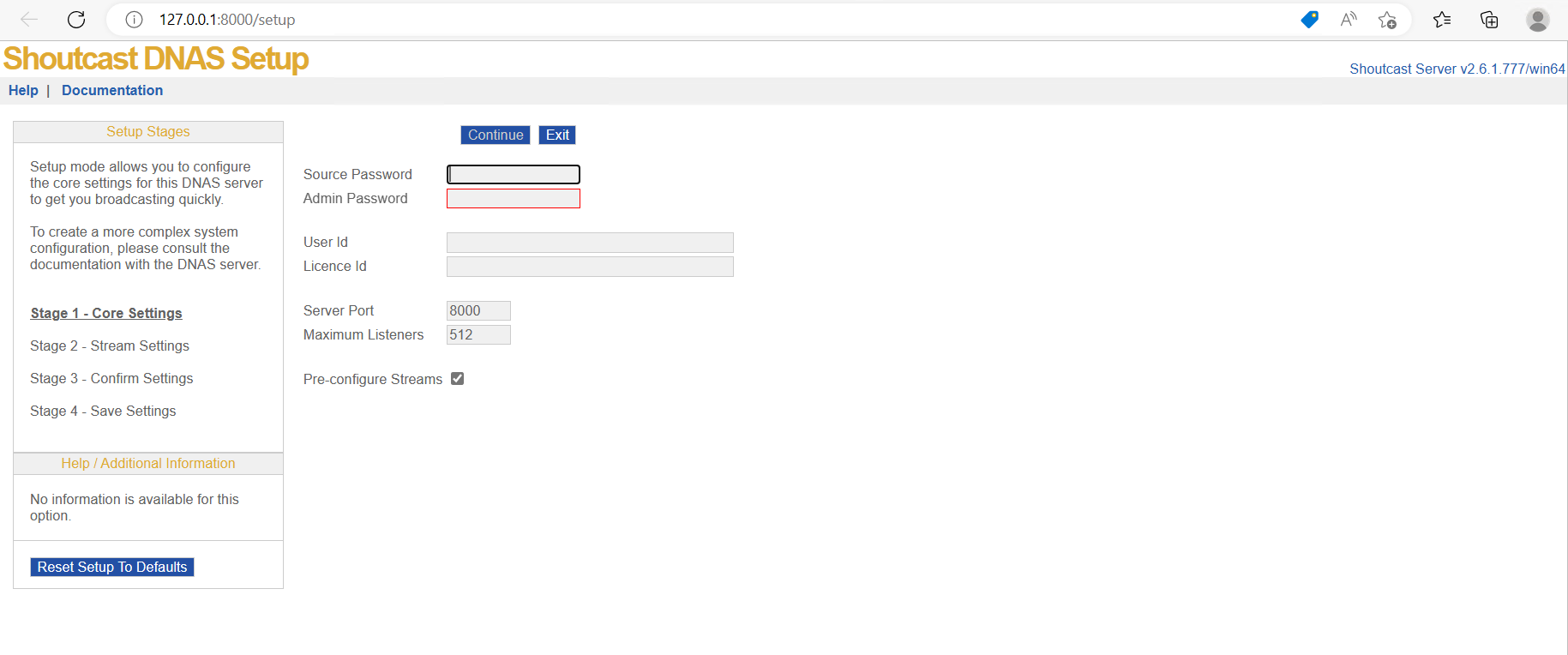
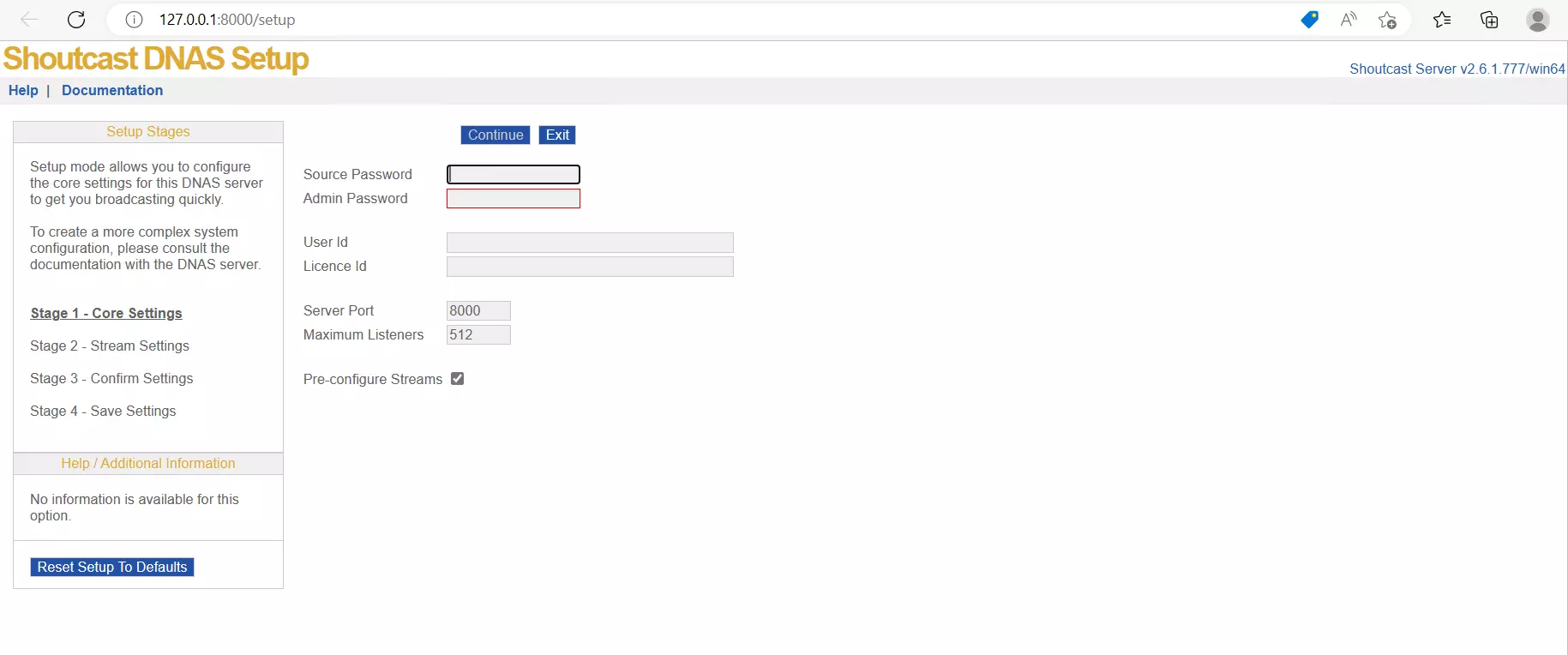
Now, it’s important to set a general password for the source and the administrator. You’ll need the source password when you connect your stream to the server and the admin password to log in to the administrator dashboard.
In the field for Maximum Listeners, you can set the amount of people who can connect to your stream at the same time. The maximum number is 512, but if you don’t want to set a maximum number, enter “0”. It is, however, important to note that if too many people dial in and the server gets overloaded, you may encounter stalling issues with your stream.
If you want a large number of people to be able to listen to your stream at the same time, you’ll need to have high-quality hardware. In this case, we recommend using a dedicated server.
The port should be set to 8000. If you want to assign a different port, make a note of it, because it will have to be forwarded later. Then click on Continue.
In the next step, you can set more information specific to your stream. If you want, you can assign special passwords for the stream. If you don’t enter anything, then the previously assigned passwords will be used automatically. The same applies to the maximum number of listeners.
Under Listener Stream Path, you can assign an individual URL for users. This allows them to select the stream directly. Here’s an example of what this would look like: http://serveraddress:8000/[name of stream]. Behind “serveraddress:”, enter your server IP address.
If you want your stream to be found in the Shoutcast Stream Dictionary, enter your stream authhash. You can find it online in the Shoutcast dashboard under Settings > Advanced. Now, you will get an overview of the data you have entered. When you click on Continue, the server information will be saved as sc_serv.conf. Close the input window.
Now your server is ready. Double-click sc_serv.exe to start the server.
The Shoutcast folder contains a lot of helpful information about how to configure your server. In the Examples folder, you can find preconfigured .conf files that you can use for your server.
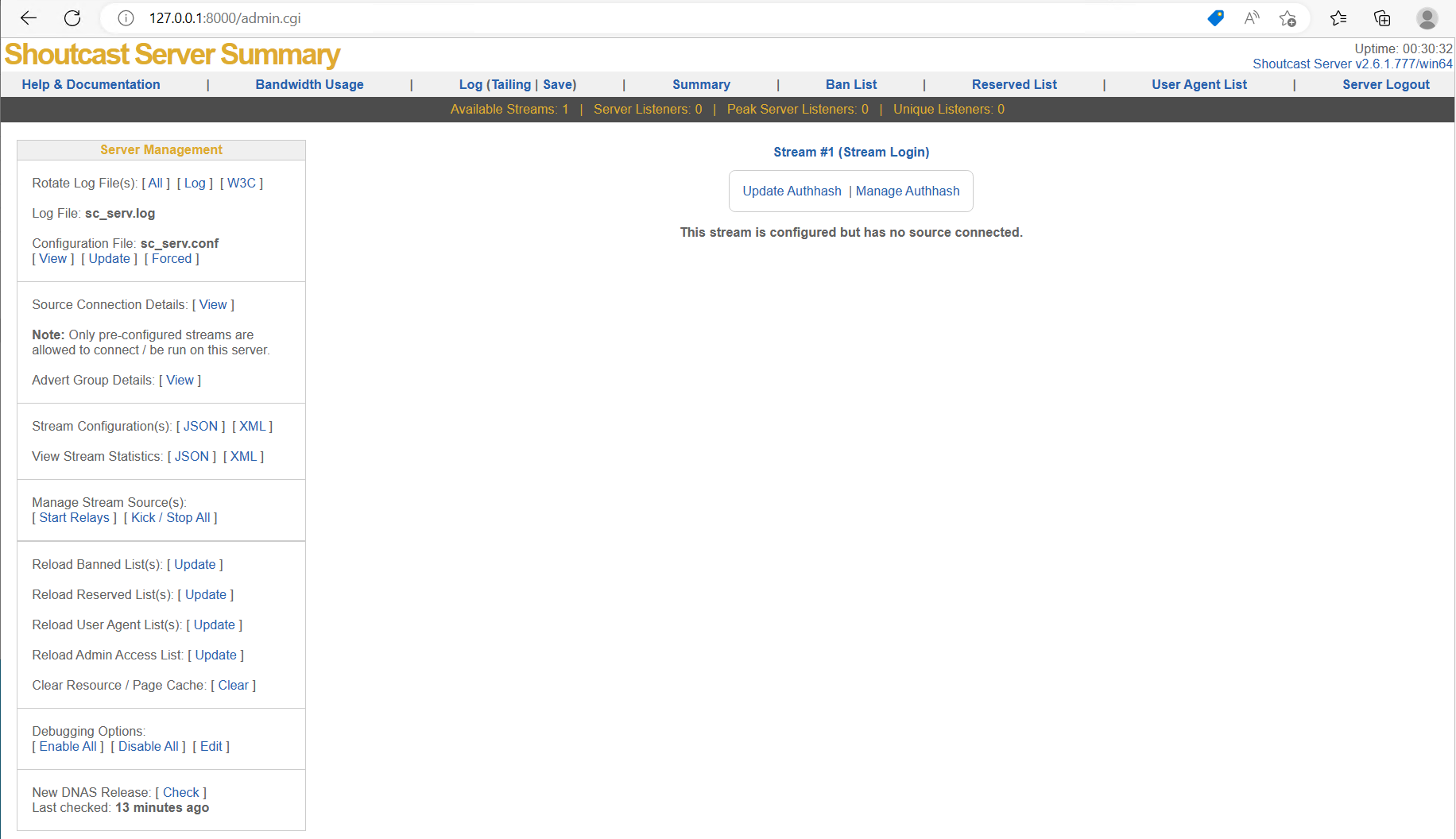
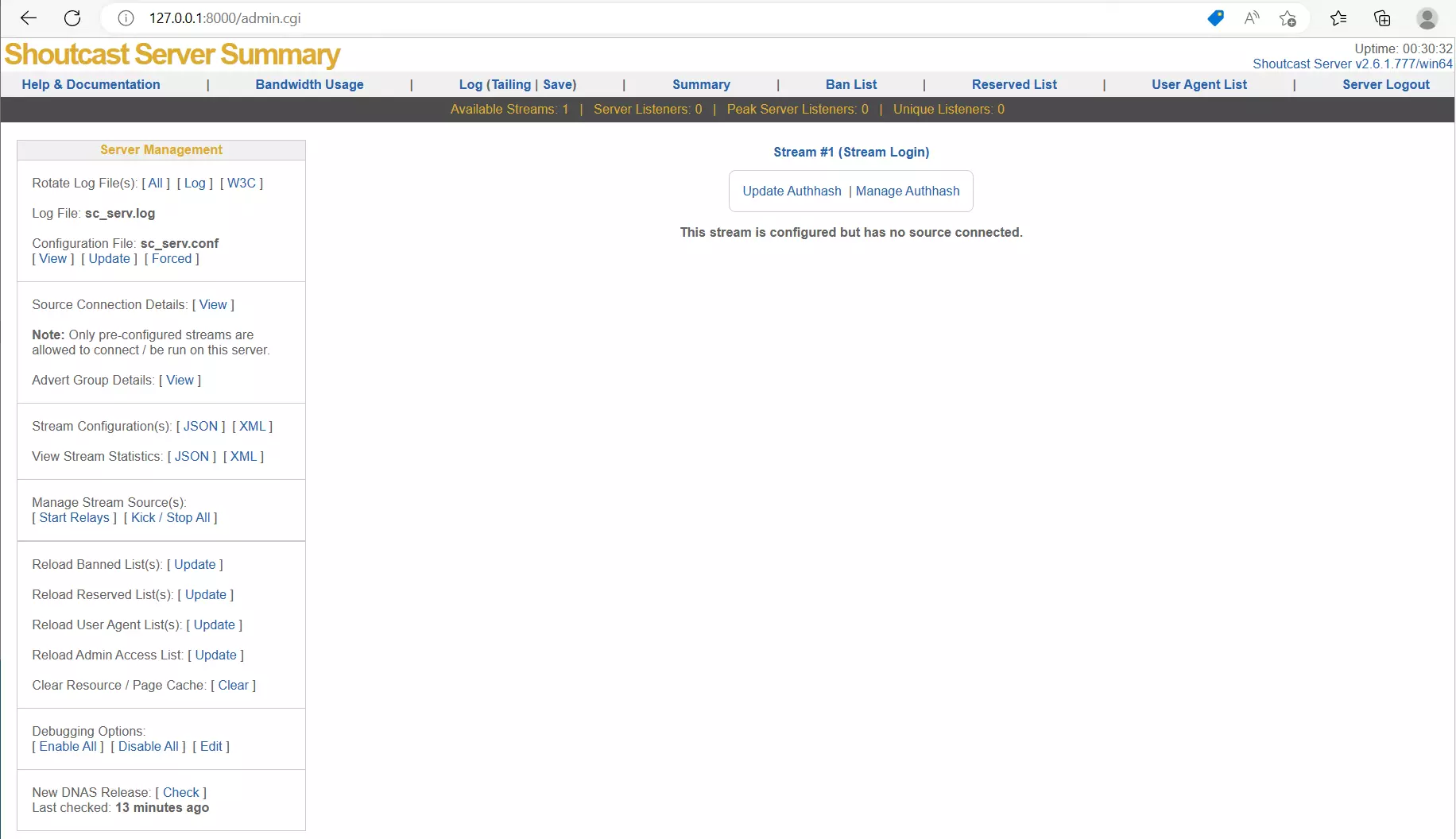
Open http://127.0.0.1:8000/admin.cgi and enter “admin” as the username and the admin password you selected. Here you can view and manage all data related to your server and connected users.
Step 5: Enable port forwarding
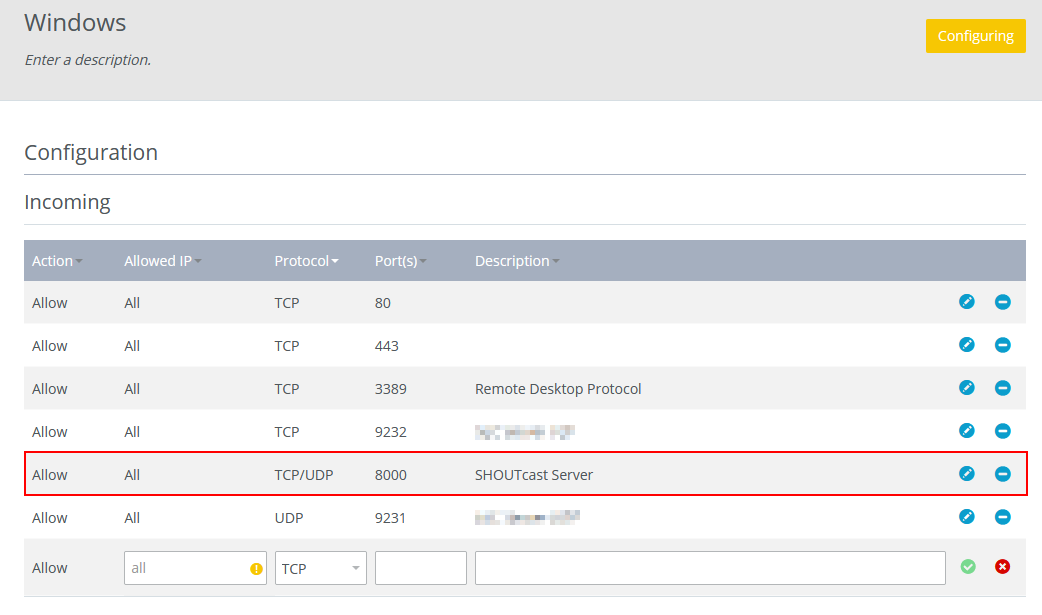
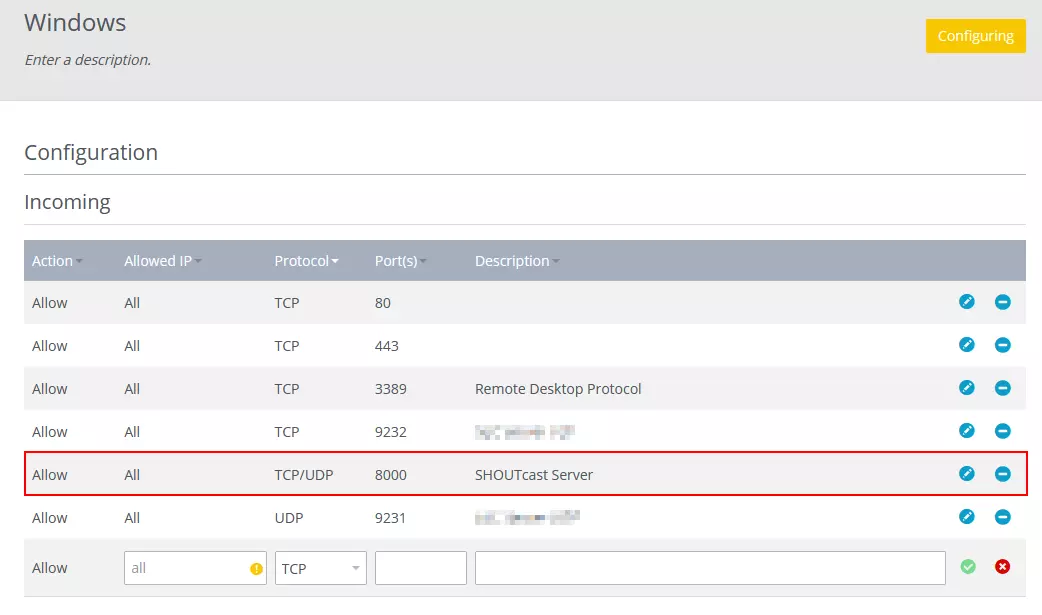
Lastly, enable port forwarding to allow your source and users to connect to your server. To do this, go back to your IONOS customer account. Go to the Network menu item and then to Share Firewall. Here, you can set up a new port forwarding rule. Select the protocol TCP/UDP then the port 8000 or the port that you selected in the setup and enter a description.
Now your server is ready. You can connect your source to the server and start streaming.
Creating your own website is a good way to increase the reach of your show. With IONOS, you can easily register a domain name.
Reviewer

Christian Heldmaier
Christian Heldmaier is an experienced online marketing and SEO specialist from Karlsruhe. He has been working as an SEO Manager at IONOS since July 2020.