

Enable and disable SMB1 in Windows 10: A step-by-step guide

File access and communication between devices and computer processes have been regulated by the network protocol SMB (Server Message Block) in Windows systems for decades. Current operating system editions like Windows 10, for example, still support SMBv1 – the first version of this standard. However, this version has received attention in the recent past due to security vulnerabilities, which is why it’s best to avoid this outdated protocol edition. Find out in this article how to disable support for certain variants of SMB in Windows 10, and how to reactivate it if needed.
Activate and deactivate SMBv1 in Windows 10 – how it works
In current Windows 10 installations, SMBv1 is no longer automatically installed as standard. But if you activate the protocol manually (or using external software) or have upgraded an older Windows edition, it’s advisable to disable support for the outdated protocol version. You can perform this step via the Control Panel, PowerShell or the Windows Registry. The extent to which each approach for activating and deactivating the protocol varies can be seen in the following step-by-step guide.
Adjust SMB1 support via the Windows 10 Control Panel
If you want to enable or disable SMB/CFIS support without using PowerShell in Windows, you can carry out this step via the operating system’s software manager.
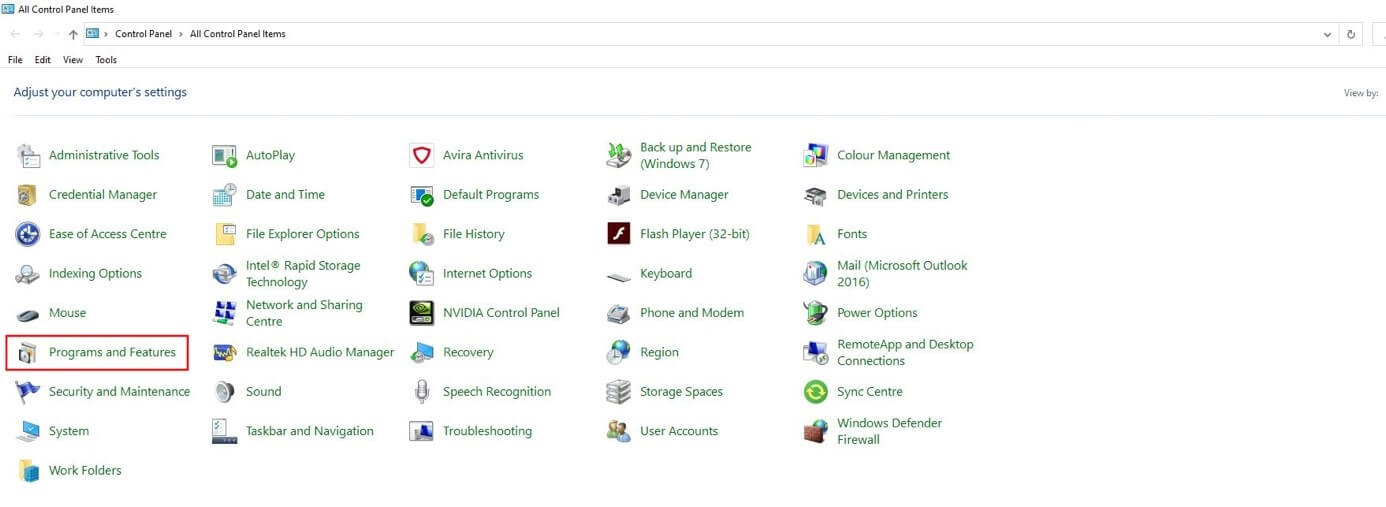
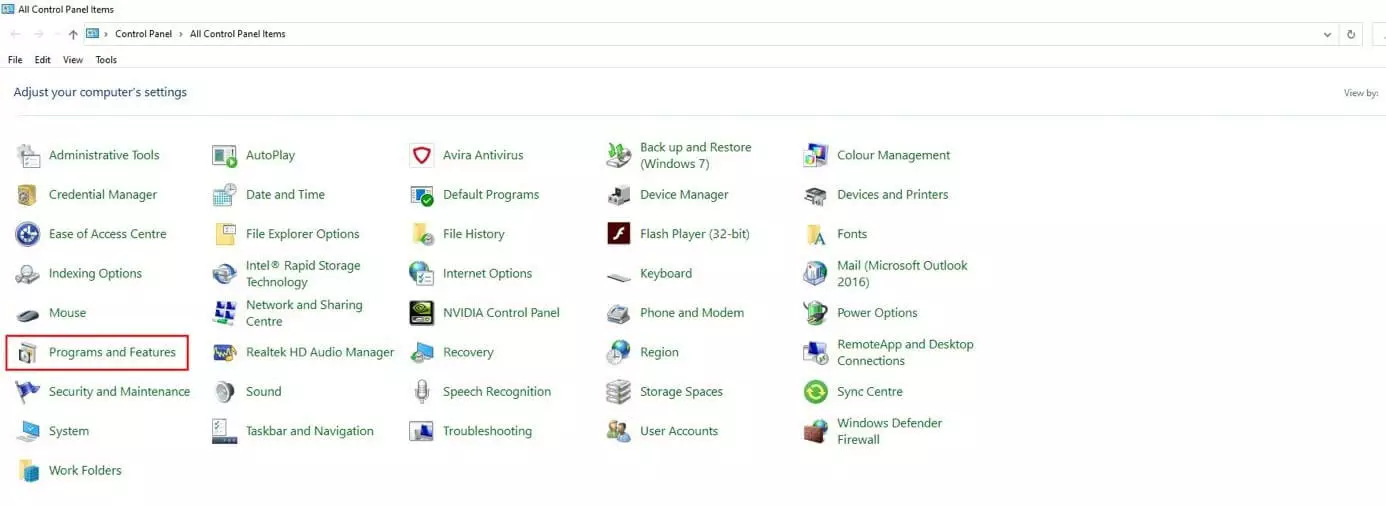
Step 1: Open “Programs and Features”
First, open the “Programs and Features” section which allows you to manage installed software and protocols like SMBv1 in Microsoft systems. To do so, open the Start menu (Windows icon) and then Control Panel. There you’ll find the button “Programs and Features”.
Step 2: Open menu for Windows features
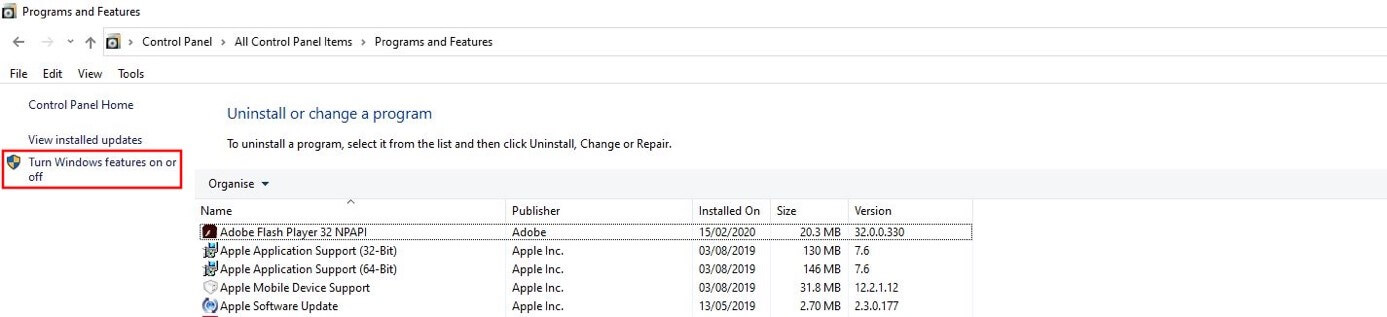
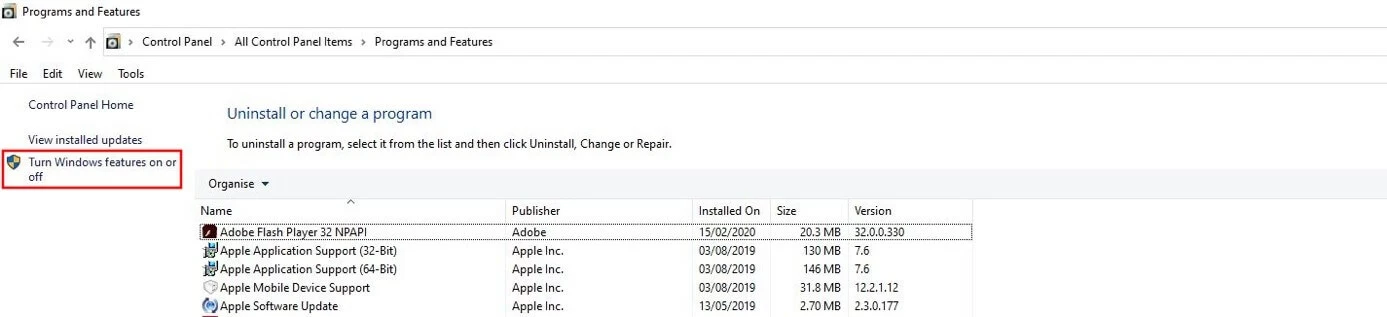
In the left menu, click on “Turn Windows features on or off” to access the menu for managing protocols:
Step 3: Disable support for SMB 1.0/CFIS file sharing
Look for the entry on SMB Windows 10 support and remove the checkmark from the corresponding box. The three sub-options will also be deactivated; they refer to an SMB client, an SMB server and an automatic removal function. The latter option ensures that SMBv1 is automatically deactivated when the old protocol version is not used – which is no longer necessary in this case.
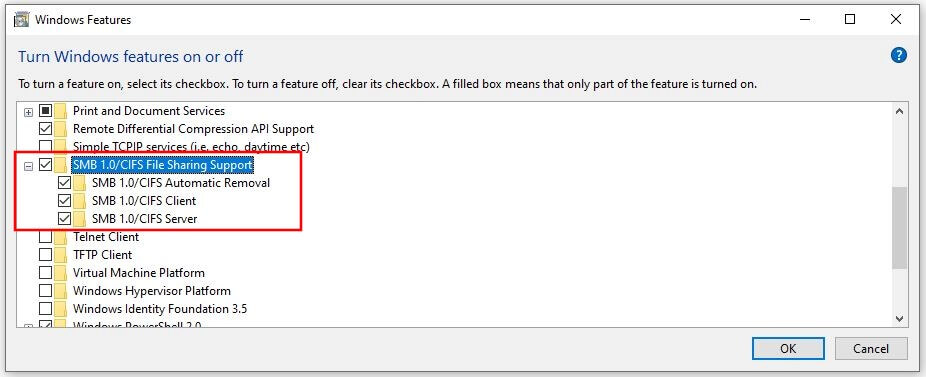
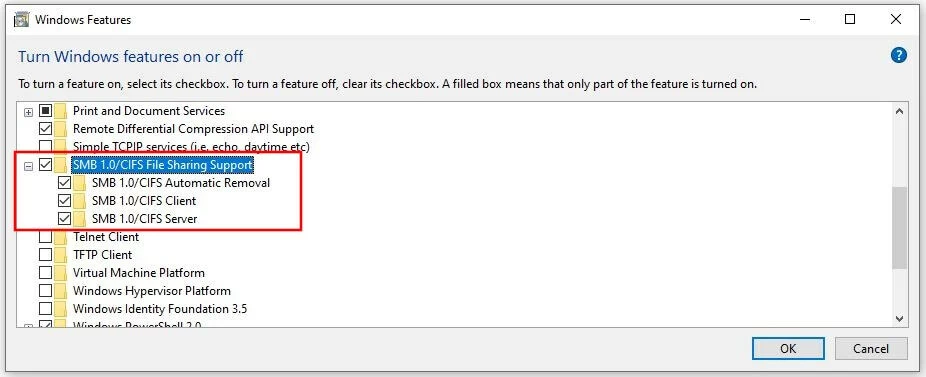
Step 4: Confirm changes and restart device
Finally, click “OK” to disable SMB1 in Windows 10. This process will take some time, during which you shouldn’t close the open window. As soon as the process has finished, you’ll receive the prompt to restart the system. You can do so by clicking on “Restart now”:
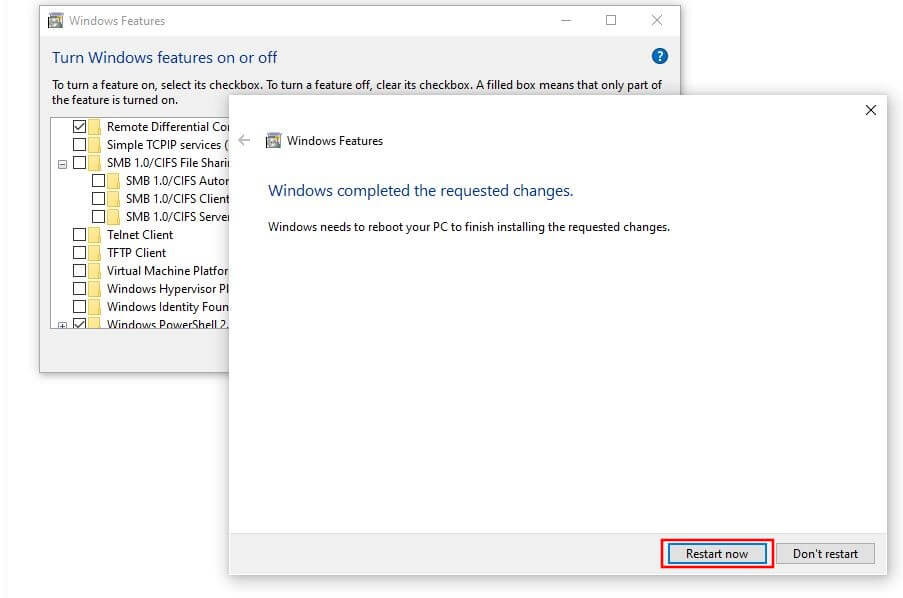
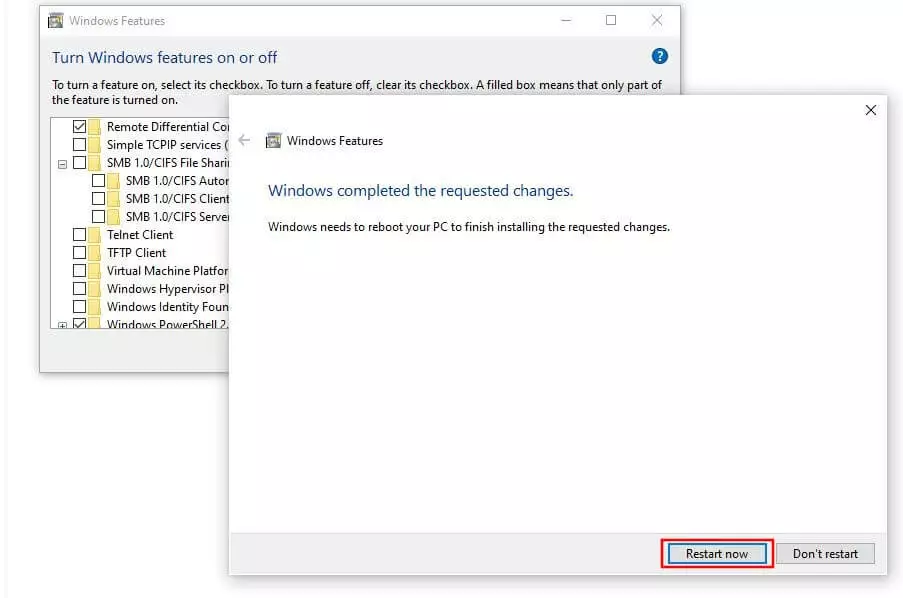
If you want to turn on SMBv1 at a later time or in general, you can also follow our guide. Instead of deselecting the option “Support for SMB 1.0/CFIS file sharing” in the third step, simply place a checkmark in the box. However, activating this setting is only recommended in absolutely exceptional cases.
Disable or enable SMB in Windows 10 via PowerShell
You can also manage protocols like Server Message Block in Windows 10 using PowerShell – with the right command. Just like adjusting the settings via Control Panel, you’ll need administrator rights since Windows will otherwise deny you access to the necessary options.
Step 1: Start PowerShell as an administrator
For the first step, open PowerShell with administrator rights. There are two ways to do this: If it’s available in your Windows 10 installation, you’ll find the menu item “Windows PowerShell (administrator)” in the quick-start menu (right-click on the Windows icon). Simply clicking on this option will start the practical configuration framework. Alternatively, enter “PowerShell” in the Windows search bar, select the search result with a right-click and then click on “Run as administrator”:
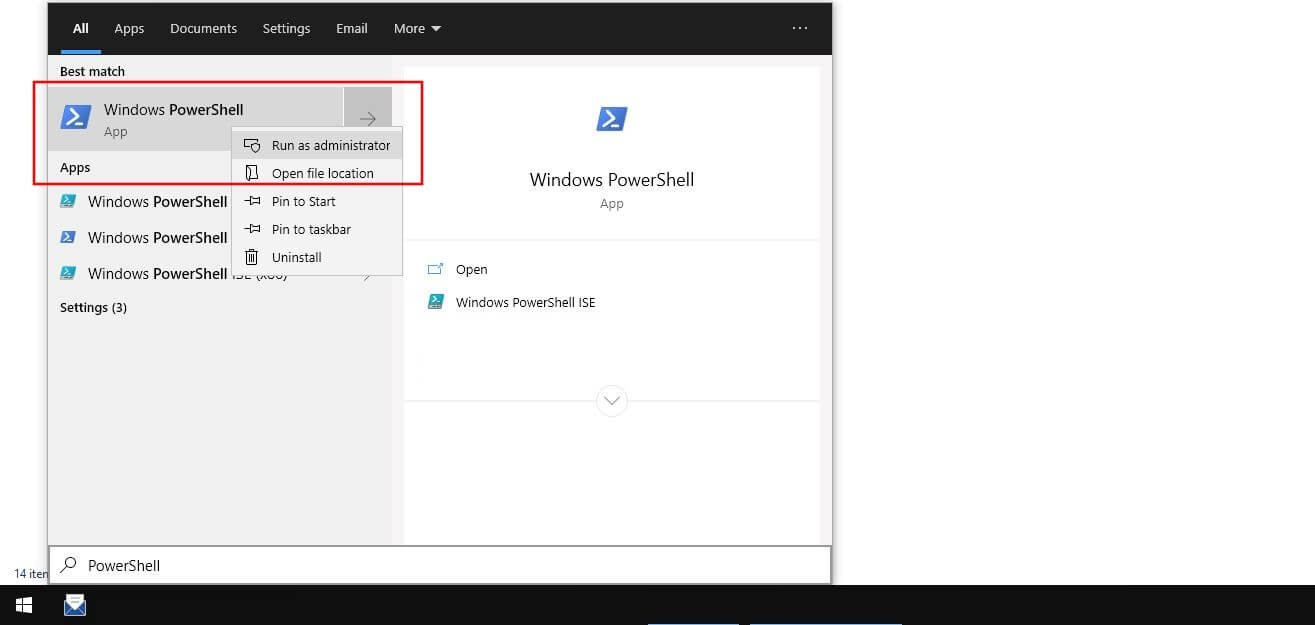
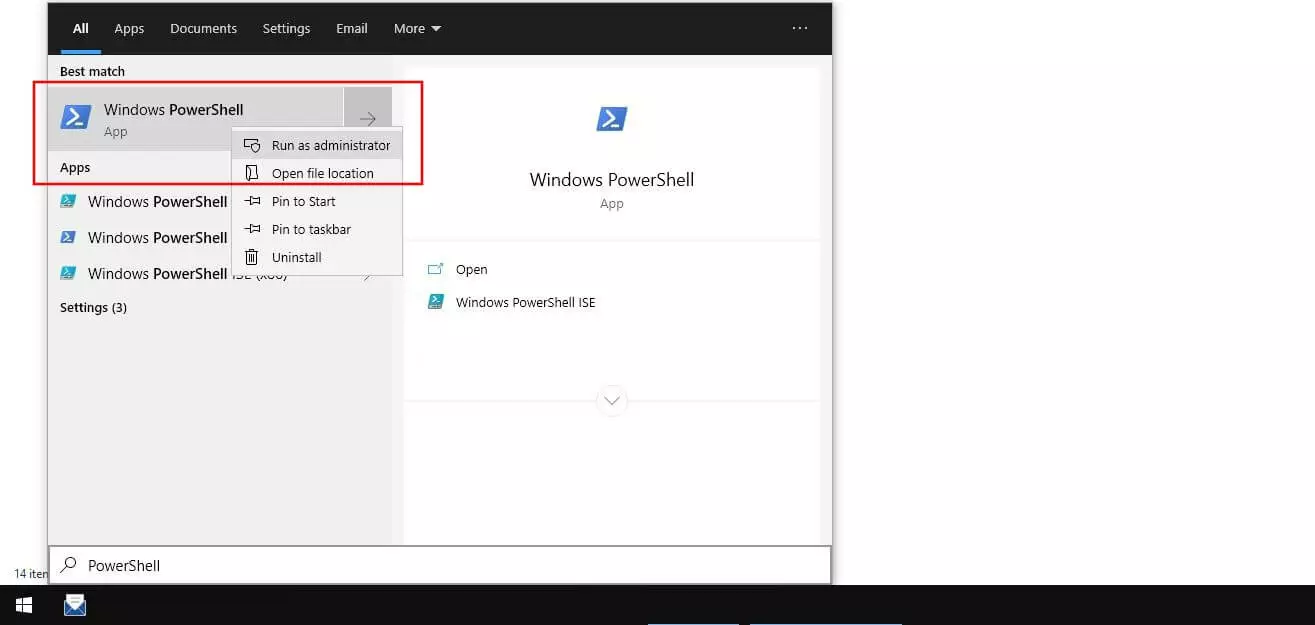
Step 2: Access the current status of SMB1 in Windows 10
After starting PowerShell, check whether or not your Windows installation currently supports communication via the old protocol version. You can do this by typing the following command and confirming it with the [Enter] key:
Get-SmbServerConfiguration | Format-List EnableSMB1ProtocolFollowing a short processing time, you’ll receive one of two possible output values: If PowerShell displays the value “False” for “EnableSMB1Protocol”, SMBv1 is disabled. If support is active, the value displayed will be “True”.


Step 3: Enable or disable SMBv1
If the outdated SMB version is currently supported by your system, you should deactivate it. The command to do this is shown below:
Set-SmbServerConfiguration -EnableSMB1Protocol 0PowerShell will then ask if you really want to perform this action. To confirm, type “Y” and press the [Enter] key:


Then, restart Windows 10 to apply the system changes.
To activate the outdated protocol version in PowerShell, add the value “1” to the command “Set-SmbServerConfiguration -EnableSMB1Protocol”.
Deactivate or activate SMB1 in the Windows 10 Registry
The third option for adjusting the support of SMB1 in Windows 10 is accessed via the registry database of the system – or simply the “Registry”. Using the standard editor Regedit, you can modify the entry for the communication protocol here. As in the previous two cases, you’ll need administrator rights again.
Step 1: Start Windows 10 Registry as administrator
The easiest way to open the Windows 10 Registry Editor as an administrator is via the Windows search feature. Open the service – for instance, via “Search” in the quick-start menu (right-click on the Windows icon) – and enter the search term “regedit”. Select the search result shown using the right mouse button and then click on “Run as administrator”:
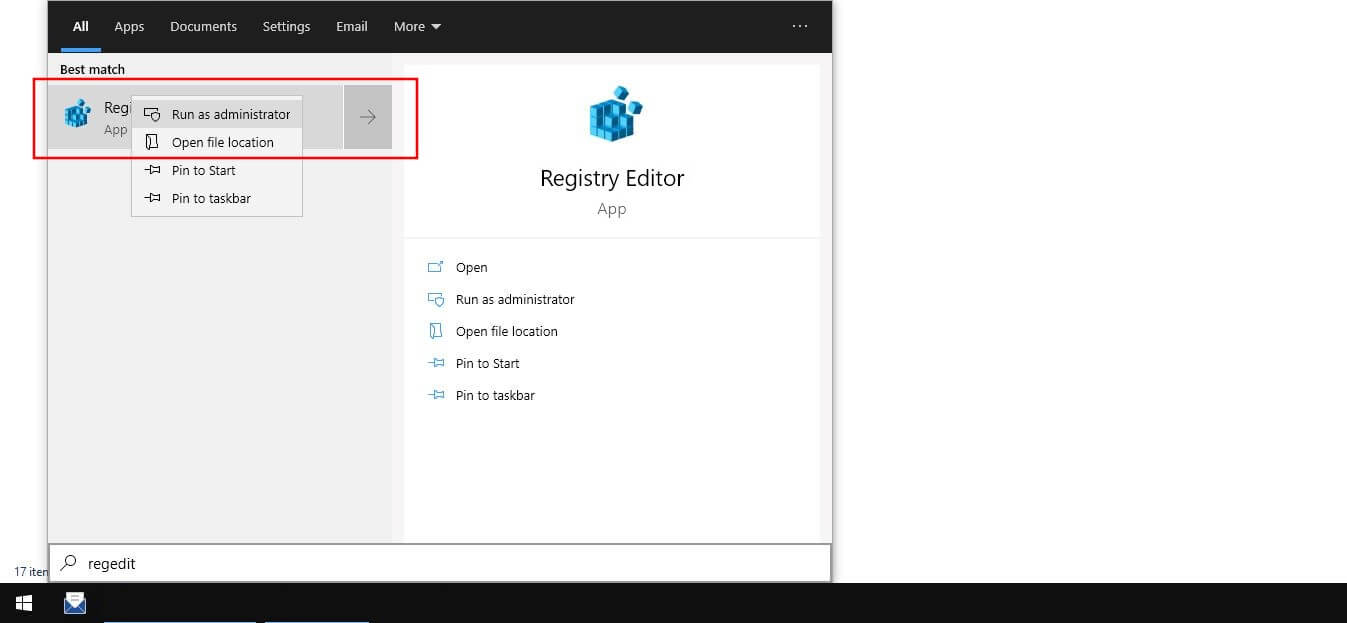
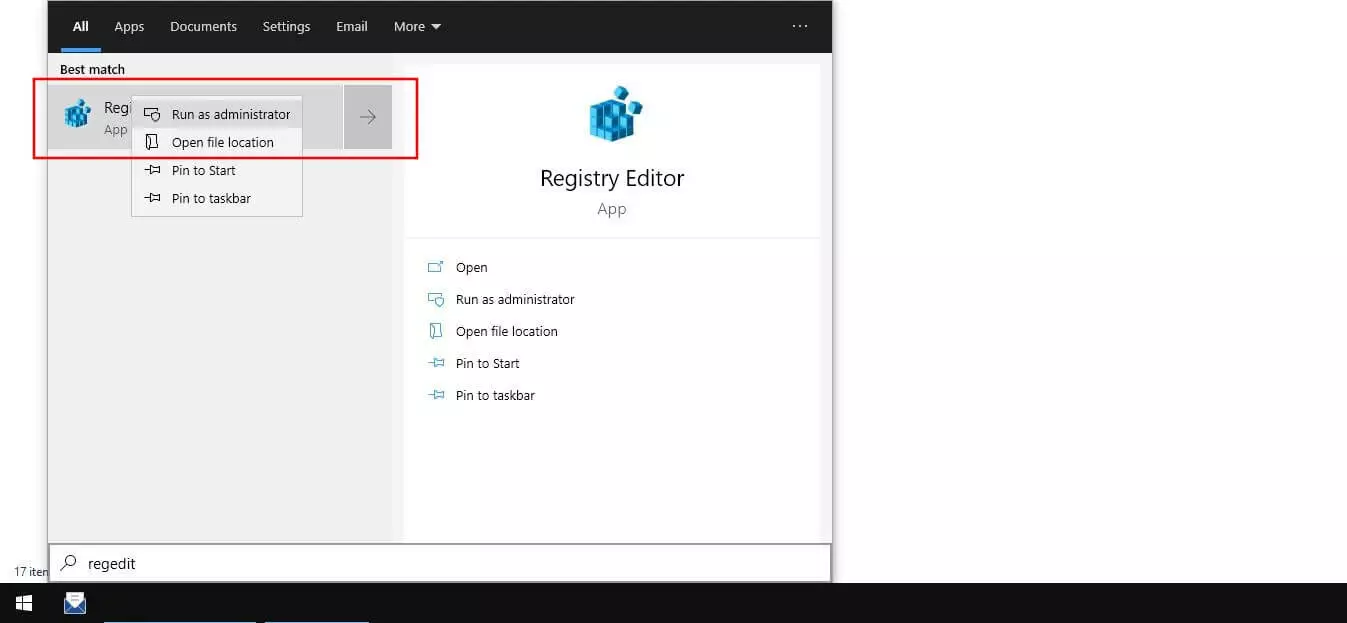
Step 2: Open registry key
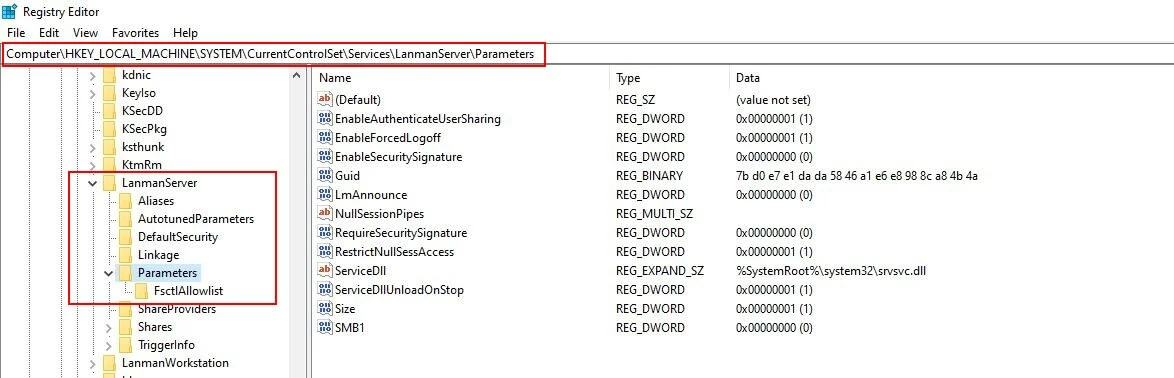
Once you’ve opened the editor, the next step is to access the correct registry key. To do so, enter the following path in the address bar or click through the folder structure until you reach the right location:
Computer\HKEY_LOCAL_MACHINE\SYSTEM\CurrentControlSet\Services\LanmanServer\Parameters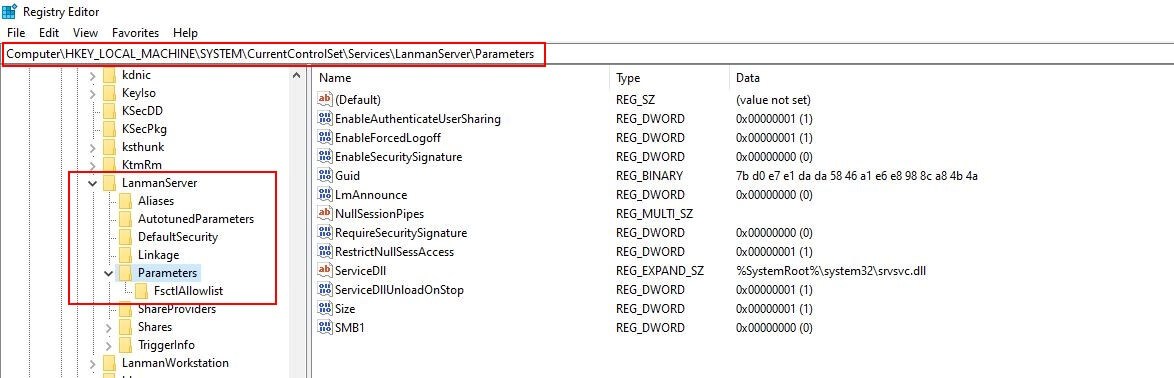
Step 3: Change value for “SMB1”
Double click on “SMB1” in the opened key and enter the value “0” to disable SMB1 in Windows 10. Next, confirm the new value with “OK”:
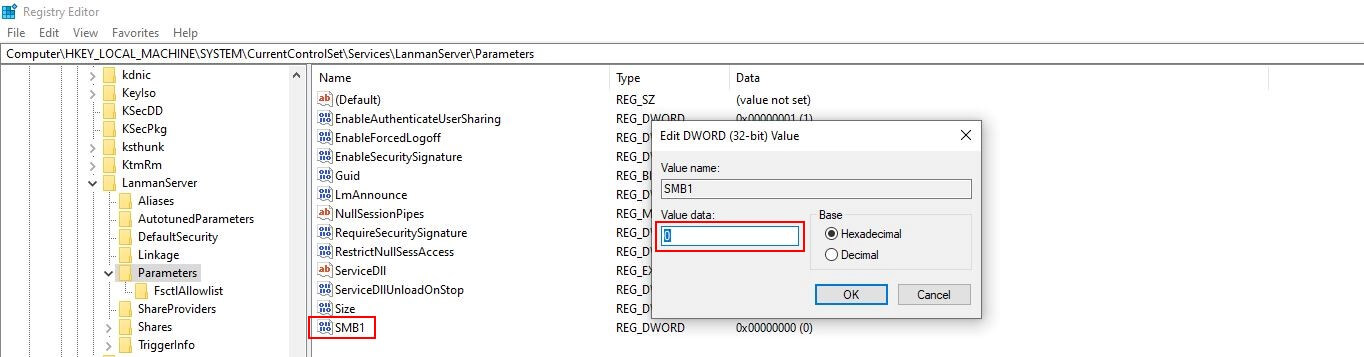
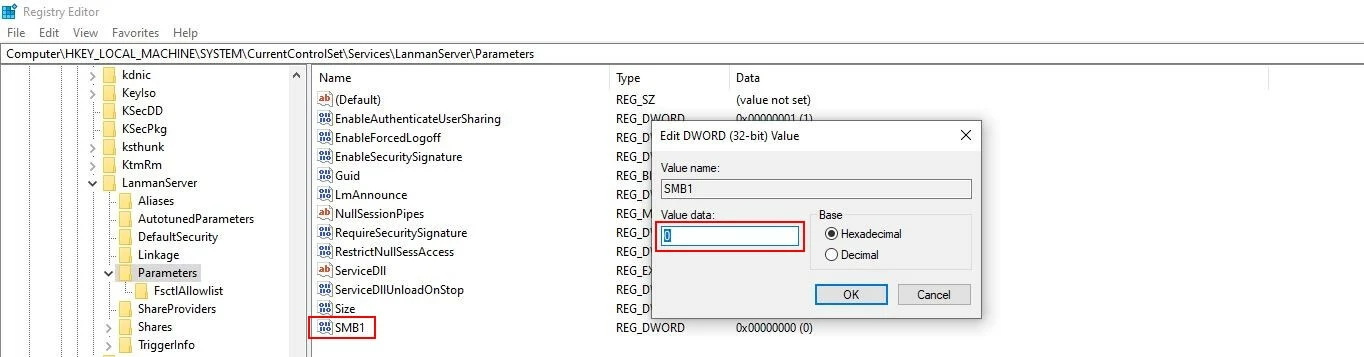
Close the editor and then restart Windows 10 to apply the changes regarding Server Message Block.
To activate SMB1, enter the value “1” in the field shown.
Reviewer

Christian Heldmaier
Christian Heldmaier is an experienced online marketing and SEO specialist from Karlsruhe. He has been working as an SEO Manager at IONOS since July 2020.