

Rotate your screen – How to for Windows (10, 8, 7)

Is it actually possible to switch to a vertical display and to be able to work without straining your neck? Yes, it is, because Windows lets you rotate your screen. Or, you might have used the key combination unknowingly, and now everything’s upside down. That’s not a problem either, and there’s a quick fix for this. We’ll show you how to adjust your display in different Microsoft operating systems.
- Great premium TLDs at affordable prices
- Simple registration & transfer
Rotate your screen with shortcuts
Often, it’s possible to adjust your display with a combination of keys. Which combination is the right one, though, depends on your graphics card. Generally speaking, it involves holding down one or two different keys and then switching the display mode by holding down one of the arrow keys. So, if you want to revert to the standard (landscape format) mode, then the up arrow key should be used. The other arrow keys will rotate your screen in their respective directions.
Typical key combinations include:
- [CTRL] + arrow
- [CTRL] + [Alt] + arrow
- [CTRL] + [Shift] + arrow
Adjust your display in Windows 7 and 8
In Windows, you can also use your system settings to adjust your display. The fastest way is by right-clicking on the desktop with your mouse and then clicking on the “screen resolution” tab. Here, you can use the “orientation” drop down to select in which direction your screen should be displayed. In other words, you can move your screen into vertical or horizontal mode.
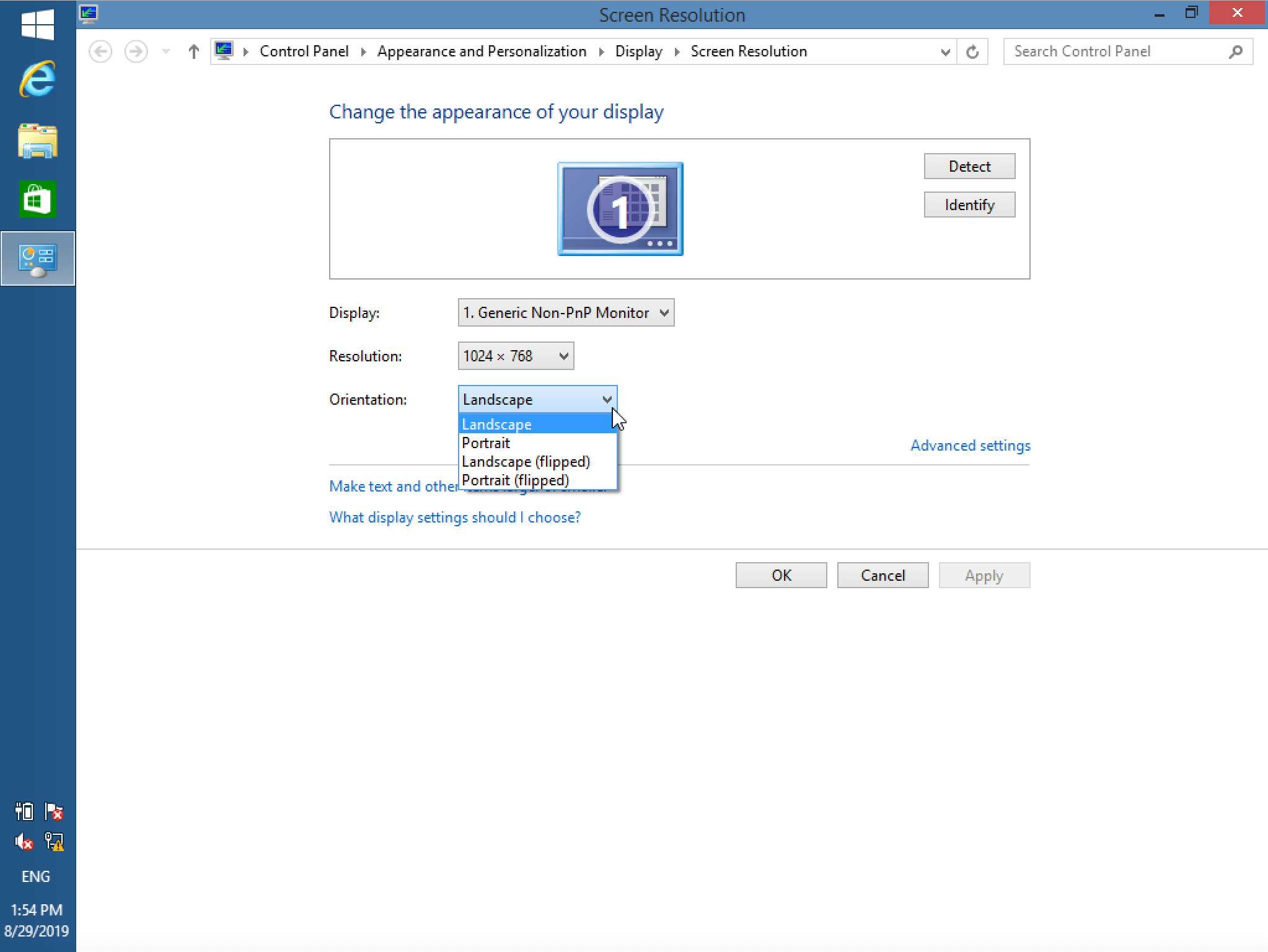
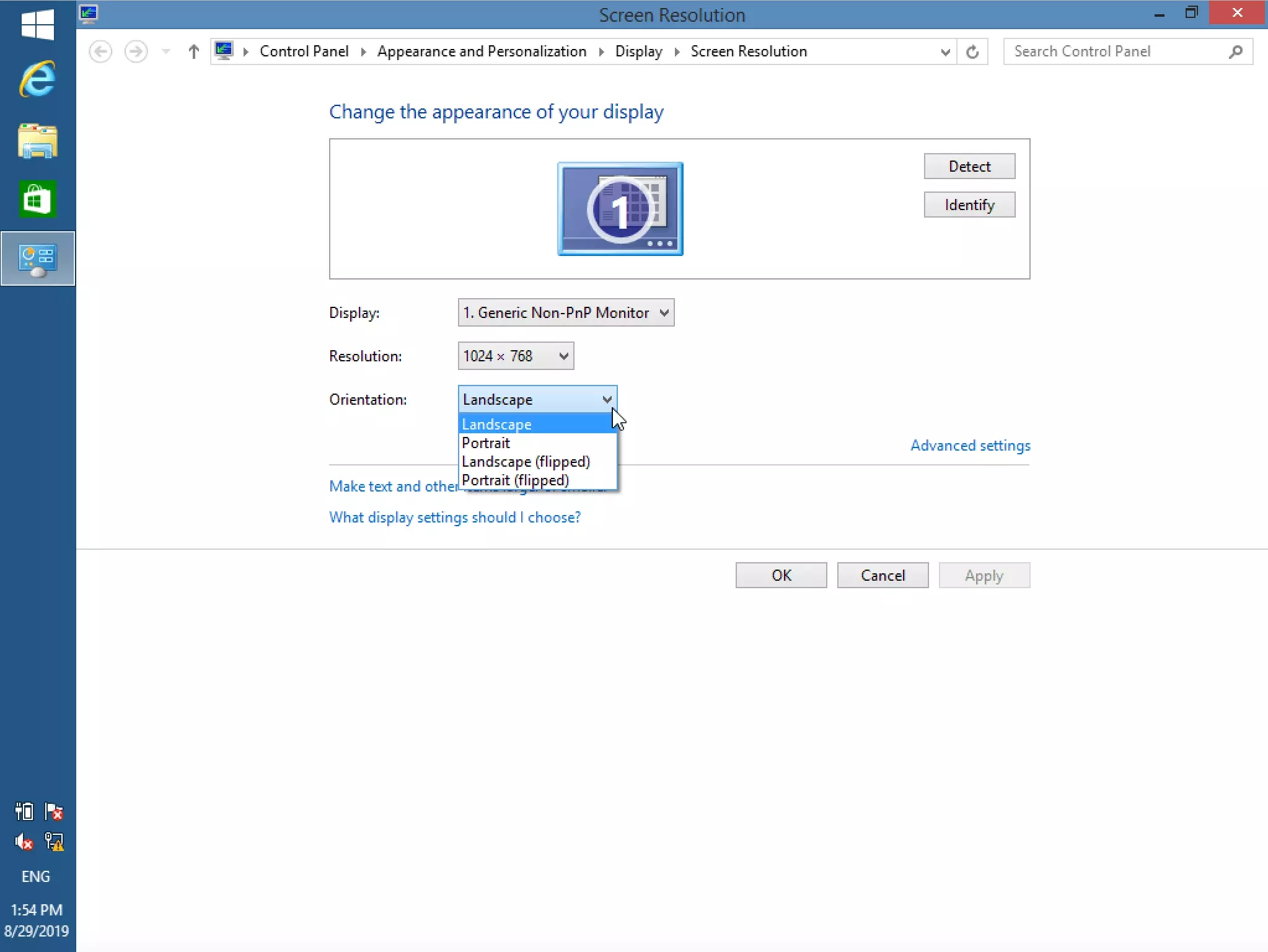
Another way to rotate your screen is via your system settings (i.e. via the start menu). Here, you can select “appearance and personalization” and then “display.” As in the previous directions, you can now adjust your display and rotate your computer screen.
Windows 10: Rotate your screen
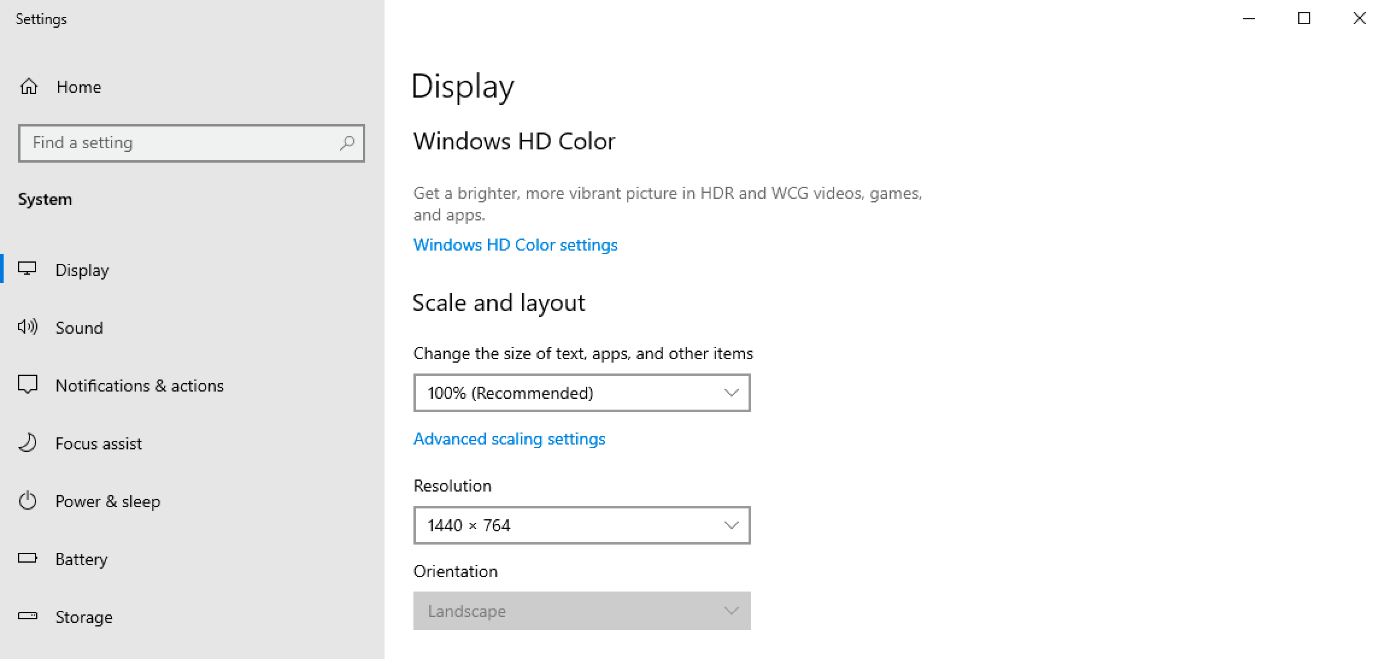
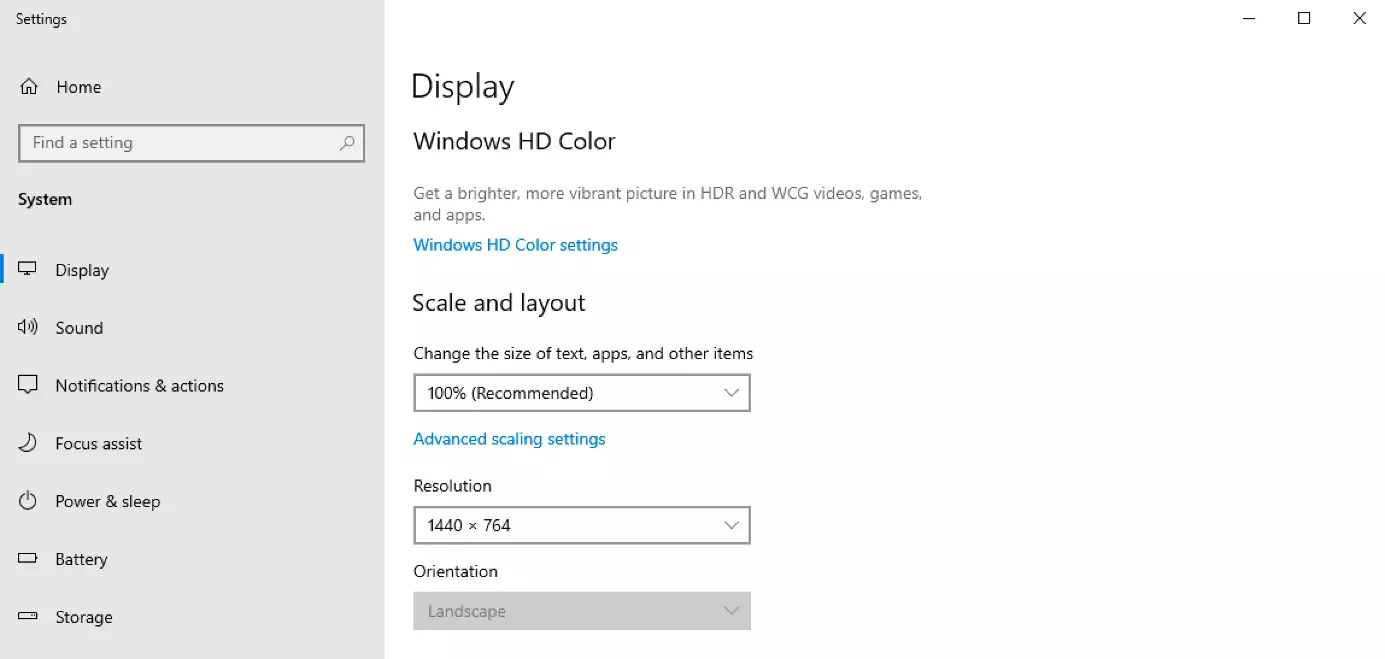
In Windows 10 you can also adjust your screen via the display settings. However, the menu is a little different this time. First, open your “display settings” via the same menu button on your desktop, by right-clicking on the desktop. Here, you’ll find the “orientation” drop-down where you have the option to rotate your screen. Naturally, you can also use the longer way in Windows 10 to reach the menu to change your screen settings. To do this, open your settings (via the gear sign in the start menu) and click on “system.” Now, you’ve reached the right area and you can easily rotate your screen.
Reviewer

Christian Heldmaier
Christian Heldmaier is an experienced online marketing and SEO specialist from Karlsruhe. He has been working as an SEO Manager at IONOS since July 2020.