

Nextcloud on Raspberry Pi - private cloud made affordable

A few years ago, hosting a cloud independently was inconceivable. These days all you need is the free software Nextcloud and suitable hardware. Since Nextcloud can now even be adapted to mini-computers like Raspberry Pi, you could in theory have your own cloud solution for a bargain price. You’ll have to make some compromises as far as functionality and performance go, but the capabilities should be enough for many use cases. Freelancers, self-employed people, and small and medium-sized enterprises in particular have a lot to gain from an affordable Raspberry Pi/Nextcloud solution.
- Great premium TLDs at affordable prices
- Simple registration & transfer
What is Nextcloud?
Nextcloud is an open source cloud solution that offers an alternative to commercial services such as DropBox, Google Cloud, Microsoft OneDrive, and Apple iCloud. It was launched in 2016 by Frank Karlitschek after he and others left the project Owncloud. The Nextcloud developers place special value on making the software free and available to as wide an audience as possible. Nextcloud’s competitor Owncloud, on the other hand, is primarily a specialized, fee-based business solution.
Owncloud can also be installed on Raspberry Pi for a similarly comprehensive cloud solution.
Since Nextcloud can be installed on a private or company server, you’ll have maximum control over your data. The company also implements this kind of transparency in other aspects of its operation. Users and members of the community can look at the program code at any time and don’t need to worry about any hidden features or loopholes that might lead to sensitive data being leaked or processed.
Why should you use Nextcloud on Raspberry Pi?
One big advantage of the single-drive computer is that it’s affordable to purchase and run. You can buy a Raspberry Pi for NextCloud for well under $100. The mini-computers use very little energy even when it comes to the non-stop operation of a cloud, which will save you money and reduce your ecological footprint.
Furthermore, today’s mini-computers can be easily expanded using USB ports and microSD cards, which also increases potential memory capacity for the cloud. And, thanks to extremely dynamic hardware development, the systems are being continually improved in terms of functionality and performance.
What is NextCloudPi?
NextCloudPi is a community project that provides a Nextcloud version for Raspberry Pi that is pretty much ready to use, including an installation program. The special NextCloudPi instance is optimally adapted to the specifics of mini-computer hardware, in order to guarantee the compatibility of various components. NextCloudPi can be downloaded for free as an image file.
If the installation package works with the pre-installed Nextcloud version, you’ll now have access to a web server including a database connection. The installation package includes an interface with all the tools you need for self-hosting a private or company cloud. You can usually operate and manage the cloud solution using a web browser with the user interface loaded on it. However, you can also manage Nextcloud on Raspberry Pi using the command line and Secure Shell (SSH) if you want to fine tune the settings or make more substantial changes.
Aside from a few exceptional cases, the Raspberry Pi Nextcloud system is pre-configured and provides numerous features without the need for further installation procedures. That’s how it can be used as a file and media server, much like a Raspberry Pi NAS. So you can, for example, upload your smartphone photos to your cloud on the go and save memory space on your phone. NextCloudPi’s features also include productivity tools like a calendar, an address book, and a notepad.
The Nextcloud instance provides useful security features that ensure a high level of protection. NextCloudPi users can, for example, use the free certificate authority Let’s Encrypt, which has provided so-called SSL/TLS certificates for encrypted data transfer via Transport Layer Security since 2015. Another useful security features is Fail2Ban, which protects Nextcloud accounts and data from brute force attacks.
Nextcloud also works with the web app firewall ModSecurity, which is committed to the open source concept. Frequent updates, which are automatically carried out in the background, keep the system up to date and thus increase the security of the cloud.
This impressive set of features is rounded out by file management including data synchronization. It makes shared file storage with real-time updating possible - which is ideal for mobile use of the cloud. Further, you have access to the cloud not only via a web browser but also via a user-friendly app available for all the common mobile operating systems. Nextcloud can be expanded with various apps, so that the cloud is flexibly adapted to your particular needs.
- Dedicated enterprise hardware
- Configurable hardware equipment
- ISO-certified data centers
Finding the right Nextcloud solution for your purposes
All that being said, if you decide to use Nextcloud on Raspberry Pi, you shouldn’t expect any miracles. The limited performance of single-drive computers can lead to disadvantages when, for example, multiple end devices simultaneously try to access data or when it comes to large data transfers with many small files. The mini-computer is thus better used as a small, private cloud solution. Freelancers, self-employed people, and small and medium-sized enterprises with moderate cloud use can benefit from the lean, flexible, and affordable solution.
In larger companies, you can use the technology in niches and, for example, provide a small project team with a tailor-made cloud solution, which works on the company infrastructure and can handle sensitive data with its comprehensive security features.
However, due to their limited ports for USB external hard drives and micro SD cards, the mini-computers are less suitable for professional and redundant data backups with failsafe performance. If you’re looking for a scalable and reliable professional solution, you should use Nextcloud with an external provider. Then you’ll have access to comprehensive webspace as well as efficient professional infrastructure for the cloud, including redundant data backups. With this kind of a powerful infrastructure, you can also use more sophisticated cloud-based features like video conferencing (Nextcloud Talk) without any problems. If you do decide to use an external service provider, be sure to choose one with a high data privacy standard in order to protect sensitive data as much as possible.
How do you install NextCloudPi on Raspberry Pi?
Advanced users with some previous knowledge (such as knowledge of Linux) can install Nextcloud on Raspberry Pi using the command line. You can find instructions for installation with the terminal on the NextCloudPi project site. Thanks to constant improvements to user friendliness, users now have an option for a more intuitive method for installation. For this option, you don’t need any prior knowledge. Installation can be completed in just a few steps if you already have the necessary hardware and software.
To install Nextcloud on Raspberry Pi, you’ll need the following hardware:
- Raspberry Pi (ideally the newest and most powerful model, which is at the moment Raspberry Pi 4 with WiFi, Gigabit LAN, 4 USB ports for external memory devices, and up to 8 GB RAM)
- MicroSD card (for the NextCloudPi image)
- Card-reading device for the MicroSD card (necessary for preparing NextCloudPi on a notebook or desktop PC)
- Power adapter for Raspberry Pi
- In addition, you’ll need the following software:
- Current version of the NextCloudPi image NextCloudPi_RPi_03-28-20
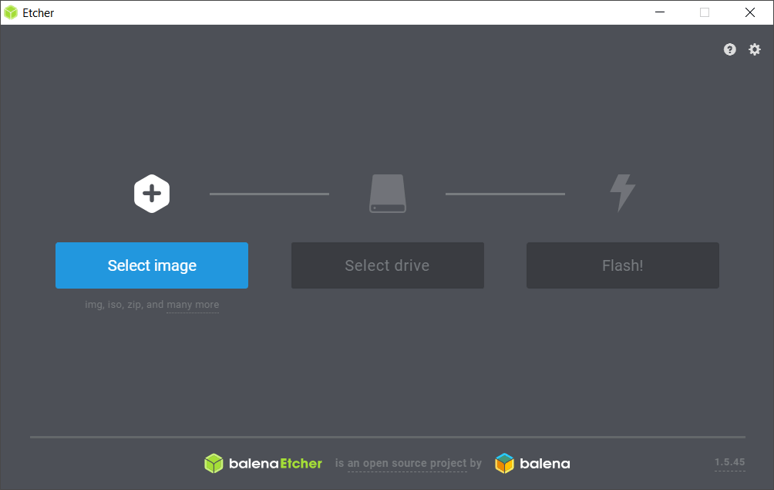
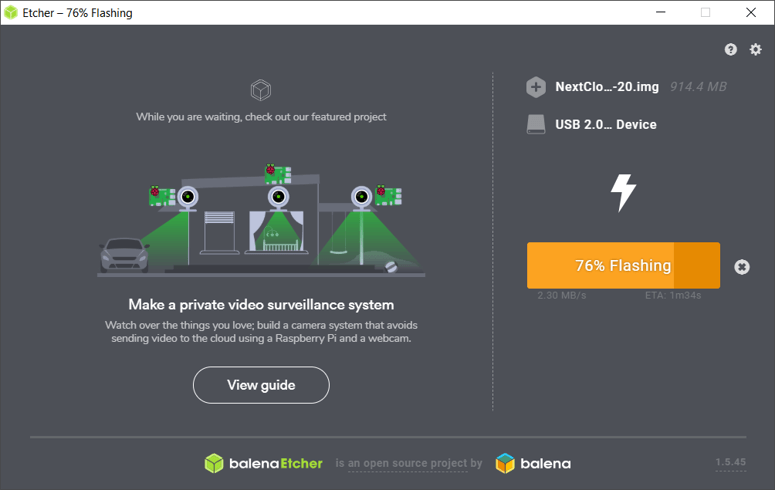
- balenaEtcher; this free software transfers the NextCloudPi image onto the microSD card. (The process is called “flashing”; simple copying isn’t enough.) A version is available for all the common operating systems (Windows, Linux, MacOS).
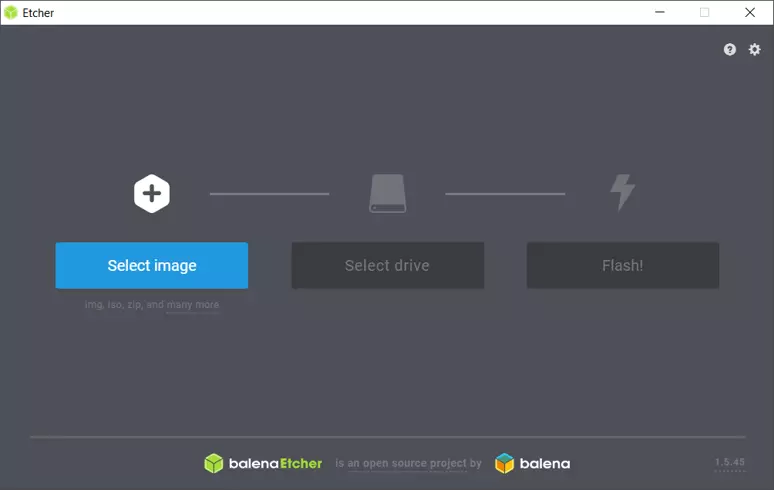
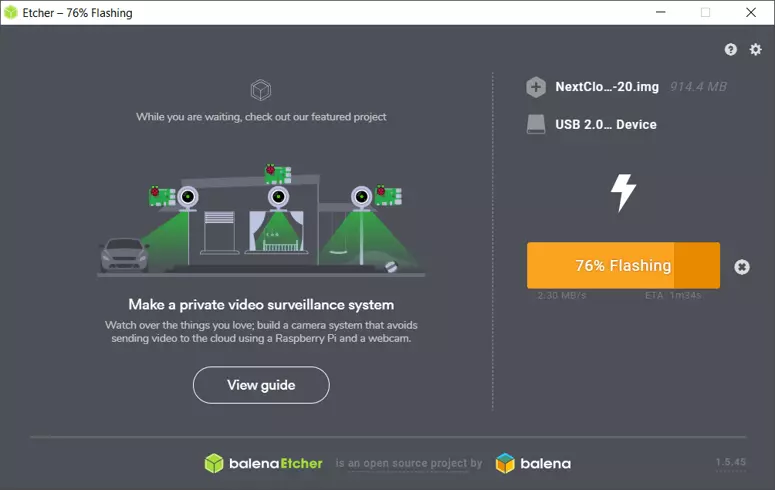
Once you’ve downloaded the software, install the program balenaEtcher - for example, on a Windows PC. Then the NextCloudPi image should be unpacked and the program balenaEtcher opened. Using “Select image”, you should then load the NextCloudPi image and select the microSD card under “Select drive”. Next, you should click on the “Flash!” button to write the image onto the microSD card. After flashing, take the microSD card out of the card reader and stick it in the SD card port of the Raspberry Pi. Now you can start the mini-computer in order to carry out any further configuration you wish to, such as making the cloud available on your home network or via the Internet.
This step-by-step video explains how to install NextCloudPi and shows the most important steps to carry out before using Nextcloud on a Raspberry Pi:
 To display this video, third-party cookies are required. You can access and change your cookie settings here.
Of course, you can also use your Raspberry Pi for other purposes and Raspberry Pi projects, for example as a gaming platform, a Raspberry Pi media server or a Raspberry Pi mail server. To use the mini-computer in these different functions, all you have to do is swap out the microSD card. And if you already have another single-drive computer, such as Banana Pi, you can use it for Nextcloud as well, as long as the computer’s performance and hardware configuration are compatible with the software.
Reviewer

Christian Heldmaier
Christian Heldmaier is an experienced online marketing and SEO specialist from Karlsruhe. He has been working as an SEO Manager at IONOS since July 2020.