

How to share your files and folders securely in Nextcloud

Sharing in Nextcloud lets you give other people access to selected files and folders while still retaining full control over your data. With passwords, expiration dates and precise permissions, you can share content securely with coworkers, teams, customers or external partners.
How does Nextcloud let you share files?
Nextcloud gives you several ways to share files and folders. You can share them internally with users and groups in your Nextcloud instance or externally through public links.
Sharing with another user or group
Within the same organization, you can share files or entire folders directly with individual Nextcloud users or groups. Internal sharing works well when teams keep documents in one shared place and update them together. For long-term team storage, Nextcloud group folders can also be useful. They are managed centrally and assigned to specific groups.
Because your shared file or folder is connected to specific user accounts, you can manage permissions much more easily than with a public link. Depending on your setup, you can give users different access rights when sharing in Nextcloud.
Important: When you share an entire folder, you also share all the files and subfolders inside it.
Public sharing
You can also share files and folders with people outside your Nextcloud instance. To do this, create a public share link. Nextcloud generates a link with a random token that gives recipients access to the shared file or folder. This is convenient, but public links should always be managed carefully.
How to share a folder in Nextcloud step by step
- To share a folder in Nextcloud, select the folder and open the sharing options by clicking the share icon.
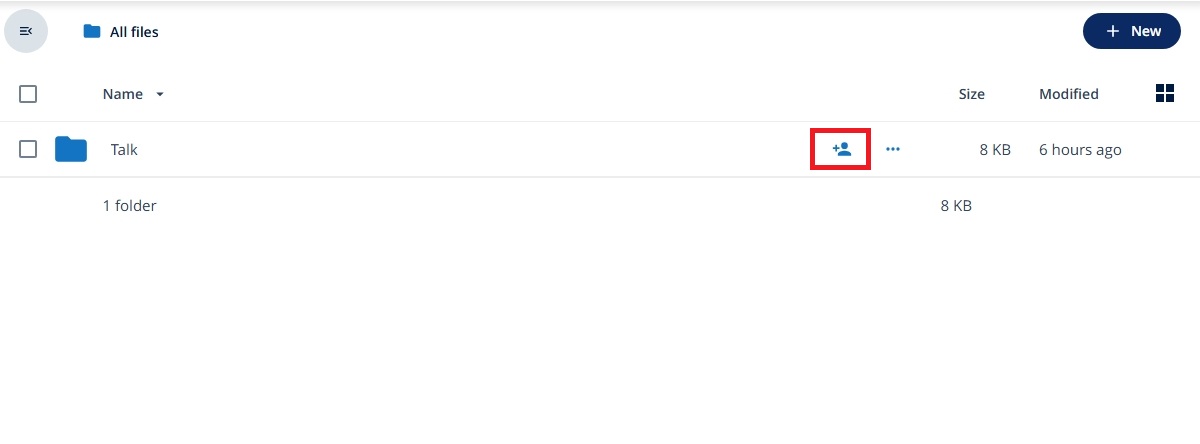
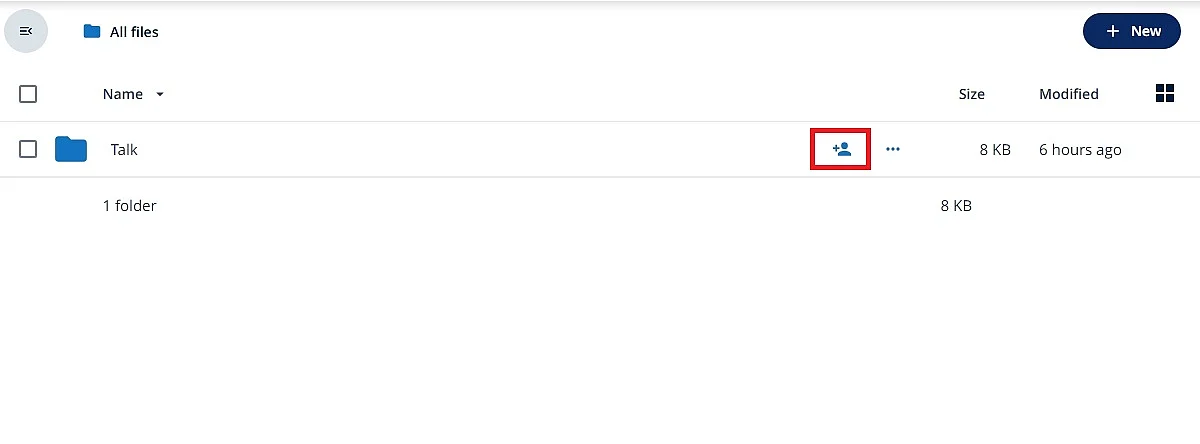
- Then choose who should receive access: another user or group (internal share) or a public link (external share).
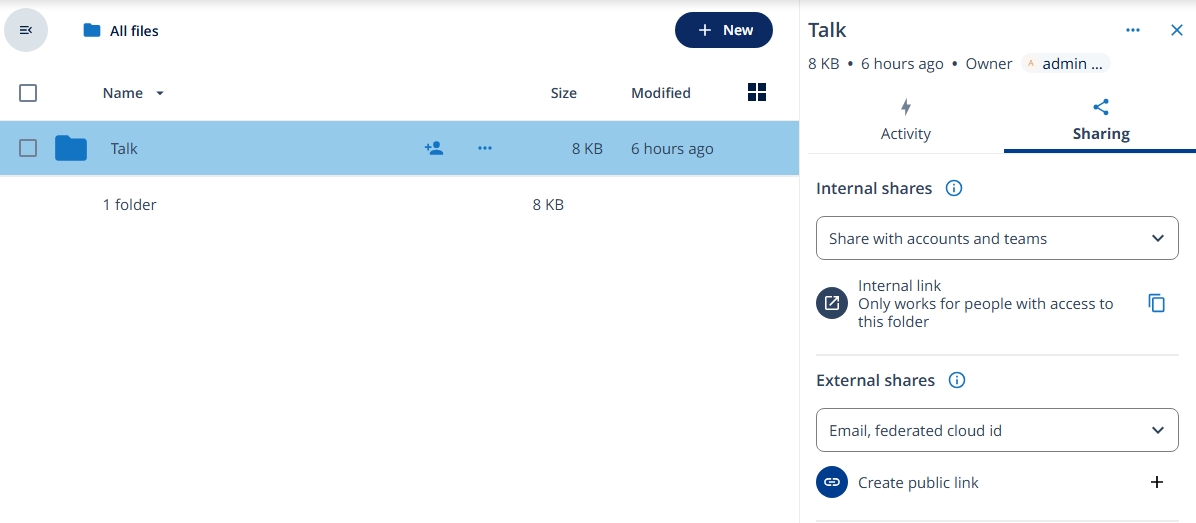
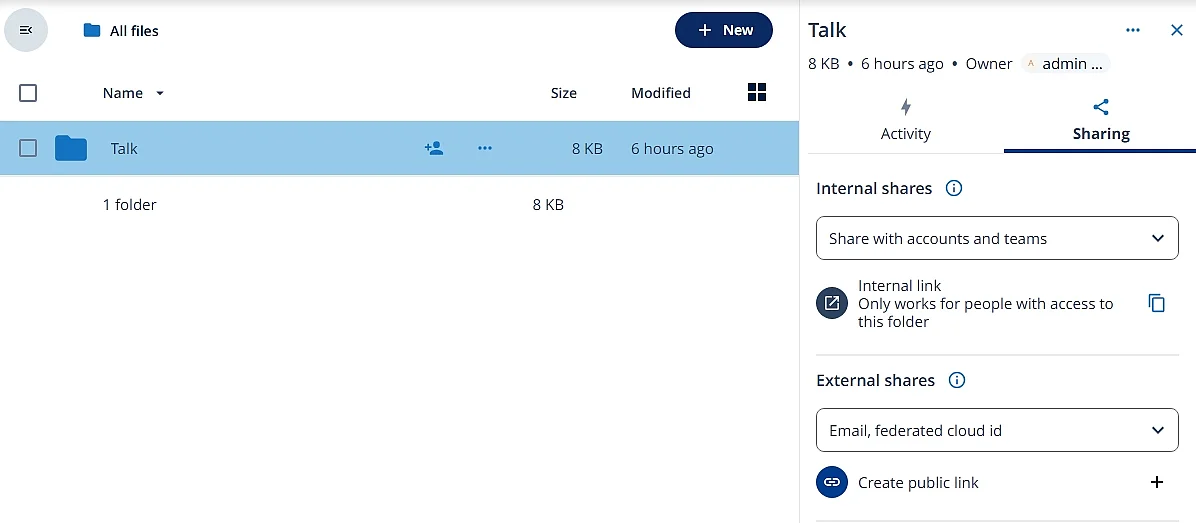
- Choose the right level of access (such as, ‘View only’ or ‘Can edit’).
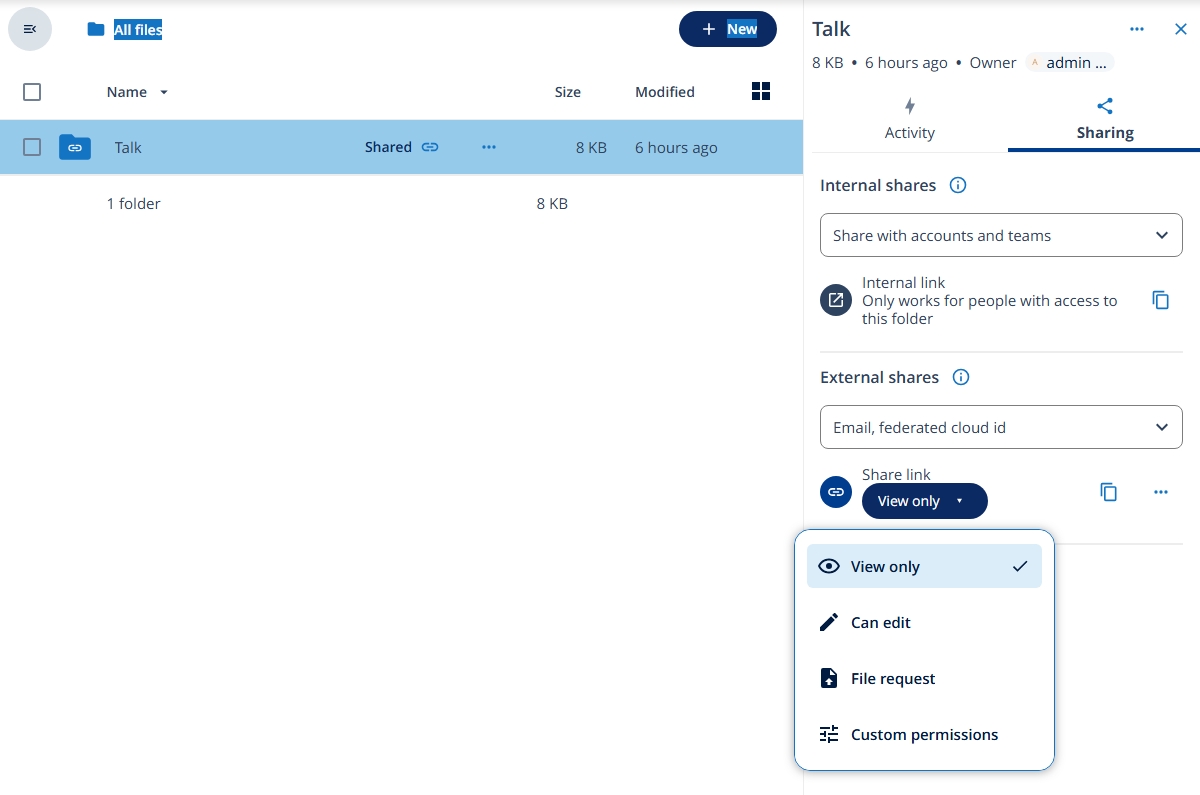
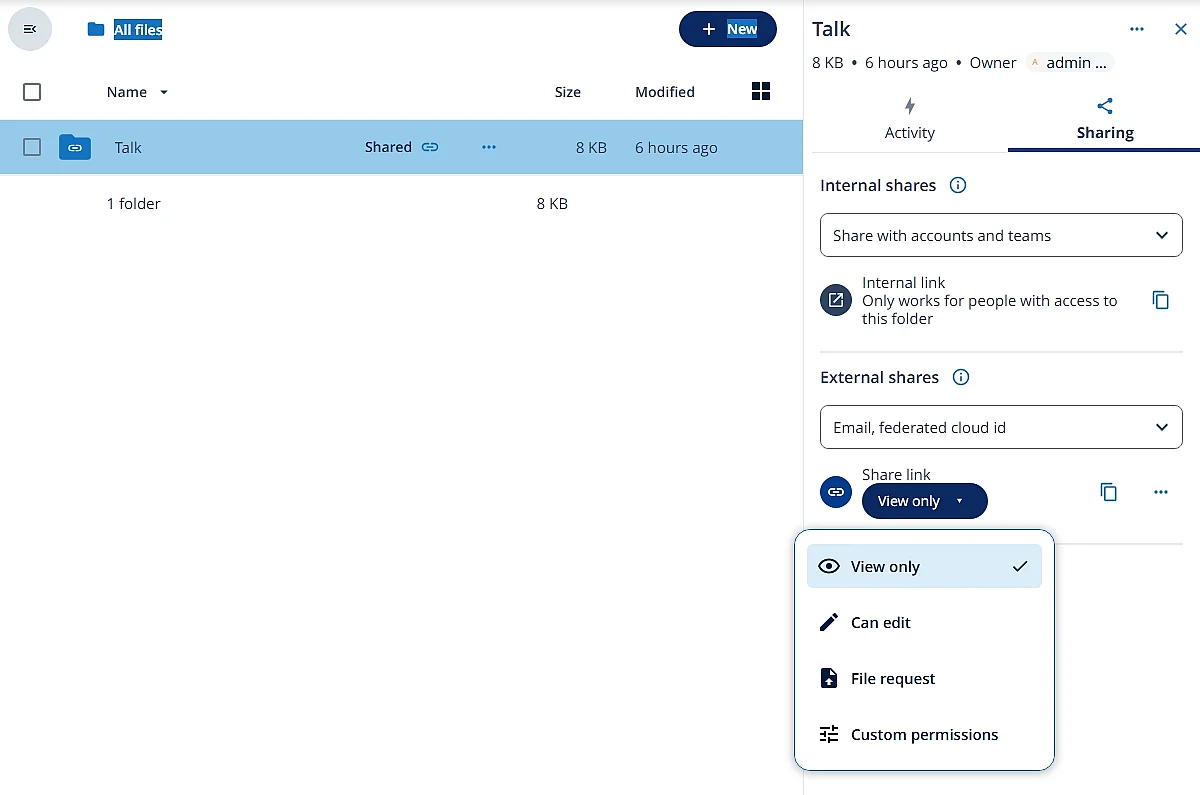
- You can then set any custom permissions. For external shares, add a password and an expiration date.
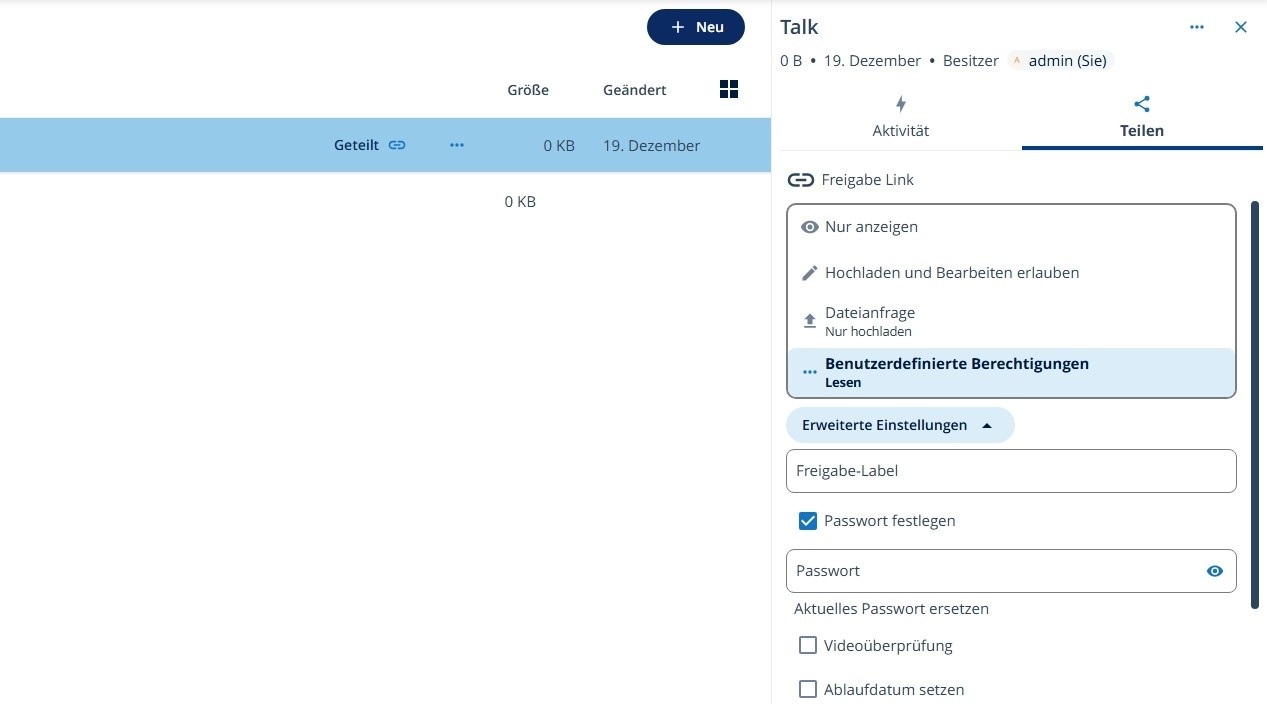
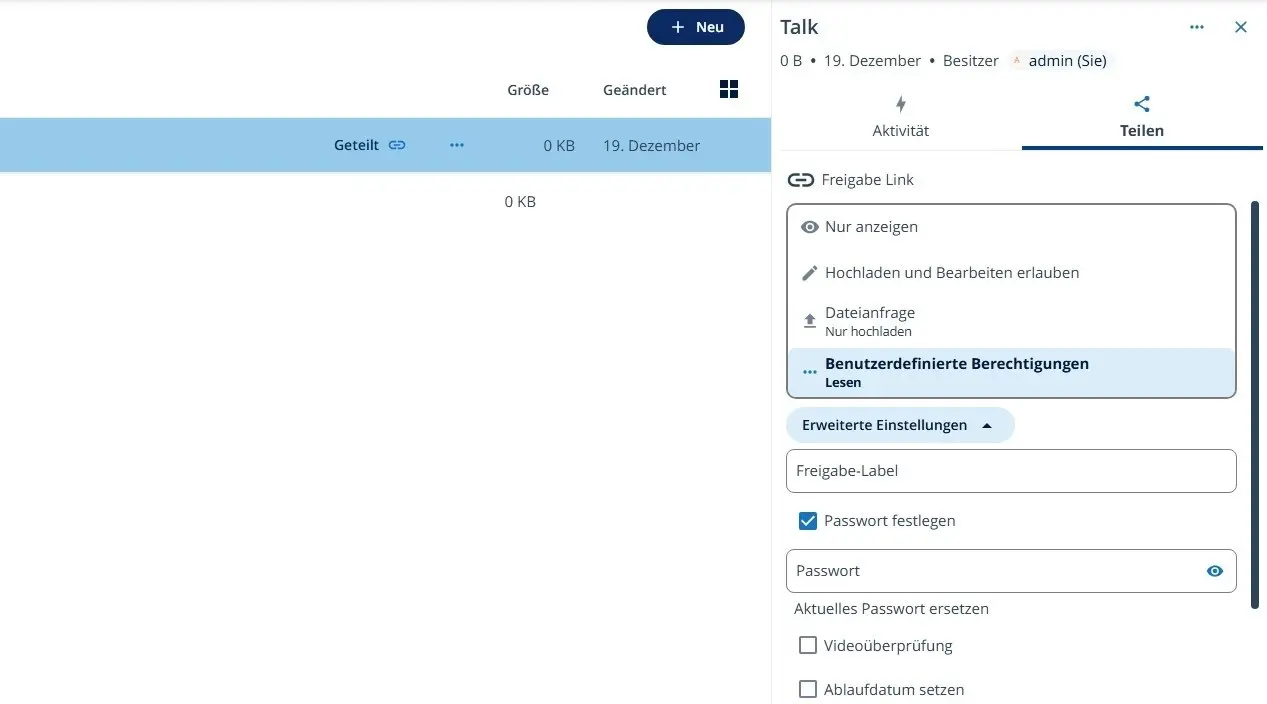
Public links can also have sharing labels. Labels make it easier to keep track of multiple external shares, letting you label links by project, recipient group or purpose. This is helpful if you regularly create, review or remove external shares.
Understanding inherited access when sharing a folder
When you share a folder in Nextcloud, recipients usually get access to all files and subfolders inside that folder too. Nextcloud calls this inherited access.
This is useful for shared workspaces, but also means you need to check what a folder contains before you share it. This can become a problem when folder structures grow over time. A project folder may start with harmless documents, but later contain quotes, contracts or personal data. For secure sharing in Nextcloud, only share folders when recipients really need access to everything inside them. If recipients only need certain files, share those files instead of the whole folder.
Review shared folders regularly, especially folders shared through public links or with people outside your organization.
How to share individual files in Nextcloud
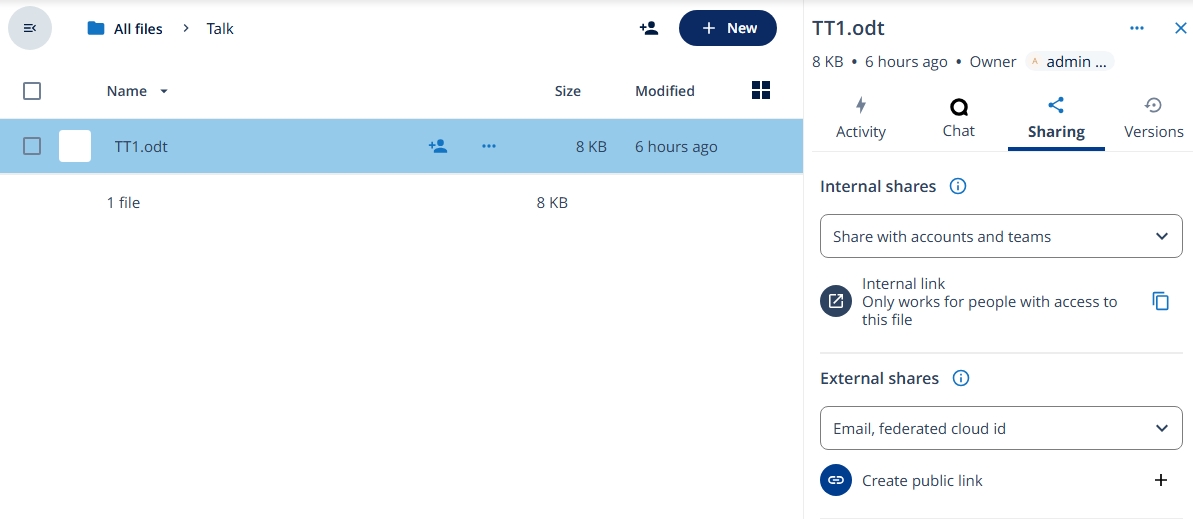
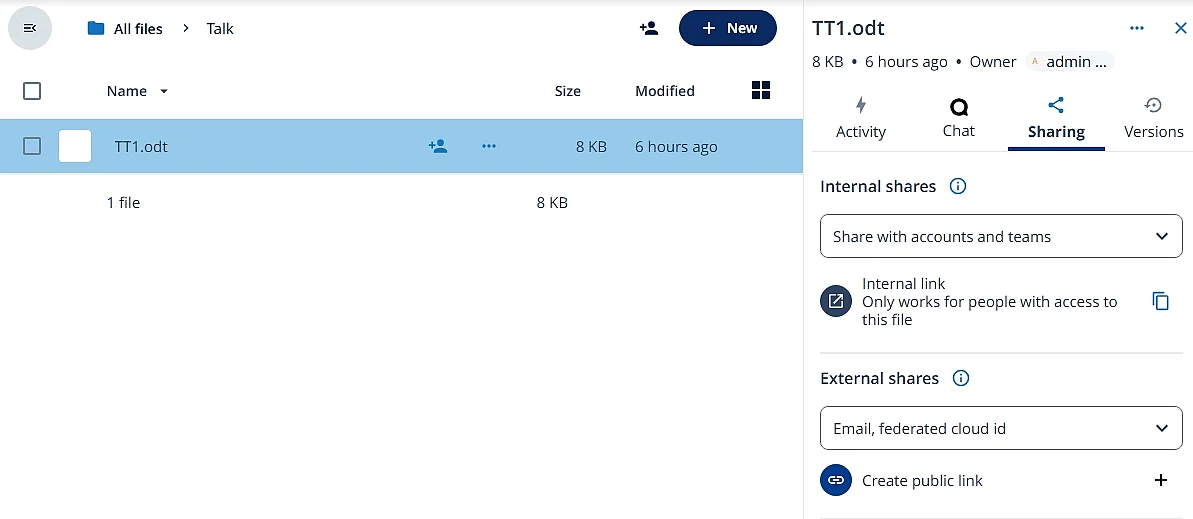
You can also share individual files in Nextcloud instead of a whole folder. Here’s how it works:
- Click the file you want to share.
- Open the sharing options using the share icon.
- Choose another user or group (internal) or a public link (external).
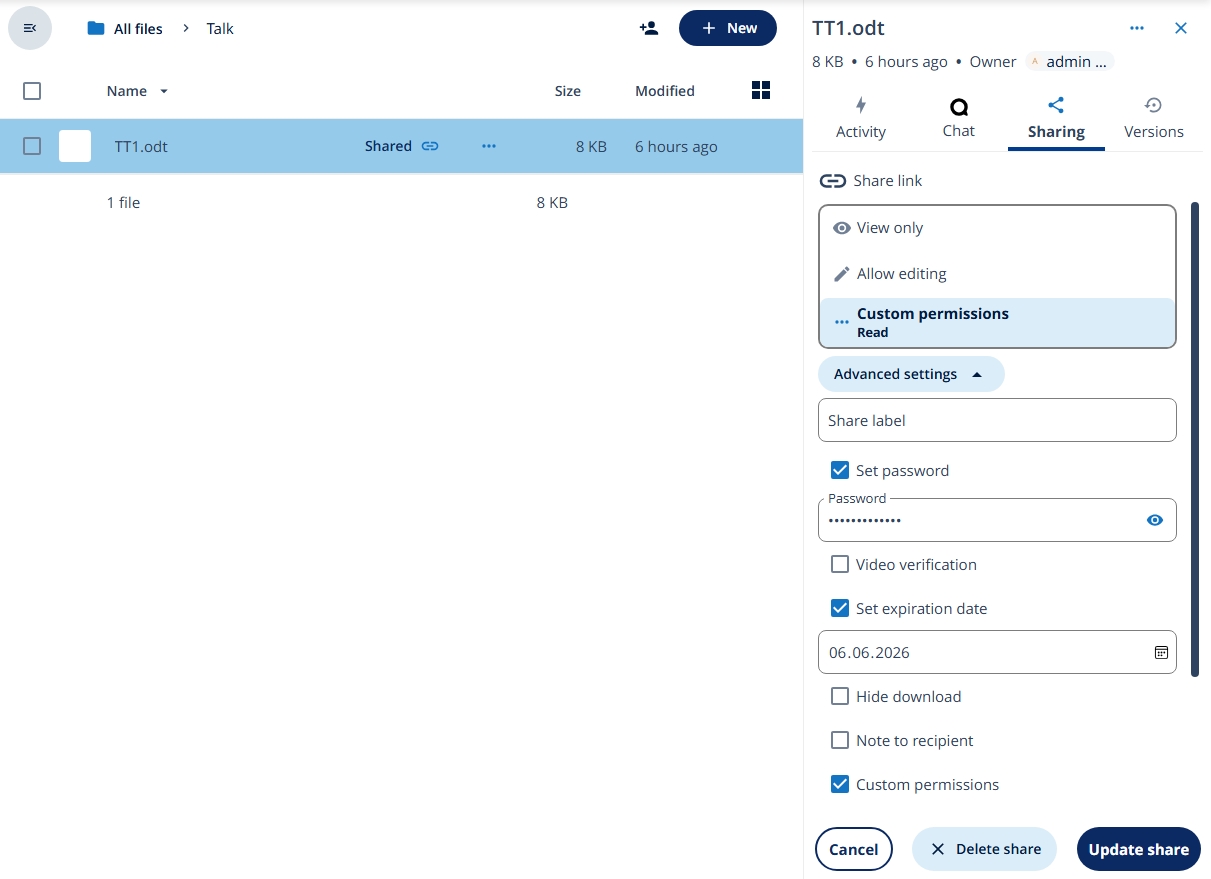
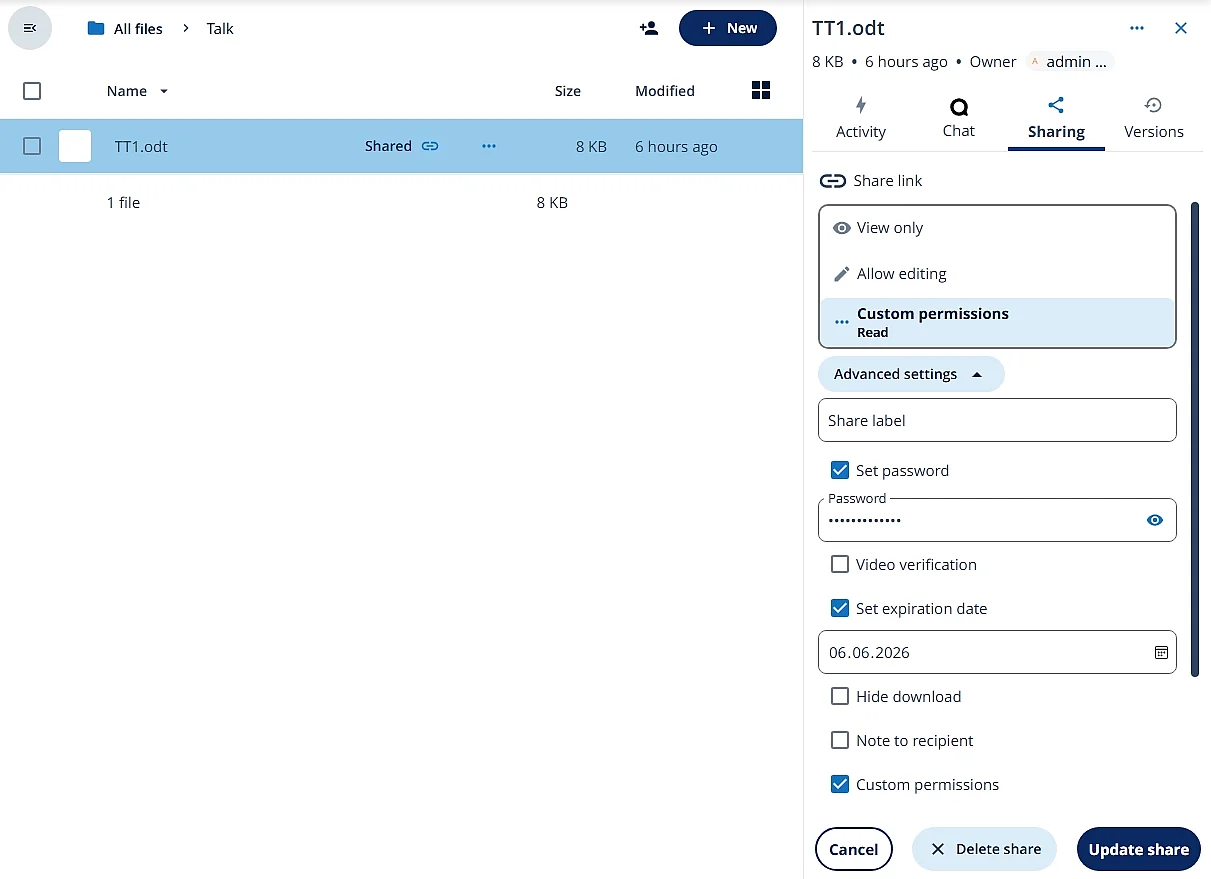
- Choose the right access level.
- Set any custom permissions. For public links, add a password and expiration date for added security.
Why share a single file instead of a folder?
If someone only needs one file, it is usually safer to share that file instead of the whole folder. That way, the person only gets access to the file you choose, not to other documents or subfolders. This follows the principle of least privilege: people only get access to the files they actually need instead of an entire folder.
This keeps permissions simpler and reduces the chance of sharing more than intended. It also means that files added to the original folder later are not automatically shared later.
How can you secure public links in Nextcloud?
Public links are useful when you want to share files or folders with people who do not have an account in your Nextcloud instance. However, you should always secure public links. Nextcloud offers several additional security options, including password protection and expiration dates.
Enabling password protection for public links
A secure password adds another layer of protection to a public link. Even if the link is forwarded by mistake or falls into the wrong hands, they still cannot open the shared file or folder without the password.
You can add a password in the “Custom permissions” area when you create the link. Always send the password separately from the link, for example by text, messenger or a separate email.
Administrators can also set password rules for the whole instance. In the sharing settings, they can make Nextcloud ask for a password whenever someone creates a public link. They can also make passwords mandatory for all public links.
When sharing files or folders publicly, follow these guidelines:
- Always use a password for public links.
- Send the password separately from the link.
- Avoid passwords that are easy to guess, especially for sensitive data.
- Make passwords mandatory server-wide if external sharing is used regularly.
Setting an expiration date for shared files or folders
An expiration date limits how long a file or folder is shared for. This is important because public links should not be accessible forever. In Nextcloud, you can set an expiration date for public links. After that date, sharing is automatically deactivated.
When you share a file or folder, you can set an expiration date under “Custom permissions.” As with password protection, administrators can require expiration dates to be set.
When setting expiration dates, you should take the following into account:
- Use short default durations for public links
- Make expiration dates mandatory for external shares
- Use shorter time frames for sensitive or personal data
- Enable notifications before an important shared file or folder expires
Nextcloud can also send notifications before a shared link expires. To use this feature, you can set up a server-side cron job that runs the OCC command sudo -E -u www-data php occ sharing:expiration-notification daily. Whoever shared the file or folder is then notified about any links that expire the following day.
Hide download
With “Hide download,” Nextcloud hides the download buttons and standard right-click options for public links. This is useful when external users should only be able to view files and not download a copy of them.
This option helps reduce unwanted downloads, but it does not stop someone from making copies of a file. They could still take a screenshot or find other workarounds. Use Hide download’ as an extra safeguard, not as a substitute for passwords, expiration dates or restricting permissions.
File drop
If external users only need to upload files, Nextcloud offers “File Drop” mode. They can add files to a shared folder without seeing what is already inside it. In current Nextcloud versions, you can usually set this up with Create file request in the plus menu (+). From there, you can add a title and description, select the target folder and, if needed, set a password and expiration date. Users are also asked to enter their name before uploading, which makes it easier to match each file to the right person. The exact name and availability of this option can vary depending on your Nextcloud version and server setup.
Video verification
For sharing highly sensitive data, Nextcloud can also add video verification through Nextcloud Talk. With the “Password protect by Talk” option, recipients are asked to verify their identity in a video call before receiving the password. The password is usually given verbally during the call rather than sent in writing. For the video verification option to appear, Nextcloud Talk must be installed and enabled.
Most everyday file sharing does not need this level of security. But for confidential business documents or personal data, it can be a useful safeguard before granting someone access.
How do permissions vary between file and folder sharing?
Permissions in Nextcloud depend on whether you share a whole folder or a single file:
| Function | Folder sharing | File sharing |
|---|---|---|
| Read access | Users can view the folder, including all files and subfolders. | Users can view only the shared file. |
| Edit | Users can add or change files in the shared folder. | Users can edit the shared file online. |
| Upload files | Users can upload files to the shared folder. | Not available. |
| Delete | Users can delete files from the shared folder. | Users can delete the shared file. |
| Reshare | Users can share the folder with others. | Users can share the file with others. |
| File request / File Drop | Users can upload files without seeing what is already in the folder. | Not available. |
| Hide download | Download buttons and standard right-click options can be hidden for public folder links. | Download buttons and standard right-click options can be hidden for public file links. |
| Move | Users can move files within the shared folder. | Not available. |
| Expiration date | Access can end automatically on a set date. | Access can end automatically on a set date. |
| Password protection | Public links can require a password. | Public links can require a password. |
| Video verification | Recipients can verify their identity through Nextcloud Talk, if installed. | Recipients can verify their identity through Nextcloud Talk, if installed. |
How to share files and folders securely in Nextcloud
Nextcloud makes it easy to share files and folders, but it’s worth setting a few ground rules. This checklist helps you keep access limited, secure and easy to review:
✓ Use a password for public links.
✓ Set an expiration date for external access.
✓ Share folders only when people need access to everything inside them.
✓ Share individual files when someone only needs access to specific information.
✓ Use “Hide download” as an extra safeguard for view-only access.
✓ Use “File Drop” or “File Request” when people should only be able to upload files, not view existing ones.
✓ Allow ‘Resharing’ only when recipients are allowed to share files or folders that have been shared with them.
✓ Review active links regularly and remove anything you no longer need.
✓ For sensitive data, keep expiration dates short and permissions limited.
Reviewer

Christian Heldmaier
Christian Heldmaier is an experienced online marketing and SEO specialist from Karlsruhe. He has been working as an SEO Manager at IONOS since July 2020.