
How to install Red Hat 8 step by step

If you want to install Red Hat 8, the distribution will guide you through the individual steps. We will show you here how the process works and also explain what should be taken into consideration beforehand.
What is Red Hat Enterprise Linux 8?
Red Hat Enterprise Linux (RHEL for short) is an extremely popular Linux distribution that was specifically designed for the needs of companies. The platform has been available since 2002 and is compatible with numerous programs. The eighth version was launched on May 7, 2019. RHEL 8 is considered to be particularly user-friendly, stable and secure and offers very good support for cloud-based services. For the first time, the distribution includes AppStream, which can be used to distribute packages, and Software Connections, which are used to distribute applications. The platform also offers standard support for OpenSSL and TLS 1.3.
In the following sections we will guide you step by step through the Red Hat 8 installation.
Do you want to use a newer version of the distribution for companies? In our Digital Guide you will also find instructions for installing Red Hat 9.
The prerequisites and measures for installing RHEL 8
Before you start with the RHEL 8 installation, there are a few things to bear in mind and some prerequisites that need to be fulfilled:
- two vCPUs for sufficient computing power
- 2 gigabyte working memory/RAM
- 20 gigabyte hard drive space
This hardware configuration ensures not only smooth installation but also optimal distribution performance. Before beginning the process, insert an iDRAC boot disk or mount the Red Hat 8 ISO file on a virtual console. The drivers for the graphics card and network card will be installed automatically, but you may need to manually install additional drivers afterward. Once these prerequisites are fulfilled, you can proceed with installing RHEL 8.
The steps for installing Red Hat Enterprise Linux 8
Choose the installation option you prefer. In this guide, we’ve opted for an ISO file, which you can download directly from the official Red Hat website. Start your server and mount the installation medium in the usual way. Then, follow these instructions:
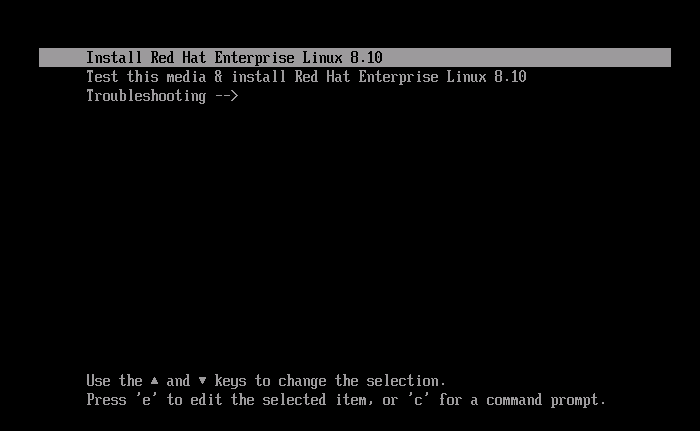
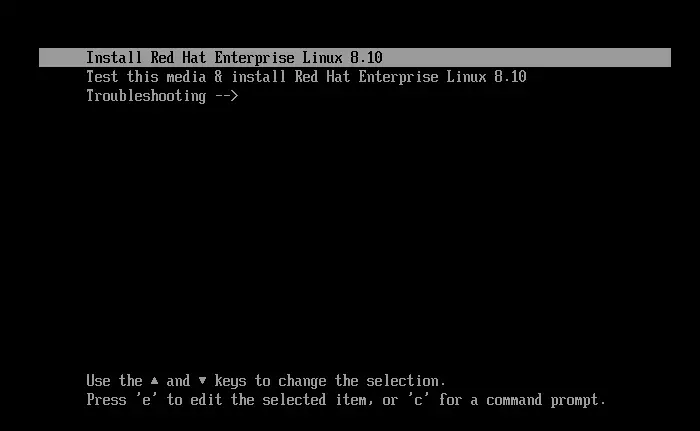
- Reboot your server or device. The boot media will automatically display the menu for the RHEL installation. To begin the installation, choose the option Install Red Hat Enterprise Linux 8.x.x and press [Enter] to confirm.
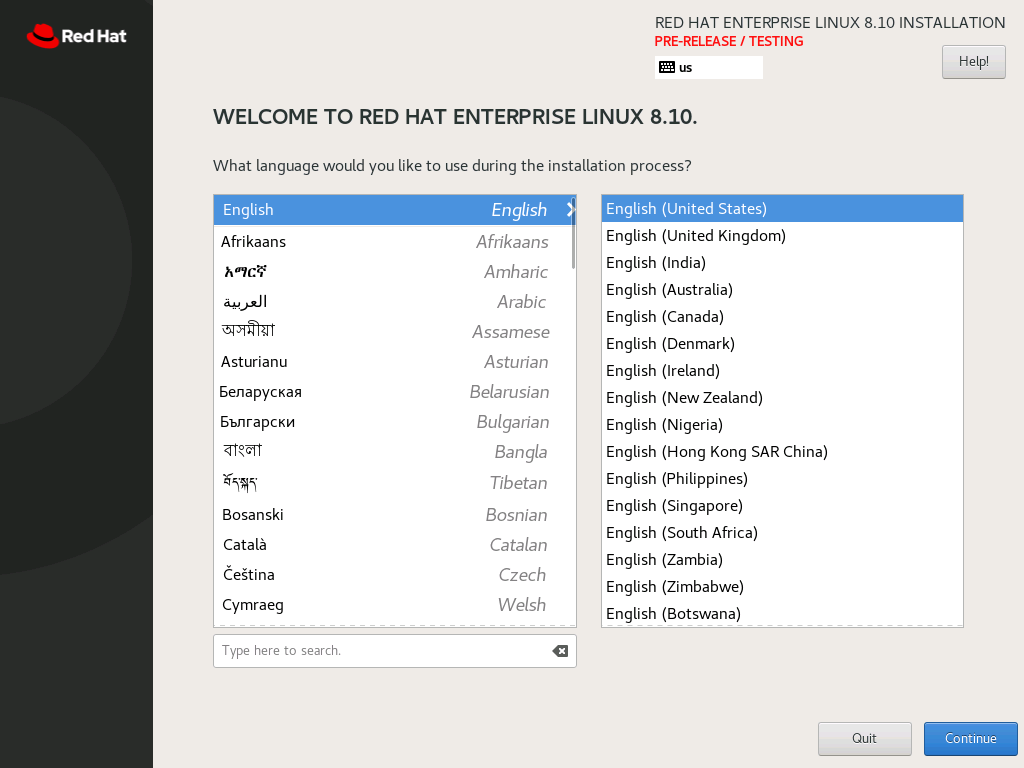
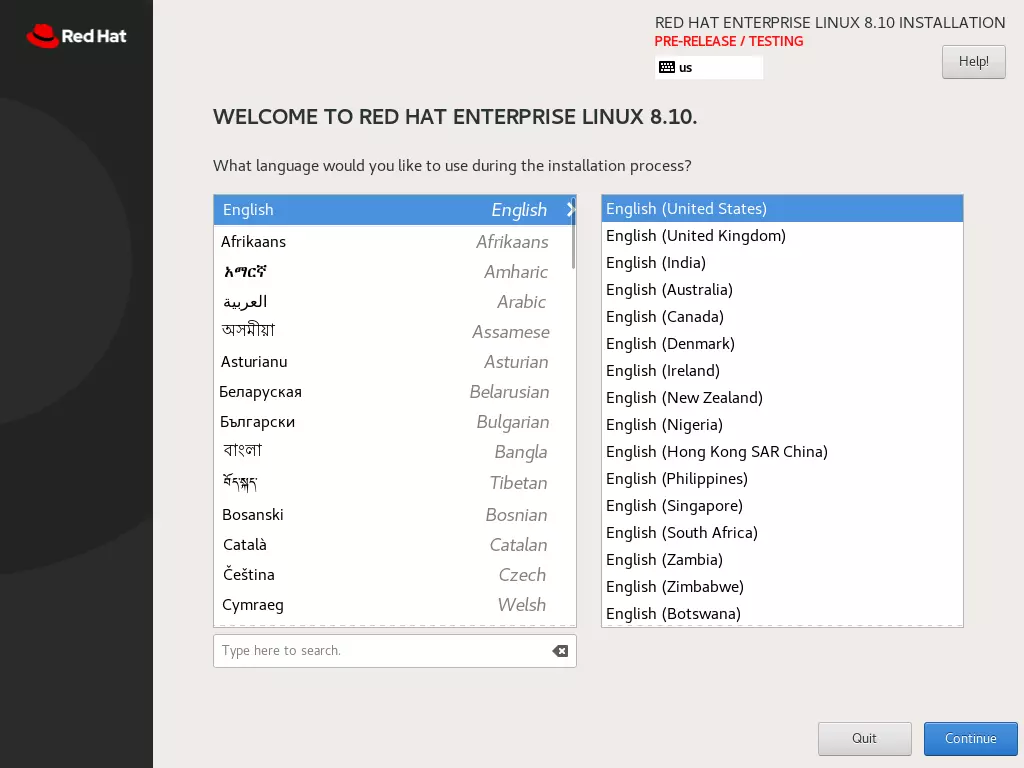
- The next step takes you to the user interface for the first time. Here you will be asked to select your preferred language. Find the appropriate option and click on “Continue”.
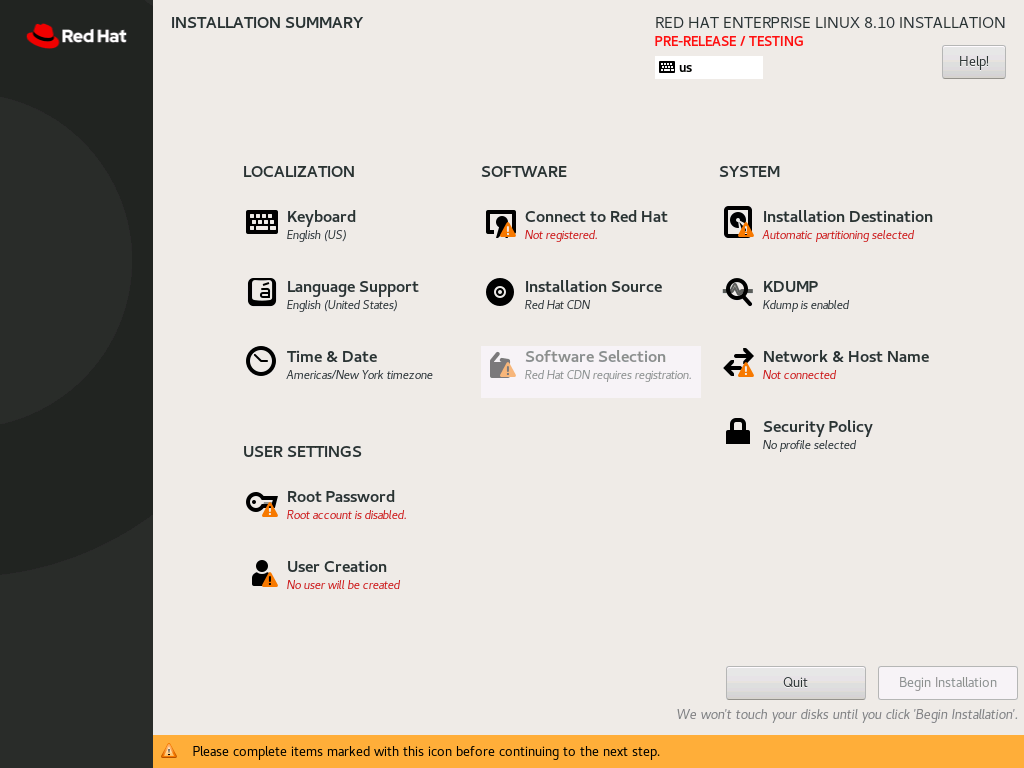
- You will now proceed to the Installation Summary section. In this section, you can adjust settings for localization, software, the system, and user accounts. Required fields are indicated by a small exclamation mark.

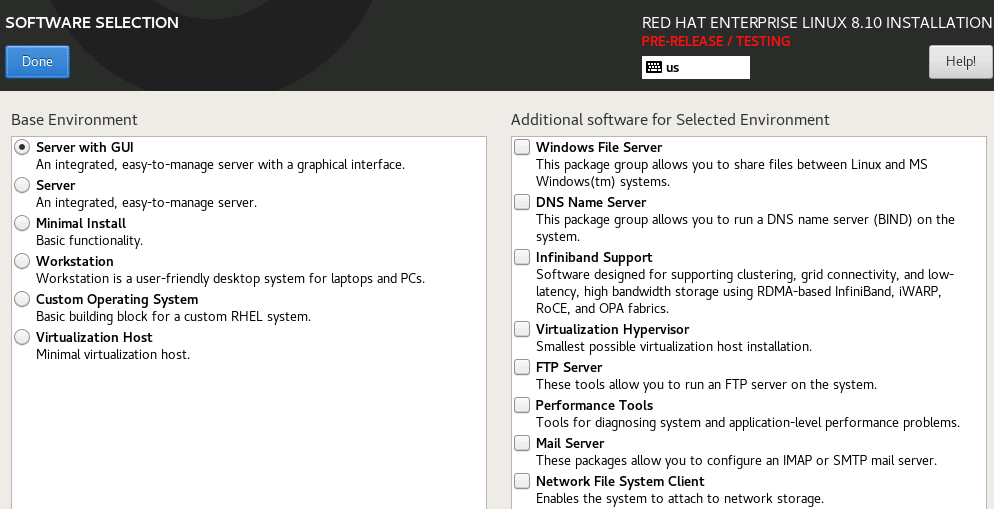
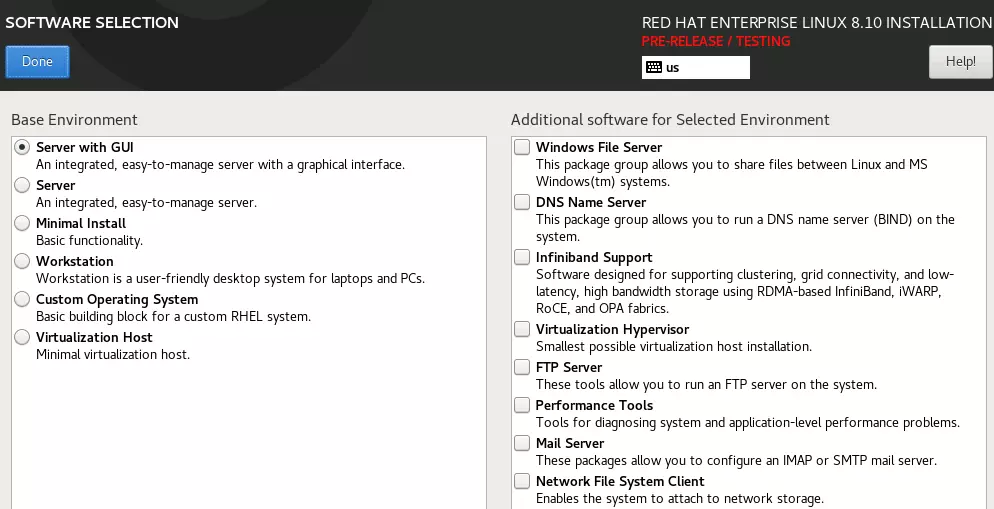
- In each case, the desired installation environment (installation target) must be specified. It is also necessary to select the desired installation package such as “Server with GUI” under Software Selection. You can also add additional software such as an FTP server to the installation at this point. Confirm the respective settings by clicking on “Done”.
-
If you click on Network & Host Name, you can configure more than just the desired internet connection. In the “Host Name” field, you have the option of specifying the name of the system. Confirm this with “Apply” and exit the menu by clicking “Done”.
-
Select the desired Installation target by clicking on the button and specifying the desired storage location in the subsequent menu. Then confirm with “Done”.
-
Another mandatory field is your root password. First enter your new password here and then once more to confirm it. As this password is used for all administrative tasks, it should be secure and yet easy to remember. It must contain at least six characters and should consist of a combination of numbers and letters in upper and lower case. Special characters are also possible and recommended. You can find out how to change the RHEL root password later in a separate article.
-
Once you have customized all the options to your liking, click on Begin Installation.
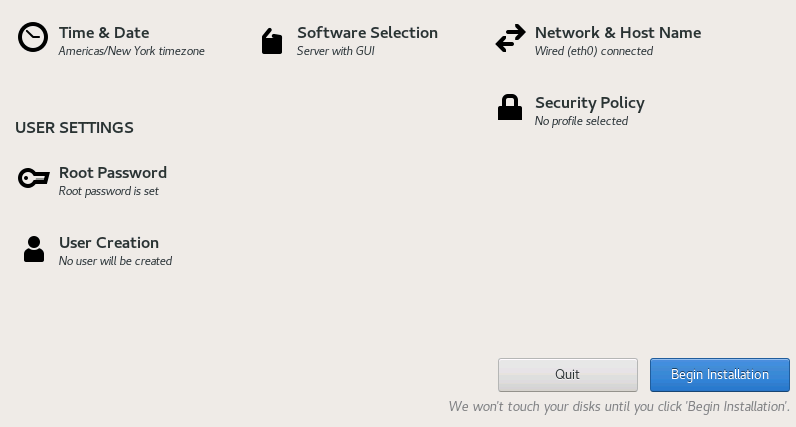
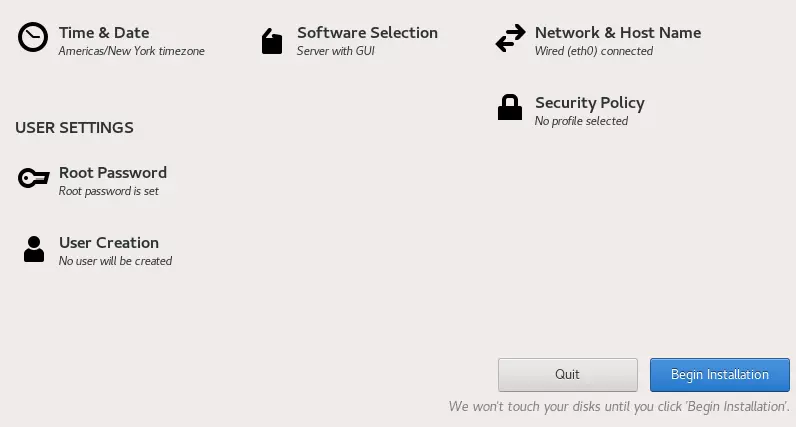
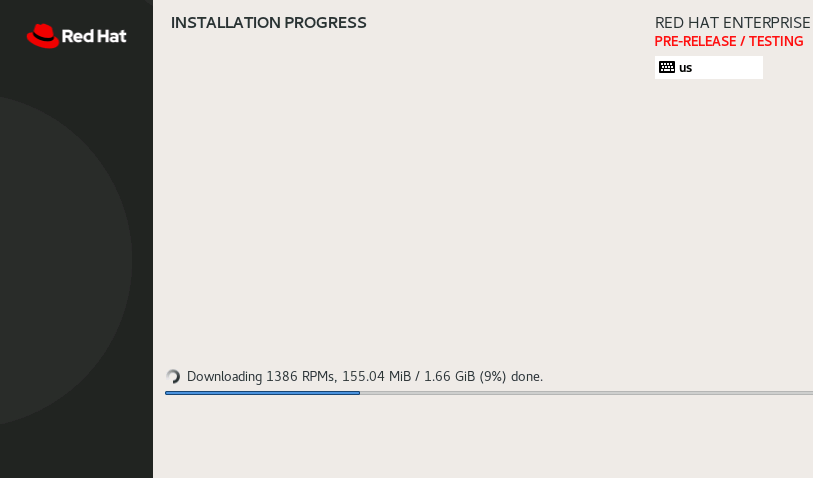
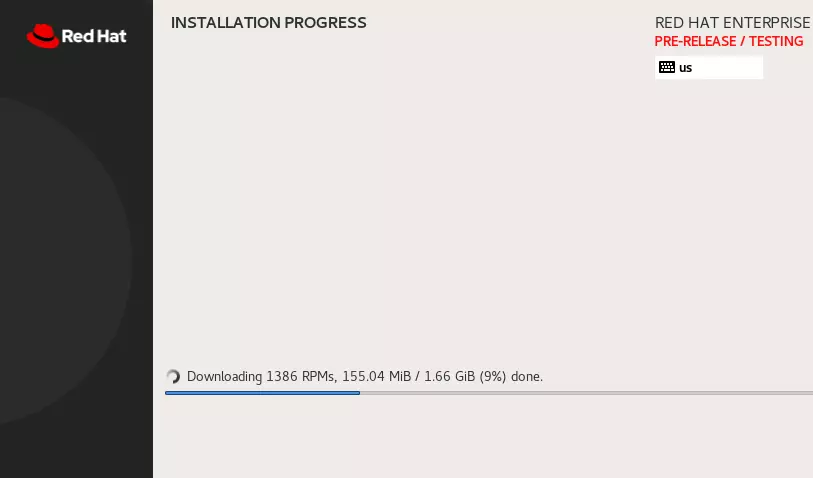
- The installation process will now begin. After it is finished, the server will restart, allowing you to use Red Hat Enterprise Linux 8. To do this, switch the boot medium back to the hard drive.