

Install PostgreSQL on Windows Server 2016

PostgreSQL is an open source object-relational database system with over 15 years of active development and a reputation for reliability. This database management system supports the SQL92 and SQL99 standards and provides a number of own extensions. PostgreSQL is fully ACID-compliant and it includes most SQL:2008 data types, including INTEGER, NUMERIC, BOOLEAN, CHAR, VARCHAR, DATE, INTERVAL, and TIMESTAMP.
Furthermore, this database management system provides interfaces to ODBC and JDBC as well as programming interfaces to a variety of development languages.
PostgreSQL runs stored procedures in more than a dozen programming languages, including Java, Perl, Python, Ruby, Tcl, C/C++, and its own PL/pgSQL, which is similar to Oracle's PL/SQL. Included with its standard function library are hundreds of built-in functions that range from basic math and string operations to cryptography and Oracle compatibility.
Learn how to install PostgreSQL on Windows Server 2016.
Requirements
- A Cloud Server with Windows Server 2016
- KVM based dev servers for developers
- Scalable to enterprise cloud level
- Pay-as-you-go, per-minute billing
Download the Installer
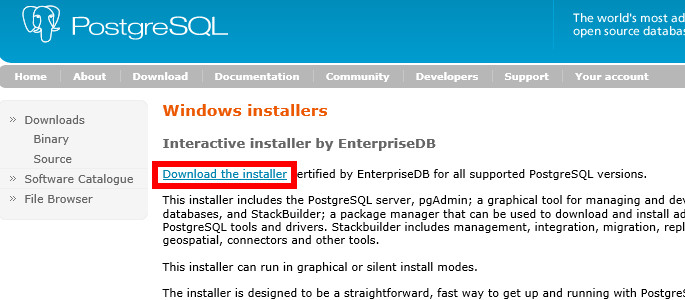
Connect to the Cloud Server with Remote Desktop. Open a browser window and go to the PostgreSQL Windows Installers page. Click Download the installer to download the installer to the server.
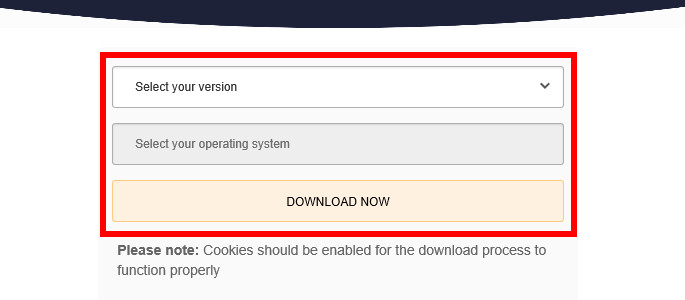
Select the most recent version of PostgreSQL and the operating system (Windows x86-64) then click DOWNLOAD NOW.
Install PostgreSQL
Open the postgresql-[version]-windows-x64.exe file, which you downloaded in the previous step.
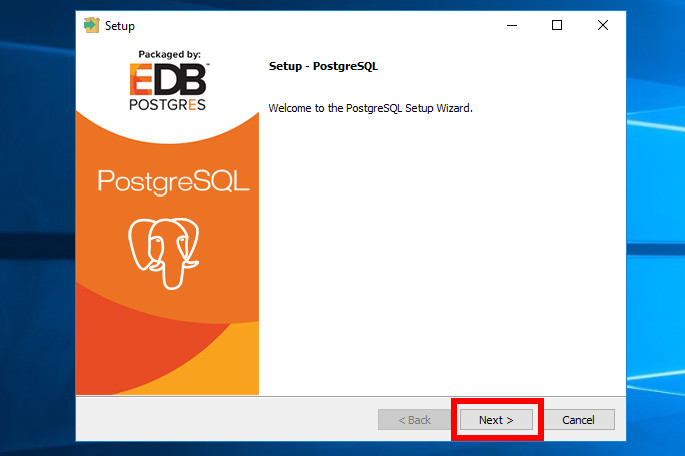
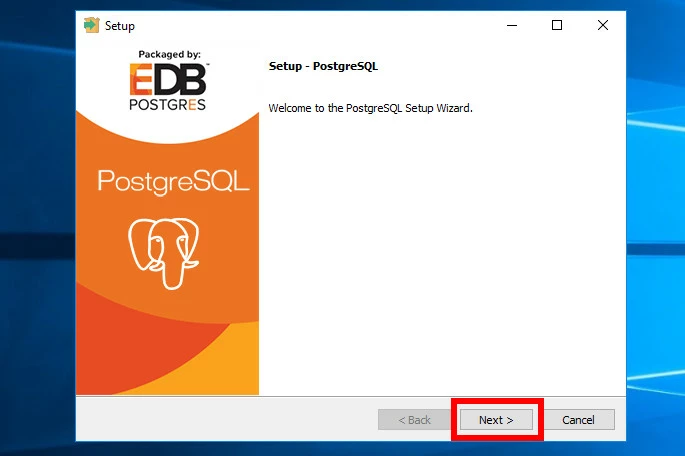
This will launch the PostgreSQL installation wizard. Click Next to begin the installation process.
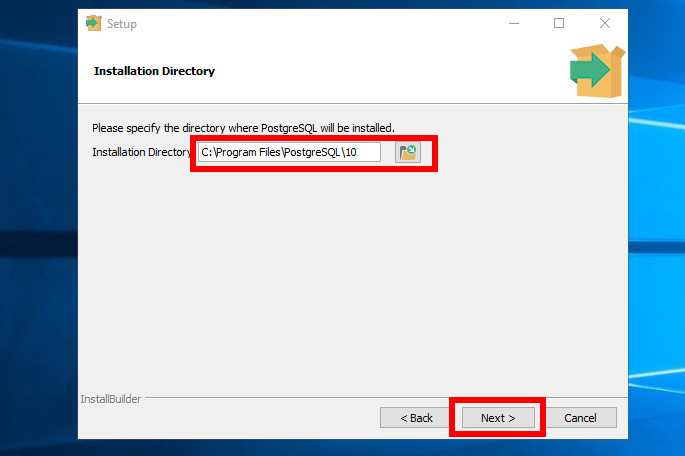
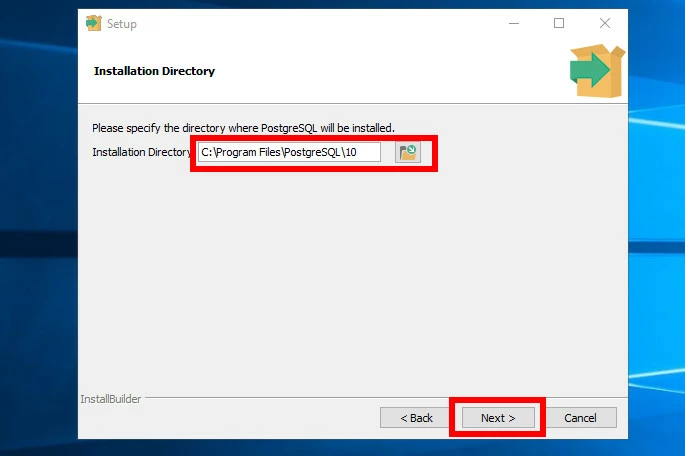
Specify the directory where you want to install PostgreSQL, then click Next to continue.
Select the components you wish to install. By default, all components will be installed. Click Next to continue.
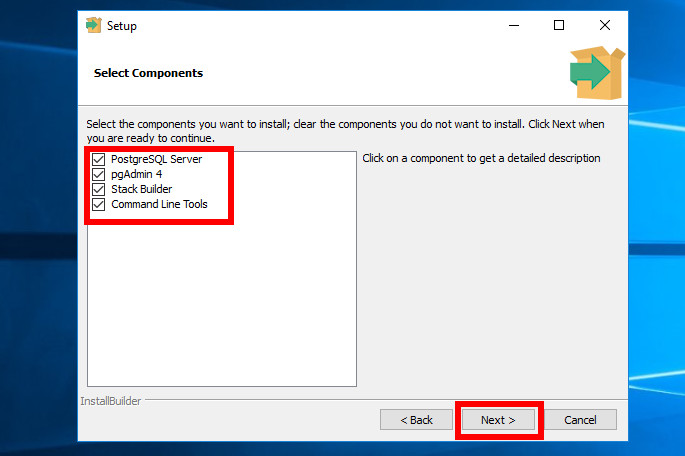
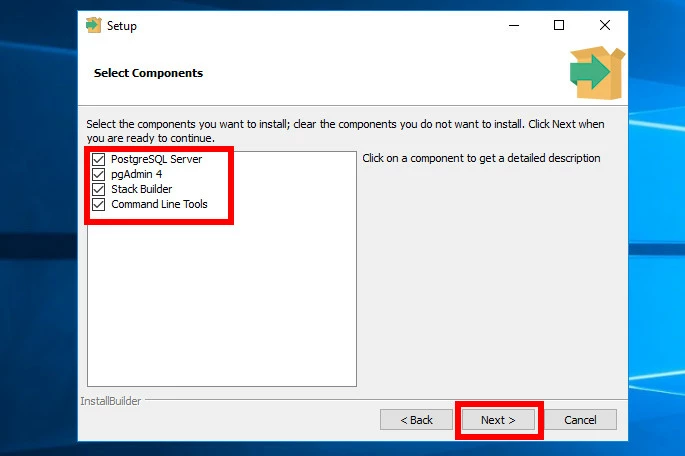
Select the directory where you want PostgreSQL to store its data, then click Next to continue.
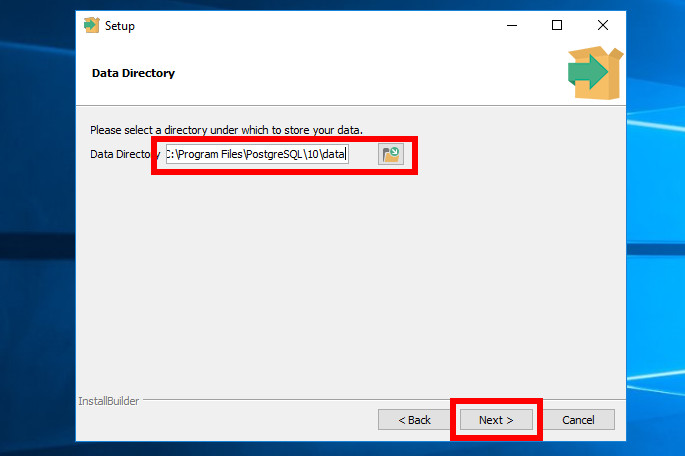
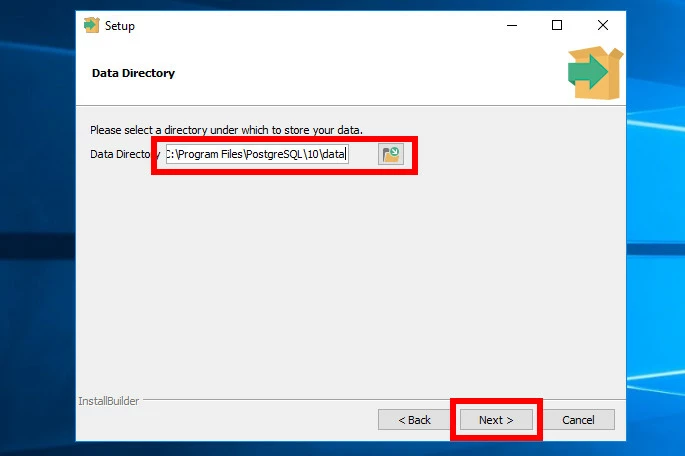
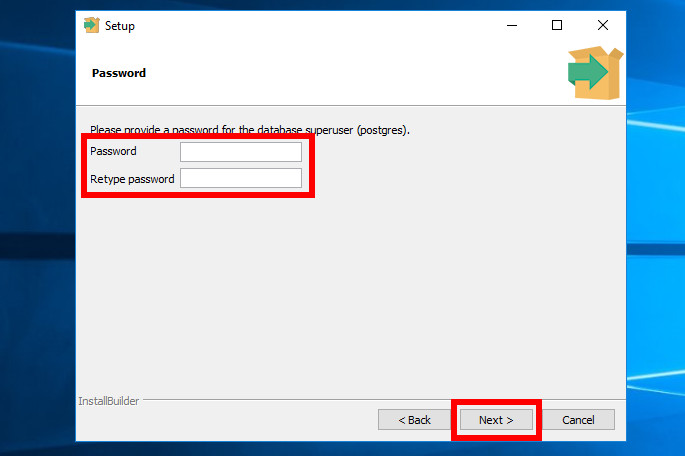
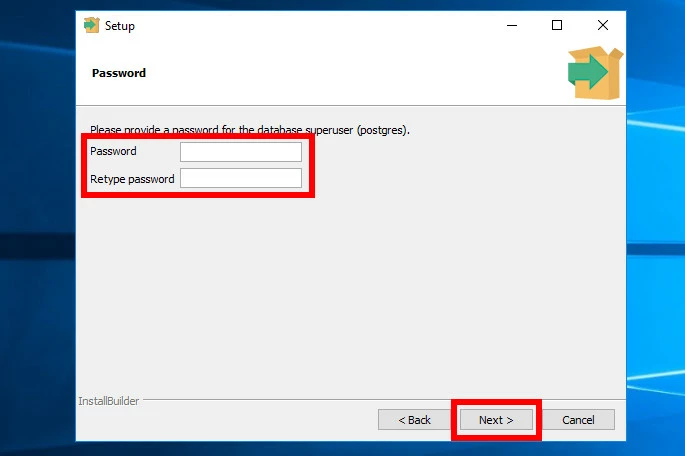
Enter the password you want to set for the database administrative user (postgres). Click Next to continue.
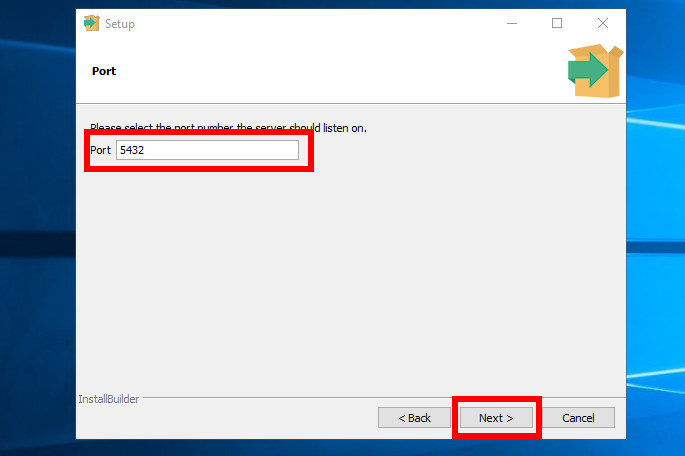
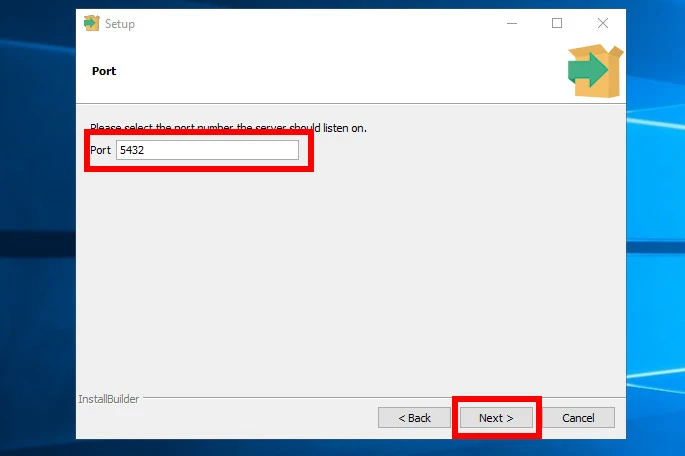
Select the port number you want PostgreSQL to listen on. By default, this will be port 5432. Note: If you wish to access PostgreSQL from the web, you will need to add a firewall policy to allow access to this port.
Click Next to continue.
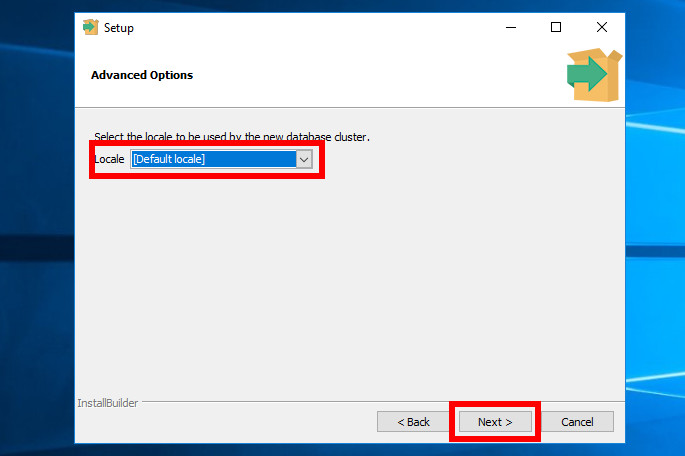
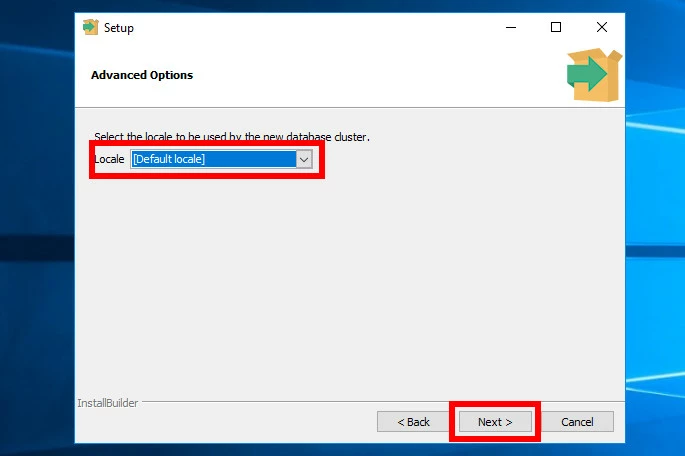
Select the default locale (time zone) for the PostgreSQL database cluster. Click Next to continue.
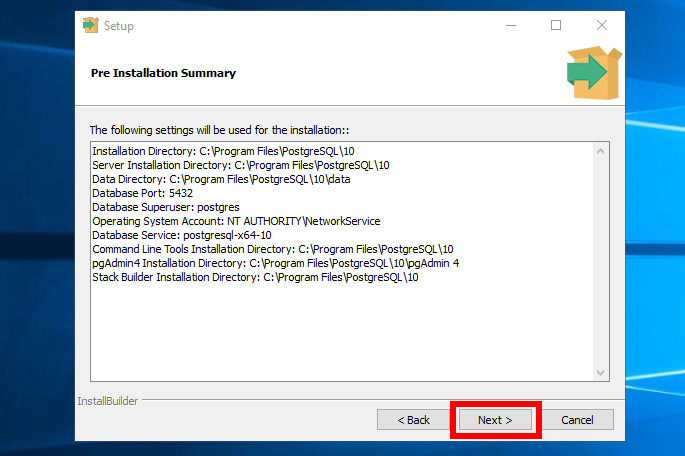
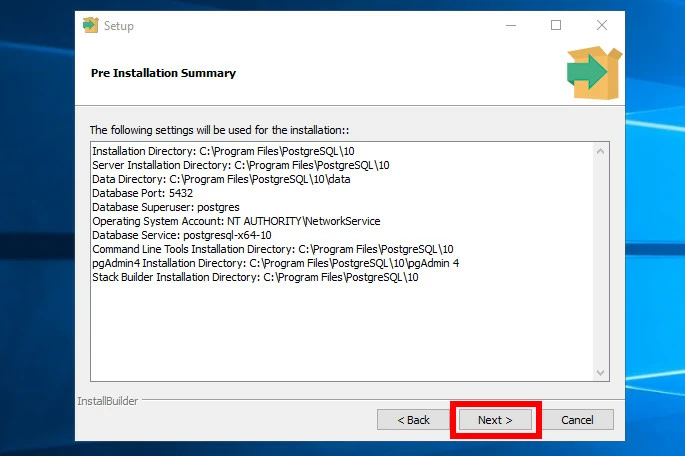
Confirm the settings you want to use. If you wish to change any of the settings, click Back until you reach the relevant step. After you have verified that the settings are correct, click Next to continue.
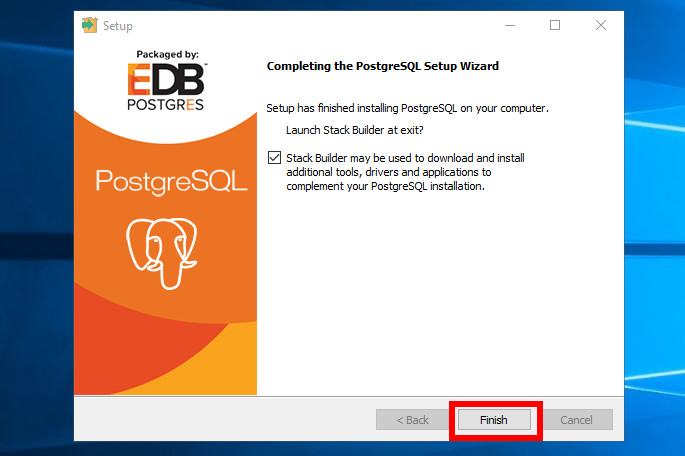
Click Finish to complete the installation.
You can now access PostgreSQL by going to Start > PosgreSQL 10 > pgAdmin or Start > PosgreSQL 10 > SQL Shell (psql).