

How to install Docker on CentOS 7

Docker is an open source platform that lets you create and run applications in so-called containers. Containers are isolated environments that contain all the necessary dependencies of an application. Since Linux-based operating systems like CentOS are very popular development platforms, this system fits very well with Docker. We’ll show you how to quickly and easily get Docker installed and running on your CentOS 7 system.
System requirements
Docker is standard software and doesn’t demand high hardware requirements. Nevertheless, its software requirements are somewhat specific. To ensure clarity, we’ve compiled a list of all the system requirements for you:
- 64-bit CPU that supports virtualization
- 4 GB of RAM
- Gnome, KDE or MATE as desktop environment
- Support for KVM virtualization
- QEMU (at least version 5.2)
- System
The right server
Depending on your application, it might be more optimal to run Docker on a server rather than on your local machine. Various types of servers are suitable for different application scenarios.
With virtualized servers like the cloud server or the VPS (Virtual Private Server) from IONOS you benefit from scalable resources at any time. This means you won’t need to manage any overhead when acquiring a server – your server will consistently have precisely the required resources available. The two server types vary in terms of billing. Cloud servers provide minute billing, while VPS servers are billed at a monthly fixed price.
If a virtualized server is not sufficient for your purposes, IONOS also offers a dedicated server, where resources are reserved around the clock. To achieve this, dedicated servers are powered by cutting-edge enterprise-grade hardware, guaranteeing your application always benefits from peak performance. Similar to the cloud server, dedicated server billing is also done on a minute-by-minute basis.
| Application | Matching Server Type |
|---|---|
| Server for developing your application; you only pay for the time you actually use the server for testing the application | Cloud Server XL |
| Server for developing or deploying an application that requires continuous or frequent online availability | VPS Linux XL |
| For deploying resource-intensive applications that demand top-tier security and performance, opt for an enterprise-level server. This ensures your application consistently operates on secure and high-performance hardware without sharing resources | Dedicated Server |
Installation using yum
On Linux, like on most other systems, there are multiple methods for installing software. Installing through a package manager is often the simplest approach. CentOS, for instance, uses yum as its default package manager. To install Docker using yum, you just need to follow a few steps.
Step 1: Update yum and all packages
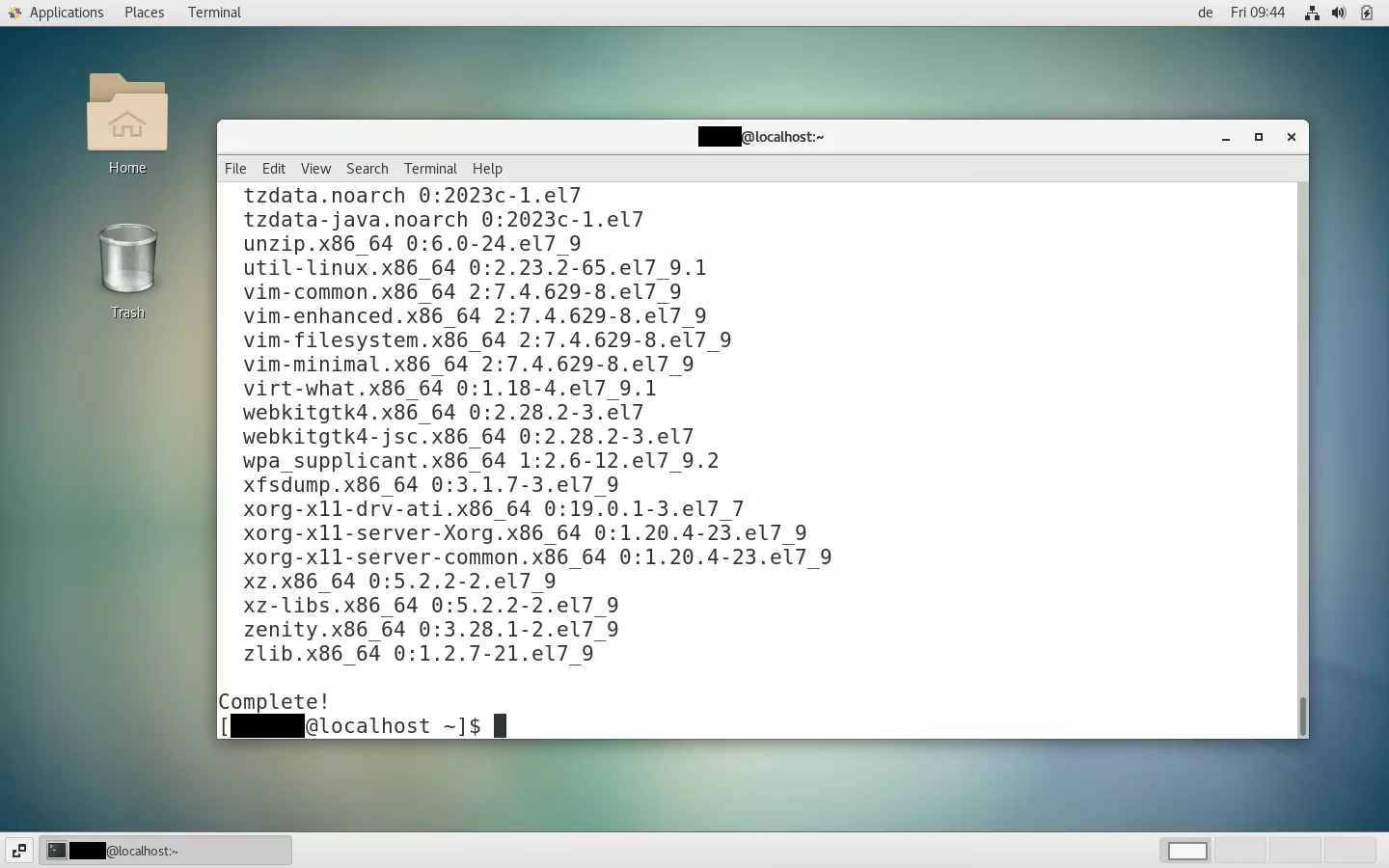
First you should update your package manager, your installed packages and your Linux core. To do this, enter the following command in your shell:
sudo yum update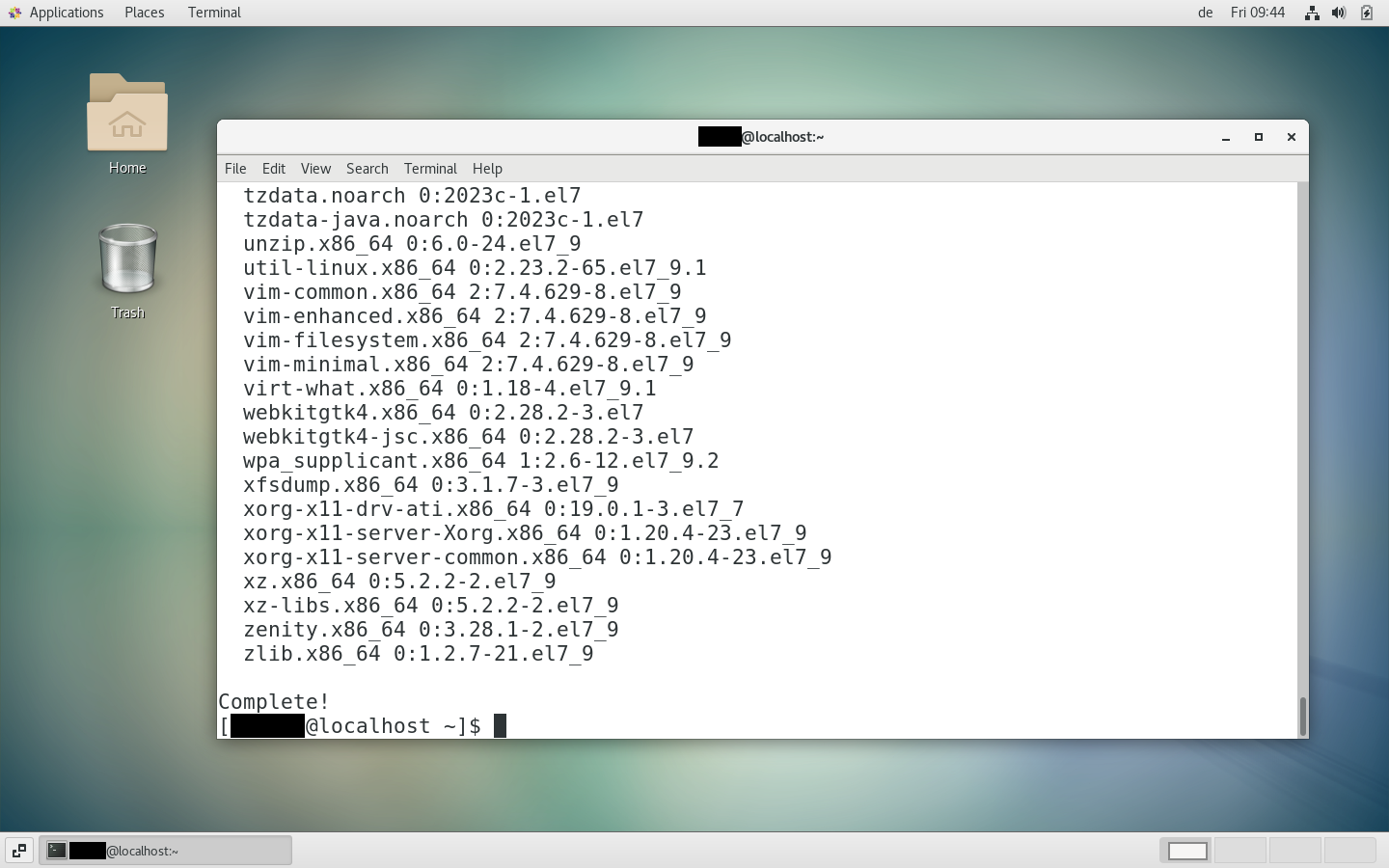
If you’ve already used Docker on your system, you should remove all Docker components before installation. To do this, enter the following command. If you’ve never had Docker installed on your system, you can skip this step.
sudo yum remove docker docker-client docker-client-latest docker-common docker-latest docker-latest-logrotate docker-logrotate docker-selinux docker-engine-selinux docker-engineStep 2: Install dependencies
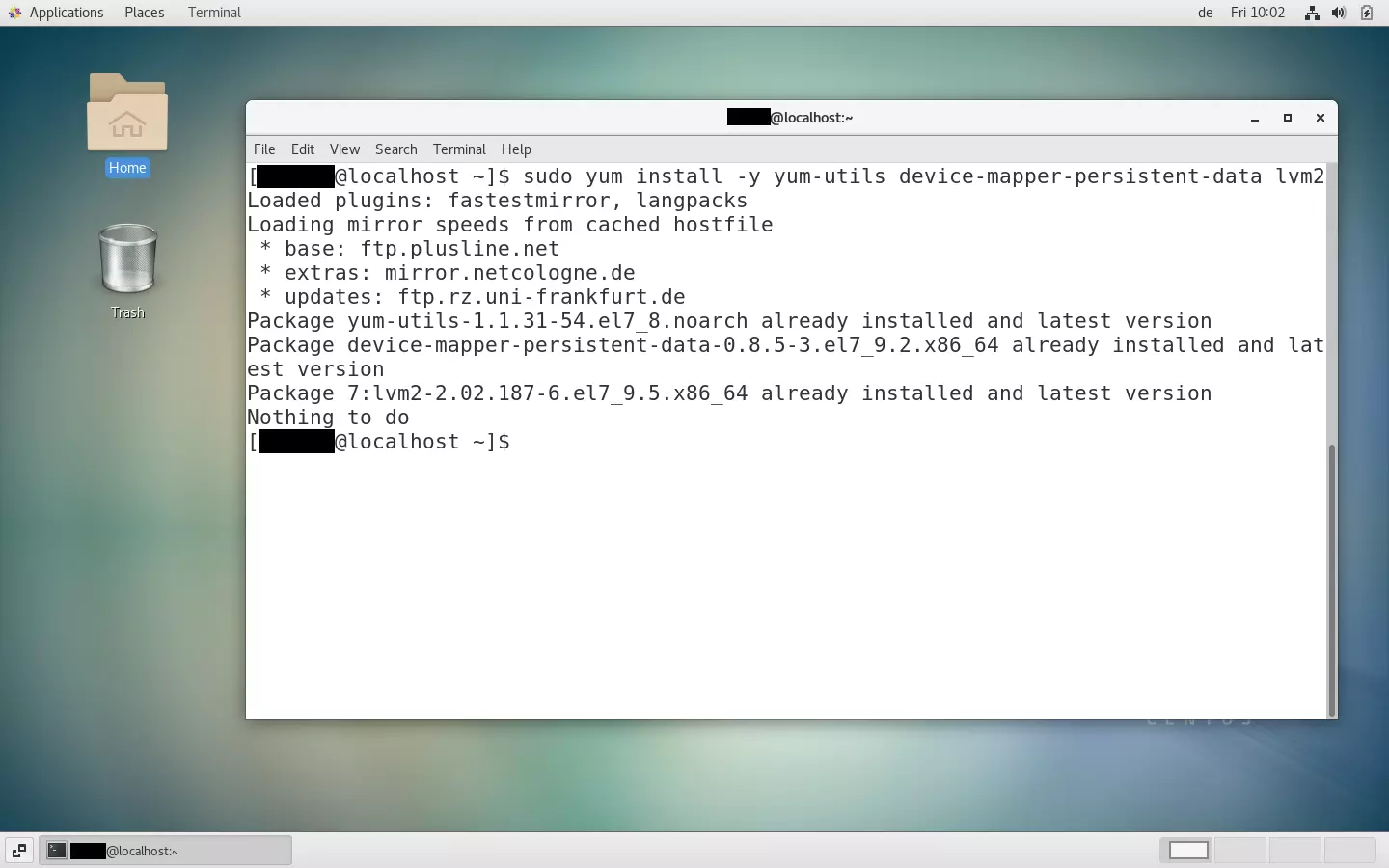
Depending on the frequency of your software updates, the process may take a few minutes. Once the update is finished, you should execute the following command to install the necessary dependencies for Docker:
sudo yum install -y yum-utils device-mapper-persistent-data lvm2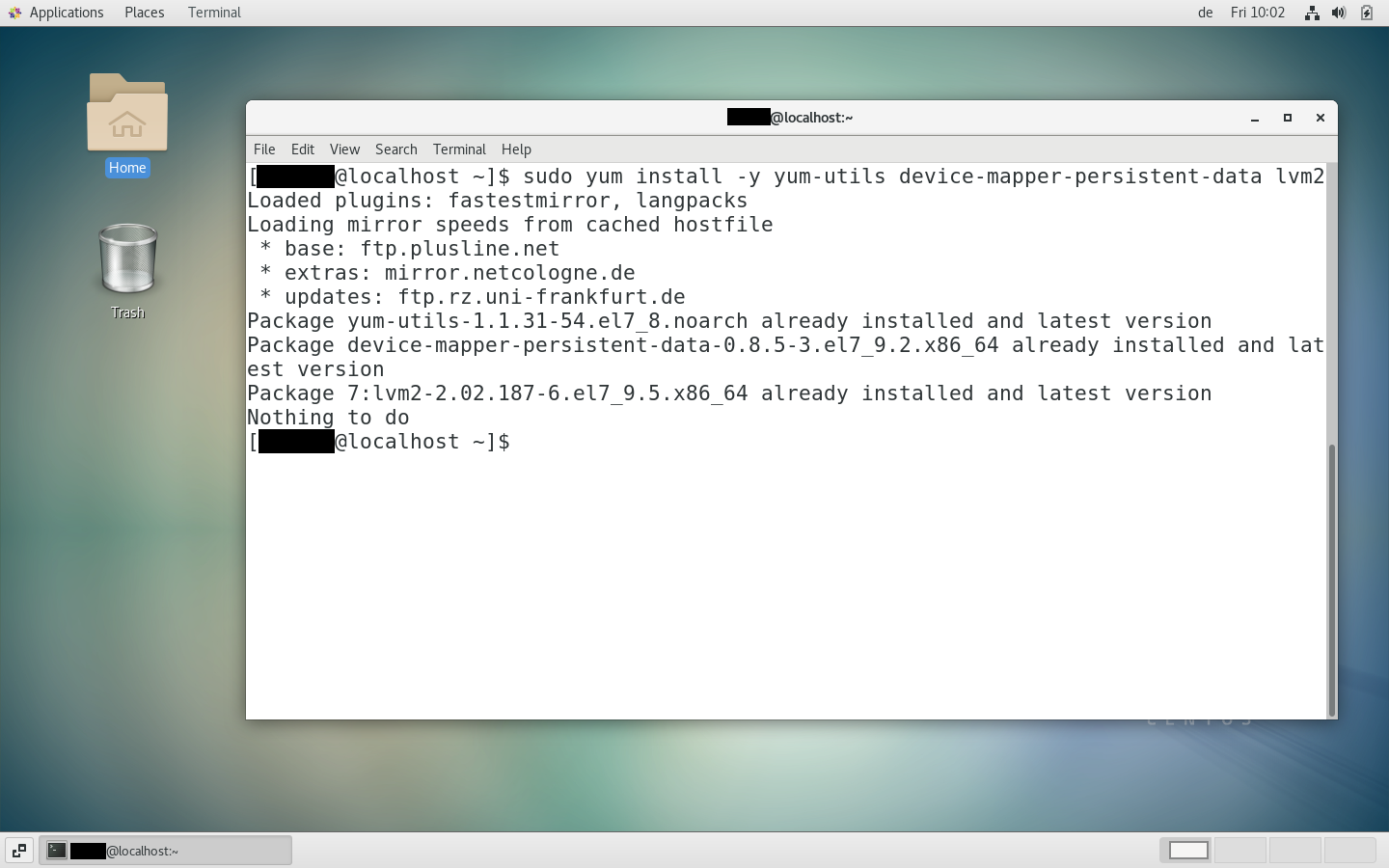
Step 3: Add Docker repository
Now you need to add the Docker repository to your package manager. To do this, enter the following command:
sudo yum-config-manager --add-repo https://download.docker.com/linux/centos/docker-ce.repo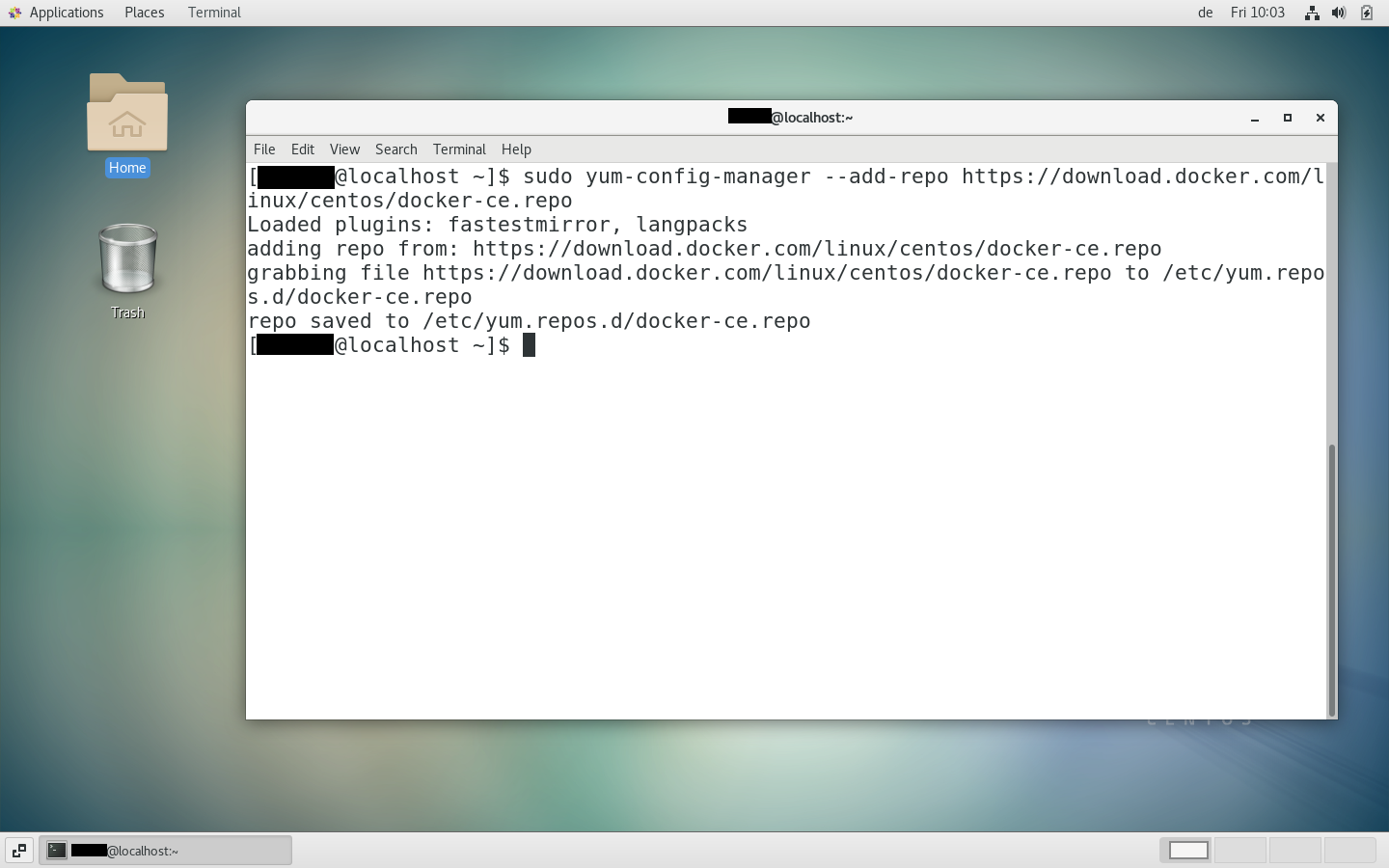
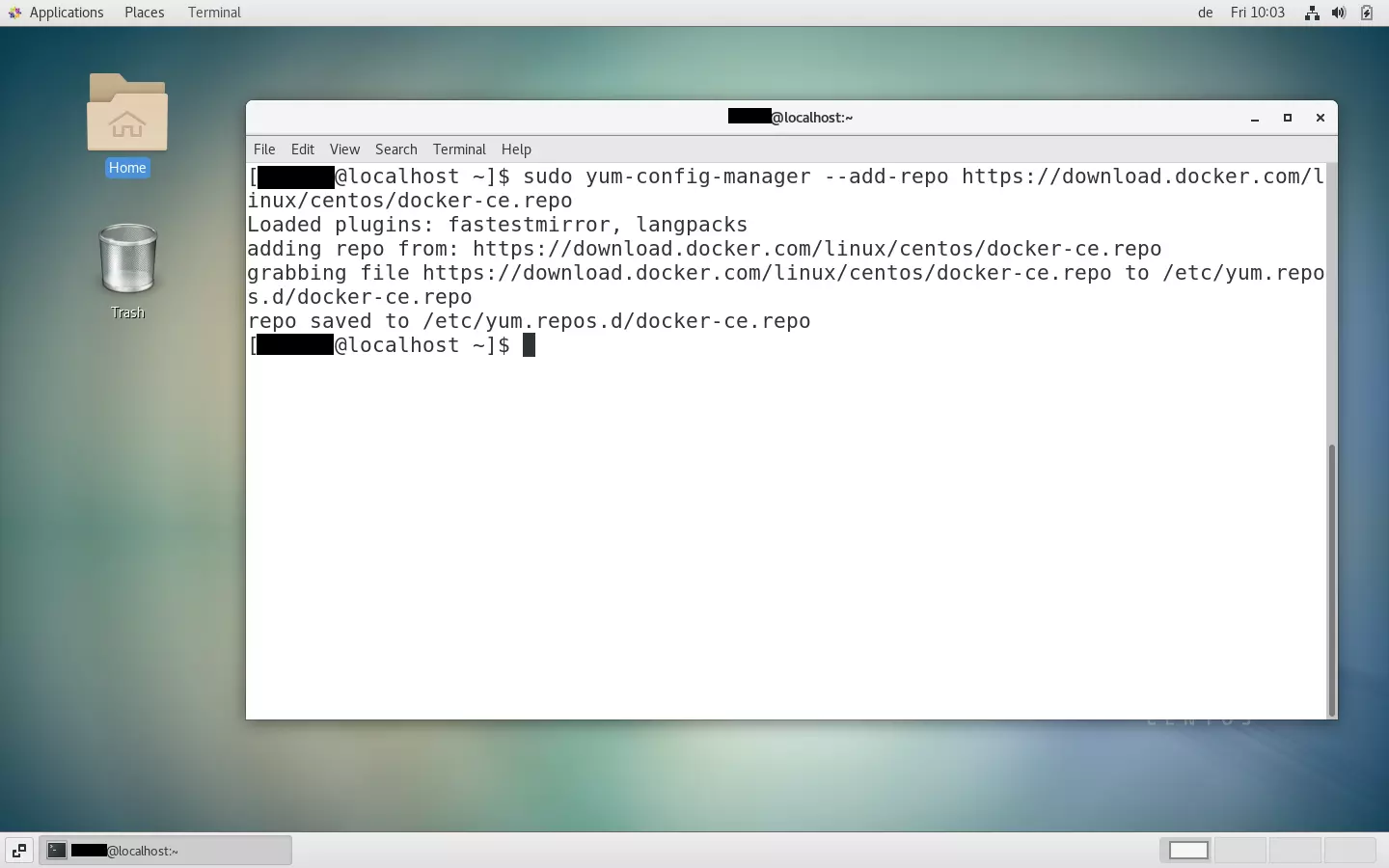
The above command adds the Docker Community Edition (CE) repository to your package manager. To install Docker Enterprise Edition (EE), you should replace the above URL with the URL of your Docker EE license.
Step 4: Install Docker
Now it’s time to install Docker on your CentOS system. To complete the installation process, use this command:
sudo yum install docker-ce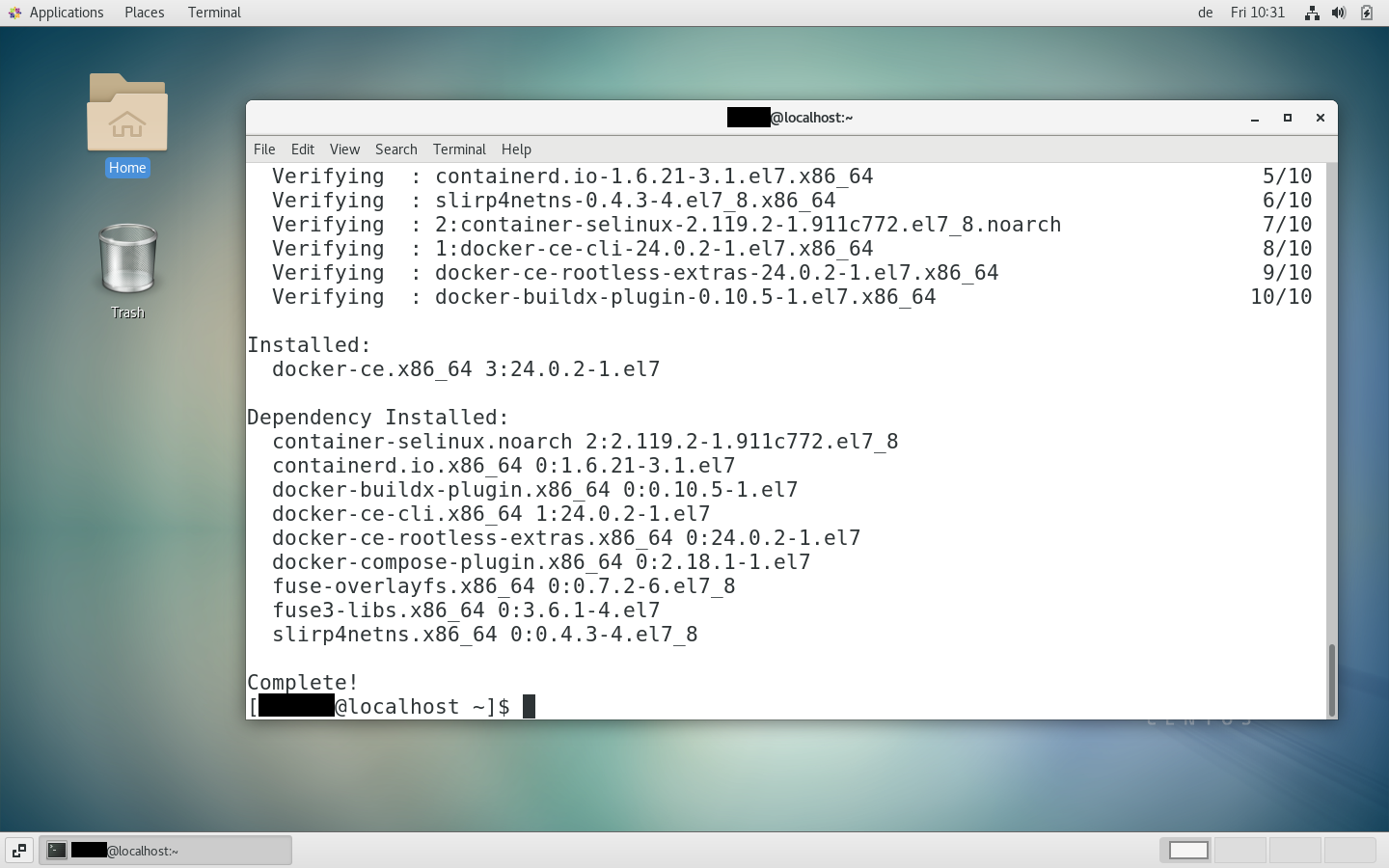
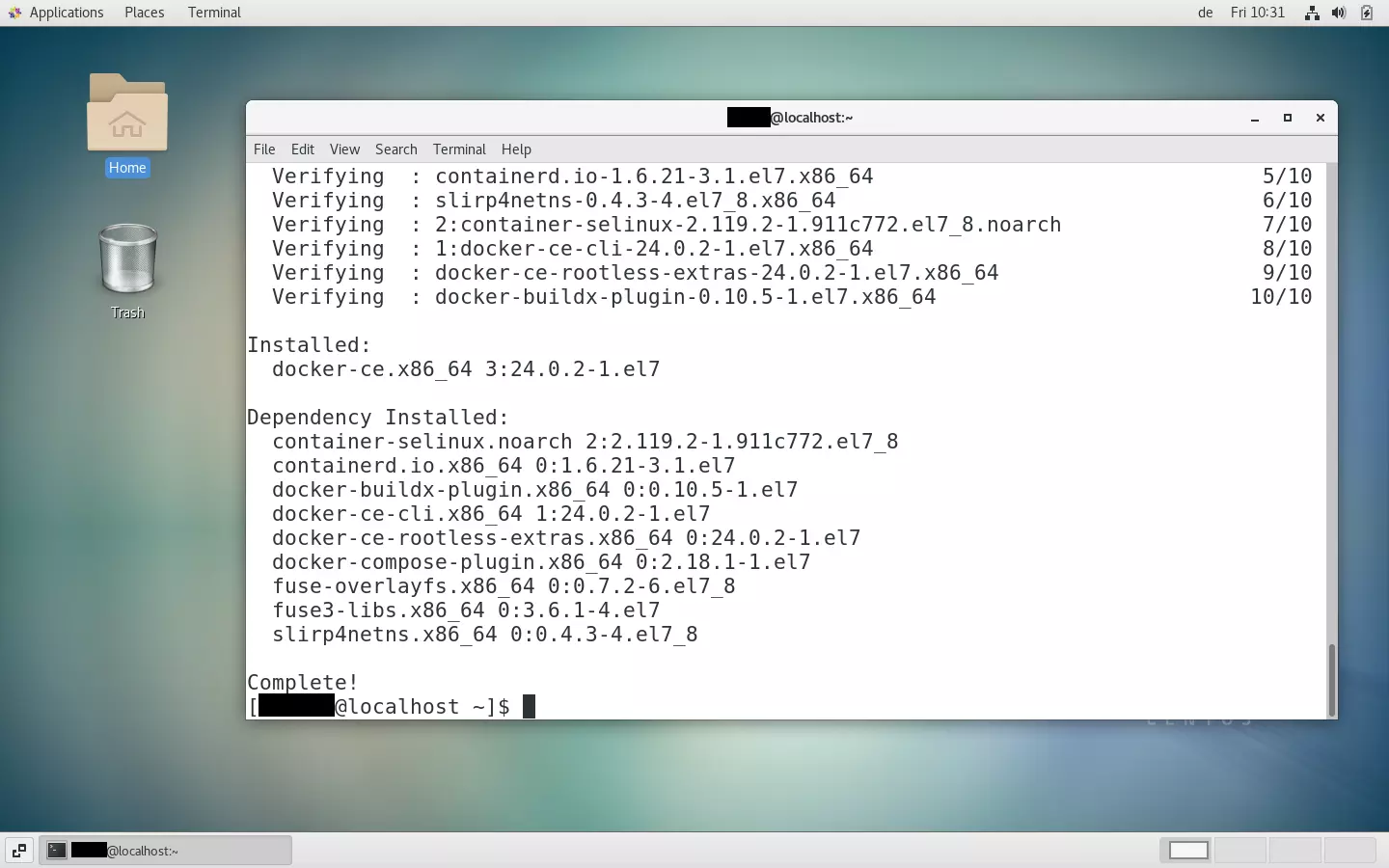
Besides docker-ce (formerly known as Docker Engine), other essential Docker components like Docker Compose, containerd, and the Docker CE CLI version are often included. If you wish to install these components alongside, please use the following shell command instead of the previous one:
sudo yum install docker-ce docker-ce-cli containerd.io docker-buildx-plugin docker-compose-plugin
You can now test if the installation was successful using the following commands:
sudo systemctl start docker
sudo docker run hello-world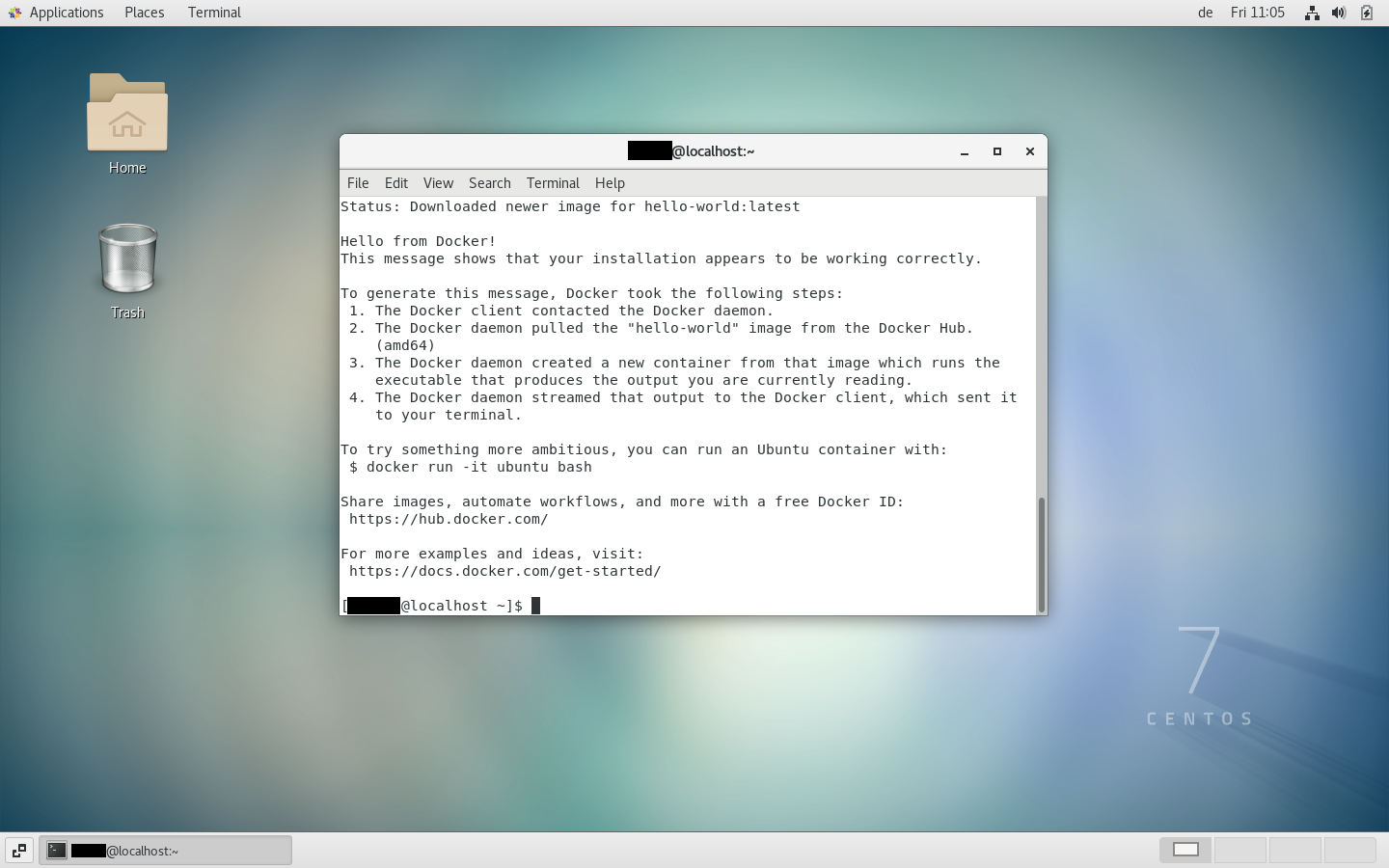
Manual installation
If you’re unable or prefer not to use the Docker repository, you have the option to manually install the Docker package. Keep in mind that with this method, your Docker installation won’t receive automatic updates, and you’ll need to manage updates manually. Before proceeding with the manual installation, please make sure to complete steps 1 and 2 from the instructions mentioned earlier.
Step 1: Download Docker
First, go to the Docker website and select the version you need. We suggest choosing the latest version that begins with docker-ce (not the cli or rootless versions). Make sure to remember the location where you save this .rpm file.
Step 2: Install package
In your shell, run the following command, replacing /package.rpm with the path to the Docker package you downloaded.
sudo yum install /paket.rpm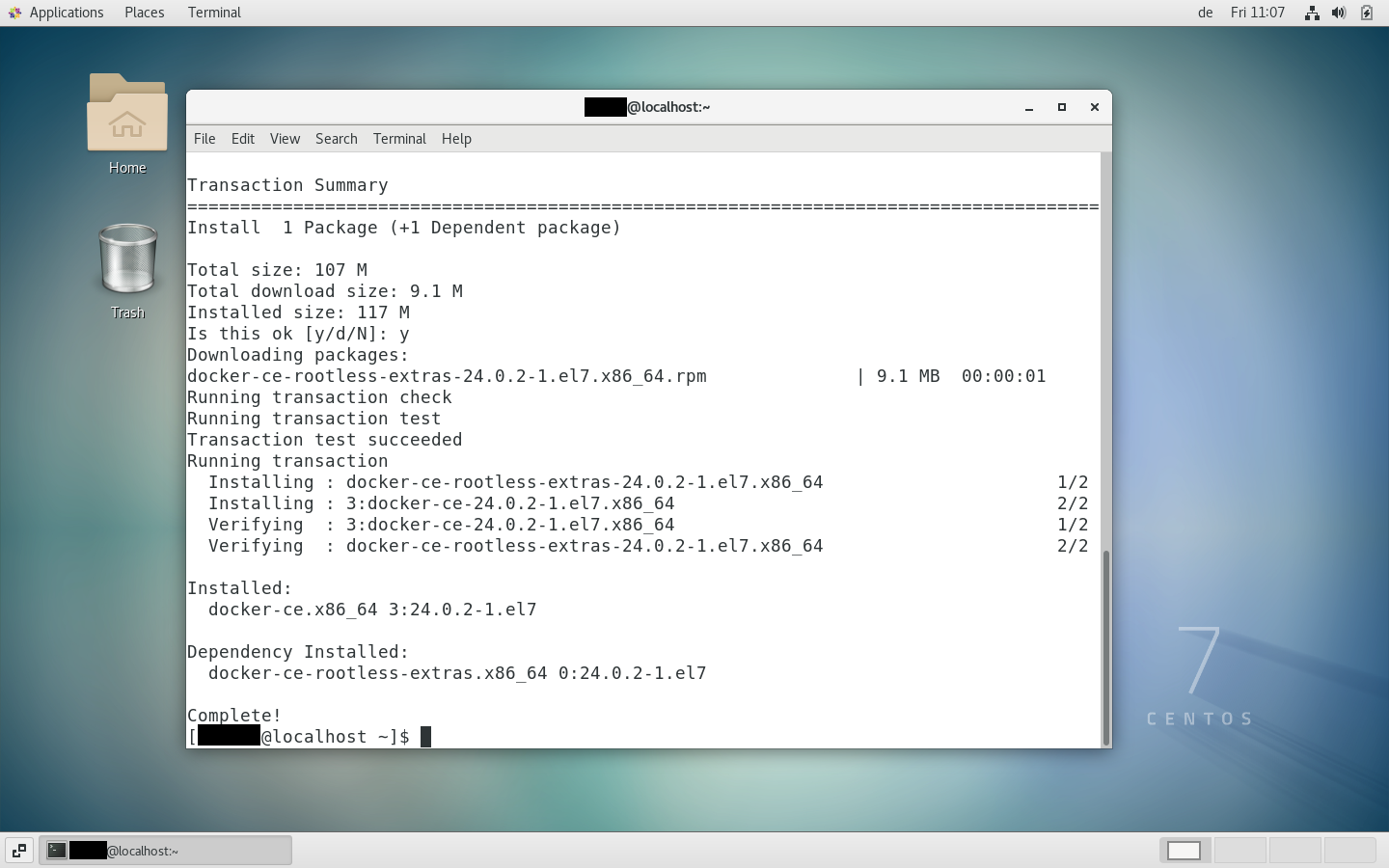
The virtualization software Docker is not only available for CentOS, but many other operating systems. Find out how to install Docker on Ubuntu 20.04, set up Docker on Debian 11 or Docker on Windows 11.
Reviewer

Christian Heldmaier
Christian Heldmaier is an experienced online marketing and SEO specialist from Karlsruhe. He has been working as an SEO Manager at IONOS since July 2020.