

How to use Docker Compose on Mac

Docker Compose helps you manage and orchestrate your Docker containers. The tool can be installed on macOS in just a few steps in the terminal and is an ideal complement for container management with Docker.
Step 1: Install Docker
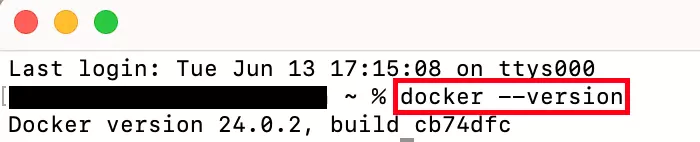
Before you can get started installing Docker Compose on a Mac, ensure that you have downloaded and installed Docker. You can check if this is the case with a simple terminal command:
docker --versionIf you’ve installed Docker, you’ll be able to view the Docker version.
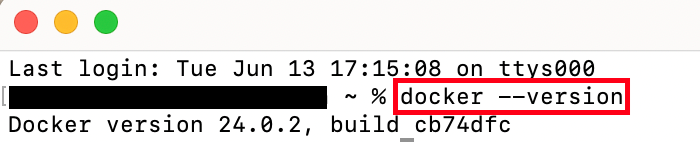
Alternatively, you can download Docker from the official Docker website. Ensure you’ve selected the correct chipset, because there’s a distinction between Apple computers using their own Apple chip and Apple PCs with an Intel chip. Once file download is complete, open it and follow the instructions of the installation wizard to complete the Docker installation. Should questions arise during this process, Docker tutorials offer useful guidance on installation.
Step 2: Download Docker Compose for Mac
To begin the installation of Docker Compose on your Mac, open a terminal window. Once the terminal is open, you can enter the following command, which will automatically download the latest version of Docker Compose for Mac:
curl -L "https://github.com/docker/compose/releases/latest/download/docker-compose-$(uname -s)-$(uname -m)" -o /usr/local/bin/docker-composeIf you encounter an error message while running the previous command, it’s likely due to insufficient permissions to write to the required directory. In such cases, it’s recommended to perform the installation as a superuser. To do this, enter the following command in the terminal:
sudo -iNow repeat step 2 of the instructions and continue with the following steps.
Docker Compose is not limited to Mac. To work with Docker on another operating system, our tutorials will guide you through downloading and installing Docker Compose:
Step 3: Mark Docker Compose as an executable file
To use Docker Compose, you must make the program executable by changing the permissions. The terminal command chmod helps with this:
chmod +x /usr/local/bin/docker-composeMark Docker Compose as an executable program using +x, which stands for executable.
Step 4: Check whether the installation was successful
To ensure no errors occurred during your installation of Docker Compose on macOS, access the current version of Docker Compose in the terminal:
docker compose versionIf you’ve done everything correctly, the installed version of Docker Compose should now be displayed in the terminal window.


If you encounter an error message instead of seeing the Docker Compose version, it indicates that an error occurred during the installation process. We recommend that you repeat the above steps again.
Want to learn how to use Docker Compose? Check out our Docker Compose tutorial.
Reviewer

Christian Heldmaier
Christian Heldmaier is an experienced online marketing and SEO specialist from Karlsruhe. He has been working as an SEO Manager at IONOS since July 2020.