

How to add a new User in Windows 11

As part of a Windows 11 installation, you will automatically create a user account that you can use to log into the Microsoft system. The account has administrator privileges which is perfect for anyone using their device alone. However, if yours is a family device or a work computer shared with several users, an individual user account is required. We will show you how to add a new user in Windows 11.
- Great premium TLDs at affordable prices
- Simple registration & transfer
Create a new user in Windows 11– quick tutorial
You can add a new user to Windows 11 at any time. The easiest way to do so is via the Settings:
- Launch Settings from the Start menu or using the key combination [Windows] key + [i].
- Select the “Accounts” item from the left side menu.
- Click on the “Family & other users” section.
- Click “Add account” for the desired account type (“family member” or “additional user”).
- Link the account to a Microsoft account (always required for the family account) or create the user as a local user by pressing “I don't have this person’s sign-in information” and “Add user without Microsoft account” in sequence.
- Assign a username and a secure password and answer three of the selectable security questions.
- Add the new Windows 11 user account via “Next”.
Already have different user accounts, but not happy with their names? Find out how to change usernames in Windows 11.
Add a new user in Windows 11: local user or Microsoft account?
When you create a new user in Windows 11, you have two options: You can either link the new account to a Microsoft account for logging into the system or you can generate a local user account.
If you select the former, you will log in with an online account every time you log in to Windows. This offers some advantages when using Microsoft services like OneDrive or Skype. In addition, linking to a Microsoft account enables cross-device synchronization of your data and settings. Merging a user and a Microsoft account is mandatory if you want to download apps from the in-house Microsoft Store.
A local user does not have access to the above features; however, a link can be created at any time.
Linking a user account with a Microsoft account has been possible as of Windows 8. Find out more about it in our article on changing a username in Windows 10.
Add a user in Windows 11: three options for a new user account
As with many other features and functions, Windows 11 allows for different approaches to adding new users. Read on to find out more about the three most commonly used options to add a user in Windows 11.
Option 1: create a new user in Windows 11
The standard option to add a new user account in Windows 11 is via the Settings – the central configuration menu of the Microsoft system. Among other things, you can adjust the language settings to switch the keyboard in Windows 11 or the basic configuration for screen recording in Windows 11 with the Xbox Game Bar.
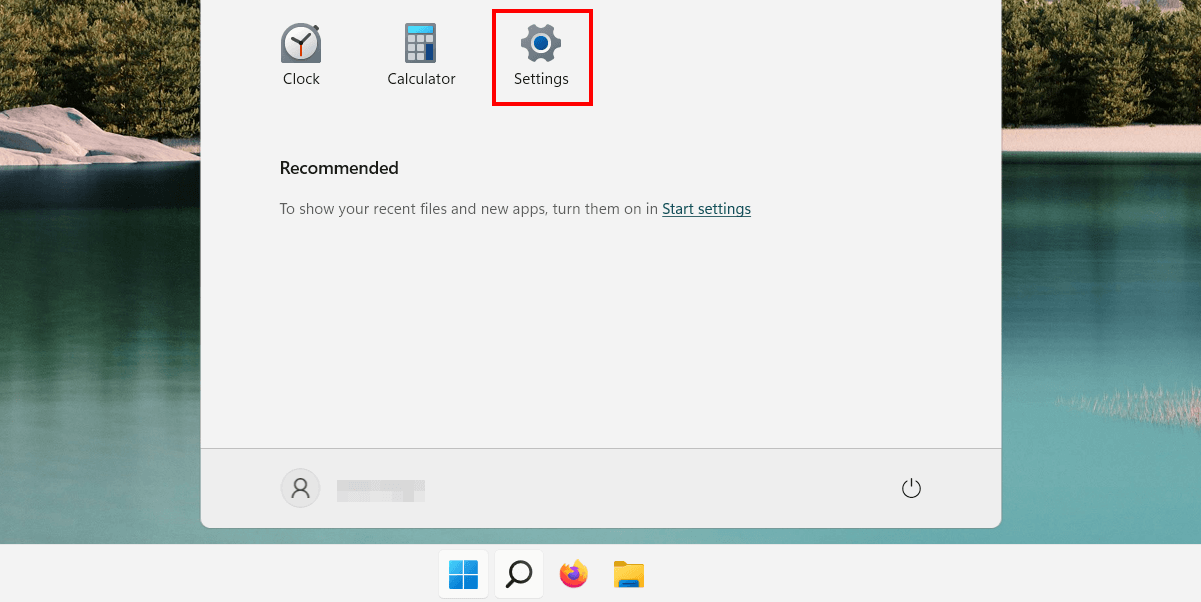
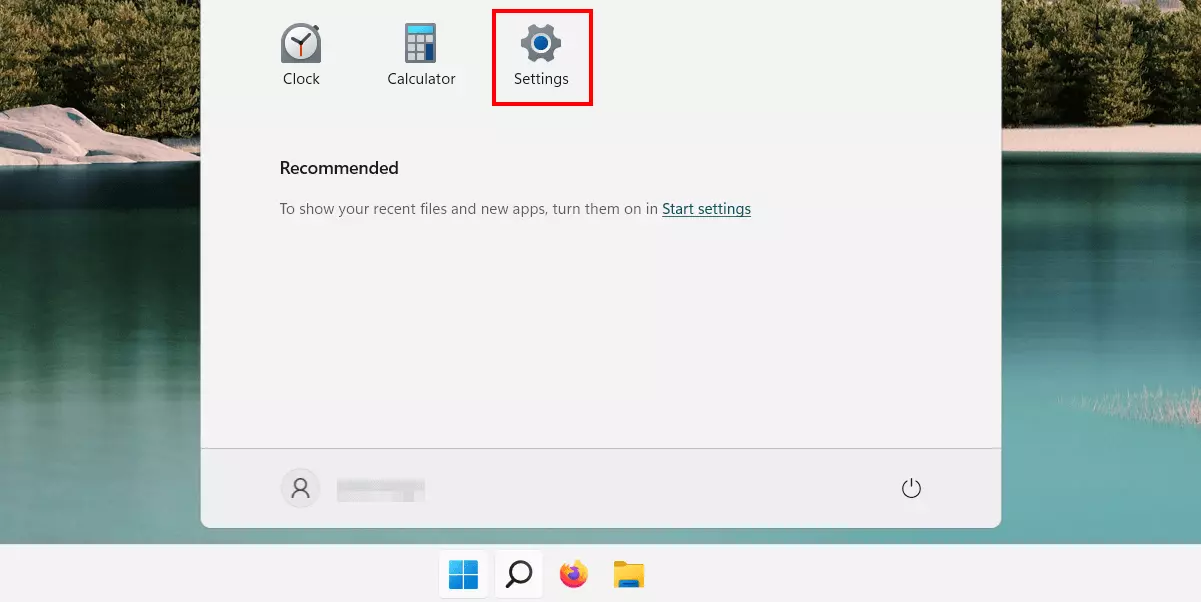
Step 1: launch settings
Launch the Settings by opening your Start menu and clicking on the entry of the same name. If the configuration menu icon is not pinned, you can use the search function or the key combination [Windows] key + [i].
Step 2: Menu “Family & other users”
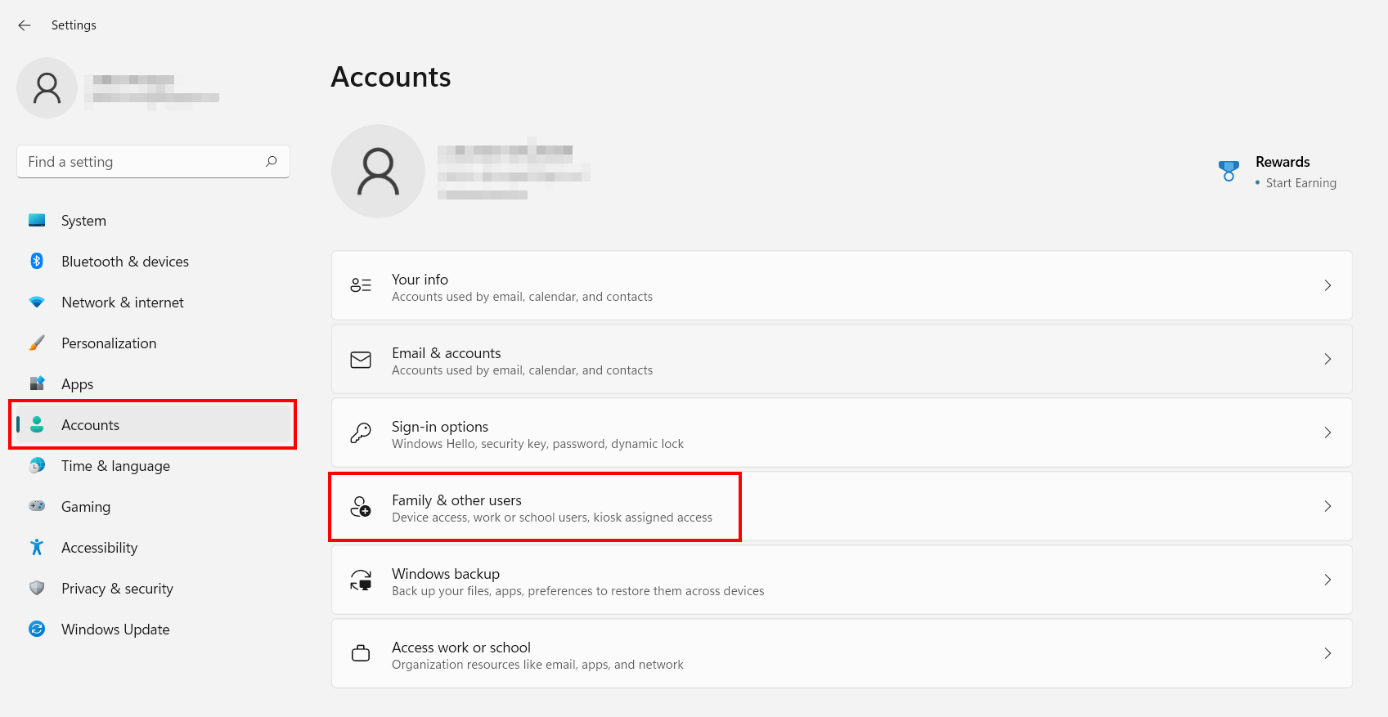
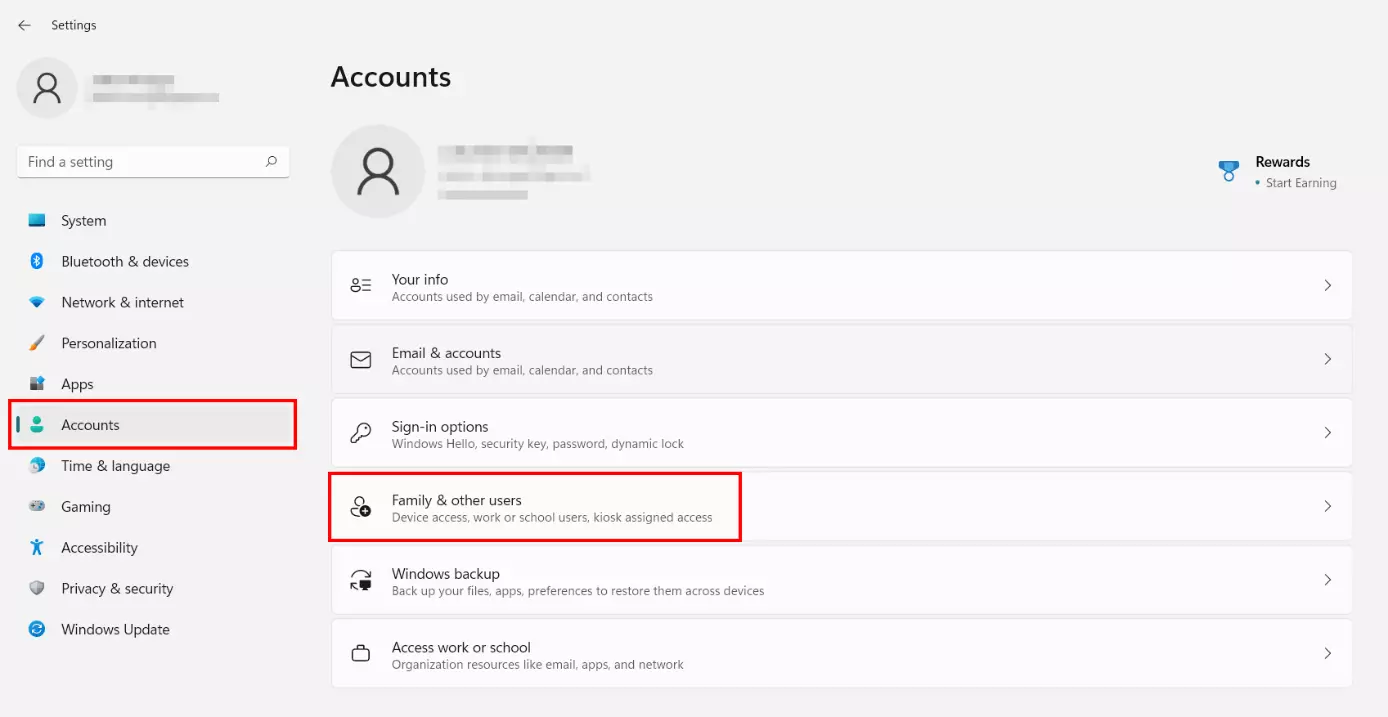
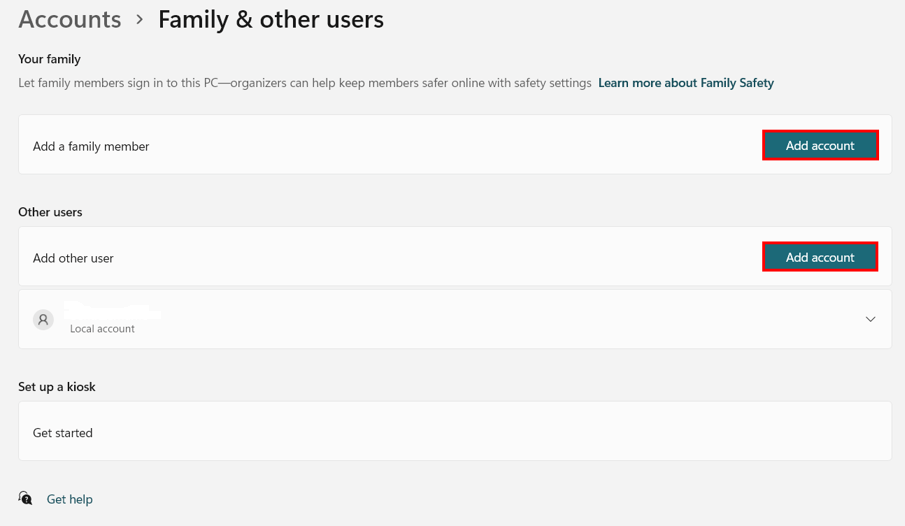
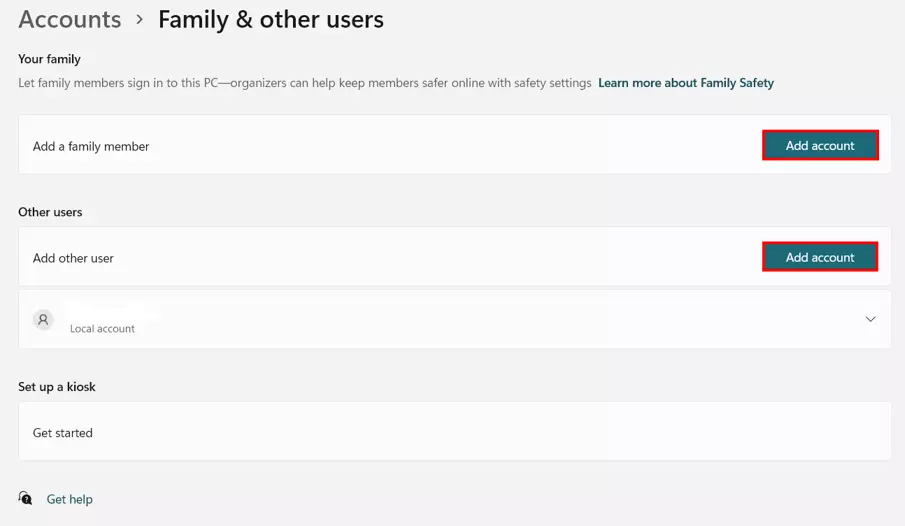
In Settings, first switch to the “Accounts” menu on the left. Click “Family & other users” to open the crucial user account management window:
Step 3: Select account type
You can now select a family account or a normal user account.
The former allows you to extend your user account with one or more sub-accounts for your family members. However, you will need to specify or create an email address for each additional account, because this account type is not possible without linking to a Microsoft account.
If you create an ordinary user account, you will be prompted to enter an email address, but in this case you can skip linking it and create the account either temporarily or permanently without online features.
Click “Add account” on the account type of your choice to start creating Windows 11 users.
Step 4: Perform or skip Microsoft account linking
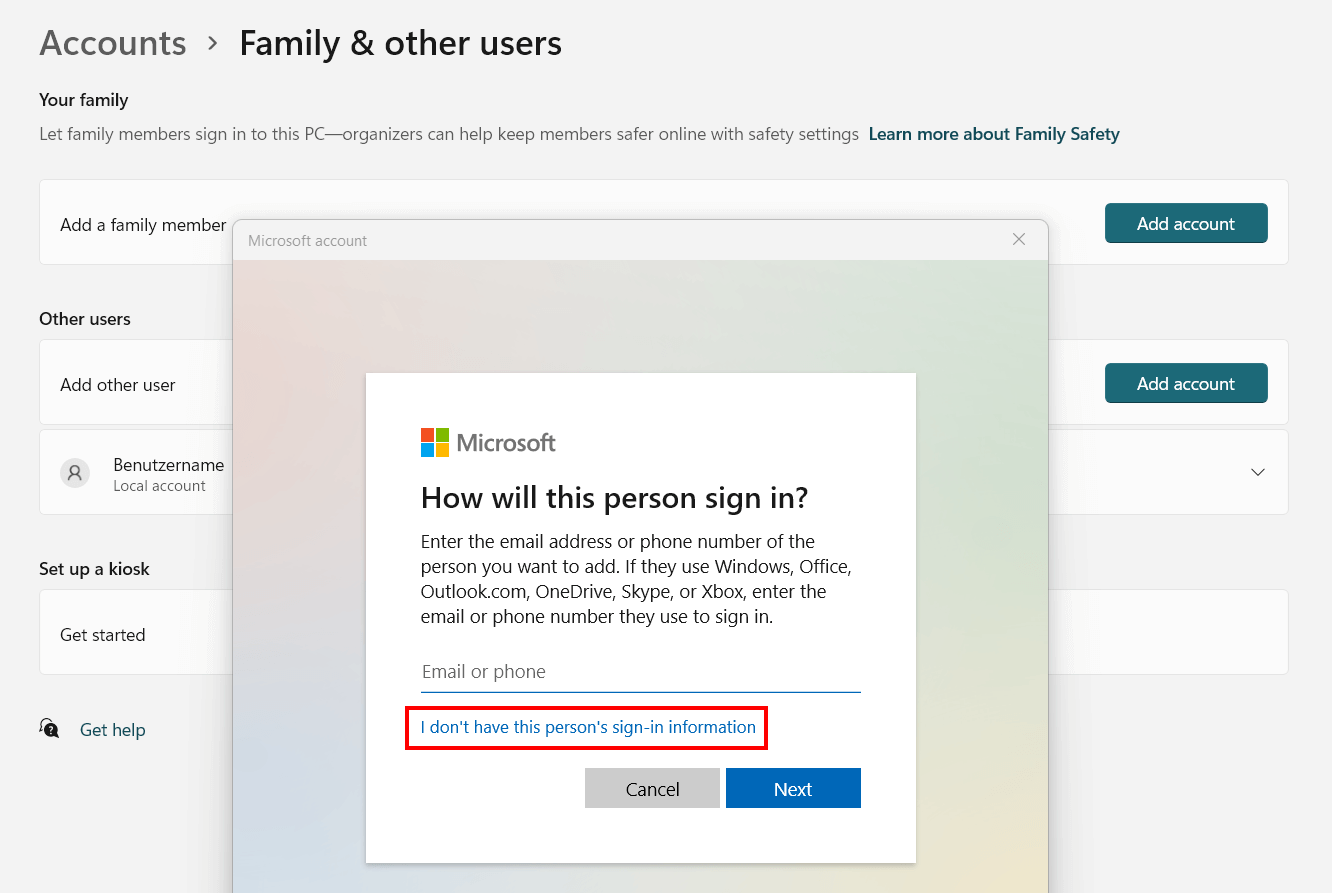
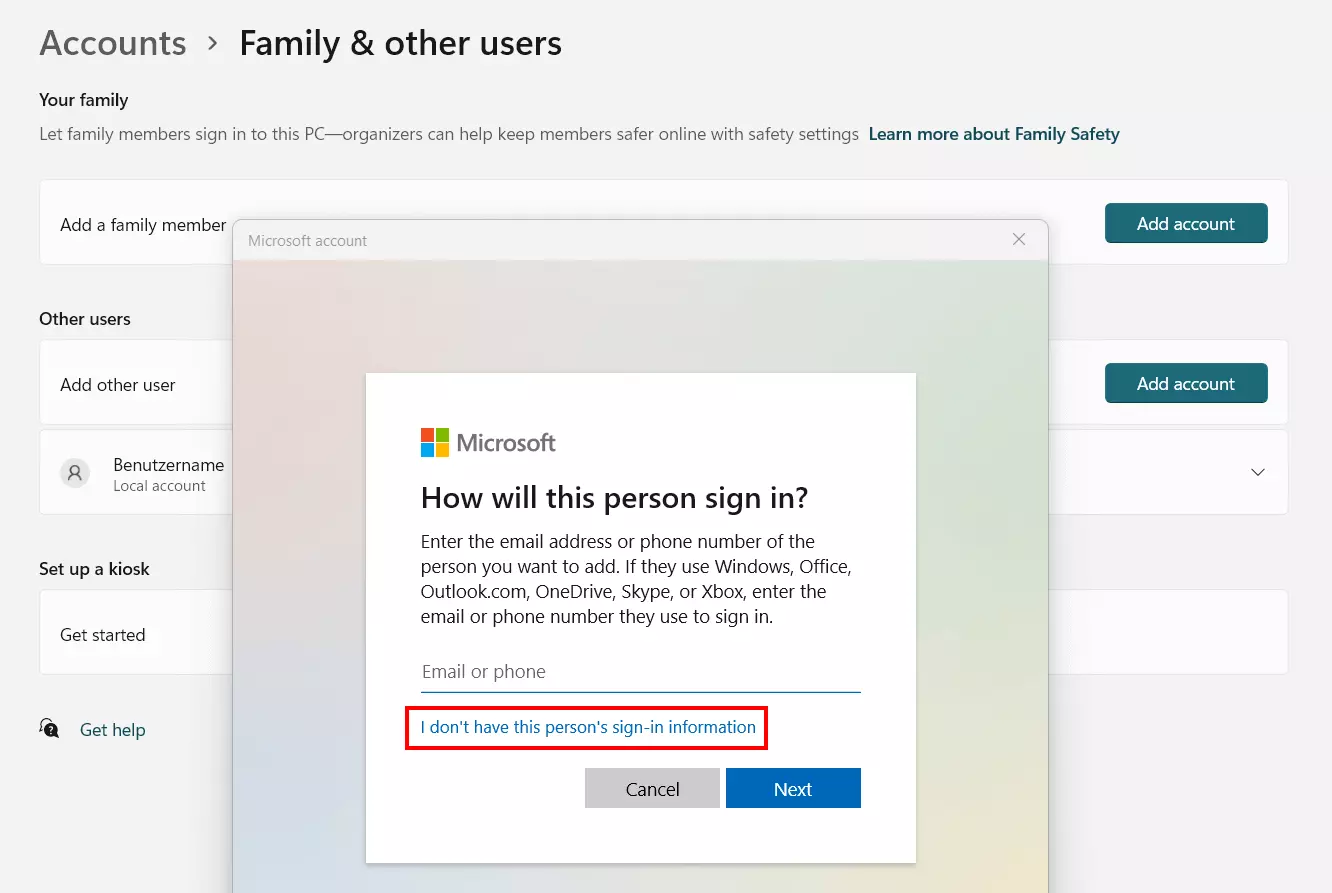
You have the option to link the new user account to a Microsoft account. If you wish to do so, enter the corresponding email address or phone number and click “Next”. In case of a family account, this step is mandatory.
To create a local Windows 11 user without a shortcut, click “I don't have this person’s sign-in information”.
Step 5: Add a Windows 11 account
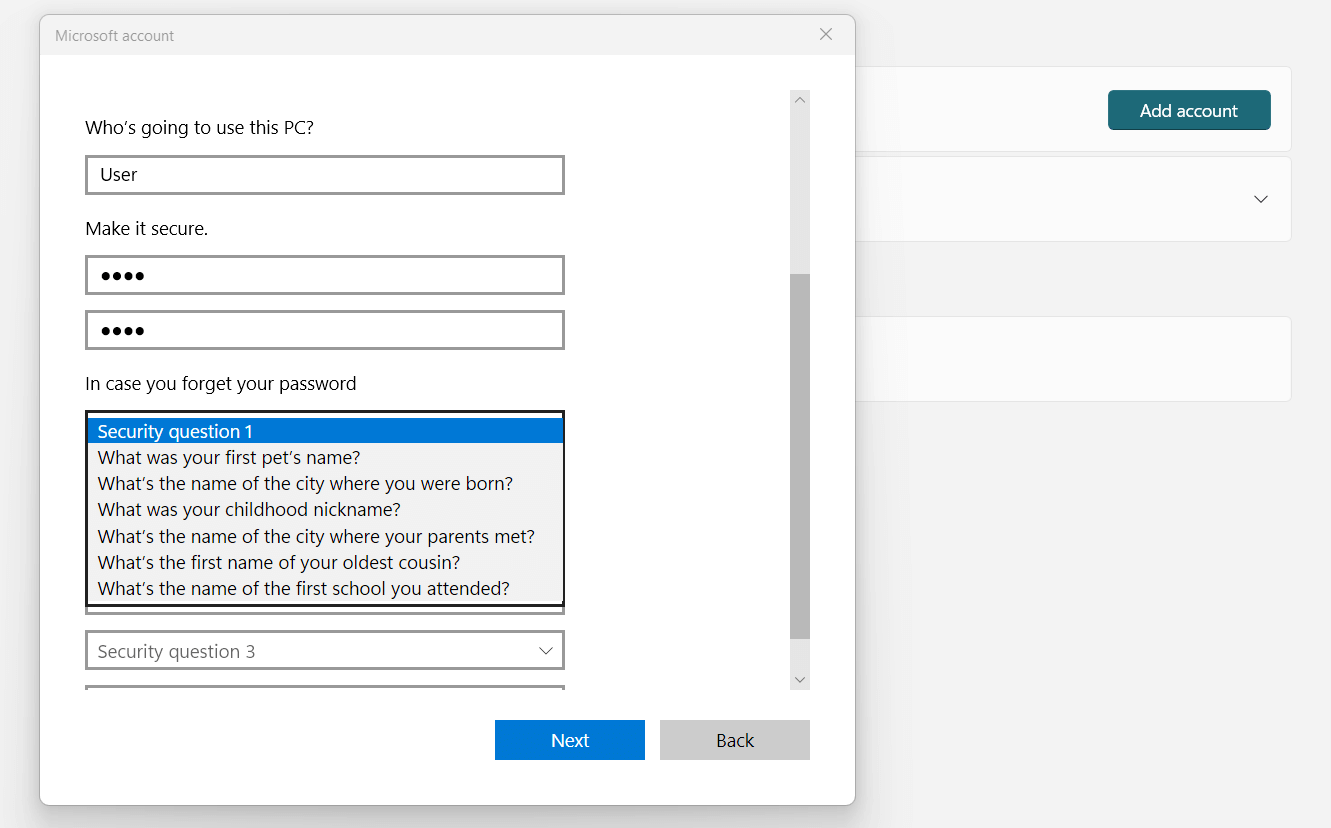
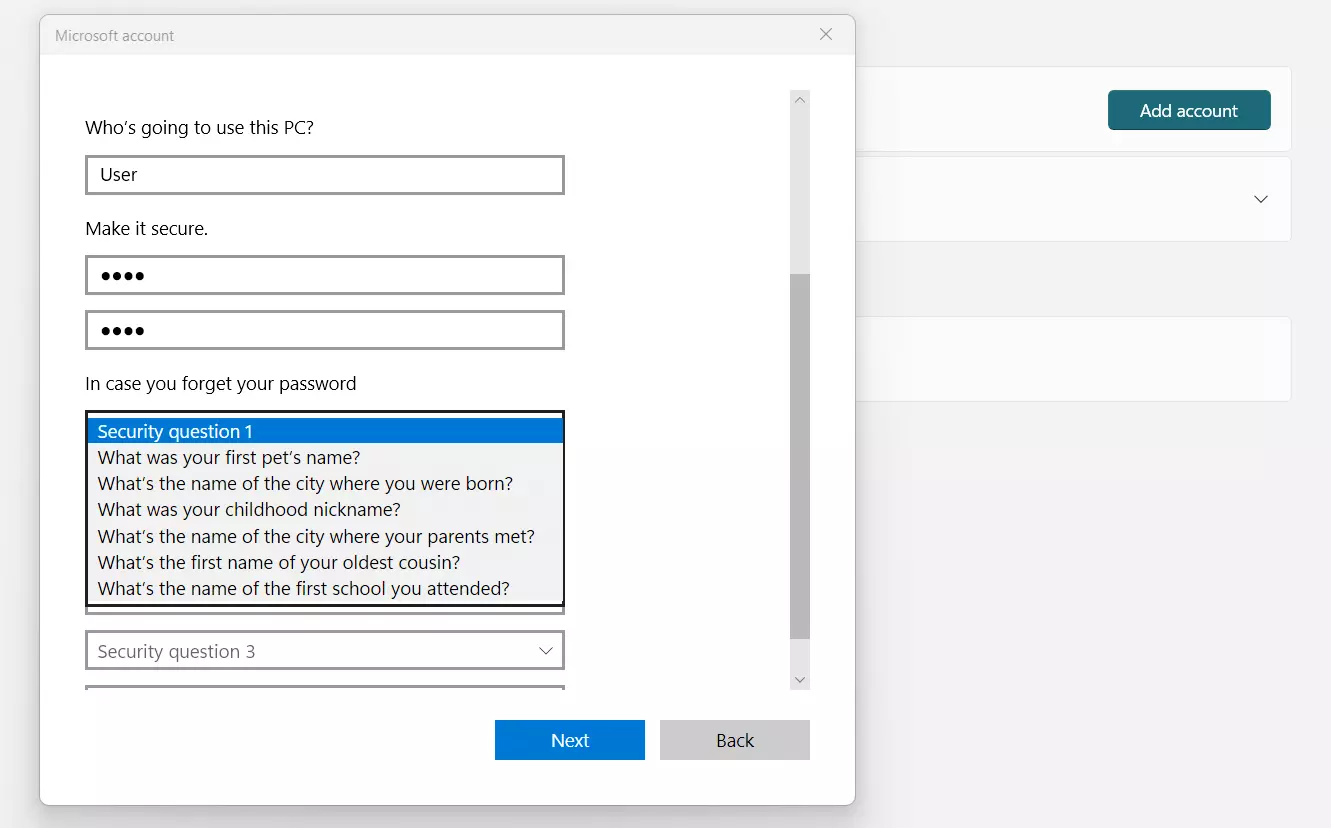
From the next dialog select “Add user without Microsoft account” and start setting up the new user account. Enter the desired username and a secure password (twice) and select three security questions. Windows 11 will ask you for them in case you forget your password. Click “Next” to create the new Windows 11 user:
Option 2: Add Windows 11 user via password management
Windows 11, much like its predecessors, offers password management for existing user accounts. Here, you can create a new user to share Windows 11 with multiple people.
Step 1: Access Windows 11 password management
Password management is hidden well in Windows 11 but can be accessed quickly and easily using the “Run” function. You can use the function either with the key combination [Windows] key + [R] or by right-clicking on the Start menu and selecting “Run”.
Type the following command into the “Run” window and confirm it by pressing “OK”:
control userpasswords2Step 2: Perform or skip linking to Microsoft account
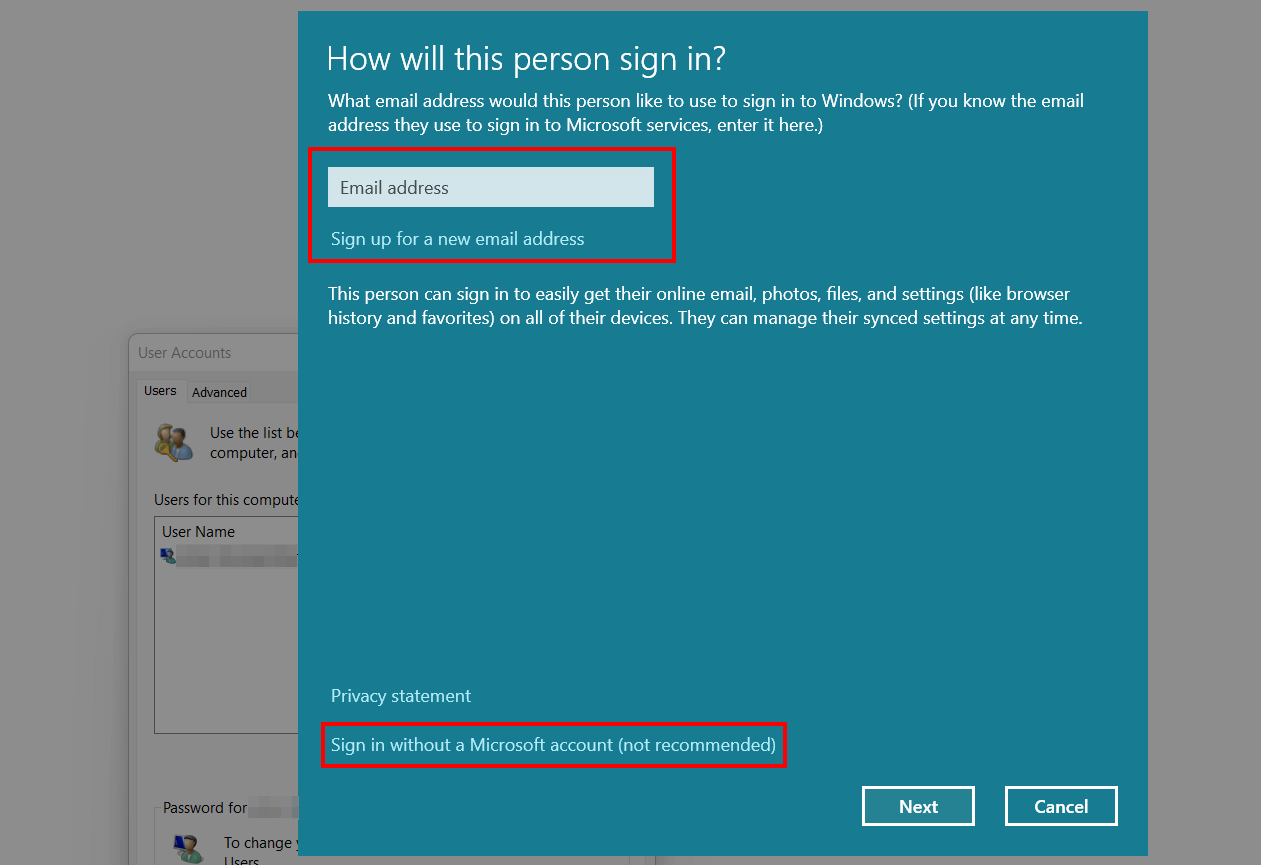
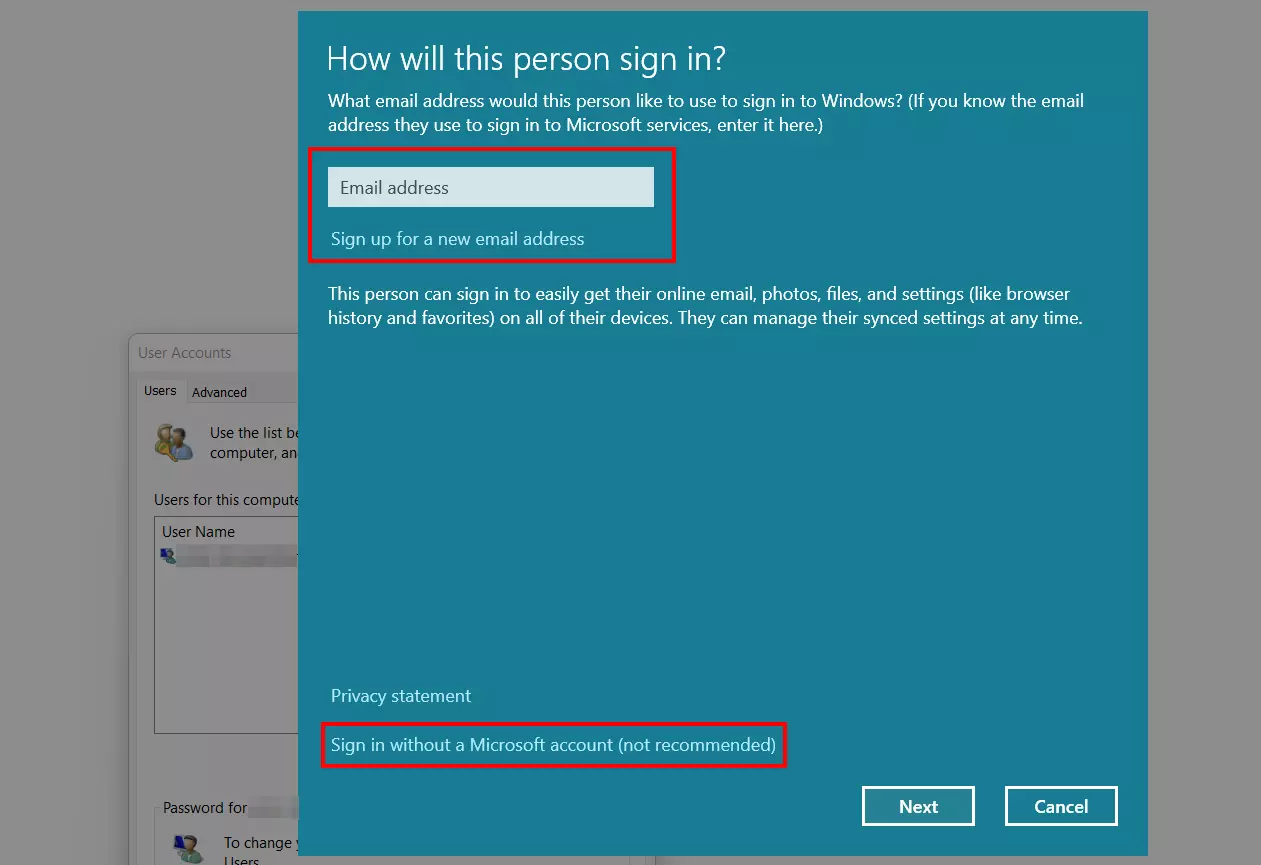
In the next step click “Add”. Choose whether you want to link the user to a Microsoft account (enter the email address and click “Next” or “Set up new email address”) or create a new local account. For the latter, click “Sign in without a Microsoft account (not recommended)” and then select “Local account”.
Step 3: Add new Windows 11 user
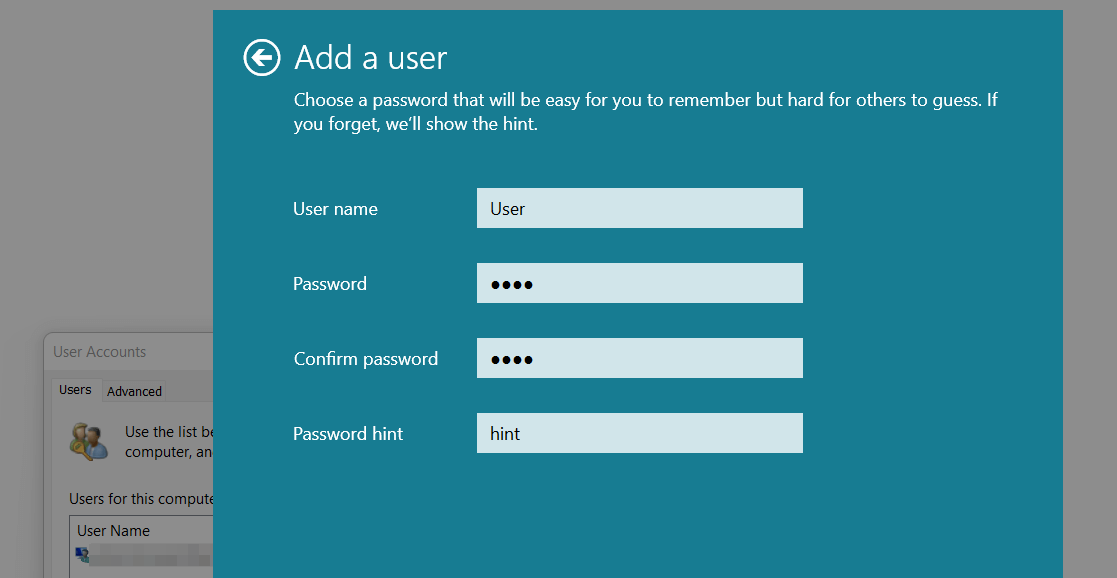
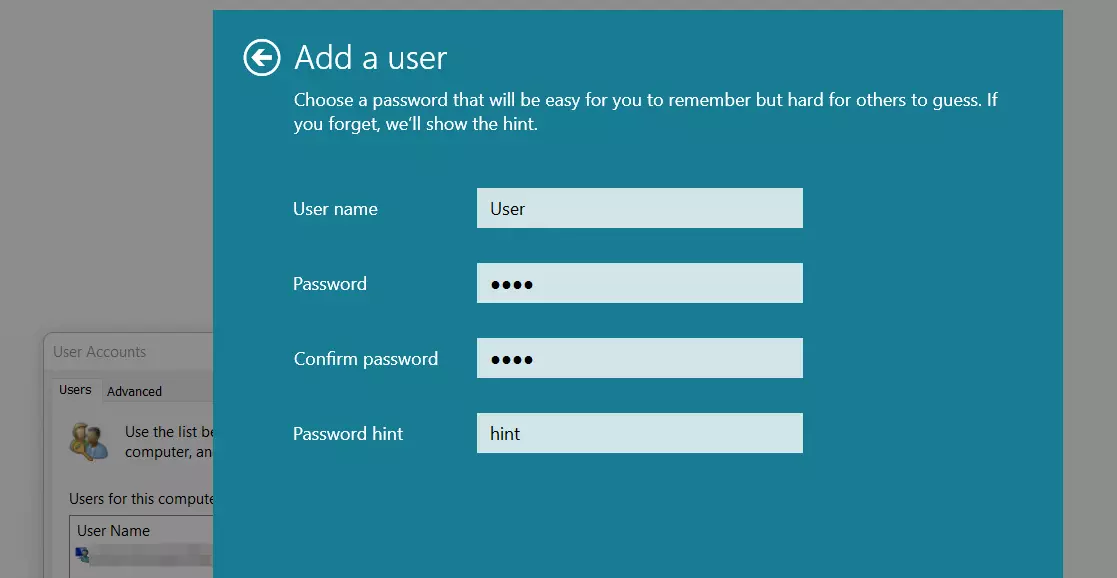
As with account creation in the Settings section, enter the desired username and a suitable password at this point. Confirm your password. You do not have to answer any security questions; only enter a password hint. Finally, press “Next”.
Option 3: Add Windows 11 user account via command prompt
The command prompt, a Windows command line tool, provides the option to create new user accounts. However, you need administrator rights for this step, else the required commands cannot be executed.
Step 1: Run command prompt as administrator
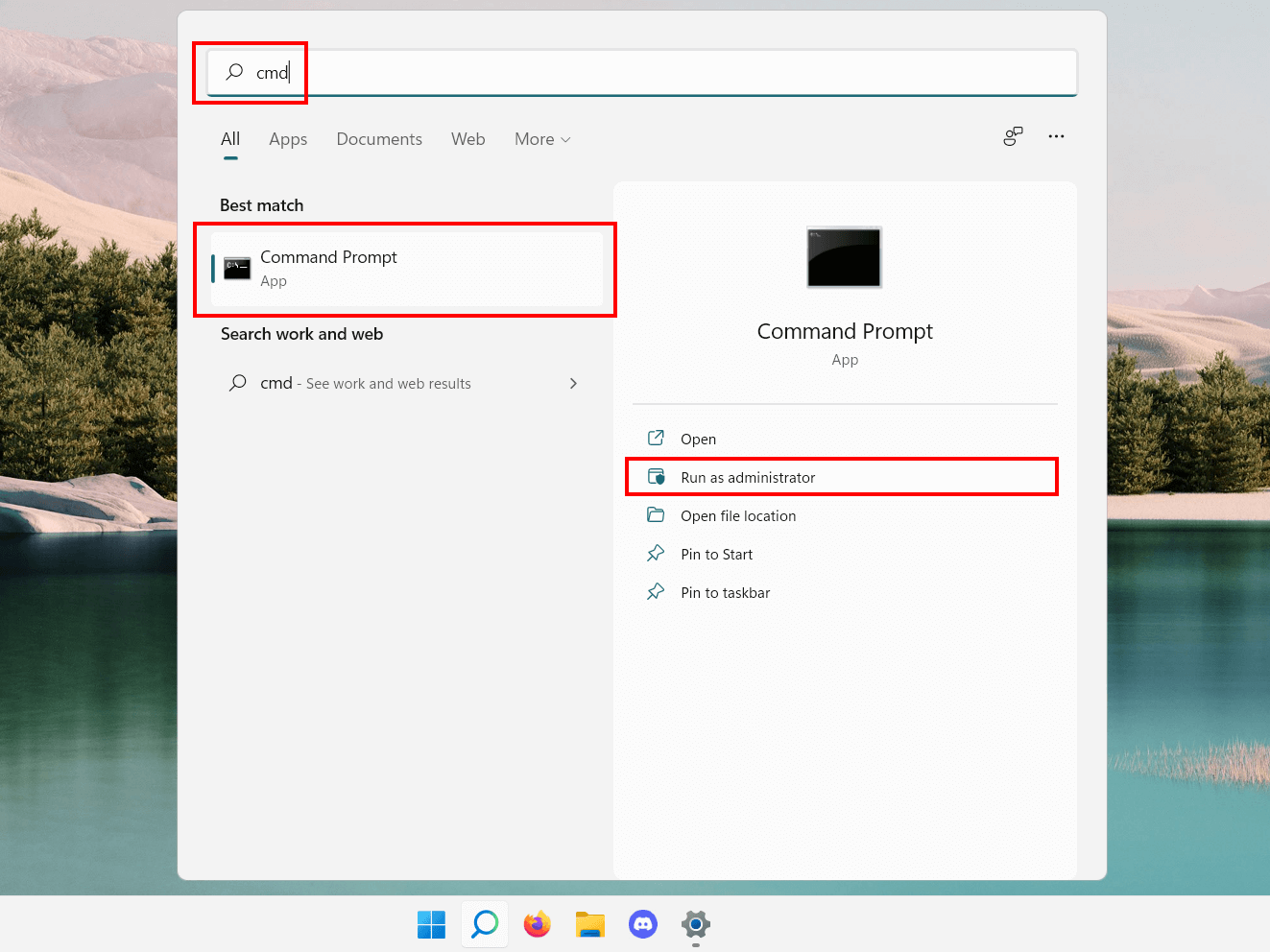
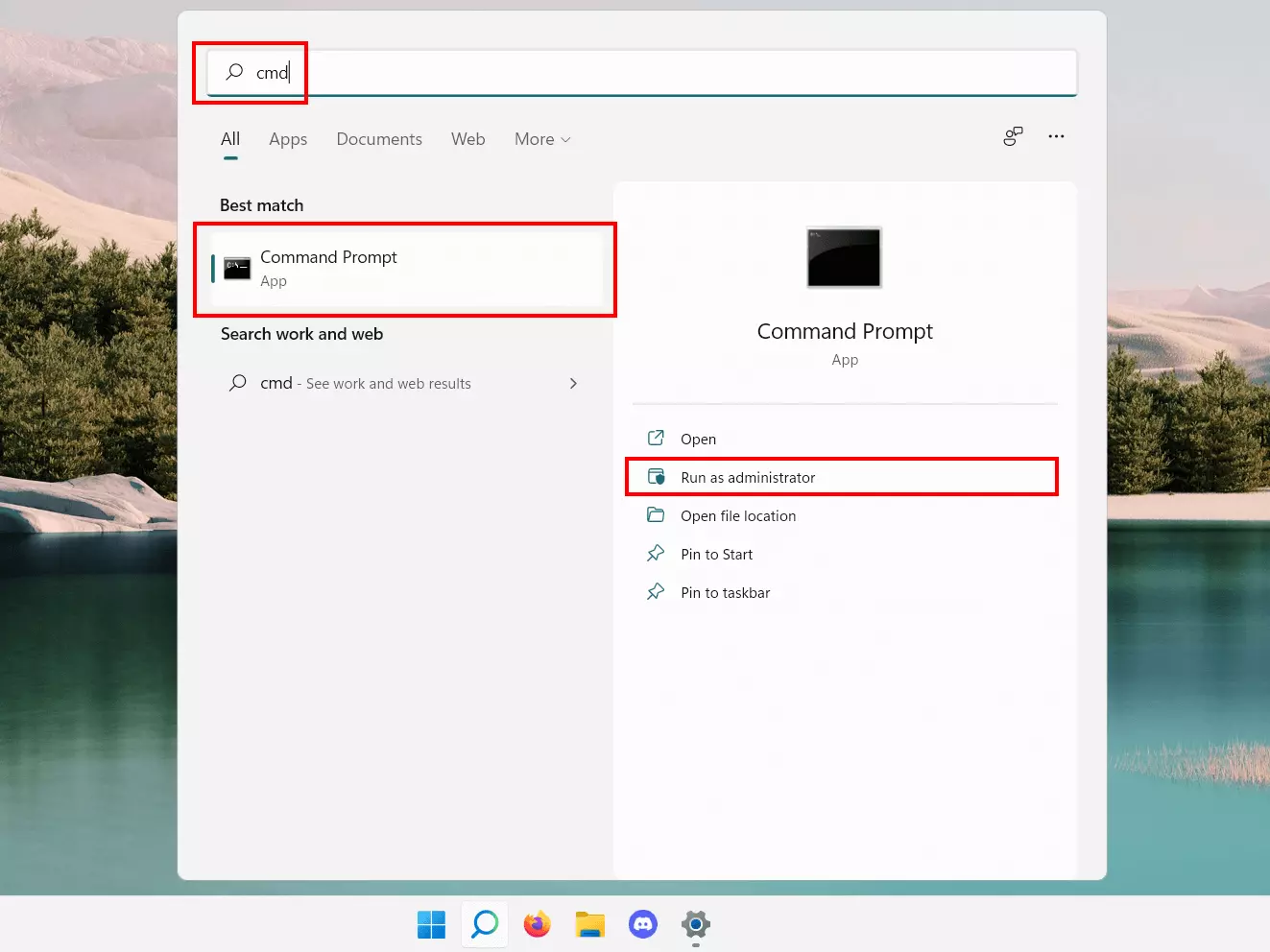
Access the Windows search function (magnifying glass icon in the taskbar) and enter the term “cmd”. The command prompt will be displayed as the top match. Select the menu item “Run as administrator” to launch the command tool:
Step 2: Create new Windows 11 user
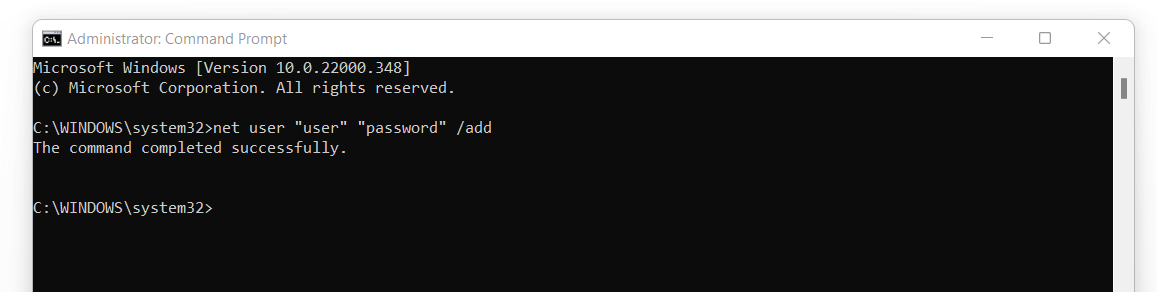
Now, enter the command to create a new user account into the command prompt. The syntax is as follows:
net user "Username" "Password" /addInside the quotation marks, enter the desired credentials. Finally, confirm the command by hitting Enter.
If command execution was successful, you should see a corresponding message:
Reviewer

Christian Heldmaier
Christian Heldmaier is an experienced online marketing and SEO specialist from Karlsruhe. He has been working as an SEO Manager at IONOS since July 2020.