

What is Slack and what can it be used for?

Slack is a cloud-based communication platform that helps teams collaborate more efficiently by consolidating messages, files, and tools in one central location. The tool enables topic-specific channels, direct messages, as well as the integration of numerous external services, aiming to simplify internal communication.
What is Slack?
Slack is a tool for office communication, acquired by Salesforce in 2021 for over $27 billion. The software, with more than 30 million daily users, is often referred to as the “email killer,” as the program aims to reduce the number of emails sent. Chat messages replace longer emails, which in turn saves work – especially by eliminating the need for a subject line in every message. This is where Slack comes in: consolidating all internal communication is meant to make communication simpler and more efficient.
Slack offers an unlimited number of channels, which are better structured than individual chats. They are by default publicly viewable, eliminating cumbersome administrative tasks. However, traditional private chats are also possible through an activatable private mode. Overall, information exchange on Slack is multimedia, as various file and media formats can be directly embedded in the chat. Many other providers such as Dropbox, Trello, GitHub, Google Drive, and Twitter already work with Slack, making file exchanges between the services seamless.
All Slack chats are archived by default and can be easily searched when, for example, a file or a link needs to be found again. Also convenient is the fact that Slack allows the setup of numerous calendar and reminder functions. Slack’s focus is strongly on internal communication within a closed circle – such as within a company. The success of Slack’s concept is evident: More than 750,000 companies use the software, including 77% of Fortune 100 companies.
How does Slack work and how do you set it up?
Step 1: Create a workspace
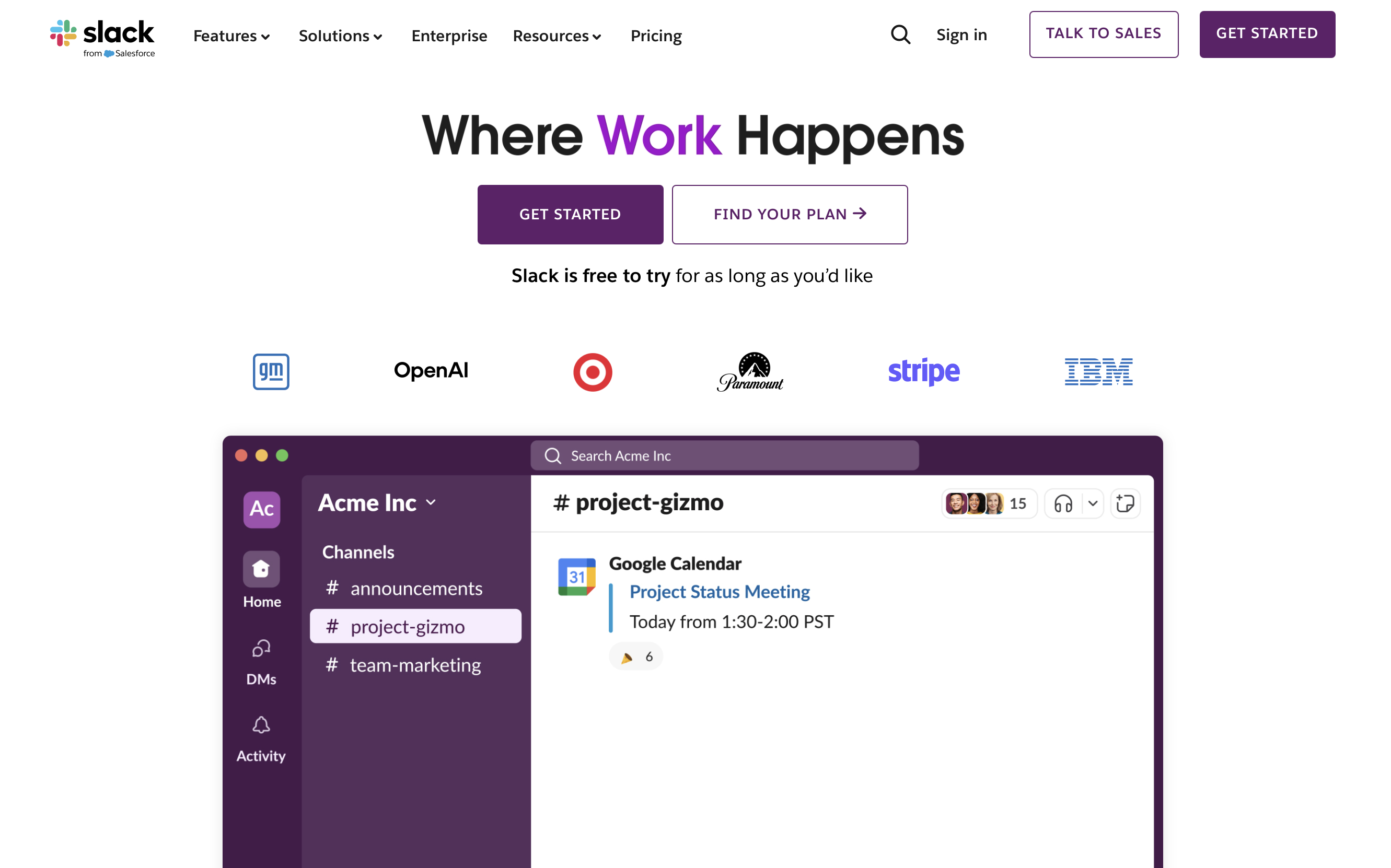
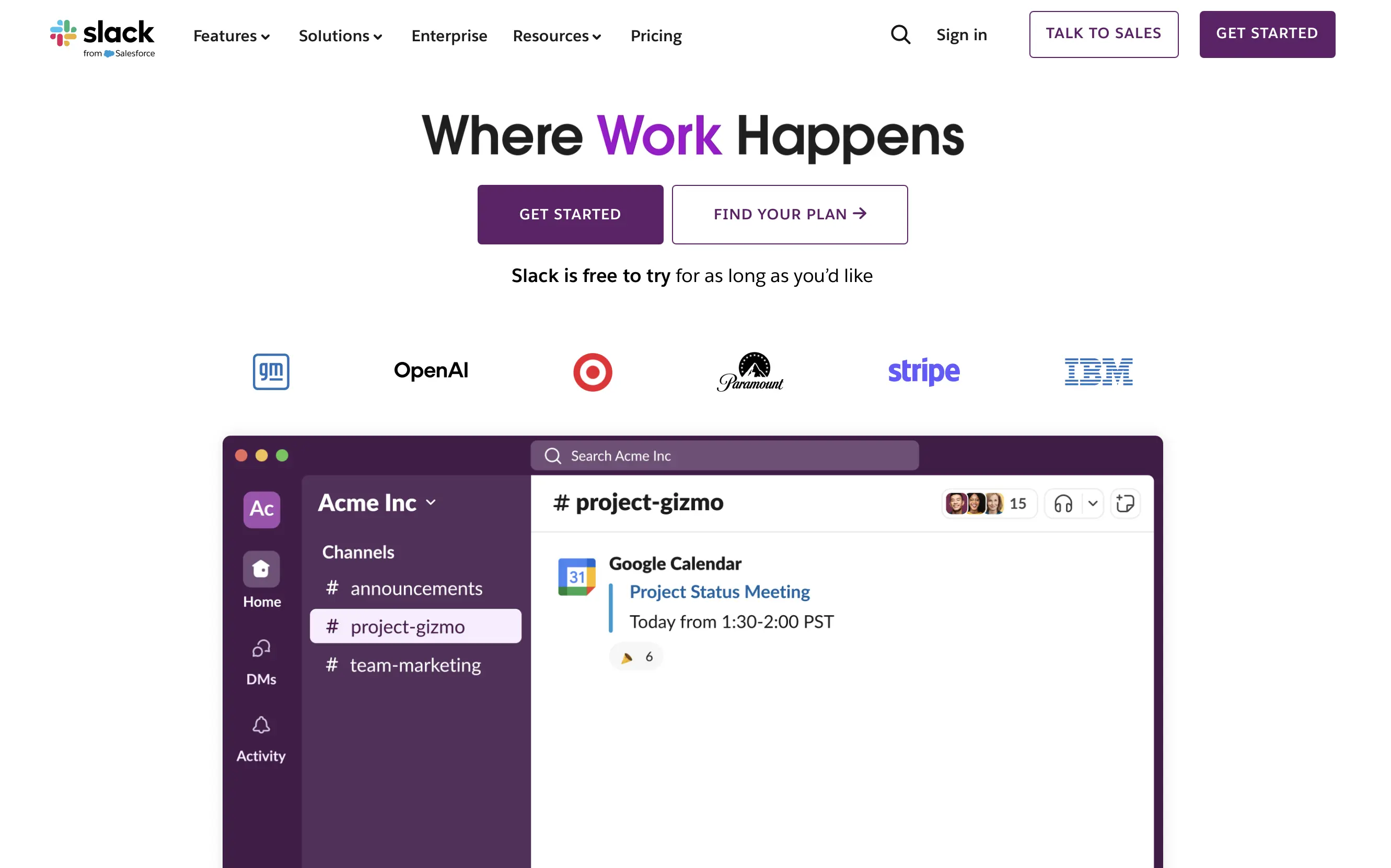
First, sign up on Slack’s website. You’ll be guided through the setup of your own workspace and can create your first communication channel directly. After completing the suggested steps, you’ll become the team admin, gaining access to all available settings.
Step 2: Set up preferences
As an admin, you can customize your Slack workspace with a variety of settings to fit your company’s or team’s needs.
- Message restrictions in large channels: The first important option involves messaging restrictions and governs who can send @channel messages. When such messages are sent, everyone in the channel receives a notification. If you run a large or public channel, you can limit this permission to team admins to ensure that only important information is shared.
- Channel and private group management: If you don’t want others to create their own channels, you should disable this option.
Step 3: Invite team members
Once the settings are complete, it’s time to invite your team. There are two ways to do this: individually or via a mass invitation through the team’s admin page. Your employees will then receive a notification and can directly join the team network. It is beneficial if everyone registers with their real names so they can be recognized by their colleagues.
On which devices can Slack be used?
Slack is available for various devices and operating systems. The program can be easily operated via the browser, which is especially useful for undecided users. This way, the tool can be quickly tested without requiring the whole company to install the program. However, Slack fully unleashes its potential as a comprehensive communication tool when you also install the mobile app (iOS / Android) and the desktop app (MacOS / Windows / Linux). This way, you’ll get notifications when new messages arrive and stay up to date, even when no browser window is open.
The synchronization of chat histories across all connected devices works excellently. A positive side effect for the company culture: Often, the boundaries between work briefings and private chats shift, which is certainly advantageous for internal company culture. Slack users check their channels via smartphone even after work hours.
How much does Slack cost?
Slack is not so much traditional software, but rather a cloud-based service that is fully provided, maintained, and automatically updated. Companies of all sizes benefit from the high stability and scalability, without having to worry about technical details themselves.
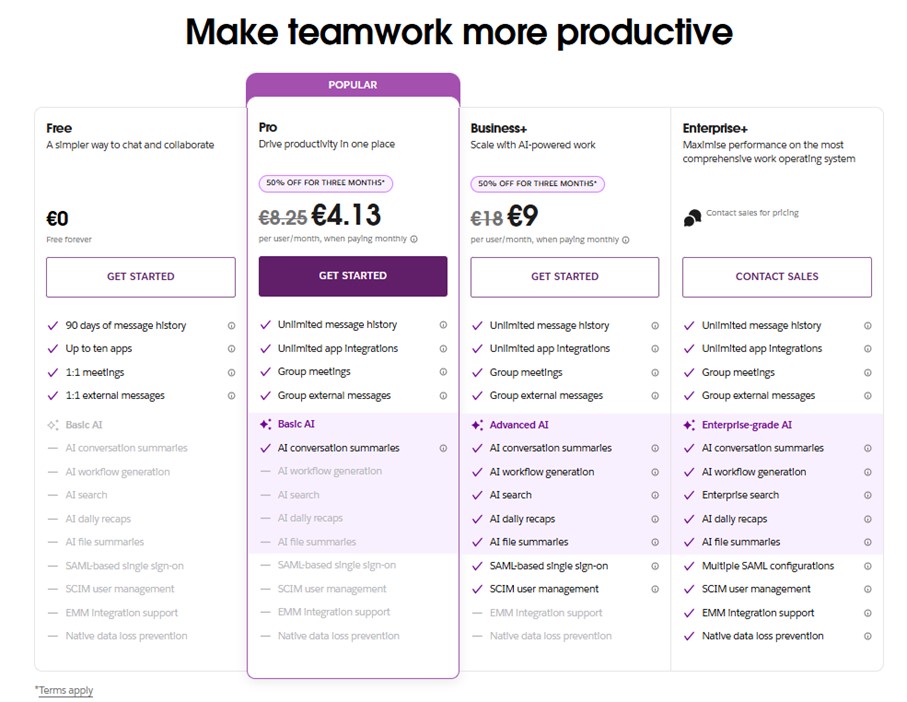
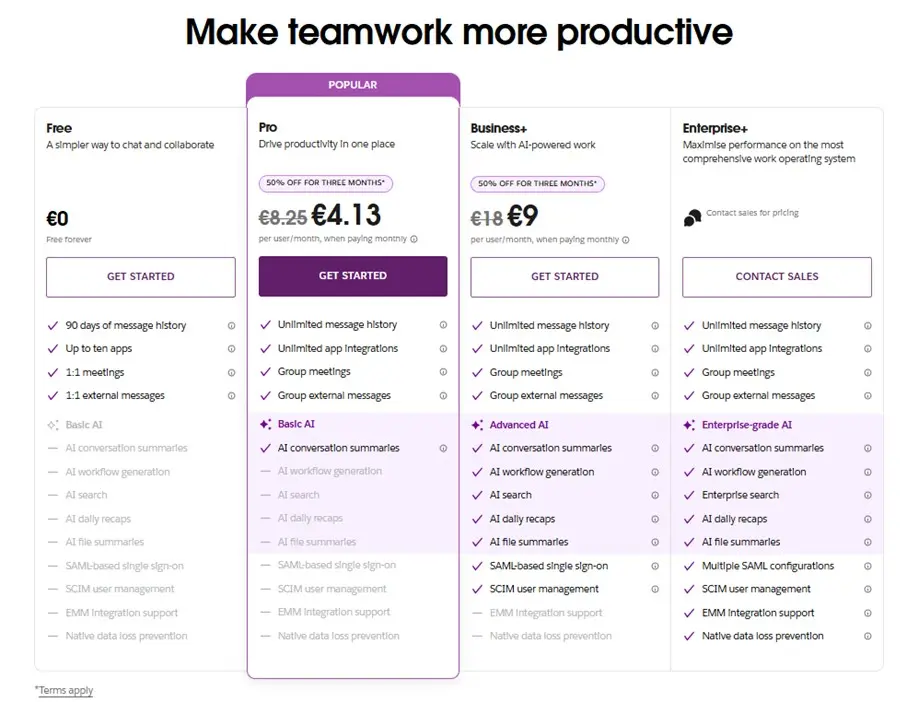
Getting started with Slack is easy. The platform offers a free plan that allows teams to test Slack without any commitment. In this version, an unlimited number of users can be added. However, access to the message history is limited to the last 90 days. There is up to 5 GB of storage available for files, and basic integrations with other tools are possible.
For teams with higher requirements, there are paid plans such as the Pro Plan (from around $9.50 per user/month) and the Business+ Plan (from around $21 per user/month). Custom enterprise plans can also be requested. The paid version of Slack offers, among other things, unlimited message archiving, increased storage, 24/7 support, SAML-based Single Sign-On (SSO), and enhanced security and management features. For around $12 per user/month, Slack AI can also be added, which can be used for automated workflow creation or meeting summaries (so-called Huddles).
What is a Slack bot and how can I use it?
Slack bots are a type of virtual assistant that automate tasks and aim to make collaboration more efficient. Slack differentiates between custom bots and app bots, each serving a different purpose and offering different functionalities.
Custom bots
Custom bots can be set up by admins or developers specifically for their team. These bots are given a unique name (up to 21 characters) and are programmed via the Slack API to perform targeted tasks – such as automatic responses, data processing, or interaction with external systems. The name of a bot must be unique and cannot be the same as existing Slack channels or the default “Slackbot” name.
App bots
App bots are pre-built applications that can be integrated with just a few clicks, without the need for programming knowledge. A well-known example is the To-Do Bot, which helps teams maintain shared task lists. If a member enters the command /todo list, the bot shows all current tasks. Tasks can be assigned, marked, and marked as completed with a click.
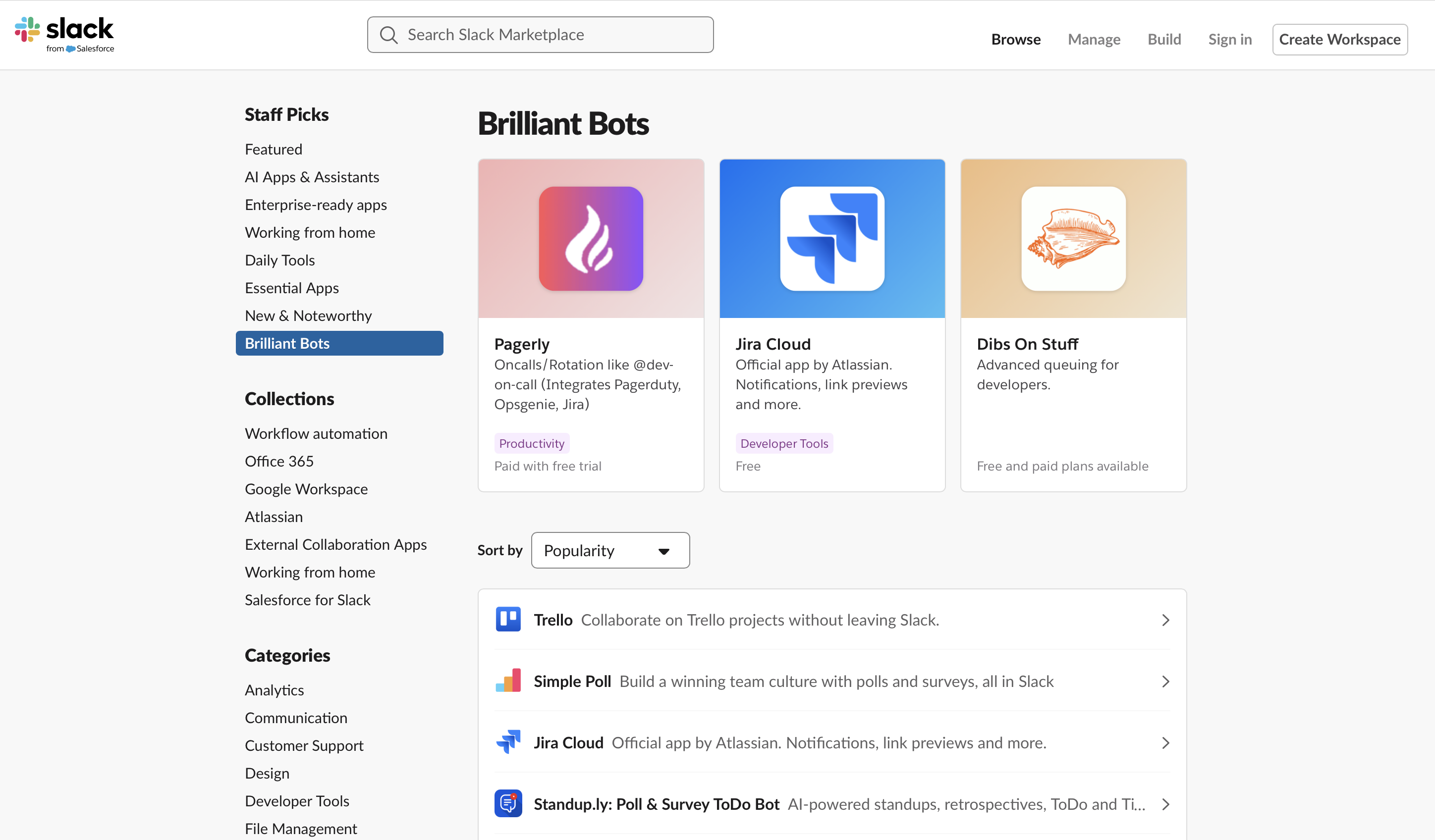
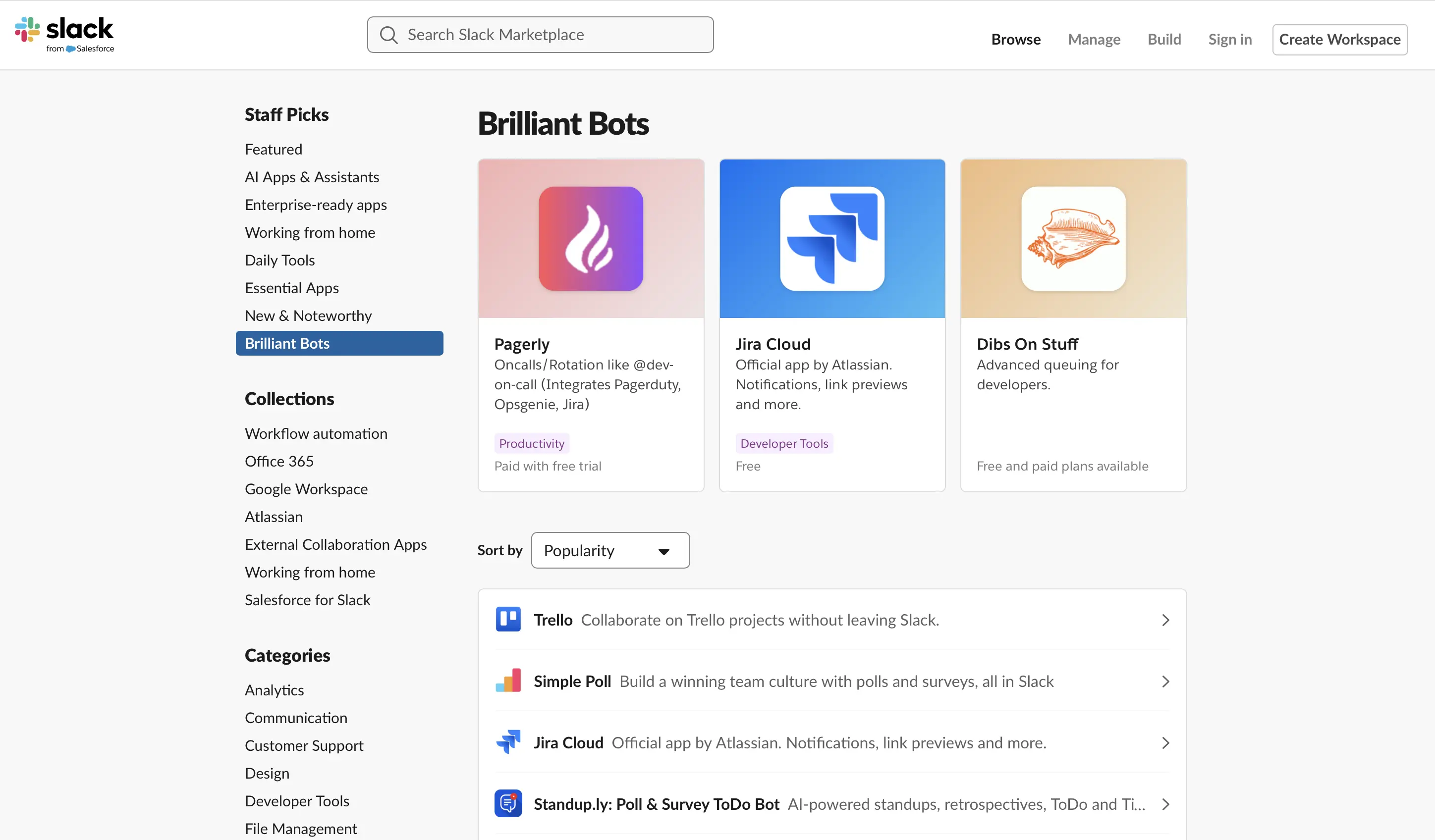
There is a wide variety of ready-to-use app bots that can be used for various purposes. For example, there’s a bot for statistics (Statsbot), a bot specifically for surveys (Polly), or the possibility to receive and send emails directly in Slack with a bot (MailClark). The range of bots and their functions is vast, from bots for analyzing statistics to entertaining emoji senders. The number of app bots is considerable and continues to grow.
The advantages and disadvantages of Slack
Slack offers numerous advantages for digital collaboration, but also faces some criticism – particularly regarding privacy and structure. The following overview shows the main advantages and disadvantages:
| Advantages of Slack | Disadvantages of Slack |
|---|---|
| ✓ Encourages personal and social communication within the team | ✗ Storage of all message histories on US servers |
| ✓ Real-time communication with higher engagement than email | ✗ US privacy laws are less stringent than European privacy laws (e.g., GDPR) |
| ✓ Ability to restrict media and file embedding | ✗ Can lead to distractions from too many notifications if used improperly |
| ✓ “Do not disturb” function to promote work-life balance | ✗ For very large teams, the channel structure can become confusing |
| ✓ Comprehensive search function for messages, files, and even content within documents | ✗ Limited archiving and storage space in the free version |
| ✓ Integration of entertainment elements like GIFs or emojis to lighten communication | |
| ✓ Integration with many third-party tools and automations possible (e.g., Google Drive, Trello, etc.) |
Important Slack commands at a glance
To use Slack efficiently, it’s worth looking at the key commands that can be entered directly into the chat. They simplify communication, save time, and help keep things organized in everyday work life.
@channel: A channel in Slack is comparable to a chat room for discussions, typically focused on a specific topic. Depending on the settings, only certain users or the entire team can follow the discussion. To send a notification to everyone in the channel, type@channeland then your message.@here: This command is almost identical to@channel, but only participants who are currently online and active are notified.@username: To send a notification to a specific person within a channel, type@username. The entered text is visible to all members in the channel./me: If you want to refer to yourself in the third person, this is the right command. For example, to announce a break, you can type/me goes for lunch, and others will read:[Your Name] goes for lunch./giphy: Slack chats allow you to lighten the conversation with emoticons and images from the web. Another fun option is the animated GIFs from Giphy. To insert one, type the command/giphy. Then, you can search the extensive collection of animated GIFs by keywords like “Birthday,” “Food,” or “Xmas.”/shrug: Adds ¯ \ _ (ツ) _ / ¯ to your message./leave: To leave the current channel./collapse: Hides all images and GIFs in the channel from your view.
Reviewer

Melissa Senn
Melissa Senn has been with IONOS since 2016 and focuses on the areas of websites, e-commerce, social media, and AI in the Digital Guide. As a digital strategist, she draws on her extensive SEO and GEO experience to translate complex technological trends into practical content.