

How to delete a Microsoft account step by step

You can delete a Microsoft account easily through the appropriate support page on the Microsoft website. You can simply access this with your desktop browser.
How to delete a Microsoft account via browser quick guide
- On the Microsoft website, go to “Support” and enter delete Microsoft account in the search bar at the top.
- Open the article “How to close your Microsoft account” and click “Close account”.
- Select a time frame and click “Next”.
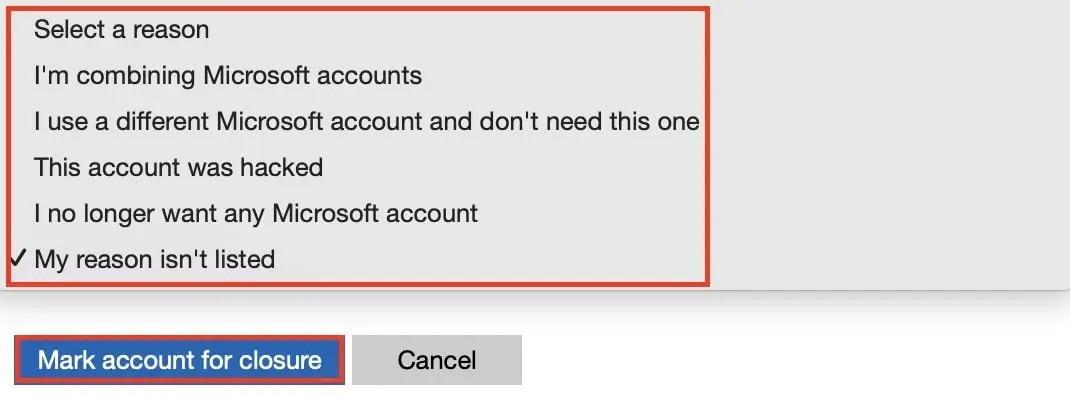
- Tick the appropriate boxes, provide a reason, and then click “Mark account for closure”.
- Build trust with email matching your domain (you@yourbrand.com)
- Free domain included to get your brand online instantly
- Work smarter with AI writing support
What to consider before deleting your Microsoft account
A Microsoft account offers many advantages. With your own account, you can sign in to various Microsoft services such as Xbox Live or Outlook and link online office and cloud services like Microsoft 365 and OneDrive to your account. However, if you wish to switch to a Microsoft alternative and no longer need the account, you should delete it and remove all data.
Before you delete your Microsoft account, remember that deleting the account will also result in the loss of the following services:
- Accounts with Outlook/Hotmail/Live/MSN
- OneDrive/Xbox Live data
- NuGet.org accounts
- Perpetual licenses like Office 2019 Home and Student
Beforehand, make sure to back up your data, cancel subscriptions linked to the account, and use any remaining balance. Ensure you first create a local account on Windows 10 or 11 before you delete your Microsoft account.
How to delete your Microsoft account step by Step
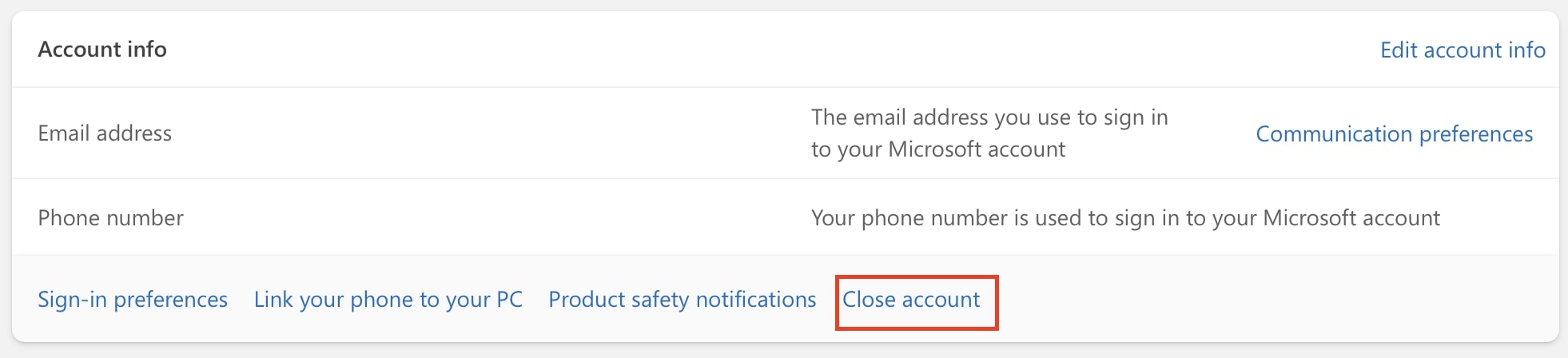
Step 1: Start the cancelation process by opening your desktop browser and signing in to your Microsoft account. In the left menu, select “Your info”, then scroll down to “Account info” and click “Close account” at the bottom right.
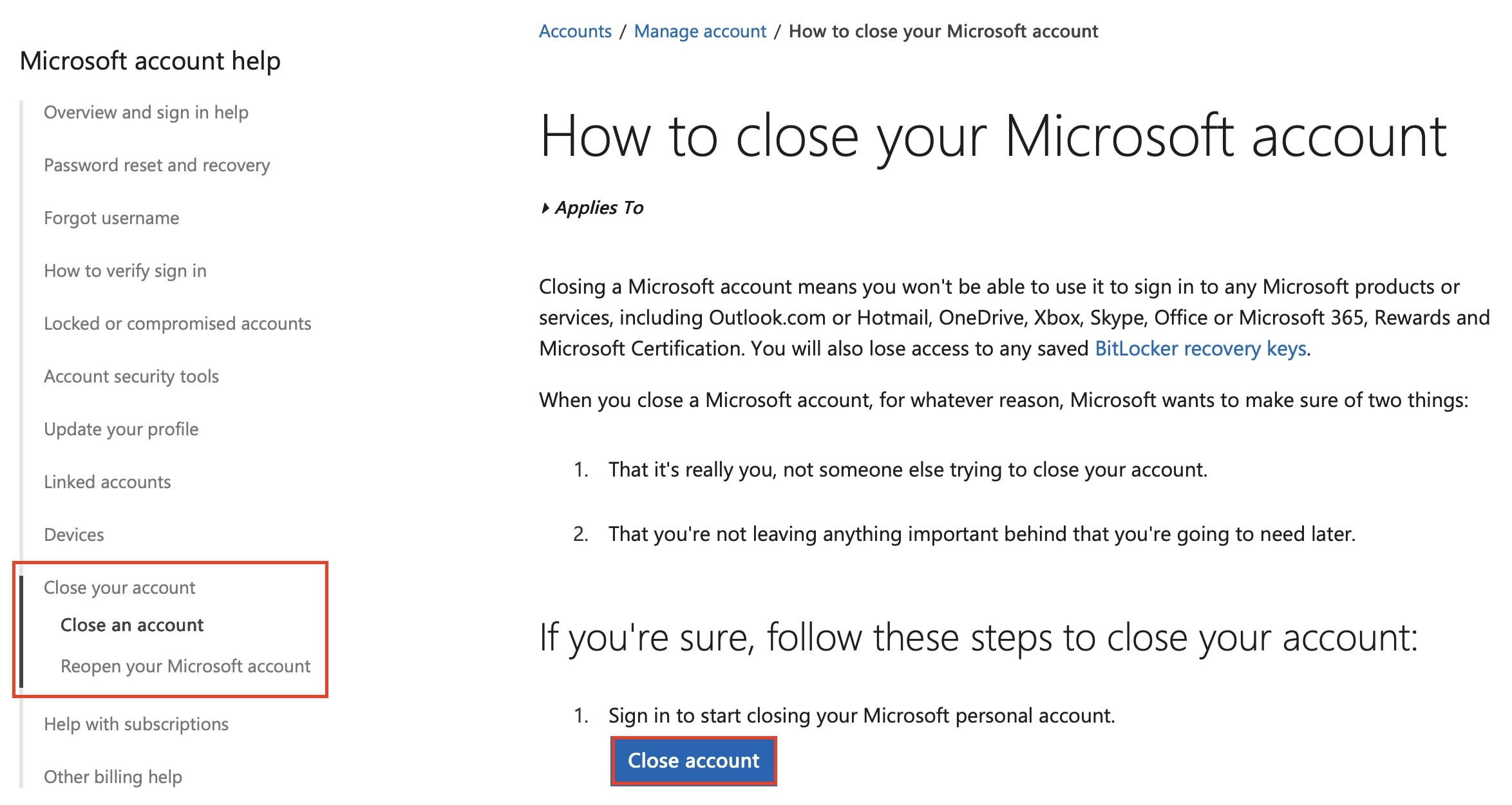
Step 2: You will be redirected to the Microsoft support page “How to close your Microsoft account”. Scroll down and click on “Close account”.

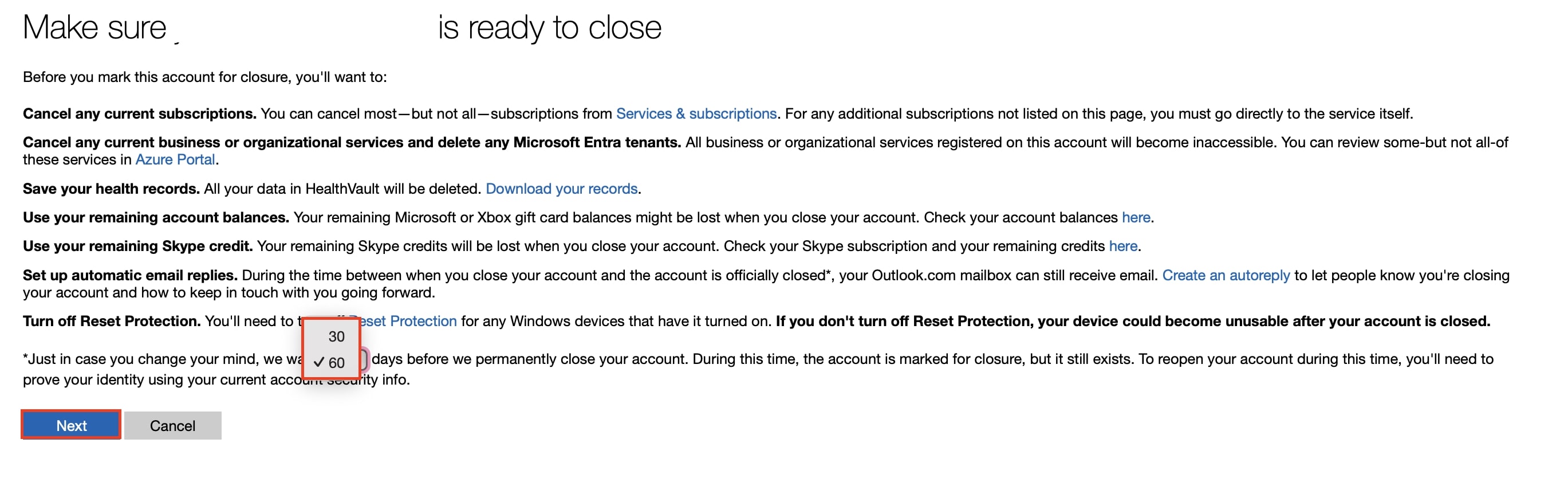
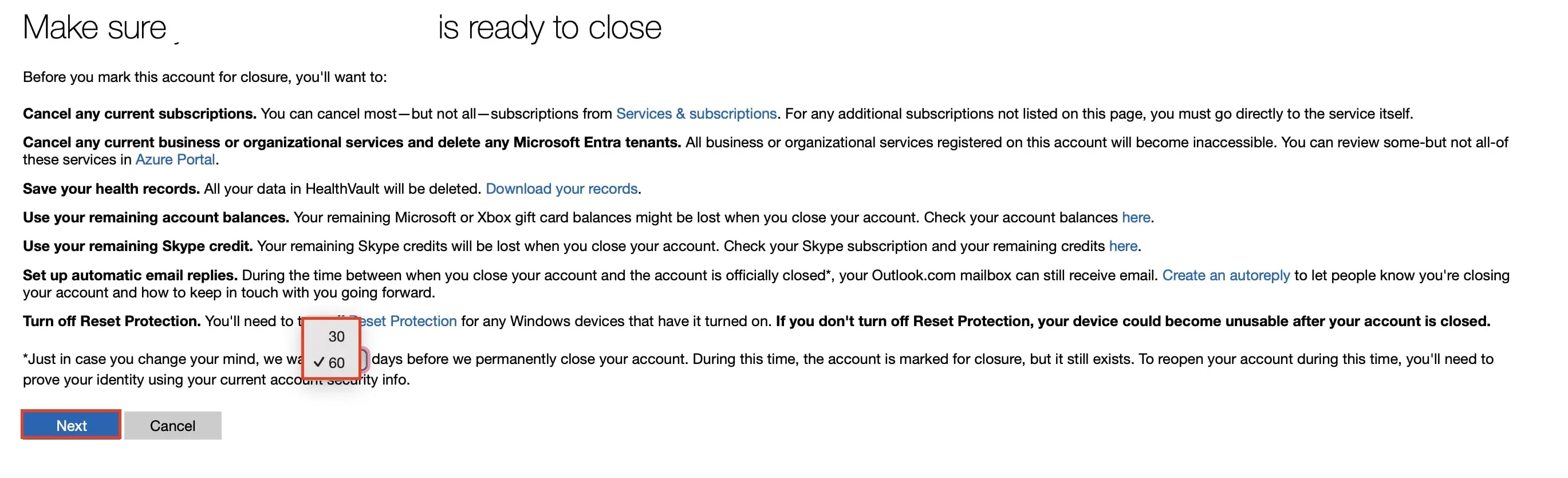
Step 3: You will be redirected to a page for closing your account. After reading all the notices about account deletion, select the waiting period Microsoft observes before your account is permanently closed. You can choose between 30 and 60 days. Then click “Next”.
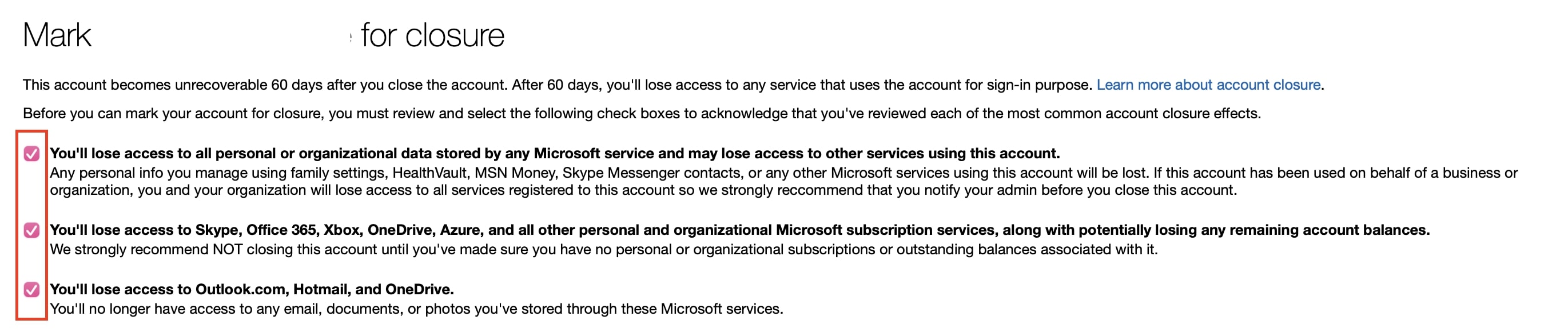
Step 4: Review the additional information and check the relevant boxes to confirm you understand what will happen when your account is closed.
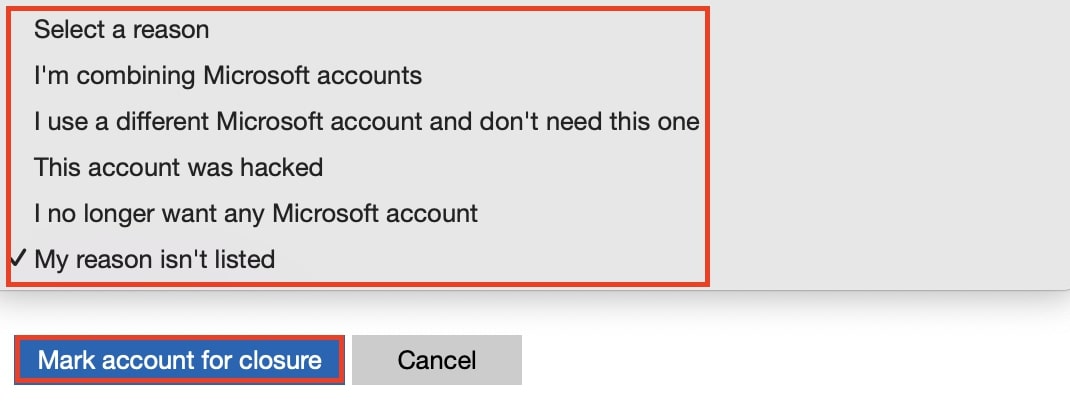
Step 5: Now choose a reason for closing your account. Then click the “Mark account for closure” button.
Step 6: You are now redirected to a confirmation page where you are informed of the date your account will be closed. It will remain as a deactivated account for an optional 30 or 60 days. If you do not log in again, it will be automatically deleted after this period.


Are you looking for an alternative to Microsoft’s software solutions? Google offers comparable tools for communication, collaboration, and productivity. Comparing Google Workspace and Microsoft 365 can be helpful in making a decision.
- Store, share, and edit data easily
- Backed up and highly secure
- Sync with all devices
Reviewer

Jeanna Raffa
With over 18 years of experience in online marketing, Jeanna Raffa possesses extensive expertise in digital marketing. Since 2020, her focus has been on providing practical information regarding email, office, and cloud storage solutions.