

Zoom audio not working: Solve audio problems in your Zoom meeting

“Can you hear me?” is a question you’ve probably heard hundreds of times if you regularly use Zoom or a Zoom alternative. Unfortunately, audio problems can’t always be avoided. However, it is crucial that the problem gets fixed quickly, especially in important meetings. Here are some solutions to try out if there’s no sound in your Zoom meeting.
- Great premium TLDs at affordable prices
- Simple registration & transfer
Zoom meeting has no sound? This could be the reason
Video conferences have many advantages. On the one hand, they make it easy to communicate no matter the location of the participants - be it with friends, family members, customers, or colleagues. On the other hand, a video conferencing program like Zoom makes it possible to organize large meetings and presentations online in a very flexible way. Professionalism is particularly important in this context. Common technical errors that occur time and again in virtual video conferences are difficulties with sharing the screen in Zoom, changing the background in Zoom, and problems with audio equipment.
There may be a number of reasons why other participants cannot hear you or why no sound is coming from the Zoom meeting. Typical error sources include:
- Other participants have muted their microphone, speakers, or headphones.
- Incorrect audio settings or recording devices have been selected.
- Audio scripts are blocked by temporary data in the browser cache.
- The computer’s audio output is muted.
- Speakers built into the smartphone have been disabled in the app.
- The smartphone’s volume or audio profile is incorrectly set up.
Specify and test the Zoom audio settings
If you want to create a Zoom meeting or join a Zoom meeting as a participant, it is advisable to know your way around Zoom’s audio settings, to set the microphone and speakers/headphones correctly, and to carry out an audio test if in doubt.
- Step 1: Log in to your Zoom account by entering your user data in the Zoom client.
- Step 2: Click on your profile picture and below that you should see the gear icon with “Settings”.
- Step 3: Then go to “Audio” in the left sidebar.
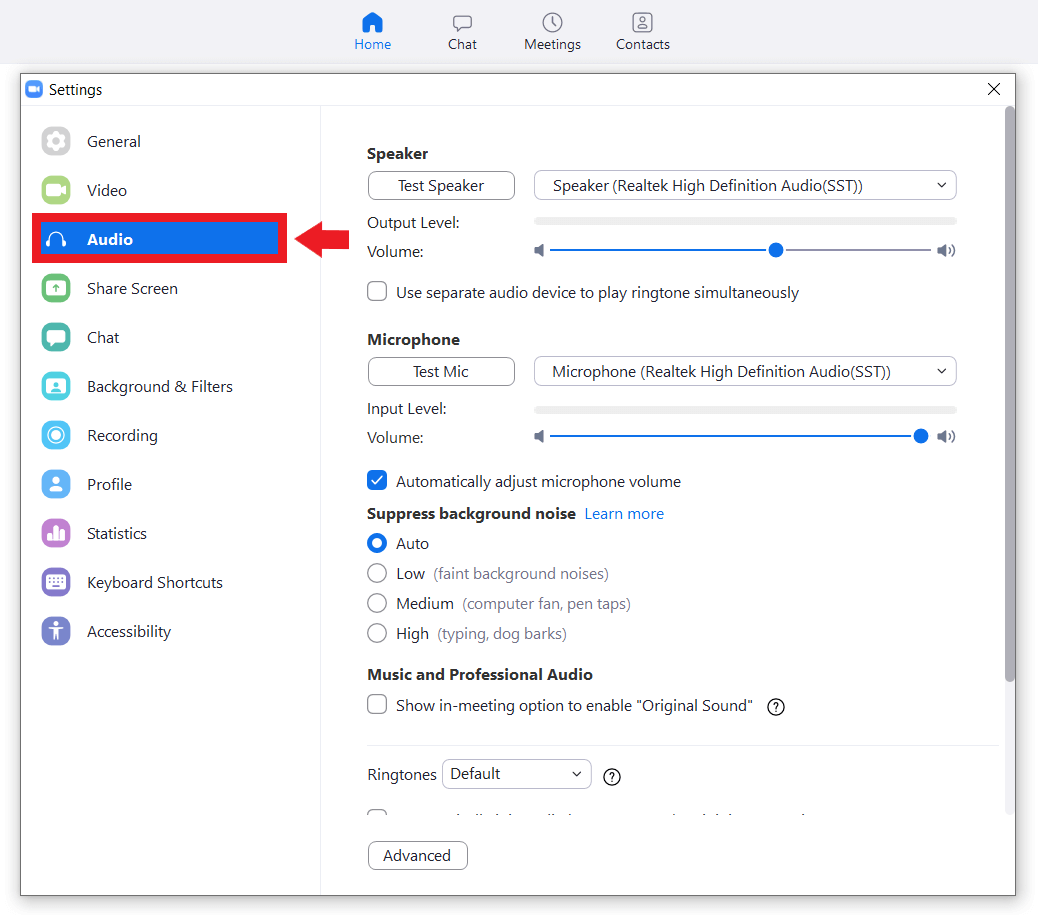
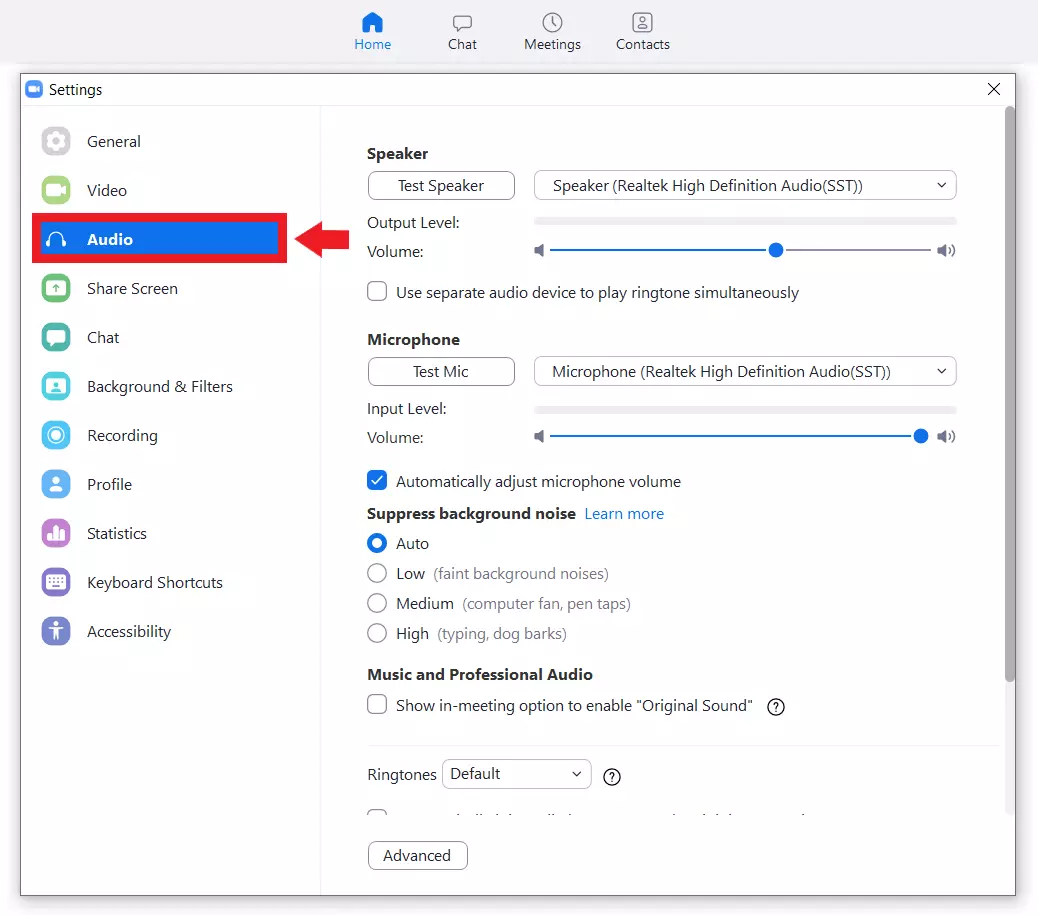
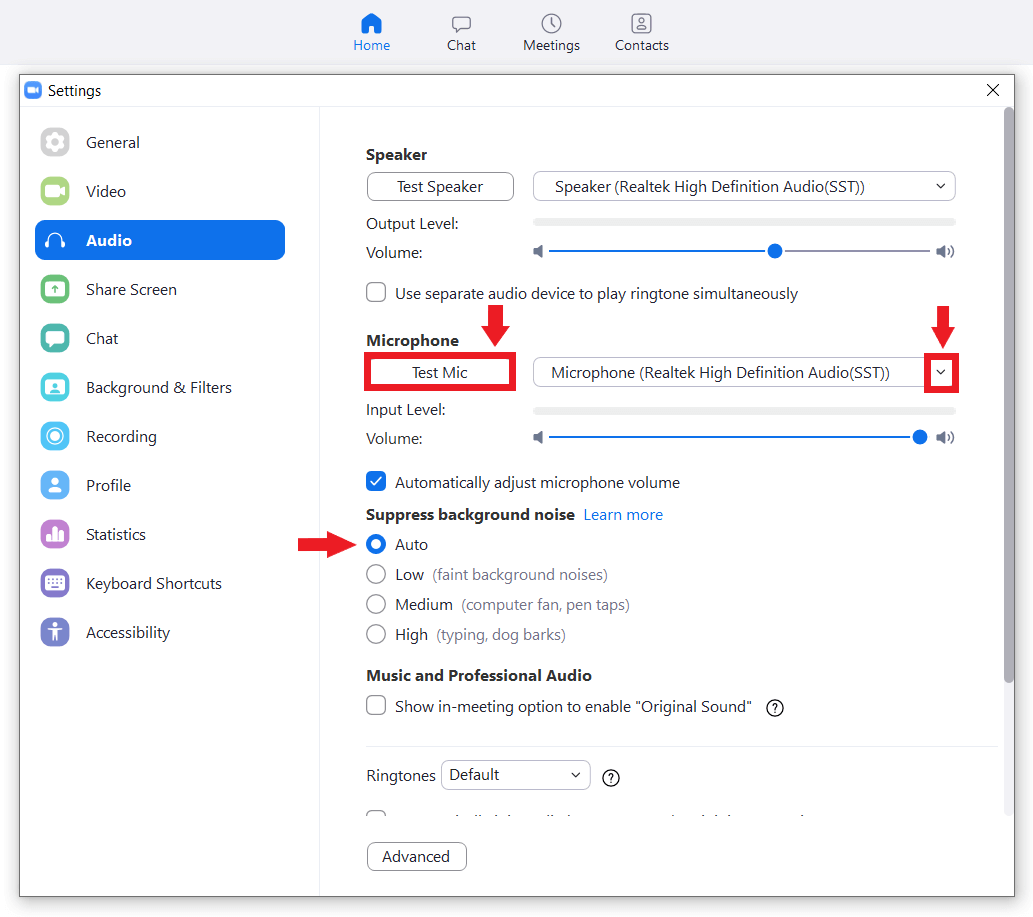
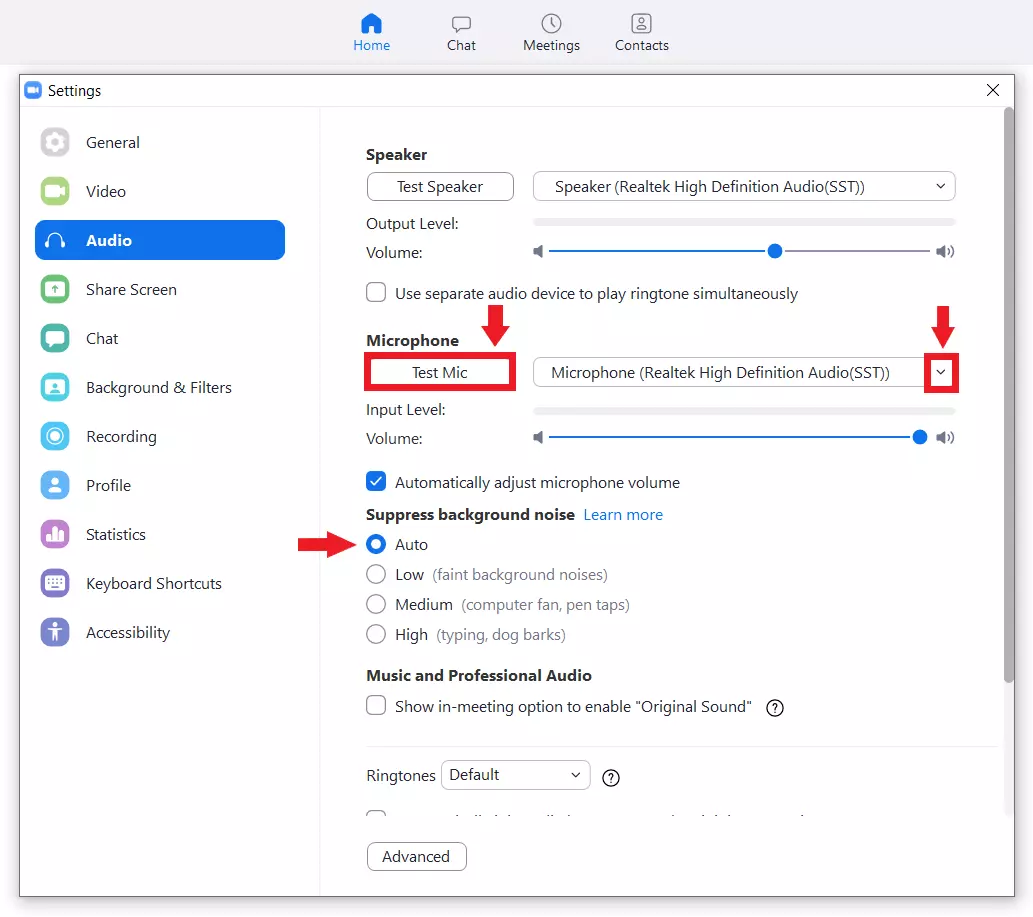
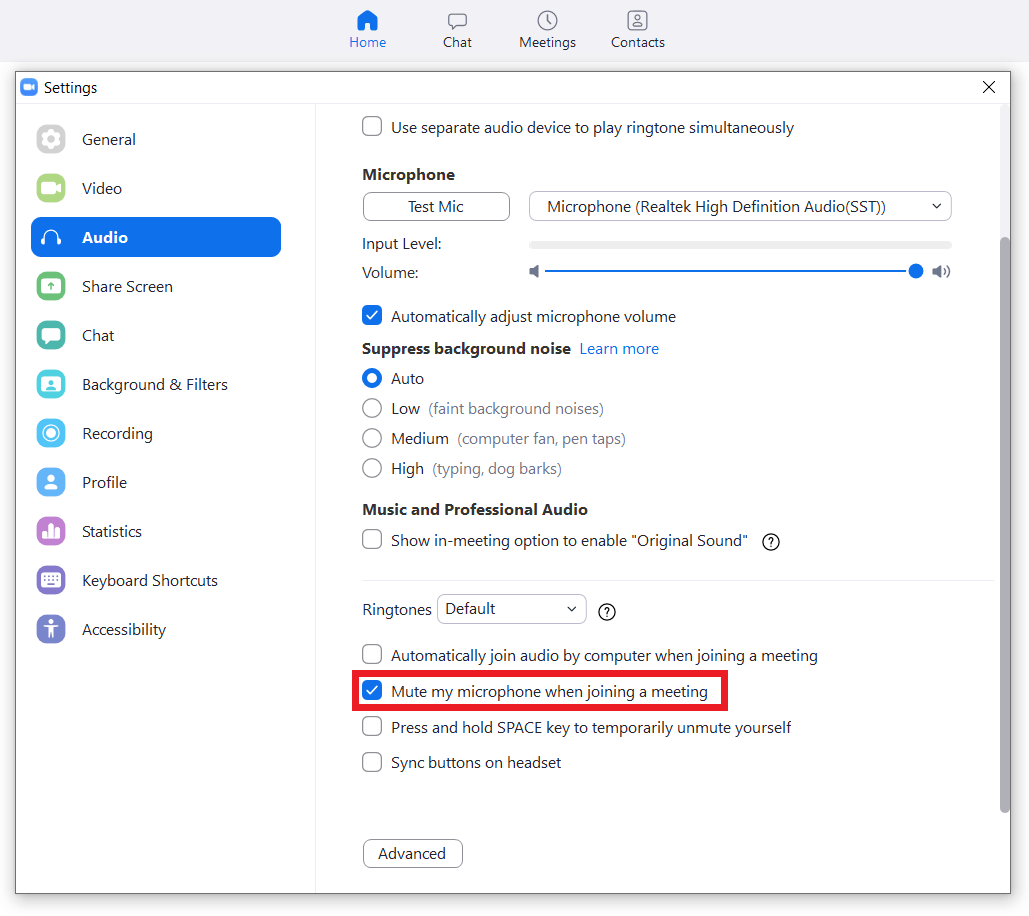
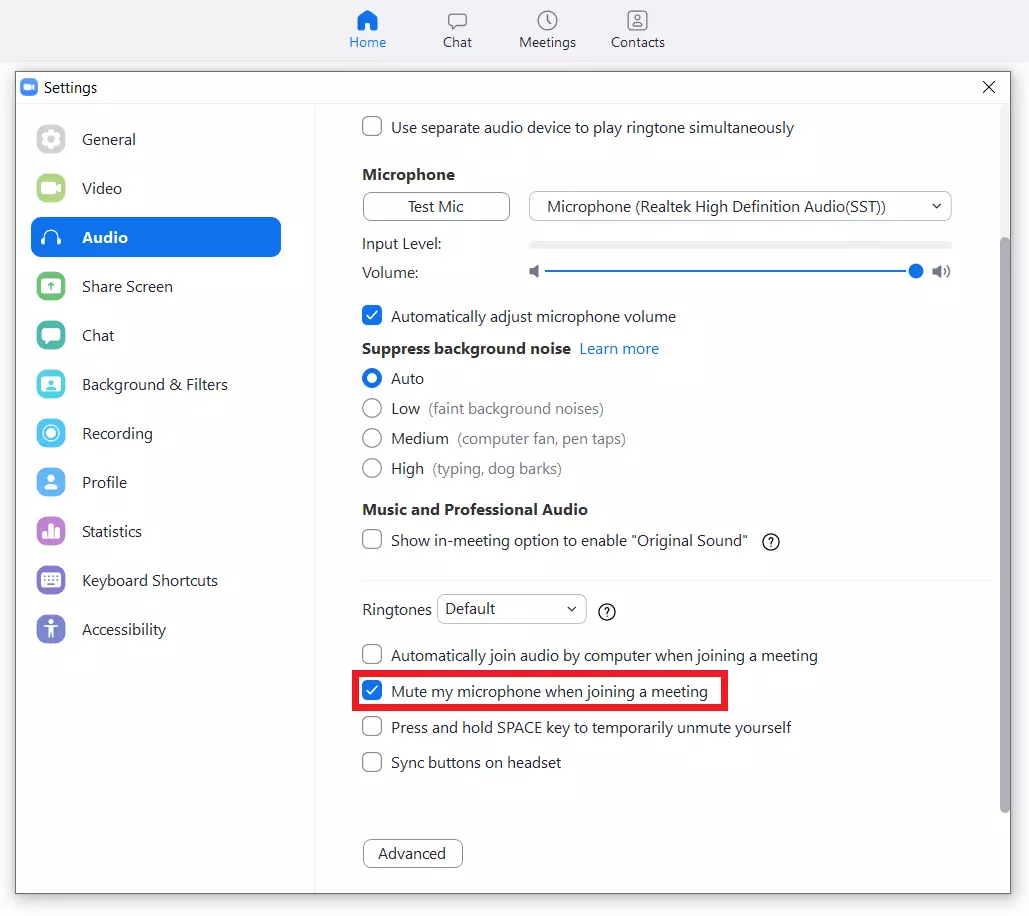
- Step 4: Here you will find a whole list of audio options. The important items are “Speakers”, “Microphone”, “Automatically join audio by computer when joining a meeting” and “Mute my microphone when joining a meeting”.
- Step 5: Under “Speakers”, you can perform an audio test and select the appropriate speaker from the drop-down menu.
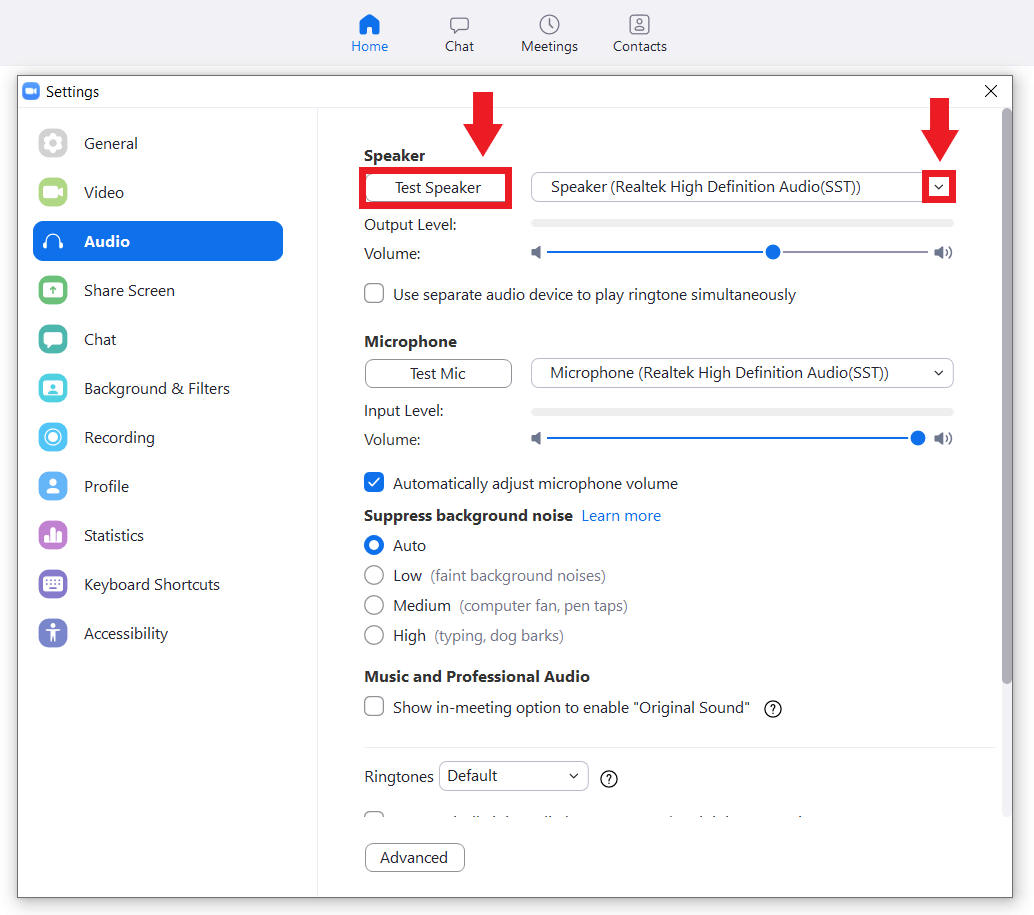
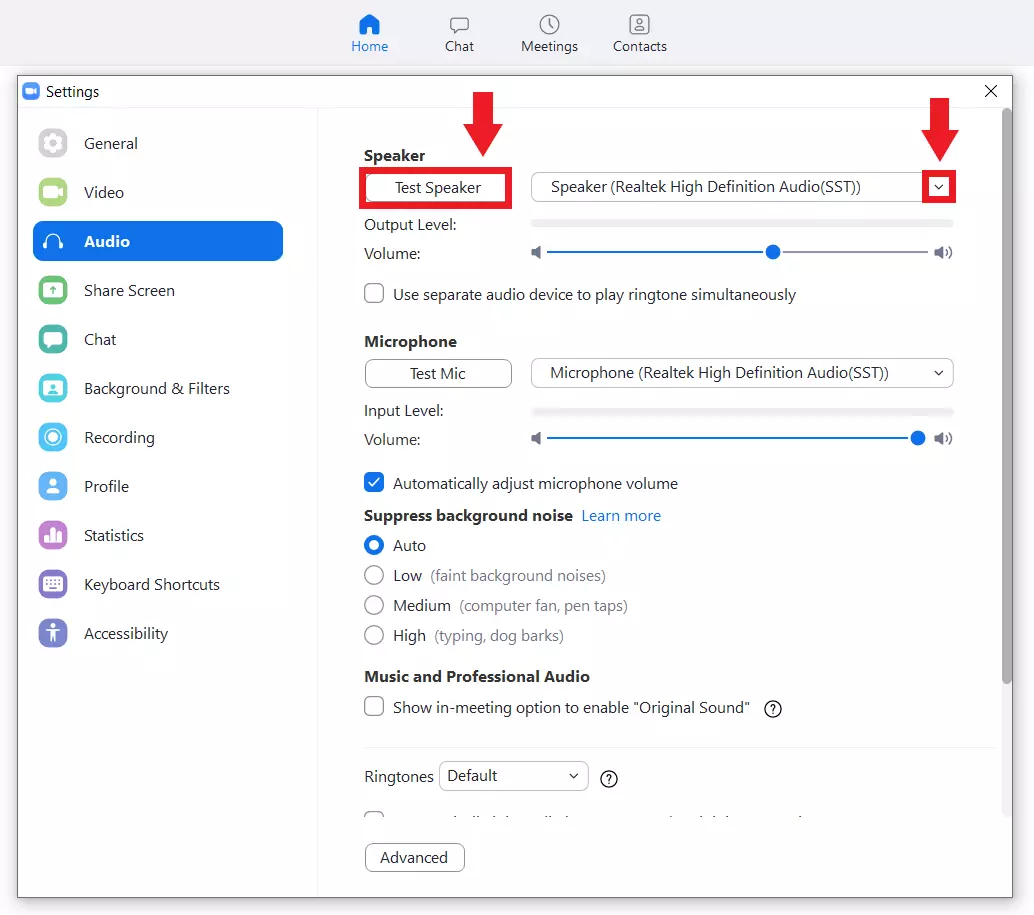
- Step 6: Under “Microphone”, you can test the audio input, select the microphone from the drop-down menu, and enable automatic sound enhancement.
- Step 7: By checking the “Automatically join audio by computer when joining a meeting” box, you instruct Zoom to automatically connect to your computer audio during meetings.
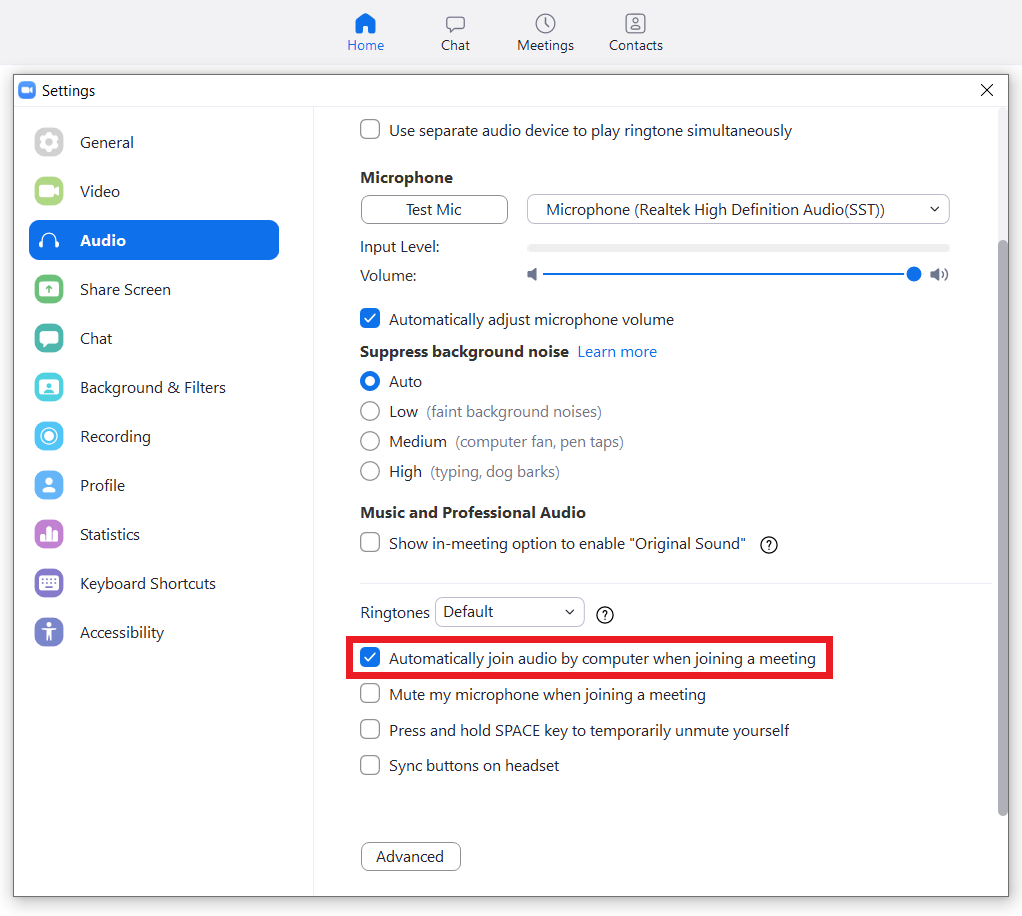
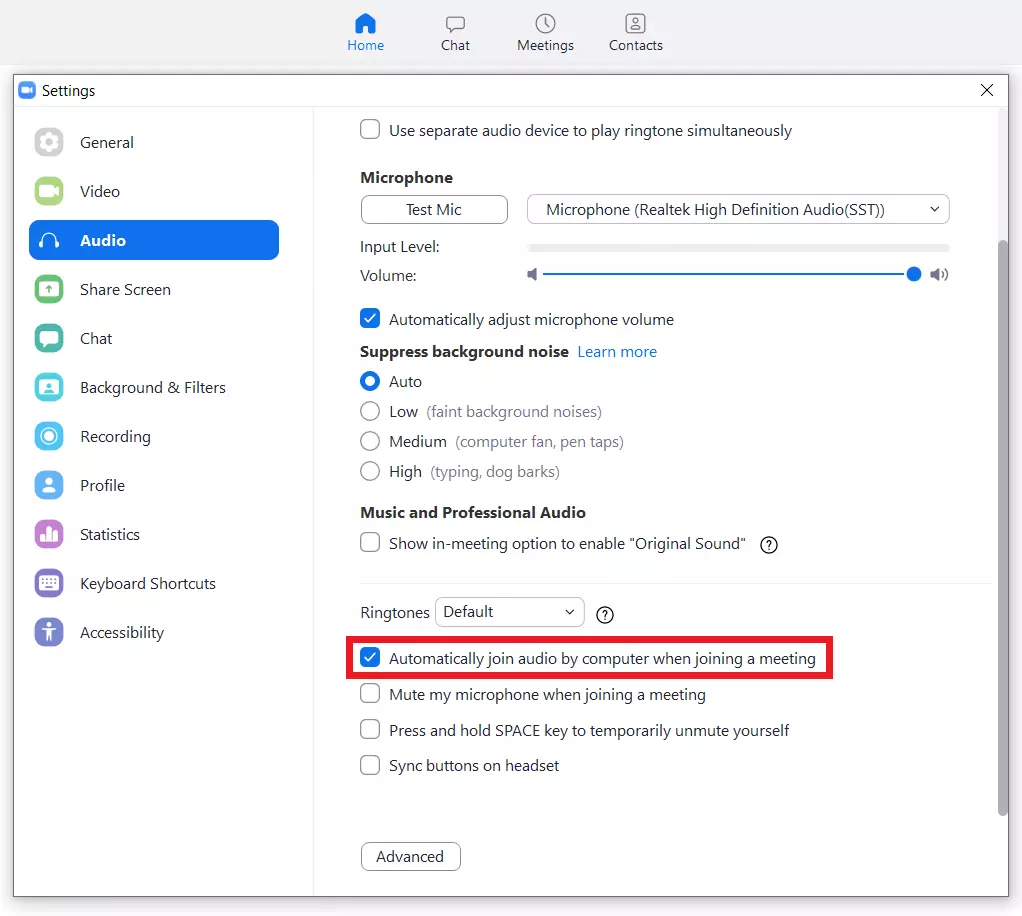
- Step 8: With the “Automatically join audio by computer when joining a meeting” option disabled, you will always receive a prompt to connect to audio before the meeting. In this prompt window, you can also perform an audio test and enable automatic connection to computer audio.
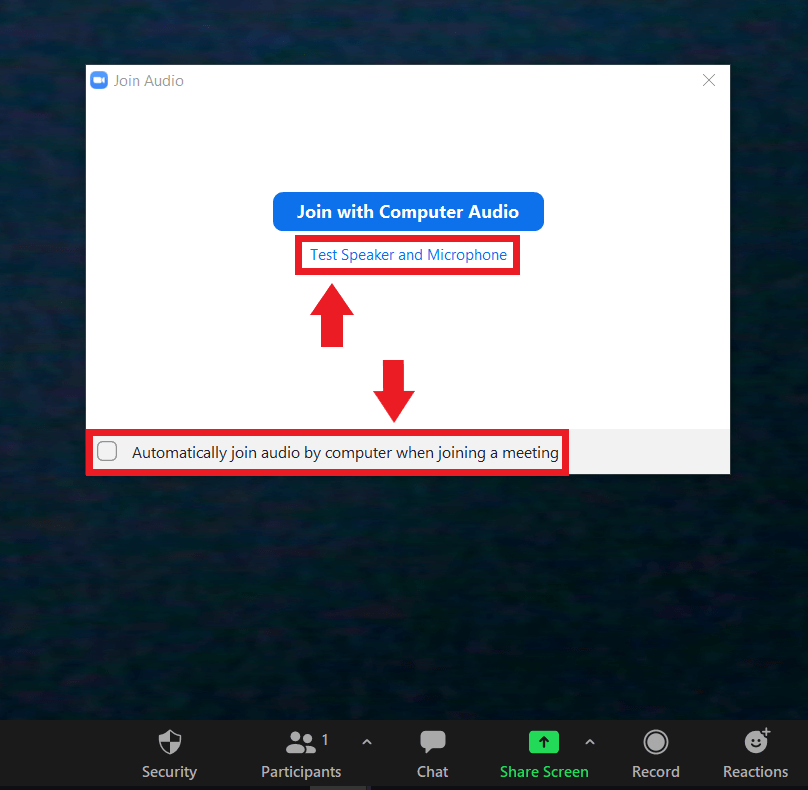
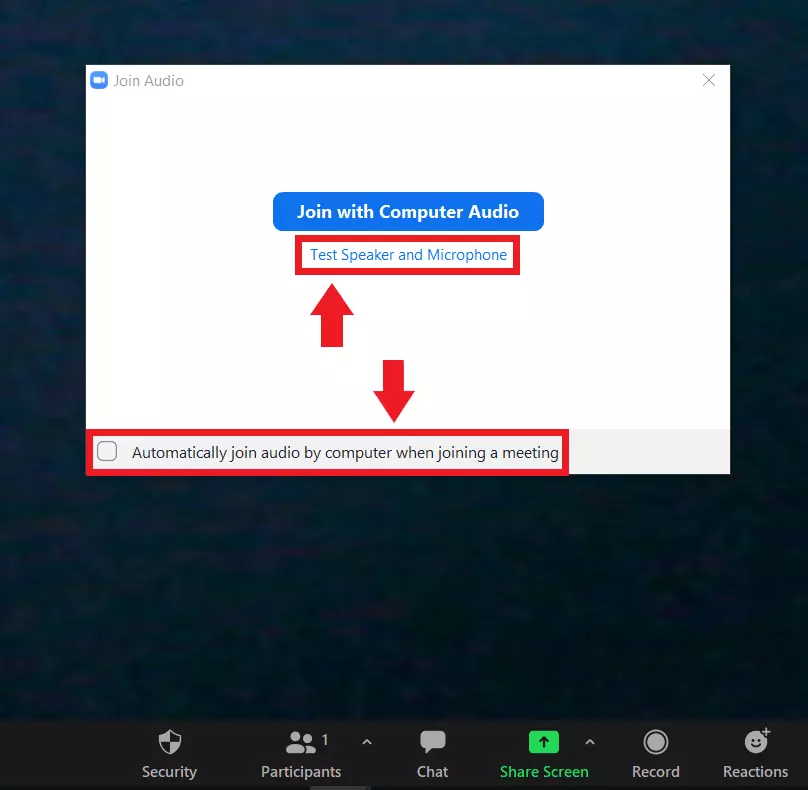
- Step 9: If you attend a lot of meetings or regularly join meetings, you may want to reconsider the “Automatically join audio by computer when joining a meeting” option to avoid accidentally becoming the active speaker. However, this could be the cause of the Zoom audio not working so remember to turn the microphone back on when needed.
Zoom: No sound – how to solve the problem
When it comes to small meetings consisting of two or three people, first ask the question:
- Have the other participants muted their own microphones or speakers?
If they haven’t and you can’t hear or be heard in a Zoom meeting, you can assume that the problem is on your end. Here are a few possible solutions.
Using the desktop client (Windows/Mac)
Test audio playback and recording devices in a meeting
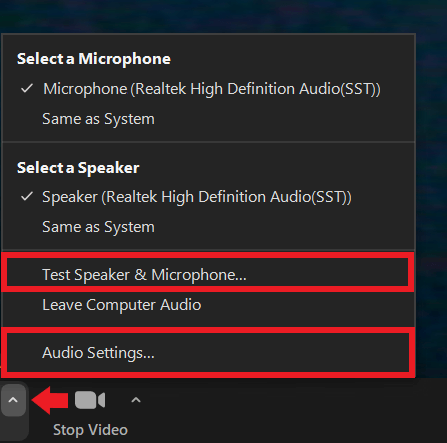
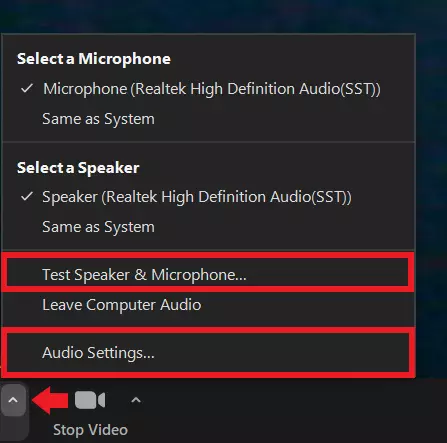
During a meeting, test your audio devices in the audio settings. To do this, go to the arrow next to the microphone icon and click on “Audio Settings…” or “Test Speaker & Microphone…”. Here you can test your speakers/headphones and microphone respectively or change selected devices.
Clear browser cache
Too much temporary data in the browser cache can cause blocked audio scripts on Zoom in rare cases. To clear your browser cache, open the browser settings menu, and clear both the cache and the cookies.
Check the audio output from your computer
If the Zoom audio doesn’t seem to be working, it may also be due to the computer volume. Check if the volume on your computer is muted or too low. To do this, click the speaker icon in the bottom right corner of Windows 10. To open advanced settings, right-click on the speaker icon and then select “Open Volume mixer”.
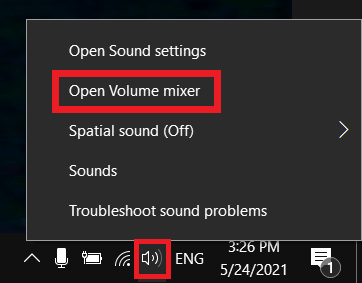
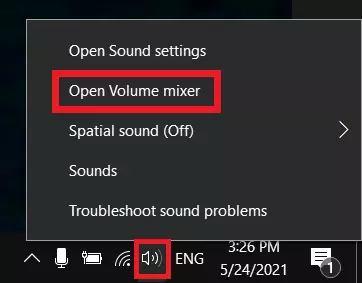
Check that the volume is set correctly for Zoom meetings.
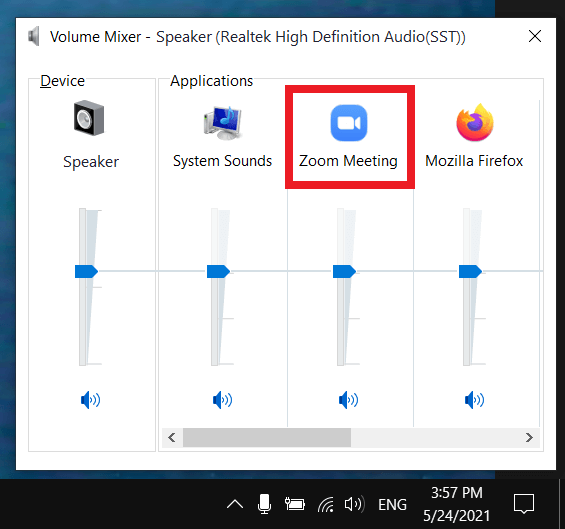
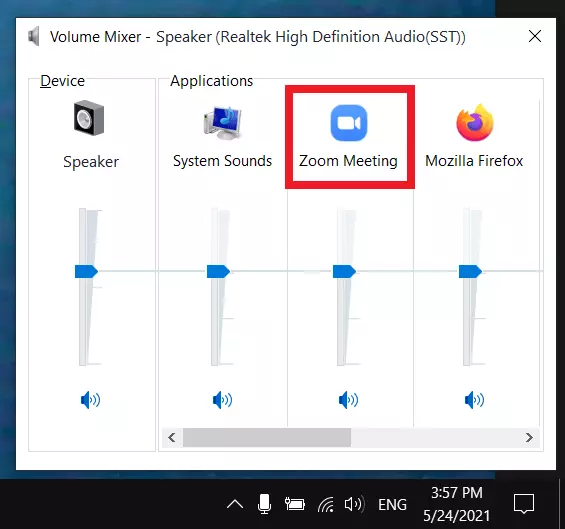
With macOS, you can also find volume control options via the menu bar or System Preferences.
Using the mobile client (Android/iOS)
Check the speaker in the Zoom app
If there’s no sound in the Zoom meeting, check your built-in smartphone speakers. Look to see if you can see an X next to the speaker icon. If so, activate the speakers using the buttons or by tapping the speaker icon.


Check the microphone in the Zoom app
If the other participants can’t hear you in the meeting, check your built-in microphone. If you see that you’re muted, tap the microphone icon to unmute yourself.


Check smartphone audio settings
If you are having audio problems in a Zoom meeting on your smartphone, it is often because the device’s volume is too low. Check the volume using the volume buttons on your smartphone.
If you habitually set your smartphone to silent or vibrate, check the audio profile on Android or iOS to see if the sound is turned on.
Restart your smartphone
Reviewer

Jeanna Raffa
With over 18 years of experience in online marketing, Jeanna Raffa possesses extensive expertise in digital marketing. Since 2020, her focus has been on providing practical information regarding email, office, and cloud storage solutions.