

VLC alternatives: which media player is right for you?

The VLC player has been an indispensable tool for many PC and Mac users for years. The minimalist program from the VideoLAN company enables you to play almost every video and audio format. The growing popularity of YouTube, DailyMotion, and other video streaming sites has also greatly increased VLC player’s popularity. Many users download their favorite clips so they can play them in a compressed format whenever they like using the VLC player.
The popular player’s main advantage is that it’s possible to play compressed videos directly with VLC without having to convert them first. In total, the media player has been downloaded more than 2.3 billion times on all operating systems. The VLC player provides a functional user interface with impressive codec support. However, it might be that the VLC player is not quite sufficient for specific requirements.
Are you looking for alternatives to VLC that offer slightly different features? There are some programs that are worth a try. Some users are looking for a program to organize their media files and watch their movies on TV, whereas others want cloud storage, or the ability to convert movies and music, or maybe visualizations that are played parallel to music.
So what are the best alternatives to VLC? In this guide, we provide you with a wide range of choices – from the streamlined player for compressed clips, to the media center perfect for managing your music and movie files.
Alternatives to VLC – overview of the best multimedia players
Winamp (Windows, Android, macOS)
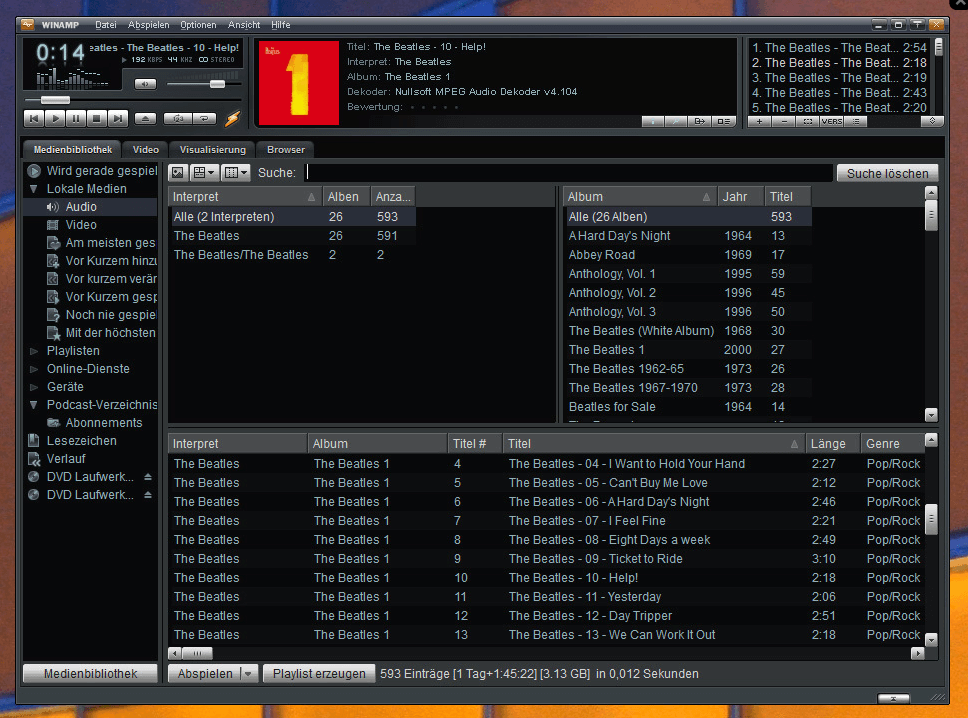
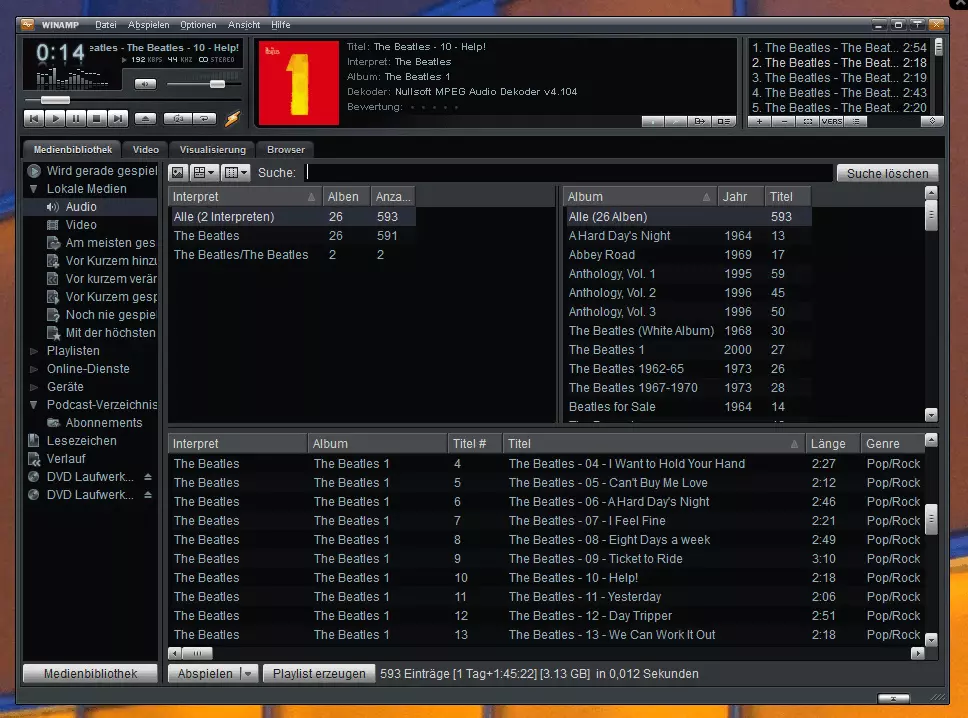
Winamp is a popular media player, established in the mid-1990s. Nowadays, it’s fallen into oblivion. But Winamp is still a good choice for Windows users. The fully featured program comes with a highly customizable design. You can install visualizations, or change the appearance of the player with hundreds of skins. Winamp supports a huge selection of video and audio formats, including MPG, MPEG, MP3, MP4, and OGG. The most compelling feature in Winamp is the extensive range of plugins. This extends from the installation of Dcodec packs (to play various file formats), to plugs that allow additional functions like DVD conversion. Winamp runs on older computers and is a tried and tested program that many users, even today, couldn’t imagine being without.
| Advantages | Disadvantages |
|---|---|
| Large selection of plugins and skins | No further developments for some time |
| Simple operation | |
| Supports various audio formats |
 To display this video, third-party cookies are required. You can access and change your cookie settings here.
 BS.Player (Windows, Android)
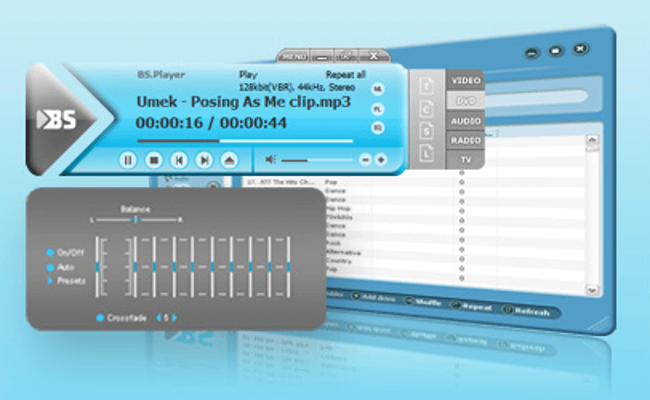
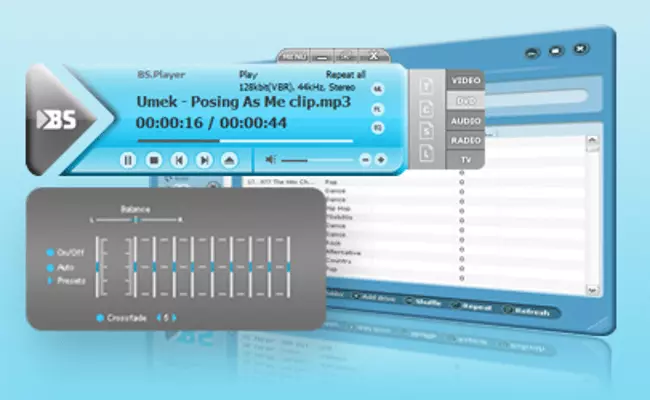
This alternative to VLC has the advantage of being very resource-efficient. Despite the low processor use, the BS.Player offers many features. The media player for Windows and Android can play most video formats without the need for conversion, and has practical chapter and subtitle options. What’s especially useful is the fact that you can customize the video’s subtitles. The program is also suitable for enjoying multilingual videos, since changing languages is not a problem. The BS.Player can also scale different image formats. For example, if you want to view a wide-format movie on a 4:3 monitor, you should use the 'pan and scan' feature. The program scales the image material so that you can see the whole image. The hotkey feature enables you to program shortcuts for your favorite features.
| Advantages | Disadvantages |
|---|---|
| Very resource-friendly | Installation and operation quite complicated |
| Useful chapter and subtitle features |
KMPlayer (Windows, Android, macOS, iOS)
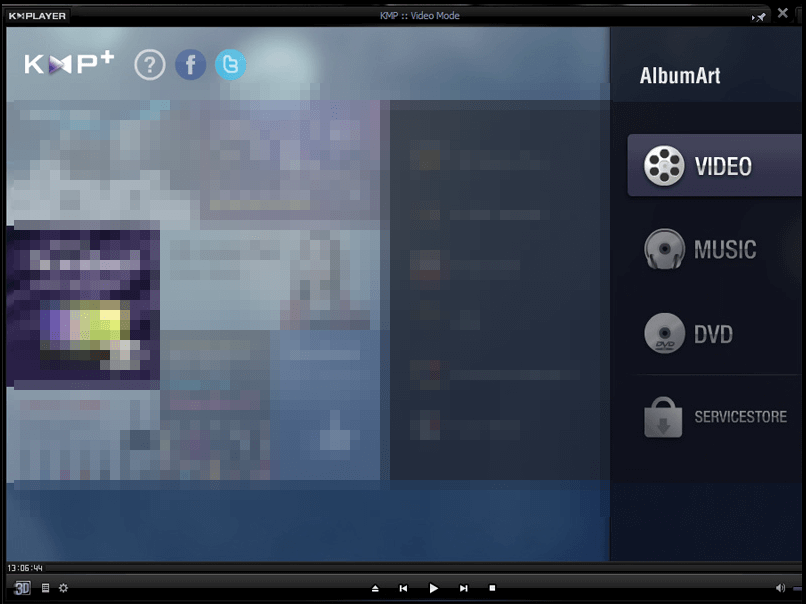
The KMPlayer is one of the most popular alternatives to VLC because of its many extra features. The developer, Pandora TV, released the program under the name KMPlayer in 2002. With this player, you can easily open various video formats such as AVI, MVK, OGM, 3GP, VCD, OGG, RealMedia, and FLV. The program runs best in Microsoft Windows and is available in over 36 languages. According to the developer, 360 million people have already installed KMPlayer on their devices.
 To display this video, third-party cookies are required. You can access and change your cookie settings here.
 The KMPlayer is a streamlined audio and video player for desktop PCs, which also cuts a good figure on Android devices. Particularly noteworthy is that movies in 4K resolution and in 3D format are supported. The player has both internal and external filters and gives you full control over your media files, together with transformation filters for audio and video decoders as well as rendering programs. The KMPlayer’s internal filters are not registered in the user’s system, meaning that no problems occur with system filters that have already been installed.
The KMPlayer is available for free download.
| Advantages | Disadvantages |
|---|---|
| Top configuration options | Additional software (toolbar etc.) must be deselected during installation |
| Supports 4K and 3D videos | Website doesn’t look professional |
| Multilingual |
SMPlayer (Windows, Android, Linux)
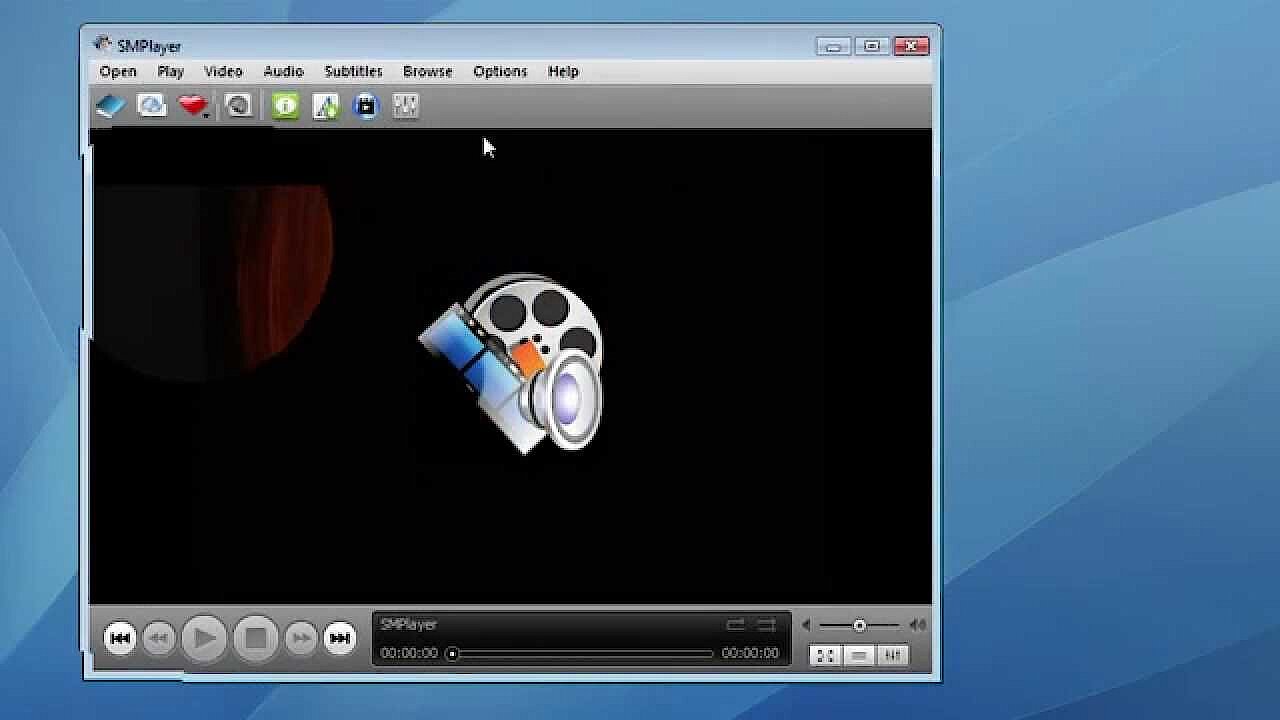
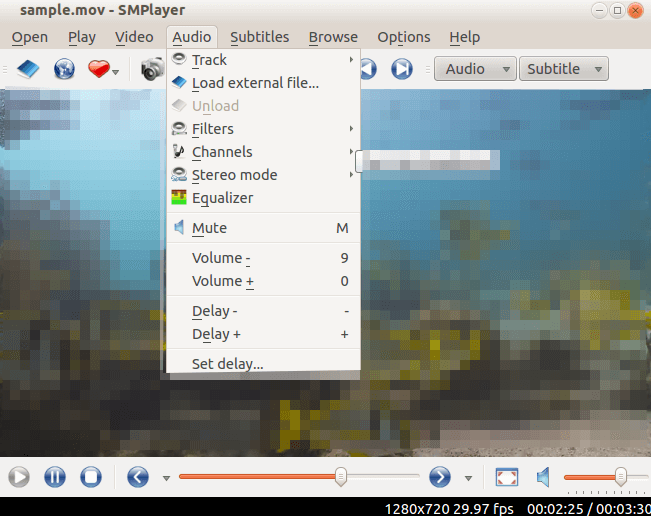
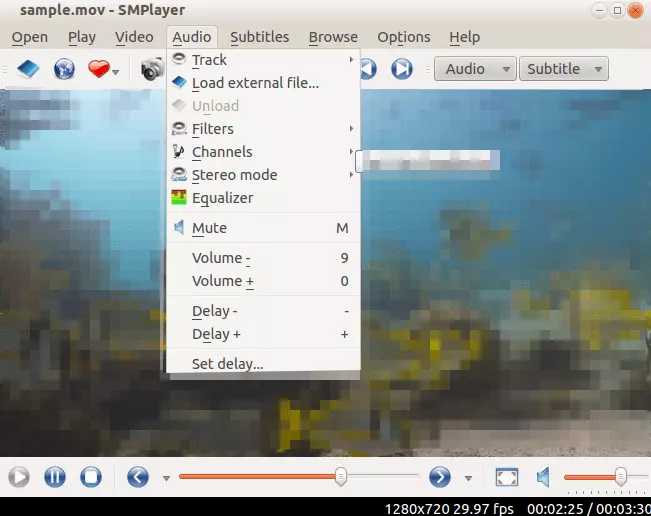
This alternative to VLC is impressive due to its versatility. The SMPlayer is completely free and available as an open source solution, which makes it particularly attractive for experienced Linux users. The media player supports all common Windows operating systems (excluding Linux), and is available in 30 different languages. The program has many useful features, such as audio and video filters that can be combined with your video and music files. Thus, the SMPlayer is well suited for visuals that you can project onto a screen using a projector. Particularly noteworthy is how flexible the program is: the playback speed can be adjusted, and the speed of the subtitles can be subsequently optimized. The player automatically supports all common media formats such as MOV, MVK, AVI, MP4, DIVX, and MPEG, and no codes need to be installed.
| Advantages | Disadvantages |
|---|---|
| Freely-available source code | Some synchronization errors (audio-video) |
| Useful modules e.g. for YouTube integration or subtitle search | Additional software (OpenCandy) must be deselected during installation |
| Various filters for sound and image |
GOM Player (Windows, Android, macOS, iOS)
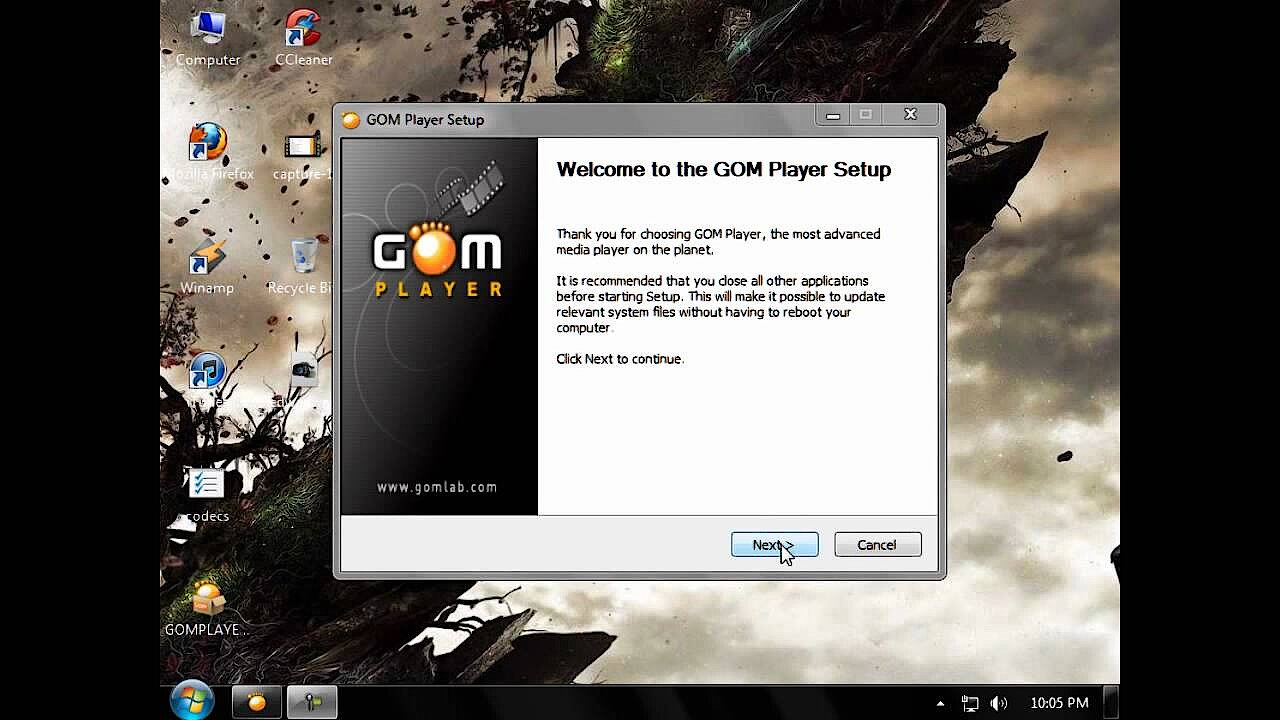
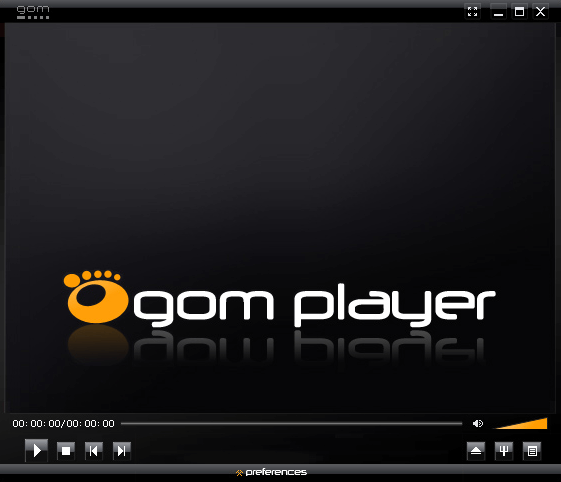
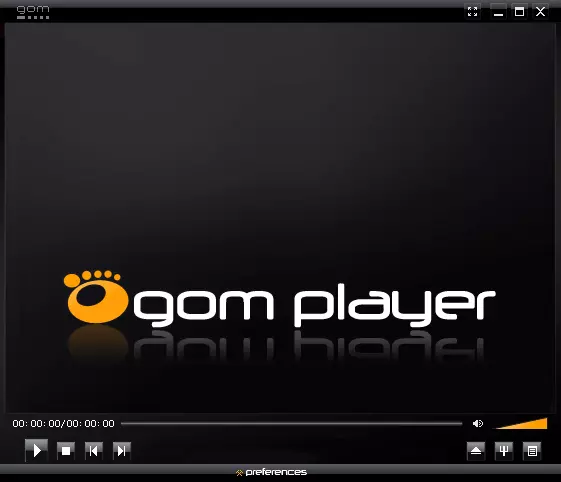
The GOM Player, which was released in 2003 by South Korean developer, Gretech, is particularly popular in Asian countries. The program is already fully equipped with codecs for audio and video. It is therefore not necessary to install plugins or codecs separately. The player supports common subtitle files such as RT, SRT, SUB, and SMI. GOM Player users have access to the largest subtitle database in the world. As soon as a video is played and connected to the internet, the program automatically searches its database and displays the appropriate subtitle results. After you select the subtitle you want to apply, it is automatically downloaded and applied.
 To display this video, third-party cookies are required. You can access and change your cookie settings here.
 If you are interested in VR and 360 degree videos, GOM Player should be your first choice. The program supports a variety of VR and 360-degree video formats and can also play 360-degree YouTube videos. Advanced users can also configure video presentations individually.
Another feature of this VLC alternative is the remote function. As a GOM user, you can link your smartphone to your GOM Player wirelessly, allowing you to control virtually all the features of the player with your mobile device: select videos or music, adjust volume, configure screen settings, and more. The developer team offers regular updates to keep the program up-to-date.
| Advantages | Disadvantages |
|---|---|
| Remote function | Poor assistance |
| Supports VR and 360 degree videos | |
| Very good audio and video quality |
MPlayerX (Windows, Android, macOS, iOS, Linux)
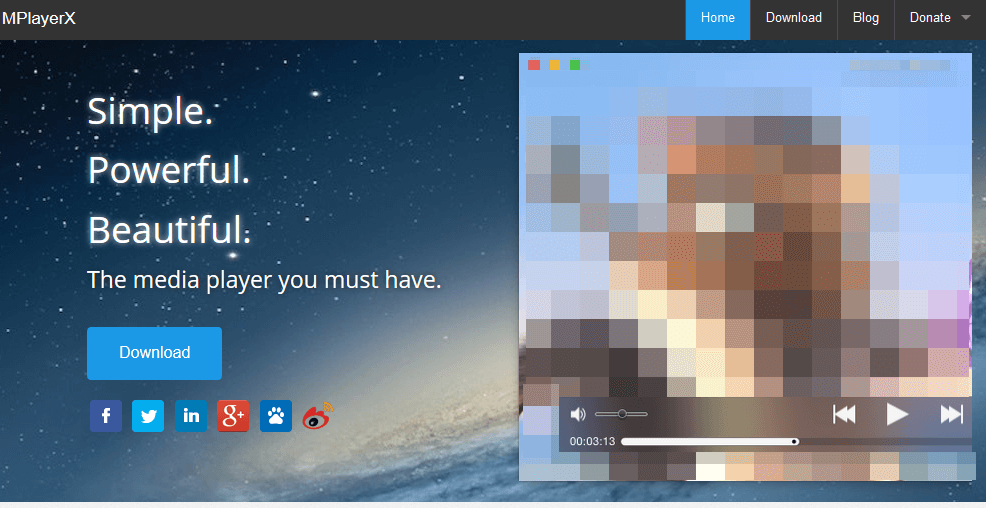
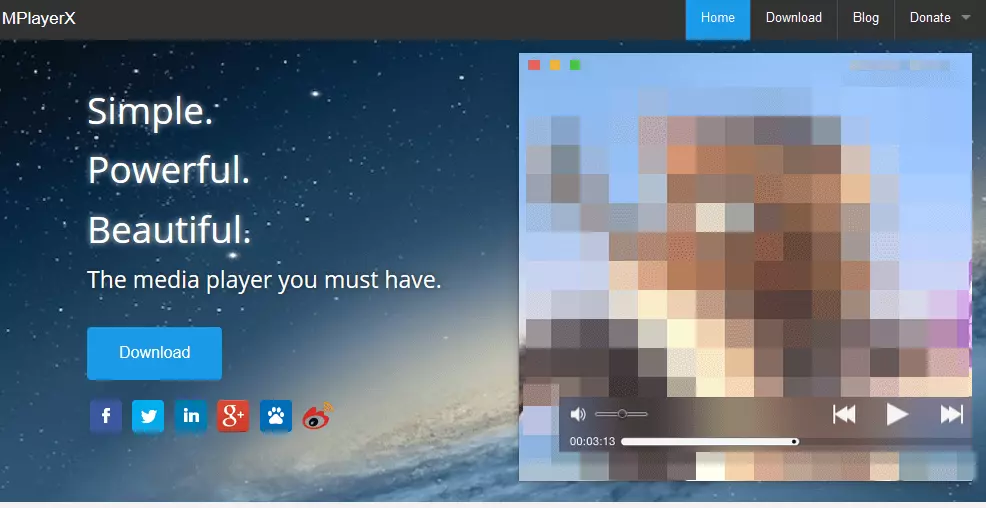
If you aren’t so keen on the design of the VLC Player, you should take a look at MPlayerX. The Chinese developer, Zongyao Qu, designed a lightweight player that has a wide range of video formats. The program works especially well with macOS, but is also available for Windows and Linux. The MPlayerX offers some practical options for the individual playback of media files and is easy to use. One great thing about this program is that in many areas it’s possible to adapt the player’s features to your needs. Nevertheless, the program is limited to the most important functions. The smooth playback of video and music files in the most popular formats can be achieved via hard disk or network. The MPlayerX is compatible with Apple Remote and supports multi-monitoring, allowing convenient wireless control. For Apple users, the MPlayerX belongs to the top options for VLC alternatives. The program is superior to VLC in terms of how it can be integrated into macOS, which for many users is enough to convince them to try it out. Not only the design, but also the nearly identical multi-touch gestures comply better with the Mac environment than the PC-oriented VLC control. If you want to download the latest version of the MPlayerX for your Mac, you shouldn’t do this via the App Store because the version offered here is outdated. The reason for this is Apple’s strict Sandbox guidelines, which severely restrict some of the program’s functions. If you download the latest version from the manufacturer’s site, you can always keep the program up-to-date with the auto-update function.
| Advantages | Disadvantages |
|---|---|
| Highly customizable | Version in Apple Store not up-to-date |
| Compatible with Apple Remote | Additional software must be deselected during installation |
| Slow development |
AnyMP4 Blu-ray Player (Windows, macOS)
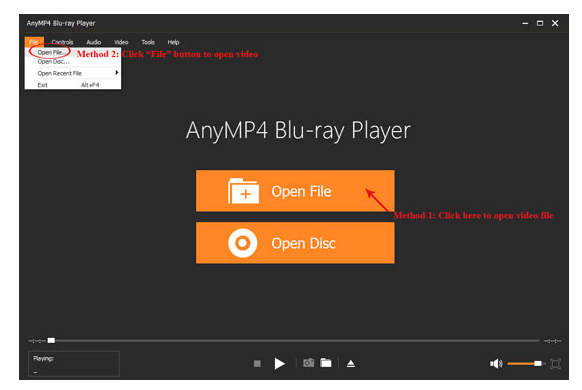
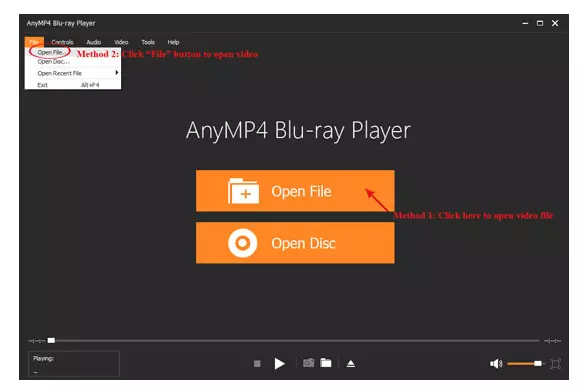
If you want to play high-resolution videos on your PC or MAC, the AnyMP4 Blu-ray Player could be the right alternative to VLC for you. The program from the AnyMP4 Studio is a professional media player for all common versions of Windows and macOS. With the universal player, you can open almost all popular video and audio formats (MP4, MOV, MKV, M4A, AAC, FLAC, and more). The biggest advantage of the AnyMP4 Blu-ray player is the smooth playback of 4K and full HD videos with a high bit rate (720p is also possible). If you already have a Blu-ray collection, the AnyMP4 Blu-ray Player plays your discs directly from your computer. To do this, you need to upgrade the Player with a plugin or codec. All new Blu-ray discs are supported natively, which makes watching movies in Blu-ray format an even better experience. The media player can also provide some useful additional features. This enables you to change the subtitles, adjust the audio track, take screenshots, switch to deinterlace mode, and lots more. AnyMP4 also offers filters for brightness, shade, contrast, saturation, and gamma correction. This means it’s not problematic at all if you want to modify and optimize the image and sound settings according to your wishes.
| Advantages | Disadvantages |
|---|---|
| High-performance playback of 4K and Full HD videos | Low quality translation of software, websites, etc. |
| Simple operation |
Free FLV Player (Windows, macOS)
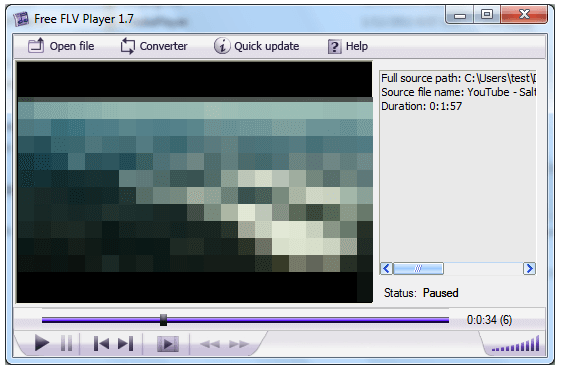
Even though HTML5 has become more popular over time, there’s still hope for Flash videos. Many streaming providers still encrypt their videos with Flash (FLV) format. On desktop PCs, these files can be played without problems with the right plugins, but this is a different story with smartphones and tablets, since Flash can cause complications. As a result, you often have to convert Flash videos so that they are compatible with mobile devices. This is easy with the Free FLV Player from Tonec. FLV files can be converted into all popular formats, including AVI, 3GP, and MP4. So it is possible to play all videos on your iPhone, tablet, or Android smartphone. The Free FLV Player also offers a search function for various online video portals, which you can use to quickly find your desired video. This means you don’t have to install apps for individual portals, but rather that you can play files directly via the Free FLV Converter. The setting options ensure that they search all supported websites or only certain portals. The program can also download several videos simultaneously and convert them in batches.
| Advantages | Disadvantages |
|---|---|
| Search function for online video portals | Additional software (toolbar) must be deselected during installation |
| Supports Flash videos in various formats |
PotPlayer (Windows)
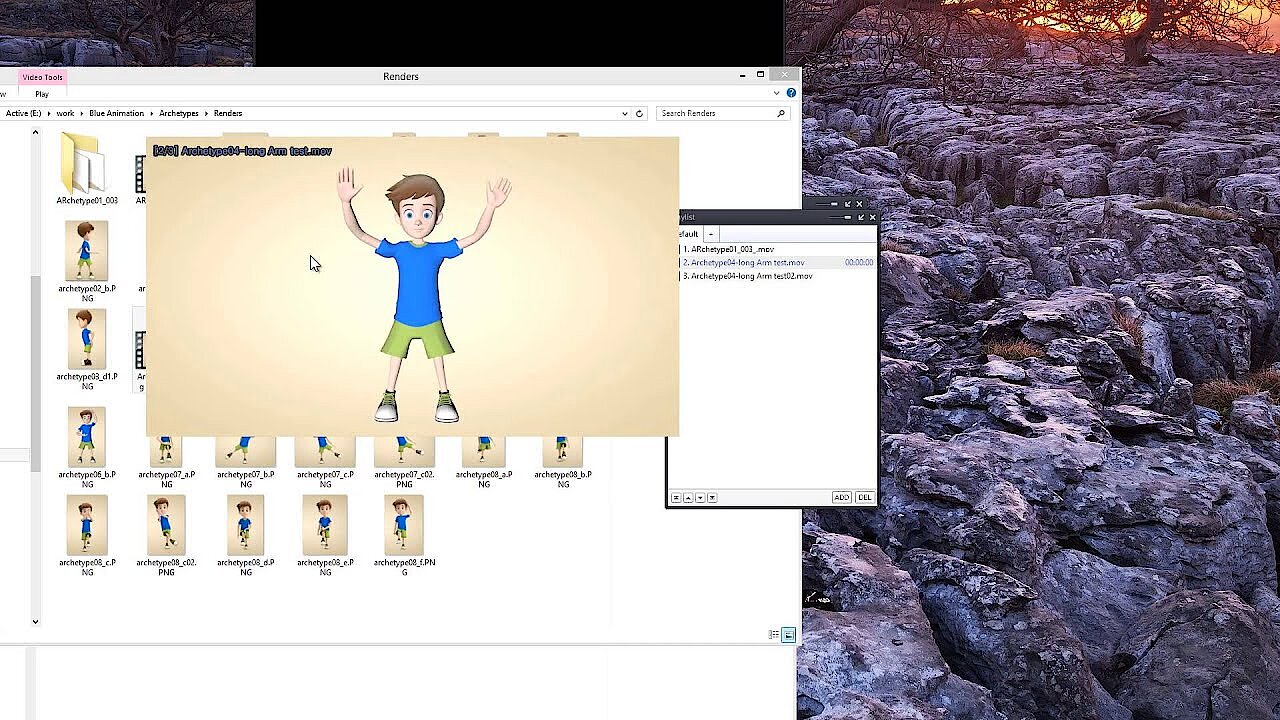
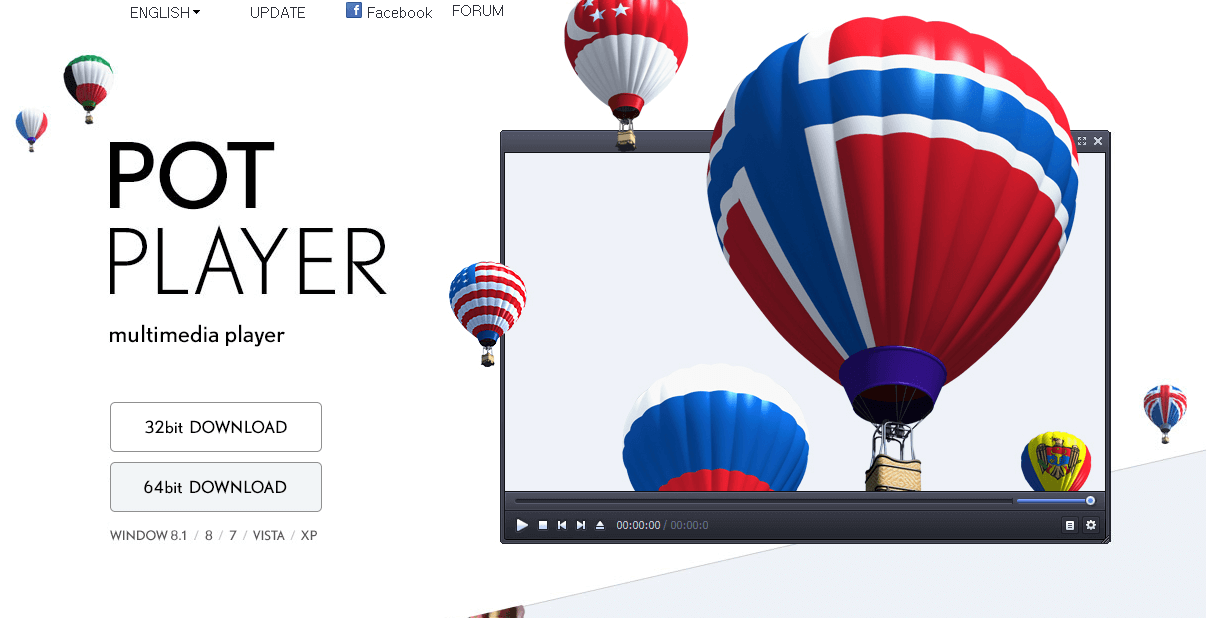
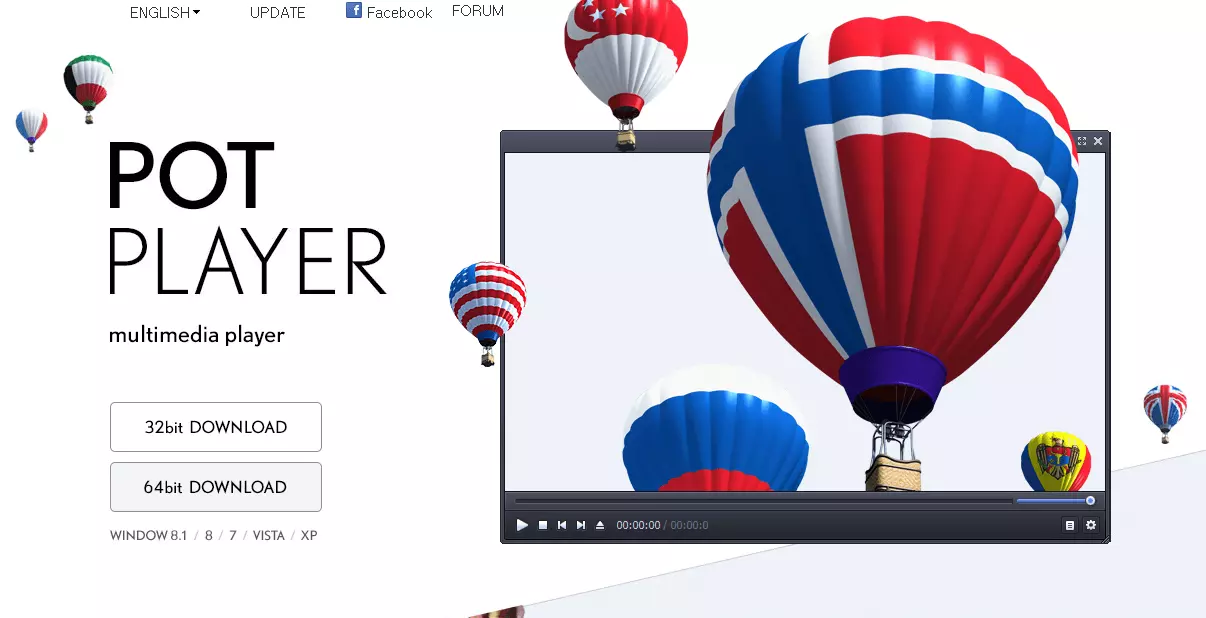
With a download size of more than 18 MB, PotPlayer is slightly bigger than most other streamlined VLC alternatives. The media player from the South Korean company, Kakao, offers the possibility of adding many codecs to the main file after installation. This player is therefore universally upgradable. The first thing the user notices is PotPlayer’s very clear and minimalist user interface. Nevertheless, the player offers a whole lot of features, which should also satisfy demanding users. If you are interested in advanced features, the streamlined design will help. In order to access the advanced mode with all options, use the main menu or the context menu. There is also a settings button at the lower right corner of the user interface. When you press the button, the audio, video, subtitles, and playback settings are displayed. Adjust the frequencies with the equalizer to get a perfect sound.
 To display this video, third-party cookies are required. You can access and change your cookie settings here.
 PotPlayer makes it easy to fix problems such as asynchronous soundtracks that are found in some videos. The audio track is simply adapted to the video track. In addition, it is also possible to remove the subtitle track and insert another one.
PotPlayer is free for Windows and plays practically every file format and every media container. The alternative to VLC for Windows also offers a wealth of features and controls for incorporating effects in video playback. The tool supports DXA, CUDA, QuickSync, and various 3D output formats. Various types of 3D glasses have been designed for viewing 3D movies using this player. In order to make the minimalist appearance a bit more individual, there are a large number of skins available.
| Advantages | Disadvantages |
|---|---|
| Numerous skins available | Sparse documentation |
| Supports 3D and 360 degree videos | |
| Reads various subtitle formats |
VLC alternatives compared in table form
| Developer | Platform | Open source | Cost | |
|---|---|---|---|---|
| Winamp | Nullsoft, AOL, Radionomy | Windows, Android, macOS | no | free |
| BS.Player | Webteh | Windows, Android | no | free basic version |
| KMPlayer | Pandora TV | Windows, Android, macOS, iOS | no | free |
| SMPlayer | rvm | Windows, Android, Linux | yes | free |
| GOM Player | GOMlab | Windows, Android, macOS, iOS | no | free basic version |
| MPlayerX | Zongyao Qu | Windows, Android, Linux, macOS, iOS | no | free |
| AnyMP4 Blu-ray Player | AnyMP4 Studio | Windows, macOS | no | approx. $40 |
| Free FLV Player | Tonec | Windows, macOS | yes | free |
| PotPlayer | Daum Communications | Windows | no | free |
Alternatives to VLC: overview of the best multimedia players with file management
iTunes (macOS, iOS, Windows)
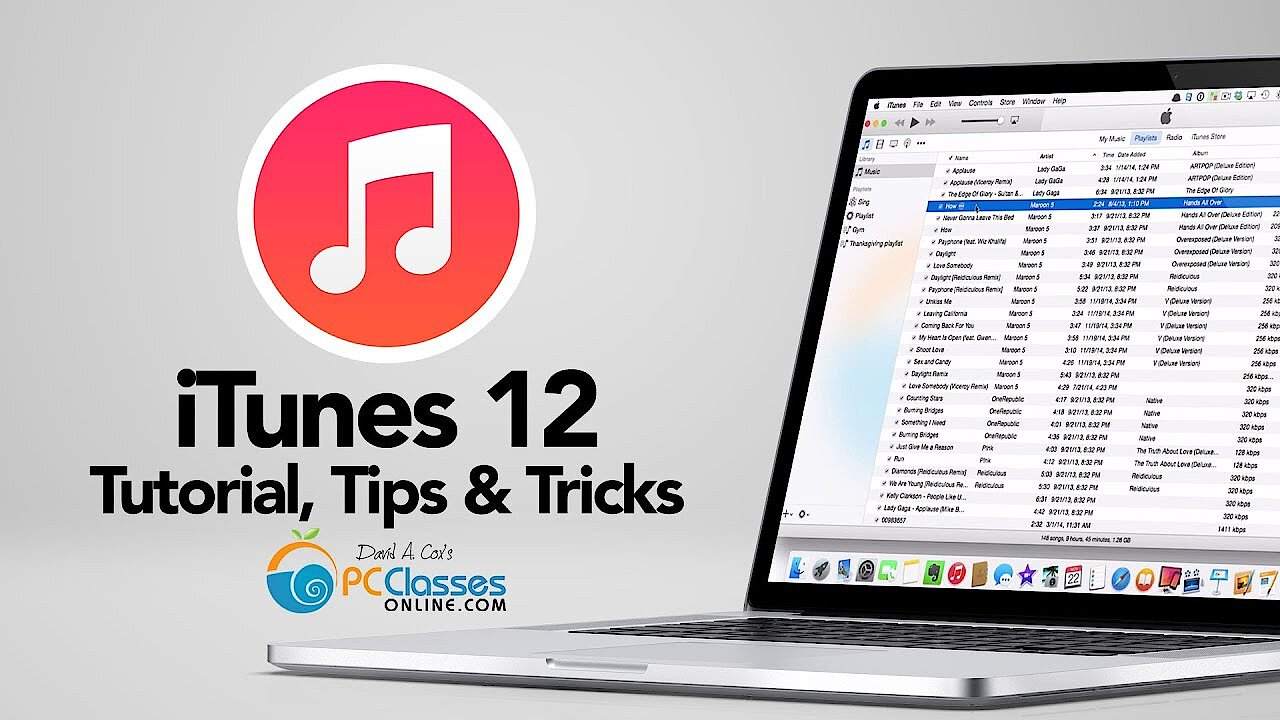
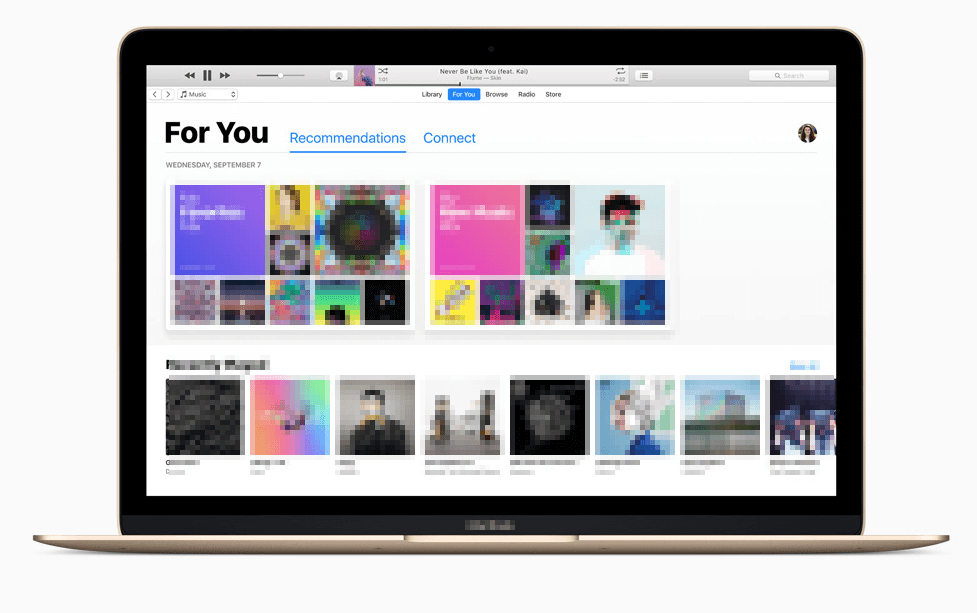
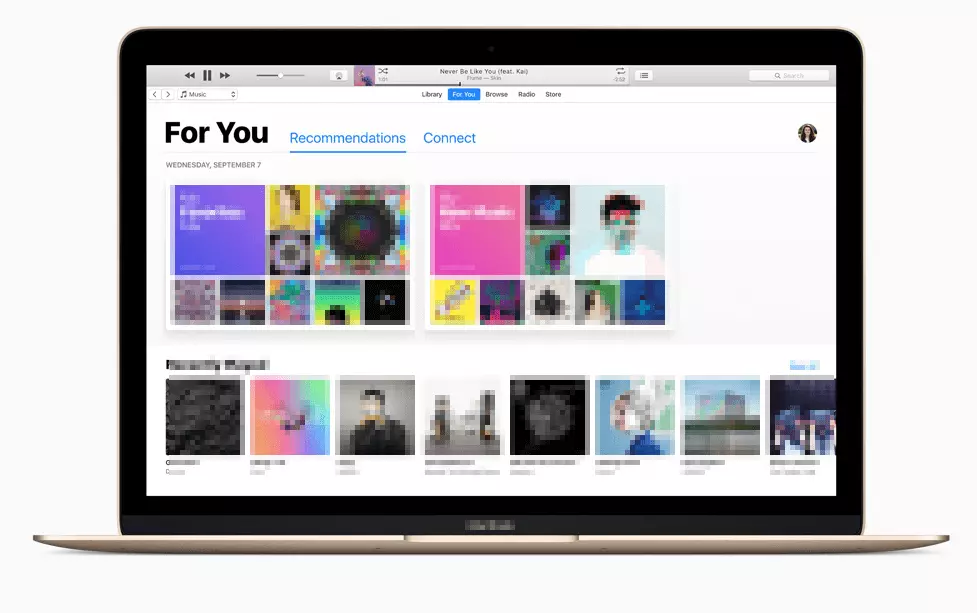
iTunes is Apple’s own program for media playback and management on macOS and iOS devices. Apple users often complain that it is difficult to transfer media files easily to iDevices. Although iTunes only supports a few formats, it is still a solid multimedia player, especially if you own an iPod, iPhone, or iPad. iTunes supports all video content that’s available in the iTunes Store. The program opens QuickTime and MPEG 4 movie files in MOV, MP4, and MV4 formats. You can also play video podcasts, iTunes digital copies, and rented movies from the iTunes Store.
 To display this video, third-party cookies are required. You can access and change your cookie settings here.
 Since it’s Apple software, you will not have any problems streaming your videos wirelessly via AirPlay. For example, you can transfer your media files wirelessly from your iOS device to your Smart TV. AirPlay-enabled output devices, such as AirPort Express and Apple TV, work with iTunes to provide you with access to your content throughout the home.
Apple is well ahead when it comes to usability, which is often a decisive factor. Unfortunately, Apple products (e.g. Apple TV) are costly and therefore each user must decide for themselves whether the user friendliness is worth the price.
| Advantages | Disadvantages |
|---|---|
| Optimal support from Apple devices | Supports relatively few audio/video formats |
| Modern design | Requires lots of memory |
Kodi (Windows, Android, macOS, iOS, Linux, Raspberry Pi)
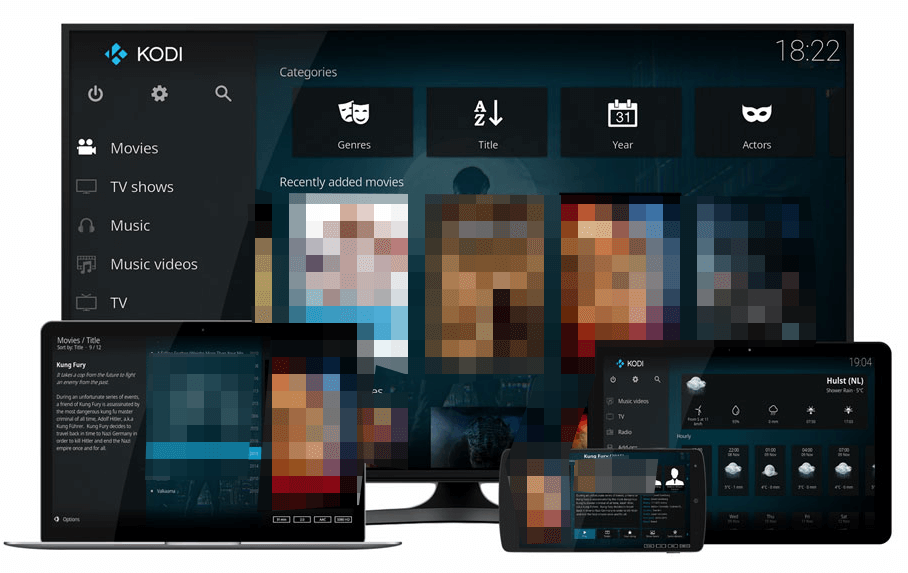
The open source multimedia suite, Kodi (formerly known as XBMC Media Center) offers far more than just a simple media player. The free media center makes it easier to organize your videos, music, and photos thanks to the practical interface. The whole concept is clearly based on Apple TV, but without the price tag. Another plus is that Kodi users can customize the interface according to their tastes. The media center automatically detects all media files that you want to play. It doesn’t differentiate between files on a hard disk, DVD, Blu-ray, or server – Kodi will find them even if they’re in the most remote places on your computer or network. In addition to the physically-stored files, you can also store internet streams in the media center. Publicly-owned streams can also be integrated using Kodi. The program is designed to be a universal media center, which is best used via Smart TV and with a remote control. The idea is to use it in the living room rather than on your desk, since Kodi is perfect for watching video clips on your TV set. The range of functions is considerably larger compared to other programs such as VLC. So if you only occasionally watch videos in compressed formats on your computer, you should instead opt for a more streamlined video player than this extensive media center.
However, if you want to manage your video collection and control the movie playback via remote control, there is practically no alternative to the free Kodi Media Center. An important advantage to the paid Apple TV is the versatility of the program. It is also possible to play compressed file formats, which isn’t possible with Apple’s own video service. The Kodi Media Center is easy to control with your Android or iOS devices.
The program is less suitable if you prefer to play individual clips, but for cinema fans, Kodi has everything you need.
| Advantages | Disadvantages |
|---|---|
| Free and open source | Quite complicated configuration and operation |
| Expandable through add-ons | Possible errors and incompatibilities when third-party add-ons are used |
| Interface customizable through skins |
RealPlayer (Windows, Android, macOS, iOS, Linux)
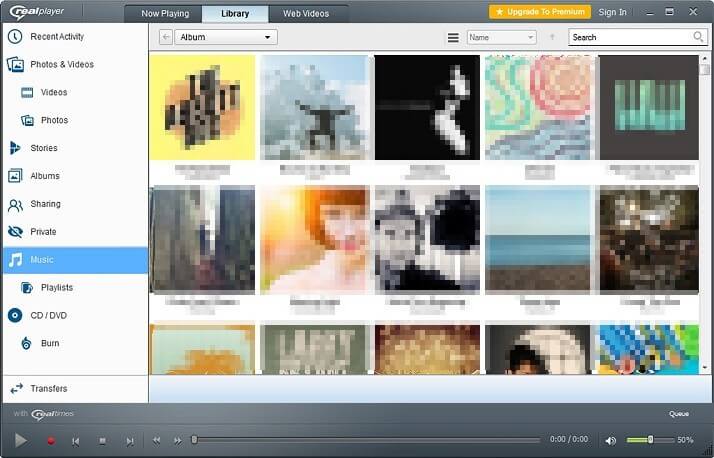
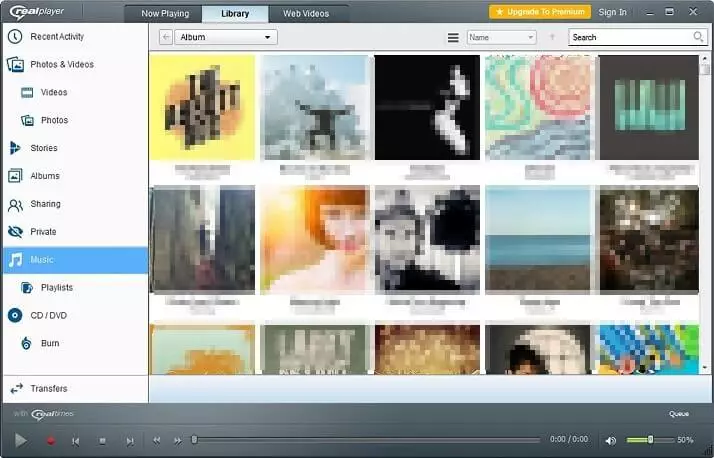
The first RealPlayer was released in 1995, making it a real classic among media players. The program has evolved into a versatile multimedia tool that supports a wide range of video formats – including RealAudio and RealVideo formats. The RealPlayer supports the most common formats including MP3, MPEG, WMV, and Flash Video (FLV). RealPlayer can also play the popular MKV format with the help of an add-on. If you define the RealPlayer as the central playback program for your media files, you can easily create playlists, copy videos from websites, or burn CDs, DVDs, and stream videos. The RealPlayer is one of the most versatile programs among the VLC alternatives. Current versions of the RealPlayer have improved mobile device support, which is how you transfer your music and videos easily from your smartphone to the PC and vice versa. The RealPlayer supports Chromecast, Google’s streaming dongle. This means, for example, that you can connect your smartphone to your TV via HDMI and watch your favorite series using the RealPlayer app (on iOS or Android).
| Advantages | Disadvantages |
|---|---|
| Supports all popular formats | Extremely limited without premium upgrade |
| Integrated burning software | Outdated design |
| Connecting to Chromecast is possible | Requires registration |
RealTimes – the RealPlayer cloud (Windows, Android, macOS, iOS)
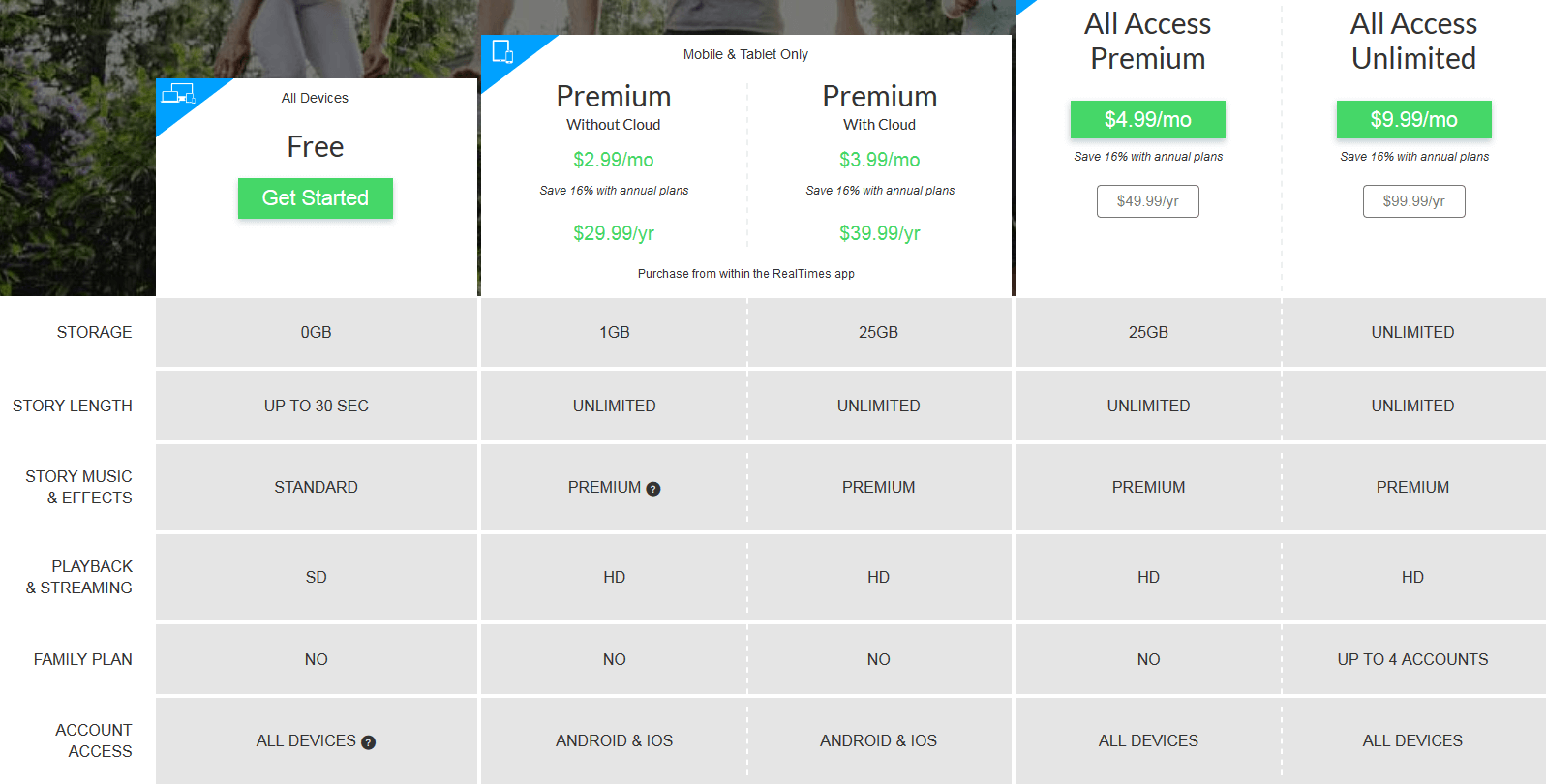
The RealPlayer cloud option, RealTimes is an extension for RealPlayer that enables you to enjoy your media library wirelessly. Instead of retrieving your videos and audio files from your desktop PC’s hard drive, you can use this tool to upload your media files to a cloud. They can then be played on numerous devices. With the RealTimes playback function, you can watch your movies on HDTV or on a large monitor. The tool also supports Google Chromecast and Dropbox. For a small monthly amount, you receive 25GB of storage available in the cloud. The Cloud tool scores points with its simplified layout, which is great for beginners. Once set up, the video uploads and synchronization run in the background. This means you aren’t disturbed by the technical procedures so you can concentrate fully on watching the movie. With RealTimes it is also possible to create collages of your images and videos in a story format and then share them with others. In a nutshell: Given its wide range of support for various devices and platforms, the RealTimes cloud is a VLC alternative, which comes in handy for many users. The basic service is free of charge, but there are also several premium editions with more storage and more features to choose from.
| Advantages | Disadvantages |
|---|---|
| Features for image/video collages and timelines | Distracting advertisements |
| Can easily be connected to Chromecast and Dropbox | Requires registration |
| Gives RealPlayer a more modern design | Additional software must be deselected during installation |
MPC-HC (Windows)
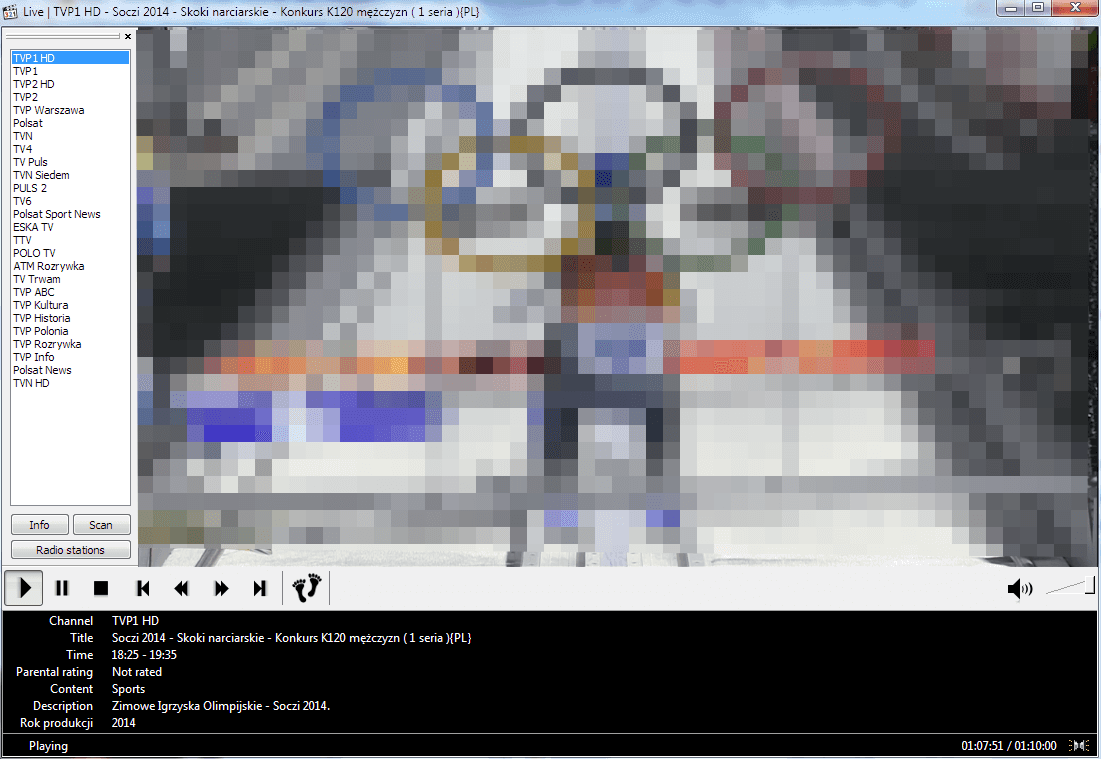
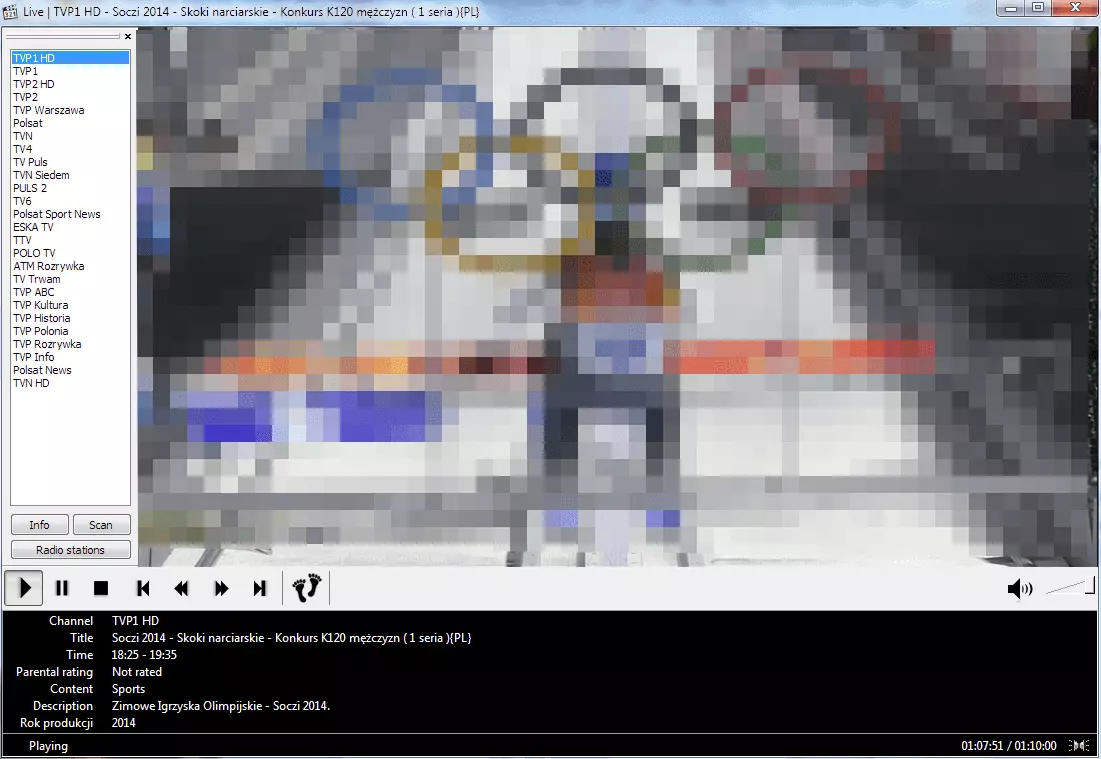
Media Player Classic - Home Cinema (or MPC-HC for short) is another high-quality alternative to VLC. The program from the Gabest company is a combination of a universal media center and minimalist media player. Even though the user interface looks simple, it possesses many features of a new generation media program, including DVB playback. MPC-HC provides native support for Matroska, VCD, DVD playback, and built-in codecs that enable you to play media files from mobile devices (3GP, AC3, DTS audio etc.), without having to convert them beforehand. An additional factor that speaks in favor of MPC-HC is the large selection of extensions and plugins. The main advantages of the extensive program is, however, its minimal system requirements. The tool runs on almost every Windows PC. MPC-HC is the perfect choice if you are looking for a minimalist media player with many features to use as a home cinema, which works just as well on older computers.
| Advantages | Disadvantages |
|---|---|
| Free and open source | Design not customizable |
| Requires few resources | Poor bug report |
| Equipped with codecs for all important sound and video formats | Only available for Windows |
Movist (macOS, iOS)
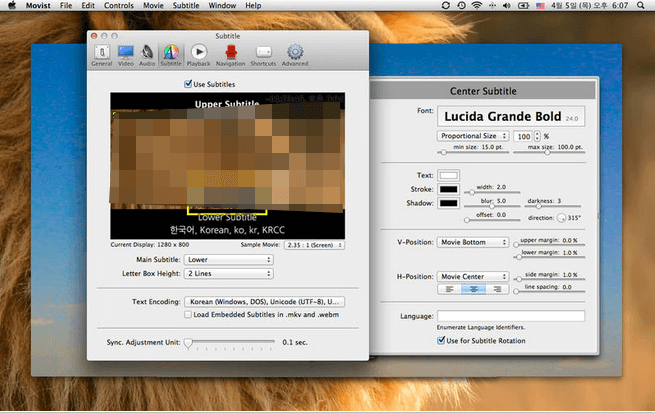
The Movist Player was launched by a developer of the same name, who hoped the program’s individuality and functionality would win users over. Currently the program is only available for macOS and iOS, but an Android version is being planned. Movist has learned from VLC when it comes to easy playback of all file types. The player manages, for example, to play a video in WMV format, which is often quite a problematic format. With Movist, you can easily manage your existing video library and create your own playlists. The individual design immediately catches your eye, and the positioning of the menu can be adapted to your own preferences. The player integrates subtitles in the most common formats and allows users to edit them. For example, you can change the font of the text you want to use. If you’re into visual effects, you’ll be pleased with the features that the Movist player offers. For example, a motion blur effect in real time can be applied to the video that’s being shown, or the clip currently being played can be made to be the desktop background video. In order to simplify Movist’s usability, the following settings are recommended: in the options menu under 'Preferences' > 'Advanced' > 'Security', you should select all folders in which your video files are placed. This will skip the warning that is displayed before each video, due to macOS’s sandbox function. Movist offers a similar range of features to VLC, which makes the design more impressive than the Spartan approach seen by the top dogs among the media players. If you want to install the player, you will have to pay around five dollars in the App Store. Since there are many good media players that can be used on Apple devices for free, this price is perhaps a bit too much for some users. Movist has a unique design that is highly customizable. The large number of settings and the wide file support are also plus points for the player. If you are willing to invest a bit of money, you can’t go wrong with Movist.
| Advantages | Disadvantages |
|---|---|
| Supports various subtitle formats | Only available for Apple devices |
| Various playback functions | Inadequate user support |
Miro (Windows, macOS, Linux)
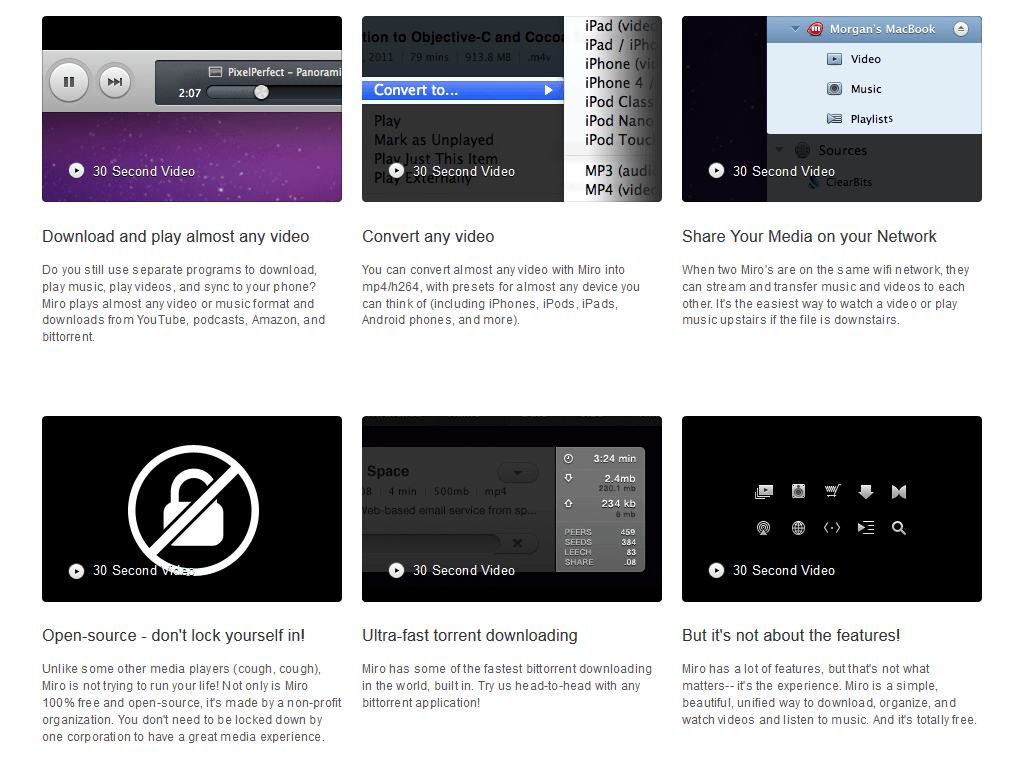
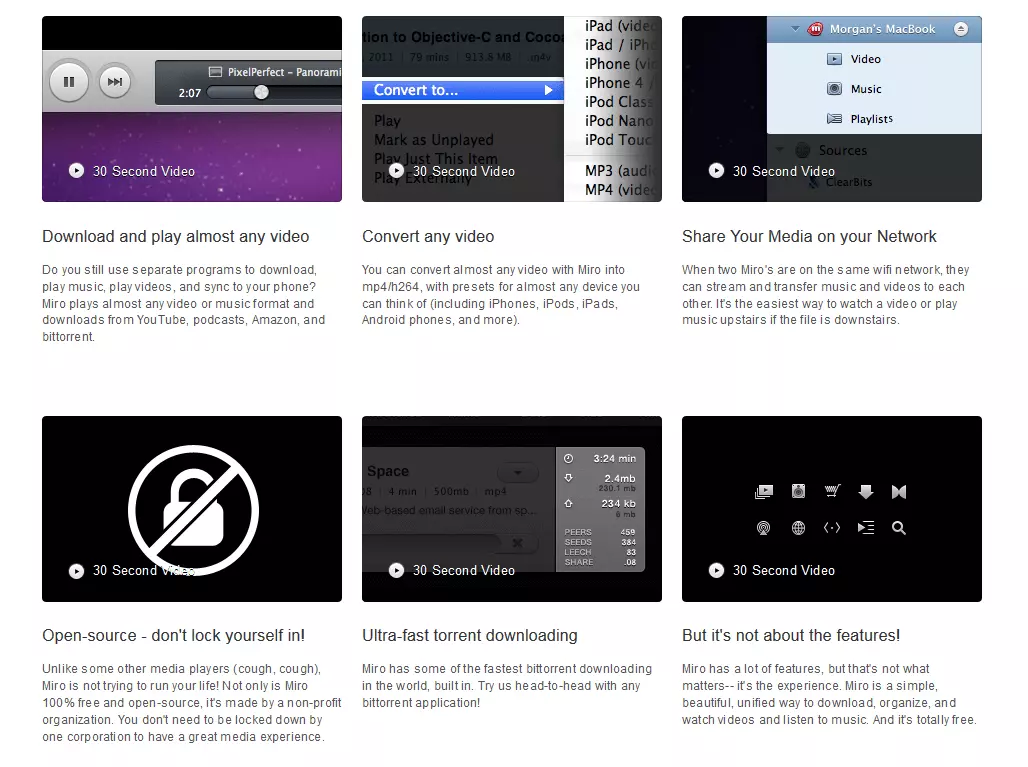
Miro is a popular media player from the organization, Participatory Culture Foundation, and was designed as an iTunes competitor. The free open-source media library offers some advantages over iTunes and VLC. But is it worth choosing this option over them? Miro is not available in the App Store, which means you have to download the DMG file for Mac directly from the manufacturer’s website. The program is quite streamlined with its 40MB size (half the size of iTunes). Miro is available in various languages, but not all of them are fully translated. Importing iTunes media and other media files is usually quite easy. However, the import process takes a while, especially if you have a large library. What you immediately notice is the program’s well-designed user interface. It was designed by the well-known designer Morgan Allan Knutson, who obviously invested a lot of time and effort into it. The interface’s usability unfortunately suffers slightly, due to the sophisticated aesthetics. Miro isn’t trying to be an iTunes clone, and it’s safe to say that some elements of iTunes are missing e.g. the control options are placed at the bottom, which many users may find unusual. Miro plays your music without any problems, although one disadvantage is the lack of viewing options. Either the player shows your music in a complete list with the details of each song or in a useless window in which you can see each song individually along with its artwork and a few details, but where only four songs fit at once. What’s missing is the option of viewing thumbnails of albums like in iTunes. When it comes to videos, however, you quickly notice how ambitious Miro is. The program can play most common formats, but if you do encounter an incompatible format, the built-in video converter feature will help you.
| Advantages | Disadvantages |
|---|---|
| Free and open source | Further development ceased |
| Import of iTunes music library is possible | Unreasonably high system utilization |
Unfortunately, the tool doesn’t support any external remote control functions. Apple’s remote feature could help, but this option isn’t available with Miro. In terms of online functionality, however, Miro iTunes is clearly ahead. The program has a built-in torrent client and links to sites with legal streams like YouTorrent and ClearBits. However, you can add any torrent source you want to use.
Miro also has a built-in browser feature that essentially acts as a site-specific browser for sites like YouTube, Hulu, and PBS. The only problem is that there is no address bar, so if you find something interesting and want to send someone the link, you first have to open the link in the browser.
While iTunes provides access to the popular iTunes Store and the App Store, Miro provides integrated support for Amazon’s MP3 store, Amazon Android store, and Google Play store. Overall, the media player scores points with it aesthetic advantages and excellent online functionality. However, if it also supported Apple remote, this would be the icing on the cake.
DivX Player (Windows, Android, macOS, iOS)
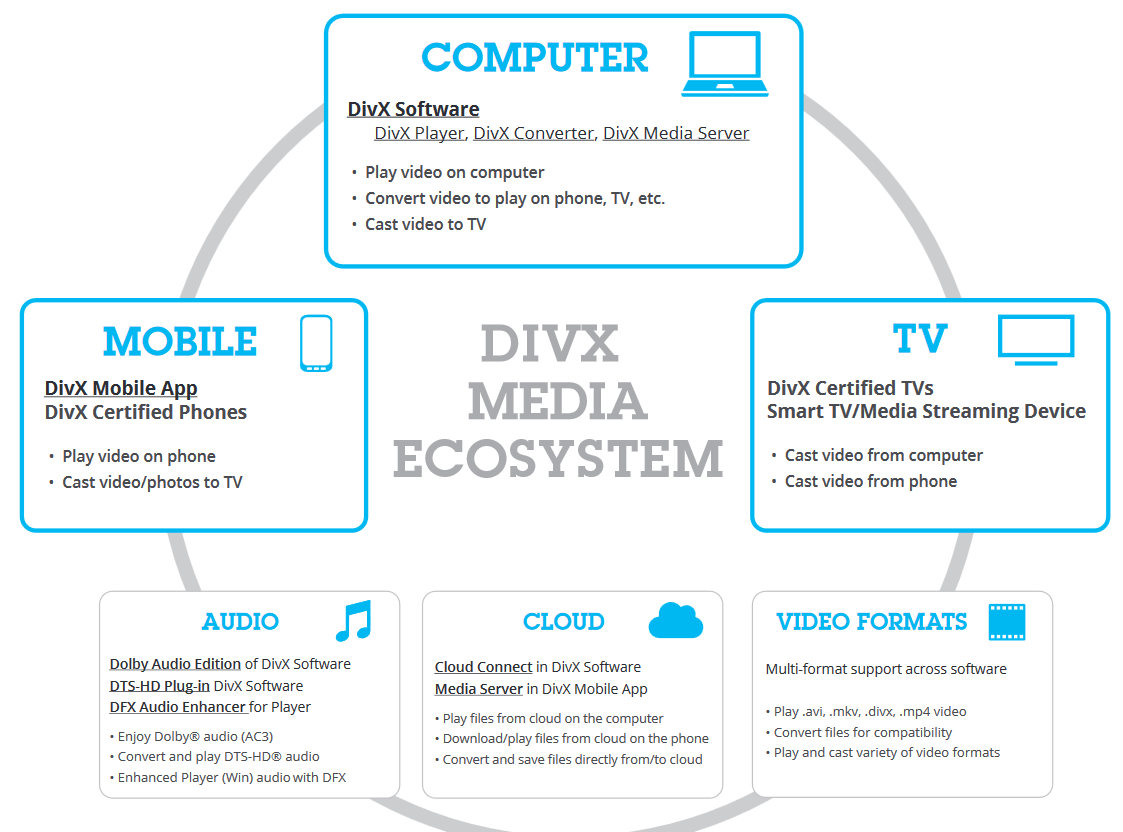
The DivX Player is a well-known media player, which not only plays media files, but also has many other impressive features. It can, for example, stream videos on DLNA-compliant devices. In addition to a simple media player for desktop computers and mobile devices, DivX also provides a handy converter and a media server with cloud support. If you are looking for a VLC alternative because you aren’t satisfied with the performance of your previous player when it comes to high-resolution videos, you should consider the DivX Player. The DivX Player can provide full support for 4K Ultra-HD videos thanks to its HEVC-compatible playback. DivX’s media playback section has even more to offer. With the convenient search function, you can quickly browse through the chapters of your favorite movies and enjoy your favorite scenes again and again. You can use the media library to organize your media content so you can always have the right film or clip at hand. The player also offers advanced audio features, as well as resume play. If you want to watch high-resolution 4K videos, DivX Player should be in your shortlist.
 Rawpixel.comShutterstock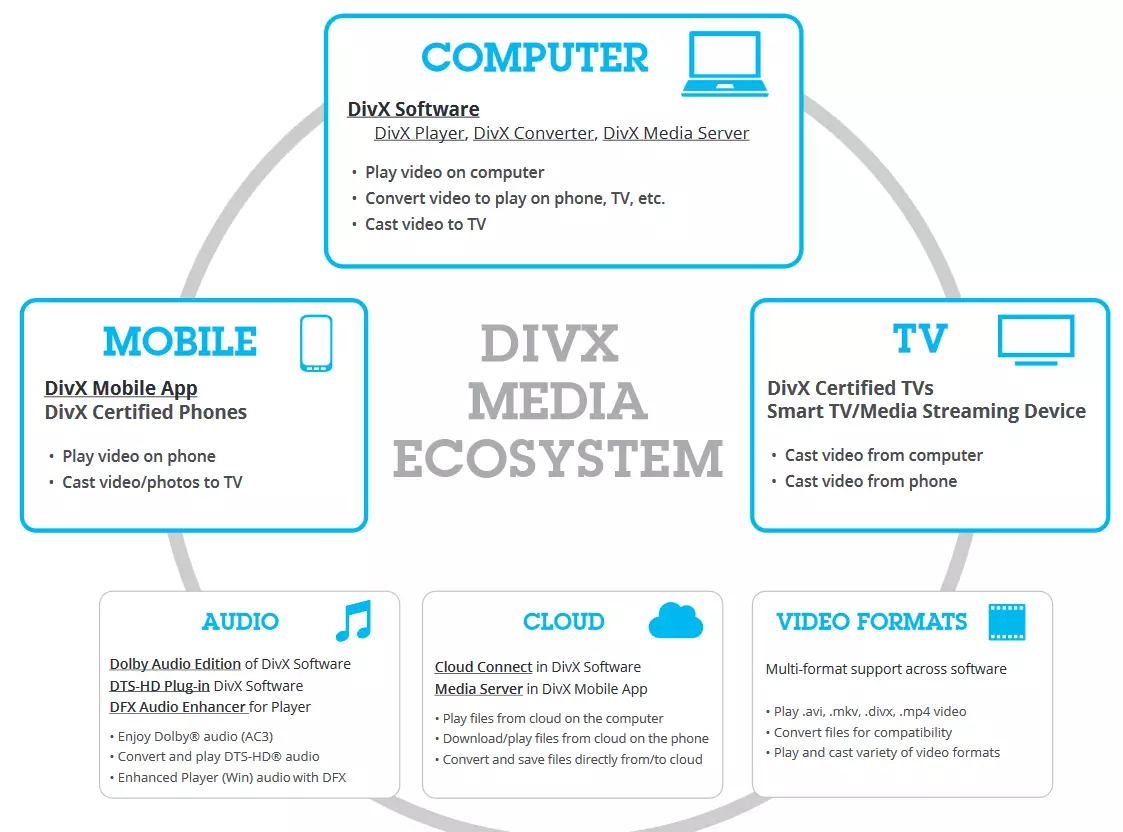
| Advantages | Disadvantages |
|---|---|
| Connecting to Dropbox and Google Drive is possible | Doesn’t support many formats |
| Excellent video quality with high-resolution videos | Newer installation packages often end up infected with malware |
5KPlayer (Windows, macOS)
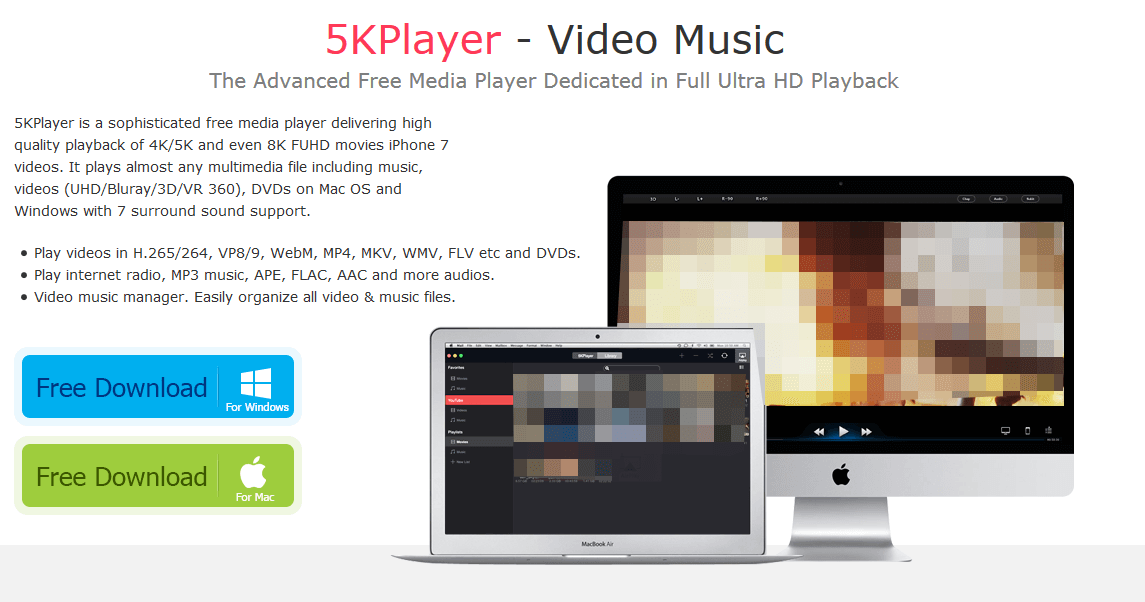
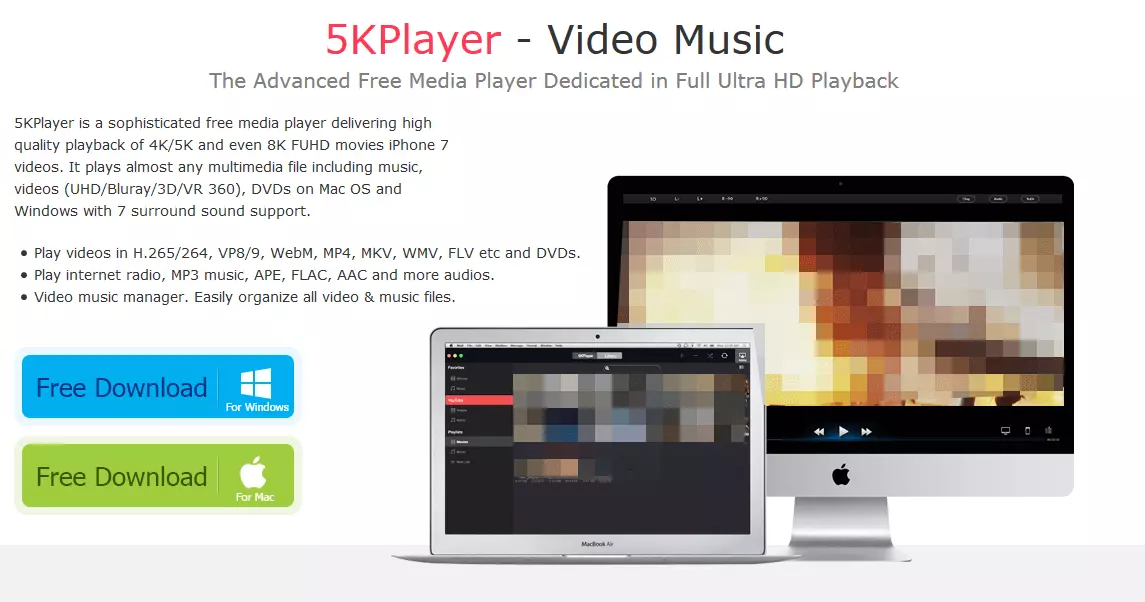
The 5KPlayer was developed by DearMob Inc. The program offers an intuitive user interface and enables smooth playback of UHD videos. In addition, the player features a versatile media file playback, fast video downloads, AirPlay streaming, and convenient data management features. The icons for video, music, DVD, radio, YouTube, and AirPlay appear on the user interface as soon as you start the 5KPlayer. On the homepage, you will find the respective library that you can use to manage your media files via the 5KPlayer. The design of the program works best with Windows 10. The 5KPlayer can open all common video and audio formats without having to rely on other codecs. Since the player was especially developed to play 4K videos, SD, HD, 1080p, and 4K UHD videos run well, especially on Windows 10. The 5KPlayer is also a region-free DVD player and satellite radio player. By right-clicking, you’ll open up a practical menu in which you can make changes to video, audio, subtitles, and more during playback. Likewise, you can open new files, check the last played files, change visual settings, and edit subtitles.
 To display this video, third-party cookies are required. You can access and change your cookie settings here.
 If you want to expand your media library, you can simply download online videos from more than 300 video hosting sites such as YouTube, Daily Motion, or Metacafe (also in 4K). The Airplay feature lets you stream videos or music through your mobile device. In the 5KPlayer library, your media files are arranged according to favorites, YouTube, and playlists. To add new files, simply click the plus sign.
In addition, the 5KPlayer can convert any video to AAC/MP3 files and extract audio tracks from videos. Various game modes such as single, order, circulation, and random, which you can change in the library, ensure a high degree of user comfort. Overall, 5KPlayer is the best choice for Windows 10 users who want to play high-definition videos and movies.
| Advantages | Disadvantages |
|---|---|
| Supports all common formats | Forces a standard player status for all videos and music files |
| Integrated video downloader | Collects user data without consent |
| Airplay function enables streaming via mobile devices |
MediaMonkey (Windows, Android)
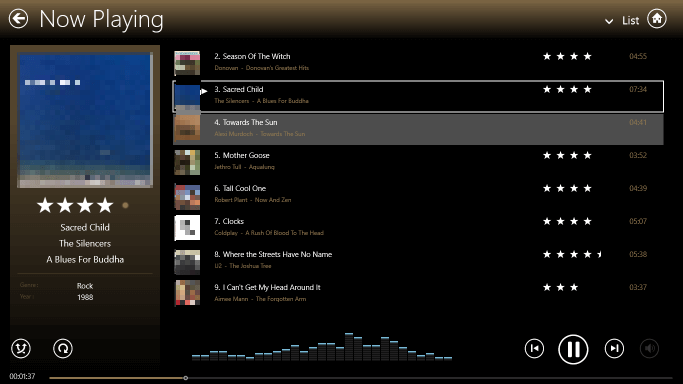
MediaMonkey from Ventis Media Inc. is primarily a music management software for Windows, which is aimed at the needs of music enthusiasts. It’s also possible to play videos with this tool. The program’s user interface is similar to that of iTunes, but it offers the significant advantage that you can move and rearrange all panels. You can even place your music directory on the right side of the screen if you wish. In addition, the appearance of your playlist is customizable. Thanks to various skins, you can design the entire look of the user interface to your liking. With MediaMonkey, you can quickly organize your files according to different metadata. Simply arrange your library by artist, title, album, genre, or rating. To add music or videos to your library, choose an area of your computer where MediaMonkey should search for files. The software synchronizes the library with your devices, similar to iTunes. MediaMonkey is able to automatically assign multiple songs to the same album, instead of editing each track individually. The software even checks upper and lower case during this batch processing. MediaMonkey enables you to set the track volume globally so that the program plays your files at the same volume. If you have songs in your collection that do not have any tag information, MediaMonkey automatically scans the web for metadata like artist, album, cover art, and more. Playlists sync automatically and are available on all connected devices. You can burn your created playlists onto CDs, DVDs, and Blu-ray discs. With the auto DJ function, you can determine how many songs or videos are in the 'Now Playing' list. The party mode is another practical feature where you can choose which tracks you want to play from your current music or video selection. MediaMonkey also connects you to all internet radio sites for when you want to listen to your favorite podcasts. The tool also provides an option for hiding tracks and videos if you are embarrassed by part of your collection. If a file format is not playable, plugins and codec packs are available. In addition, you can use script extensions to increase the program’s functionality. MediaMonkey is quick and easy to get acquainted to, the user interface is easy to customize, and includes some very useful options for optimal media collection management. The program is not quite ideal for playing high-resolution videos, but is highly recommended for music lovers.
 GajusShutterstock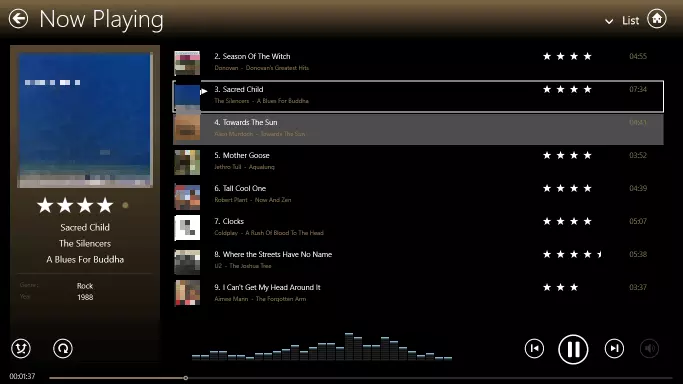
| Advantages | Disadvantages |
|---|---|
| Various modes such as auto DJ and party mode | Only available for Windows and Android |
| Expandable via plugins and extensions | Video playback with upgrade |
| Adaptable design |
Comparison of all VLC alternatives with file management
| Developer | Platform | Open source | Cost | |
|---|---|---|---|---|
| iTunes | Apple | macOS, iOS, Windows | no | free |
| Kodi | XBMC/Kodi Foundation | Windows, Android, Linux, macOS, iOS, Raspberry Pi | yes | free |
| RealPlayer | RealNetworks | Windows, Android, Linux, macOS, iOS | no | free basic version |
| RealTimes | RealNetworks | Windows, Android, Linux, macOS, iOS | no | free basic version |
| MPC-HC | MPC-HC Team | Windows | yes | free |
| Movist | LINITIX | macOs, iOS | no | around $5 |
| Miro | PCF | Windows, Linux, macOS | yes | free |
| DivX Player | NeuLion | Windows, Android, macOS, iOS | no | free basic version |
| 5KPlayer | DearMob | Windows, macOS | no | free |
| MediaMonkey | Ventis Media | Windows | no | free basic version |
Conclusion
The VLC Player is the first choice for many users because it is a universal tool for playing almost all media. The presented alternatives to VLC, however, offer specialized functions, which movie and music enthusiasts won’t want to miss out on.
For example, if you are looking for a streamlined player that doesn’t need a high-end computer, you will find that Winamp or BS.Player are more than enough. The KMPlayer and GOM Player offer impressive playback possibilities for high-resolution 3D videos, and the AnyMP4 Blu-ray Player is the right program for owners of a Blu-ray collection. Linux users will be more than happy with the open source SMPlayer program, and advanced users who want to edit their videos should take a look at the PotPlayer. For Mac users, the MPlayerX is probably the best choice.
Nowadays many use their media players as a central library for the entire domestic network. Many VLC alternatives are well suited for playing videos and music on desktop PCs, smart TVs, and mobile devices. If you put a lot of value on modern features, such as stories and cloud functions, RealTime is certainly an attractive option. The media center, Kodi, is a good substitute for Apple TV. Music lovers manage their collection best with MediaMonkey, while Movist and Miro will impress movie enthusiasts.
Some programs try to install third-party add-ons on your computer. These files are sometimes necessary for the free software to work properly. It is advisable to read the installation instructions and manually remove everything you don’t need from the installation menu.