

Rotate a pdf: the best tools available for free

The PDF format is the first choice for sending and sharing documents because the saved file will be displayed as intended, regardless of which operating system or device a recipient uses. That’s why it is recommended to convert other formats such as .docx or .odt to PDF before sharing. PDFs are also the most common file type when scanning a document. But what if a file is not displayed correctly or individual pages are misaligned? We’ll show you free options for rotating and saving a PDF.
- Write perfect emails with optional AI features
- Communicate professionalism and credibility
- Includes domain, forwarding, and security features
In what scenarios is the “rotate PDF” function helpful?
You may be familiar with the following situation: You’ve scanned a document but upon checking the final file, you notice that the page has been rotated by 180° – the document is now upside down. Should you repeat the scan? No! Instead, you can simply rotate the PDF file and save it. This saves time and you don’t need to scan the same pages again.
Flyers, brochures, or coupons typically vary in their alignment. For example, an imprint or customer reply slip is often aligned to the rest of the content. Varying alignment is also a feature of printouts that are to be folded. If parts of a document are upside down, it can be difficult to check a file’s contents. With a “rotate PDF page” function you can rotate the different sections so they’re easily readable on a computer.
How to rotate a PDF page with Adobe Acrobat Reader
Adobe Acrobat Reader DC, which is pre-installed on many computers, can be used to view PDF files. However, the application can do much more than that and also lets you rotate a PDF document. Using Acrobat Reader, you’ve usually got two options.
Option 1: Rotate the view of a PDF page
The first option is available in the free version of Adobe Acrobat Reader and lets you rotate the view of a PDF. The feature is somewhat limited because view rotation is only temporary. After you close and reopen the document, it will be oriented as it was originally. The print orientation also remains unchanged.
Rotating the view of a PDF file is useful when only certain sections of a file are cross aligned. Temporary rotation keeps the document unchanged. This makes it easier to read and check all its content. To rotate the view of a PDF document, select “Rotate View” from the View menu. Then you can click “Clockwise” or “Counterclockwise”. This will automatically rotate the entire document 90 degrees in the corresponding direction.
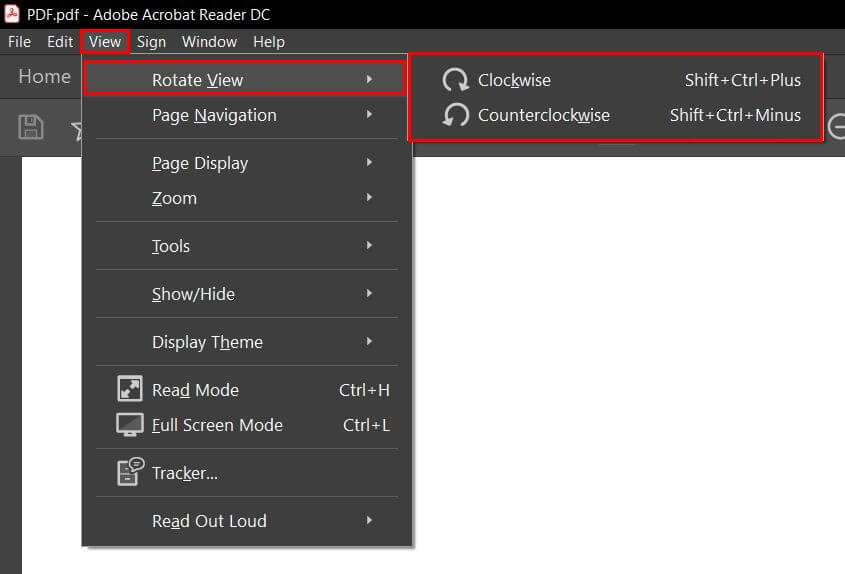
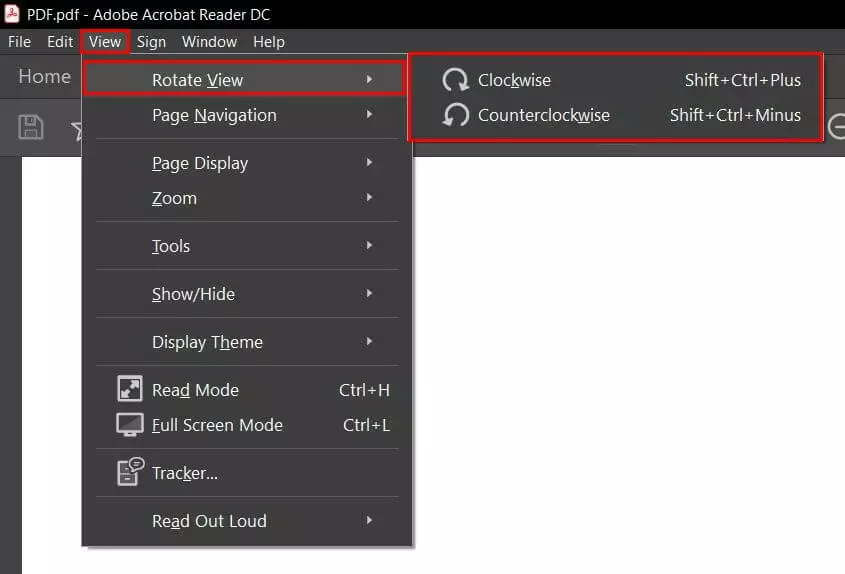
Use the Shift + Ctrl + 0 or 1 shortcuts to rotate the document 90 degrees in the desired direction.
Option 2: Rotate and save PDF file
To rotate and save a PDF, the paid version of Adobe Acrobat Reader is required. Go to the “Tools” in the “View” menu. Then select the “Organize Pages” and “Open” options to open the corresponding view.
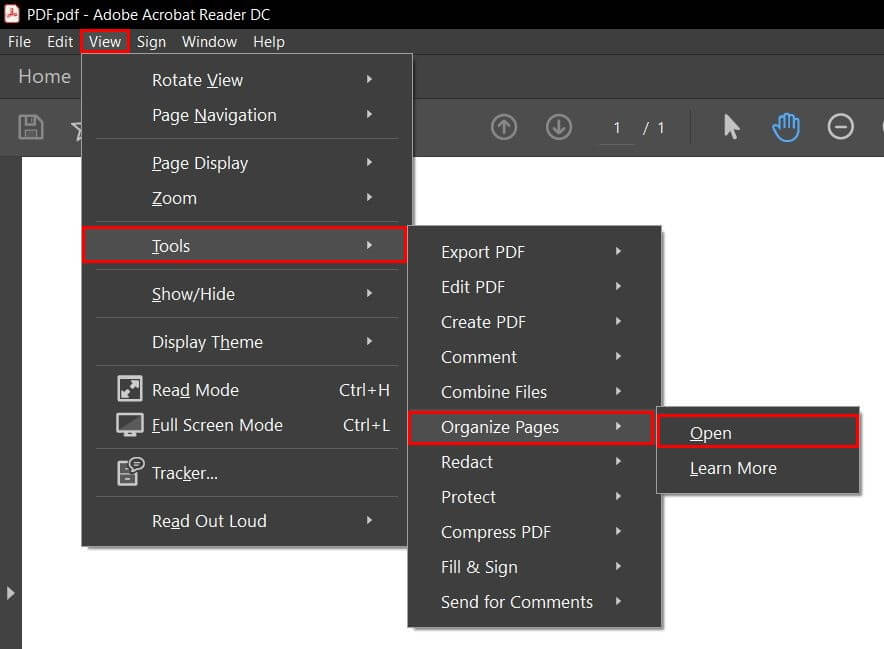
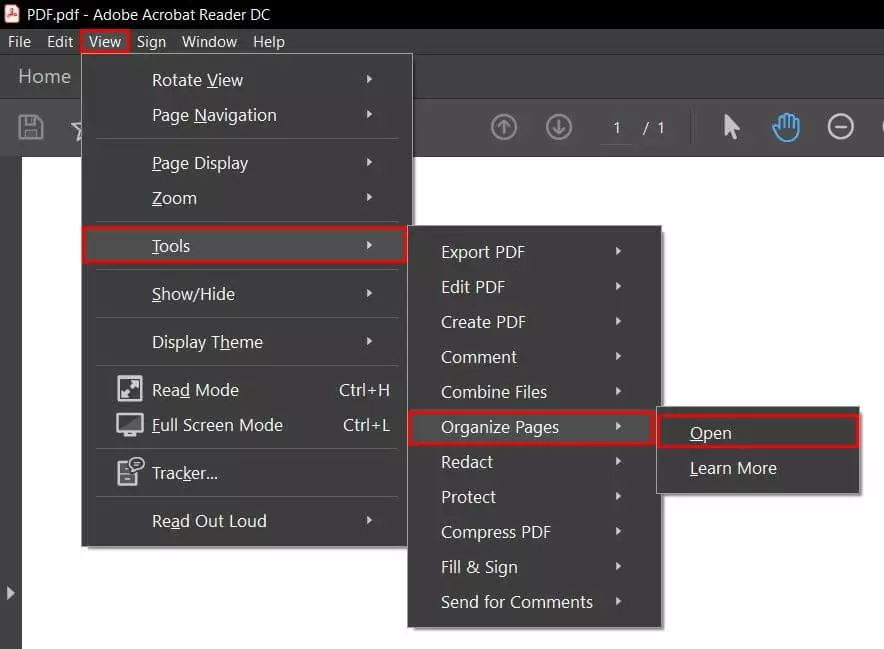
A new display window will open. First, enter the misaligned page numbers in the secondary toolbar in the page area. You can also select individual pages using the left mouse button. To select multiple pages, hold down the Ctrl or Shift key at the same time. When you have made your selection, click on the rotation icon. This is located right next to the page range indicator. To rotate only a single page of the PDF file, move the mouse over the page preview. Two rotation icons will appear. Select the appropriate icon to rotate the page 90 degrees clockwise or counterclockwise.
Free online tools to rotate a PDF
Don't have access to the paid Adobe Acrobat Reader? You can also rotate and save a PDF file using free online tools. Below, we’ll introduce some common examples. Most of these tools offer plenty of additional functions for editing a PDF. That’s why it’s worth taking a closer look at them, especially if you regularly work with the PDF format. Frequently used functions include shrinking a PDF or merging multiple PDF files.
SmallPDF: Rotate and save individual pages or entire PDF files
The versatile online tool SmallPDF can be used to rotate and save PDF files. The cloud application ensures safe handling of files by permanently deleting them an hour after editing. With SmallPDF, you can rotate the entire document or individual pages in just a few clicks. Afterwards, the modified PDF file can be downloaded and saved locally.
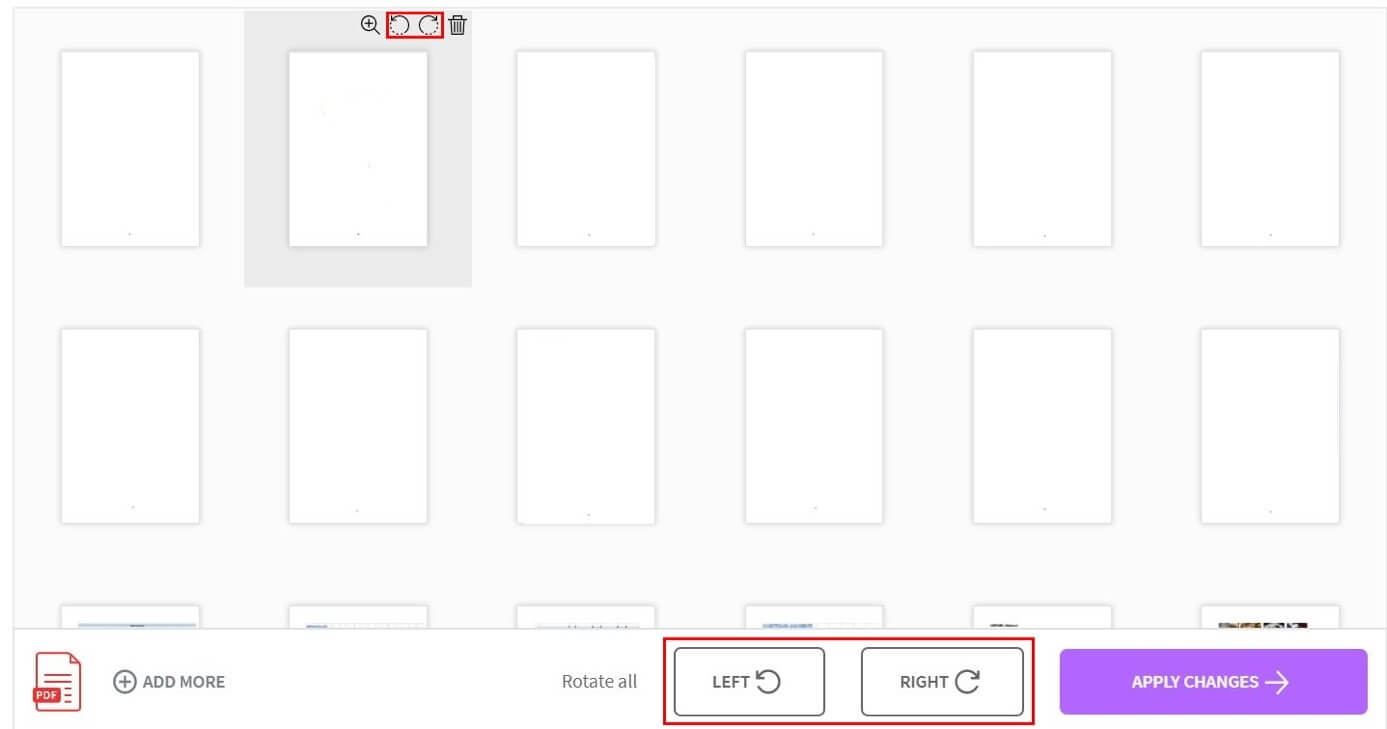
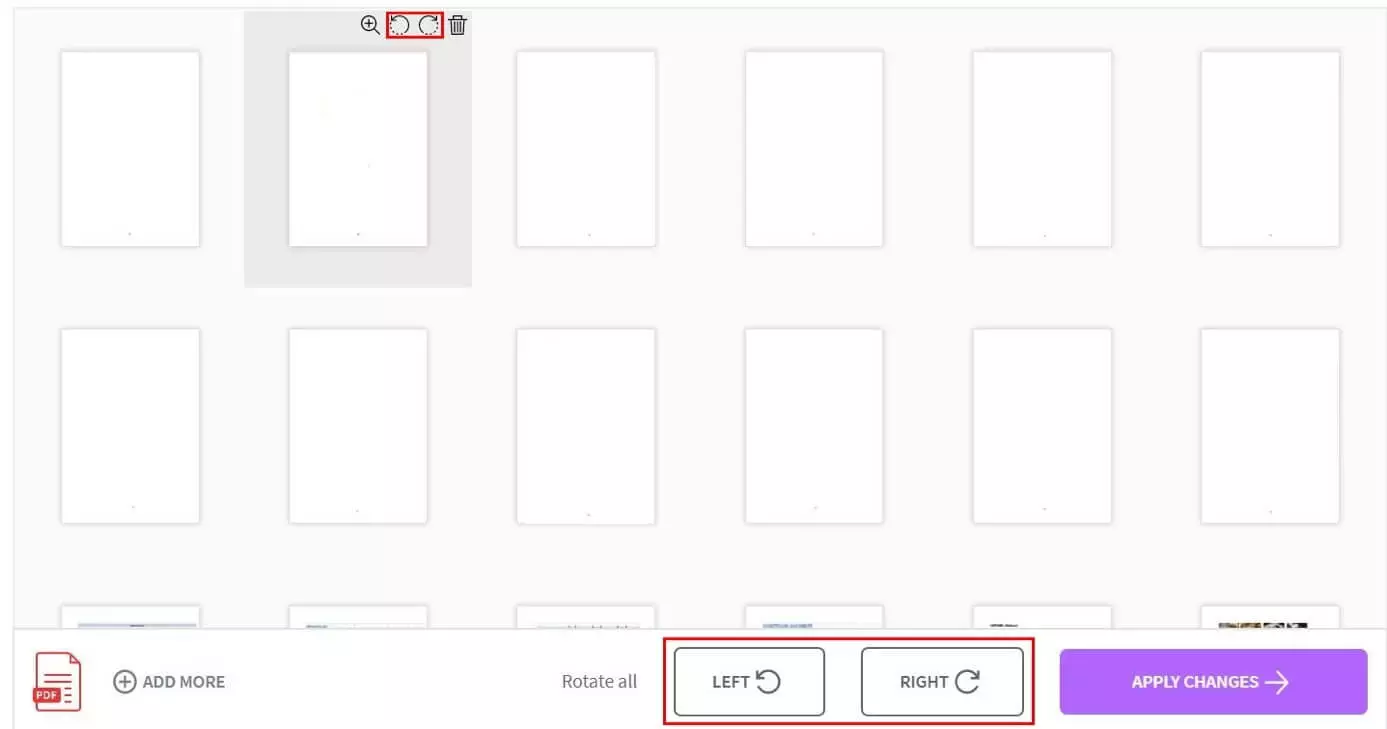
SmallPDF also lets you merge and rotate multiple PDF files in a single step.
PDF24: The most popular tool for PDF editing
PDF24 is available as a free online as well as offline application. The web solution PDF24 Tools offers a wide range of editing options and is a good alternative to the comprehensive SmallPDF tool. PDF24 deletes user data from the servers after a short time making it a secure web application.
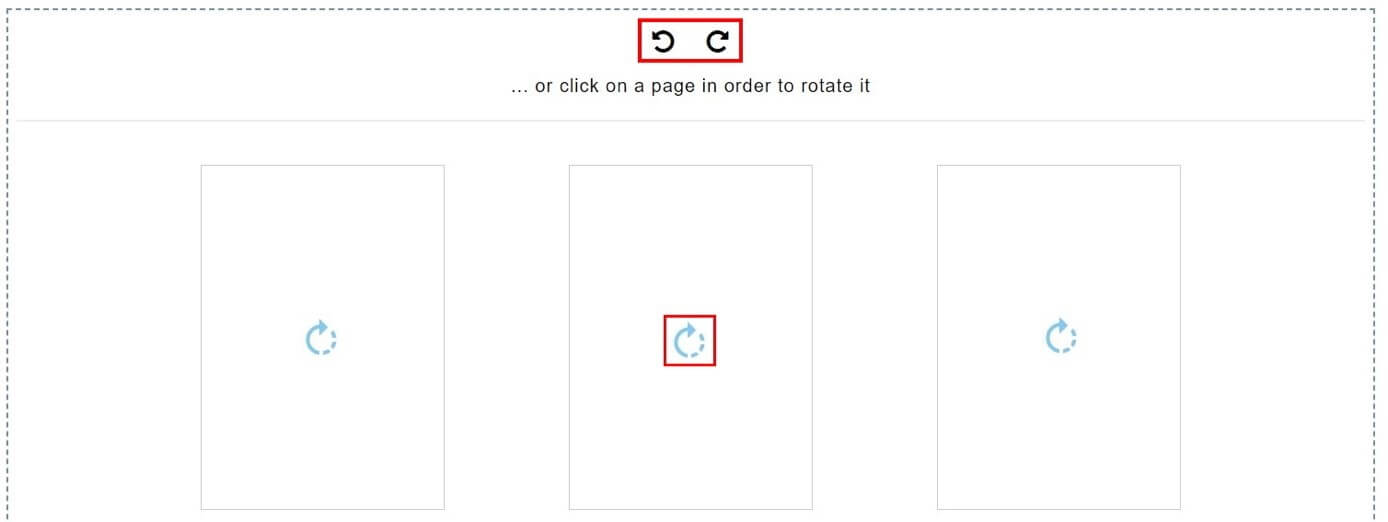
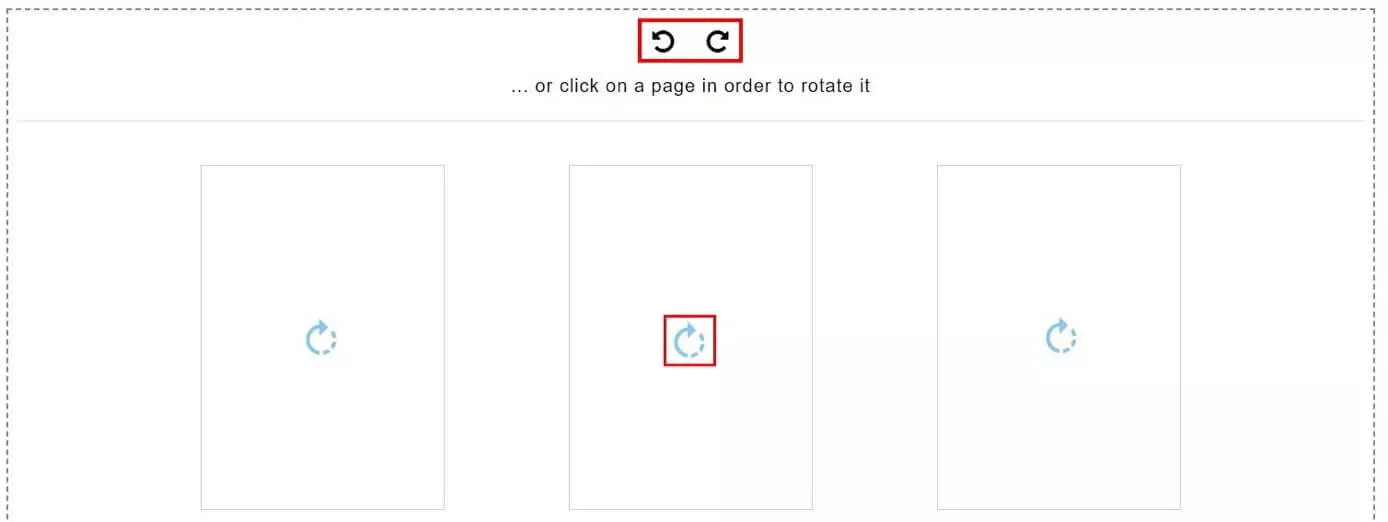
You can rotate and save the entire PDF in one click using the online tool. If required, you can also rotate individual pages. However, PDF24 has a slight weakness here because the tool is limited to one direction when rotating individual pages. Rotating several pages by 90 degrees counterclockwise requires a number of clicks. Apart from that, the web app is a powerful and free-to-use tool.
Other free online tools
There are many free tools to rotate a PDF document available online. PDF2Go or Online2PDF.com are just two alternative options that offer comprehensive functions. However, not all of them are quite as complex. Some providers limit functionality to rotating and saving the entire PDF file. If this scope is sufficient for your purposes, then a tool like RotatePDF is recommended.
Free offline tools to rotate a PDF
If you need the “rotate and save PDF” function regularly, it’s best to install a free offline tool. These usually offer an extended range of functions that are available permanently and don’t require an Internet connection. Another advantage of offline applications is the direct access to locally stored files.
PDF24: The most popular offline application
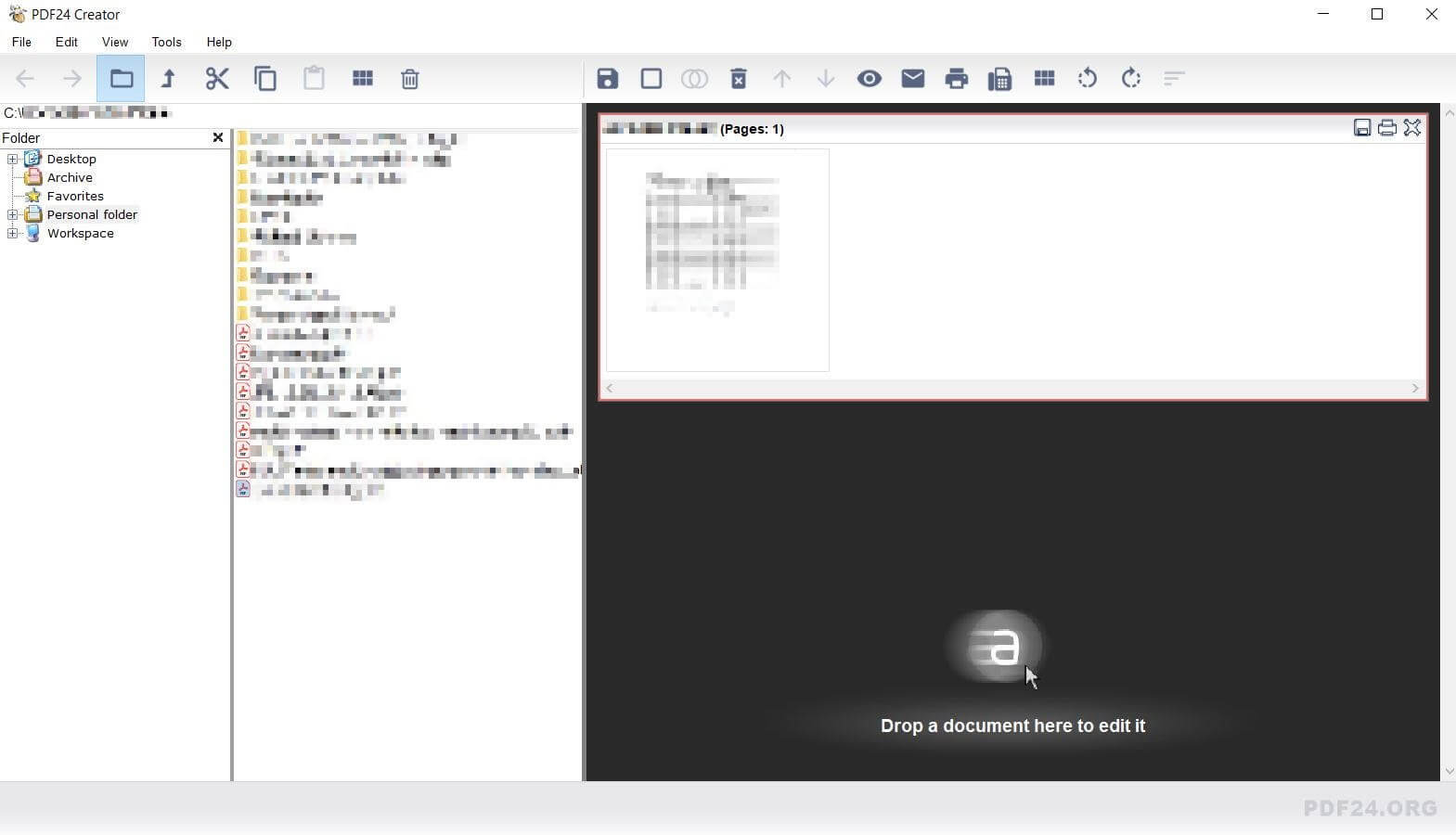
One of the most popular and most comprehensive offline applications is PDF24 Creator. As with its online equivalent, the tool can be used to merge PDFs, delete individual pages, or adjust their order. With just one click, you can rotate individual or all pages clockwise or counterclockwise 90 degrees. The software download package also boasts many different languages to select and activate in the settings.
Other free offline tools
The PDF Multitool offers similarly extensive functions as the PDF24 Creator. In addition, the program supports other output formats such as HTML, PNG, or TIFF. The Multitool only supports English.
Find out more about PDF XChange and Adobe Acrobat alternatives and their advantages and disadvantages in our dedicated guide on the topic.
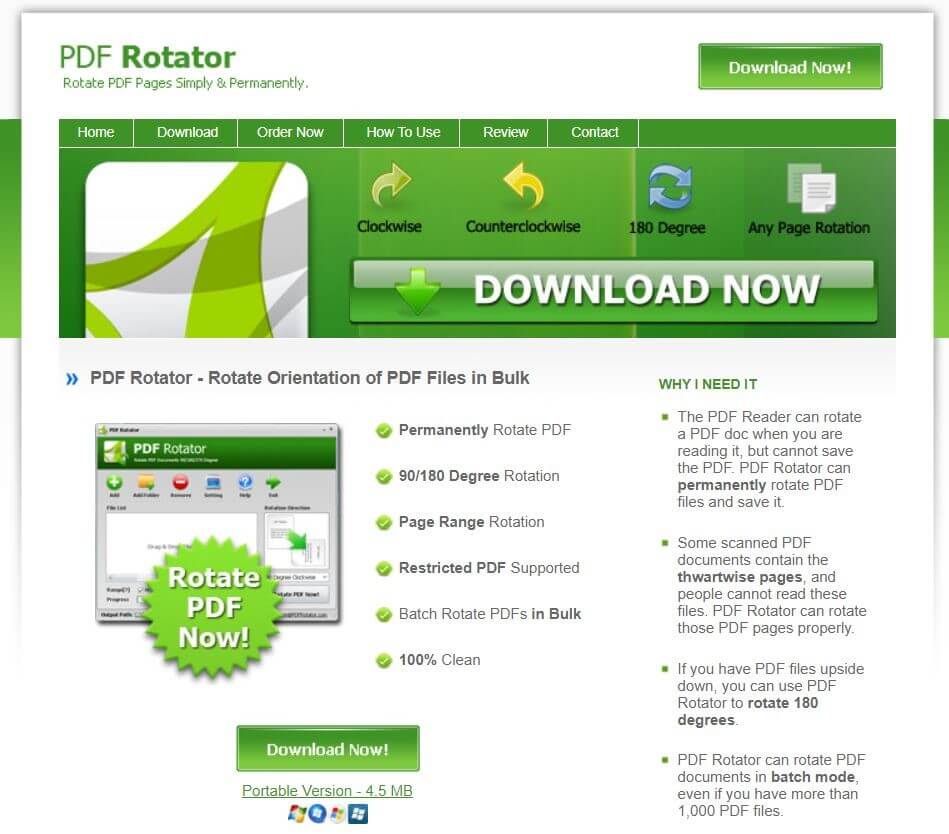
The PDF Rotator is – as the name suggests – specialized for rotating PDFs. The offline tool is a powerful option for realigning PDF files. With batch mode, the desktop application allows you to rotate up to 1,000 files at once.
The PDF format is a top choice for sharing your files. Its main advantages are that file sizes are small, and content is displayed consistently on all devices. But the file format offers plenty more functions that often go unused. One practical example of this is the creation of a fillable PDF form.
- Free Wildcard SSL for safer data transfers
- Free private registration for more privacy
- Free Domain Connect for easy DNS setup