

How to record a Zoom meeting step by step

A Zoom meeting can be recorded if the host enables recording either locally on their own device or in the Zoom Cloud. Participants are automatically notified when recording starts and must consent to being recorded.
How to record a Zoom meeting quick guide
- Only as the admin or host of a meeting can you record a Zoom meeting or grant permission to other participants to record.
- To start recording, click “Record” in the menu bar at the bottom of the meeting window.
- You can also pause or stop the recording using the menu bar controls.
- When you stop recording, the file is automatically saved as an MP4 video locally on your PC (or in the cloud with paid Zoom plans). The local folder opens automatically after saving.
To grant other participants permission to record, follow these steps:
- In the meeting, go to “Participants” in the bottom menu.
- Select the participant and click “More”.
- Choose “Allow Record” to grant them permission.
Benefits of recording a Zoom meeting
Along with Zoom alternatives like Google Meet or Microsoft Teams, Zoom has transformed modern communication. International conferences, meetings, and seminars are increasingly moving online. Even webinars, virtual talks (e.g., from universities or companies), and art events now take place naturally on Zoom. News agencies frequently use video conferencing software for interviews.
However, not everyone can attend every online event, meeting, or lecture live. To make key content from video conferences accessible later, Zoom allows you to record and save meetings. Recordings can be saved locally with the free Zoom plan or stored in the cloud with paid plans offering more storage.
How to record a Zoom meeting step by step
Follow these steps to start and save a Zoom recording. Note that Zoom offers two recording options:
- Local recording with the free Zoom Basic plan
- Cloud recording for paid Zoom subscribers
Here’s how both options work.
Only the host or meeting admin can record Zoom meetings. If participants want to join a Zoom meeting and start a recording, they must get permission from the host.
Recording a Zoom meeting locally (Zoom Basic version)
Step 1: Sign in to the Zoom desktop app and set up a Zoom meeting.
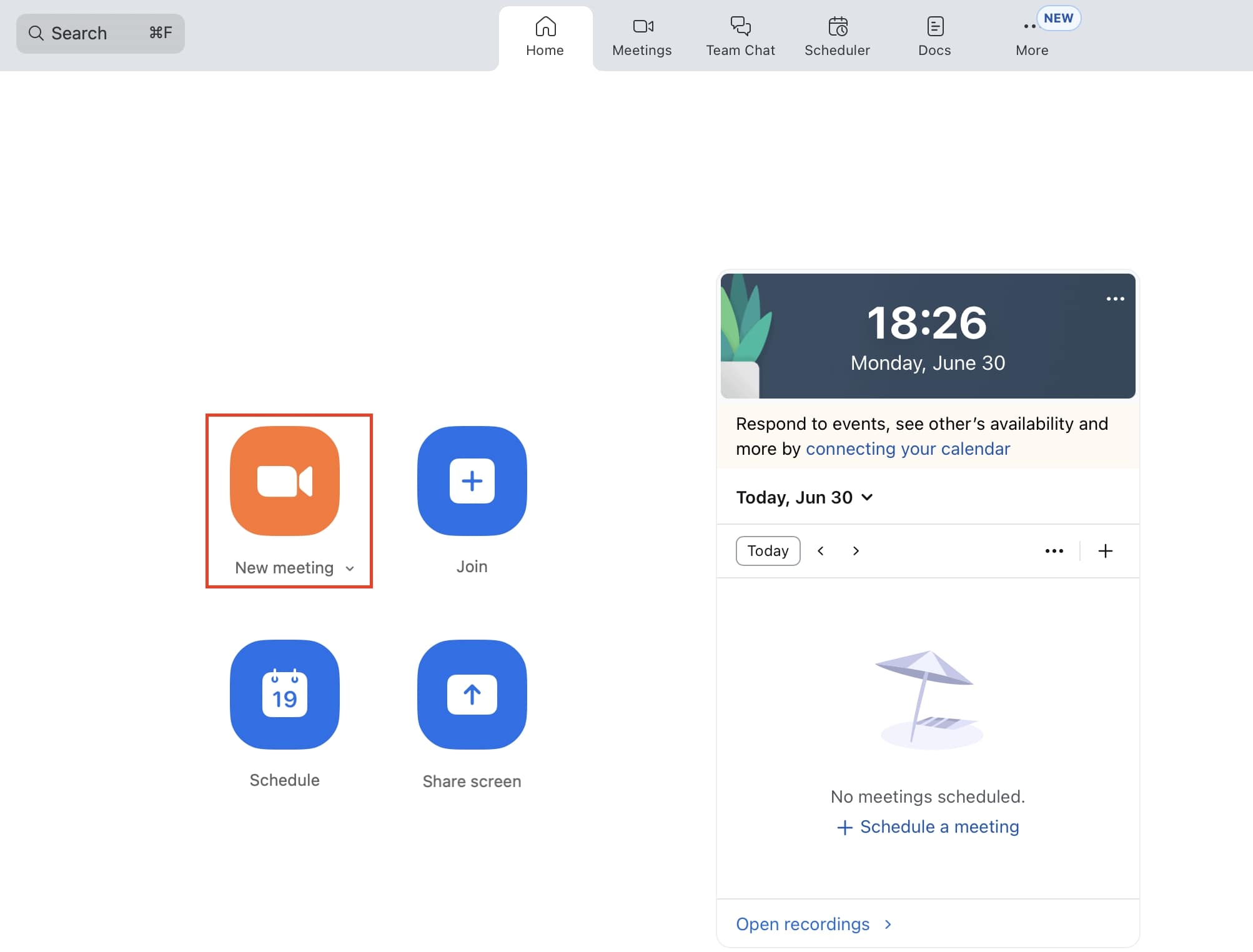
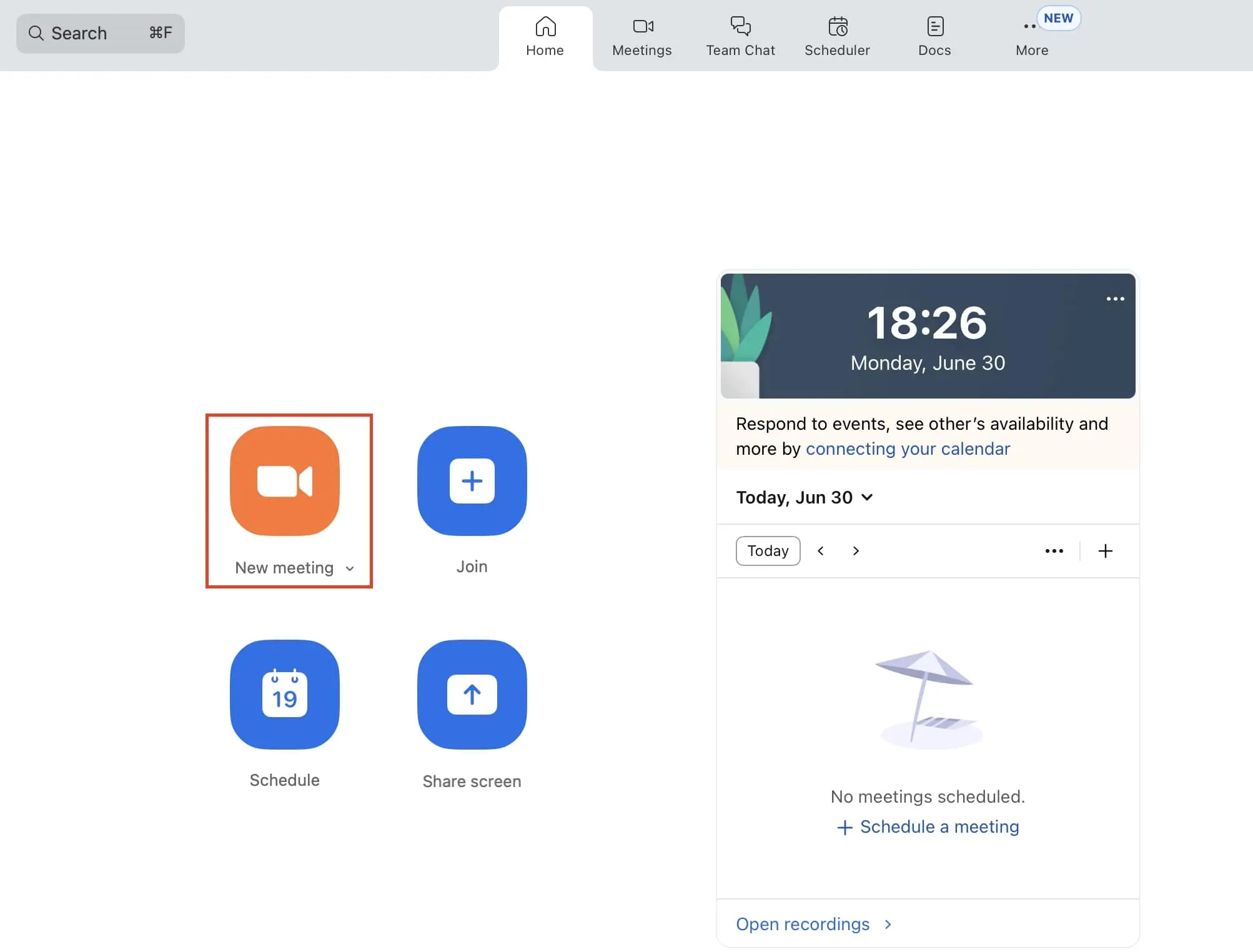
Step 2: Once in the meeting, start recording by clicking “Record” in the menu bar at the bottom. If you don’t see the button, check under the “More” menu.


Step 3: If your computer audio is disabled, Zoom may warn you that the recording will be without sound. To record audio, grant Zoom permission.
Step 4: During recording, the menu bar displays options to pause or stop the recording.


Step 5: After stopping the recording, Zoom temporarily stores it. When the meeting ends, Zoom automatically converts the recording to MP4 video format.
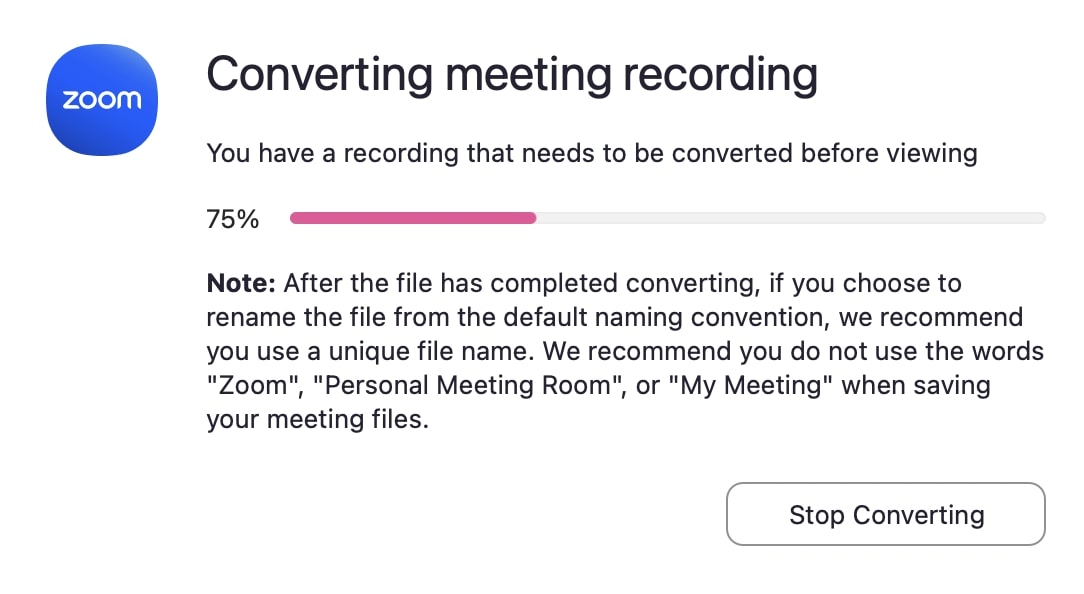
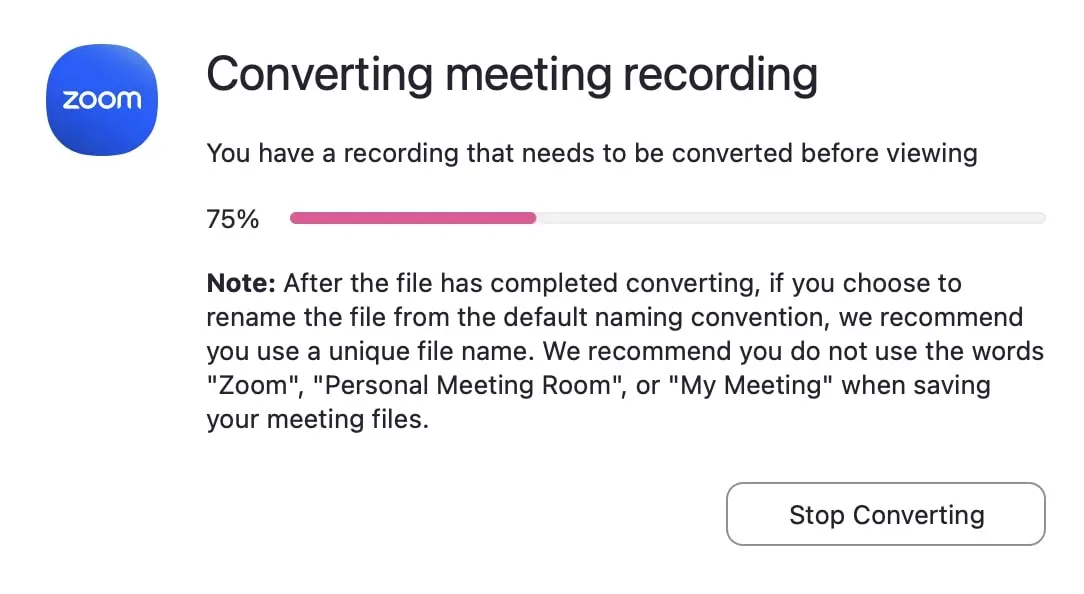
Step 6: Zoom then opens the local folder containing your recordings, saved as both audio and video files.
Recording a Zoom meeting in the Cloud (Paid Zoom plans)
Step 1: Sign in as an account admin in the Zoom web portal.
Step 2: In the left sidebar, go to “Recordings” and then the “Cloud recordings” tab. If needed, enable cloud recording in Profile Settings under “Cloud recordings.”
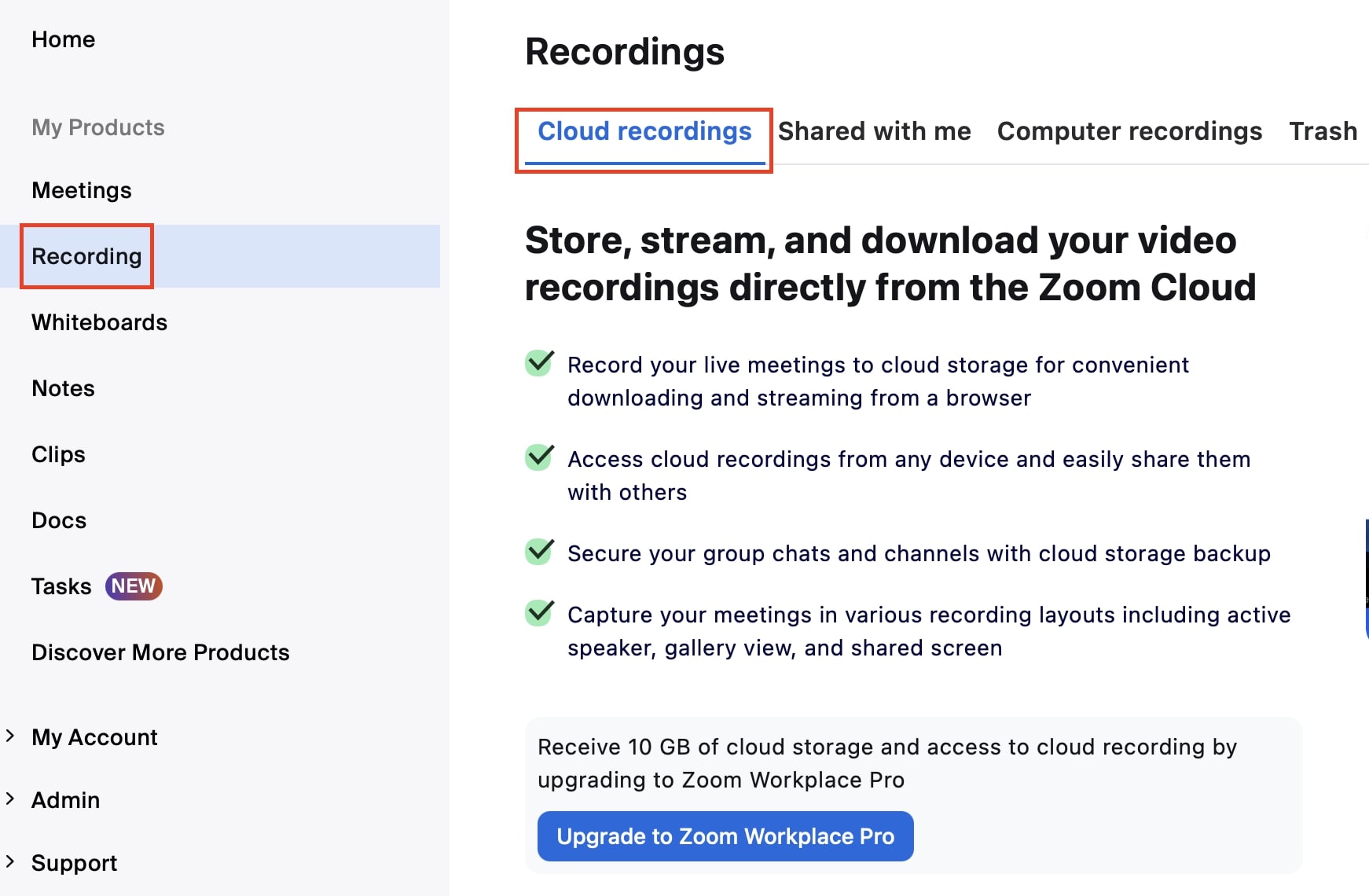
Step 3: Start a meeting, click “Record” in the bottom menu, and select “Record to the Cloud.”
Step 4: Use the recording menu to pause or stop the recording. When you end the meeting, Zoom saves the recording in the cloud.
Step 5: To view, download, share, or get a link to your cloud recording, log in again to the Zoom web portal, go to “Recordings”, and select the desired recording.
Reviewer

Jeanna Raffa
With over 18 years of experience in online marketing, Jeanna Raffa possesses extensive expertise in digital marketing. Since 2020, her focus has been on providing practical information regarding email, office, and cloud storage solutions.