

How to use spreadsheet templates in Google Sheets
Google offers a variety of spreadsheet templates for different purposes. Besides the built-in templates, additional options are available through add-ons or third-party providers. Some Excel templates can also be imported.
What can I use Google Sheets spreadsheet templates for?
Creating a new Google spreadsheet only requires a few steps. With just a few clicks, you can enter data, use Google Sheets formulas and create charts. While a standard template is practical, if you need a document for a specific purpose, a customized solution is even better. Google Sheets spreadsheet templates have been perfectly designed for specific use cases and the range of templates available is huge.
There are free and fee-based templates for different types of budget planning, to-do lists, deployment and travel plans, invoicing and project management. In the next sections, we’ll show you how to install and use them.
How to add a Google spreadsheet template to Google Sheets
Google itself provides numerous spreadsheet templates for Google Sheets. If you want to use one of them, there are two possible ways to go about this. One way is to:
- Open the Google Sheets website.
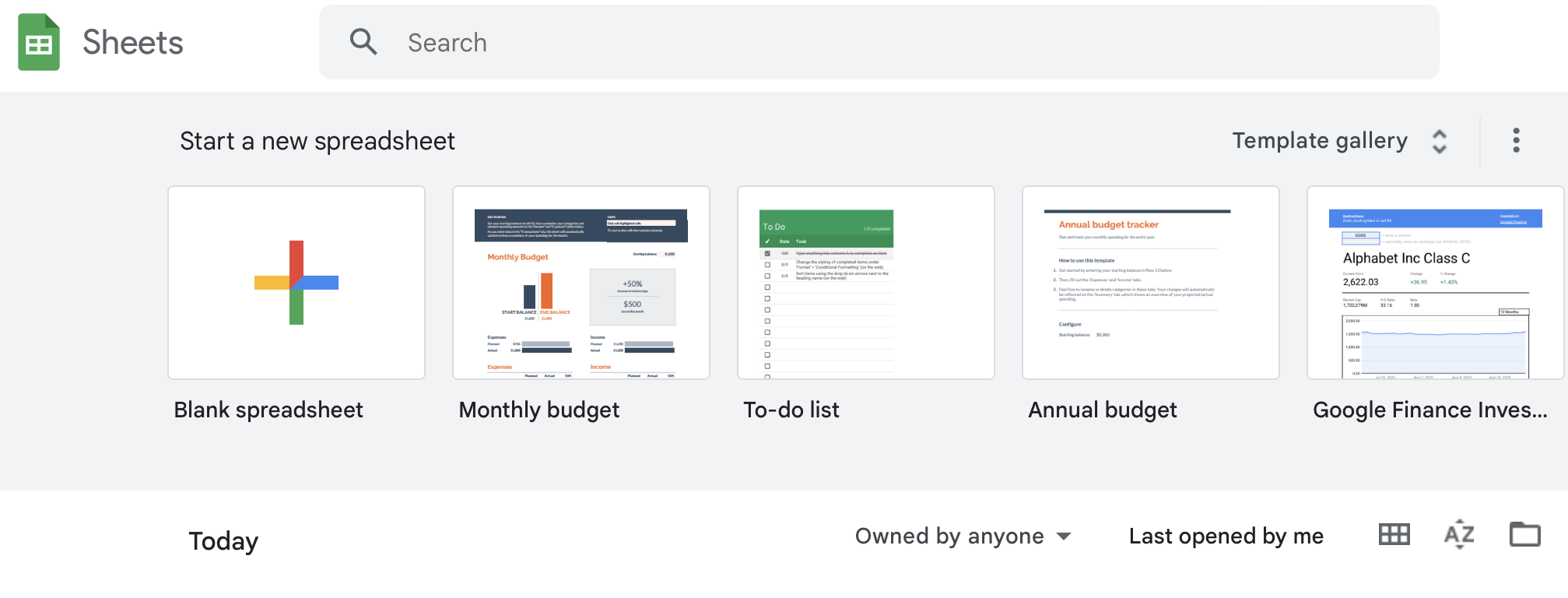
- Here, you’ll find several popular templates next to the Blank spreadsheet option under Start a new spreadsheet.
- If you cannot find the template you want in this list, click on Template gallery to open further suggestions.
- Once you’ve found the right option, simply click on the template and it will open as a new document.
Alternatively, you can access Google Sheets templates from within a spreadsheet document. To do this, follow the steps below:
- Go to the Google Sheets website.
- Open a new spreadsheet by clicking on Blank spreadsheet.
- Click on File at the top left.
- Now select New.
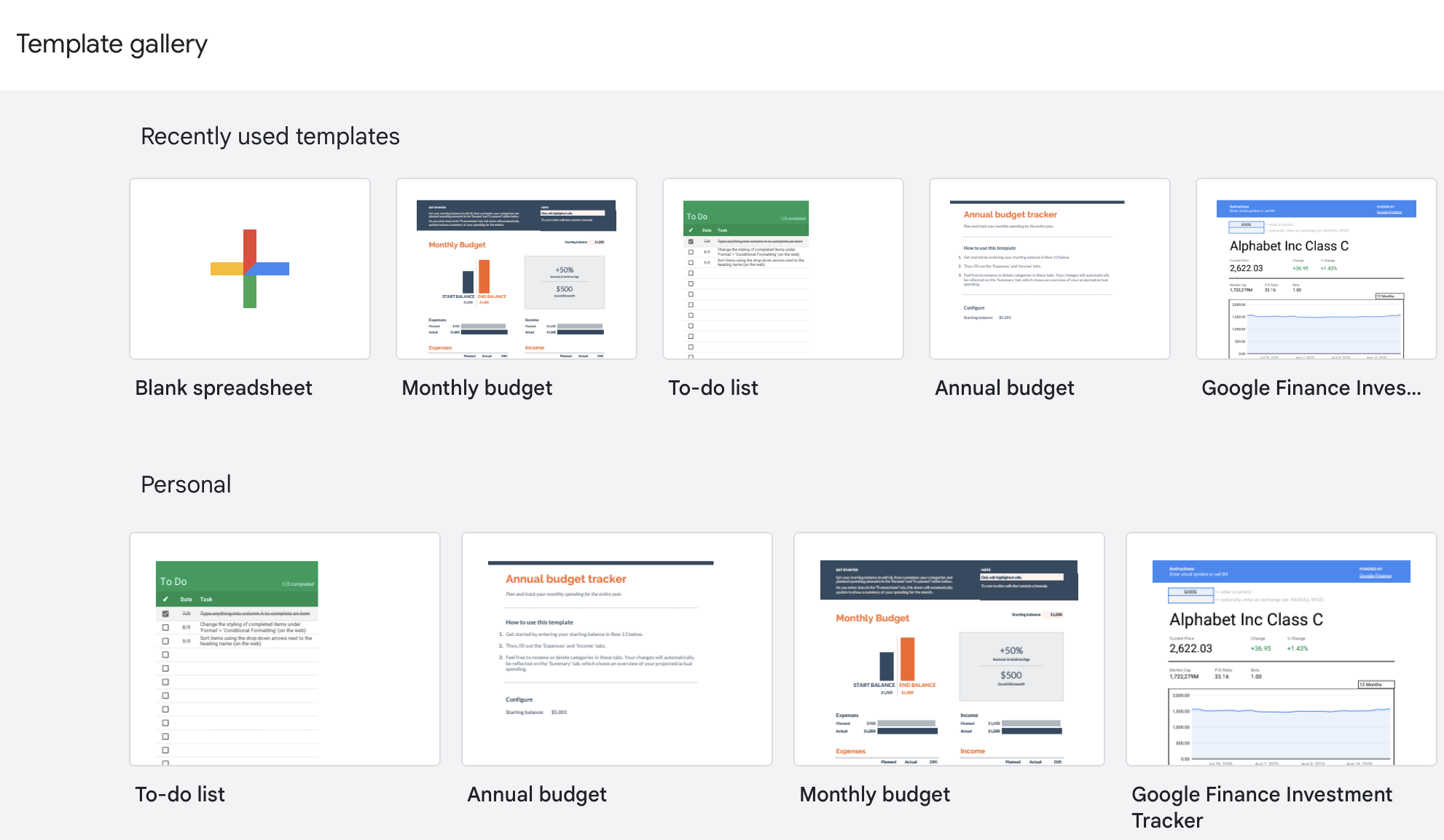
- Click on From template gallery. A new window will open where you can choose from different templates.
How to use templates from Google Workspace Marketplace
Although the selection of templates listed in the template gallery is generous, you may need additional options or styles for your Google Sheets spreadsheet template. You can also use the check the Google Workspace Marketplace for different template options. All you need is an add-on. Here’s how to install the add-on:
- Go to Google Sheets.
- Open a new spreadsheet by clicking on Blank spreadsheet.
- Select Extensions in the top tab.
- Then click on Add-ons.
- In the next step, select Get add-ons. Google Workspace Marketplace will now open in a new window.
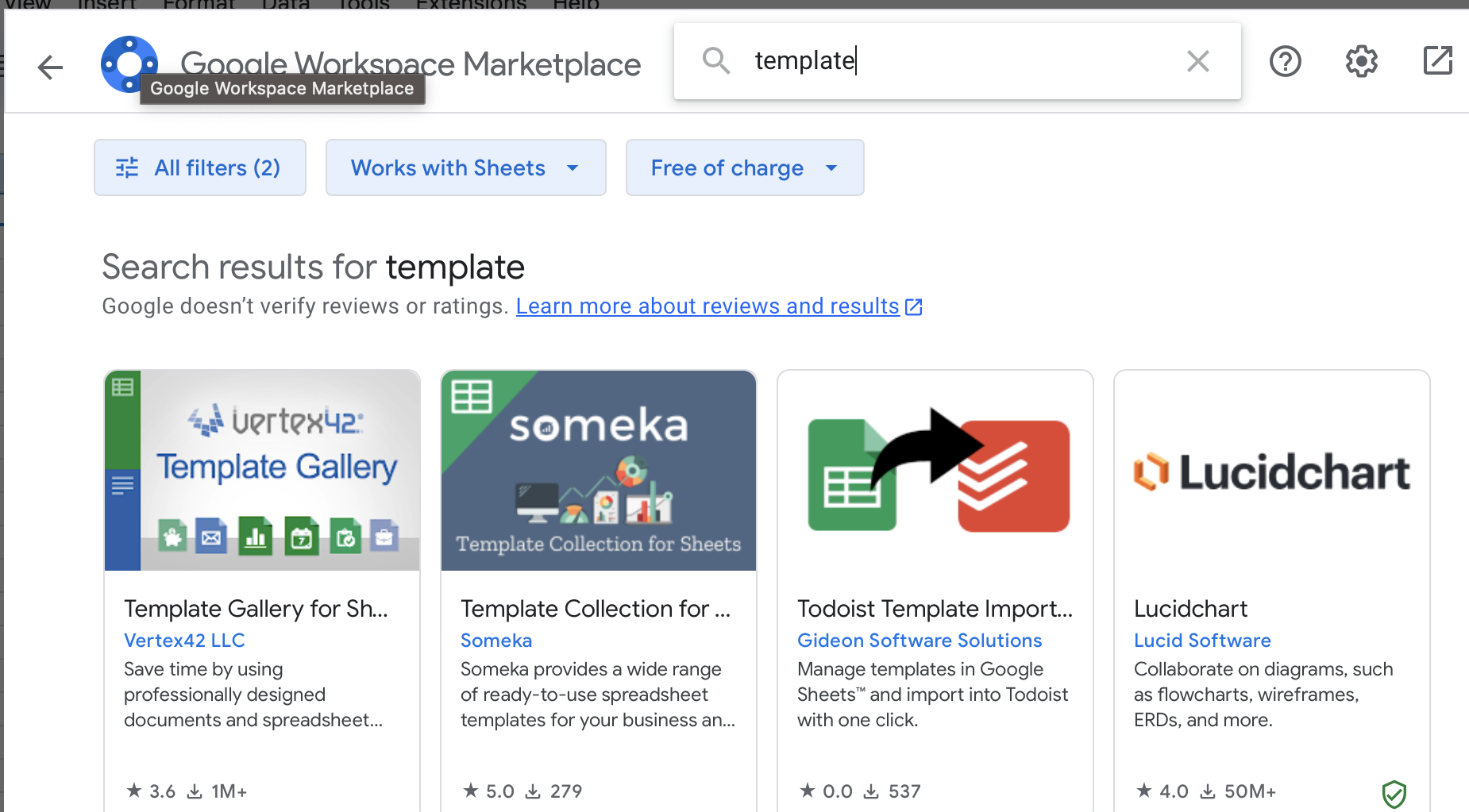
- At the top you’ll find a search bar. Enter Template or Template Gallery, for example, to find more templates for your Google Sheet. You can also use the filter function to search for free templates if you don’t want to end up paying any additional costs.
- Now install the add-on you want to use and follow the instructions given. Once you have granted all the appropriate authorizations, you can add the add-on and access additional templates.
How to import Google spreadsheet templates from Excel
There are many similarities between Excel and Google Sheets. If there’s a Microsoft template you’d like to use, you can use it in Google Sheets. Keep in mind though that there may be potential limitations or changes to the formatting. To import an Excel template, follow the steps below:
- Save the Excel template locally on your computer.
- Open Google Sheets in your browser.
- Click on the folder icon labeled Open file picker. It’s located on the right side of the screen below the template gallery options. A new window will open.
- Select Upload from the top menu bar.
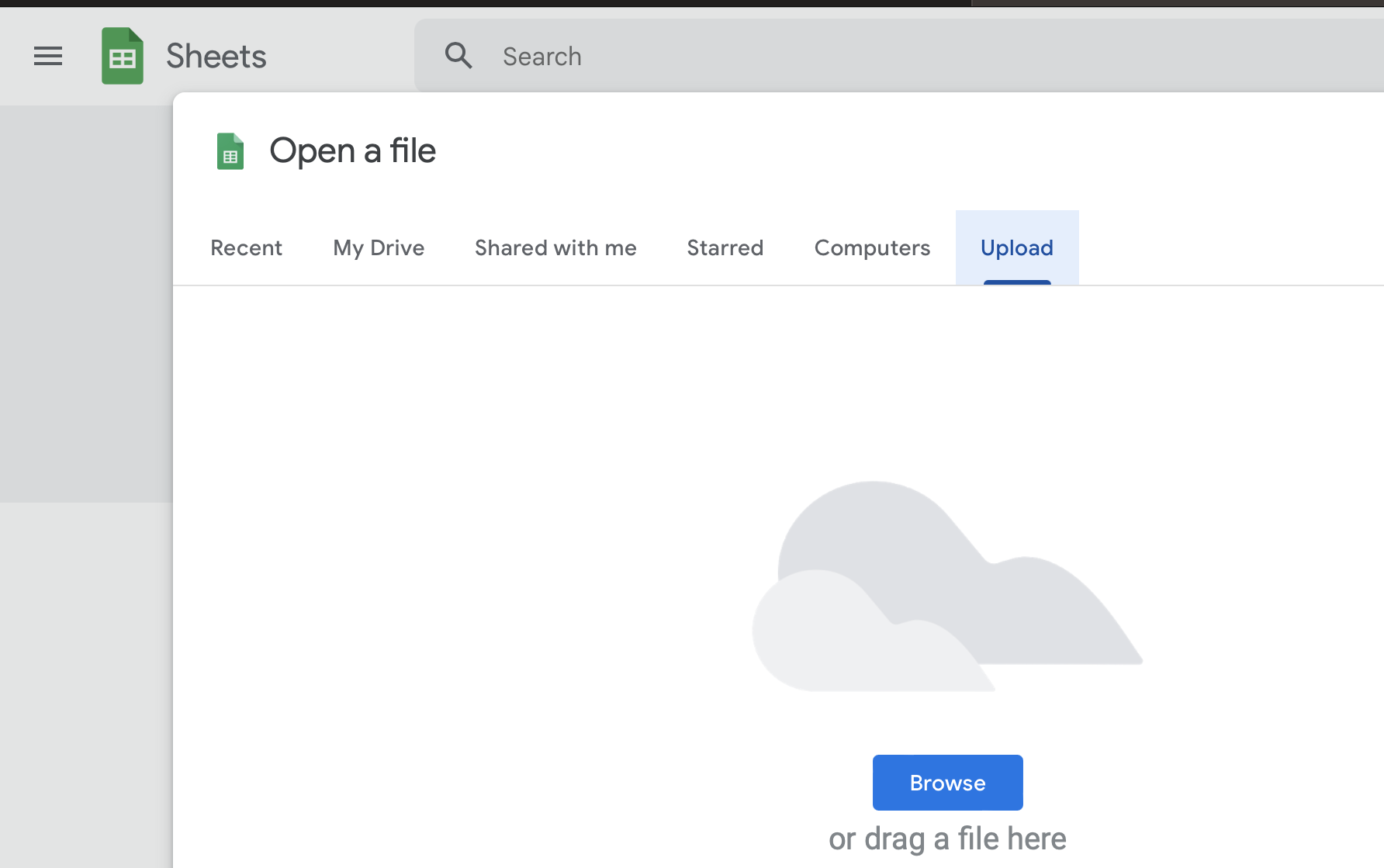
- Drag the Excel file into the corresponding field to upload it.
- As soon as the process is complete, the new template will open automatically.
- Store, share, and edit data easily
- Backed up and highly secure
- Sync with all devices
What other templates are there for Google Sheets?
If you still haven’t found what you need or don’t want to use widely used templates, you can also get spreadsheet templates for Google Sheets from third-party providers. However, with this option you may have to pay a fee. Once you’ve found the right template, follow the steps below:
- Download the template to your computer. Make sure that it is compatible with Google Sheets or Google Docs.
- Open Google Sheets in your browser.
- Click on Open file picker on the right side of the screen. A new window will open
- Select Upload.
- Drag and drop the template into the corresponding field.
- The template will then open automatically when it has finished uploading.
Reviewer

Jeanna Raffa
With over 18 years of experience in online marketing, Jeanna Raffa possesses extensive expertise in digital marketing. Since 2020, her focus has been on providing practical information regarding email, office, and cloud storage solutions.