

What are the free Microsoft Word alternatives?

Which free Microsoft Word alternative is best for you depends first and foremost on what you want to use the writing program for. Depending on what is important to you in your work, the alternatives to MS Word presented here each offer different advantages and disadvantages.
Easily go from pen and paper to digital inking with Word - included in all Microsoft 365 package!
- Office Online
- OneDrive with 1TB
- 24/7 support
A comparison of MS Word alternatives
| Suitable for | Mobile version | DOCX files | Features | |
|---|---|---|---|---|
| OpenOffice Writer | Windows, Linux, Mac, Solars, FreeBSD | Yes, for Android | Only opens | Similar to Word |
| LibreOffice Writer | Windows, Linux, Mac | Viewer for Android | Opens and saves | Many updates |
| Zoho Writer | Everything, due to being online | Yes, for Android and iOS | Opens and saves | Choice of various templates |
| WPS Office Writer | Windows, Linux | Yes, for Android and iOS | Opens and saves | Encryption and cloud |
| SoftMaker FreeOffice | Windows, Linux, Mac | Yes, for Android | Opens and saves | Compatible with Microsoft Office |
| Writemonkey | Windows | No | Opens and saves | Write without being distracted |
| Google Docs | Everything, due to being online | Yes, for Android and iOS | Opens and saves | Collaboration in real time |
Apache OpenOffice Writer, similar to Word
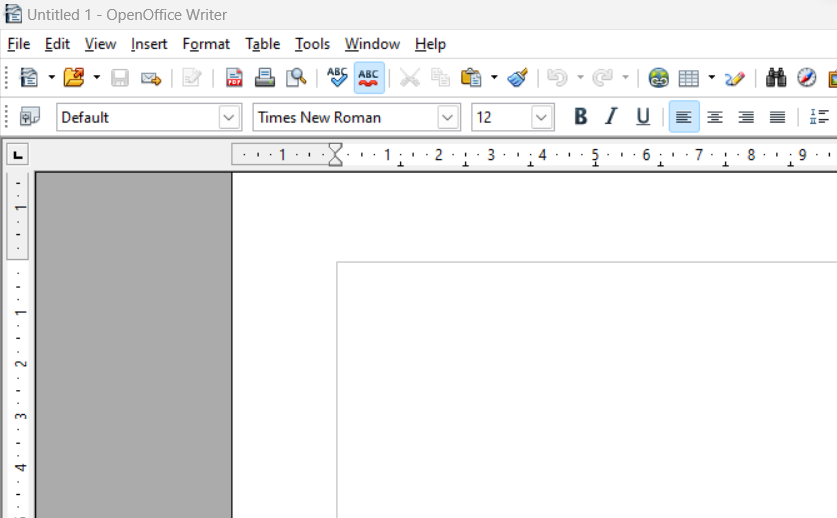
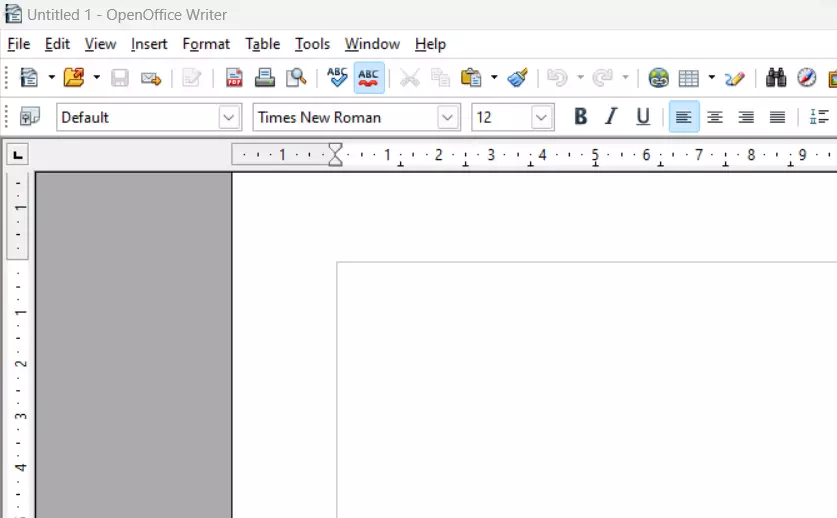
Apache OpenOffice was operated under the name OpenOffice.org until 2012 and now is simply called “OpenOffice”. The OpenOffice Writer is the most popular among the Microsoft Word alternatives, and together with LibreOffice, it’s most similar to the original. Like the Microsoft Office package, OpenOffice consists of a word processor, a drawing program, an alternative for Excel, a database tool, a tool for mathematical formulas and a presentation tool. OpenOffice doesn’t, however, provide an alternative for the Outlook email program.
OpenOffice Writer has all the functions that you need in everyday office life. It is important that OpenOffice can open all Microsoft Word formats. When saving work, OpenOffice Writer only supports the older file formats (.doc, .xml). Most of the details are in the layout, however subtleties such as the placement of footnotes could shift content around. It is therefore recommended to convert documents to pdf documents before you print them. OpenOffice Writer is available for Windows, Mac, and Linux. Ports for Solaris and FreeBSD are also available.
| Advantages | Disadvantages |
|---|---|
| ✓ Similar to Microsoft Word | ✗ Doesn’t save DOCX files |
| ✓ Can open Microsoft Word formats | |
| ✓ Support for multiple formats (PDF, ODT) |
With IONOS HiDrive cloud storage, you can store, edit and share your Office documents centrally and securely. Whether privately or professionally, you can work flexibly from any device with the HiDrive app and other interfaces. Your data is optimally protected in state-of-the-art IONOS data centers.
LibreOffice Writer, the alternative to OpenOffice
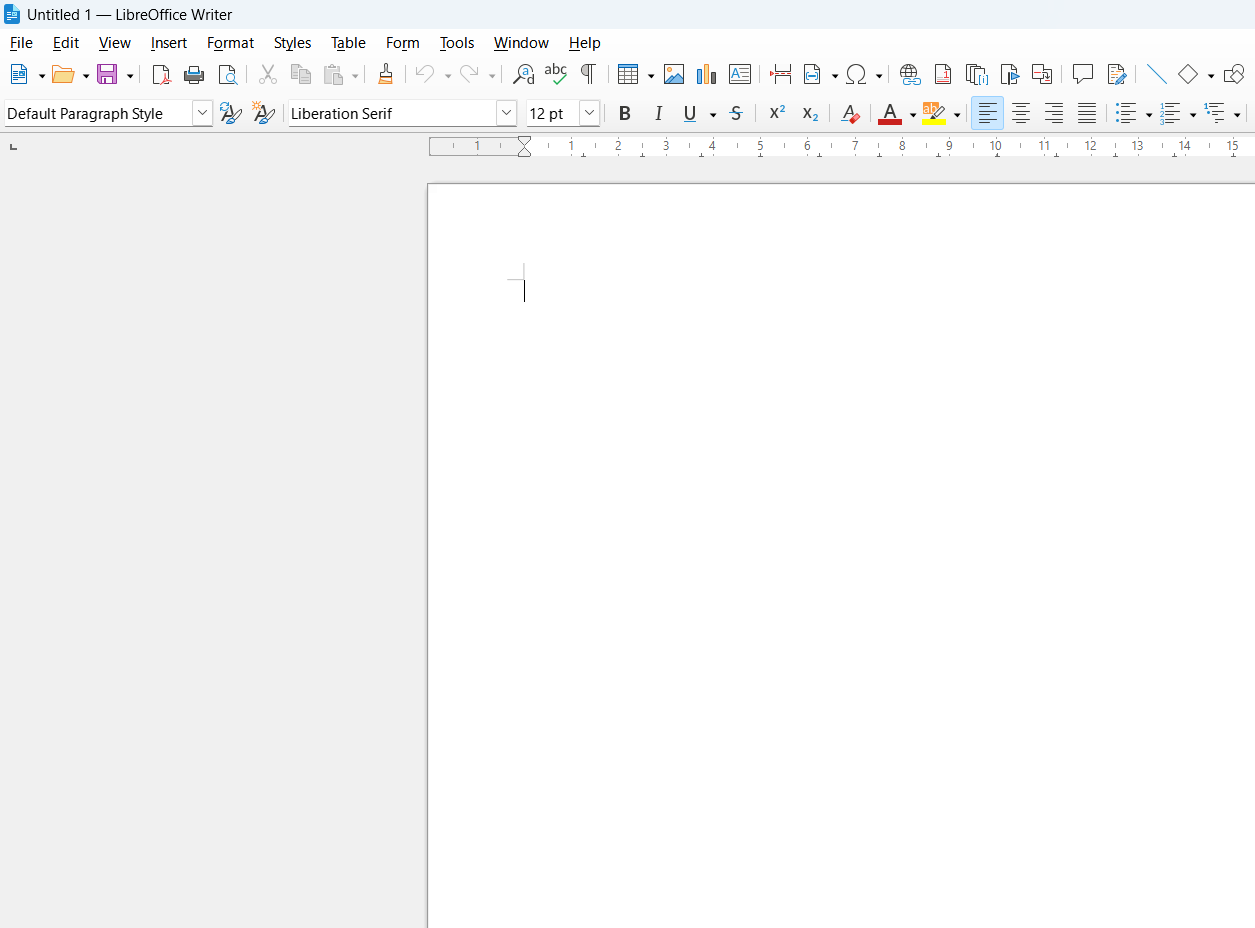
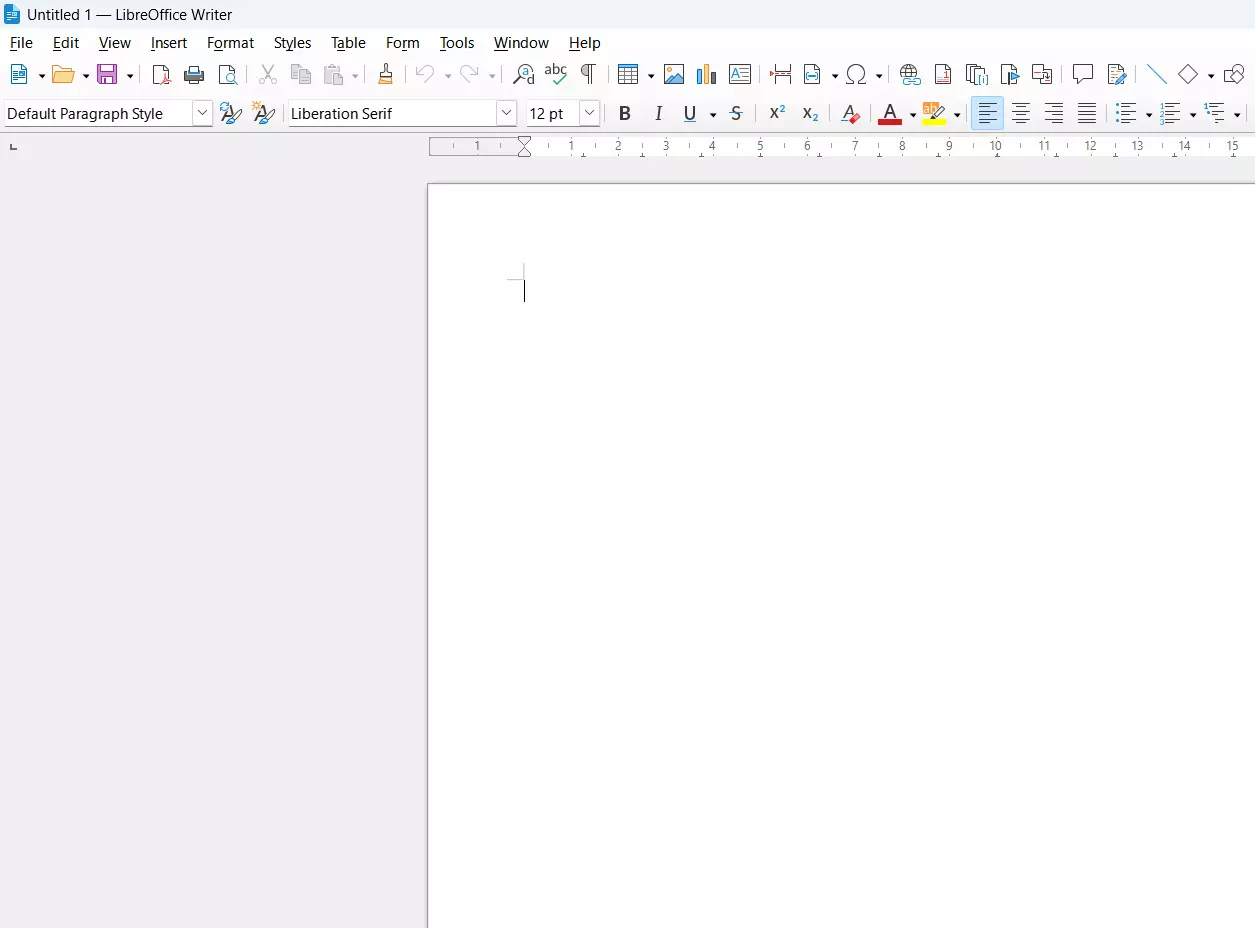
An alternative to the alternative. LibreOffice split off from OpenOffice in 2010 after disagreements with Oracle, who was the main sponsor at the time. The layout and functions of the program are largely the same, but there are some important differences. The LibreOffice Writer can edit and save the DOCX file format, whereas OpenOffice can only open it. If you often swap documents with other Microsoft Office users, it’s recommended you use LibreOffice.
LibreOffice also provides significantly more updates than OpenOffice, which can be both advantageous and disadvantageous. The advantage is that developers eliminate errors, close security gaps, and implement new features. However, they sometimes also create functions that aren’t 100% ready and not all users have the patience to keep installing new updates every two months.
| Advantages | Disadvantages |
|---|---|
| ✓ Also saves DOCX files | ✗ Immature functions |
| ✓ More updates | ✗ Updates can interfere |
| ✓ Many similar functions to Microsoft Word | ✗ Limited compatibility with Microsoft Office |
| ✓ Clear interface |
Our article “LibreOffice vs. OpenOffice: Which free office suite is best?” may also be of interest to you.
Zoho Writer, many functions in one
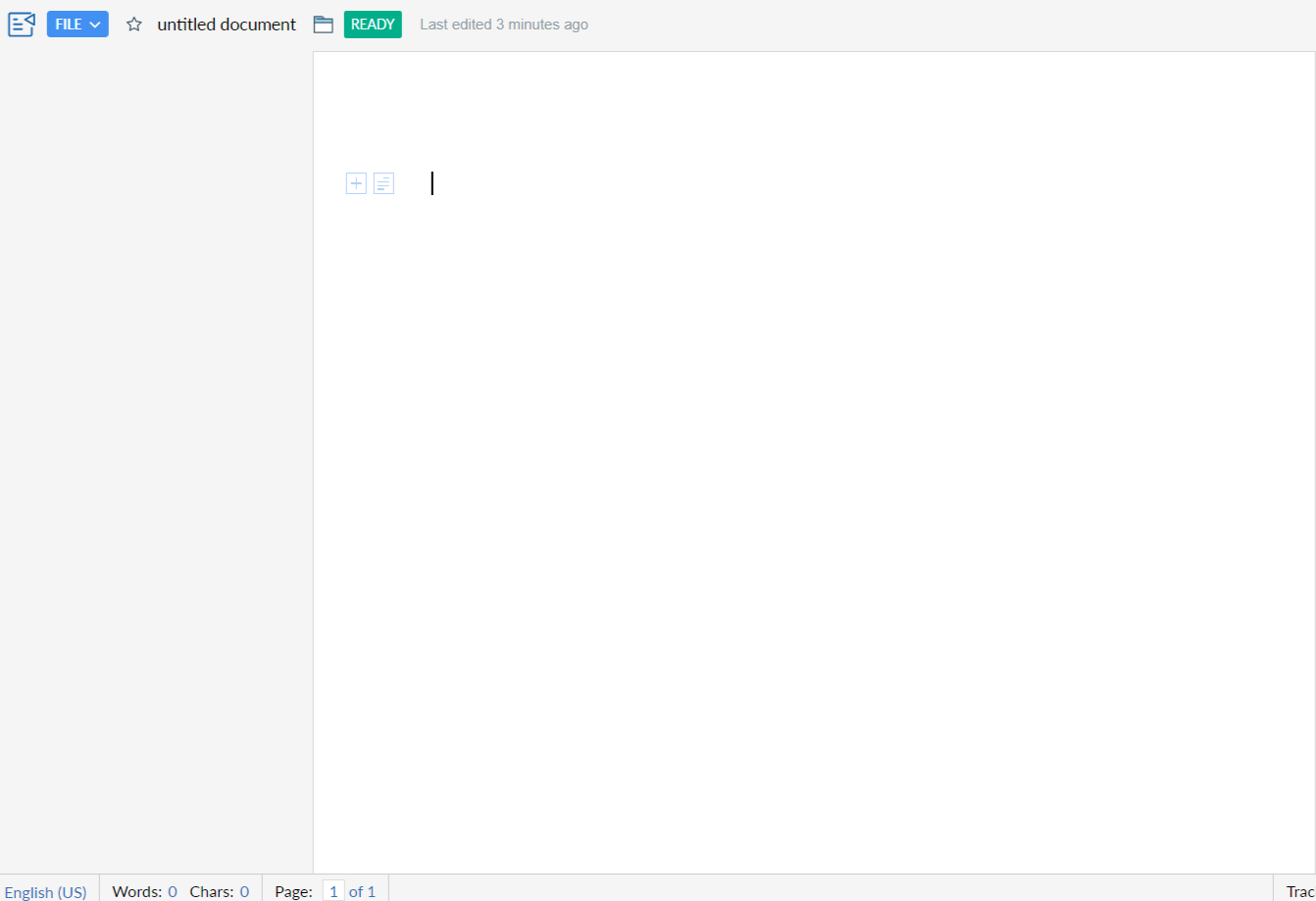
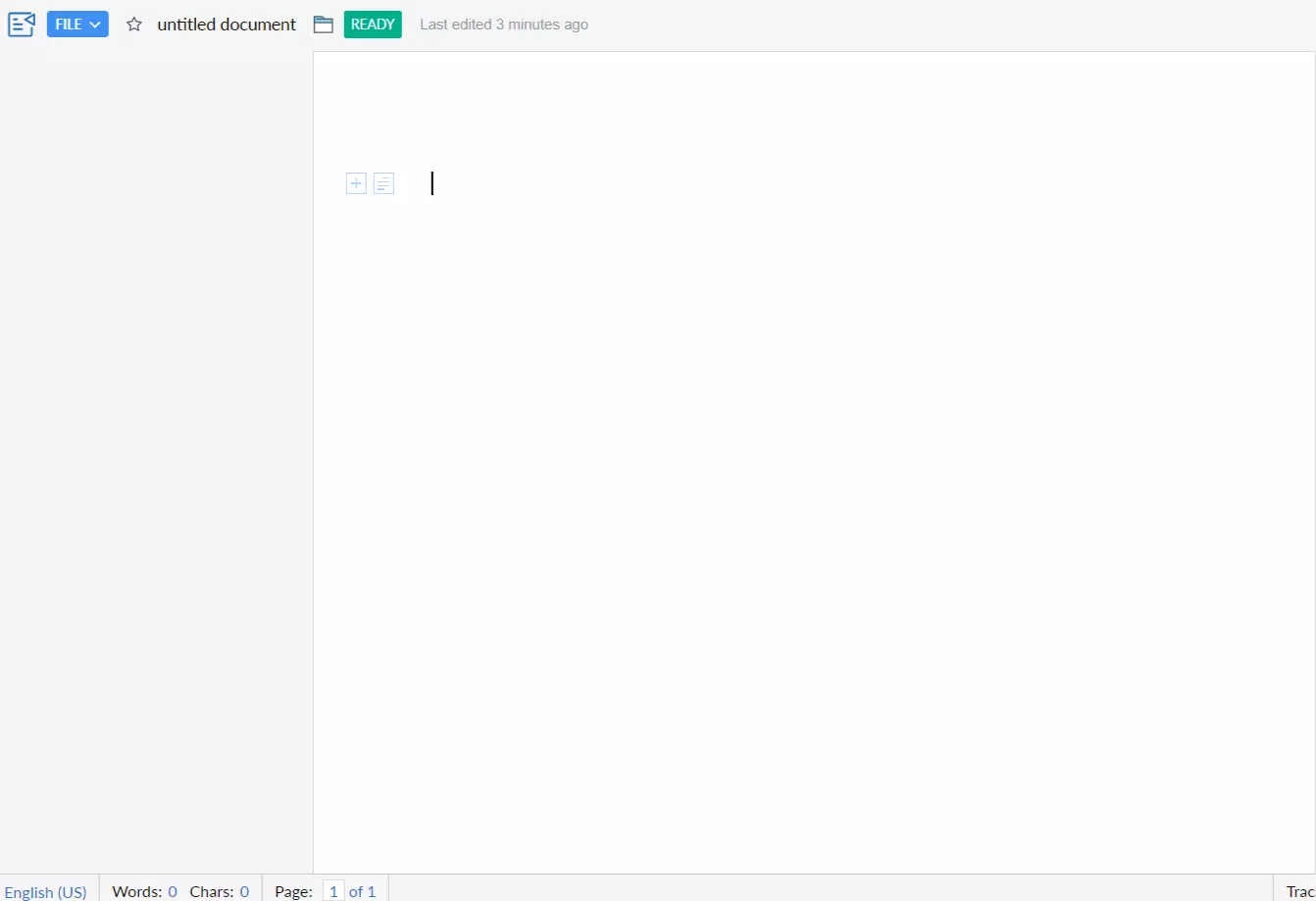
Zoho Writer is a good choice if you are looking for a comprehensive, free alternative to MS Word. In addition to the writing program Zoho Writer, users of the Zoho Office Suite can also use Zoho Sheets, an alternative to Excel and Zoho Shows (similar to Microsoft PowerPoint) free of charge. So if you are not just looking for a free Microsoft Word alternative, but need more comprehensive functions such as creating and editing presentations for your work, then the Zoho Office Suite is perfect for you.
Zoho Writer is a web-based word processing application specifically designed to give you most of the features you would expect from an alternative to MS Word. For example, there is the option of real-time collaboration, which allows you to work together on documents. In addition, Zoho Writer convinces with a complicated import and export of different file formats (docx, pdf, rtf etc.), as well as a selection of different templates, which makes it easier to get started with the program.
| Advantages | Disadvantages |
|---|---|
| ✓ Supports various file formats | ✗ User interface may take some getting used to |
| ✓ Web-based: No download required | ✗ Email address must be provided |
| ✓ Collaboration platform | |
| ✓ Offline access also possible | |
| ✓ AI writing assistant |
WPS Office Writer, an alternative for frequent writers
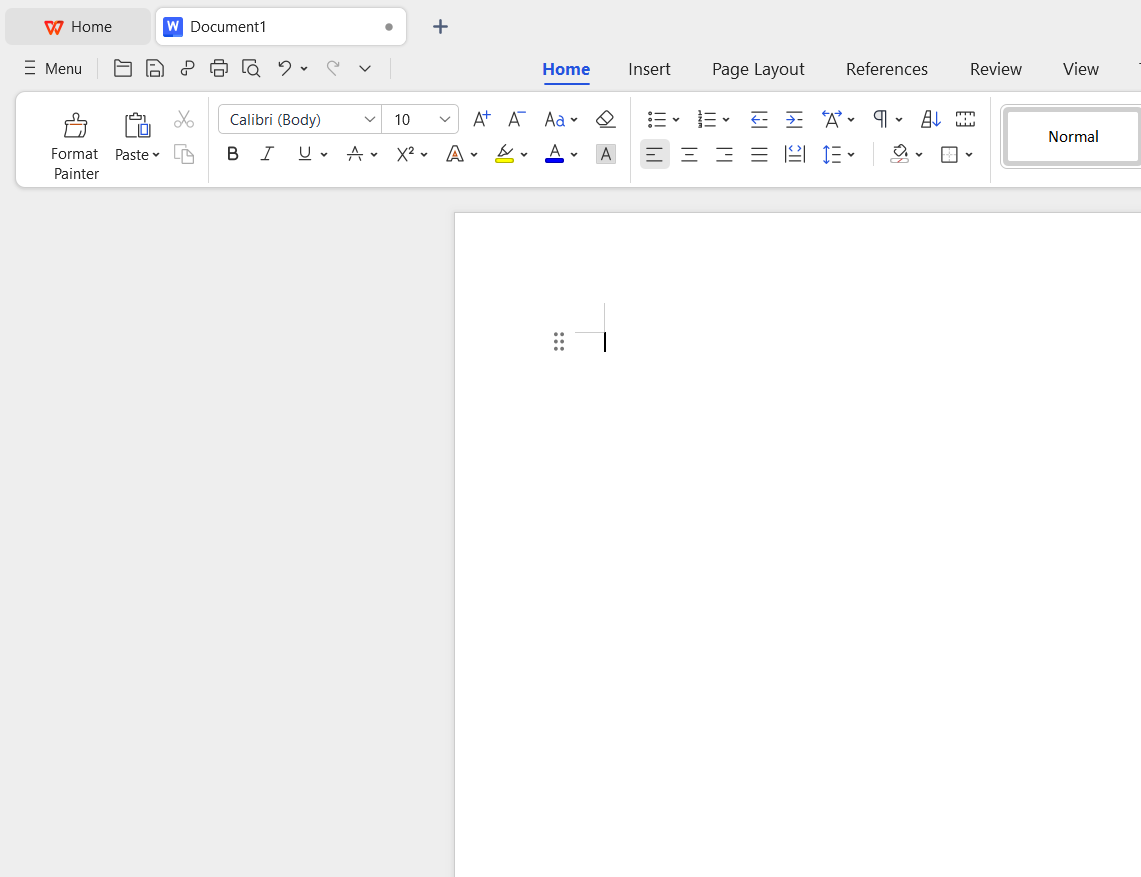
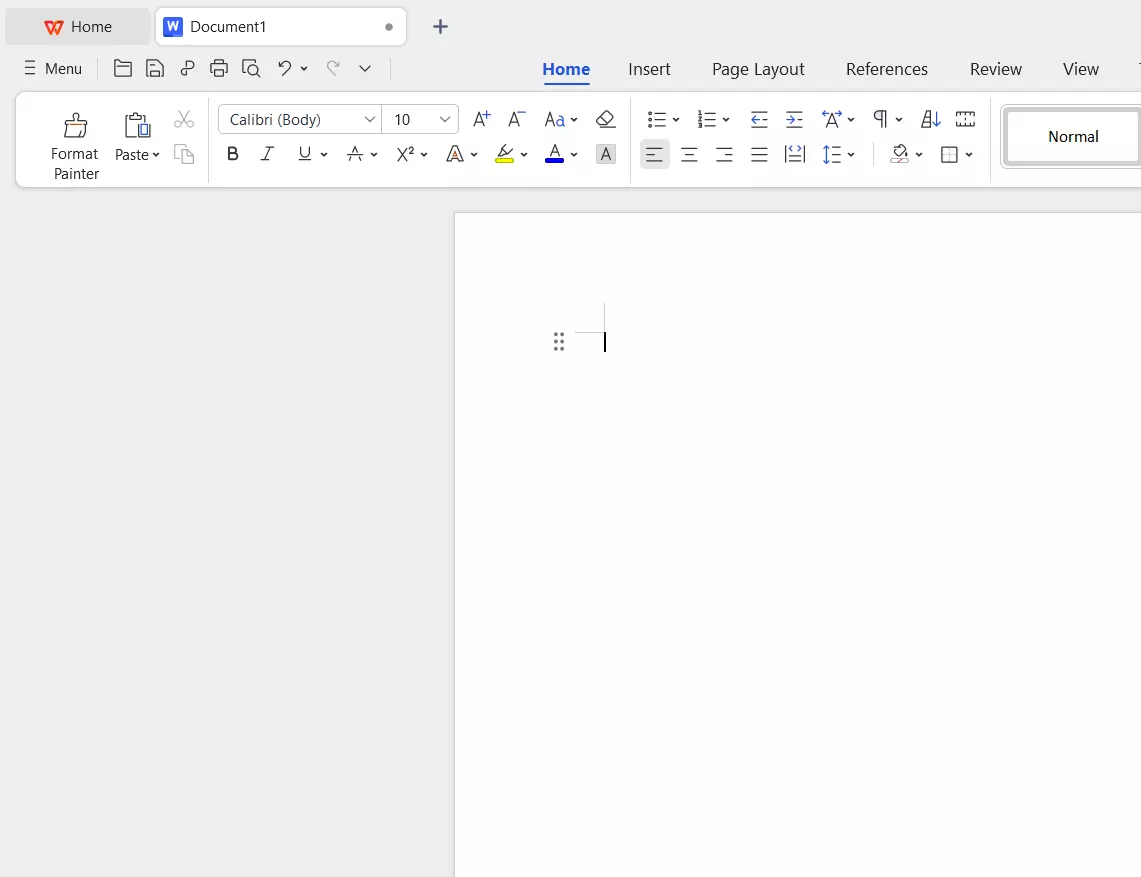
The company, Kingsoft, has been distributing its Office package WPS Office since the 1980s. In addition to various paid versions, the manufacturer also offers the extensive Office Free Edition. The structure of the text processing program looks very similar to that of Microsoft, comes however with a few changes. For example, it is possible to open several documents within the program and switch between them with the help of tabs. Another special feature is the two display formats “Eye Protection Mode” and “Night Mode”, which makes the writing area very easy on the eye.
Files can be saved in different file formats. Therefore, not only the WPS format is available, but also other common file types, including DOCX. If you log in, you can also access a personal cloud and save the files online. Users also have the simple option of securing the file with a password and establishing encryption. Thanks to its simple user interface, which is very similar to that of Microsoft Office, and its compatibility with other programs, WPS Office Writer is a very good alternative to MS Word.
| Advantages | Disadvantages |
|---|---|
| ✓ Well-designed structure | ✗ Costs extra for the full scope |
| ✓ Free cloud | ✗ Advertising may be perceived as annoying |
| ✓ Many file formats | |
| ✓ File encryption |
SoftMaker FreeOffice, the word processor from Germany
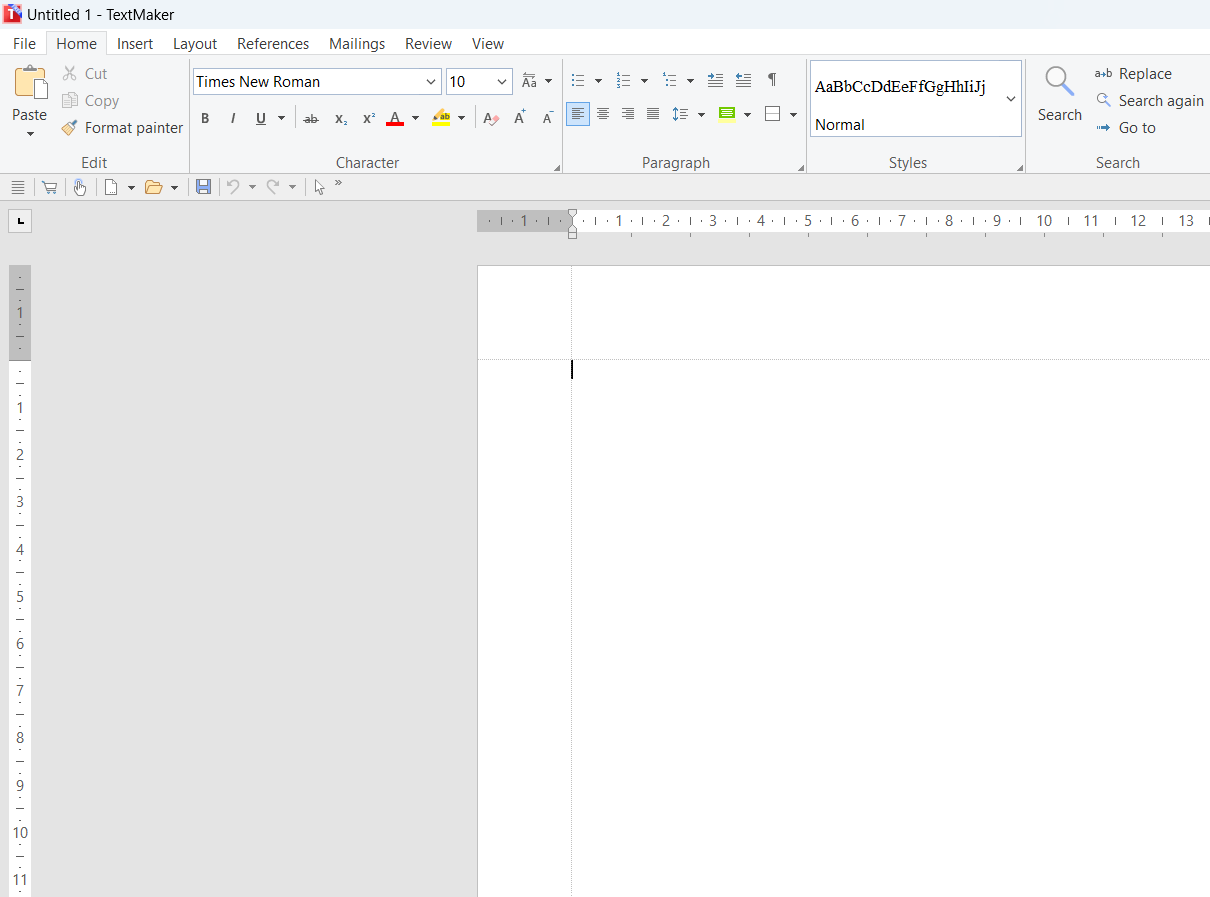
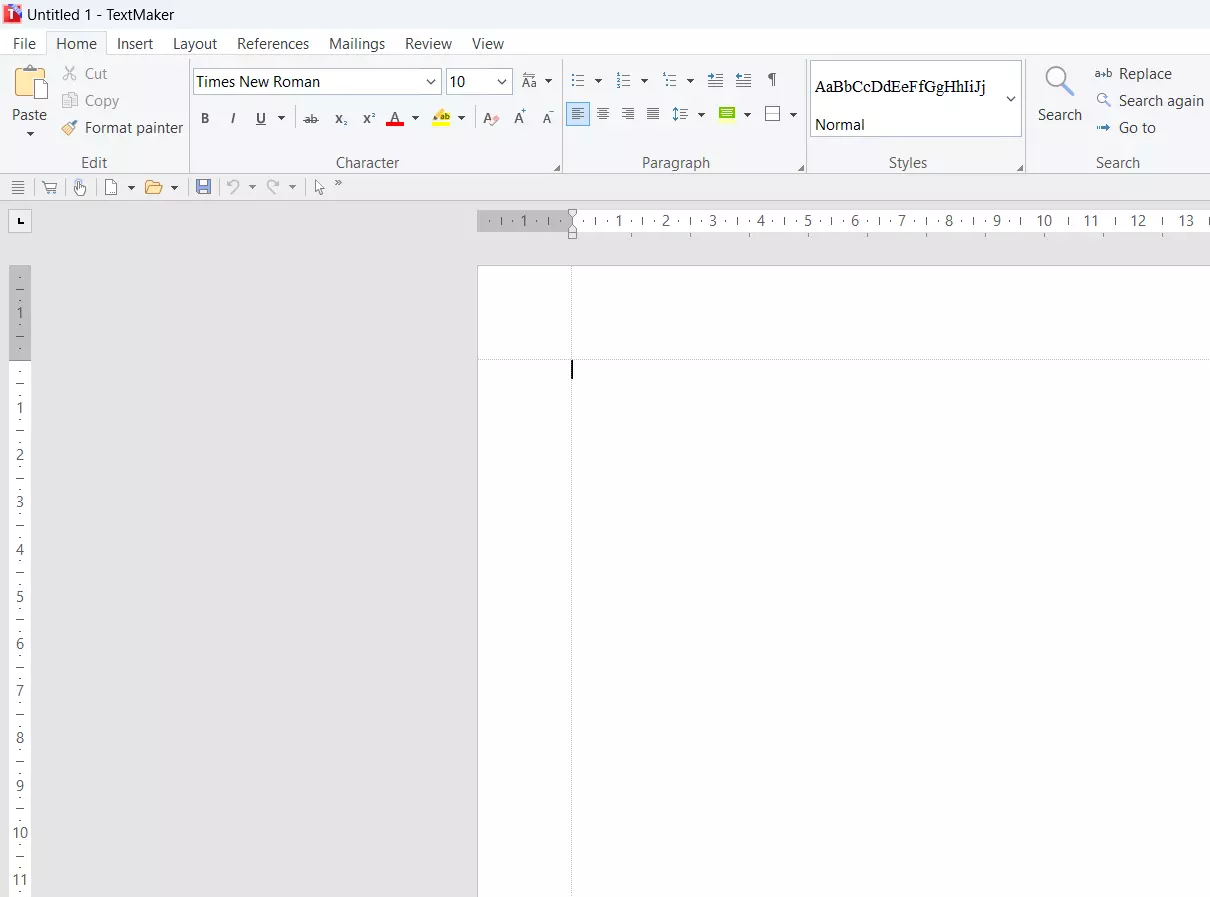
The German software manufacturer SoftMaker also offers a very good free Microsoft Word alternative with FreeOffice. In addition to its fee-based offer, a free version is also available in the form of FreeOffice TextMaker. All users have to do is enter a valid email address. You can choose between a classic menu structure and the modern ribbon view. Regardless of which one you choose, the window is very neat and tidy.
When saving the documents, you can choose either between Microsoft Office file formats or the in-house SoftMaker formats. Additionally, you have the possibility to export documents as pdf or epub. The free office suite also includes a spreadsheet program and presentation software. FreeOffice receives regular updates and is available for Windows, Linux, and Mac. There are also versions for Android smartphones.
| Advantages | Disadvantages |
|---|---|
| ✓ User-friendly design | ✗ Email address must be entered |
| ✓ Also works with Microsoft formats | |
| ✓ Complete Office suite |
WriteMonkey, writing without distraction
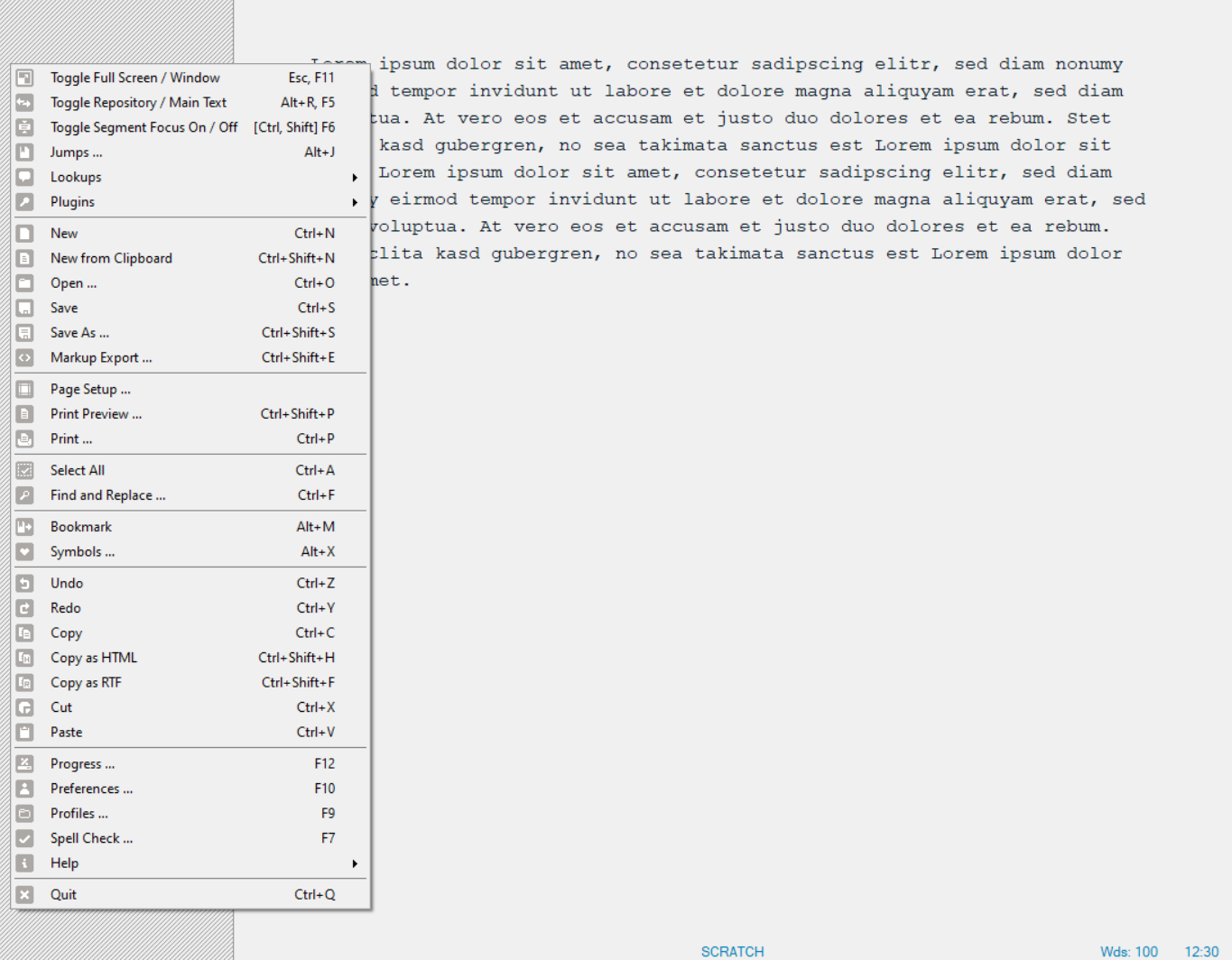
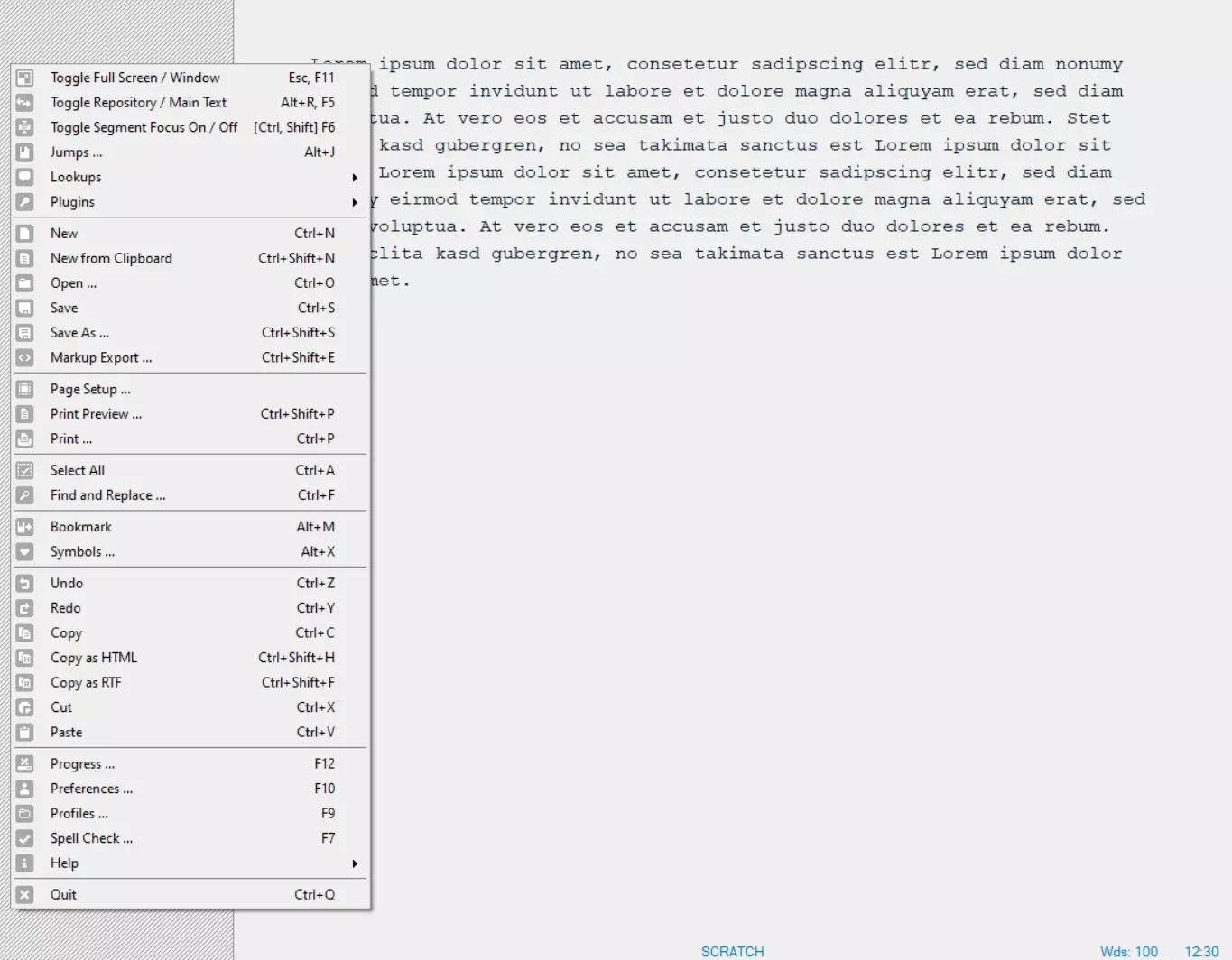
WriteMonkey is the right choice for anyone who wants to write without being distracted by advanced layout features. The full-screen mode is most similar to the simple white (or depending on the settings, black, green, or another color) paper, where you can let your creativity run wild. Right-click to access the menu, which will then allow you to fade out certain parts of the text, or be able to jump between different paragraphs. You can set the timer for the amount of time you want to concentrate. The built-in word completion also saves a lot of time when typing.
WriteMonkey is the smallest of the desktop programs mentioned here. It doesn’t need to be installed, which means that WriteMonkey can be used on a USB stick and then put onto other computers. To open WriteMonkey, simply download the application file folder, copy it to a random folder on your hard drive, and then open the WriteMonkey.exe file. Texts can be saved from WriteMonkey as txt files or exported to Word. Whether WriteMonkey is the right Microsoft Word alternative for you, despite its somewhat unfamiliar design, probably depends on your own writing preferences. What is clear, however, is that WriteMonkey scores points with its uncomplicated installation and ease of use.
| Advantages | Disadvantages |
|---|---|
| ✓ Fullscreen mode for full concentration | ✗ Only for Windows |
| ✓ Timer | ✗ Layout isn’t very elegant |
| ✓ Works without installation | |
| ✓ Also saves DOCX files |
Google Docs for online word processing
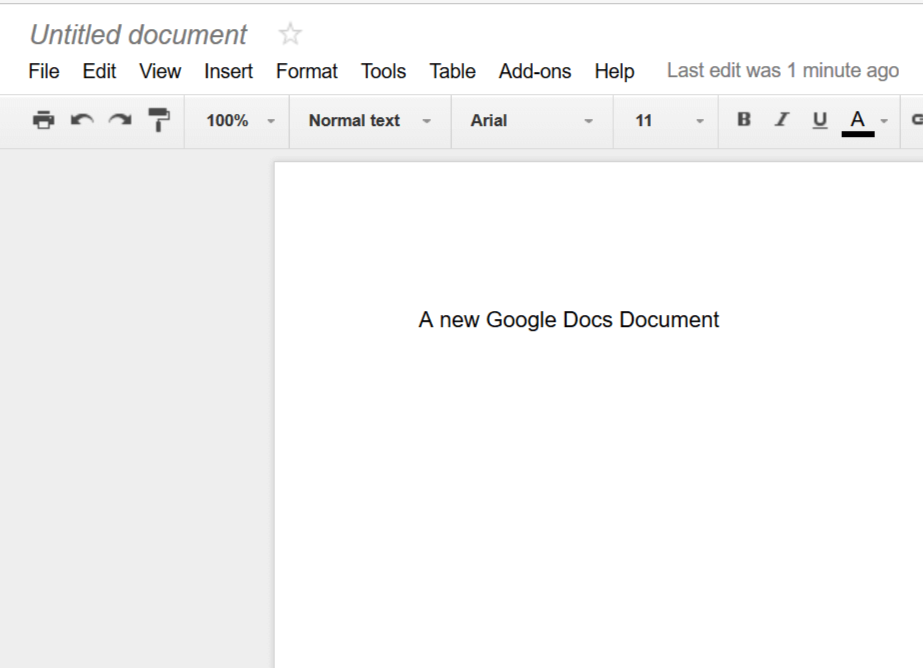
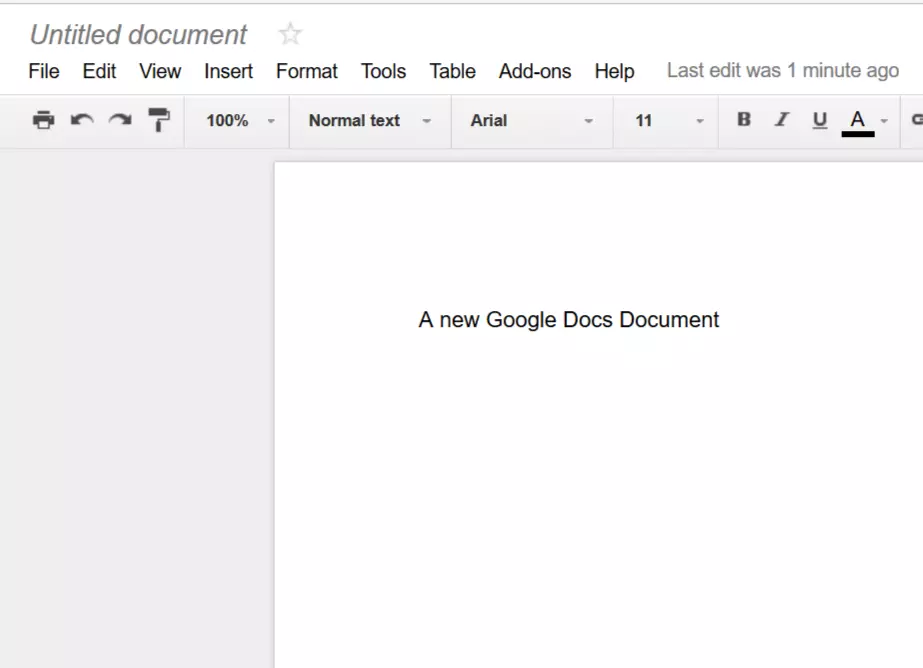
Google Docs is an online writing program. If you have a Gmail account, click on Documents in the tool bar to go to Google Docs. You can also open your documents using Google Drive. In Google Docs, you can create new documents and work with multiple users on the same document at the same time. You can see straightaway what changes other users have made to the document. This is especially useful when you want to write a text together with others, or when working with editors. As with Microsoft Office, OpenOffice, and LibreOffice, Google Docs also provides features for creating tables (Sheets) and presentations (Slides).
The disadvantages of Google Docs are that it’s slower and has fewer features than free Microsoft Word alternatives that are stored on the computer. The layout options of Google Docs are much more limited. Also, many users have reservations about trusting the internet with confidential information. In addition, the functionality of Google Docs depends on the quality and security of the internet connection. Fortunately, there is also a Google Docs app that you can download to your computer or smartphone and then work on Google Docs in offline-mode.
| Advantages | Disadvantages |
|---|---|
| ✓ Work from anywhere | ✗ Fewer functions than desktop programs |
| ✓ Simple collaboration | ✗ Slightly slower |
Of course, there are also alternatives. For occasional group work, Etherpad is suitable and can be accessed without an account. Etherpad has fewer functions for text editing, but is the fastest tool when it comes to group work.