

How to create spreadsheets in Google Sheets
You can create spreadsheets in Google Sheets with just a few clicks. You can even use a template to save yourself some time and ensure you’re working with the right document right from the start. There are also numerous built-in functions that let you use the spreadsheet more effectively.
What are the advantages of using Google Sheets to create spreadsheets?
Although Microsoft Excel is still the best-known and most popular solution when it comes to spreadsheets, Google is proving to be quite the competitor and is hot on Excel’s heels. There are two particular advantages to Google Sheets. First, unlike Microsoft’s solution, it’s free. The other significant advantage is that it is built into the entire Google cosmos.
With the cloud solution, it’s also possible to share documents and collaborate on them or edit them on a different device. The only thing you need to use Google Sheets is a Google account. Creating a spreadsheet with Google Sheets is quick and easy. We’ll go through the most important points below.
How to create a new spreadsheet in Google Sheets
If you want to create a spreadsheet with Google Sheets, simply follow these steps:
- Open the Google Sheets website.
- Sign in with your Google account or create a new account.
- Under Start a new spreadsheet you’ll see a large plus sign, which has the text Blank spreadsheet under it. Click on it.
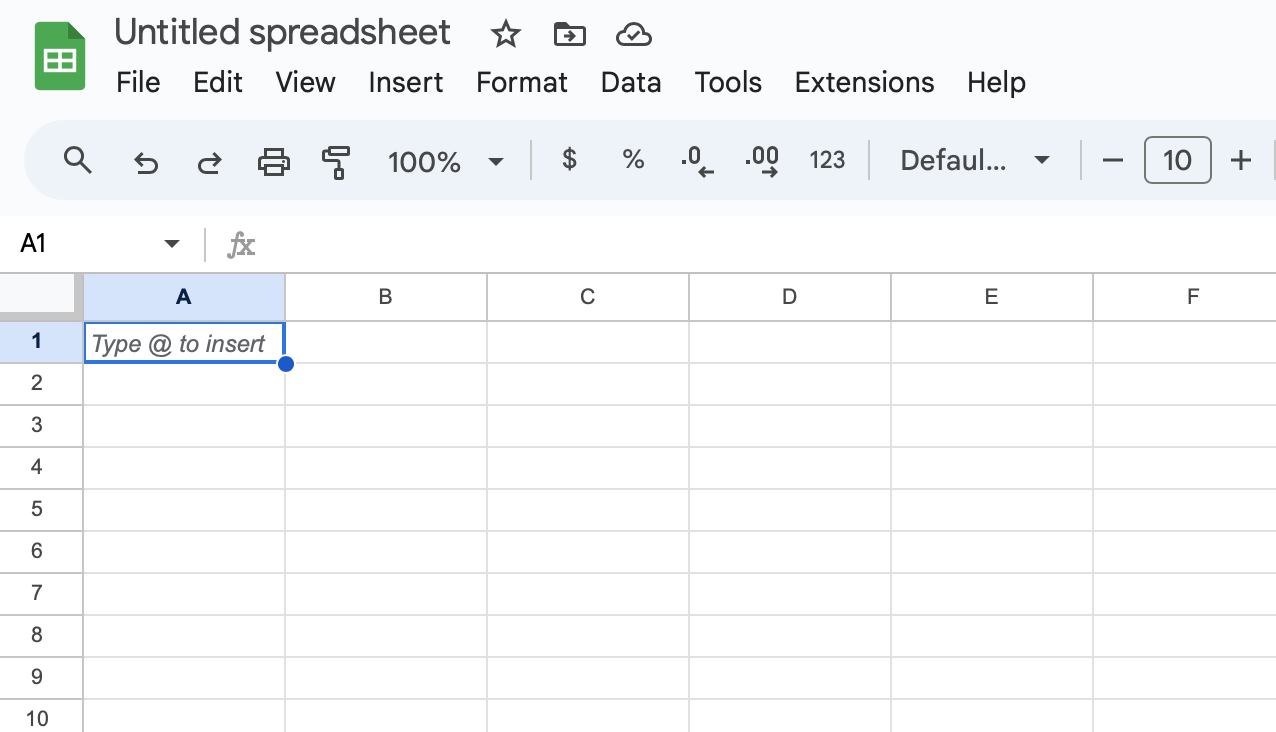
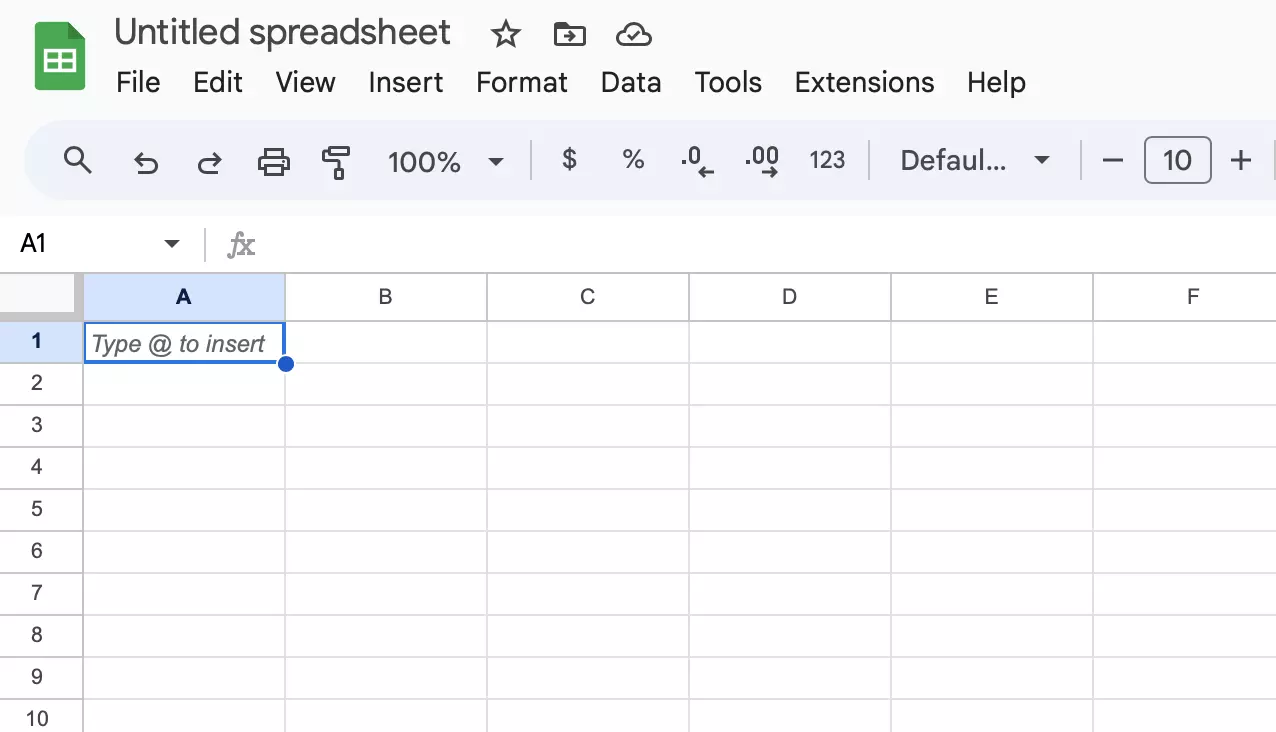
- You’ll now see a large empty spreadsheet that you can work with as you please. A spreadsheet initially consists of 26 columns (A to Z) and 1,000 rows (1 to 1000). You can adjust the scope later on if you want to.
- The new spreadsheet automatically comes with its own URL and is saved in the cloud. You can access it at any time via its address or find it under the link above. Nevertheless, it’s a good idea to give the spreadsheet a name right from the start. You can do this at the top above the File tab.
- If you would like to share the spreadsheet with other people and also allow them to edit it, you can use the Share button in the top-right corner.
How Google spreadsheets are structured
A spreadsheet consists of cells arranged in columns and rows. The columns are marked with capital letters and the rows with numbers. Each cell is referred to using a combination of a column letter and a row number. For example, the first cell at the top left of the spreadsheet is called A1. This can be important later on if you only want to edit certain areas of your spreadsheet. For many functions, such as creating a Pivot table in Google Sheets, it makes sense to give each column its own header.
The comment feature, which you can activate or deactivate using the speech bubble in the upper-right corner, is particularly useful for working in teams. Otherwise, the structure of Excel and Google Sheets is very similar in many respects.
In the free version, you’ll find a variety of features and options across the tabs. There’s also the ability to add extra extensions. To navigate through the spreadsheet program faster, there are shortcuts for Google Sheets.
- Store, share, and edit data easily
- Backed up and highly secure
- Sync with all devices
How to create a spreadsheet in Google Sheets using a template
Now that you’ve created a spreadsheet, you can start working in it. If you don’t just want a simple list of columns and rows, a template may be useful. There are numerous Google Sheets templates that you can use to create spreadsheets and tailor them to your needs. The basic structure is already in place, all you have to do is insert your data. If you want to use a template, follow the steps below:
- Open a new spreadsheet.
- Now click on File at the top left.
- Then click on New.
- Another menu will now open to the right. Select From template gallery.
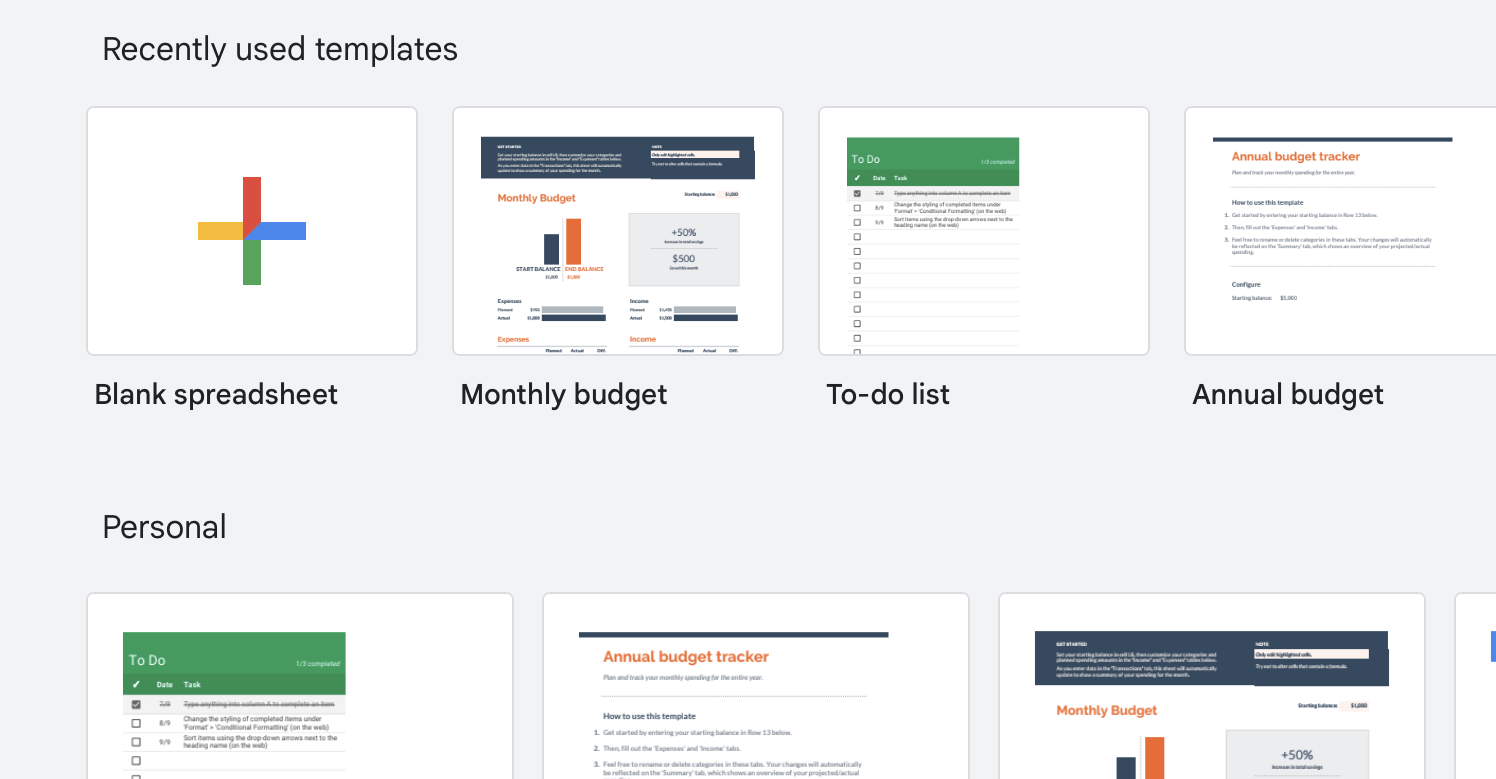
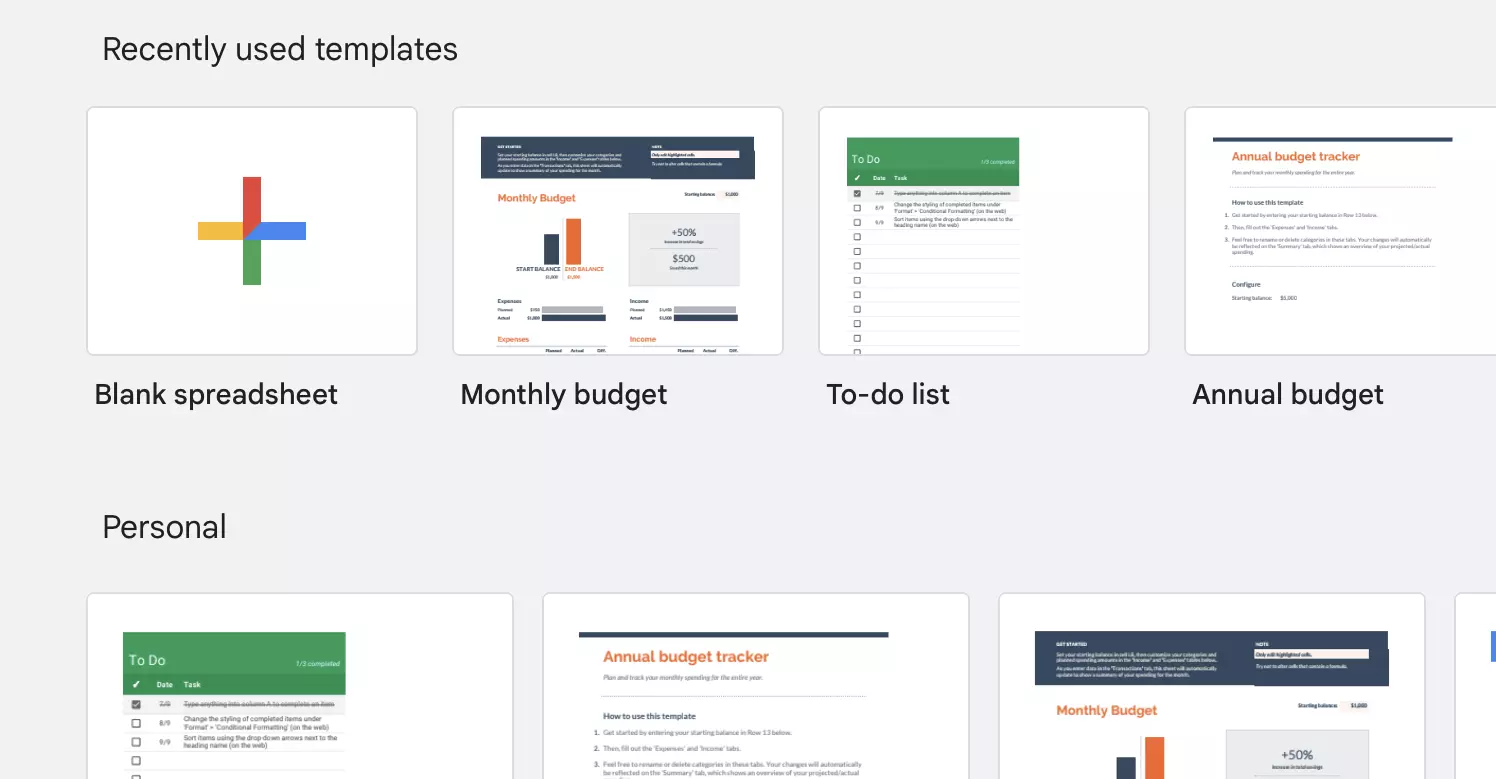
- Another tab will now open. Here you’ll find an overview of popular templates. These include to-do lists, budget plans, travel and wedding planners, time sheets and rosters. Click on the template you want to open in your spreadsheet.
How to import data records from other documents
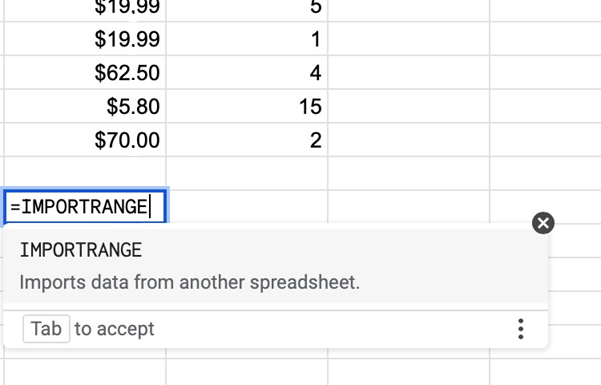
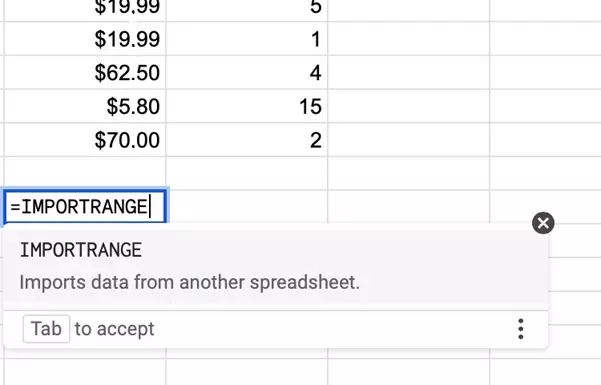
To add data to your spreadsheet, click on the relevant cell and then type in the desired information. If you want to transfer data from another spreadsheet, you have two options. Although you can copy all the data and then paste it into the spreadsheet of your choice, this method of transferring data is prone to errors when it comes to large amounts of data. One alternative is to use the IMPORTRANGE function. This function allows you to not only copy data from another document but also have any subsequent changes made to the imported data in the source spreadsheet carried over to your spreadsheet.
To use IMPORTRANGE, follow the steps below:
- Click the cell where you want to insert the data.
- Enter
=IMPORTRANGEand follow the instructions provided. - The program will first ask you to enter the URL of the source document. The address is enclosed in quotation marks. This is followed by a comma.
- Now enter the area you want to copy and paste. This is also placed in quotation marks.
- You then need to allow access to the source document.
How to do calculations in Google Sheets
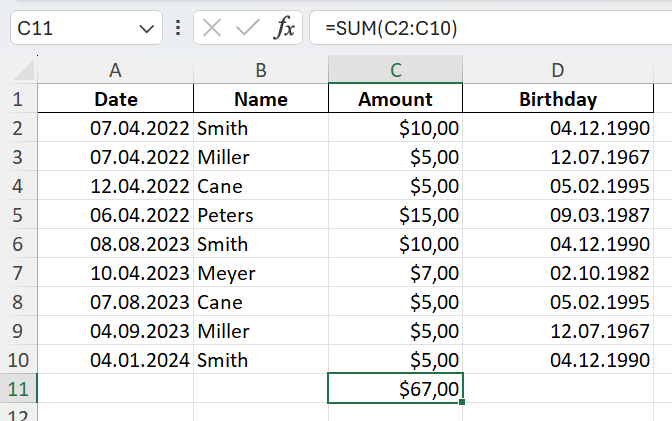
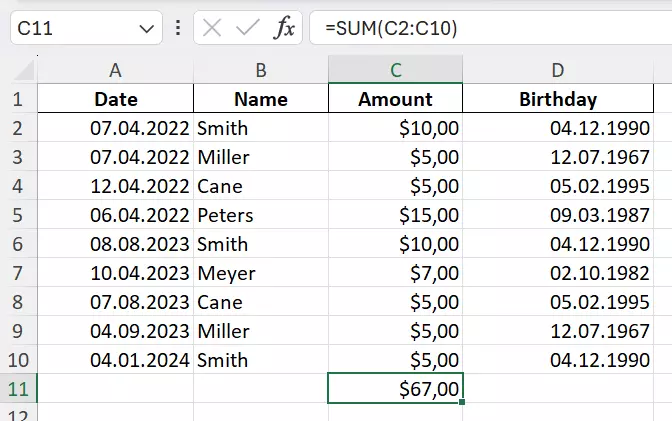
When you create a spreadsheet in Google Sheets, you can do more than simply enter data and values. You can also calculate totals, averages and other results. For example, if you want to calculate the sum of all values in a particular column, you can use the SUM function. To do this, click a blank field, enter =SUM and then the starting cell reference and end cell reference, which need to be separated by a colon. The program will then provide you with the sum of all the values in the range provided. The average calculation (AVERAGE), the COUNT formula or the calculation of the maximum value (MAX) work in a similar manner.
How to create charts
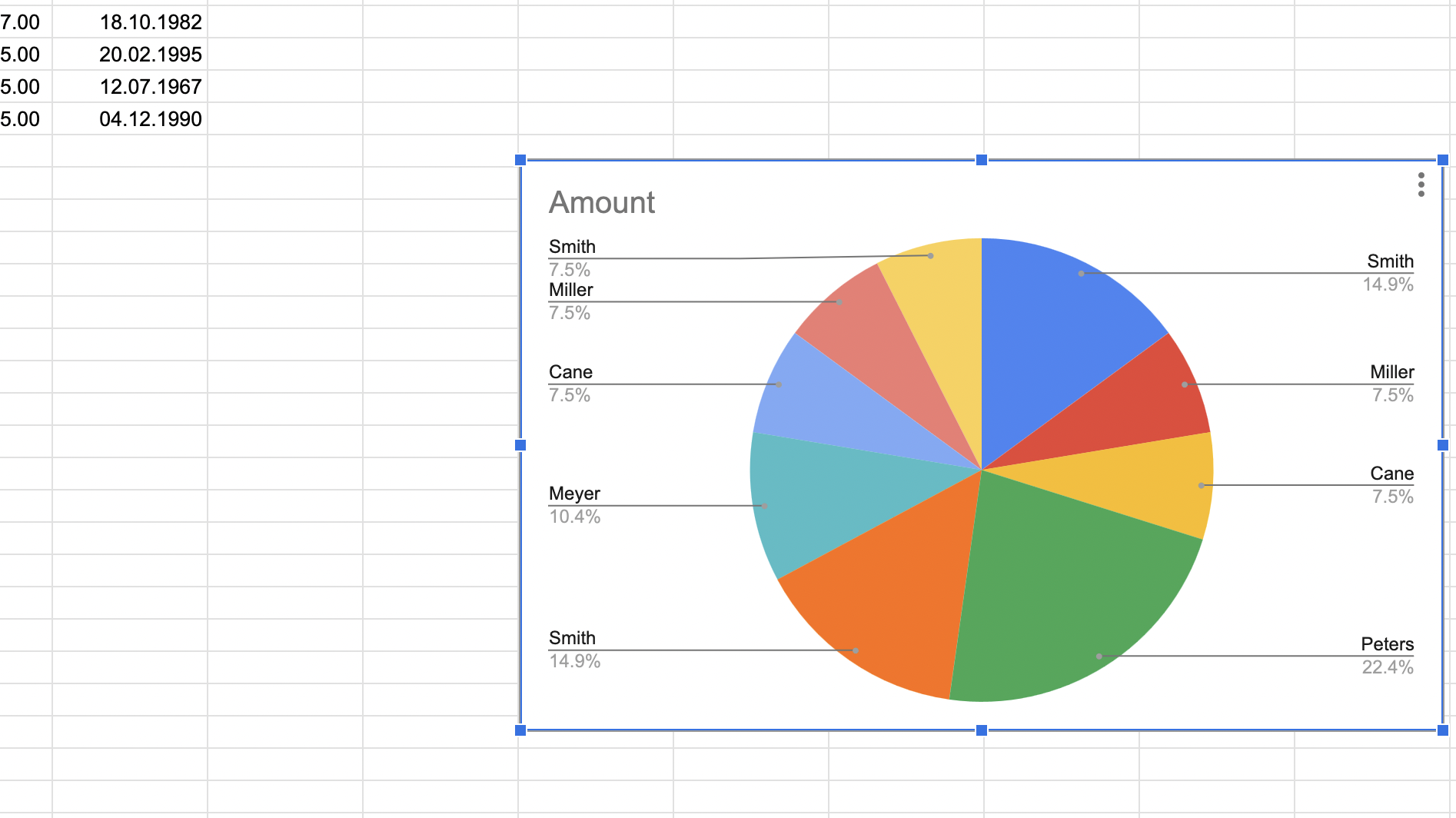
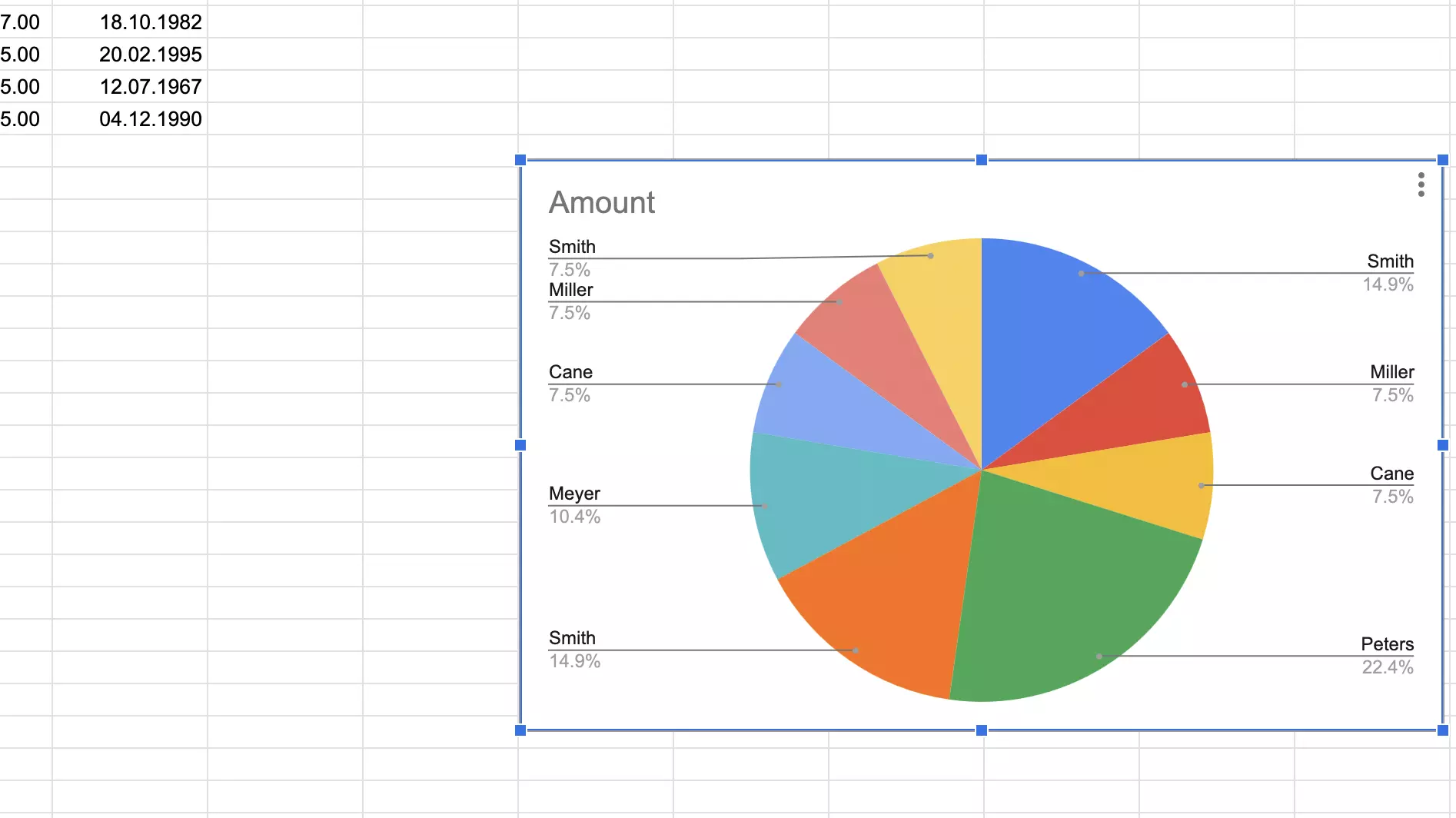
With Google Sheets, you can also use spreadsheets to create charts. To do this, select the relevant data, click on Insert and then on Chart. A formatted chart will appear, which you can further customize using the editor on the right. This is a particularly useful tool for presentations.
All the Google apps and so much more! Use the Google Workspace solution from IONOS and benefit from prioritized Google support, fast access to all apps and personal consultations. Choose the right plan for your needs!
Reviewer

Jeanna Raffa
With over 18 years of experience in online marketing, Jeanna Raffa possesses extensive expertise in digital marketing. Since 2020, her focus has been on providing practical information regarding email, office, and cloud storage solutions.