

How to fix the ERR_CERT_COMMON_NAME_INVALID error
Safety comes first when using the internet. The GDPR is not alone in offering protection to internet users against misuse and data theft, continued development in the technical structure of the internet ensures that you can surf in safety. To do this, current internet browsers are constantly improving their security features to protect their users. Secure data transfer using HTTPS connections has become a near-universal standard.
Google Chrome takes security very seriously. Because of this, you might receive an “ERR_CERT_COMMON_NAME_INVALID” error message when your browser tries to load a website. Find out what to do if this happens.
When does the “ERR_CERT_COMMON_NAME_INVALID” error appear?
If Chrome shows you the “ERR_CERT_COMMON_NAME_INVALID” error message, alarm bells should start ringing in your head. The exclamation point in the red triangle followed by: “Your connection to this site is not secure” is not just there for decoration.
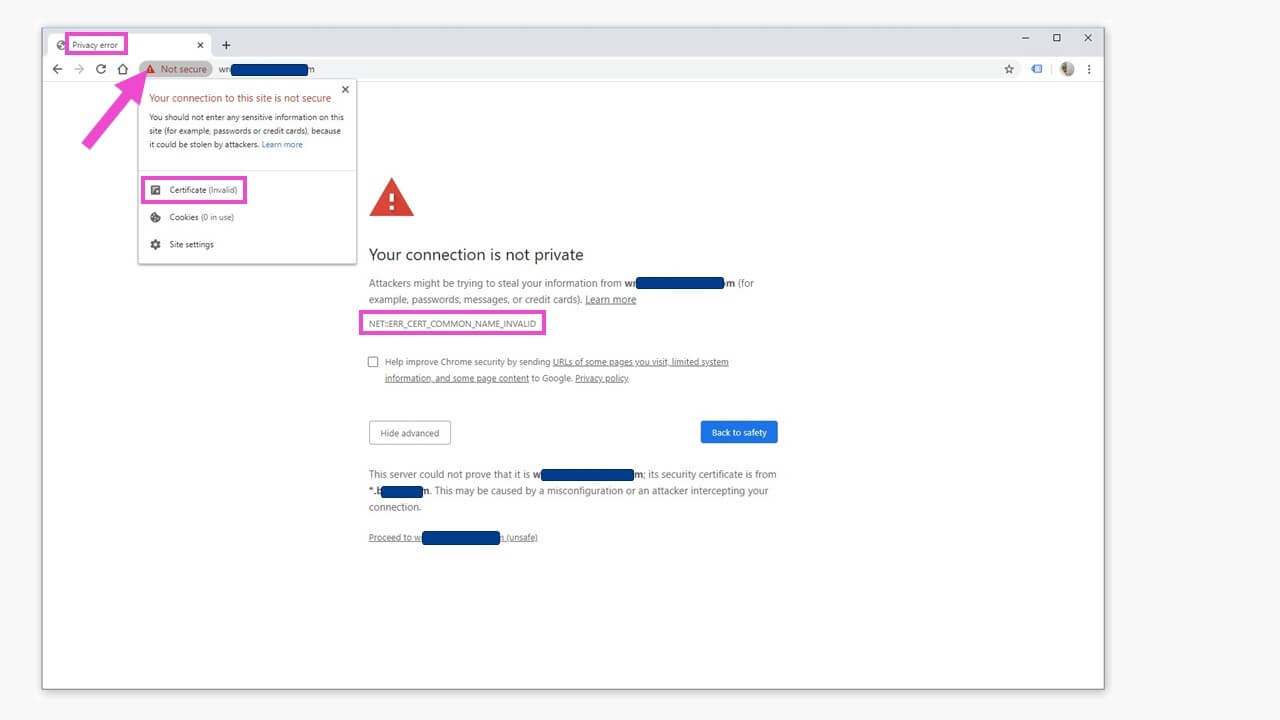
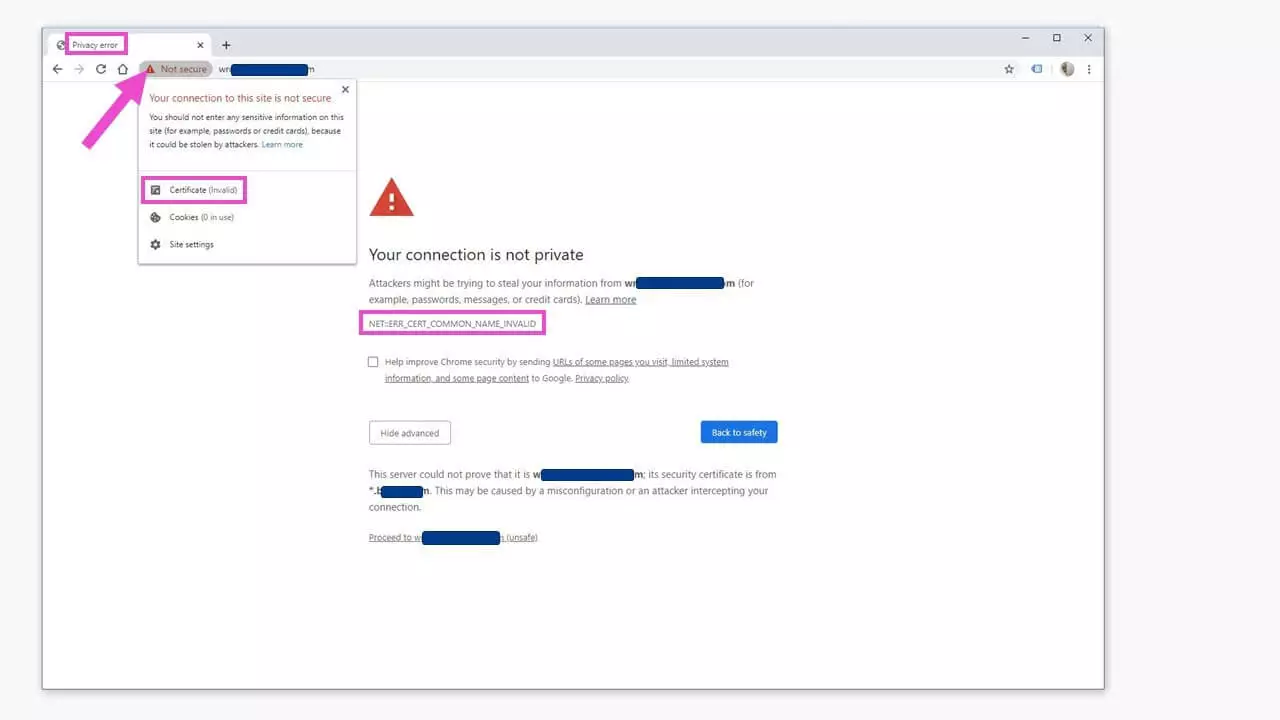
Surprisingly, this warning can also show up on websites that you know well and visit often. There can be several possible causes for this:
- The website has an incorrectly configured server, e.g., with a redirection to an insecure website or content.
- The website has an expired security certificate, as shown in the picture.
- Your computer’s security system “overreacted”, either the firewall or an antivirus program.
- Some browser plug-ins or extensions, generally made by third parties, can also cause this error message.
How can you fix the error?
There are several techniques to find out the details behind the error and fix it in a targeted way. We’ll tell you about the most important ones here.
Refresh the website, check your browser is up to date
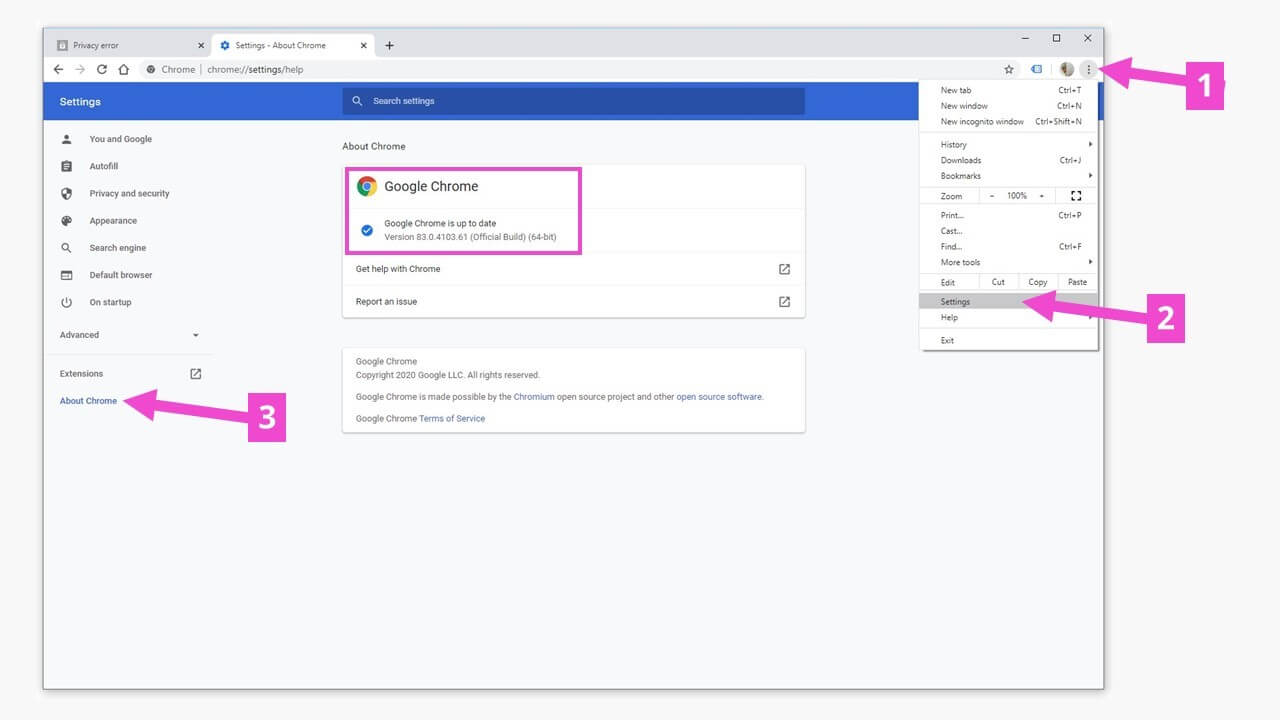
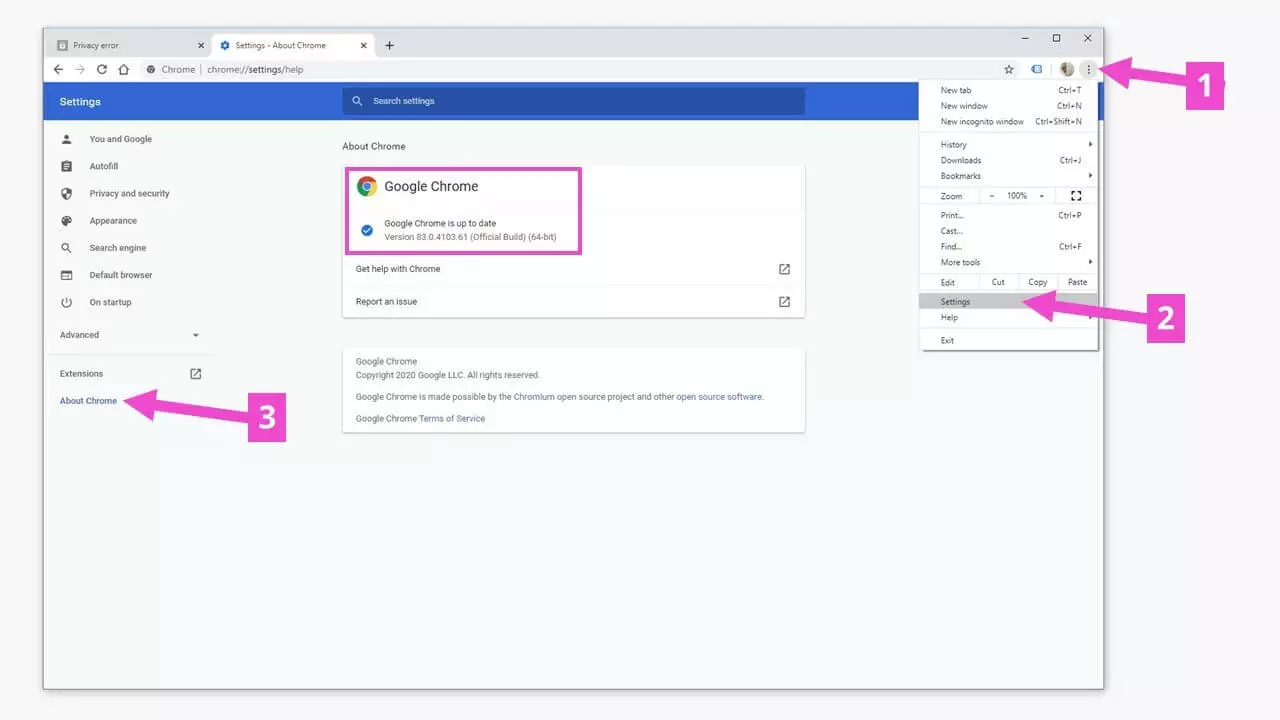
It might seem a little obvious, but the first thing to try when you get an “ERR_CERT_COMMON_NAME_INVALID” error is to refresh the website. You can do this with the keyboard shortcut Ctrl + R (Mac: Cmd + R) or by clicking the circular arrow near your browser’s address bar. It can also help to fully close your browser and open it again. You should also check that your browser is updated to the latest version.
With or without www
As a visitor to the website, you can’t do anything about poorly designed redirections on the web server which result in an “ERR_CERT_COMMON_NAME_INVALID” error. However, you can change how the site is accessed: Try typing the domain name of the website you want both with and without the “www.”.
You can save yourself from looking through browser menus and settings by accessing the list of available browser commands. Type “about:about” into the address bar and you will get a list of clickable browser commands. This works in Chrome, Firefox and Edge.
Deactivate browser extensions
To check if any browser extensions you may have are causing problems with the website’s security certificate, start by updating all active extensions. You can access this menu in “Settings” (1) > “More tools” > “Extensions” (2) or by going to “about:extensions”.
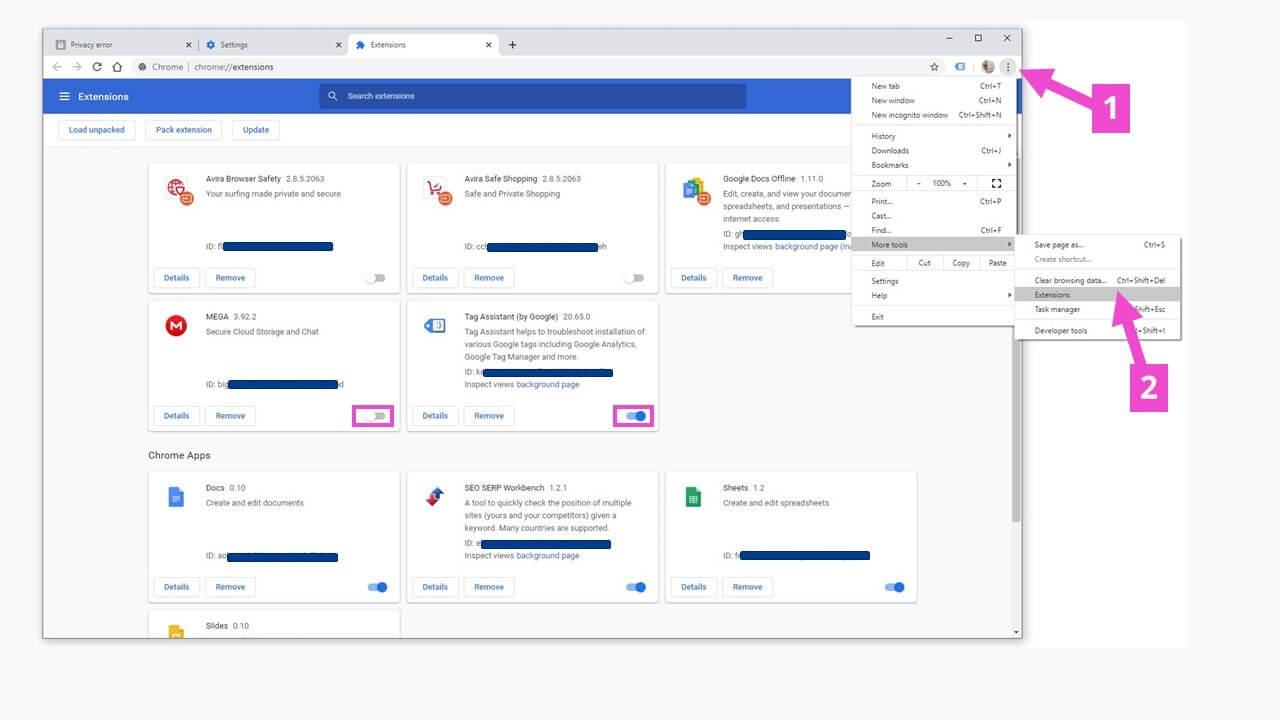
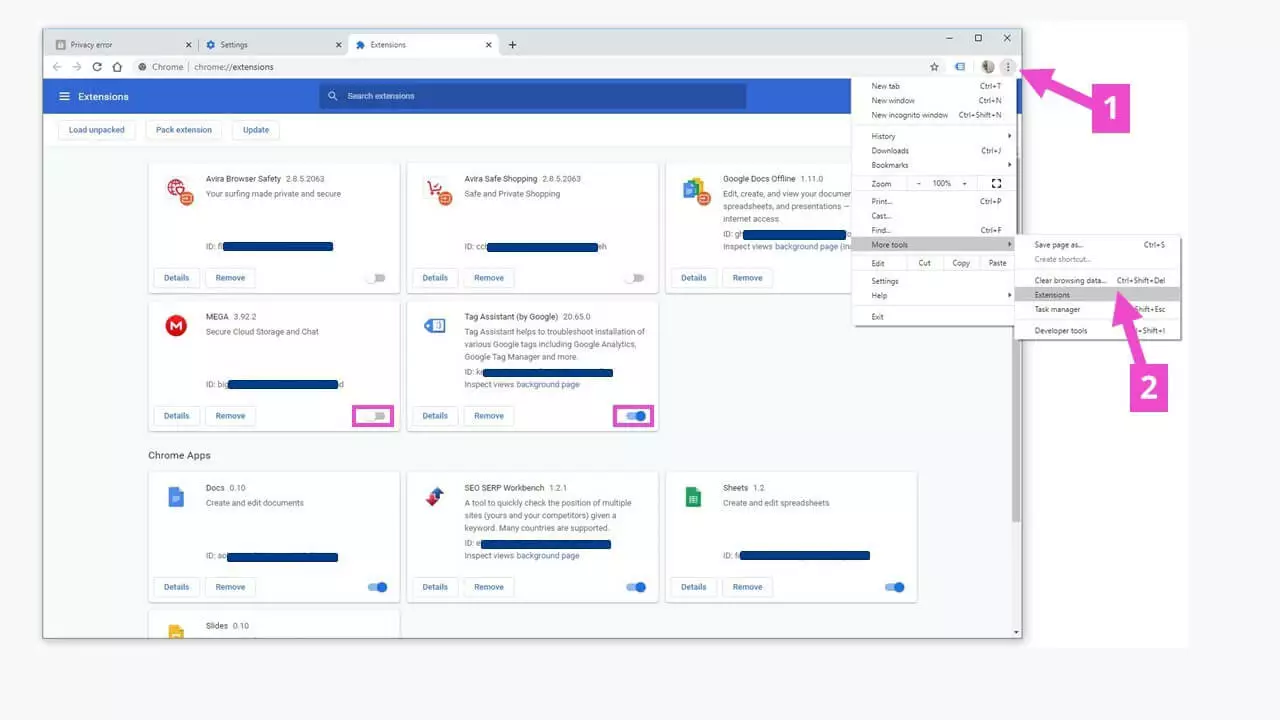
To check if any browser extensions you may have are causing problems with the security certificate of the website you are visiting and giving you the “ERR_CERT_COMMON_NAME_INVALID” error, deactivate the extensions one by one until you are able to load the site without the error occurring.
Clean your cache
Browsers and computers save security certificate data in caches. These may contain expired versions of certificates which can clash with a current, valid certificate.
Clear your browser cache
Several options are possible when you clear your browser cache. You can get to the relevant menu by going to “Settings” > “Privacy and security”.
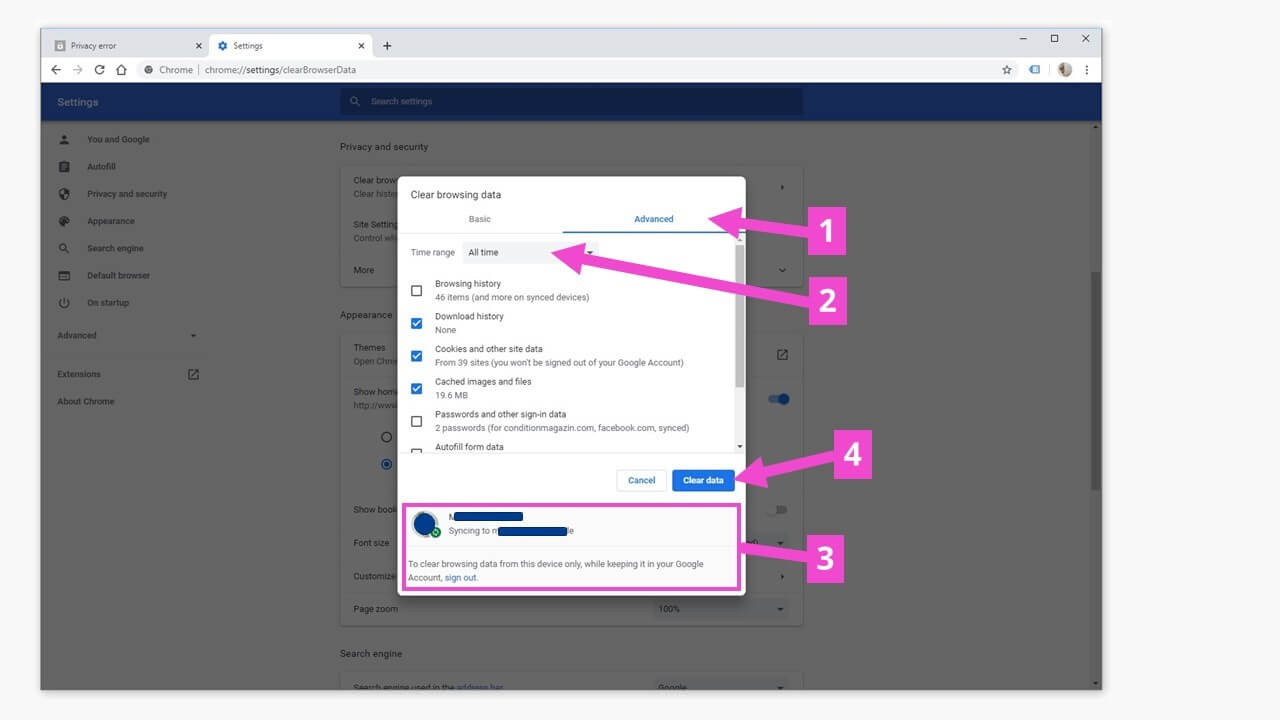
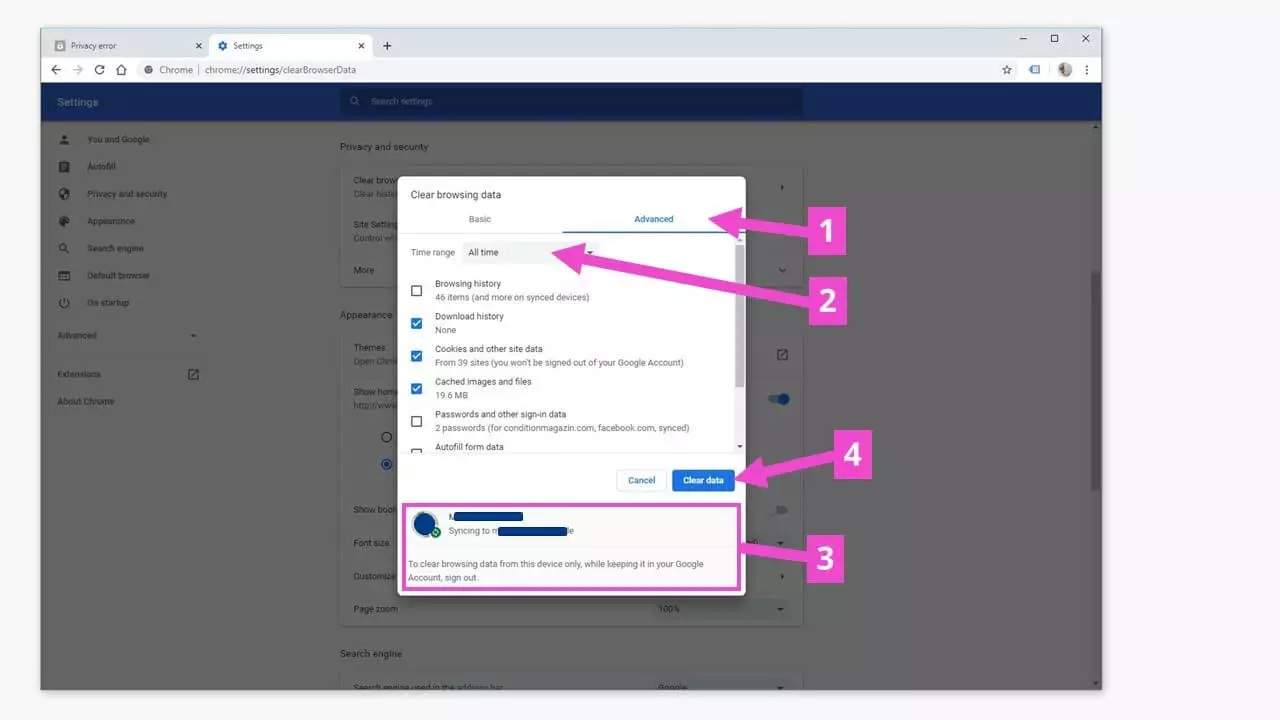
You can choose various time ranges to clear the data beginning from.
If you use your Google account to link apps and other synchronized devices, sign out of Chrome before deleting the data so the data is kept on your other devices.
Clear your SSL cache
Intermediate versions of certificate data are saved on your computer. Expired data in the SSL cache can also lead to error messages. To clear this, go to your computer’s “Control panel” and click on “Network and internet”.
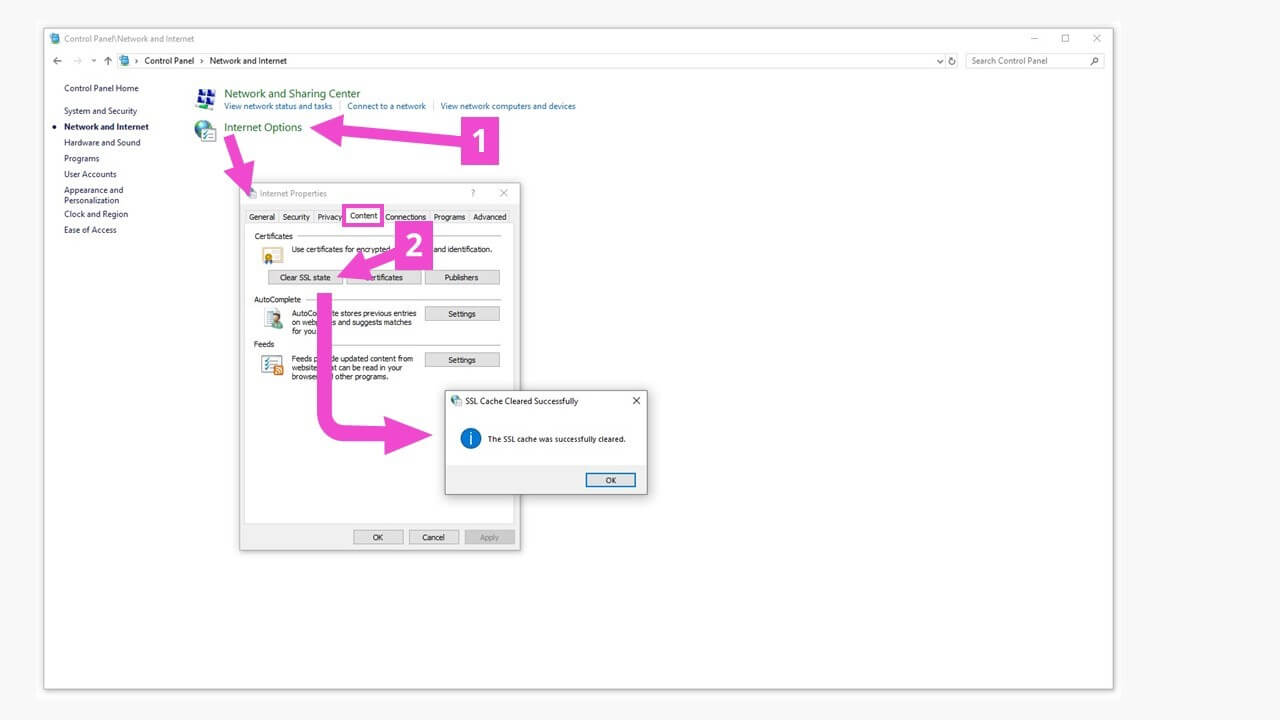
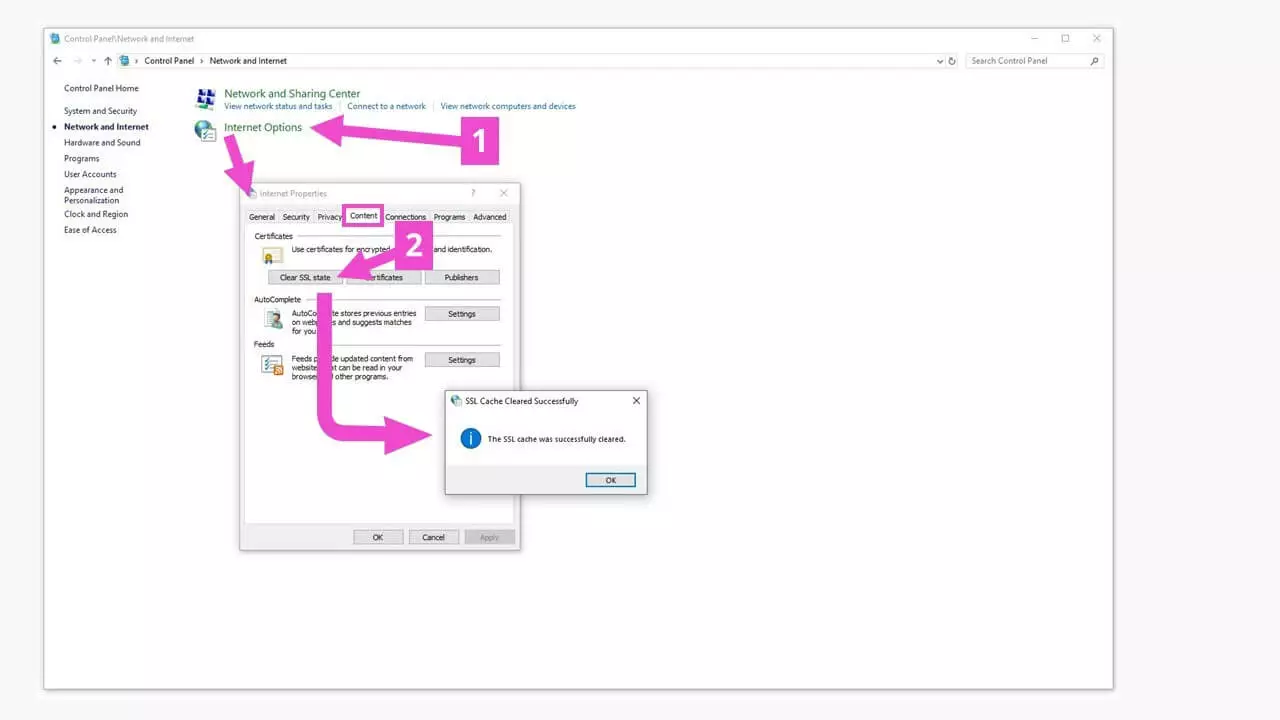
Check your connection settings
Your system should set up your internet connection automatically. Some unusual settings could be limiting your access to certain websites. Go to your computer’s “Control panel” and click on “Network and internet”. In the dialog box, click on the tab “Connections”.
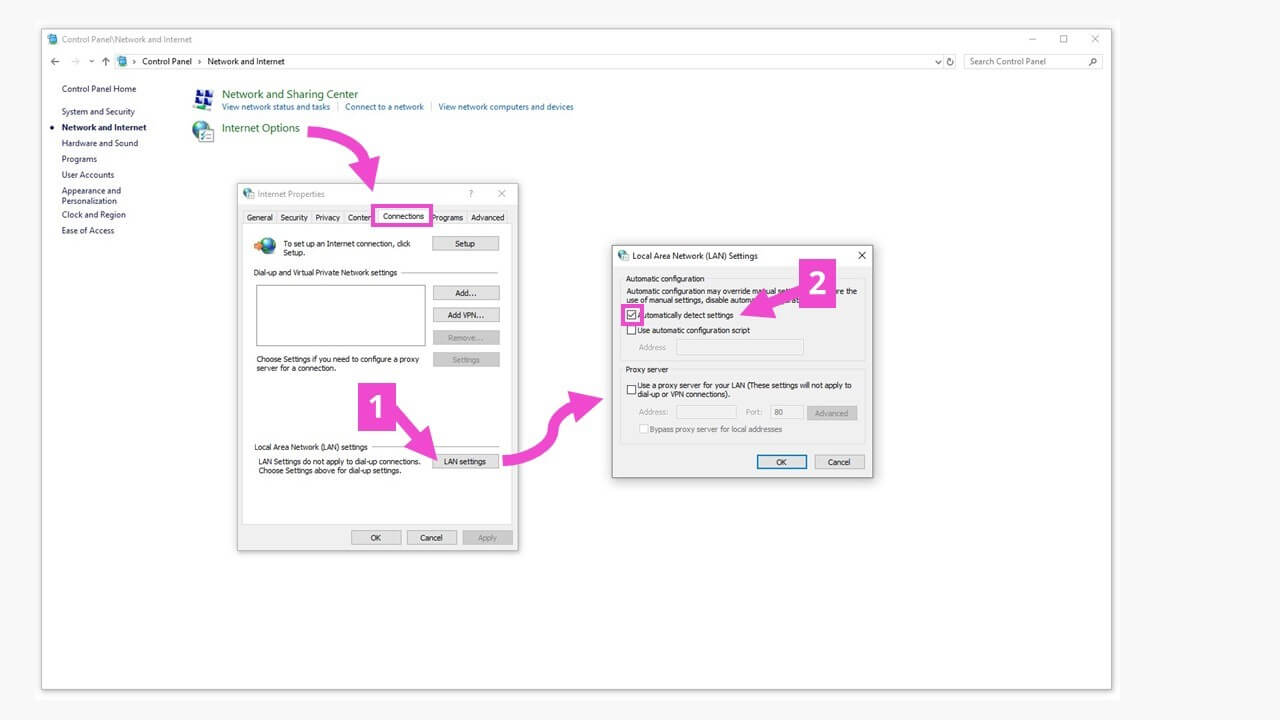
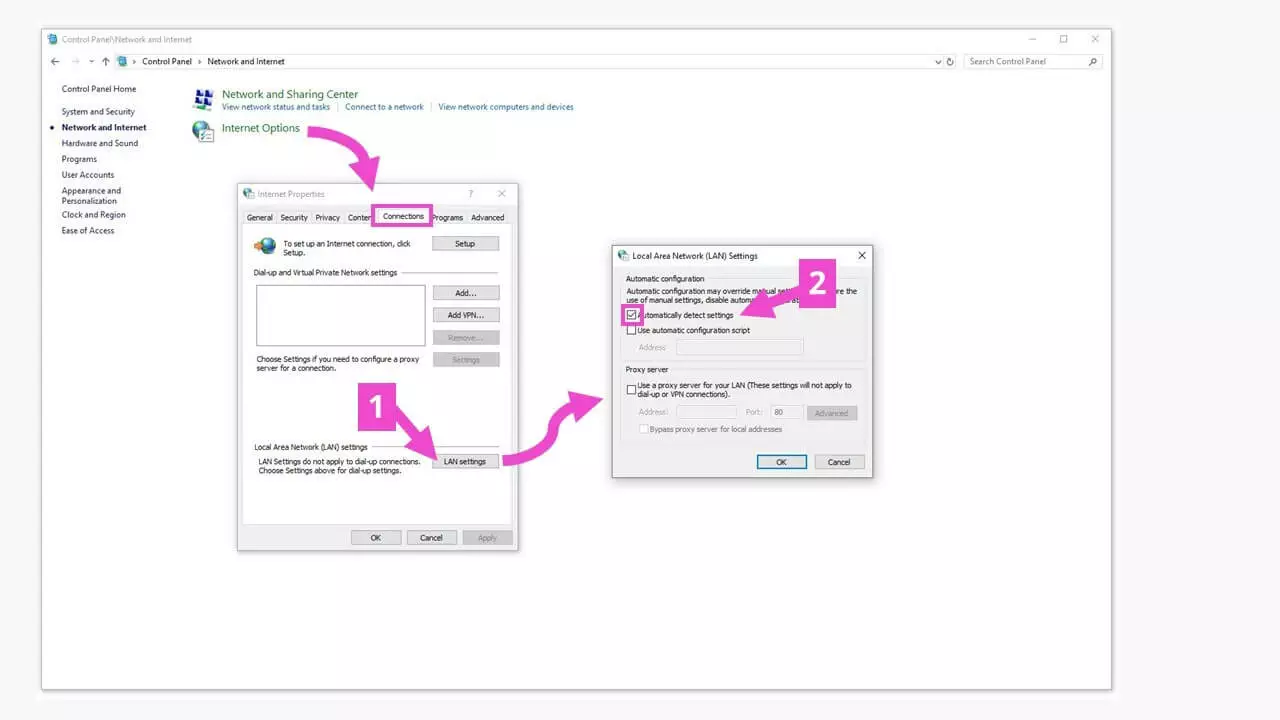
When you click on “LAN settings” (1), another window opens. Make sure that the setting “Automatically detect settings” box (2) is checked.
Is it the firewall’s fault?
Antivirus programs and firewalls are very useful tools to keep your computer’s data safe from outside attacks. However, both of them can block SSL certificates or override network settings, which can cause your browser to give you an “ERR_CERT_COMMON_NAME_INVALID” error. It might be helpful to temporarily deactivate these safety features to check if that stops the error message from appearing. You can access your firewall by searching “firewall” in Windows. You can find settings for your antivirus software in its help menu – this can vary from program to program.
Is your computer’s clock on time?
Website security certificates are valid for specific amounts of time, and they compare the period of validity of the certificate with the date and time of the computer accessing the site. An incorrectly set time on the computer can happen if it’s the first time a (new) computer has been linked to the LAN/Wi-Fi. To set the date and time on your computer, right-click on the clock in the windows task bar and choose “Adjust date/time”. This should open the Windows settings window, where you should set the time and time zone to “Set automatically”.
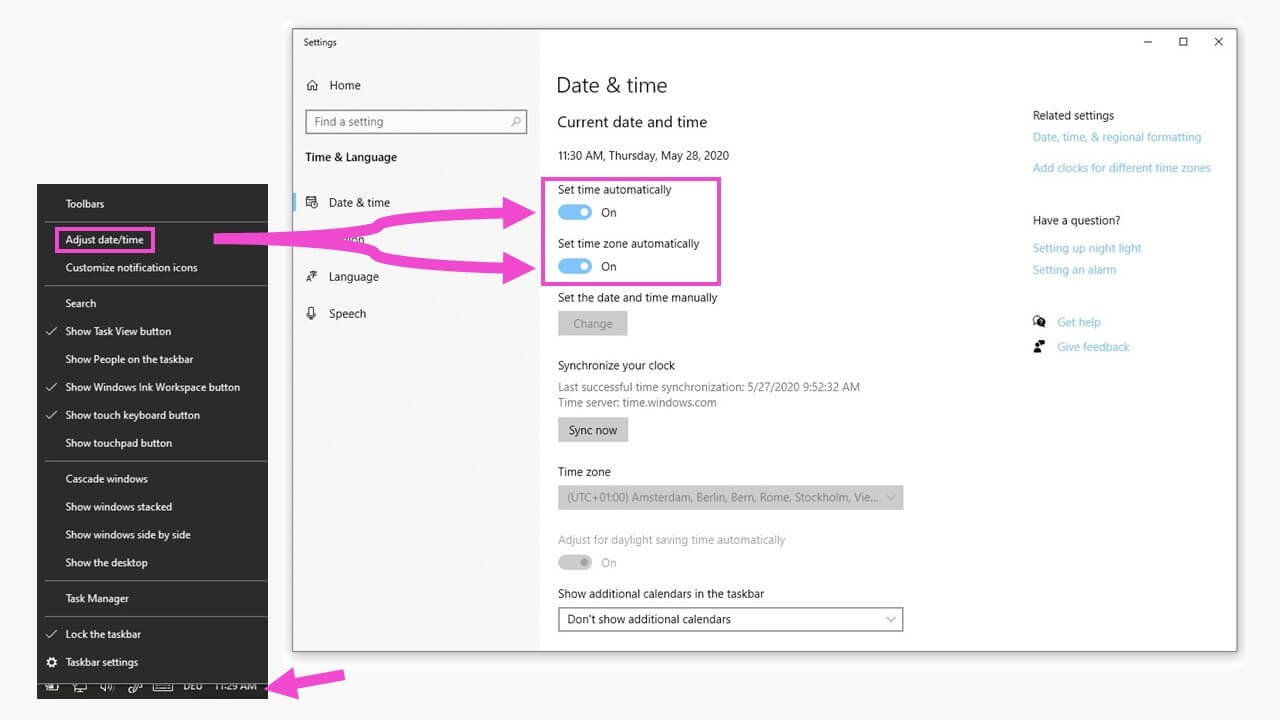
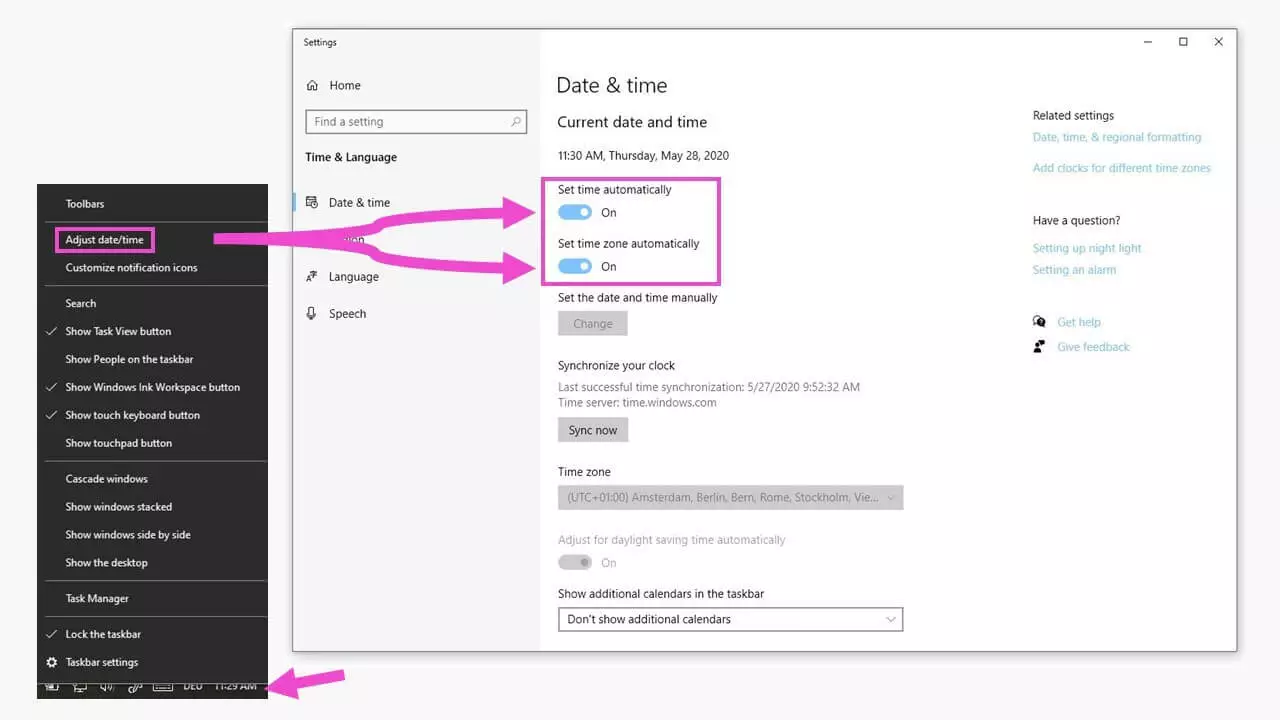
Your computer’s time will now be compared with the “internal time” of your network provider, which means that is it very precise.
Surfing on public hotspots
You can find public hotspots in many parts of the world. For most of them, you have to sign in before you can use them, and this sign-in tends to use an insecure connection. As a result, you won’t land directly on the sign-in page of the hotspot and will be unable to use the network. Instead, you will just get the “ERR_CERT_COMMON_NAME_INVALID” error message. If this happens, type an unsafe site address into your browser’s address bar, e.g., http://hotspot.tld (i.e., without the “s”) and load the site. You should then be able to access the sign-in page of the hotspot.
Continue with the unsafe version of the website (or don’t!)
Chrome offers you the chance to ignore the “ERR_CERT_COMMON_NAME_INVALID” error message and continue to the unsafe website. This manual course of action means all unprotected data is transferred.
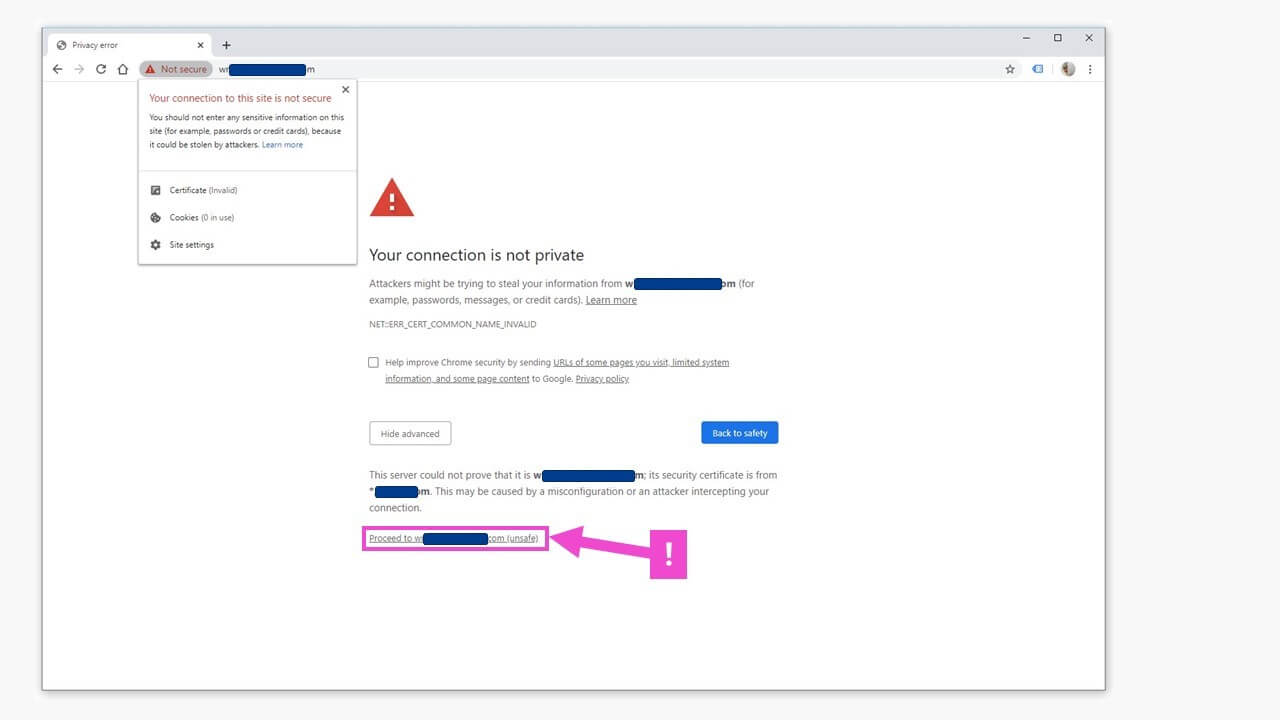
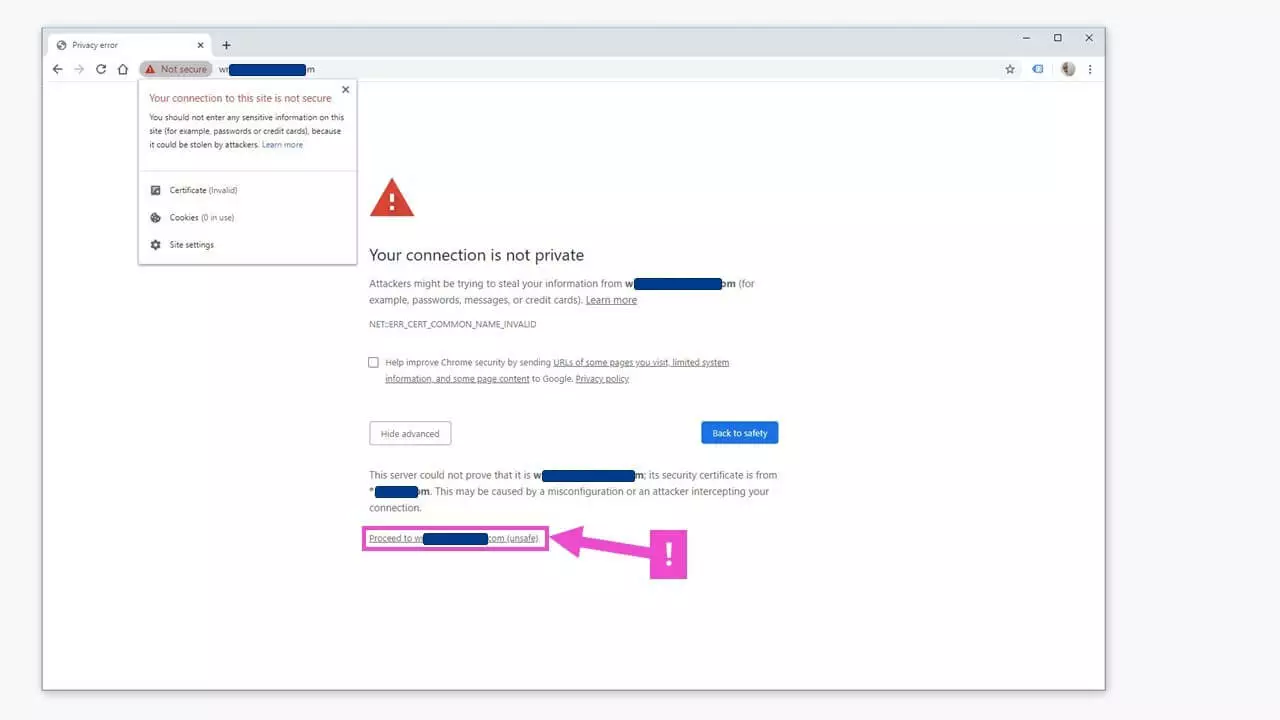
You should never hand over login data, payment details or other personal information on these websites. The “ERR_CERT_COMMON_NAME_INVALID” error message can also mean that you have come across a deliberate scam involving a hacked or redirected website. You should only visit unsafe sites if you are sure that you can trust the owner.
Restart your computer
Restarting your computer deletes a lot of temporary data, including several temporary caches. This can fix the “ERR_CERT_COMMON_NAME_INVALID” error and many others. The same is true when you restart your internet router.
Other ways to get around the problem of an “ERR_CERT_COMMON_NAME_INVALID” error should be left to web developers, as they can involve going deep into your computer system. At work, you’re better off contacting your system administrator.
Reviewer

Julia Hertler
With over 18 years of experience in content marketing, Julia Hertler has deep expertise in digital communications. For the past 10 years, she has specialized in the areas of domains and hosting at the IONOS Digital Guide, making complex technical topics easy to understand.