Learn how to configure a host header in order to add additional websites to a server with Windows Server 2016. This process allows you to host multiple websites with unique domain names on the same server and IP address.
Requirements
A Cloud Server with Windows Server 2016.
A registered domain name which is pointing to the server's IP address.
Domain Name Registration
Build your brand on a great domain
Free Wildcard SSL for safer data transfers
Free Domain Connect for easy DNS setup
Configure a host header
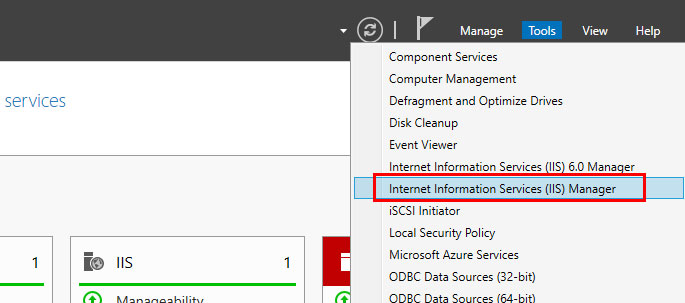
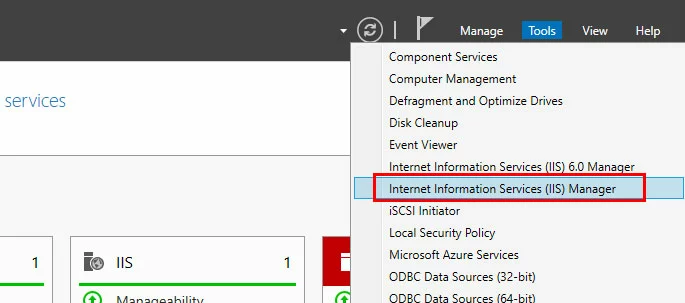
Use Remote Desktop to connect to the server. On the Server Manager Dashboard, click Tools > Internet Information Services (IIS) Manager.
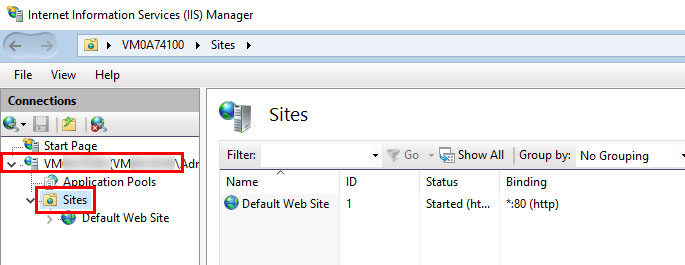
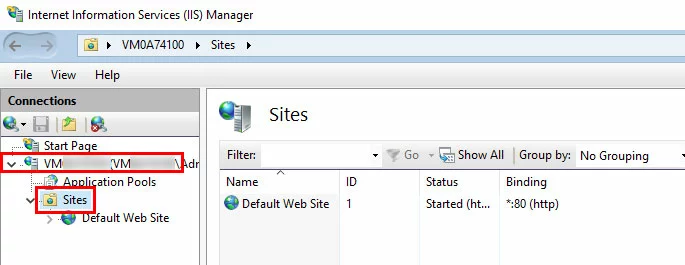
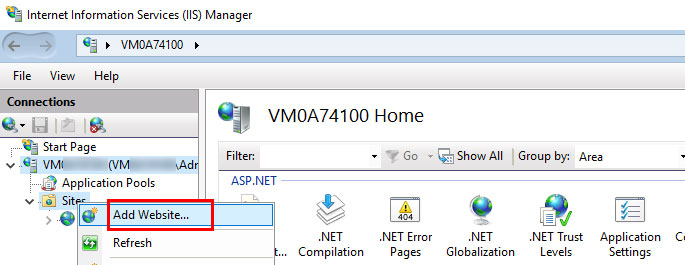
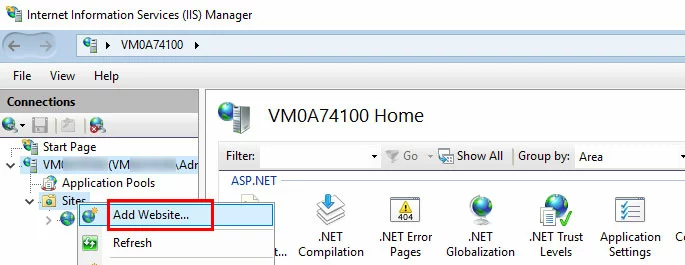
In the Connections pane, click to expand the server entry, then right-click Sites.
Click Add Website...
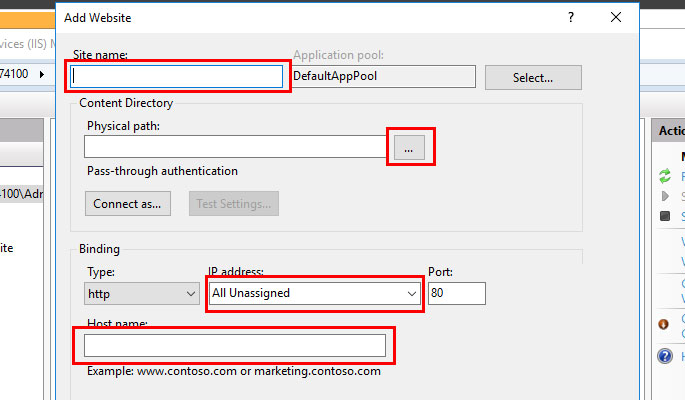
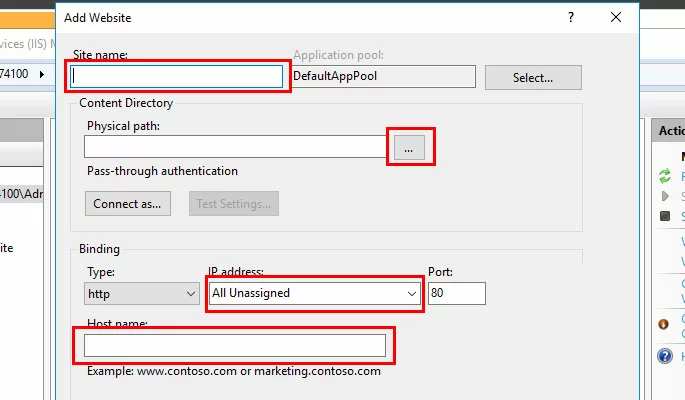
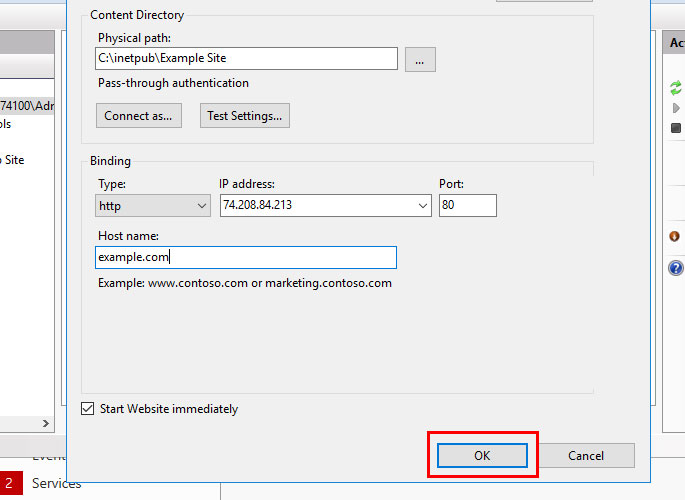
Fill out the following information:
Website Builder
From idea to website in record time with AI
Intuitive website builder with AI assistance
Create captivating images and texts in seconds
Domain, SSL and email included
Site name: A title for the site (like Example Site)
Physical Path: Click ... and choose the directory where the site's files will be stored.
IP Address: Click the drop-down menu and select the server's IP address.
Host name: Enter the domain name for the site (like example.com).
Click OK to add the site.
The website will be added, and you will be able to view the website's files in a browser.
With over 18 years of experience in content marketing, Julia Hertler has deep expertise in digital communications. For the past 10 years, she has specialized in the areas of domains and hosting at the IONOS Digital Guide, making complex technical topics easy to understand.
We use cookies on our website to provide you with the best possible user experience. By continuing to use our website or services, you agree to their use.
More Information.