Creating a server (VPS+)
Valid for VPS+.
This article walks you through creating additional servers in the Cloud Panel alongside your existing VPS+.
Note
You can only create an additional VPS+ in the Cloud Panel if you have already created one. In this case, you can create another VPS+ in the Cloud Panel under the same contract.
- Log in to your IONOS account.
Click on Menu > Servers & Cloud in the title bar.
Optional: If you have multiple server contracts, select the desired contract.
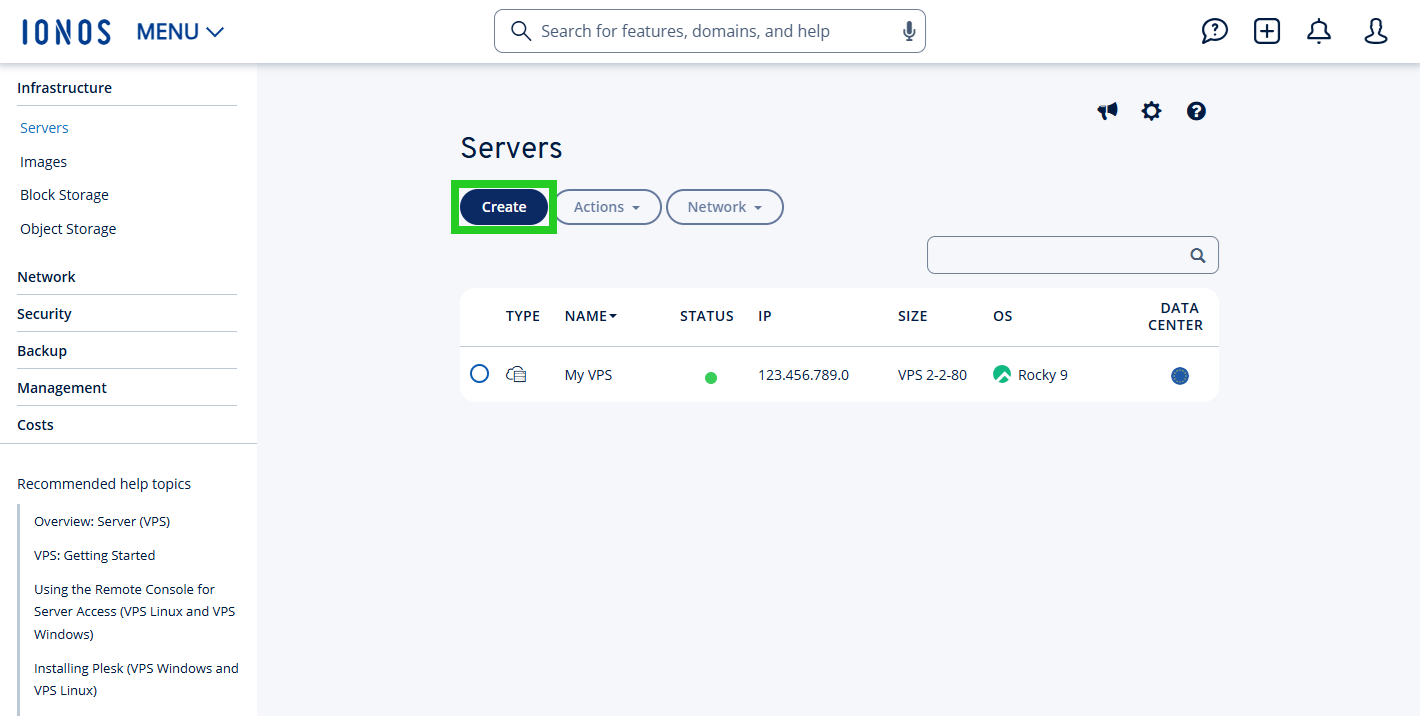
- In the Cloud Panel, under Infrastructure > Servers, click Create. The Create server pane opens.
- Enter the desired server name in the Name field.
- From the Recommended configurations list, select the desired configuration for the server.
- In the Images section, select the operating system or one or more applications for the server.
Various operating systems are offered in the Images tab. The Applications tab offers ready-to-use applications. The selected applications are deployed in a Docker container, which is set up on the server alongside the latest Ubuntu LTS version. The required storage space is displayed visually in a bar once the application has been selected. The access URLs for the applications are displayed after installation in the detailed overview of your server under Infrastructure > Servers.
Notes
If the selected server size is insufficient for certain applications, these cannot be selected in the Cloud Panel. Furthermore, an upgrade to a server with more resources will be suggested.
The IONOS Images tab also offers the Ubuntu (latest version) + Docker image for installation. This image does not contain any applications.
- Applies only to images running the Microsoft Windows Server operating system: Please read and accept the Microsoft End User License Agreement.
- In the Data center section, select the data center you require.
Notes
- The shorter the geographical distance between your servers and your users or visitors, the shorter the loading times will be. To optimize loading times, we recommend selecting an IONOS data center located close to your users.
- Firewall policies can be applied to all servers, regardless of the chosen IONOS data center.
- Click on Show in the Advanced Options section.
Note: This menu item is only displayed after selecting an IONOS image or application. If you are installing an ISO or a custom image, this menu item is not available. - In the Advanced Options section, enter a secure password in the Password field and repeat it.
Note: This step is only available after selecting an IONOS image or application. - In the Scripts section, enter the desired post-creation script and then select the Script Type.
Note: This step is only available after selecting an IONOS image. - Select a firewall policy from the Firewall Policy list.
- In the Public IP list, specify whether the server should be assigned an existing or new public IP address.
- Optional: In the Network field, select whether the server should be assigned to a network.
- Click Create.
The server will be created.
Notes
- In some cases, installing applications may take longer than simply provisioning the server, as the relevant cloud-init script is only executed after the server has been installed. Please bear with us in such cases. The installation of the applications is usually completed within an hour at the latest.
- Once installed, your applications are protected by additional password security. The login details are listed in your server’s detailed overview. You will also find information there on how to disable the password protection.
- If you install an application with a web user interface (e.g. n8n), an SSL certificate from Let’s Encrypt is automatically installed and configured during setup. Access to the n8n interface is therefore encrypted via HTTPS from the beginning and does not trigger any security warnings from the browser.
In rare cases, there may be a delay in the issuance of the SSL certificate. In this case, a security warning will be displayed when you access the URL. This might read, for example, “Your connection is not private”. If you see this security warning, restart the server. Alternatively, you can establish an SSH connection to the server and trigger a new certificate request. To do this, enter the following command:
docker restart traefik
- Due to a known behavior in the n8n application, a full-screen red warning message (e.g. “Deceptive site ahead” / phishing warning) may occasionally appear in the Google Chrome browser, even though a valid SSL certificate is present. This warning is triggered erroneously and usually disappears on its own after a short while.