Reinstalling an image (migrated Cloud Servers and VPS+)
Valid for VPS+ and migrated Cloud Servers.
You can restore a migrated Cloud Server or a VPS+ by reinstalling an image. You can use your own images or those provided by IONOS. This article walks you through reinstalling an image on a migrated Cloud Server or a VPS+.
Caution
If you reinstall an image on an existing server, all existing data on the server will be permanently deleted and replaced with the data from the newly installed image. This process cannot be undone. Make sure you create a backup of the server before installing the image. Otherwise, you risk losing data.
Notes
- While an image is being installed, the server cannot be edited.
- The login details are the same as those of the server from which the image was created.
If you create an image from a server on which Plesk Obsidian is installed and use this image in the Cloud Panel to restore another server, you must change the Plesk activation code on the newly created server in the Plesk license settings. You can find instructions in the following article:
To reinstall an image, complete the following:
- Log in to your IONOS account.
Click on Menu > Servers & Cloud in the title bar.
Optional: If you have multiple server contracts, select the desired contract.
- In the Infrastructure > Servers section, click on the desired server.
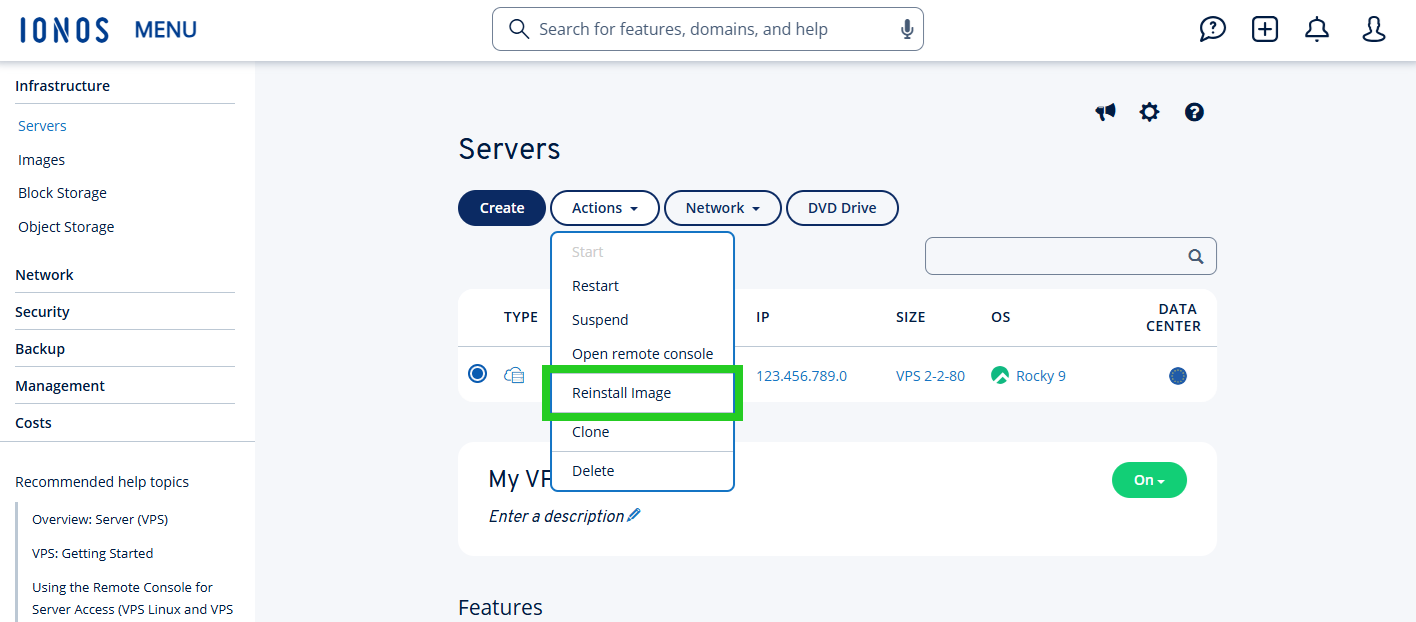
- Click on Actions.
- Click on Reinstall Image. The Reinstall Image page opens.
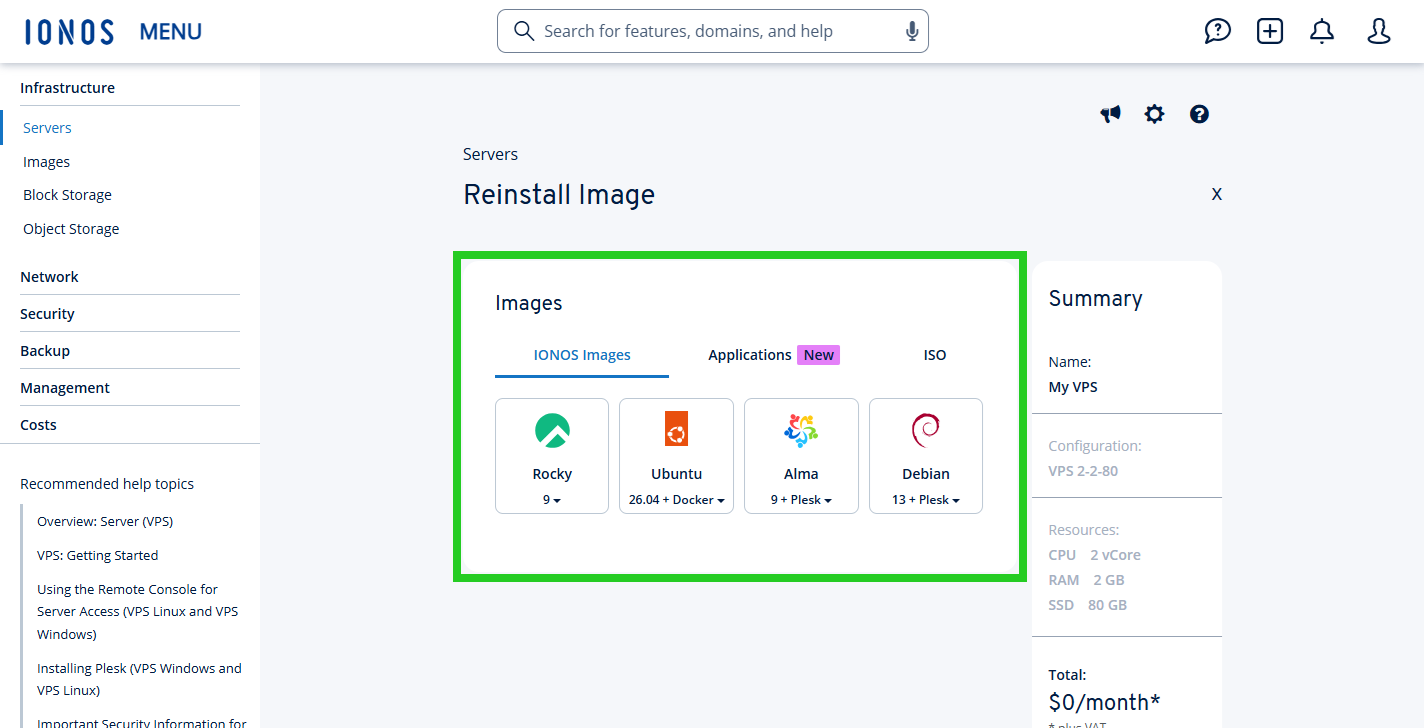
Select the desired image. The IONOS Images tab displays images for various operating systems. The Ubuntu 26.04 + Docker image is also available in this tab. This image does not contain any applications.
The Applications tab offers ready-to-run applications. Depending on your selection, the applications are deployed in a Docker container or directly on the server, on top of the latest Ubuntu LTS version. Once you have selected an application, a bar shows how much storage space it requires. After installation, the access URLs for the applications are displayed in your server’s details under Infrastructure > Servers. If the selected server size is insufficient for certain applications, you cannot select them in the Cloud Panel. Instead, an upgrade to a server with more resources is suggested.
Standard operating systems are available in the ISO tab. If you use one of these images, you may need a license key.
The My Images tab displays images that you have created yourself from your Cloud Server.
- This step is only possible after selecting an IONOS image or an application: In the Advanced Options section, click on Show. This option is not available for ISO images or your own images.
- This step is only possible after selecting an image containing a Linux distribution or an application: Enter the password for accessing the server in the Password field and repeat it in the Confirm Password field.
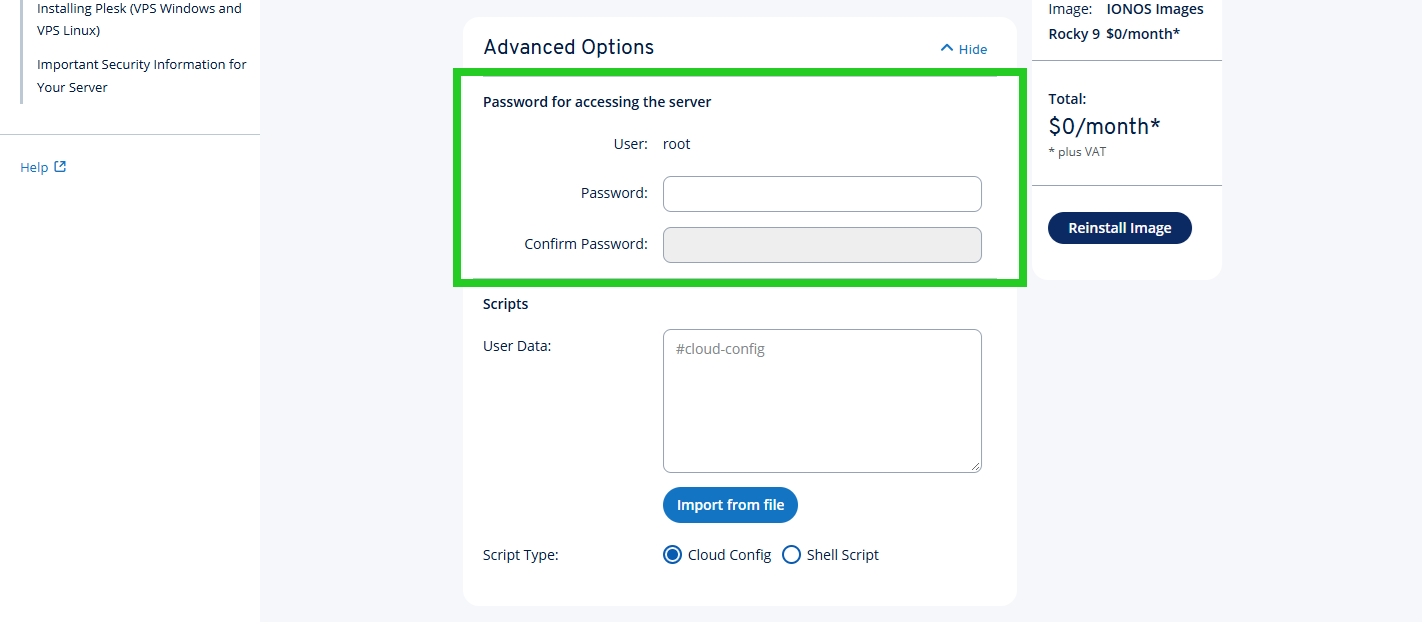
- This step is only possible after selecting an image containing a Linux distribution or an application: To customize your server’s configuration after the reinstallation, enter the desired post-creation script in the User Data field.
- This step is only possible after selecting an image containing a Linux distribution: In the Script Type field, select the type of script you are using (Cloud Config or Shell Script).
- Click on Reinstall Image.
The server will now be reinstalled. This process may take a few minutes.
Notes
- In some cases, installing applications may take longer than provisioning the server, because the relevant cloud-init script is only executed once the server has been installed. Please be patient in such cases. The applications are usually fully set up within an hour.
- Once installed, your applications are protected by an additional password. The login details are listed in your server’s details. There you will also find information on how to disable the password protection.
- If you install an application with a web user interface (for example, n8n), an SSL certificate from Let’s Encrypt is automatically installed and configured during setup. Access to the application’s interface is therefore encrypted via HTTPS from the start and does not trigger any security warnings in the browser.
In rare cases, the HTTPS certificate may be issued with a delay. A security warning is then displayed when you access the URL, for example, Your connection is not private. If you see this security warning, restart the server. Alternatively, you can establish an SSH connection to the server and trigger a new certificate request. To do this, enter the following command:
docker restart traefik
- Due to a known behavior of the n8n application, Google Chrome may occasionally display a full-screen red phishing warning (for example, Dangerous site) despite a valid SSL certificate. This warning is triggered incorrectly and usually disappears on its own after a short while.