Cloud Backup: Updating notification email address
This article explains how to change the notification email address in the Backup Console.
Requirement
You have created a Backup Package.
- Log in to your IONOS account.
Click on Menu > Servers & Cloud in the title bar.
Optional: If you have multiple server contracts, select the desired contract.
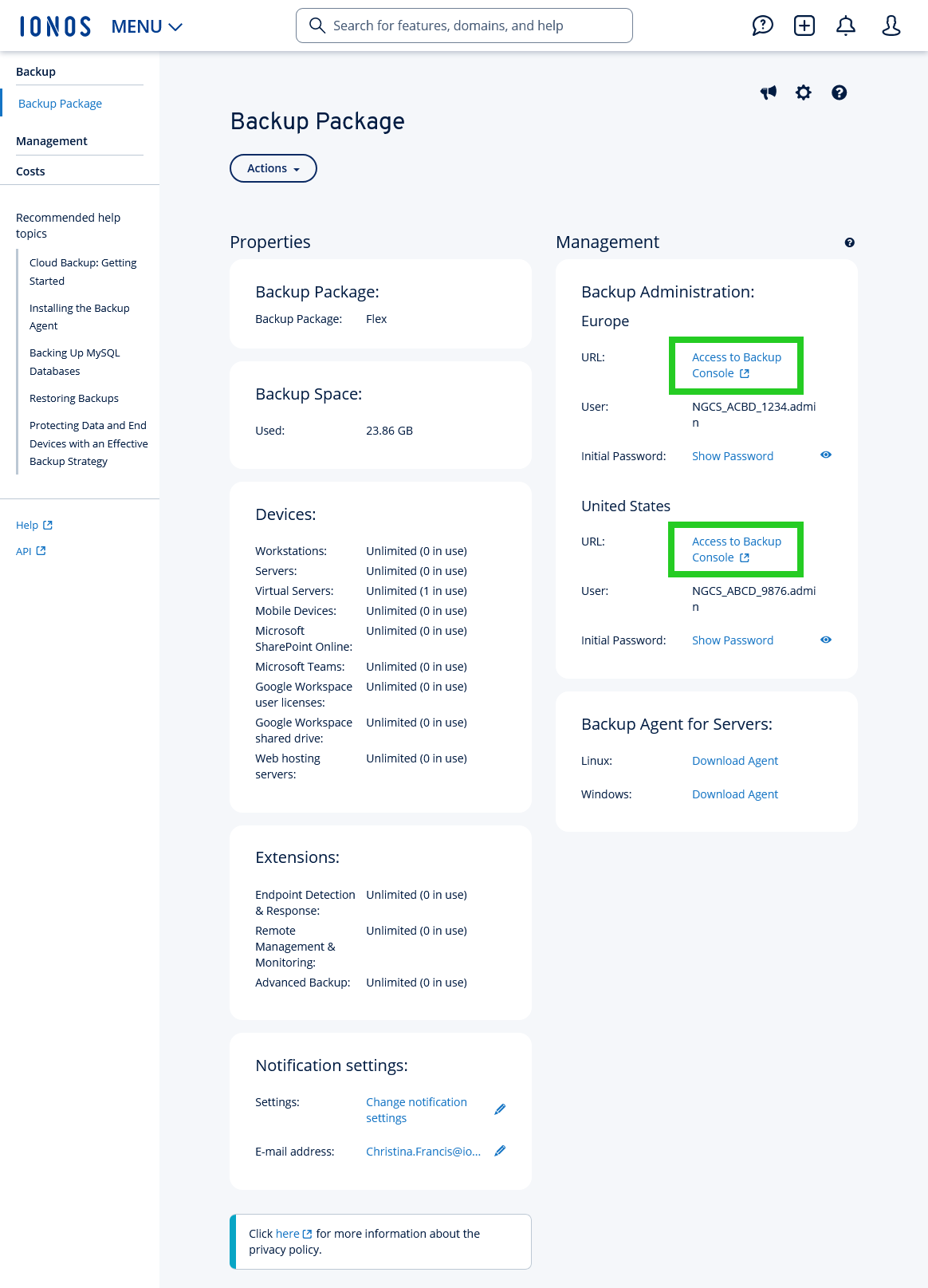
Click on Backup > Backup package in the navigation bar on the left of the Cloud Panel.
There is a backup console for Europe as well as for the USA.
- Click on Access to Backup Console under either Backup Administration > Europe or Backup Administration > United States to open the desired Backup Console.
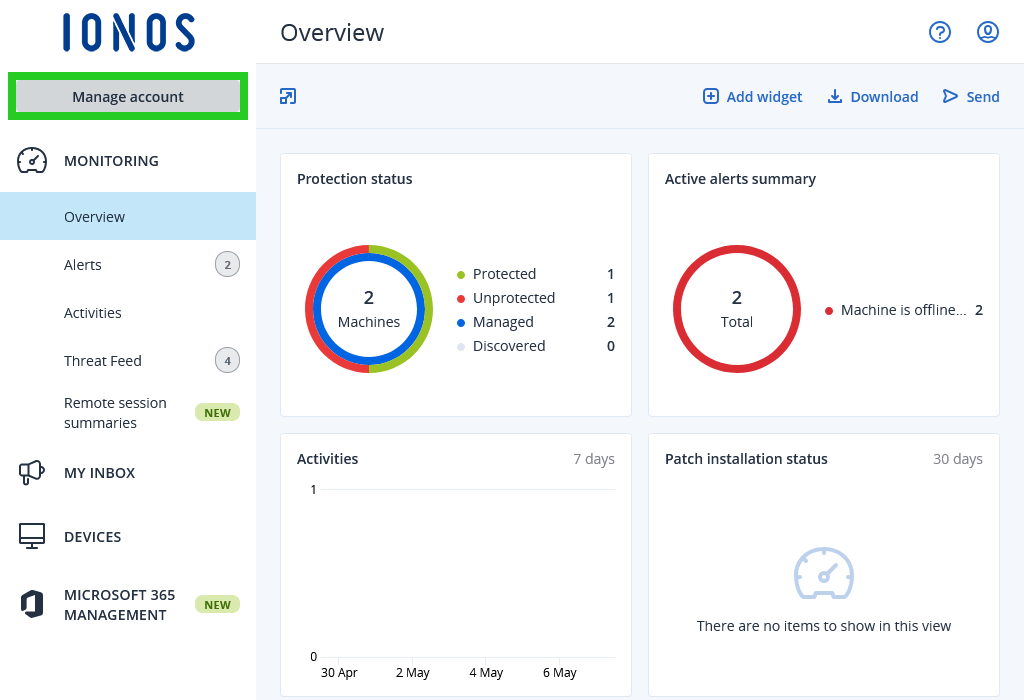
- Click on Manage account at the top left.
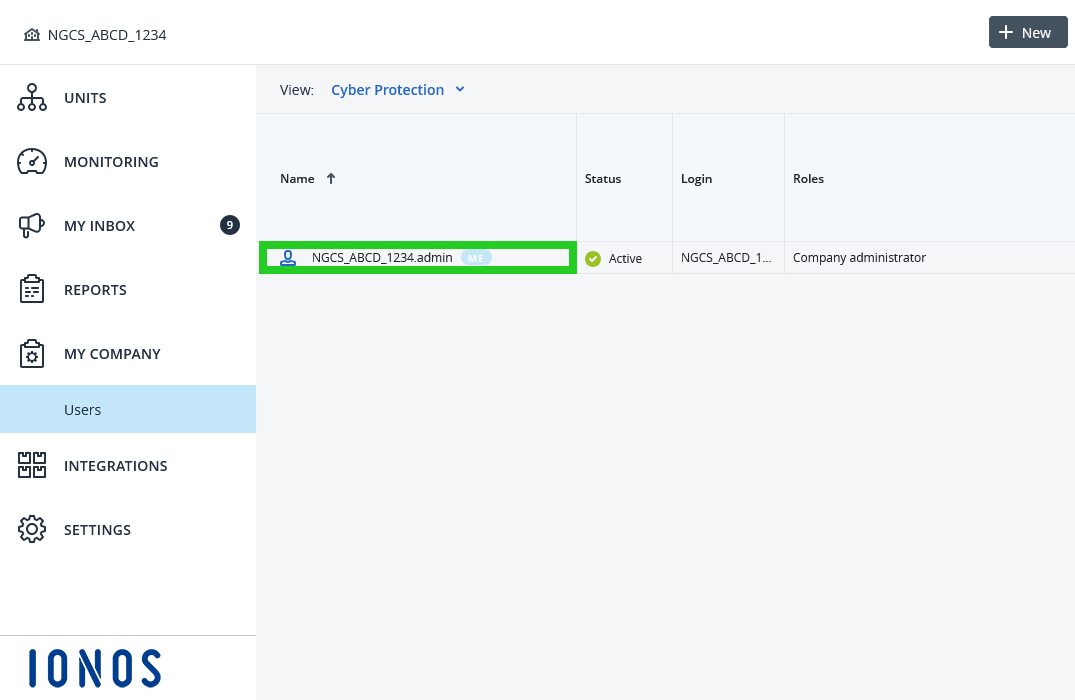
- Click on My company in the navigation bar on the left.
- Click on the user in the Name column. An overlay view with the Services and General information tabs opens.
- Click on the General information tab.
- Click on the pencil icon in the General information section.
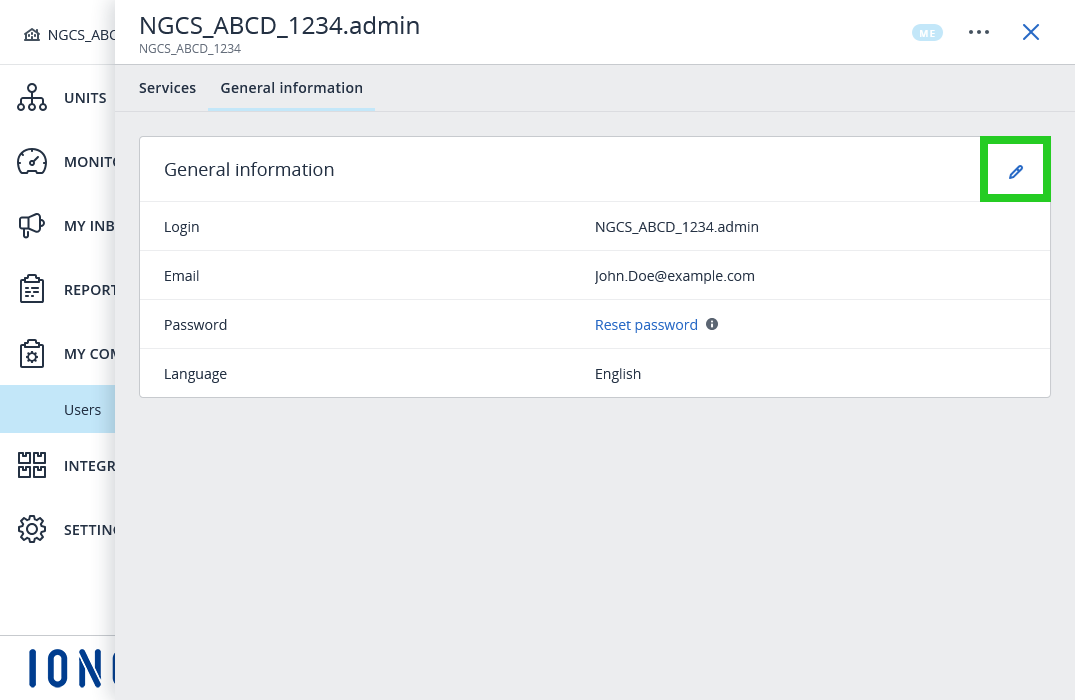
- Update the email address.
- Click on Done.
The email address will be changed. Email notifications about the status of your backups will now be sent to the new email address.