Importing contacts into IONOS Webmail
Valid for: Mail Basic and Mail Business
With the import function, you can easily transfer your contacts from other applications to Webmail. This article explains how to do this.
- Log in to IONOS Webmail.
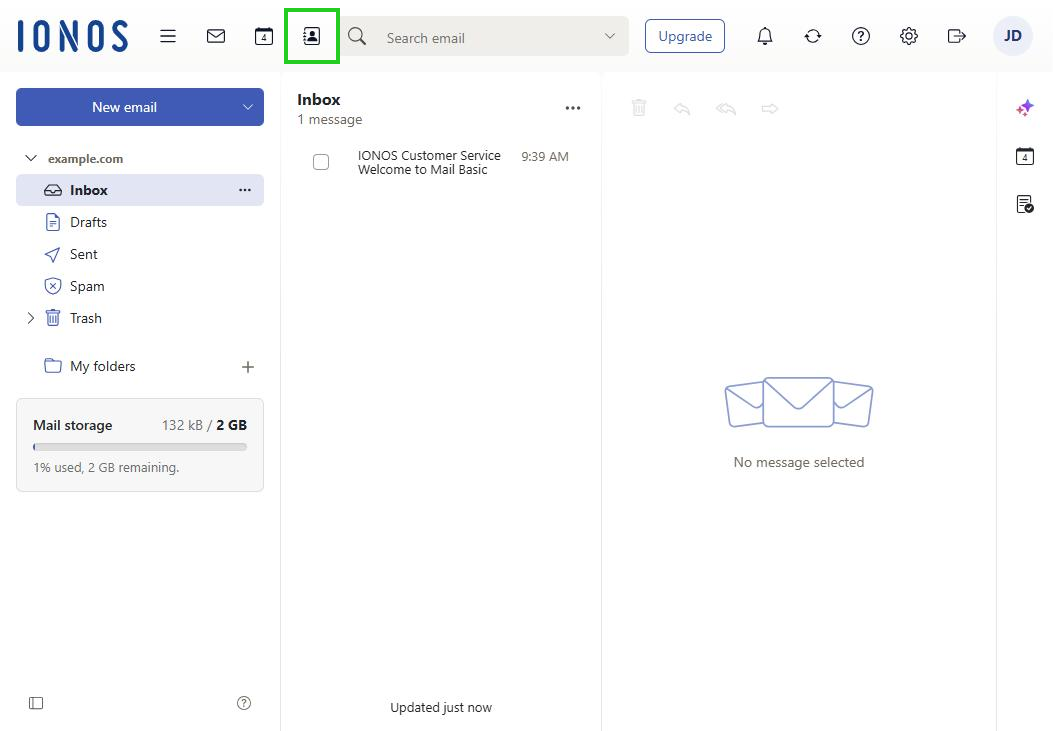
- In the main navigation at the top, click the address book icon (tooltip Address Book).
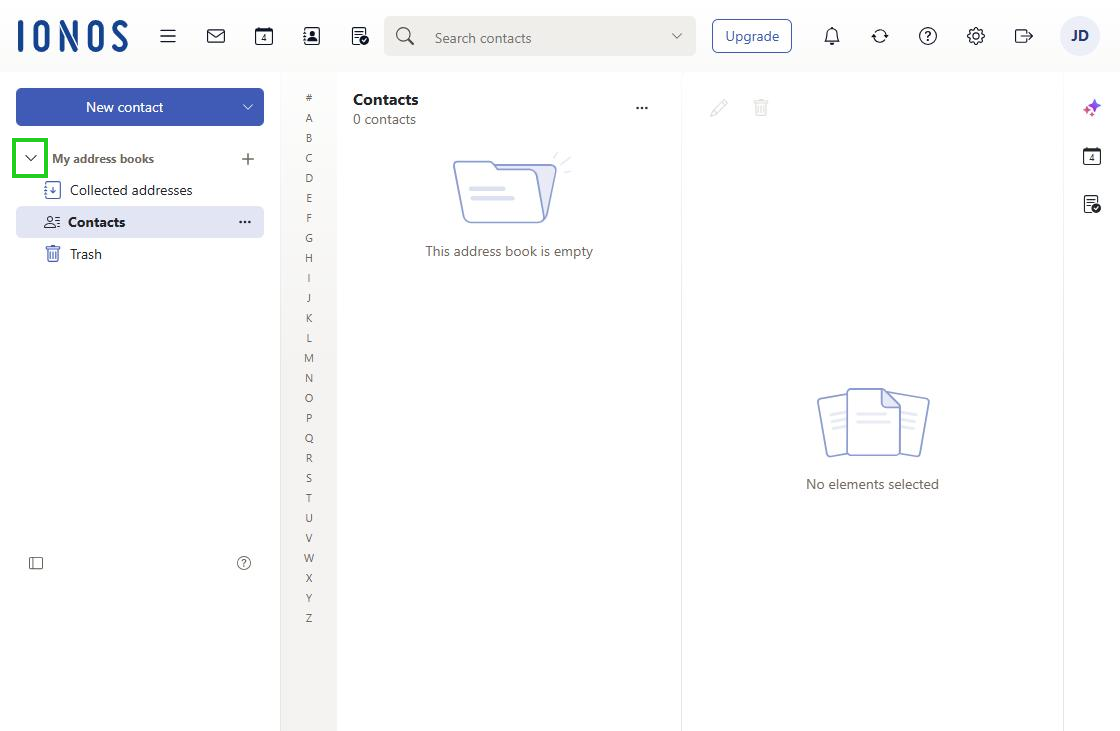
- If your address books are not displayed, click the arrow next to My address books in the navigation bar on the left.
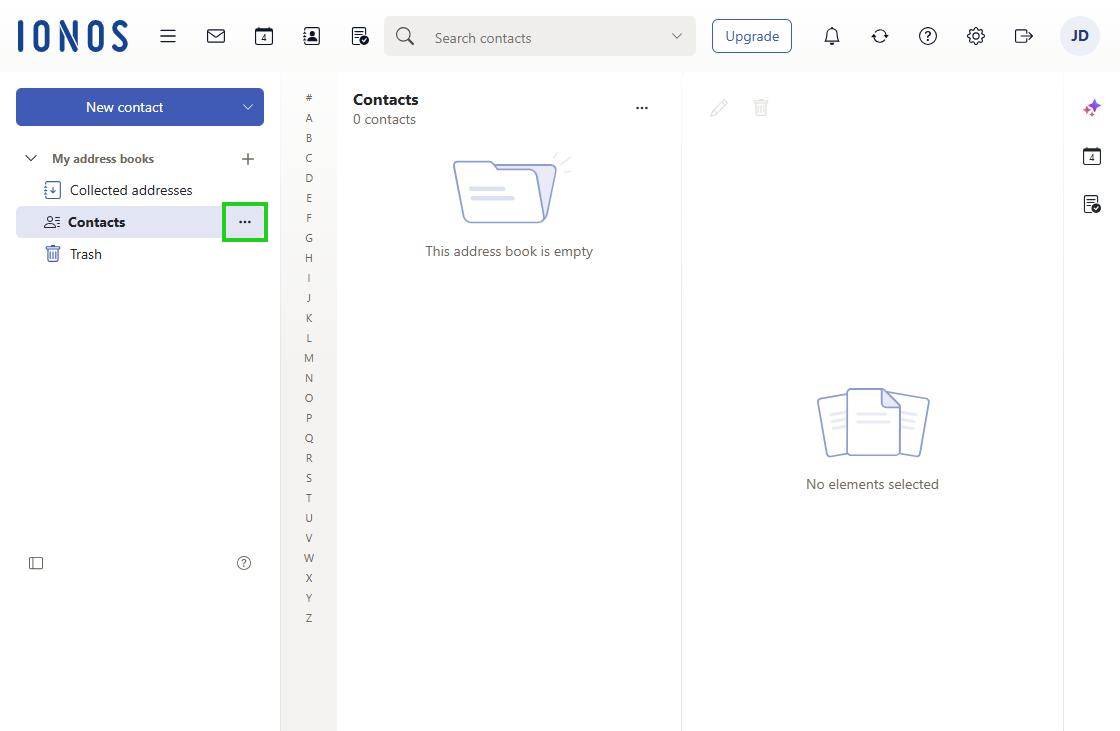
- Under My address books, click the three-dot icon next to the address book you want, for example Contacts (tooltip Actions for Contacts).
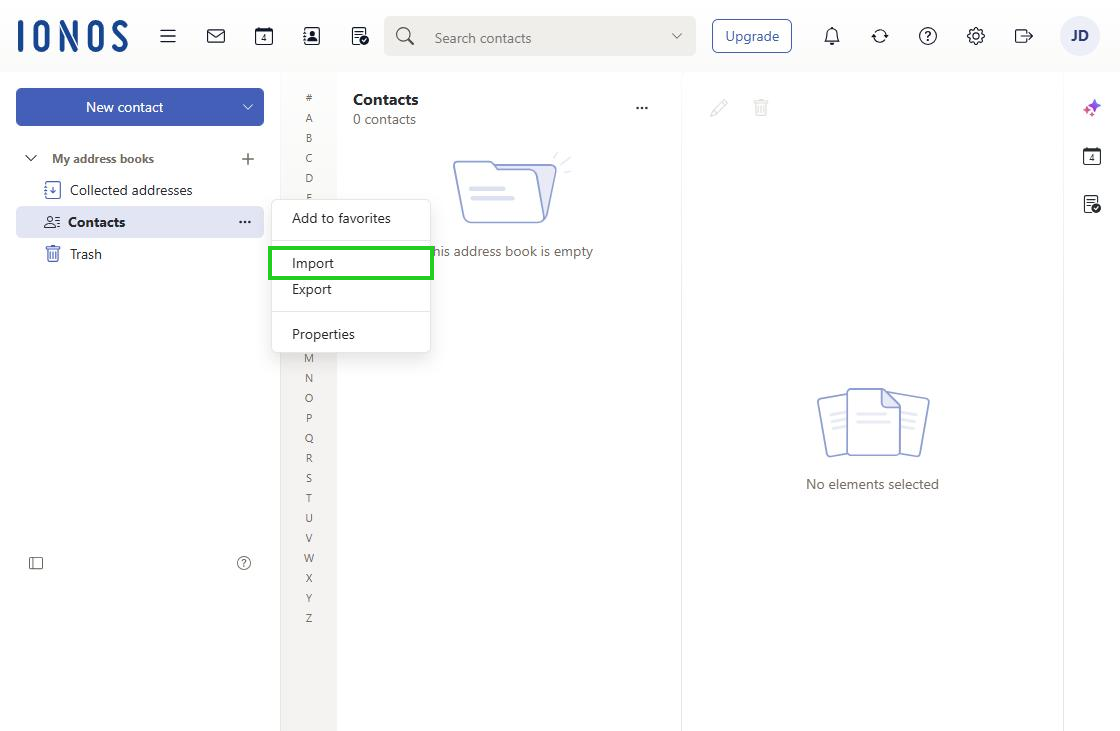
- Click Import. The Import from file window opens.
- In the Format list, select the format you want: vCard or CSV.
Note
In a CSV file, the first line must contain the column names. Commas and semicolons are supported as separators. CSV files from Microsoft Outlook 2003 and 2007 are also supported.
The format of the CSV file is detected automatically. How the data is assigned to specific data fields depends on your configuration.
- Click Upload file and select the file you want.
- In the Import from file window, click Import.
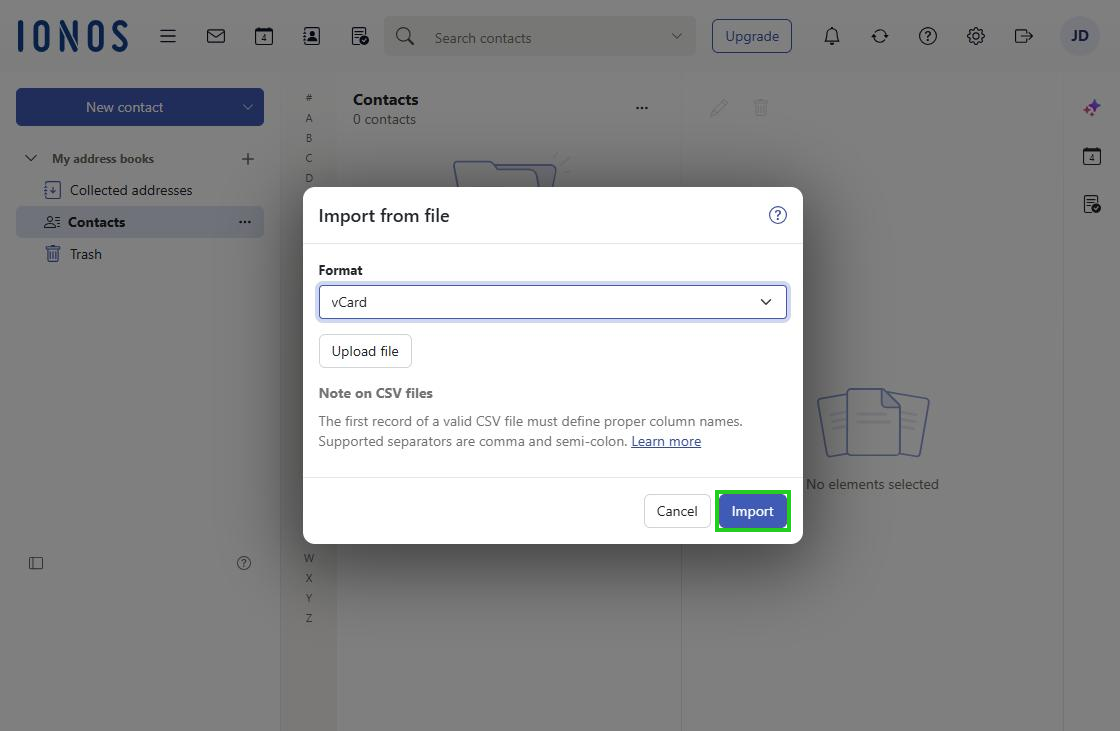
Your contacts are uploaded and can be displayed right away.
Note
If you need more information about the general structure of the import file, we recommend the following: Create a contact in Webmail and export it. You can then look at the structure of the exported file.