Error messages when deleting emails in IONOS Webmail
Valid for: Mail Basic and Mail Business
This article explains how to free up storage space in Webmail so that you can delete emails again.
If deleting an email fails with an error message, you have probably reached your storage limit. Deleted emails can then no longer be moved to the trash, so the deletion is canceled. Here is how to free up storage space.
- Log in to IONOS Webmail.
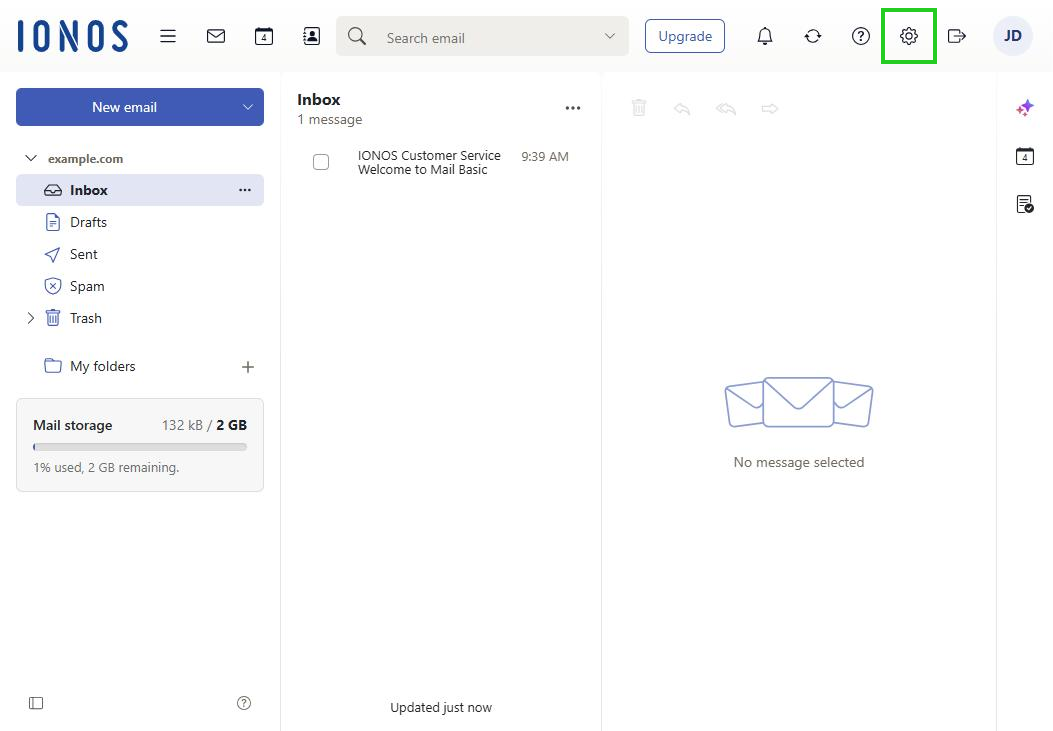
- In the main navigation at the top right, click the gear icon (tooltip Settings).
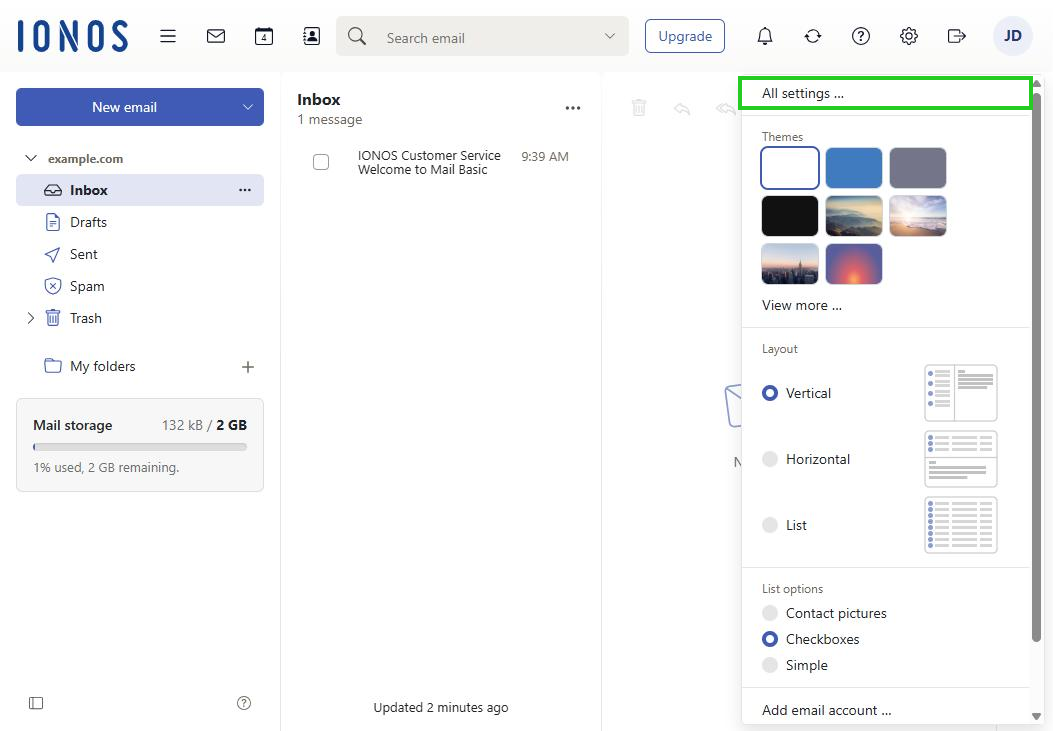
- Click All settings …. The Settings window opens.
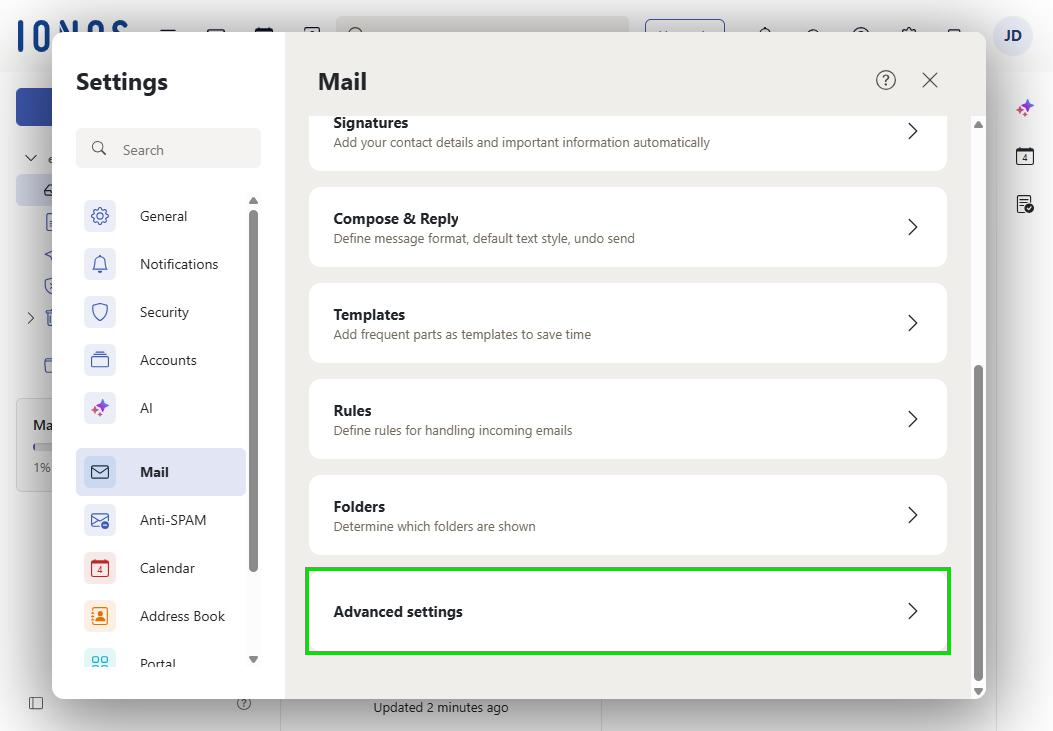
- In the navigation bar on the left, click Mail.
- Scroll down and click Advanced settings.
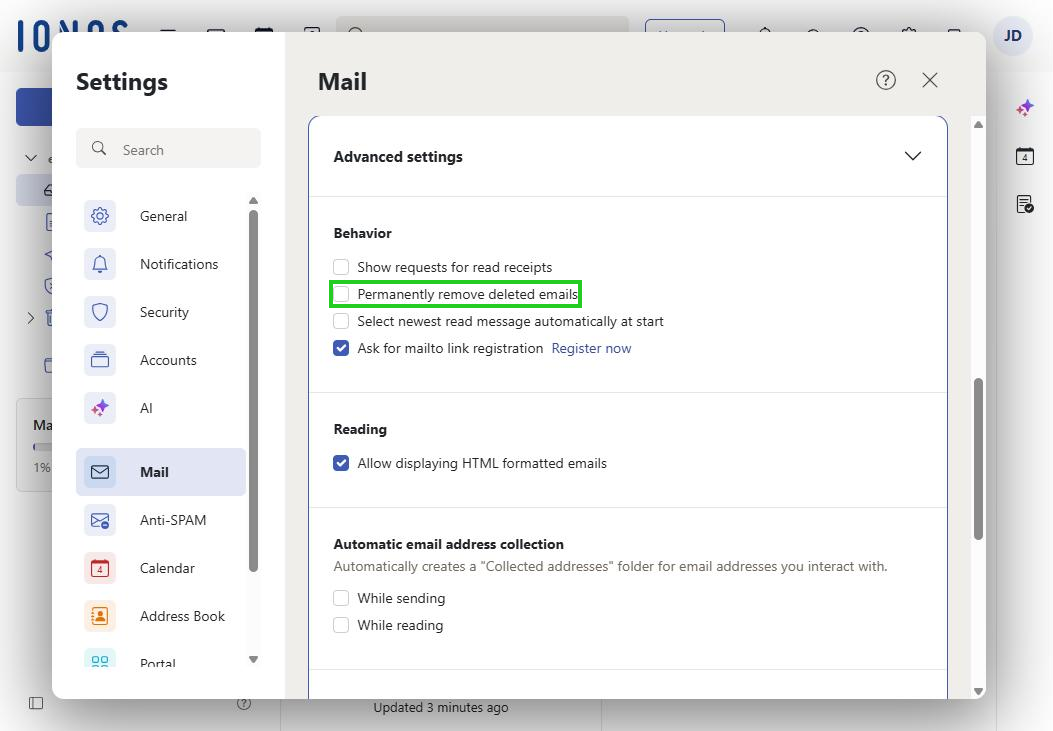
- Under Behavior, enable the Permanently remove deleted emails option. The setting is saved automatically.
Note
From now on, deleted emails are no longer kept as a copy in the Trash folder and therefore cannot be restored.