Drafting emails with Webmail AI
Valid for: Mail Basic and Mail Business
This article explains how to use Webmail AI to write, rephrase, and translate your emails in Webmail quickly and easily.
Requirement
Webmail AI is a paid extension and is therefore not included in Webmail by default. We show you how to order Webmail AI in the article Adding Webmail AI.
Create new email
- Log in to Webmail.
- Click on New email in the navigation bar on the left.
Optional: If you do not see this button, click on the email icon in the menu bar at the top left and then click on the New email button.
Have Webmail AI create a draft
- Position the cursor where you want to insert the text.
- Click on the button with the three star symbols (Write, proofread or rephrase text tooltip). The buttons Draft with AI, Refine, and Translate are displayed.
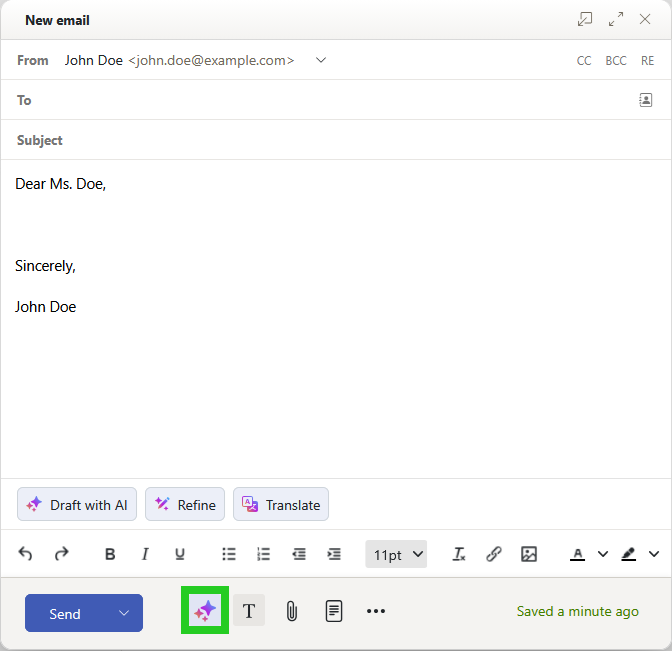
- To have Webmail AI create a draft, click on the Draft with AI button. The Draft with AI field is displayed.
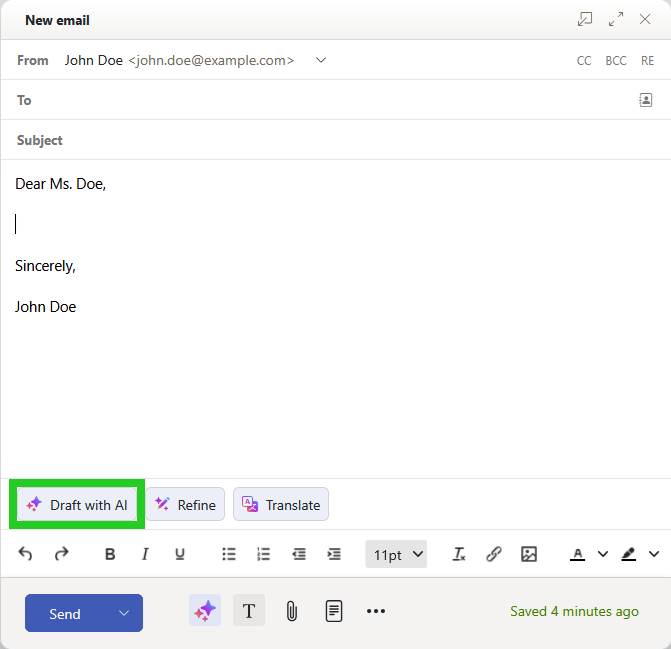
- Enter the topic you want the AI to write about in the input field.
- Click on the button with the arrow symbol to the right of the input field. The draft text is created by Webmail AI.
- Optional: Add additional information.
- To change the draft, enter the desired changes in the Describe your change field.
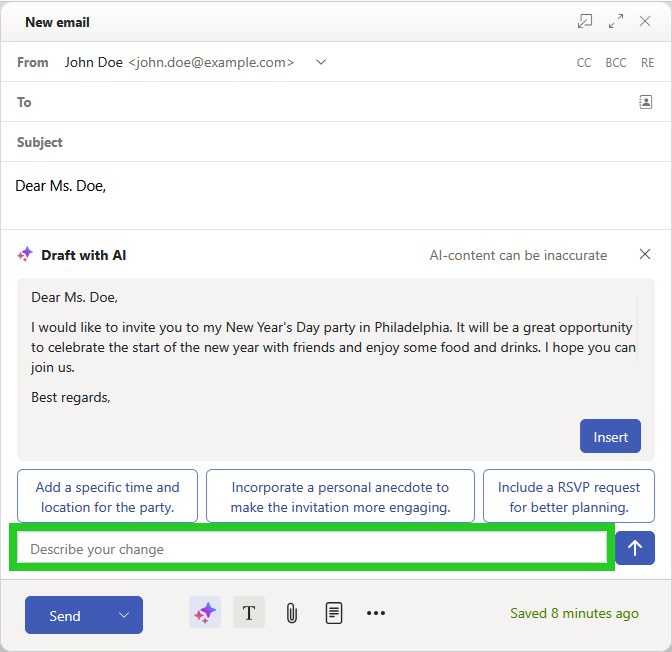
- Click on the button with the arrow symbol to the right of the input field. The new draft text is created by Webmail AI.
Have your own text reworded by Webmail AI
- Write your message and select the text that you would like to rephrase.
- Click on the button with the three star symbols (Write, proofread or rephrase text tooltip). The buttons Draft with AI, Refine, and Translate are displayed.
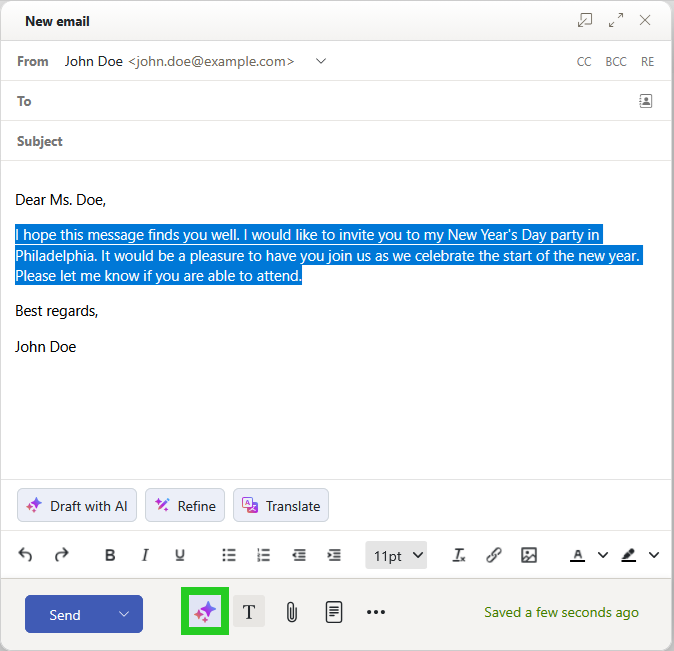
- Click on Refine. To rephrase the text, select the Rephrase option. To change the length of the text, click on the Shorten button in the Length section or on the Elaborate button to increase the details. Alternatively, you can change the tone of the text in the Tone section. To do this, click on the formal or informal buttons.
The text reworded by the AI is inserted into the text field. To restore the original text if necessary, click Undo.
Have text translated by Webmail AI
- Write your message and select the text you want to translate.
- Click on the button with the three star symbols (Write, proofread or rephrase text tooltip). The buttons Draft with AI, Refine, and Translate are displayed.
- Click on Translate.
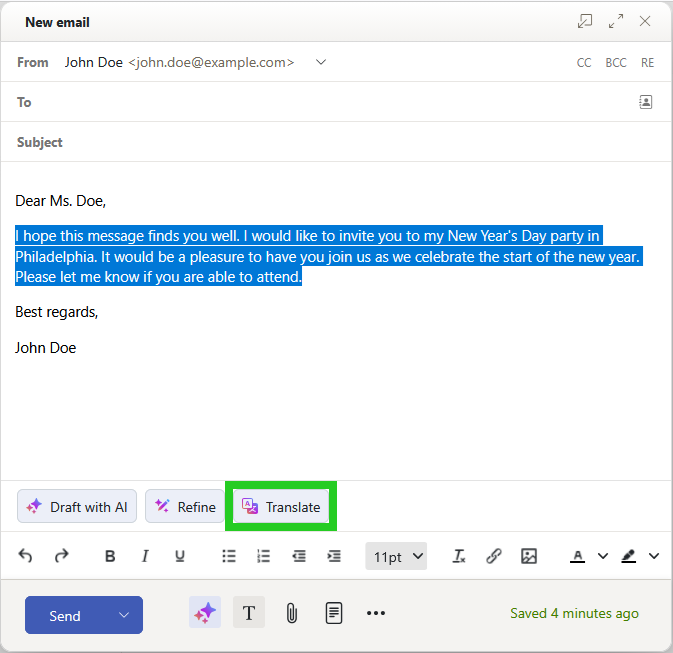
- Select the desired language. The text will be translated.
Have Webmail AI draft a reply
- Log in to Webmail.
- Click on Inbox in the navigation bar on the left and select the desired email.
- In the email, click on the button with the three star symbols (AI integration tooltip) at the top of the navigation bar.
- Click on Generate response. The reply email opens.
- Enter the topic you want the AI to write about in the input field.
- Click on the button with the arrow symbol to the right of the input field. The draft text is created by Webmail AI.
- Optional: Add additional information.
- To change the draft, enter the desired changes in the Describe your change field.
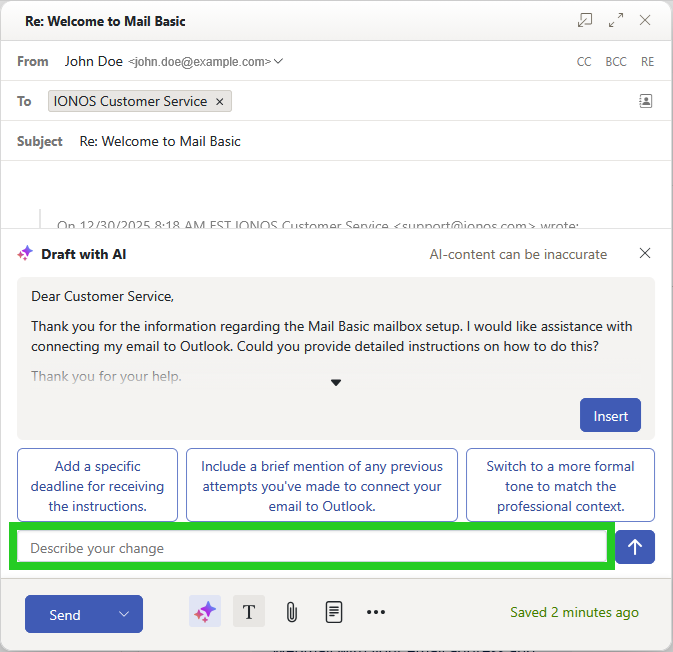
- Click on the button with the arrow symbol to the right of the input field. The new draft text is created by Webmail AI.
- To insert the text suggestion, click on Insert.