Always allowing emails from specific senders in IONOS Webmail
Valid for: Mail Basic and Mail Business
This article explains how to always allow emails from specific senders in IONOS Webmail. To do this, set up a list of safe senders in Webmail.
- Log in to IONOS Webmail.
- To open the settings, click the gear icon at the top right of the main navigation (tooltip Settings).
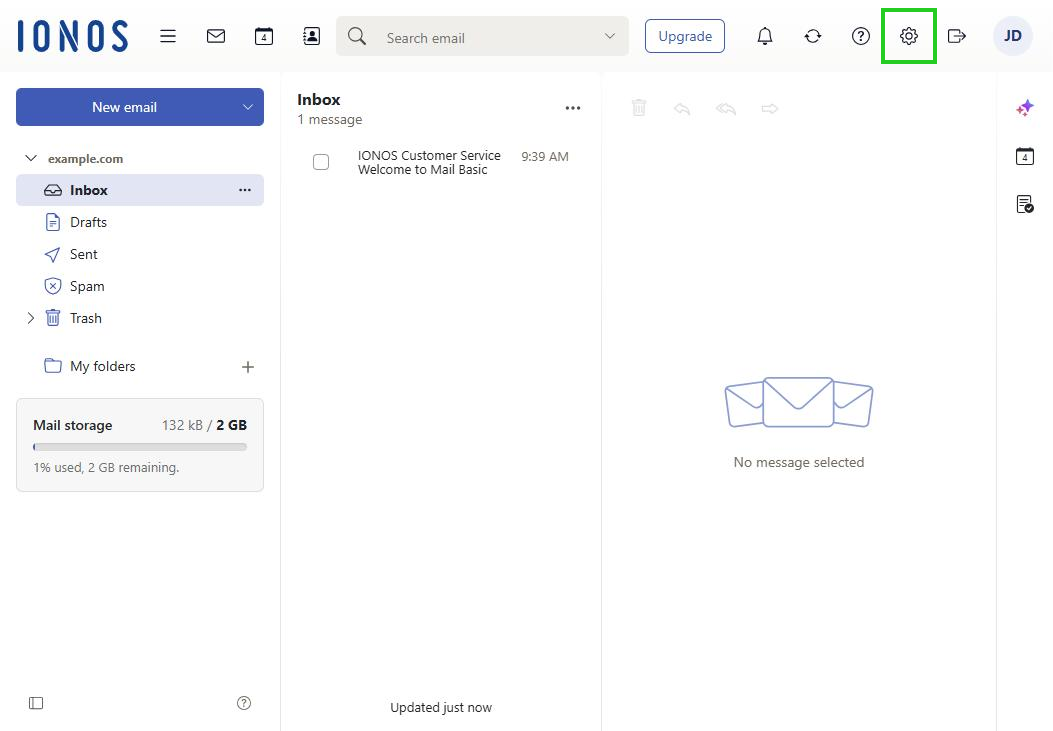
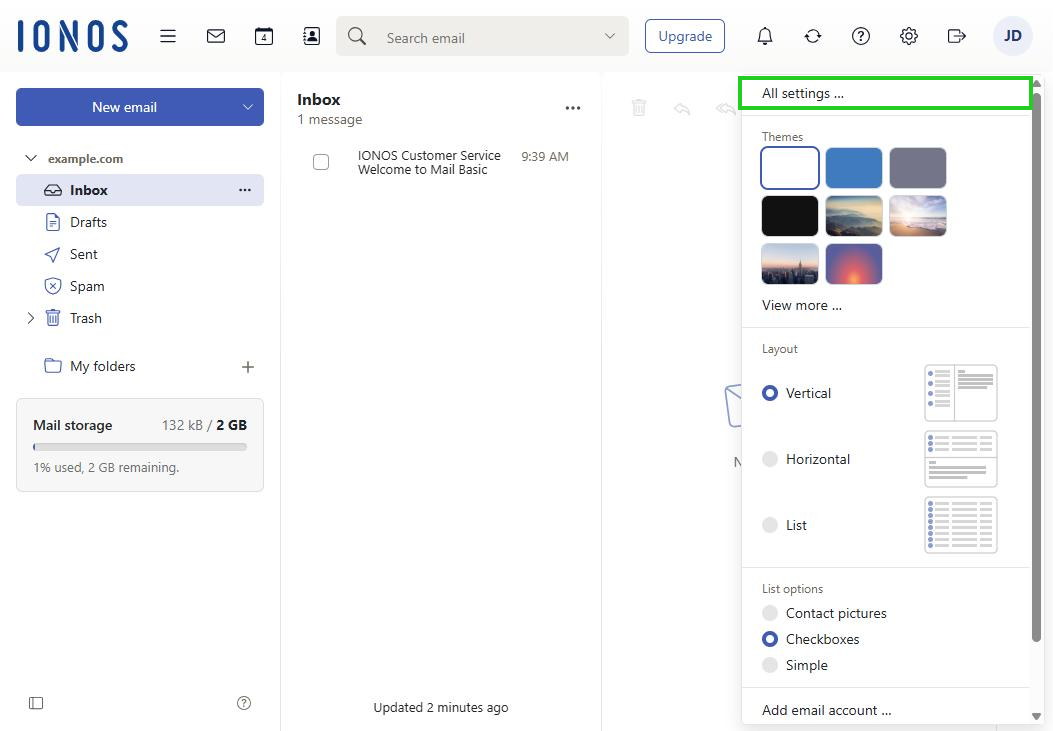
- Click All settings …. The Settings window opens.
- In the navigation bar on the left, click Anti-SPAM.
- Scroll to the Personal Lists section.
- In the Safe Senders field, enter the email addresses that you want to add to the list of safe senders. Repeat this for any further email addresses. The changes are saved automatically.
Note
You can also define entire address ranges here. For example, to receive all emails from the address range @example.com without them being checked for spam first, enter *@example.com. The asterisk serves as a placeholder (wildcard).