Webmail: Creating texts with the AI Email Assistant
Valid for Mail Basic and Mail Business.
In this article, we explain how you can use the AI Email Assistant to write, rephrase, and translate your emails in Webmail quickly and easily.
Requirement
The AI Email Assistant is a paid extension and is therefore not included in Webmail by default. We show you how to order the AI Email Assistant in the article Webmail:Adding AI Email Assistant .
Create new email
- Log in to Webmail.
- Click on New email in the navigation bar on the left.
Optional: If you do not see this button, click on the email icon in the menu bar at the top left and then click on the New email button.
Have the AI Email Assistant create a draft
- Position the cursor where you want to insert the text.
- Click on the button with the three star symbols (Write, proofread or rephrase text tooltip). The buttons Draft with AI, Refine, and Translate are displayed.
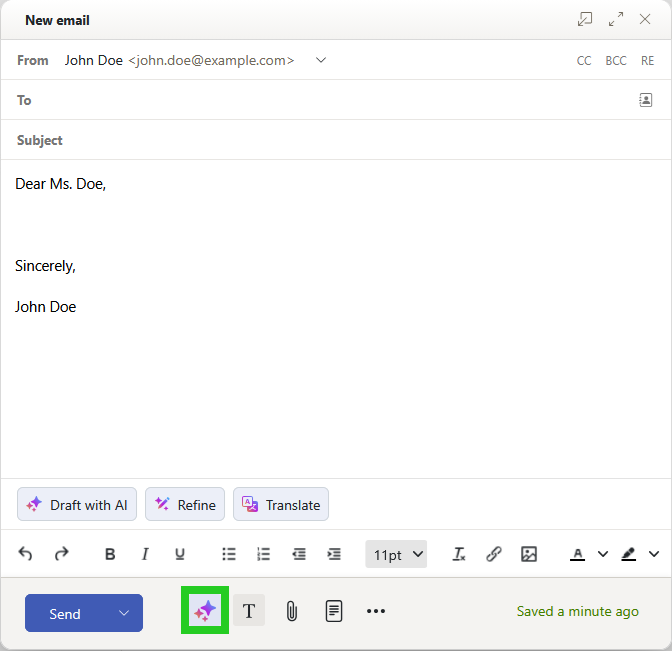
- To have the AI Email Assistant create a draft, click on the Draft with AI button. The Draft with AI field is displayed.
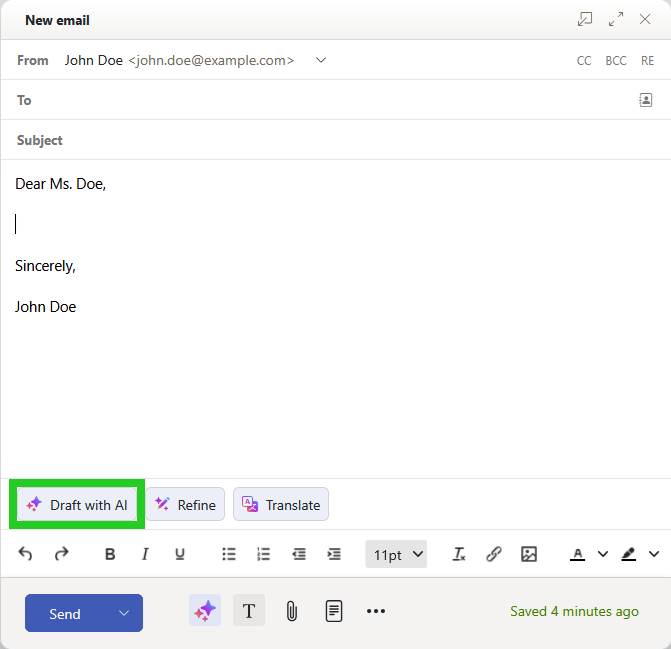
- Enter the topic you want the AI to write about in the input field.
- Click on the button with the arrow symbol to the right of the input field. The draft text is created by the AI Email Assistant.
- Optional: Add further information.
- To change the draft, enter the desired changes in the Describe your change field.
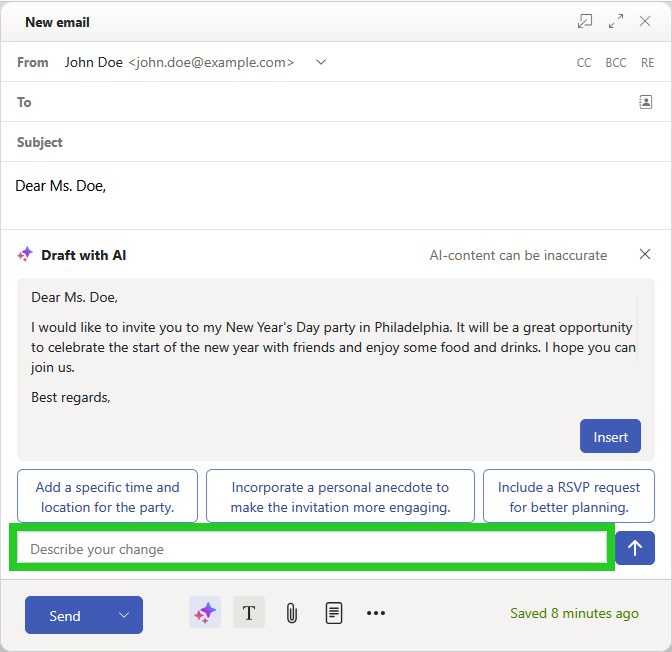
- Click on the button with the arrow symbol to the right of the input field. The new draft text is created by the AI Email Assistant.
Have your own text reworded by the AI Email Assistant
- Write your message and select the text that you would like to rephrase.
- Click on the button with the three star symbols (Write, proofread or rephrase text tooltip). The buttons Draft with AI, Refine, and Translate are displayed.
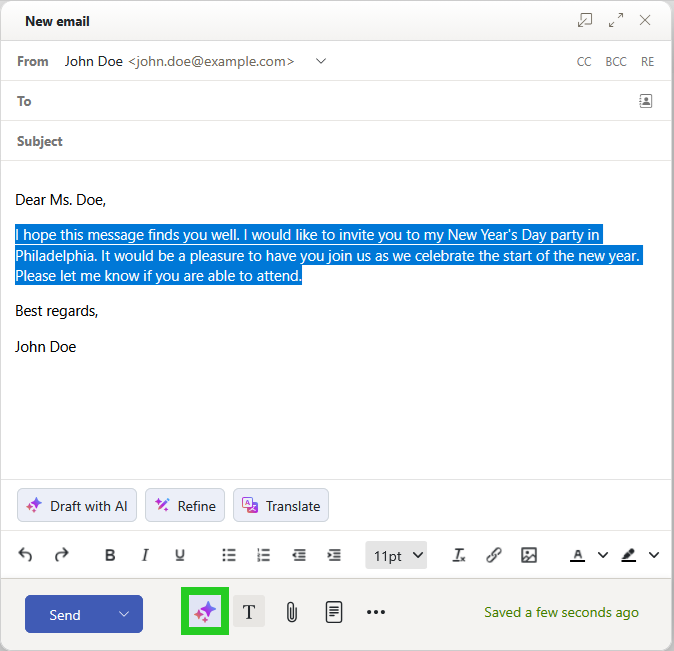
- Click on Refine. To rephrase the text, select the Rephrase option. To change the length of the text, click on the Shorten button in the Length section or on the Elaborate button to increase the details. Alternatively, you can change the tone of the text in the Tone section. to do this, click on the formal or informal buttons.
The text reworded by the AI is inserted into the text field. To restore the original text if necessary, click Undo.
Have text translated by the AI Email Assistant
- Write your message and select the text you want to translate.
- Click on the button with the three star symbols (Write, proofread or rephrase text tooltip). The buttons Draft with AI, Refine, and Translate are displayed.
- Click on Translate.
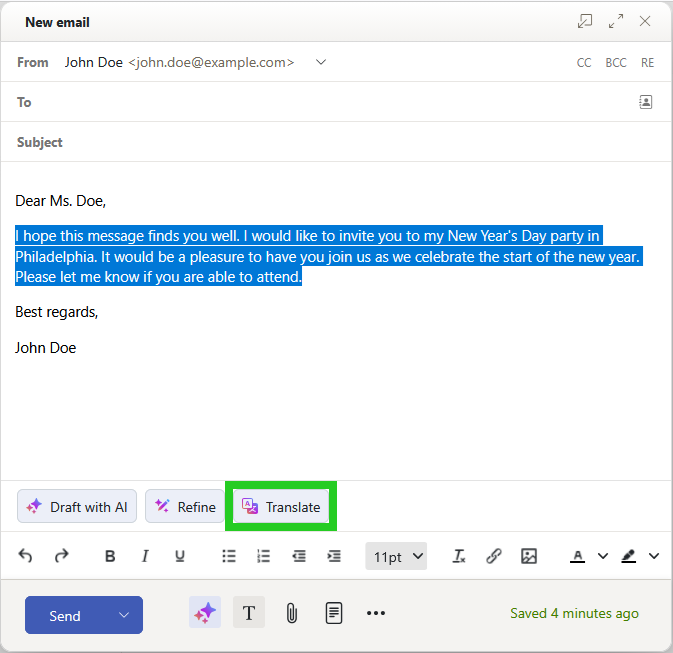
- Select the desired language. The text will be translated.
Have the AI Email Assistant create a reply
- Log in to Webmail.
- Click on Inbox in the navigation bar on the left and select the desired email.
- In the email, click on the button with the three star symbols (AI integration tooltip) at the top of the navigation bar.
- Click on Generate response. The reply email opens.
- Enter the topic you want the AI to write about in the input field.
- Click on the button with the arrow symbol to the right of the input field. The draft text is created by the AI Email Assistant.
- Optional: Add further information.
- To change the draft, enter the desired changes in the Describe your change field.
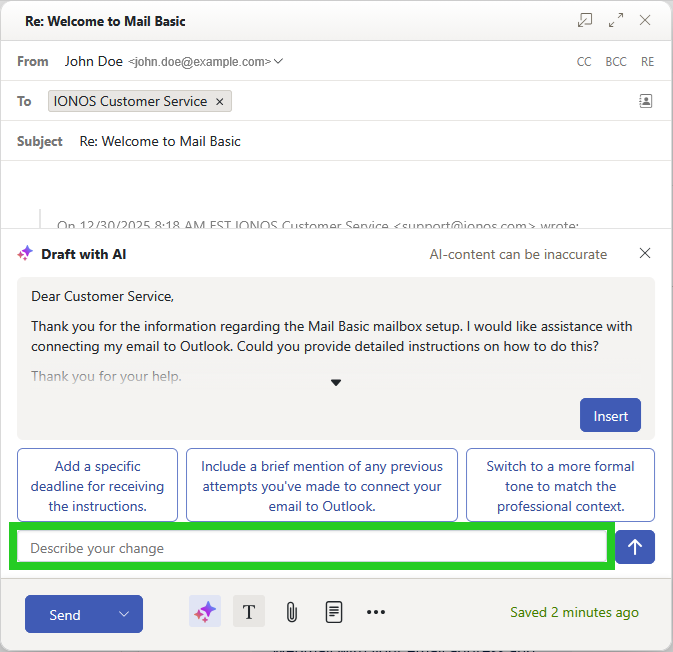
- Click on the button with the arrow symbol to the right of the input field. The new draft text is created by the AI Email Assistant.
- To insert the text suggestion, click on Insert.