# How to create unordered lists in HTML with the HTML tag
An HTML unordered list allows you to display content on your web pages in a clear, non-numbered format. In addition to the HTML `
` tag, you’ll also need the list tag `
` for this element. With the `style` attribute, you can decide which type of marker should appear next to list items.
## What are HTML unordered lists and what are they used for?
HTML unsorted lists (also referred to as unordered lists) are HTML elements used to **create lists** where the order of the elements does not matter. These practical lists are integrated using the [HTML tags](https://www.ionos.ca/digitalguide/websites/web-development/html-tags/) `
`. The opening `
` marks the start of the list and the closing `
` marks the end of it. Each item in the list is placed between the HTML list tag `
`, and there is no limit to the number of items that can be included.
HTML `
` lists are perfect for giving structure to various types of content, such as:
- **To-do lists**: Checklists, ingredient lists, task lists
- **Features**: Lists of product features or service attributes
- **Links**: Collections of links to external sites or social media profiles
- **Tags**: Lists of popular tags
- **Price lists**: Displaying the prices of services or products in list form
- **Appointments**: Structured display of upcoming appointments
Tip The counterpart to unordered HTML lists is HTML ordered lists. These are characterized by **numbered items** that follow a specific hierarchy.
## What is syntax of the HTML `
` tag and how does it work?
If you want to insert an unordered list into HTML, you can do so in the `` section of your web page. An opening `
` and a closing `
` tag mark the start and end of the list, and the individual list items are defined by an opening `
` and closing `
` tag. The basic syntax for an unordered list looks like this:
```html
List item 1
List item 2
List item 3
…
hash_6b93721180eb2a3a43dfba9f2055f6e8c503ea3d
```
In this example, no specific marker is defined for the list, so HTML will default to the standard bullet point.
## How to create nested unsorted lists in HTML
Although hierarchically structured lists are typically implemented using ordered lists, you can also create nested lists with HTML `
`. To do this, simply embed additional unordered lists in an existing `
` element. The following example shows how to create two nested lists:
```html
Nested unordered list:
Fruits
Apples
Granny Smith
Gala
Fuji
Oranges
Navel
Blood Orange
Mandarin
hash_6b93721180eb2a3a43dfba9f2055f6e8c503ea3d
```
The main category “Fruits” is divided into the subcategories “Apples” and “Oranges,” which further list various varieties. In a browser, it would look something like this:
[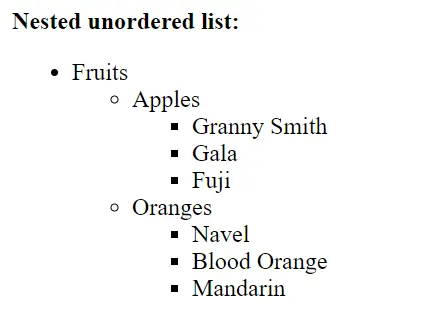](https://www.ionos.ca/digitalguide/fileadmin/DigitalGuide/Screenshots_2024/nested-ul-example.png) Three different `` elements are used in the example.
## How to customize `
` list symbols with `list-style-type`
Using the CSS property `list-style-type`, you can easily change the symbols used for unsorted lists in HTML. This can be applied via the [HTML attribute](https://www.ionos.ca/digitalguide/websites/web-development/html-attributes/) `style` or with an external stylesheet. You can specify symbols such as:
`list-style-type` value
Description
`disc`
Filled circle; HTML’s default if `style` is not specified
`circle`
Unfilled circle
`square`
Square
`none`
No symbol
Here’s how to specify unfilled circles using the example from the previous section:
```html
Apples:
Granny Smith
Gala
Fuji
hash_6b93721180eb2a3a43dfba9f2055f6e8c503ea3d
```
Note For more comprehensive styling and reusability, it’s best to define CSS separately in a file or in the `